9 Best Free JSON Editors for Windows in 2026 (Ranked & Reviewed)

On this page
Windows has a lot of JSON editors, but most people only need one of three things: a full editor for development, a lightweight tool for quick formatting, or a viewer that can survive large files.
VS Code is the best all-around choice for developers because JSON validation, formatting, schema support, Git, and extensions all live in one place. Notepad++ is better for quick Windows editing with a lightweight native interface, while Dadroit is the practical choice for paid, tree-based inspection of very large files. The nine editors below cover those workflows plus portable editing and quick browser-based validation.
What Matters in a Windows JSON Editor
Good JSON tools should make mistakes easier to see and large files easier to navigate. Syntax highlighting and error detection help by separating keys, values, strings, and numbers visually. Real-time validation should also point to the exact line where a missing comma, trailing comma, or mismatched bracket appears.
Tree view: A collapsible tree turns a long API response into something you can actually explore. This matters when debugging webhook payloads or nested configuration files.
Performance: Editors that work well for ordinary configuration files can become unresponsive on large exports. If you work with logs or analytics data, large-file handling matters more than a polished interface.
Extra tools: Schema validation, formatting shortcuts, key sorting, regex search, and plugin support become useful when JSON is part of your daily workflow. Every tool here has a free edition, free tier, or free non-commercial license, but you should check its terms before using it for paid work.
1. Visual Studio Code (VS Code)
Microsoft's VS Code includes JSON formatting, IntelliSense, folding, and schema-based validation without requiring third-party extensions. These capabilities are documented in the official VS Code JSON guide.
What you get:
- Syntax error detection with line-specific diagnostics
- Auto formatting via Alt + Shift + F keyboard shortcut
- IntelliSense autocomplete that predicts nested structures
- Built-in JSON Schema validation support
- Git integration and a large extension marketplace
What you don't get:
- Lightweight startup compared with native editors
- A simple one-purpose JSON viewer
Why it leads for professional use: The extension marketplace can turn VS Code into a specialized JSON workstation. Prettier enforces consistent formatting across teams, while JSON Tools adds commands such as sorting and minification. VS Code can also associate files such as package.json and tsconfig.json with schemas for validation and suggestions.
VS Code is Electron-based, so it is heavier than small native editors. For occasional validation tasks, that footprint may feel excessive, but developers who already use VS Code can handle JSON without adding another application.
Download: Download VS Code Free to use. The VS Code source is available under MIT, while Microsoft's distributed product uses Microsoft's product license.
2. Notepad with JSON Plugin
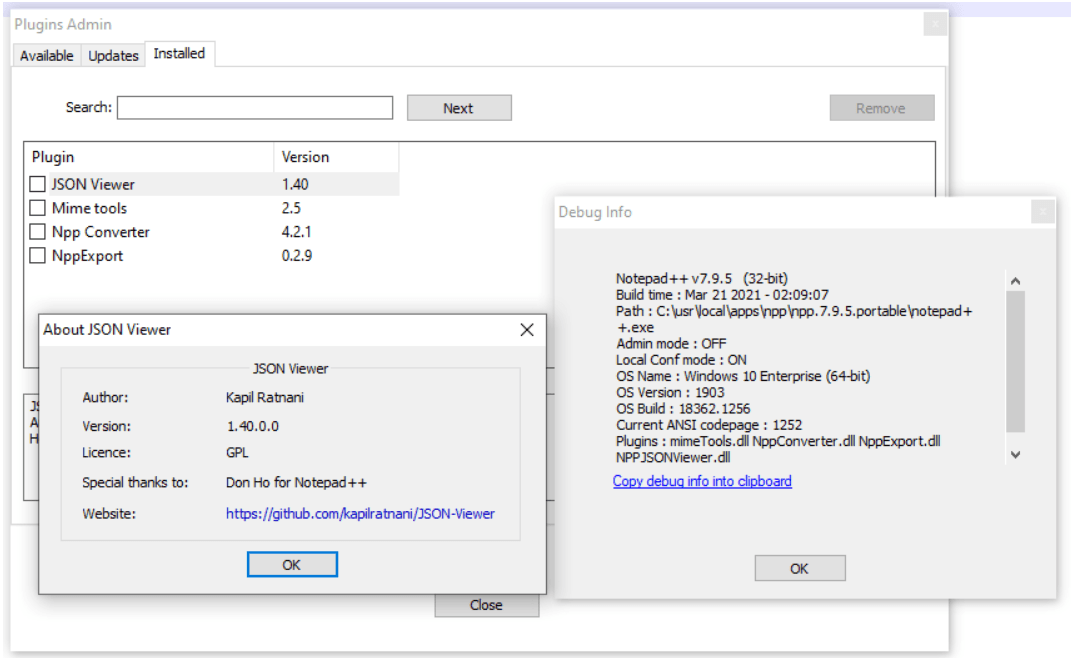
Notepad is a lightweight native Windows editor with built-in JSON highlighting. Its Plugins Admin catalog adds the formatting, validation, and tree-navigation features that the base editor does not provide.
Plugin setup:
- Navigate to Plugins > Plugins Admin
- Search for JsonTools, JSON Viewer, or JSTool
- Click Install and restart
JsonTools is the most capable current option. It adds formatting, linting, tree navigation, queries, JSON Schema validation, and schema generation. JSON Viewer provides a simpler collapsible tree panel, while JSTool remains useful for formatting and minification shortcuts.
What you get:
- Lightweight native Windows editing
- JSON formatting and validation through plugins
- Optional tree views through JsonTools or JSON Viewer
- Portable version for locked-down machines
What you don't get:
- VS Code-style schema autocomplete
- Modern IDE features
- Best experience for very large files
Performance profile:
- Native Windows application with a lighter footprint than Electron-based editors
- Suitable for quick edits without opening a full development environment
- Large tree views still require parsing the document and can consume substantial memory
Notepad stays simple until you add plugins. JsonTools provides deeper validation and query features, while JSON Viewer and JSTool are easier choices for basic formatting or tree navigation.
Portability advantage: Notepad offers portable packages that run without a traditional installer. This can help systems administrators validate configuration files on temporary workstations or across server fleets, although workplace software policies still apply.
Download: Download Notepad Free and open source
3. JSONedit
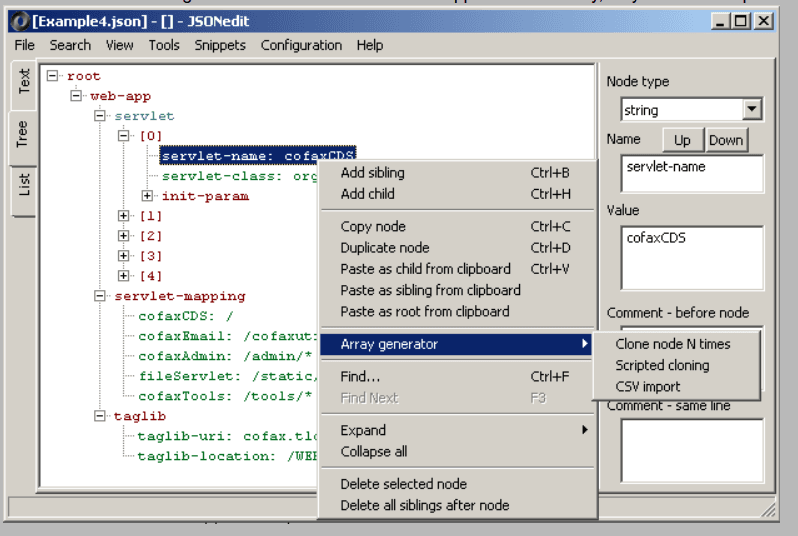
JSONedit is a compact, purpose-built Windows application focused on JSON manipulation. Its interface lets you switch among text, tree, and list views. The tree tools support node editing, path copying, filtering, and navigation, while the text view provides formatting and basic color-coded syntax highlighting.
Zero installation requirement: Extract the ZIP archive and launch the executable directly. No traditional installer or administrative access is required when the files are stored in a permitted location, which helps on temporary workstations or locked-down corporate systems.
What you get:
- Small portable executable
- Text, tree, and list views
- Tree editing and JSON path tools
- No installation or admin access required
What you don't get:
- IDE-style live schema diagnostics
- Plugin ecosystem
- Full Unicode support in the stable 0.9 branch
Performance limitations:
- The stable 0.9 branch does not provide normal Unicode support; the separate 0.10 test branch adds UTF-8 support but is described as unstable
- Large data sets can require disabling tree-reuse features to keep the interface responsive
- Schema validation is a separate on-demand tool rather than an IDE-style editing workflow
Ideal scenario: Choose JSONedit for application configuration files on secured systems where portable utilities are permitted but installed software requires approval. Skip it if you need live schema diagnostics or reliable Unicode support in the stable branch.
Download: Download JSONedit Freeware, portable app
4. Online JSON Editor by CodeBeautify
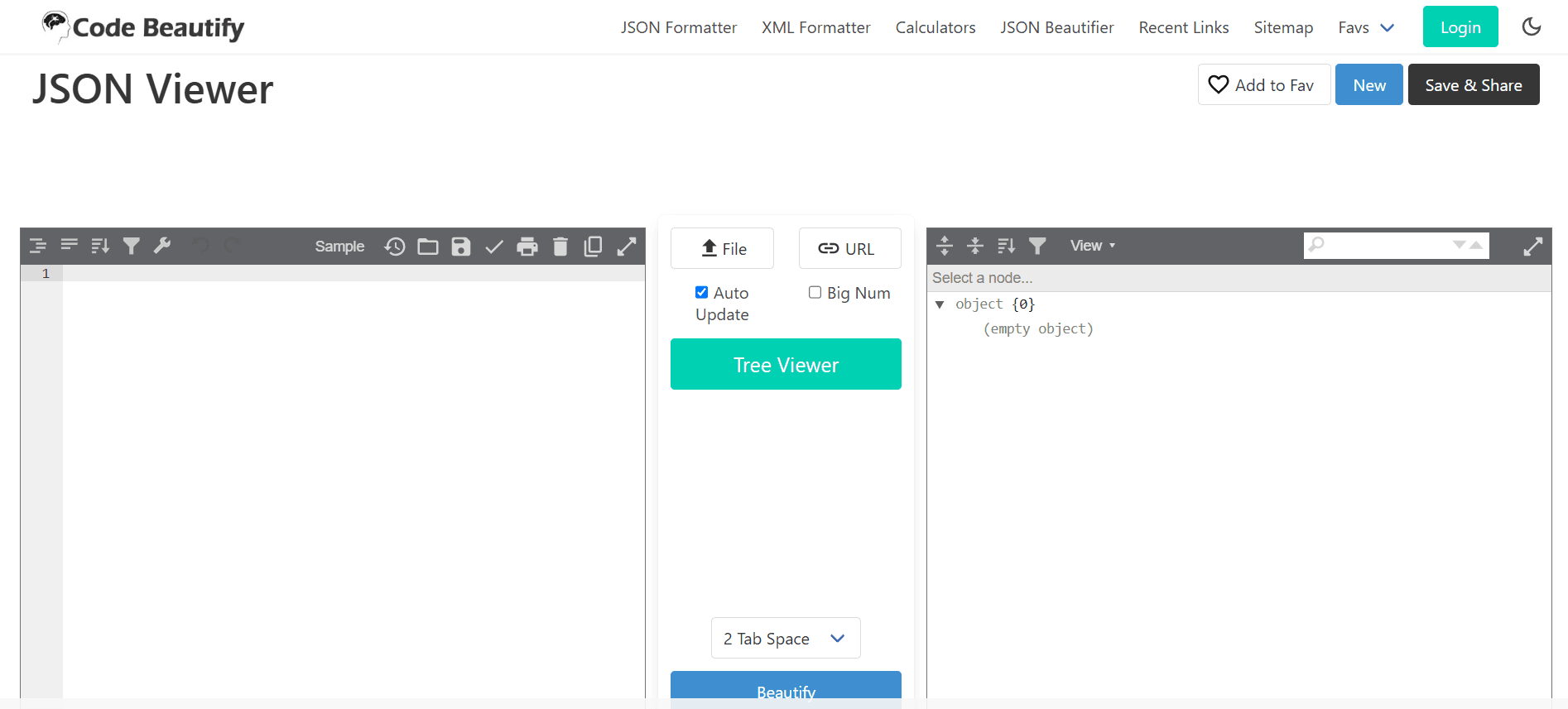
Browser-based JSON tools eliminate software installation for quick validation tasks, which is useful on shared computers or mobile devices. The workflow is direct: paste JSON into the input panel or choose a file. The tool parses and formats the content, shows raw text beside a collapsible tree, and highlights validation errors with line references.
What you get:
- Beautify (format with indentation)
- Minify (remove whitespace for smaller payload size)
- Convert to XML, YAML, CSV, or TSV
- Direct download of modified output
What you don't get:
- Clear privacy guarantees for sensitive uploads or saved links
- Offline use
- Desktop-style large-file handling
Critical limitation: CodeBeautify says most tools process data in the browser, but its privacy policy also says uploaded files traverse its servers and saved links can persist. Do not upload, load by URL, or save API keys, authentication tokens, or personal data. Browser memory also makes this a poor fit for large files.
Best use case: Validating small JSON snippets received via email or chat before implementing them in code, and sharing non-sensitive formatted examples with teammates.
Check it out: Try CodeBeautify JSON Editor Free online tool
5. Pulsar
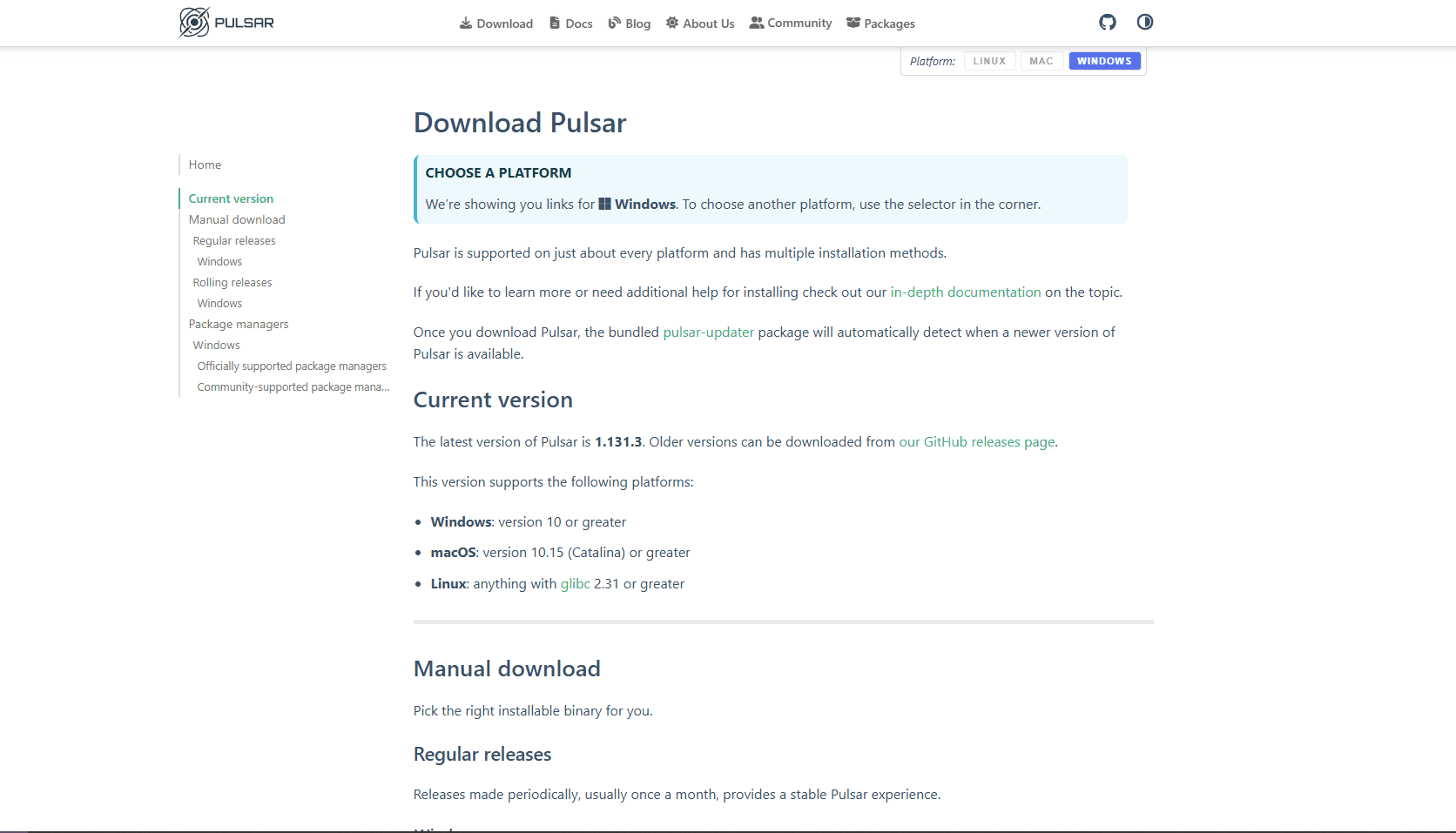
Pulsar is the community-led fork of the discontinued Atom editor. It runs on Windows, macOS, and Linux, and the project continued publishing releases in 2026. Pulsar keeps Atom's customizable interface and package workflow, with built-in JSON highlighting and richer language support through the pulsar-ide-json package.
What you get:
- Built-in JSON syntax highlighting
- Packages for formatting and richer JSON diagnostics
- Highly customizable interface
- Git integration and project editing
What you don't get:
- A lightweight native Windows footprint
- A built-in JSON tree editor
- An extension ecosystem as large as VS Code's
Performance profile: Pulsar is Electron-based and aimed at project editing rather than one-purpose JSON viewing. Large documents can still feel heavier than they do in native text editors or dedicated viewers.
When Pulsar makes sense: It is the closest maintained option for people who liked Atom's interface, packages, and customization. New users who prioritize schema support and a larger extension catalog will usually prefer VS Code.
Download: Download Pulsar Free, community-led editor
6. EmEditor Free
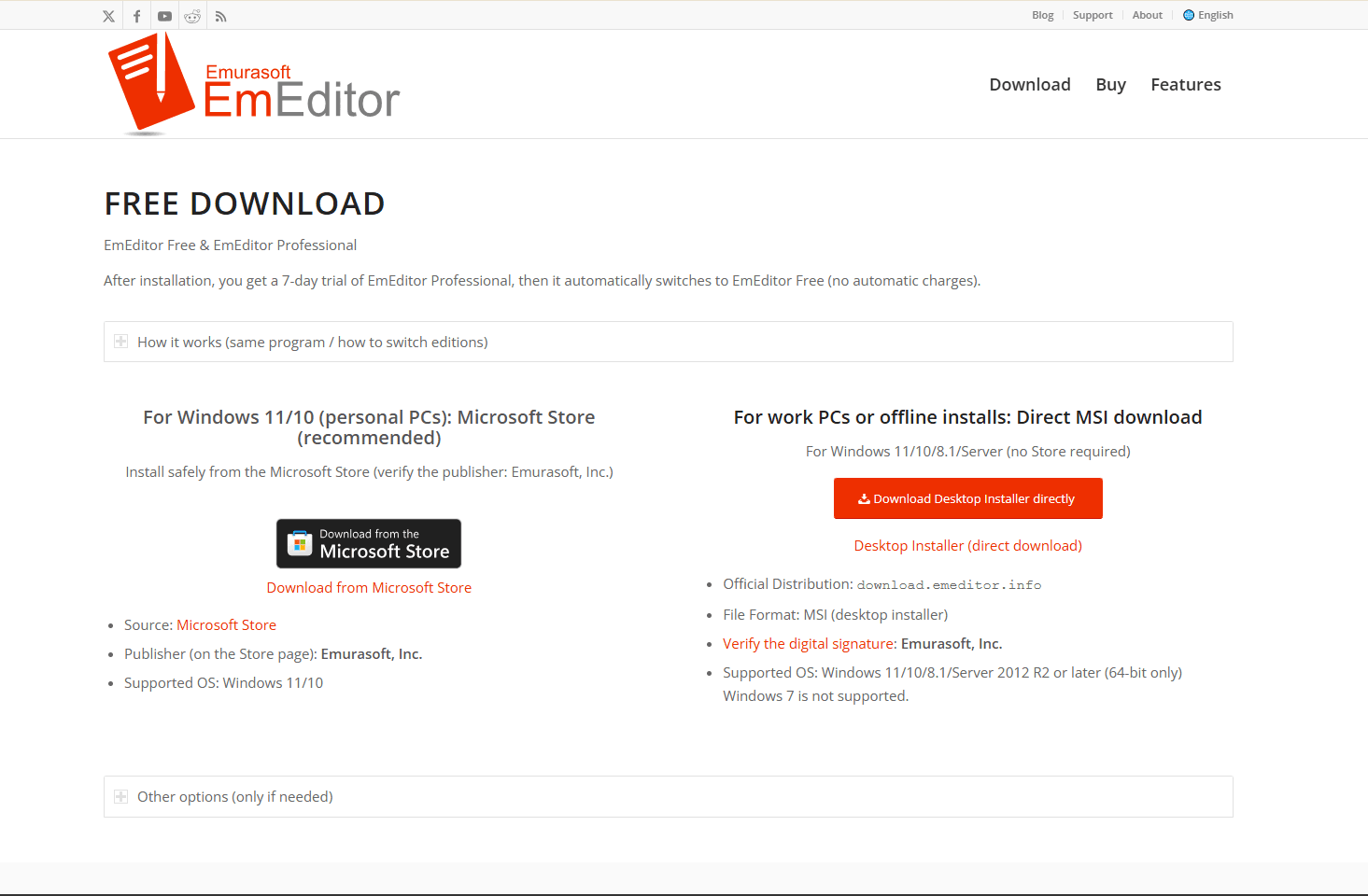
EmEditor is a native Windows text editor with a free edition for personal use at home or school. It is a better fit for this free-tools list than software that only offers an evaluation period.
JSON-specific features: The free edition includes JSON syntax highlighting, Unicode support, multiple selections, Find and Replace, and large-file support. JSON diagnostics through the syntax checker and Language Server Protocol require EmEditor Professional.
What you get:
- Native Windows editing
- JSON syntax highlighting
- Large-file support in the free edition
- Multiple selections and regular-expression search
- A free edition that does not expire
What you don't get:
- A JSON tree view
- JSON Schema validation in the free edition
- Plugin or scripting support in the free edition
- Free licensing for corporate, government, or other organizational use
Licensing model: EmEditor Free is limited to personal use at home or school. The same installer begins with a Professional trial and can then be switched to the Free edition without automatic charges.
Tradeoff: EmEditor Free is strongest when you need to search or edit raw JSON text, including large files. Use VS Code or JsonTools when schema-aware diagnostics matter more than file handling.
Download: Download EmEditor Free personal edition and paid Professional edition
7. MiTeC JSON Viewer
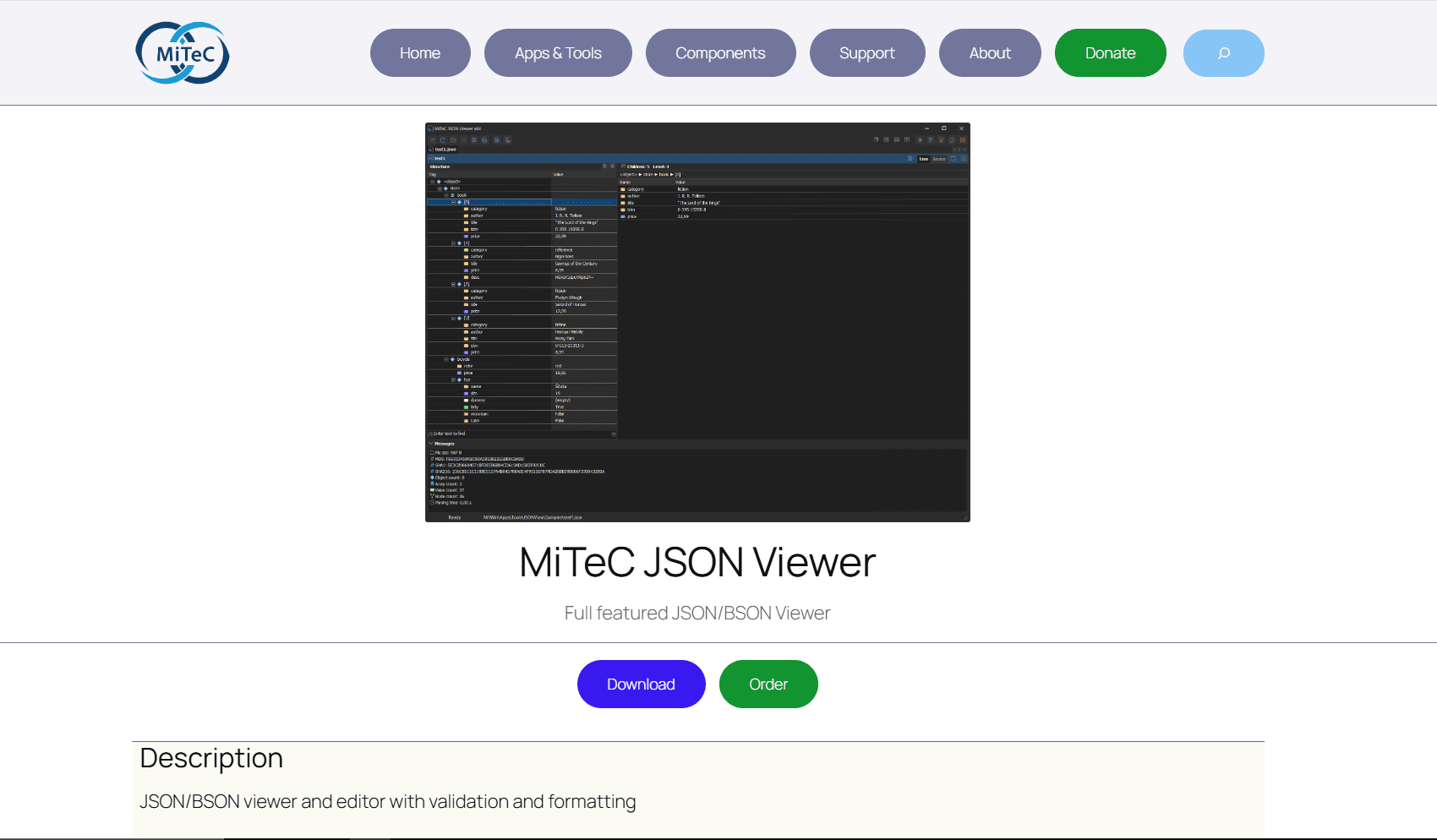
MiTeC JSON Viewer is a Windows application with hierarchical and text previews plus a simple JSON editor. It supports Windows 11 and provides searching, validation, and formatting without requiring a browser tool.
Visual-first design: The hierarchical view lets you expand nested values while the text preview keeps the underlying JSON available. This is easier for occasional users than editing brackets and commas in a plain text editor.
What you get:
- Hierarchical and text views
- Simple JSON editing with validation and formatting
- Text search and Base64 encoding or decoding tools
- Free private, educational, and non-commercial use
What you don't get:
- JSON Schema validation
- A plugin ecosystem
- Advanced project editing
- Free commercial licensing
Target audience:
- Non-developers making small configuration changes
- Project managers reviewing structured exports
- Windows users who prefer a tree view over raw text
Limitations:
- It is a focused viewer and simple editor rather than a development environment
- Commercial use requires a paid lifetime license
Not recommended for:
- Developers who need project search, Git, or schema-driven autocomplete
- Large-scale transformations that are better handled with scripts or query tools
Download: Download MiTeC JSON Viewer Free for private, educational, and non-commercial use
8. Online JSON Viewer by JSONFormatter.org
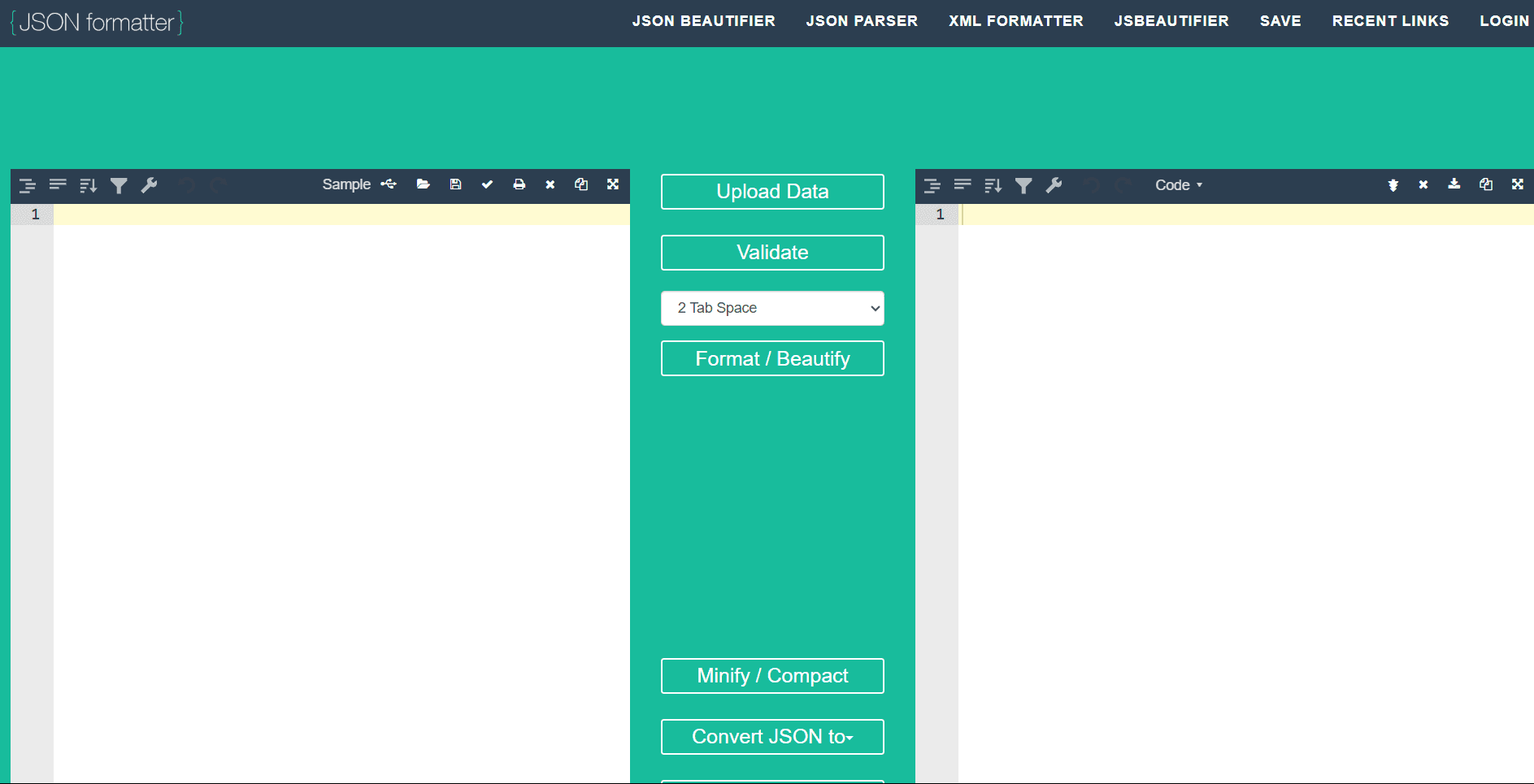
JSONFormatter.org requires almost no setup. Open the site and paste JSON to get formatted output, error highlighting, and a collapsible tree view without creating an account or configuring an editor.
It also supports direct file upload, which avoids copy and paste when you are validating JSON saved from debugging sessions. Validation happens in the browser, but large documents can still exhaust browser memory or make the page unresponsive.
What you get:
- Instant browser-based formatting
- Error highlighting
- Collapsible tree view
- File upload for small saved JSON files
What you don't get:
- Offline use
- Privacy guarantees for saved or shared JSON
- Good large-file performance
Standard online tool limitations: It requires an internet connection. The site says validation occurs in the browser, but its save feature can make data public when used without an account. Do not save or share credentials, authentication tokens, or personal data.
Optimal use: Validating small JSON snippets before inserting them into request bodies or configuration files, and confirming that a third-party API response looks structurally correct before you write parsing logic.
Check it out: Check JSON Formatter Free browser based JSON validation and formatting
9. Dadroit JSON Viewer
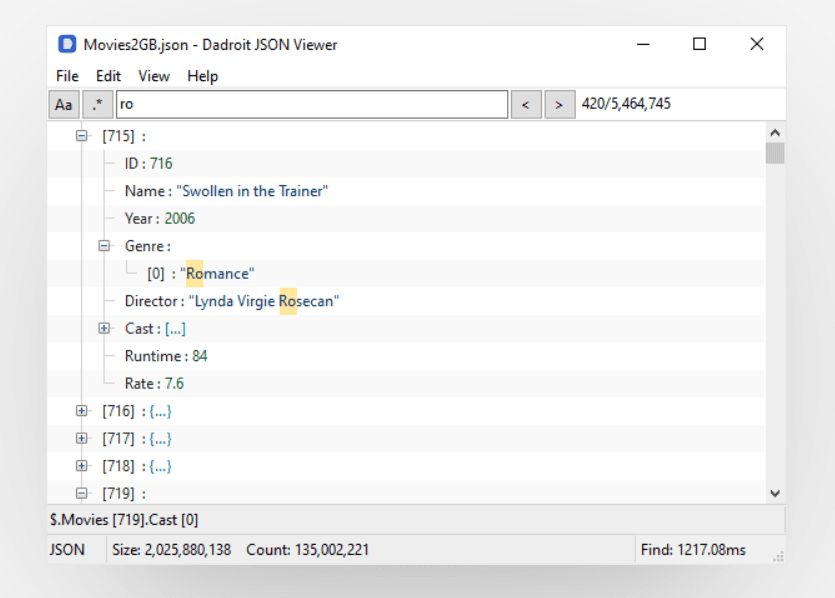
Dadroit JSON Viewer is built for inspecting large JSON data through a tree, search, and filtering interface. The file-size allowance depends on its license tier. Dadroit documents a custom native parser and memory use designed around the opened file, but it remains a viewer rather than a general-purpose text editor.
What you get:
- Large-file handling according to license tier
- Native parser designed for data inspection
- Tree navigation, search, and filtering
- Strong data inspection workflow
What you don't get:
- General-purpose text editing
- Polished general-purpose writing interface
- Best experience for small quick edits
License limits: The free non-commercial tier opens files up to 50 MB. The Standard tier supports files up to 2 GB, while the Advanced tier supports files up to 1 TB. These limits come from Dadroit's current pricing page.
Editing limitations: Dadroit prioritizes viewing and analysis rather than modification. Use a text editor when you need to make substantial changes to the source document.
Target users:
- Data engineers analyzing JSON exports from databases, APIs, or ETL pipelines
- DevOps teams troubleshooting application logs stored in JSON format
- QA engineers validating large test data sets or API response collections
Specific scenario: A paid Dadroit tier can help inspect a large analytics export through a tree and search interface when opening it as formatted text is impractical.
Download: Check Dadroit Free non-commercial tier and paid large-file tiers
JSON Editor Comparison Table
Professional JSON Workflow Optimization
A few small habits can reduce debugging time and prevent production errors when JSON is part of the workflow. The practices below cover faster formatting, sensitive data, portable apps, and navigation through deeply nested files.
Memorize Formatter Shortcuts
If you edit JSON regularly, keep a couple shortcuts in muscle memory:
- VS Code: Alt + Shift + F reformats the entire file
- Notepad++ (JSTool): Ctrl + Alt + M pretty prints JSON
These shortcuts turn minified API responses into readable documents without repeated menu navigation. If you process many payloads, that saves a small manual step every time.
Security Protocol for Sensitive Data
Avoid uploading or saving production credentials in browser-based tools. JSON configuration files can contain API keys, authentication tokens, database connection strings, OAuth secrets, and personal data. For anything sensitive, use an offline editor or a browser tool whose local processing you can verify.
Portable Editor Strategy
Keep a USB-based copy of JSONedit or Notepad Portable for temporary workstations where portable software is permitted. These packages avoid a traditional installer, but they do not override workplace security policies.
Visual Debugging Technique
Deeply nested JSON quickly becomes hard to understand in raw text. A tree view changes that: collapse irrelevant sections and expand only the path you are investigating, which is especially useful for webhook payloads and large API responses. Practical example: an error nested inside response.data.errors[0].detail.message can take minutes to find by scrolling, but only a few clicks in a structured view.
Quick Picks for Windows JSON Editing
Before opening a large file in a desktop editor, you can use the JSON splitter, JSON flattener, or JSON to Excel tool to make the data easier to inspect.
Choosing the Right Editor for Your Use Case
Selection depends on what you actually do with JSON, not a universal "best" ranking. For daily development, VS Code offers schema validation, team-wide formatting through Prettier, and Git integration. For quick local tasks, Notepad with JsonTools provides formatting, tree navigation, linting, and schema validation without opening a full development environment.
For large-file text editing, EmEditor Free is the strongest no-cost personal option in this list. Dadroit's paid tiers are better suited to tree-based inspection of multi-gigabyte data.
For portable use, JSONedit or Notepad Portable can run without a traditional installer when local security policies allow them. Browser-based tools such as CodeBeautify are convenient for quick validation, but avoid their upload, URL-loading, save, and share features when the data is sensitive.
Try two or three editors that match your main workflow. Several free licenses in this list are restricted to personal, educational, or non-commercial use, so confirm the terms before using them at work. Using a Mac? See our guide to the best JSON editors for Mac for macOS-friendly options.
Related guides:
Read More
All Articles
7 Best JSON Editor Apps for Android in 2026 (Compared & Ranked)
Compare seven current JSON editor apps for Android, including visual tree editors, fast text editors, Git tools, and a browser option.
4 Best JSON Plugins for Notepad++ in 2026
Compare the best JSON editor plugins for Notepad++ for formatting, tree navigation, linting, schema validation, and file comparison.
5 Best JSON Plugins for Sublime Text in 2026
Compare 5 current Sublime Text JSON plugins for formatting, live linting, schema validation, jq transformations, and structural navigation.