6 Best JSON Editors for Mac in 2026 (Free & Paid Options)

On this page
The Mac App Store has OK JSON, a native app built specifically for JSON with a free download and in-app purchases. Most developers don't know it exists because they default to VS Code. VS Code works, but its Electron-based interface is generally heavier than native Mac apps.
Six tools are included: OK JSON for quick viewing with a tree interface; VS Code for full IDE features; Sublime Text for keyboard-driven editing; BBEdit for Mac power users; Nova for native design-focused work; and CodeRunner for running scripts alongside JSON. Each fits a different workflow on macOS.
1. OK JSON
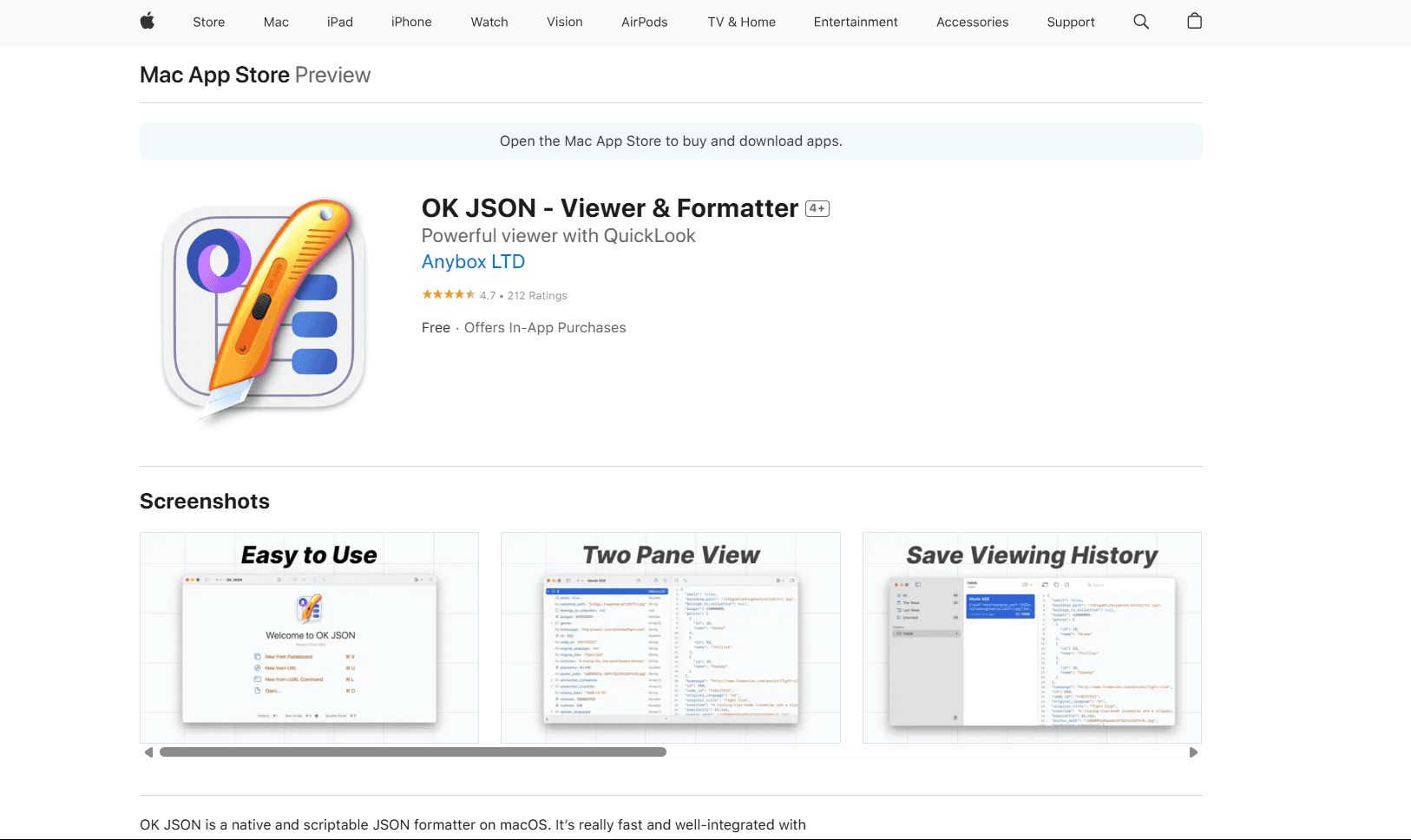
OK JSON is a native macOS app available on the App Store. Free download with in-app purchases. Built specifically for Mac, not a cross-platform port.
The interface feels like a Mac app should. It respects system Dark Mode automatically. You drop a file or paste JSON, and it shows you a tree view next to the raw text. Click any node to copy its path. Collapse sections to navigate nested data. The tree view is what makes this better than opening JSON in a text editor.
The current App Store listing says OK JSON works offline and keeps documents on the Mac. It also supports inline editing, formatting, saving changes, jq and JSONPath queries, Quick Look, and JavaScript automation. The current release requires macOS 15 or later.
What you get:
- Native Mac interface with Dark Mode support
- Tree view next to raw JSON text
- Quick formatting for pasted or dropped JSON
- Offline processing for local files
- jq, JSONPath, and JavaScript automation
What you don't get:
- Plugin system
- Schema validation
- A full project workspace with Git integration
You can make basic edits, but this is built for viewing and formatting. If you need to inspect an API response or format minified JSON quickly, OK JSON handles it without setup. That's the use case.
2. VS Code with JSON Extensions
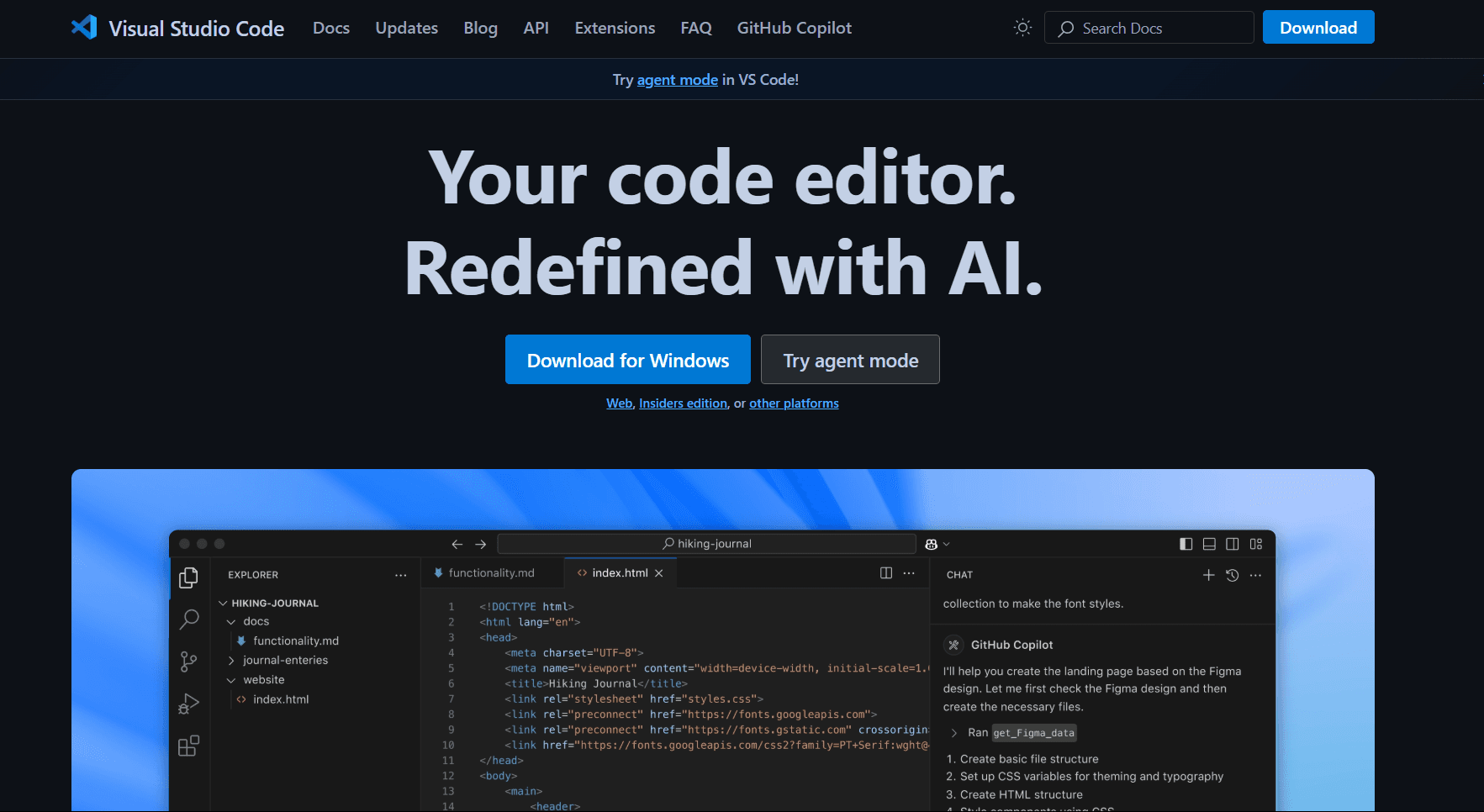
VS Code has built-in JSON support with zero configuration. Syntax highlighting, error detection, and formatting work out of the box.
Install via Homebrew: brew install --cask visual-studio-code. Or follow the official macOS setup instructions for the .dmg download. The app runs natively on Apple Silicon.
What makes VS Code good for JSON: schema validation catches errors as you type. IntelliSense autocompletes property names if you're working with known schemas like package.json or tsconfig.json. Format on save keeps JSON clean automatically. The command palette (Cmd + Shift + P) gives you quick access to JSON-specific commands.
Extensions add what the base install doesn't have. JSON Tools adds minification and conversion to other formats. Prettier keeps formatting consistent across your team. The marketplace also includes other JSON-related tools.
What you get:
- Built-in JSON formatting and syntax highlighting
- Schema validation for known JSON files
- IntelliSense for common schemas
- Git integration and project search
- Large extension ecosystem
What you don't get:
- Native Mac feel
- Lightweight memory usage
- A tree-first interface for quick inspection
The tradeoff: VS Code has a heavier Electron-based footprint than small native viewers. If you're already using VS Code for development, adding JSON work costs nothing extra. If you only need to edit JSON occasionally, that footprint is heavy compared to native Mac apps.
What it does better than native apps: schema validation, Git integration, extensions ecosystem. What native apps do better: launch speed, memory usage, Mac-native feel.
3. Sublime Text + Pretty JSON
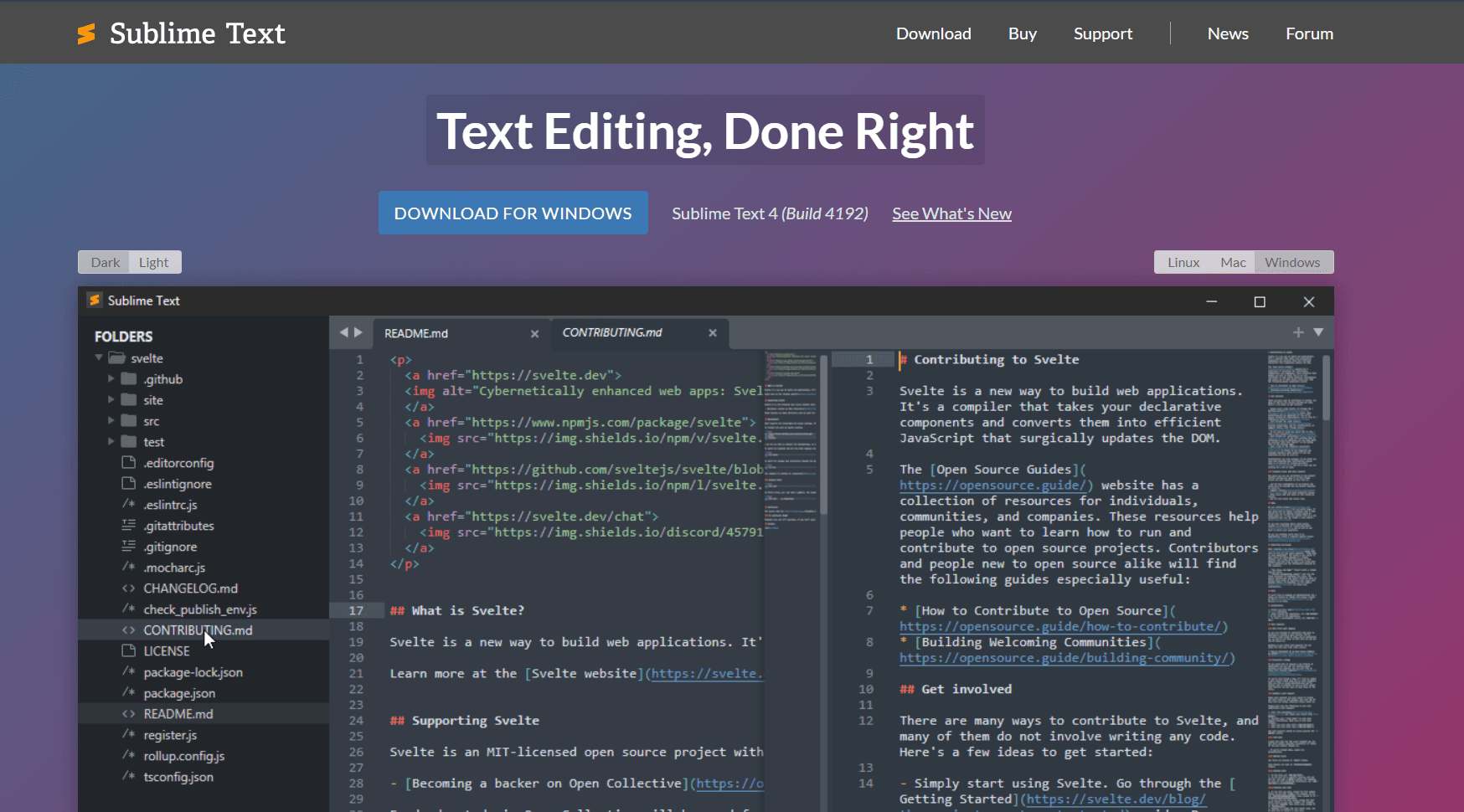
Sublime Text with the Pretty JSON package is what you want if you edit JSON regularly as part of development work.
Install on Mac: brew install --cask sublime-text. Then install Package Control, open the command palette with Cmd + Shift + P, type Install Package, search for Pretty JSON, and install it.
Pretty JSON removed its default key bindings to avoid conflicts. Run Pretty JSON: Format JSON or Pretty JSON: Validate from the command palette, or assign your own shortcut. The package can also minify JSON and sort keys when configured to do so.
Sublime Text 4 is a Universal 2 application that supports both Intel and Apple silicon Macs. Multi-cursor editing and project-wide search work well when JSON is one part of a larger codebase. Sublime can be evaluated for free, but its license terms require a purchase for continued use; a personal license includes three years of updates and remains usable afterward.
What you get:
- Native Apple silicon support
- Pretty JSON formatting and validation commands
- Multi-cursor editing
- Project-wide search
- A perpetual personal license with three years of updates
What you don't get:
- Tree view
- Native visual JSON navigation
It's a text editor, so you're working with raw JSON. If you need visual navigation, use OK JSON alongside Sublime. If you're comfortable with keyboard-driven editing and want speed, Sublime is the best option on Mac.
4. BBEdit
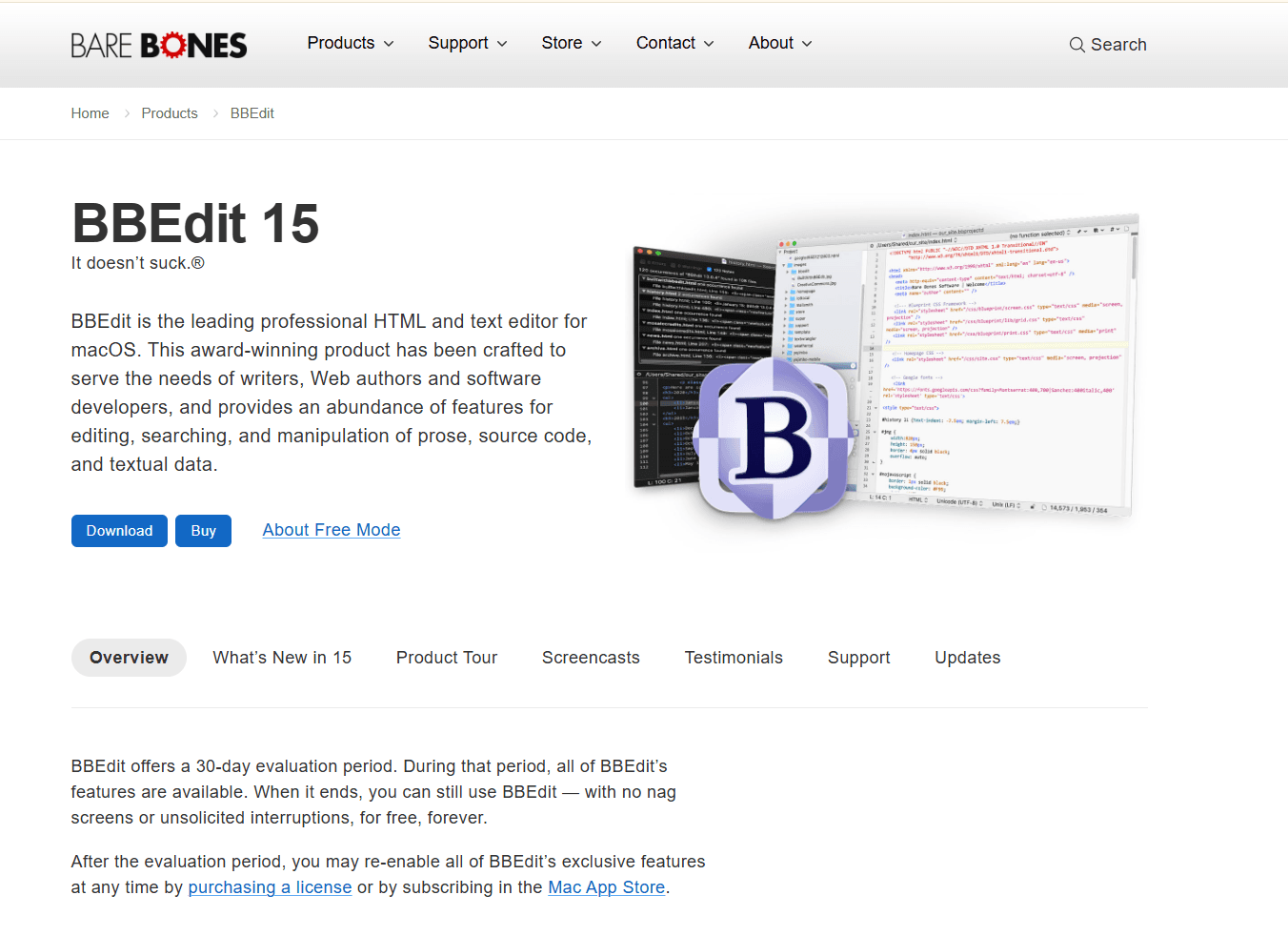
BBEdit is a Mac institution. It's been around since 1992 and is still actively developed. A direct license costs $59.99, or you can use the permanent Free Mode with some features locked.
JSON syntax highlighting is built in. The text manipulation tools are what make BBEdit powerful. Pattern matching with grep. Multi-file search and replace. Text factories for batch processing. These features matter when you're working with multiple JSON files or need to extract data from JSON logs.
The interface is distinctly Mac. Toolbar, sidebar, and keyboard shortcuts follow macOS conventions. BBEdit respects system preferences for fonts, colors, and behavior. It feels like it belongs on Mac in a way that cross-platform editors don't.
For larger JSON documents, BBEdit provides syntax coloring, code folding, grep, and multi-file search without building a full node tree. That makes it useful for searching or transforming raw text, but it does not provide JSON Schema validation.
What you get:
- Native Mac text editing
- Strong grep and regex tools
- Multi-file search and replace
- Text factories for batch processing
- Code folding and built-in JSON syntax coloring
What you don't get:
- JSON tree view
- Schema validation
- Live preview
It's a text editor with excellent text manipulation tools. For developers who need to process JSON files with regex or batch operations, BBEdit is a strong option. For visual JSON exploration, OK JSON is better.
The BBEdit feature comparison shows that Free Mode includes syntax coloring, grep, and multi-file search. A paid license adds features such as Text Factories, projects, code completion, Git integration, and shell worksheets.
5. Nova
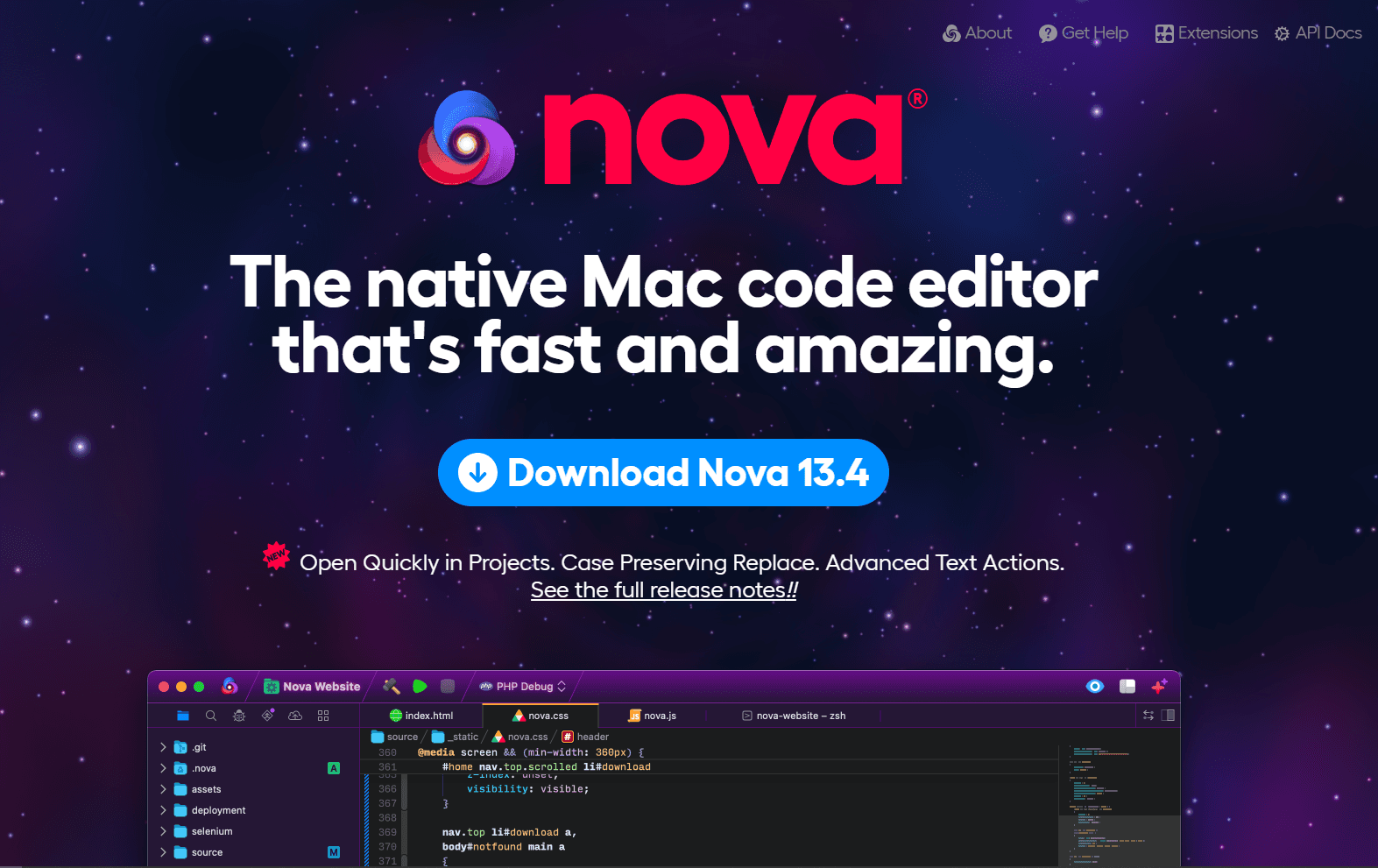
Nova by Panic is a native Mac code editor designed specifically for macOS. Nova is sold as a paid license with one year of updates included, plus optional paid update renewal after that.
The interface is beautiful. Nova uses native Mac UI elements throughout. Sidebar, tabs, and panels feel like they belong on Mac. Dark mode follows the system appearance. The app respects system fonts and colors. This is what a Mac-first code editor looks like.
JSON editing in Nova: syntax highlighting works out of the box. Extensions add validation and formatting, including the Prettier extension for JSON and format-on-save behavior. The extension system is smaller than VS Code's. Nova's strength is the native experience, not the extension ecosystem.
Nova 14 is a current native Mac application, and its download requires macOS 15.6 or later. That system requirement matters if you maintain an older Mac that cannot install a recent macOS release.
Nova fits developers who value native Mac design and are willing to pay for it. Its strength is the integrated workspace and macOS interface, not deeper JSON-specific features than VS Code.
What you get:
- Native Mac code editor experience
- Built-in JSON syntax highlighting
- Formatting through extensions such as Prettier
- Project handling for web work
- Git tools and an extension library
What you don't get:
- VS Code-sized extension ecosystem
- Free tier beyond the trial
The paid model means you're investing in a tool. For developers who edit JSON as part of web development and want a native Mac experience, Nova is worth considering.
6. CodeRunner
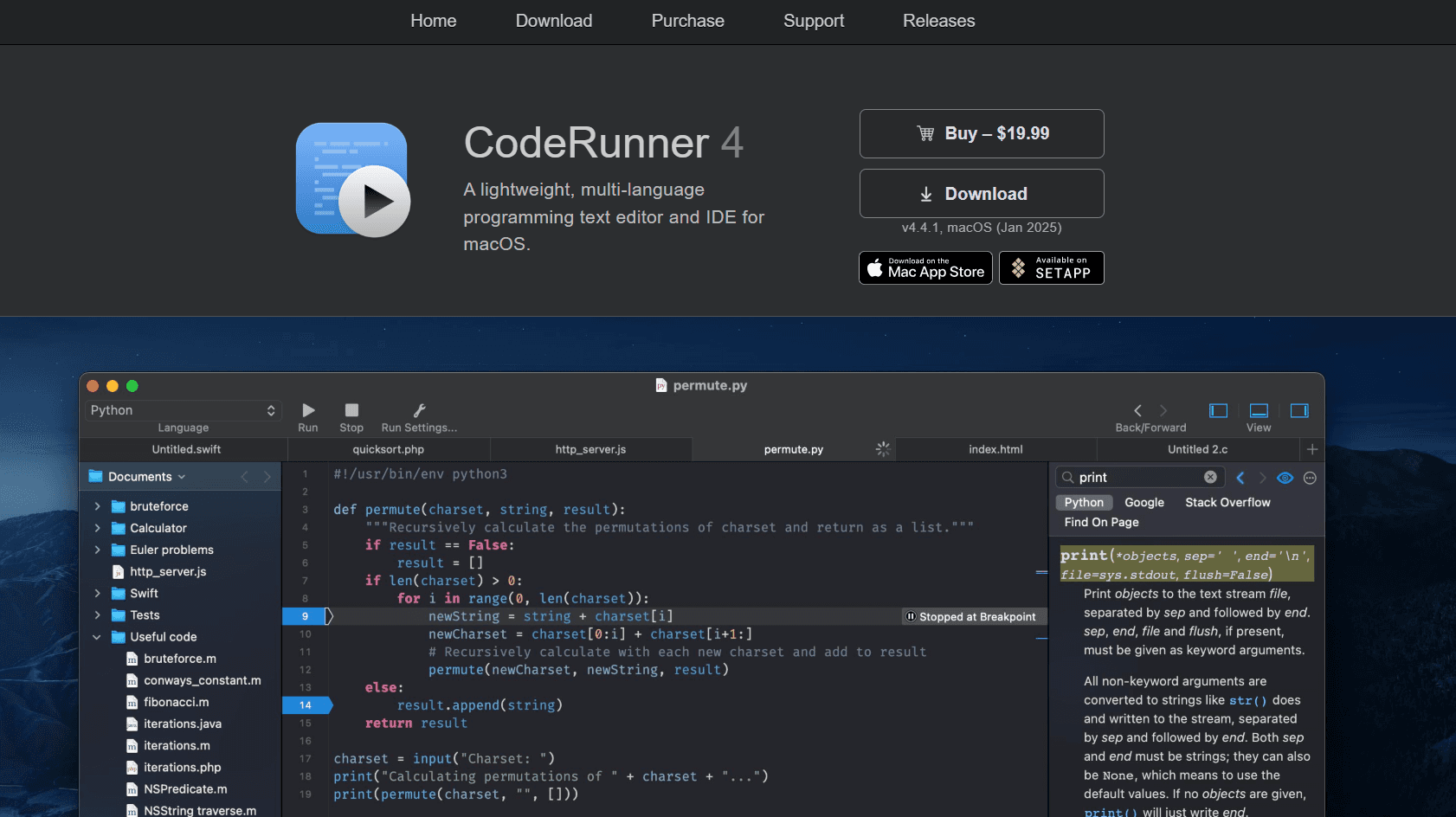
CodeRunner is a lightweight Mac-native code editor that supports 25+ languages. CodeRunner 4 costs $22.99 on the US Mac App Store.
The workflow is different from OK JSON or Sublime. You open a JSON file, edit it with syntax highlighting, then immediately run a Python or JavaScript script to process that data in the same app. No switching to Terminal. No separate script file. You write the transformation, run it, and see the output in one window.
This matters if you're working with JSON and scripts together. Students switching between languages. Developers who need to test data transformations quickly. Anyone who wants code execution without opening a full IDE.
The interface is clean and Mac-native. Tab-based file management. Split view support. Respects Dark Mode and system shortcuts.
What you get:
- Mac-native editor
- Built-in script execution
- Syntax highlighting for JSON and 25+ languages
- Split view and tabs
- Folder-wide search and a built-in console
What you don't get:
- Plugin ecosystem
- JSON tree view
You're editing raw text like Sublime. The tradeoff is built-in code execution, which neither OK JSON nor Sublime provides.
Quick Comparison
Recommendation
For most Mac developers: use OK JSON for inspecting and exploring JSON, VS Code for editing JSON as part of a larger project. If you want to minimize app switching and edit JSON frequently, Sublime Text handles both editing and quick validation in one fast app.
For Mac power users who live in text editors: BBEdit. The text manipulation tools and multi-file operations are well suited to this work. The free version works fine for basic JSON editing.
For developers who value native Mac design: Nova. It's expensive but the interface is the most Mac-like of any code editor.
For working with JSON and scripts together: CodeRunner. Edit JSON, write a transformation script, run it, see the output. All in one window without switching to Terminal.
Using more than one tool is normal. OK JSON for quick inspections, VS Code or Sublime for serious editing. They complement each other.
Quick Picks for Mac JSON Editing
If you need to clean or inspect JSON before opening it in a desktop editor, use the free JSON flattener, JSON splitter, or JSONL converter.
Frequently Asked Questions
Is there a native Mac app for viewing JSON?
Yes. OK JSON is a native macOS app available on the App Store as a free download with in-app purchases. It's built specifically for Mac using native frameworks, not a cross-platform port. You get a tree view for navigating nested data, one-click formatting, and inline editing. It respects system Dark Mode. The current release requires macOS 15 or later.
Does VS Code work well for JSON on Mac?
Yes. VS Code has excellent JSON support with built-in formatting, schema validation, and extensions for advanced features. It's free and works fine on Mac. The tradeoff is that it's an Electron app, so it uses more memory and feels heavier than native Mac apps. If you're already using VS Code for development, its JSON workflow is solid. If you want something lighter and more Mac-native, OK JSON or Sublime Text are better choices.
What's the best JSON editor for MacBook with Apple Silicon?
OK JSON is a native Mac app, but its current release requires macOS 15 or later. Sublime Text, BBEdit, Nova, and current VS Code builds also run natively on Apple silicon. CodeRunner added native Apple silicon support in version 4.2. These options avoid Rosetta translation on supported modern Macs.
How do I format JSON files on Mac without installing VS Code?
Install Sublime Text with the Pretty JSON package. Open the command palette and run Pretty JSON: Format JSON; the package no longer assigns a default shortcut, but you can create one. Or use OK JSON from the App Store. Drop your file in, and it formats the document with a tree view. For command-line formatting, install jq with Homebrew and run jq . file.json.
Is OK JSON free on Mac?
No, not entirely. OK JSON is free to download from the Mac App Store, but it includes in-app purchases for Pro access. It's built for quick JSON viewing and formatting, and the App Store listing says it works offline. Check the current purchase details to see whether the free access covers your workflow.
Related Reading
Editor-specific guides:
Read More
All Articles
7 Best JSON Editor Apps for Android in 2026 (Compared & Ranked)
Compare seven current JSON editor apps for Android, including visual tree editors, fast text editors, Git tools, and a browser option.
4 Best JSON Plugins for Notepad++ in 2026
Compare the best JSON editor plugins for Notepad++ for formatting, tree navigation, linting, schema validation, and file comparison.
5 Best JSON Plugins for Sublime Text in 2026
Compare 5 current Sublime Text JSON plugins for formatting, live linting, schema validation, jq transformations, and structural navigation.