Convert JSON to Excel
Turn JSON arrays into flat .xlsx or .csv spreadsheets instantly.
Drop JSON file or click to browse
Supports large JSON structures
Download Sample Files to Practice
Transformation Pipeline
How nested JSON becomes a flat spreadsheet
Nested JSON Input
[
{
"name": "Alice",
"address": { "city": "Portland", "zip": "97201" },
"tags": ["admin", "editor"]
},
{
"name": "Bob",
"address": { "city": "Seattle", "zip": "98101" },
"tags": ["viewer"]
},
{
"name": "Carol",
"address": { "city": "Denver", "zip": "80202" },
"tags": ["admin"]
}
]Flatten + Tabularize
Flatten + Tabularize
Flattened Excel Output
| name | address.city | address.zip | tags |
|---|---|---|---|
| Alice | Portland | 97201 | admin, editor |
| Bob | Seattle | 98101 | viewer |
| Carol | Denver | 80202 | admin |
How Nested Paths Become Column Names
Every JSON value type maps to a flat cell
Input
user.address.cityColumn Header
Input
tags: ["a", "b"]Cell Value
Input
nullCell Value
How It Works
Four simple steps
Parse JSON
Upload an array of JSON objects. The engine maps all unique keys across the dataset to determine the columns.
Tabularize Data
Deeply nested objects and arrays are intelligently flattened or stringified to fit into a 2D grid.
Apply Type Inference
Numbers, booleans, and dates are recognized and formatted so Excel treats them mathematically.
Export .CSV / .XLSX
Download a universally compatible spreadsheet ready for pivot tables, VLOOKUPs, and chart generation.
Programmatic Conversion
Python + pandas & Power Query
import pandas as pd
import json
# Load the JSON file
with open("data.json", "r") as f:
data = json.load(f)
# Normalize nested JSON into a flat table
df = pd.json_normalize(data)
# Export to Excel
df.to_excel("output.xlsx", index=False, engine="openpyxl")
print(f"Converted {len(df)} rows with columns: {list(df.columns)}")let
Source = Json.Document(File.Contents("C:\data\input.json")),
// Convert the JSON array into a table
ConvertedToTable = Table.FromList(Source, Splitter.SplitByNothing(), null, null, ExtraValues.Error),
// Expand all record fields into columns
ExpandedColumns = Table.ExpandRecordColumn(ConvertedToTable, "Column1",
{"name", "address", "tags"}, {"name", "address", "tags"}),
// Expand nested address object
ExpandedAddress = Table.ExpandRecordColumn(ExpandedColumns, "address",
{"city", "zip"}, {"address.city", "address.zip"}),
// Convert tags list to comma-separated string
TransformedTags = Table.TransformColumns(ExpandedAddress,
{{"tags", each Text.Combine(List.Transform(_, Text.From), ", "), type text}})
in
TransformedTagsFAQ
Common questions
Related Articles
Related Articles

How to Merge Excel Files Online (XLS & XLSX): The Complete Guide
Learn how to merge multiple Excel files (XLS & XLSX) into one using a free online tool, Python, VBA macros, and Power Query. Covers append rows, separate sheets, header matching, and best practices for combining spreadsheets.

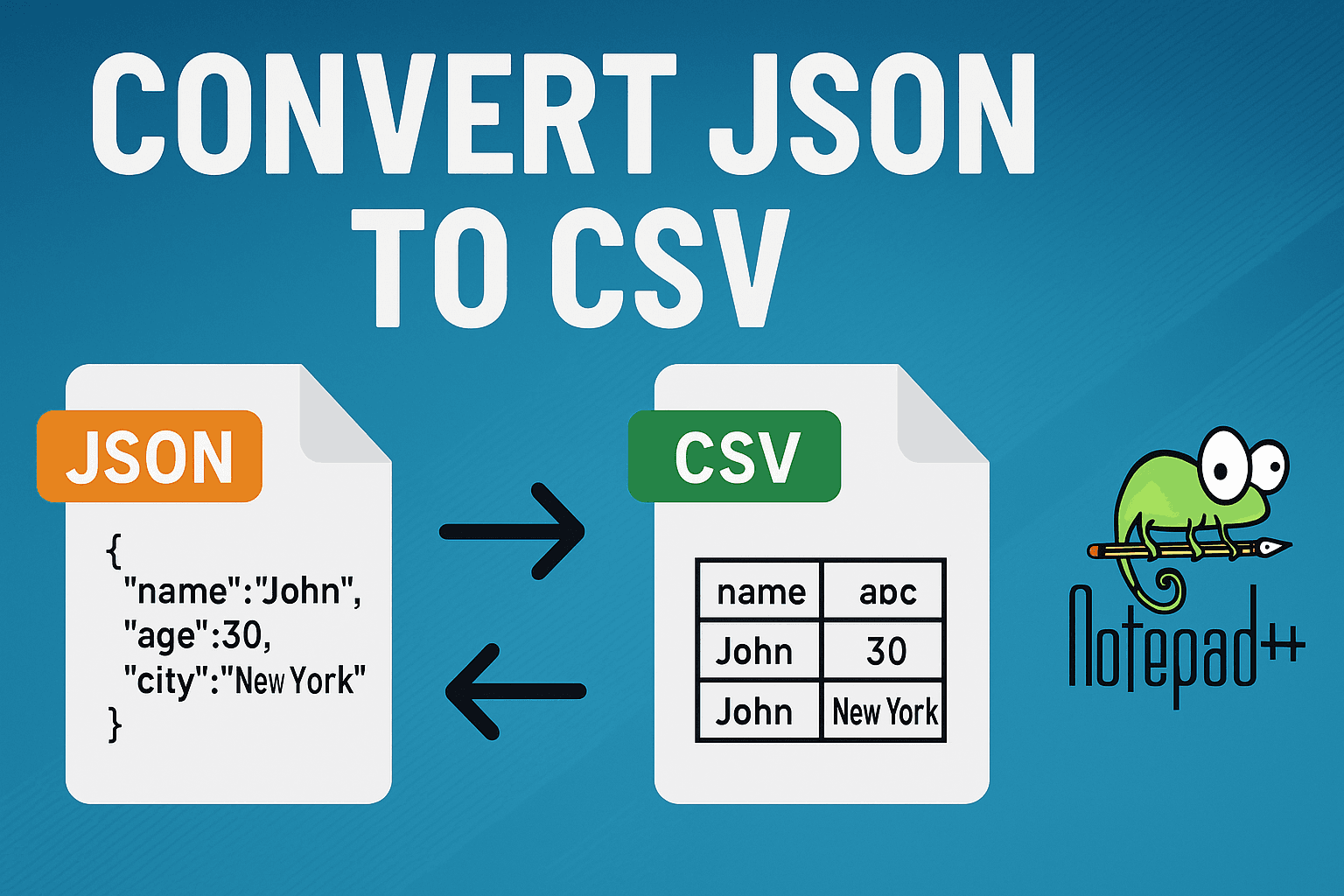
Convert JSON to CSV in Notepad++: Step-by-Step Guide
Learn how to convert JSON to CSV in Notepad++ using simple methods, including manual conversion, the JSON Viewer plugin, and Python scripts. A complete, beginner-friendly tutorial with clear examples and tips.

7 Best JSON Editor Extensions for VS Code in 2026 (Free & Powerful)
VS Code's built in JSON support is decent but limited. These 7 extensions turn it into a proper JSON powerhouse, from auto formatting to schema validation. Tested them all so you do not have to.
Complete Guide
In-depth walkthrough
JSON to Excel conversion enables business users to analyze structured API data using familiar spreadsheet interfaces. This transformation bridges the gap between developer-friendly JSON formats and business-analyst Excel workflows for data visualization and analysis.
Converting JSON data to Excel format facilitates JSON to Excel workflows essential for business intelligence, reporting, and collaborative data analysis across technical and non-technical teams.
Introduction to JSON to Excel Conversion
JSON serves as the standard API response format while Excel remains the primary tool for business data analysis. Conversion between these formats addresses integration requirements in enterprise workflows.
API data extraction typically yields JSON structures that require transformation into tabular Excel formats for pivot table creation, chart generation, and collaborative analysis by business stakeholders.
The conversion process involves flattening nested JSON objects, normalizing array structures, and preserving data types to ensure Excel compatibility while maintaining analytical capabilities.
This guide addresses the technical requirements for JSON-to-Excel transformation including nested object handling, data type preservation, and formatting optimization for spreadsheet analysis.
[
{
"id": 1,
"name": "Alice Johnson",
"department": "Engineering",
"address": {
"city": "Portland",
"state": "OR",
"zip": "97201"
},
"skills": ["Python", "SQL", "React"]
},
{
"id": 2,
"name": "Bob Smith",
"department": "Marketing",
"address": {
"city": "Seattle",
"state": "WA",
"zip": "98101"
},
"skills": ["SEO", "Analytics"]
}
]id | name | department | address.city | address.state | address.zip | skills
---|---------------|-------------|--------------|---------------|-------------|----------------
1 | Alice Johnson | Engineering | Portland | OR | 97201 | Python, SQL, React
2 | Bob Smith | Marketing | Seattle | WA | 98101 | SEO, AnalyticsWhat is Excel and Why Convert JSON to Excel?
Excel provides business users with familiar analytical tools including sorting, filtering, pivot tables, and chart generation that require tabular data structures rather than hierarchical JSON formats.
JSON-to-Excel conversion enables business stakeholders to perform data analysis using established spreadsheet workflows without requiring technical knowledge of JSON parsing or programmatic data manipulation.
The conversion process transforms API response structures into Excel-compatible table formats that support business intelligence operations, collaborative analysis, and report generation requirements.
Why Convert JSON to Excel Format?
JSON-to-Excel conversion addresses specific business analysis requirements where structured API data must integrate with existing spreadsheet workflows:
- Business Intelligence Integration: Excel serves as the primary analysis platform for business users who require pivot table creation, trend analysis, and dashboard development from API data sources.
- Collaborative Data Analysis: Spreadsheet formats enable cross-functional team collaboration where technical and non-technical stakeholders require shared data access for decision-making processes.
- Reporting Automation: Excel templates with embedded formulas and formatting can consume converted JSON data for automated report generation and distribution workflows.
- Business Intelligence: Integrate with BI tools and reporting systems that rely on spreadsheet formats.
- Data Manipulation: Leverage Excel's powerful formulas, filters, and sorting capabilities for deeper analysis.
- Universal Compatibility: Excel files can be opened by virtually any spreadsheet application across all platforms.
It all boils down to one thing: JSON is for machines, Excel is for people. Converting between them lets both sides do their best work.
Benefits of Using Excel for Data Analysis
Once you have your data in Excel, here's where things get interesting:
- Immediate Insights: View your data in a tabular format instantly without coding or special software.
- Powerful Functions: Access hundreds of built-in functions for statistical analysis, financial calculations, and data transformation.
- Visual Analytics: Create professional charts and dashboards to communicate insights effectively.
- Data Validation: Use Excel's validation features to ensure data quality and consistency.
- Automation: Implement macros and formulas to automate repetitive data processing tasks.
- Easy Sharing: Export reports and analyses that stakeholders can open without specialized tools.
These are the things that make Excel worth converting to, focusing on what you can do with the data once it's there.
Step-by-Step JSON to Excel Conversion Guide
Converting your JSON file to Excel is simple with our online tool. Follow these straightforward steps:
Step 1: Prepare Your JSON Data
Ensure your JSON data is valid and well-formatted. Use a JSON validator if needed to check for syntax errors.
Our tool works best with JSON arrays of objects, which map naturally to Excel rows and columns.
[
{
"order_id": "ORD-001",
"customer": "Acme Corp",
"total": 1250.00,
"currency": "USD",
"status": "shipped",
"created_at": "2025-01-15"
},
{
"order_id": "ORD-002",
"customer": "Globex Inc",
"total": 830.50,
"currency": "USD",
"status": "pending",
"created_at": "2025-01-16"
},
{
"order_id": "ORD-003",
"customer": "Initech LLC",
"total": 2100.75,
"currency": "EUR",
"status": "delivered",
"created_at": "2025-01-17"
}
]Step 2: Upload or Paste Your JSON
Either drag and drop your JSON file into the upload area or paste your JSON text directly into the input field. Our converter supports large files and complex nested structures.
Step 3: Convert to Excel
Click the "Convert to Excel" button. Our tool will parse your JSON data, extract the structure, and format it as a CSV file that Excel can open.
The conversion happens instantly in your browser, ensuring your data remains private and secure.
Step 4: Download and Open in Excel
Download the converted CSV file and open it in Microsoft Excel, Google Sheets, or any other spreadsheet application. Your JSON data will be neatly organized in rows and columns, ready for analysis.
Best Practices for Converting JSON to Excel
To get the most out of your JSON to Excel conversion, follow these best practices:
- Structure Your JSON: Use arrays of objects with consistent keys for the cleanest Excel output.
- Flatten Nested Data: For deeply nested JSON, consider flattening the structure first using our JSON Flattener tool.
- Validate Before Converting: Always validate your JSON to avoid conversion errors and ensure data integrity.
- Handle Large Files: For very large datasets, consider splitting your JSON file first to improve processing speed and Excel performance.
- Preserve Data Types: Be aware that Excel may interpret certain values (like dates and numbers) automatically, which can sometimes lead to unexpected formatting.
- Keep Backups: Always maintain a copy of your original JSON data before conversion.
Advanced Techniques for Excel Data Processing
Once you've converted your JSON to Excel, leverage these advanced techniques to maximize your data analysis:
Pivot Tables for Aggregation
Use Excel's pivot table feature to quickly summarize and aggregate your converted JSON data. This reveals trends and patterns that might not be immediately apparent in the raw data.
Conditional Formatting
Apply conditional formatting rules to highlight important values, outliers, or trends in your data. This makes it easier to spot critical information at a glance.
Power Query Integration
For recurring conversions, use Excel's Power Query to establish a connection to your JSON data source. This enables automatic updates and transformations whenever the source data changes.
Formula-Based Analysis
Leverage Excel's extensive formula library (VLOOKUP, SUMIF, INDEX, MATCH, etc.) to perform complex calculations and data lookups on your converted JSON data.
Integrating Excel into Your Data Workflow
Converting JSON to Excel opens up numerous integration possibilities for your data workflow:
- Business Intelligence Tools: Import your converted Excel files into Power BI, Tableau, or other BI platforms for advanced analytics and visualization.
- Report Automation: Integrate Excel files into automated reporting systems that distribute insights to stakeholders on a schedule.
- Data Warehousing: Use Excel as an intermediary format when loading JSON data into data warehouses or databases.
- API Response Analysis: Convert API responses from JSON to Excel for quick analysis and sharing with non-technical team members.
- Financial Modeling: Transform JSON financial data into Excel for detailed financial modeling and forecasting.
Real-World Use Cases and Applications
Organizations across industries are leveraging JSON to Excel conversion for various purposes:
- E-commerce Analytics: Online retailers convert JSON product data and sales reports to Excel for inventory analysis, pricing strategies, and sales forecasting.
- Marketing Campaign Analysis: Digital marketers export JSON data from APIs (Google Analytics, social media platforms) to Excel for campaign performance reporting and ROI analysis.
- Financial Services: Banks and fintech companies convert JSON transaction data to Excel for regulatory reporting, fraud detection analysis, and customer behavior insights.
- Healthcare Data Management: Medical institutions transform JSON patient records and research data into Excel for statistical analysis and compliance reporting.
- Supply Chain Optimization: Logistics companies convert JSON shipment and inventory data to Excel for supply chain analysis and optimization.
These examples aren't theoretical scenarios. They're the exact reasons people end up on this page looking for a JSON to Excel converter.
Conclusion and Next Steps
JSON to Excel conversion is the bridge between developer-friendly data and business-friendly data. If you deal with APIs, data exports, or anything that produces JSON, there will come a time when someone asks you for "a spreadsheet version."
This tool handles the conversion in your browser, including nested object flattening and multi-format output (XLSX, XLS, CSV). No uploads, no accounts, no waiting.
Drop your JSON in and get a spreadsheet out.
All Tools
JSON utilities to speed up your workflow
JSON Merger
Combine multiple JSON files into a single structured output
JSON Splitter
Split large JSON files into smaller chunks
JSON Flattener
Flatten deeply nested JSON files
JSON to Excel
Convert JSON data to Excel spreadsheet format
JSON to JSONL
Convert JSON arrays to JSON Lines format
JSONL to JSON
Convert JSON Lines format to arrays
JSON to TOON
Optimize JSON for LLMs, reduce tokens by 30-60%
CSV Merger
Combine multiple CSV files into a single dataset
Excel Merger
Merge XLS & XLSX spreadsheets into one file
TXT Merger
Combine multiple text files into a single document
VCF Merger
Merge contact VCF files into one address book
GPX Merger
Combine GPS tracks from multiple GPX files
WAV Merger
Combine audio WAV files into a single recording