How to Merge Excel Files: Easy Methods (2026)

On this page
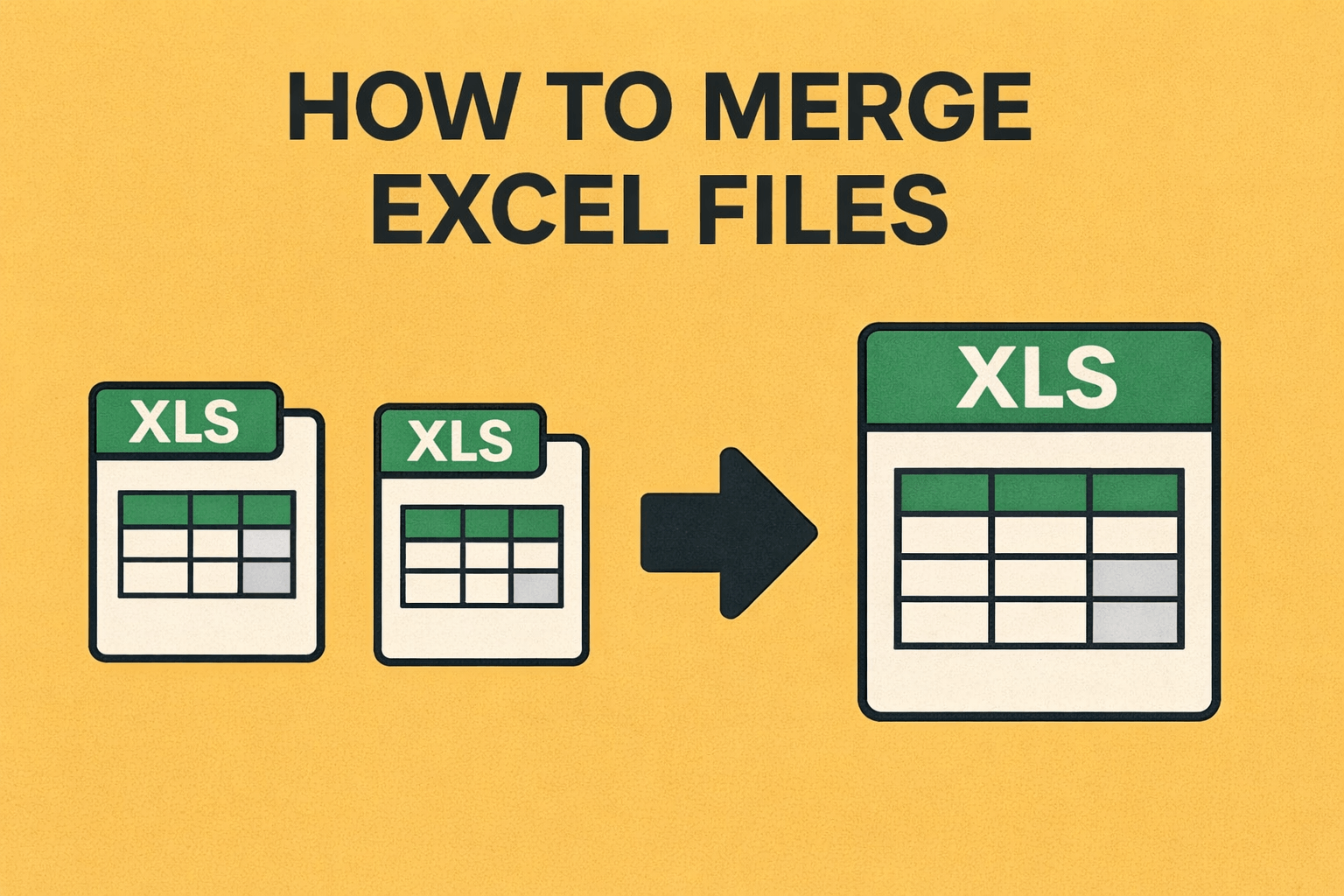
Merging Excel files means combining multiple .xlsx or .xls files into one workbook. You can either append rows (stack data vertically) or keep each file on separate sheets. For .xlsx and .csv inputs, the Excel Merger tool handles both scenarios in your browser without uploading the spreadsheet contents for server-side merging.
This guide walks through practical ways to combine Excel workbooks, depending on what you actually need: append rows into one sheet, keep source worksheets separate, or merge only when headers match. You’ll see a browser-based option, plus Python (pandas), Power Query, and VBA for more control.
What Are XLS and XLSX Files?
Understanding the two main Excel formats helps before choosing a merge method. Format affects available tools and limitations encountered.
XLS (Excel Binary Format) was the standard workbook format from Excel 97 through Excel 2003.
It uses a binary format called BIFF8. It supports up to 65,536 rows and 256 columns per worksheet.
You may still see XLS files in legacy systems and older Excel installations.
XLSX (Excel Open XML Format) arrived with Excel 2007. It is the modern standard.
XLSX is a ZIP archive containing XML files. According to Microsoft's worksheet limits, it supports 1,048,576 rows and 16,384 columns per worksheet.
Google Sheets, LibreOffice, and current Excel releases can read common XLSX workbooks, although advanced features may not transfer perfectly between applications.
Why format matters when merging:
Combined data past 65,536 rows requires XLSX output or another destination that can hold more rows. A mix of XLS and XLSX sources requires a method that explicitly supports both.
The output format determines which software can open the result.
Why Would You Need to Merge Excel Files?
There are more scenarios than you'd think:
Consolidating sales reports from multiple months or regions into one master spreadsheet. Aggregating survey responses from different collection periods. Merging financial records like income statements or expense reports from various departments. Combining inventory data from different warehouses. Pulling together HR records, attendance logs, or timesheet exports.
Merging student grades or enrollment records across semesters. Consolidating e-commerce order exports from Amazon, Shopify, and eBay. Preparing datasets for analysis in Power BI, Tableau, or R by combining data from multiple sources. Combining exported data from legacy systems before importing into a new platform.
The list goes on, but you get the idea. If you work with data, you'll eventually need to combine spreadsheets.
Method 1: Use the Free Online Excel Merger (No Code Required)
This is a direct option when the goal is simply to combine files without installing anything. Spreadsheet processing runs locally in the browser.
Try it here: www.merge-json-files.com/excel-merger
How it works:
- Open the Excel merger page
- Drag and drop .xlsx or .csv files. Convert legacy .xls files to .xlsx first
- Review file details (sheet count, row count, file size)
- Choose a merge strategy:
- Append Rows: stack all rows into one sheet (best when columns match)
- Separate Sheets: keep the source worksheets as separate sheets in the output workbook
- Merge by Header: create one header union and align each row under matching column names
- Choose an output format (XLSX or CSV)
- Toggle "Skip Duplicate Headers" when appending rows
- Click "Merge Excel Files"
- Preview the result
- Download the merged file
Because processing happens locally, spreadsheet contents are not uploaded for server-side merging. The tool combines cell values rather than workbook styling or formulas. Append Rows and Merge by Header use the first worksheet from each input file, while Separate Sheets retains all readable source worksheets.
Method 2: Merge Excel Files Using Python
Python with pandas is a powerful approach, especially if you're merging files regularly or working with large datasets. Once you write the script, you can run it whenever you need it.
Install the required libraries:
pip install pandas openpyxl xlrd(openpyxl handles .xlsx files, while xlrd handles legacy .xls input, as described in pandas' Excel documentation.)
Basic: Append All Files Into One Sheet
import pandas as pd
import glob

def merge_excel_files(input_pattern, output_file):
    """Merge multiple Excel files by appending rows."""
    all_dataframes = []
    files = sorted(glob.glob(input_pattern))

    for filepath in files:
        df = pd.read_excel(filepath)
        all_dataframes.append(df)
        print(f"Read {filepath}: {len(df)} rows, {len(df.columns)} columns")

    merged = pd.concat(all_dataframes, ignore_index=True)
    merged.to_excel(output_file, index=False)
    print(f"\nMerged {len(files)} files → {len(merged)} rows → {output_file}")

# Usage
merge_excel_files("./reports/*.xlsx", "merged_report.xlsx")
Advanced: Keep Each File on a Separate Sheet
import pandas as pd
import glob
import os

def merge_to_separate_sheets(input_pattern, output_file):
    """Merge Excel files, keeping each on a separate sheet."""
    files = sorted(glob.glob(input_pattern))

    with pd.ExcelWriter(output_file, engine='openpyxl') as writer:
        for filepath in files:
            df = pd.read_excel(filepath)
            # Use filename (without extension) as sheet name
            sheet_name = os.path.splitext(os.path.basename(filepath))[0][:31]
            df.to_excel(writer, sheet_name=sheet_name, index=False)
            print(f"Added sheet '{sheet_name}': {len(df)} rows")

    print(f"\nCreated {output_file} with {len(files)} sheets")

# Usage
merge_to_separate_sheets("./data/*.xlsx", "all_data.xlsx")
Advanced: Merge with Duplicate Removal
import pandas as pd
import glob

def merge_and_deduplicate(input_pattern, output_file, key_columns=None):
    """Merge Excel files and remove duplicate rows."""
    all_dfs = []

    for filepath in sorted(glob.glob(input_pattern)):
        df = pd.read_excel(filepath)
        all_dfs.append(df)

    merged = pd.concat(all_dfs, ignore_index=True)
    before_count = len(merged)

    if key_columns:
        merged = merged.drop_duplicates(subset=key_columns, keep='first')
    else:
        merged = merged.drop_duplicates(keep='first')

    after_count = len(merged)
    print(f"Removed {before_count - after_count} duplicates")
    print(f"Final row count: {after_count}")

    merged.to_excel(output_file, index=False)

# Usage - deduplicate by email column
merge_and_deduplicate("./contacts/*.xlsx", "unique_contacts.xlsx", key_columns=["Email"])
You get full control over merge logic, filtering, and transformations. You can automate it with scheduled jobs or build it into a CI/CD pipeline. And you can clean data, remove duplicates, and add calculated columns during the merge process. Capacity still depends on memory, file structure, and the output format; a single XLSX worksheet cannot exceed Excel's row limit.
The downside is that it requires Python and library installation, and there's a learning curve if you haven't written code before. It can also be memory-intensive with very large files.
Method 3: Merge Excel Files with Power Query (Built into Excel)
If you're an Excel power user running Excel 2016 or later for Windows, Power Query is worth knowing about. It's built right in, so there's nothing extra to install. Power Query availability and connectors vary for other Excel versions and platforms.
Step by step:
- Put all your files in one folder (e.g., C:\Reports)
- Open Excel, go to the Data tab, click Get Data, then From File > From Folder
- Navigate to your folder and click OK
- Click Combine & Transform Data
- In the Combine Files dialog, choose the sample workbook and the worksheet or table to combine, then click OK
- In the Power Query Editor, review everything
- Click Close & Load to import into your worksheet
Some things you can do with Power Query once the data is loaded:
Filter by filename or keep the source filename column to track where each row came from. Apply transformations like renaming columns, changing data types, or filtering rows before loading the data. Microsoft's folder-combine workflow uses a sample file and expects sources with the same file type and schema, so review or adapt the transformation when columns differ.
After source files change, refresh manually or use Excel's supported connection options, including refresh on open or at timed intervals.
Power Query is useful because the standard folder workflow requires no coding and supports refresh. The main drawbacks are version-dependent availability, a learning curve for more complex M transformations, and extra query work when files do not share a consistent schema or location.
Method 4: Merge Excel Files with VBA Macro
If you're comfortable with Excel's built-in programming, VBA gives you solid control over the merge process.
VBA Macro to Merge All XLSX Files in a Folder:
Sub MergeExcelFiles()
    Dim FolderPath As String
    Dim FileName As String
    Dim wb As Workbook
    Dim ws As Worksheet
    Dim DestWs As Worksheet
    Dim LastRow As Long
    Dim LastCol As Long
    Dim DestLastRow As Long
    Dim IsFirstFile As Boolean

    ' Set folder path (change this)
    FolderPath = "C:\Reports\"

    Set DestWs = ThisWorkbook.Sheets(1)
    IsFirstFile = True
    DestLastRow = 1

    FileName = Dir(FolderPath & "*.xlsx")

    Do While FileName <> ""
        Set wb = Workbooks.Open(FolderPath & FileName)
        Set ws = wb.Sheets(1)
        LastRow = ws.Cells(ws.Rows.Count, 1).End(xlUp).Row
        LastCol = ws.Cells(1, ws.Columns.Count).End(xlToLeft).Column

        If IsFirstFile Then
            ' Copy header and data from first file
            ws.Range(ws.Cells(1, 1), ws.Cells(LastRow, LastCol)).Copy DestWs.Range("A1")
            DestLastRow = LastRow + 1
            IsFirstFile = False
        Else
            ' Copy data only (skip header) from subsequent files
            If LastRow > 1 Then
                ws.Range(ws.Cells(2, 1), ws.Cells(LastRow, LastCol)).Copy DestWs.Cells(DestLastRow, 1)
                DestLastRow = DestLastRow + LastRow - 1
            End If
        End If

        wb.Close SaveChanges:=False
        FileName = Dir
    Loop

    MsgBox "Merge complete! Total rows: " & DestLastRow - 1
End Sub
How to use it:
- Open a new Excel workbook
- Press Alt + F11 to open the VBA Editor
- Go to Insert, then Module
- Paste the code above
- Update the FolderPath variable to point to your folder
- Press F5 to run
VBA runs directly in desktop Excel and can be customized for workbook-level merge logic. It requires VBA knowledge, processing time varies with the workbooks and code, and macros may be blocked by your organization's security settings.
Method 5: Command-Line with csvkit or ssconvert
For developers and power users who prefer working in the terminal:
Using csvkit (Python-based CLI):
# Install
pip install csvkit

# Convert Excel to CSV first
in2csv report1.xlsx > report1.csv
in2csv report2.xlsx > report2.csv

# Stack/merge CSV files
csvstack report1.csv report2.csv > merged.csv
Using ssconvert (Gnumeric):
# Install on Linux
sudo apt install gnumeric

# Convert and merge
ssconvert --merge-to=merged.xlsx file1.xlsx file2.xlsx file3.xlsx
Comparison of Excel Merge Methods
The browser tool also limits each input file to 20 MB. Other methods remain subject to available memory, application limits, and the output format.
Understanding Merge Strategies
Picking the right merge strategy is probably the most important decision you'll make. Here's what each one does:
Strategy 1: Append Rows (Vertical Stack)
This is the common choice when all your files have identical column structures. It stacks the data vertically, one file after another:
File 1:          File 2:          Merged:
Name  | Sales    Name  | Sales    Name  | Sales
Alice | $100     Carol | $300     Alice | $100
Bob   | $200     Dave  | $400     Bob   | $200
                                   Carol | $300
                                   Dave  | $400
Strategy 2: Separate Sheets
When your files have different structures, or when you want to keep the source data separated, this puts each source worksheet on its own sheet:
Output Workbook:
├── Sheet "Q1_Report": (data from file 1)
├── Sheet "Q2_Report": (data from file 2)
└── Sheet "Q3_Report": (data from file 3)
Strategy 3: Merge by Matching Headers
For mixed file types where some share the same columns and others don't:
Files with headers [Name, Email] → merged into Sheet 1
Files with headers [Product, Price] → merged into Sheet 2
Which Method to Use
- One-off merge, non-technical: use the online Excel merger
- Repeated task, same column structure: use Python with pandas
- Excel power user, no coding: use Power Query (Data > Get Data > From File)
- Need to merge many files automatically: use Python or VBA
Best Practices for Merging Excel Files
A few habits prevent most merge headaches:
- Standardize headers first. "First Name" vs "FirstName" vs "first_name" will be treated as different columns.
- Clean data beforehand. Remove blank rows, summary totals, and footer text so they don’t become garbage rows in the output.
- Check data types. If one file has text and another has numbers in the same column, the merged sheet can end up misformatted.
- Use XLSX for output when row counts might exceed 65,536 (the XLS limit), and keep each worksheet below 1,048,576 rows.
- Back up originals so it’s easy to re-merge with different settings later.
- Verify row counts. Compare the sum of rows across source files with the merged result.
- Use the preview when available to catch header alignment issues before downloading.
- Handle dates carefully. Mixed regions can produce MM/DD/YYYY vs DD/MM/YYYY surprises.
- Consider file size. Very large workbooks can be slow to open, so splitting into chunks can help.
- Document your process (files used, strategy chosen, and any cleanup steps).
Frequently Asked Questions
Can I merge Excel files with different numbers of columns?
Yes, but the strategy matters. Append Rows stacks columns by position, so differently ordered headers can misalign data and short rows leave trailing cells blank. Separate Sheets retains each readable worksheet independently, while Merge by Header aligns values under matching header names.
Does merging Excel files preserve cell formatting?
The browser tool, pandas examples, and Power Query focus on values rather than preserving complete source styling. If presentation matters, use a carefully written VBA workbook-copy workflow and verify the result.
Can I merge password-protected Excel files?
Not directly. Remove the password first (File → Info → Protect Workbook → Encrypt with Password).
How do I merge specific sheets from Excel files?
Use the "Separate Sheets" strategy and delete sheets you don’t need, or in Python select a sheet with pd.read_excel(file, sheet_name="Sheet1").
Can I merge Excel files on my phone?
The browser tool can work when the mobile browser and operating system expose the files through a file picker. Spreadsheet memory limits are tighter on many phones, so use a desktop workflow for larger workbooks.
What's the maximum file size I can merge?
The browser tool currently limits each input to 20 MB and the total batch to 60 MB. XLSX files with unusually large expanded contents or compression ratios can also be rejected before parsing. Python and desktop Excel remain subject to available memory and worksheet limits.
Related Tools and Resources
Frequently Asked Questions
How do I merge Excel files without losing formatting?
These methods focus on data values rather than complete source formatting. For formatting-critical merges, use VBA to copy worksheets or formatted ranges, then verify charts, formulas, named ranges, and external links.
Can I merge Excel files with different column headers?
Yes. Separate Sheets keeps each readable worksheet independent. Append Rows uses column position and is appropriate only when the structures match. For different headers, use Merge by Header so the browser tool creates a combined header set and fills unavailable values with blank cells.
What's the easiest way to merge Excel files without VBA?
The browser-based Excel merger requires no installation or coding. Add .xlsx or .csv files, choose a merge strategy, and download the result. Spreadsheet contents are processed locally during normal tool use.
Will formulas still work after merging Excel files?
The browser tool and pandas examples do not preserve source formulas as working formulas. A VBA copy workflow may retain formulas, but sheet renaming, moved ranges, and external references can still require manual adjustment after merging.
How do I merge Excel files in Python?
Install pandas and openpyxl, then use pd.read_excel() to load files and pd.concat() to combine them. The Python examples in this guide show complete working code for different merge scenarios.
Final Thoughts
Most Excel merges come down to choosing the right strategy (append vs separate sheets vs header matching), keeping headers consistent, and validating the output before sharing it.
For quick, one-off merges, a browser-based tool is the simplest option. For recurring workflows, Python with pandas supports custom merge logic. And when staying inside Excel is the priority, Power Query and VBA can handle most day-to-day cases.
Related Guides: Check out how to merge JSON files and how to split JSON files for more data processing tutorials.
Read More
All Articles
How to Merge GPX Files: Free Tools & Methods (2026)
Merge GPX files with an online tool, Python, or GPSBabel. Combine tracks, waypoints, and routes from Garmin, Strava, Komoot, and more.
How to Merge VCF Files: Free Tool & Guide (2026)
Merge VCF contact files with an online tool, Python, or command line. Includes duplicate removal and migration for iPhone, Android, Google, and Outlook.
How to Merge JSON Files: Fastest and Easiest Way (2026)
Merge multiple JSON files into one using free online tool, Python, or jq command line. Complete guide with code examples for arrays, objects, nested JSON, and deduplication.