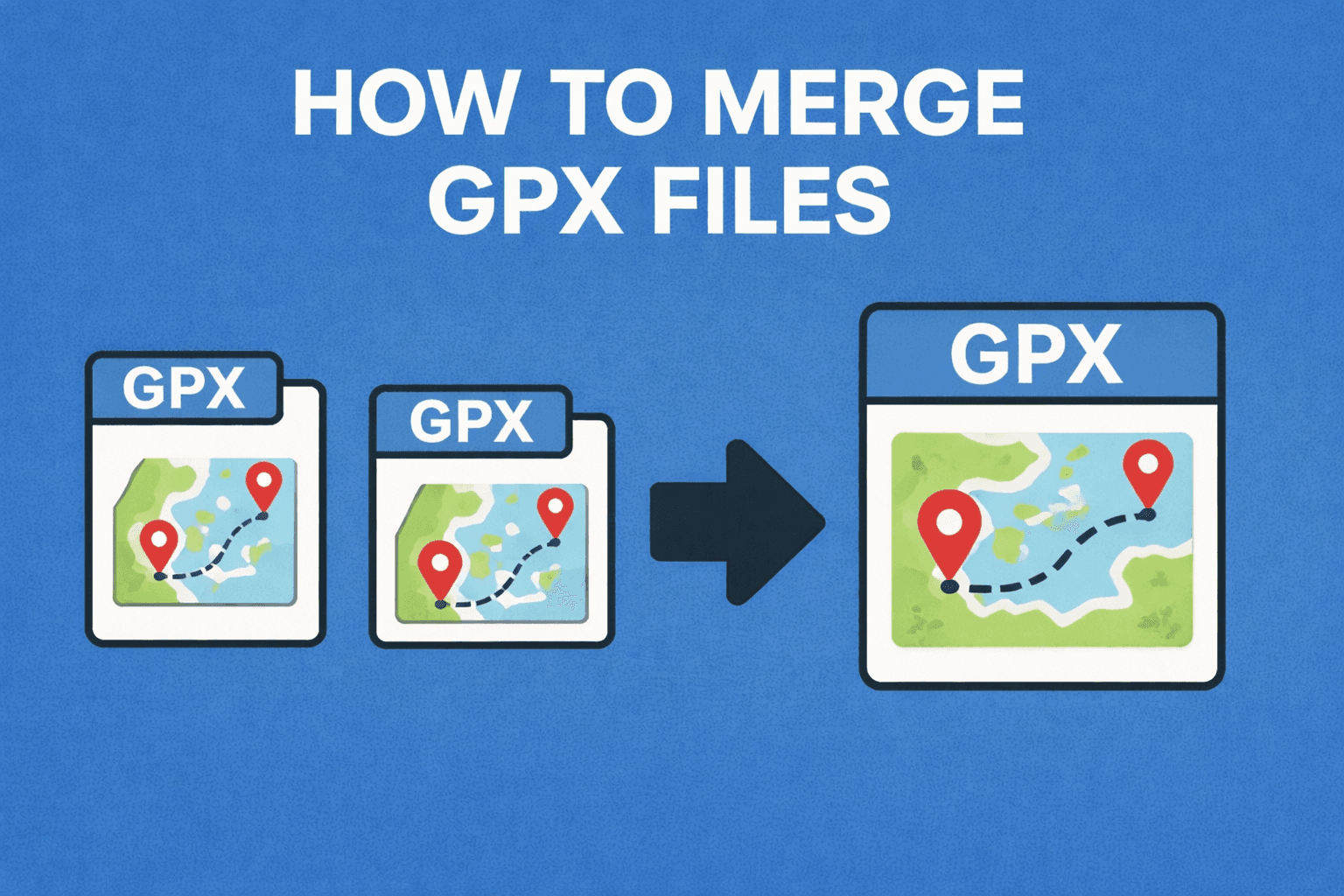
How to Merge GPX Files: Free Tools & Methods (2026)
Merge GPX files with an online tool, Python, or GPSBabel. Combine tracks, waypoints, and routes from Garmin, Strava, Komoot, and more.
Read guide
Want to see your entire trip in one map? This GPX merger lets you combine separate GPS tracks and waypoints from multiple rides or hikes into one master file. Timestamps and elevation are copied unchanged, files can be sorted by start time, and you can put every segment into one track before uploading the file to Strava or Garmin Connect.
Drop GPX files or click to browse
Supports tracks, waypoints, and routes
Combine fragmented tracks
<!-- ride_part_1.gpx -->
<trk>
  <name>Morning Ride Pt 1</name>
  <trkseg>
    <trkpt lat="45.523" lon="-122.676"><ele>15.2</ele></trkpt>
    <trkpt lat="45.524" lon="-122.677"><ele>15.5</ele></trkpt>
  </trkseg>
</trk>

<!-- ride_part_2.gpx -->
<trk>
  <name>Morning Ride Pt 2</name>
  <trkseg>
    <trkpt lat="45.525" lon="-122.678"><ele>16.1</ele></trkpt>
  </trkseg>
</trk><trk>
<name>Morning Ride (Merged)</name>
<trkseg>
<trkpt lat="45.523" lon="-122.676"><ele>15.2</ele></trkpt>
<trkpt lat="45.524" lon="-122.677"><ele>15.5</ele></trkpt>
</trkseg>
<trkseg>
<trkpt lat="45.525" lon="-122.678"><ele>16.1</ele></trkpt>
</trkseg>
</trk>Clean and simple process
Drag and drop GPX 1.0 or 1.1 files from common GPS apps and devices.
Include everything, or only tracks, only routes, or only waypoints.
Keep each track separate or put all segments into one track, in list order or sorted by start time.
Get a GPX 1.1 output file ready to review and import into your GPS app.
How GPX measures up
| Feature | GPX | KML | GeoJSON | FIT |
|---|---|---|---|---|
| Primary Use | GPS data exchange | Map visualization | Web mapping | Fitness devices |
| Created By | TopoGrafix | IETF / GeoJSON WG | Garmin (ANT+) | |
| Format | XML | XML | JSON | Binary |
| Tracks / Routes | Yes | Yes (LineString) | Yes (LineString) | Yes (Records) |
| Waypoints | Yes | Yes (Placemarks) | Yes (Point) | No |
| Timestamps | Per track point | Via TimeStamp | Not built-in | Per record |
| Fitness Data (HR, cadence) | Via extensions | No | No | Native support |
| Human-Readable | Yes | Yes | Yes | No (binary) |
| File Size | Medium | Medium-Large | Small-Medium | Very small |
| Best For | Hiking, cycling, GPS sharing | Google Earth, visual maps | Web apps, APIs | Garmin watches, bike computers |
GPS track consolidation
Combine daily GPS logs from thru-hikes or backpacking trips into a single continuous track showing your entire journey on one map.
Stitch together tracks from a paused or restarted recording. Fix battery deaths mid-ride by merging the two halves back into one activity.
Compile waypoints from multiple scouting sessions into a master POI file. Perfect for fishing spots, campsites, or geocache locations.
Merge separate route segments into a complete race course. Combine reconnaissance rides into one file for event organizers and participants.
Built for performance
Put every track segment into one track, in list order or sorted by start time.
Merge everything, or only tracks, only routes, or only waypoints.
Elevation, timestamps, routes, and waypoints are carried into the merged GPX where present.
Common questions
Python and CLI
import gpxpy
import glob

merged = gpxpy.gpx.GPX()

for filepath in sorted(glob.glob("day_*.gpx")):
    with open(filepath, "r") as f:
        gpx = gpxpy.parse(f)
        for track in gpx.tracks:
            merged.tracks.append(track)
        for waypoint in gpx.waypoints:
            merged.waypoints.append(waypoint)
        for route in gpx.routes:
            merged.routes.append(route)

with open("merged_trip.gpx", "w") as f:
    f.write(merged.to_xml())

print(f"Merged {len(merged.tracks)} tracks, "
      f"{len(merged.waypoints)} waypoints, "
f"{len(merged.routes)} routes")# Merge multiple GPX files using gpsbabel (CLI)
# Install: sudo apt install gpsbabel (Linux)
# brew install gpsbabel (macOS)
# Merge two GPX files, keeping all tracks and waypoints
gpsbabel -i gpx -f day1.gpx -i gpx -f day2.gpx -o gpx -F merged.gpx
# Merge an entire folder of GPX files
gpsbabel \
-i gpx -f morning_ride.gpx \
-i gpx -f afternoon_ride.gpx \
-i gpx -f evening_walk.gpx \
-o gpx -F full_day.gpxIn-depth walkthrough
You recorded a route in two parts because your GPS died, your phone ran out of battery, or you split a long ride into segments. Now you want one complete file that shows the entire route from start to finish.
Drop both GPX files into the tool, put them in the right order, click merge, and download the combined version. Files are merged in the order shown in the list; drag them to reorder, or turn on Sort files by start time to order them by the first track point timestamp. Turn on Merge all tracks into one if you want a single track instead of one track per file. Then upload the file to Strava, Garmin Connect, Komoot, or wherever you track your activities. Track points, elevation, and timestamps are copied unchanged.
This is useful for multi-day hikes where you record each day separately, bike tours split across multiple rides, or any time your device dies mid-activity and you have to restart recording on a different device.
No technical knowledge needed. Everything happens in your browser, so your GPS data never gets uploaded to any server.
From Strava: Open the activity you want to export, click the three-dot menu in the top right, select Export GPX, and the file downloads to your computer. You can only export your own activities, not other people's routes.
From Garmin Connect: Open the activity, click the gear icon in the top right, select Export to GPX, and the file downloads. If you recorded the activity on a Garmin watch or bike computer, this is the easiest way to get the GPX file.
From Komoot: Open the tour you want to export, click the three-dot menu, select Download, and choose GPX format. This works for both planned routes and completed tours.
From a Garmin device directly: Connect your Garmin watch or bike computer to your computer with a USB cable, open the device folder, go to the Garmin folder, then the Activities folder. Copy the .fit or .gpx files to your computer. If they're .fit files, export them from Garmin Connect first to convert to GPX.
To upload the merged file to Strava, go to the upload page, drag the GPX file in, and Strava creates one activity from the file. If an app shows only part of the route, merge again with Merge all tracks into one turned on. Same process for Garmin Connect and Komoot-just use their upload or import buttons.
The merged file carries the track points, timestamps, and elevation values from the source files. Apps such as Strava or Garmin Connect may recalculate distance, elevation gain, and moving time after import, so review the imported activity before relying on the final stats.
If you recorded the two parts on the same day, the merged activity will show the correct total time including any break between the two recordings.
Files from different devices may use different GPX versions (1.0 or 1.1). The tool accepts both and always writes GPX 1.1: waypoints, routes, and tracks from 1.0 files are moved into the 1.1 namespace, and extension data (such as heart rate) keeps its own namespace. Fields that only exist in GPX 1.0, such as <speed>, <course>, and <url>, are copied as-is; most apps ignore them, but a strict GPX 1.1 schema validator will flag them.
If you have .fit files from a Garmin device, you need to convert them to GPX first. The easiest way is to upload the .fit file to Garmin Connect, then export it as GPX from there. The tool only works with GPX files, not .fit files.
If your two tracks have a time gap between them (like you stopped for lunch and restarted recording an hour later), the merged file will show that gap. Strava and other apps will calculate your moving time correctly and exclude the break from your average pace or speed.
Hand-picked guides to go deeper
Merge GPX files with an online tool, Python, or GPSBabel. Combine tracks, waypoints, and routes from Garmin, Strava, Komoot, and more.

Compare the best GPX editors and viewers for Android for repairing tracks, inspecting elevation and sensor data, using offline maps, and navigating routes.

Compare the best GPX editors and viewers for Mac for repairing track points, planning routes, viewing elevation, using offline maps, and managing Garmin devices.
Compare the best GPX editors and viewers for Windows 10 and 11 for editing track points, planning routes, viewing elevation, using offline maps, and managing Garmin devices.

Merge multiple JSON files into one using free online tool, Python, or jq command line. Complete guide with code examples for arrays, objects, nested JSON, and deduplication.