7 Best JSON Extensions for VS Code in 2026 (Free & Powerful)

On this page
VS Code has solid JSON support built in. Syntax highlighting, formatting, real-time error detection, and schema validation through a $schema reference or the json.schemas setting are available without extensions. For many developers, that is enough.
The built-in features have limits. There is no command for key sorting or minification, and code folding is not the same as a visual tree or graph for nested structures.
Prettier provides consistent formatting with format-on-save. JSON Tools adds quick prettify and minify commands, JSON Crack provides a graph, and JSON Hero opens a column-based explorer. Error Lens makes the diagnostics produced by VS Code's built-in JSON support easier to see inline.
The seven entries below cover formatting, diagnostics, visual exploration, conversion, repair, and large-file considerations in VS Code.
1. Prettier
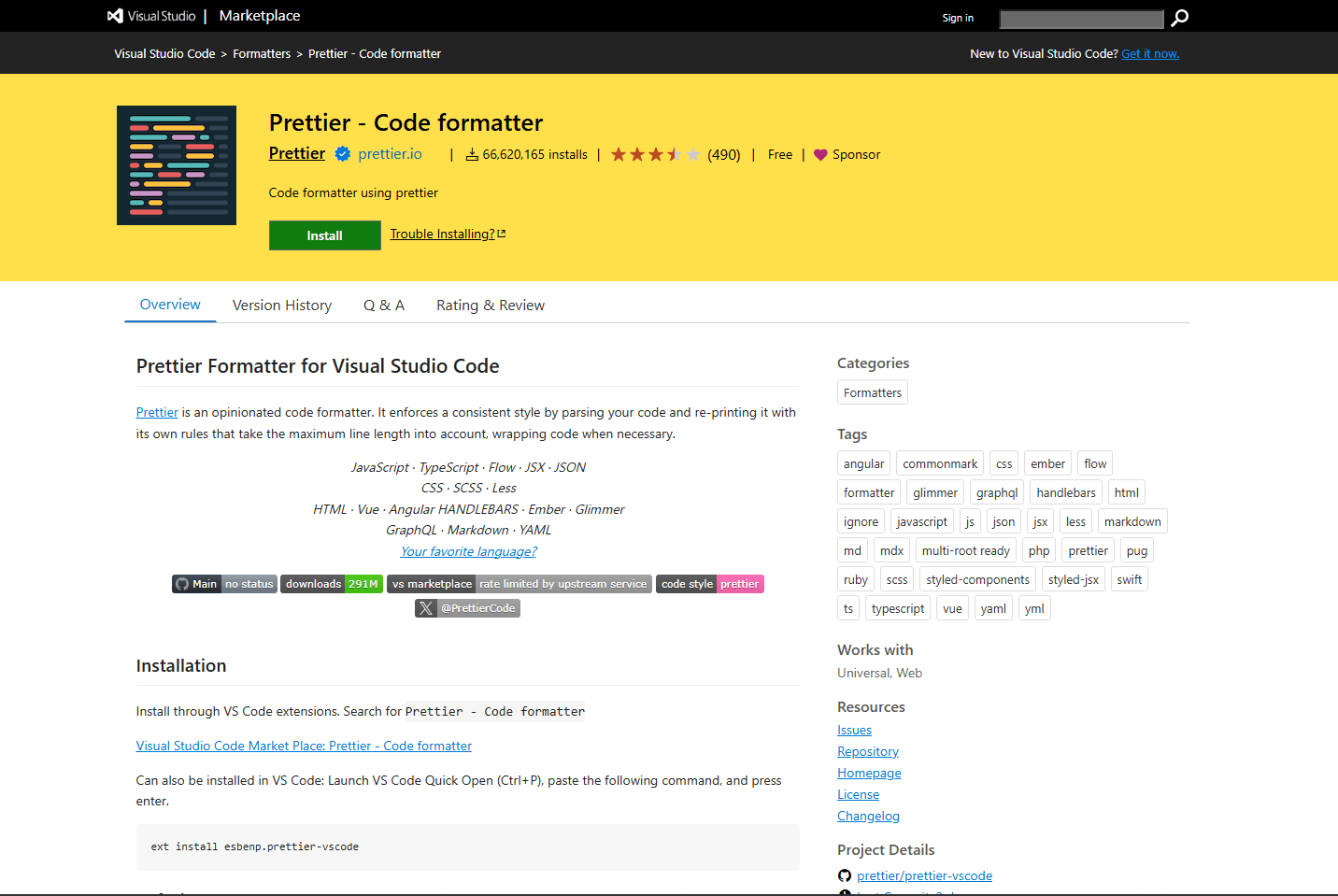
Prettier is a code formatter that works across JavaScript, TypeScript, HTML, CSS, and JSON. It is most useful when the repository already uses Prettier across several file types.
What you get:
- Consistent formatting across entire project
- Format on save
- Works with .prettierrc config files
- Multi-language support (not just JSON)
- Team-wide consistency
What you don't get:
- Key sorting (use a dedicated sorting extension for that)
- A minify command (JSON Tools provides one)
- JSON-specific features
How to install: Open Extensions panel (Ctrl + Shift + X), search "Prettier", install "Prettier - Code formatter" by Prettier.
Setup for format on save: Open settings.json (Ctrl + , then click the file icon in the top right). Add this:
{
  "editor.defaultFormatter": "esbenp.prettier-vscode",
  "editor.formatOnSave": true
}
With these settings, saving a JSON file runs Prettier automatically. A project-level Prettier configuration keeps the same rules available to editor and command-line workflows.
What makes it different: Prettier works across multiple languages, not just JSON. If you already use it for JavaScript or TypeScript, it can apply the same project configuration to JSON instead of relying on separate built-in language formatters.
Conflicts: Prettier and JSON Tools both have formatting commands. If you install both, use Prettier for formatting and JSON Tools for minify/sort. Don't use both for the same task.
2. JSON Tools
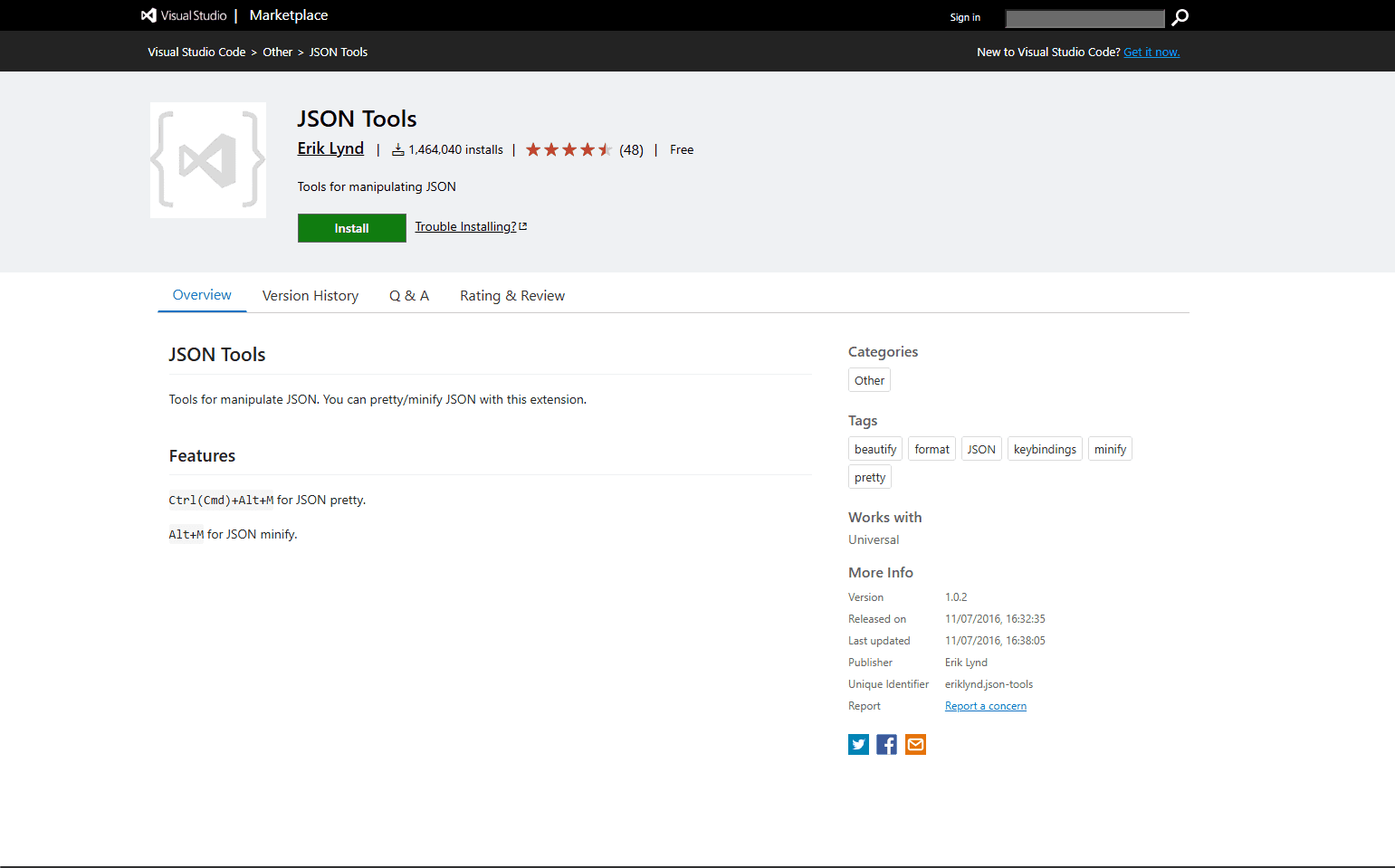
JSON Tools adds quick commands for prettifying and minifying JSON. Its current Marketplace documentation does not list key sorting, so use a separate sorting extension when deterministic key order is required.
What you get:
- Minify JSON to one line
- Prettify minified JSON
- Documented shortcuts for both actions
- Quick commands without configuring a project formatter
What you don't get:
- Automatic format on save
- Multi-language support
- Project-wide formatting rules
How to install: Extensions panel, search "JSON Tools", install by Erik Lynd.
How to use: The extension documents Ctrl + Alt + M on Windows and Linux (Cmd + Alt + M on macOS) for prettifying JSON, plus Alt + M for minifying it. Its commands are also available through the Command Palette.
What makes it different: JSON Tools gives you a direct minify action without turning Prettier into a second project formatter. It is a focused utility for switching between readable and compact representations.
When to use minify: When you need to paste JSON into a compact config field or API request body. Or when you're debugging and want to see the full payload on one line.
Conflicts: JSON Tools and Prettier both format JSON. Use Prettier for automatic format-on-save. Use JSON Tools when you specifically need minify or sort. Don't run both formatters on the same file.
3. JSON Crack
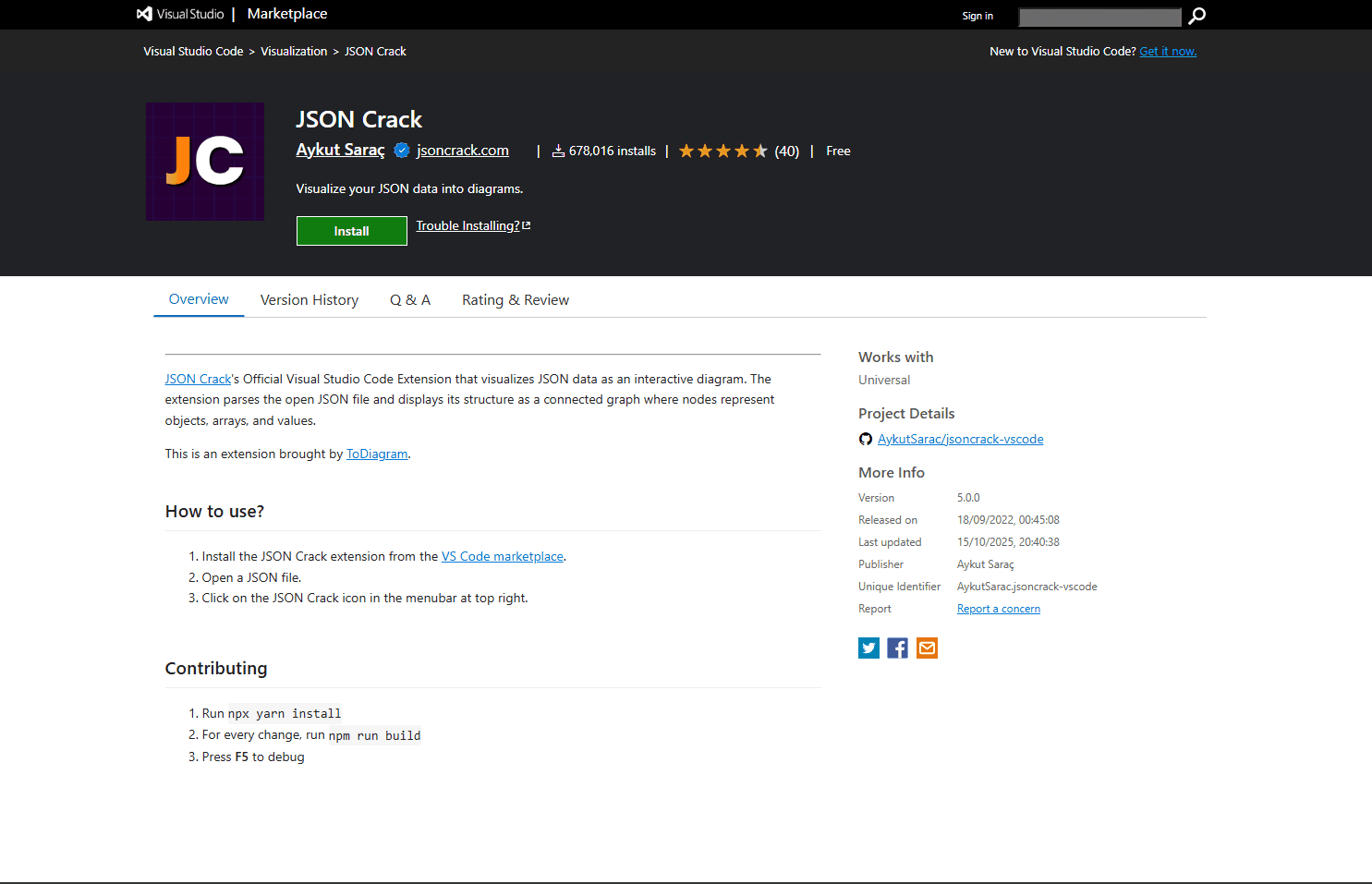
JSON Crack shows your JSON as a visual graph. Objects become boxes, arrays become lists, relationships become connecting lines.
What you get:
- Visual node-based graph view
- Zoom and pan navigation
- Spatial hierarchy visualization
- Works offline
What you don't get:
- A practical view when a document produces an extremely dense graph
- Editing capability (view only)
- Text-based navigation
How to install: Extensions panel, search "JSON Crack", and install the official extension by Aykut Sarac.
How to use: Open a JSON file and select the JSON Crack icon in the editor toolbar. A panel opens with the graph view, where you can expand the structure and use zoom or pan controls.
What makes it different: VS Code's built-in code folding shows hierarchy through indentation. JSON Crack represents objects, arrays, and values as connected nodes, which provides a different way to study an unfamiliar payload.
When it's useful: Complex nested structures with multiple levels. API responses you've never seen before. JSON where the hierarchy matters more than the values.
Performance limit: A graph becomes harder to read as the number of visible nodes grows. For very large exports, use code folding, split the data, or inspect it with a command-line processor instead of trying to render the entire structure spatially.
Conflicts: None. JSON Crack is purely visual. It doesn't format or edit.
4. JSON Hero
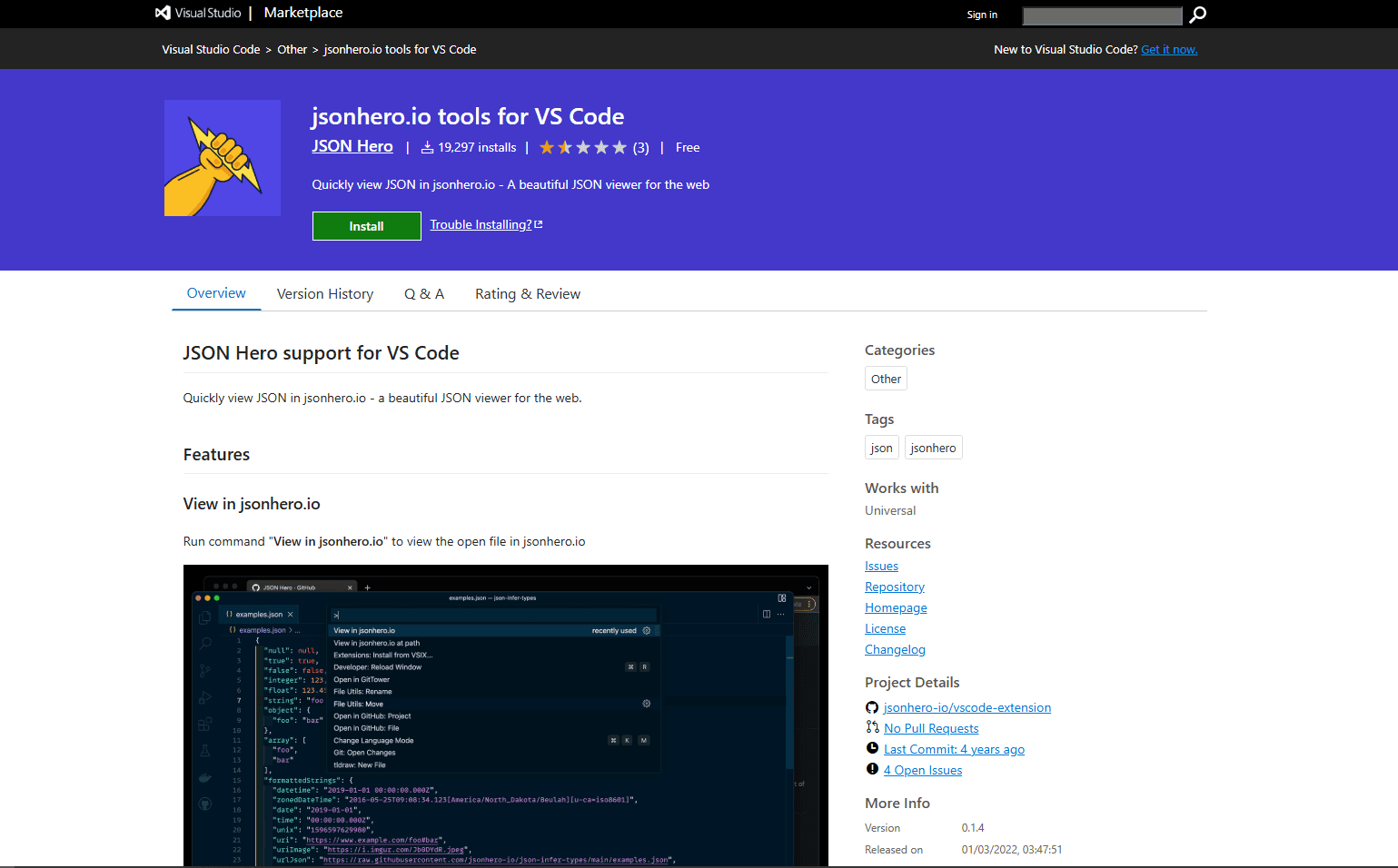
JSON Hero gives you a column-based explorer view like macOS Finder. Click a key in the left column, see its children in the next column.
What you get:
- Column-based explorer view
- Smart type detection (URLs, dates, colors, images)
- Clickable URLs
- Human-readable dates
- Color previews
- Search across entire document
What you don't get:
- Local processing through the default hosted setup
- A suitable workflow for sensitive data on the public instance
- Changes written back to the original VS Code file
How to install: Extensions panel, search "JSON Hero", install by JSON Hero.
How to use: Open a JSON file and run View in jsonhero.io from the Command Palette. The extension opens the selected data in a browser. Click through columns to inspect nested values, or search across keys and values.
What makes it different: Smart type detection. JSON Hero recognizes URLs, dates, colors, and images within your JSON values. A URL becomes a clickable link. A date shows in human-readable format. A color hex code shows a color preview. For API responses with timestamps or embedded media references, this is more useful than raw text.
Security warning: The extension points to https://jsonhero.io by default and supports a configurable jsonhero.url for a self-hosted deployment. Do not send API keys, tokens, passwords, or personal data to the public instance. JSON Crack or built-in code folding keeps that work inside the editor.
Conflicts: JSON Hero and JSON Crack both provide visual navigation. Pick one. JSON Crack works offline and shows a graph, while JSON Hero opens a column view in a browser and requires internet when you use the public instance.
5. Error Lens
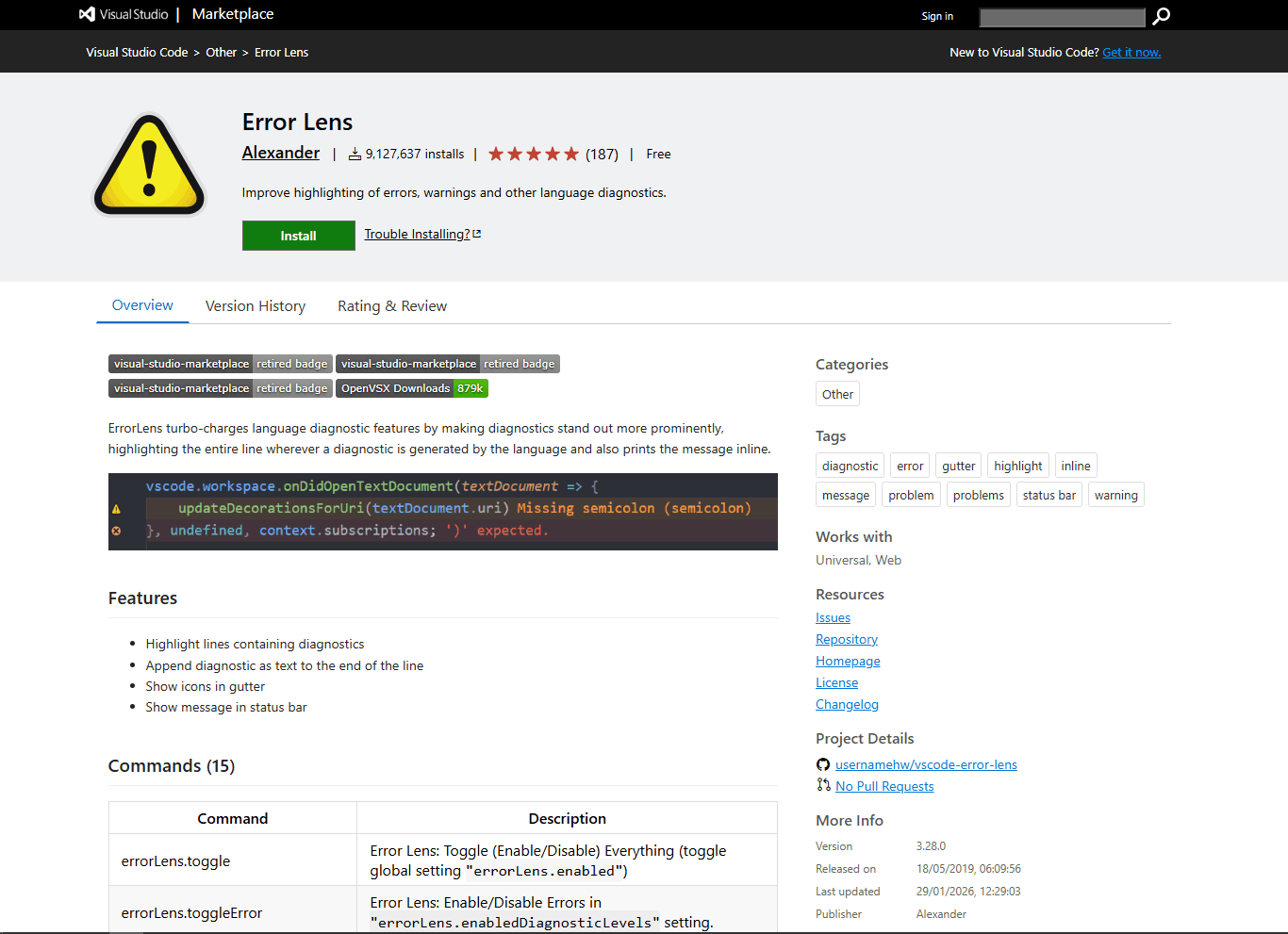
Error Lens changes how VS Code displays diagnostics. JSON syntax errors and schema violations still come from VS Code's built-in JSON language support; Error Lens makes those messages more visible on the affected line.
What you get:
- Diagnostic messages printed at the end of the line
- Optional whole-line highlighting
- Configurable gutter icons and status-bar indicators
- Controls for severity levels, files, and workspaces
What you don't get:
- A separate JSON validator or schema engine
- Formatting, minification, or tree navigation
- Automatic repair of malformed JSON
How to install: Open the Extensions panel, search "Error Lens", and install the extension by usernamehw.
How to use: Open a JSON file with a syntax or schema problem. Error Lens decorates the diagnostics that VS Code already reports, so you can read many messages without moving to the Problems panel or hovering over each underline.
What makes it different: Error Lens improves feedback rather than changing the JSON document. It is useful when you work with schema-heavy configuration files and want the reason for an invalid value visible beside the line.
Conflicts: Error Lens can display diagnostics from every enabled language service and linter. Use its severity and exclusion settings if a busy workspace produces more inline messages than you want.
6. JSON to CSV
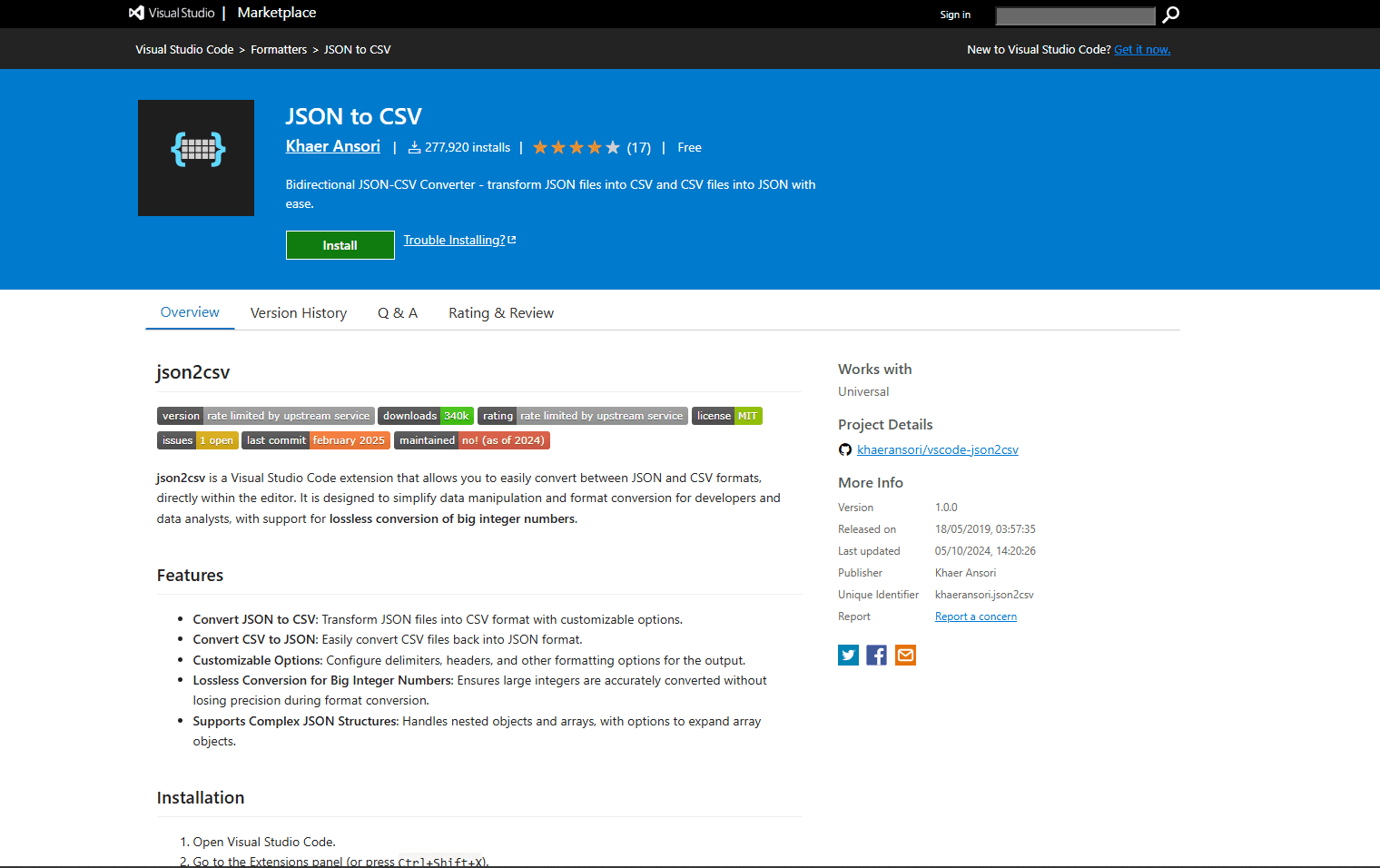
json2csv converts between JSON and CSV inside VS Code. Its current release includes options for headers, delimiters, nested objects, array expansion, and preserving large integers during conversion.
What you get:
- JSON array to CSV conversion
- CSV to JSON conversion
- Configurable nested-object and array expansion
- Delimiter, header, and Excel BOM settings
- Lossless handling for large integer values
- Quick conversion via Command Palette
What you don't get:
- A single default that suits every nested data shape
- Guaranteed round trips when expansion settings change the structure
- Formatting or validation features
How to install: Extensions panel, search "JSON to CSV", install by Khaeransori.
How to use: Open a JSON file, open the Command Palette, and run Convert JSON to CSV. The result opens in a new editor tab. Run Convert CSV to JSON from a CSV file for the reverse direction.
What makes it different: Its settings let you decide how nested objects, arrays, headers, and delimiters should map into a tabular format. Review those choices before converting data that must round-trip without structural changes.
When it's useful: API responses or database exports in JSON that need to go into Excel, Google Sheets, or a BI tool. Or when you're building test fixtures from spreadsheet data (the extension also does CSV to JSON).
Conflicts: None. This is a conversion tool, not a formatter or viewer.
7. Fix JSON
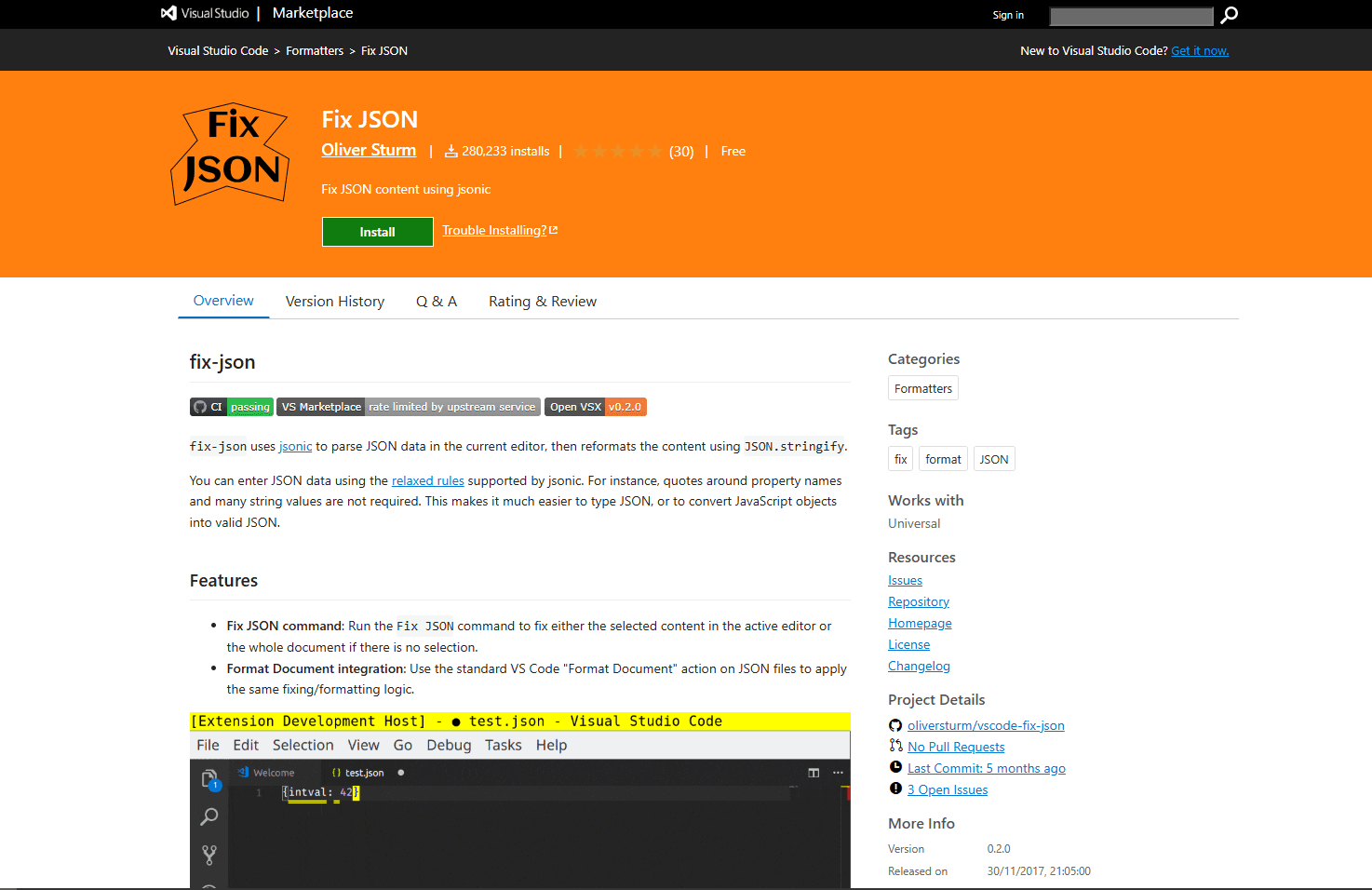
Fix JSON uses the relaxed Jsonic parser to turn several JavaScript-like object forms into valid JSON, then formats the result with JSON.stringify.
What you get:
- A Fix JSON command for a selection or the full document
- Relaxed parsing for unquoted property names and many string values
- Format Document integration
- Diagnostics when the relaxed parser still cannot read the input
- Quick fix via Command Palette
What you don't get:
- JSONC support in the current parser
- JSON Schema validation
- Guaranteed repair for arbitrary malformed input
How to install: Extensions panel, search "Fix JSON", install by Oliver Sturm.
How to use: Open a document or select a fragment, then run Fix JSON from the Command Palette. You can also choose Fix JSON when VS Code asks which formatter to use for a JSON document.
What makes it different: VS Code's validator reports strict JSON problems, while Fix JSON accepts a documented relaxed syntax and rewrites what it can parse as standard JSON.
When it's useful: It fits JavaScript-like object literals with omitted quotes around keys or simple string values. It is not a JSONC cleaner, and severely broken input may still fail to parse.
Conflicts: Fix JSON can register for VS Code's Format Document action alongside Prettier or the built-in formatter. Choose the default formatter deliberately so a normal formatting command does not apply relaxed parsing unexpectedly.
Extension Comparison
Recommendation
Most developers only need Prettier plus VS Code's built-in support. Add JSON Crack if you regularly explore deeply nested APIs, JSON Tools if you need a minification shortcut, or Error Lens if inline diagnostics help you work through schema errors. Do not install all of them. Prettier and JSON Tools overlap on formatting, while JSON Crack and JSON Hero provide different visual views of the same document structure.
Frequently Asked Questions
How do I auto-format JSON on save in VS Code?
Install Prettier, then open VS Code settings (Ctrl + ,). Search for "format on save" and enable it. Then search for "default formatter" and set it to Prettier. Now every time you save a JSON file, it formats automatically. You can also add this to settings.json: "editor.formatOnSave": true and "editor.defaultFormatter": "esbenp.prettier-vscode".
What's the best VS Code extension for viewing large JSON files?
Large-file behavior varies with document structure, enabled extensions, available memory, and VS Code settings, so there is no useful universal size threshold. Start with built-in code folding and disable visual extensions if the editor becomes unresponsive. For exports that are impractical to parse interactively, split the file or use jq on the command line.
How do I validate JSON against a schema in VS Code?
VS Code has built-in schema validation. Open .vscode/settings.json in your project and add a json.schemas entry pointing to your schema file, or add a top-level $schema property when the consuming format permits it. VS Code fully supports schema drafts 4 through 7 and documents limited support for drafts 2019-09 and 2020-12.
Does VS Code have a JSON tree view built in?
No. VS Code has code folding, which lets you collapse objects and arrays, but not a separate visual tree. JSON Crack provides an offline graph, while JSON Hero opens a column-based explorer through a hosted or self-hosted web instance. Keep sensitive data in VS Code and use JSON Crack or code folding.
How do I sort JSON keys alphabetically in VS Code?
Install a dedicated sorting extension such as Sort JSON. It supports sorting objects by key and offers controls for direction, depth, arrays, and selected JSON. Review the result before saving because changing object order can make a large Git diff even when values remain unchanged.
Related Reading
These guides help when VS Code is not the only editor in your workflow, or when teammates use different tools across Windows, macOS, and Linux:
- Best JSON editors for Windows
- Best JSON editors for Mac
- Best JSON editors for Linux
- Best JSON plugins for Sublime Text
- Best JSON plugins for Notepad++
Need to combine multiple JSON files first? Use the JSON merger tool.
Quick Picks for VS Code JSON Workflows
If a file is too large or needs restructuring first, use the free JSON splitter, JSON flattener, or JSON to table tool before opening it in VS Code.
Read More
All Articles
7 Best JSON Editor Apps for Android in 2026 (Compared & Ranked)
Compare seven current JSON editor apps for Android, including visual tree editors, fast text editors, Git tools, and a browser option.
4 Best JSON Plugins for Notepad++ in 2026
Compare the best JSON editor plugins for Notepad++ for formatting, tree navigation, linting, schema validation, and file comparison.
5 Best JSON Plugins for Sublime Text in 2026
Compare 5 current Sublime Text JSON plugins for formatting, live linting, schema validation, jq transformations, and structural navigation.