How to Format JSON in Notepad++: Quick Setup (2026)
Format JSON in Notepad++ with the JSTool plugin. Includes setup, shortcuts, validation, minification, troubleshooting, and formatting tips.
Read guide
This tool combines multiple .md files into one. Useful for docs sites, README consolidation, Obsidian vaults, and ebook drafts. Runs in the browser, free, no signup.
Drop Markdown files or click to browse
Supports .md, .markdown files
Markdown merge in action
// chapter-1-intro.md
# Introduction
Welcome to our comprehensive guide.

// chapter-2-features.md
# Features
Explore the key capabilities.

// chapter-3-conclusion.md
# Conclusion
Final thoughts and next steps.## chapter-1-intro
# Introduction
Welcome to our comprehensive guide.
---
## chapter-2-features
# Features
Explore the key capabilities.
---
## chapter-3-conclusion
# Conclusion
Final thoughts and next steps.Four simple steps
Drop .md or .markdown files directly into the merger interface.
Set separators, heading levels, and enable table of contents generation.
Combine files while preserving formatting, frontmatter, and structure.
Get merged Markdown file ready for publishing or conversion.
Real-world scenarios
Combine chapter files into complete manuscripts for conversion to EPUB, MOBI, or PDF using Pandoc or Calibre.
Merge API docs, guides, and references into comprehensive single-page documentation for easier distribution.
Combine research notes, draft sections, and references into polished articles ready for publication.
Assemble scattered FAQ files, troubleshooting guides, and how-tos into unified, searchable resources.
Common questions
Python & Bash
import glob

md_files = sorted(glob.glob("chapters/*.md"))
merged = ["# Complete Guide\n"]

for filepath in md_files:
    with open(filepath, "r", encoding="utf-8") as f:
        content = f.read().strip()
        filename = filepath.split("/")[-1].replace(".md", "")
        merged.append(f"## {filename}\n\n{content}")

with open("complete-guide.md", "w", encoding="utf-8") as out:
    out.write("\n\n---\n\n".join(merged))

print(f"Merged {len(md_files)} Markdown files")#!/bin/bash
OUTPUT="merged-docs.md"
echo "# Documentation" > "$OUTPUT"
echo "" >> "$OUTPUT"
for file in docs/*.md; do
name=$(basename "$file" .md)
echo "## $name" >> "$OUTPUT"
echo "" >> "$OUTPUT"
cat "$file" >> "$OUTPUT"
echo "" >> "$OUTPUT"
echo "---" >> "$OUTPUT"
echo "" >> "$OUTPUT"
doneIn-depth walkthrough
Heading levels from each file are preserved exactly as-is. The tool does not adjust or renumber headings automatically. If file A ends with an H2 and file B starts with an H1, that H1 stays as H1 in the merged output.
If you want consistent heading hierarchy across the merged document, you need to bump heading levels down in each file before merging. For example, if you're merging 4 chapter files and want them all under a master H1 title, turn all H1s into H2s in files 2, 3, and 4 before uploading them.
The tool adds a separator between files if you want one. Use --- for a horizontal rule, or a blank line for clean separation. You can also add file headers as Markdown headings to mark where each source file begins, and a table of contents that links to every H1-H3 heading in the merged output.
This is the number one thing Markdown users worry about when merging. The tool does not try to be smart about headings because every use case is different. Some people want all chapters at the same level. Others want nested hierarchies. Manual control before merging gives you exactly what you need.
Use this tool for one-off merges with no setup. Upload files, click merge, download the result. No command line, no installation, no configuration files. If you need to merge Markdown files once or twice, this is the fastest way.
Use cat *.md > merged.md in the terminal if you're comfortable with the command line and want something repeatable. This works great for automated builds or documentation pipelines where you're merging the same files over and over. You can script it and run it in CI/CD.
Use pandoc if you need to convert the merged output to PDF, HTML, or DOCX at the same time. Pandoc can merge and convert in one step, and it handles complex formatting like citations, cross-references, and custom templates. But it requires installation and learning the command syntax.
The online tool is fastest for non-developers working with Markdown docs. No installation, no terminal commands, just drag and drop. For developers who merge files regularly, cat or a build script is more efficient.
Obsidian notes are plain .md files, so they merge fine, but Obsidian adds its own syntax on top of standard Markdown. Wikilinks ([[Note]]), embeds (![[image.png]]), and callouts (> [!note]) are kept exactly as written, but they only render in Obsidian or tools that support them. Relative image and attachment paths may also break if the merged file is saved in a different folder, so check links after merging.
Notion exports include extra metadata lines at the top of each file. These look like property declarations or database fields. Remove those before merging if you don't want them in the output. They're not standard Markdown, so they'll show up as plain text in the merged file.
GitHub wiki and docs pages export as plain .md files that merge without issues. GitHub uses standard Markdown (with some extensions like task lists and tables), and all of that syntax is preserved during merging. Links and images work as long as the paths are still valid after merging.
Hand-picked guides to go deeper
Format JSON in Notepad++ with the JSTool plugin. Includes setup, shortcuts, validation, minification, troubleshooting, and formatting tips.
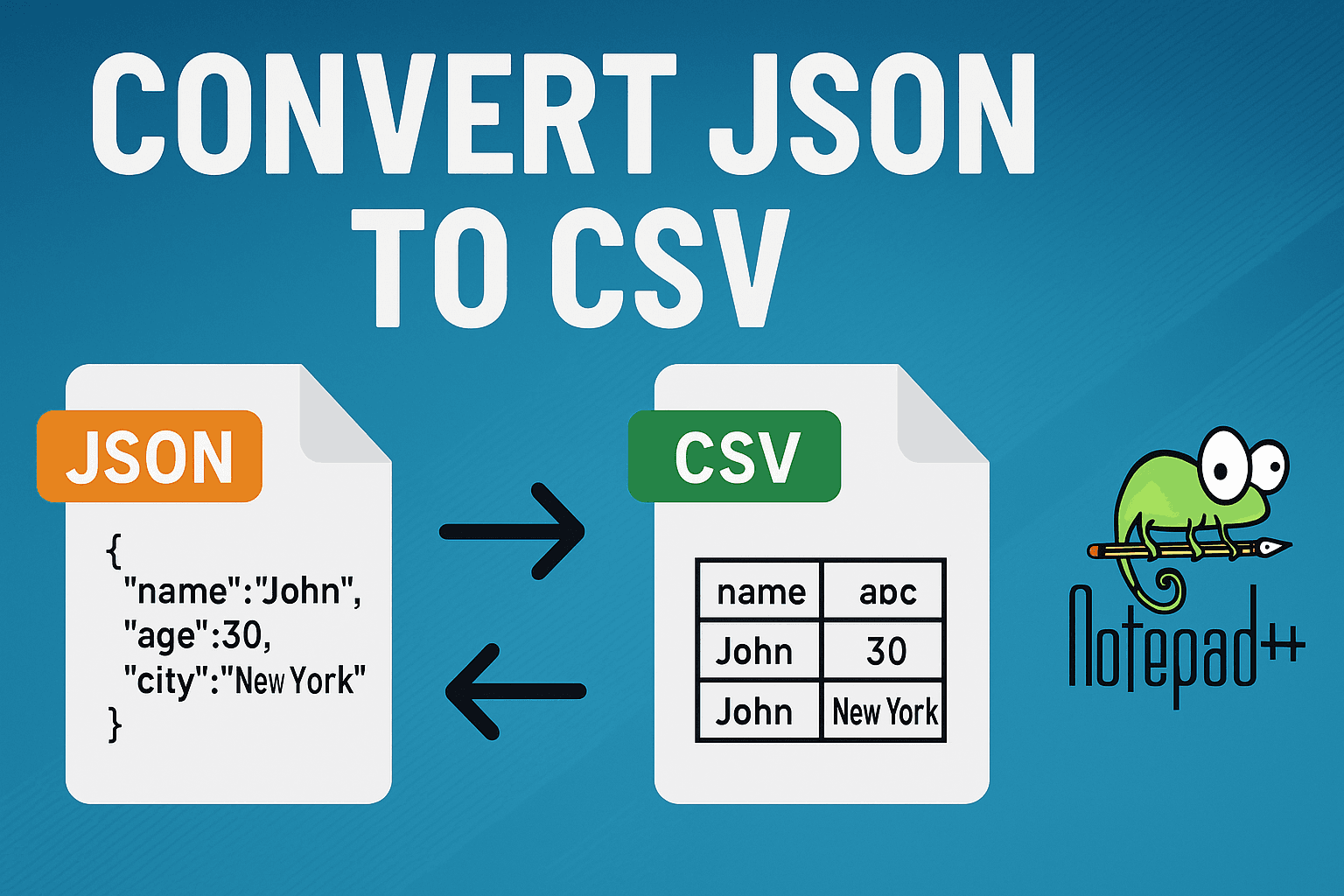
Convert JSON to CSV in Notepad++ with plugins, regex methods, and online alternatives for transforming JSON arrays and objects.
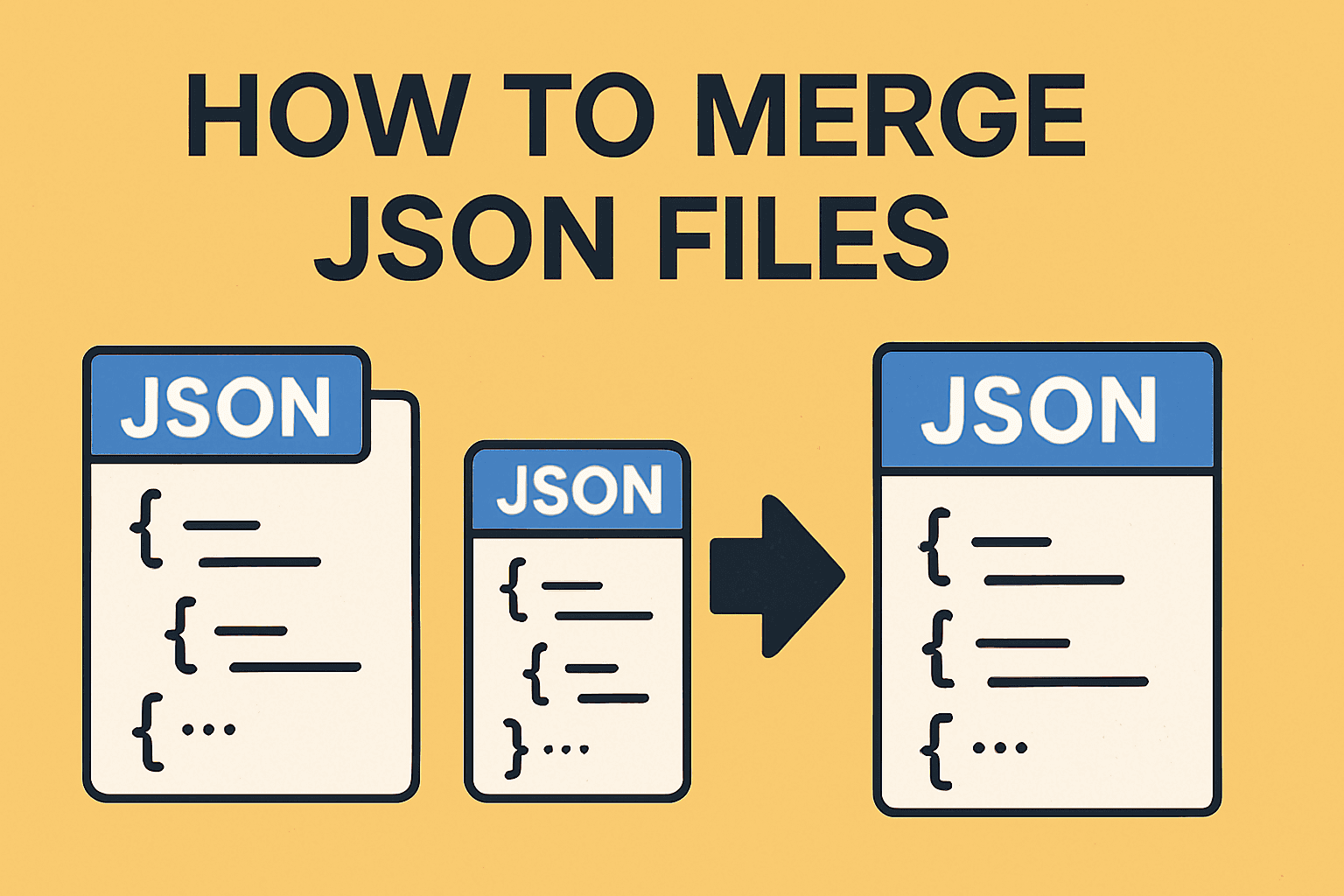
Merge multiple JSON files into one using free online tool, Python, or jq command line. Complete guide with code examples for arrays, objects, nested JSON, and deduplication.