How to Format JSON in IntelliJ: Easy Guide (2026)

On this page
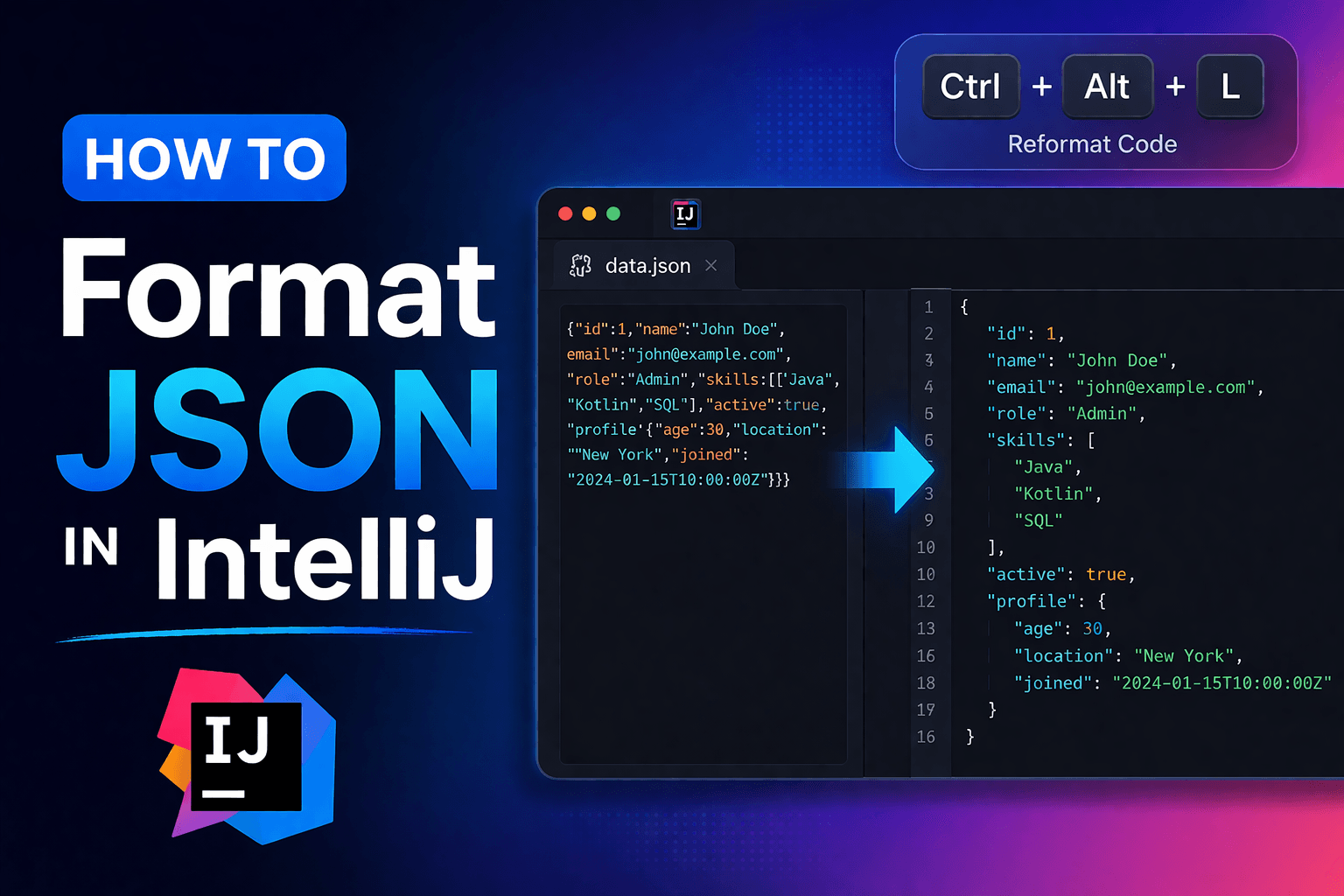
Press Ctrl+Alt+L (Windows/Linux) or Cmd+Option+L (Mac) to instantly format any JSON file in IntelliJ IDEA. IntelliJ has built-in JSON formatting with no plugins needed. It handles validation, schema support, and custom formatting rules out of the box.
IntelliJ IDEA's JSON formatter works on files, clipboard content, and code snippets. It automatically detects JSON structure, validates syntax, and applies consistent indentation and spacing. The formatter handles nested objects, arrays, and JSON5 files with the .json5 extension. You can customize indentation width, property alignment, and array formatting in the code style settings.
Beyond basic formatting, IntelliJ validates JSON against schemas, highlights syntax errors as you edit, and provides context actions for some errors. The formatter integrates with IntelliJ's "Actions on Save" feature, so JSON files can auto-format whenever IntelliJ saves them. For API responses and configuration files, this saves time and prevents formatting inconsistencies across your project.
How to Format JSON in IntelliJ
Open your JSON file or paste JSON into IntelliJ. Press Ctrl+Alt+L (Windows/Linux) or Cmd+Option+L (Mac). Done.
Before formatting:
{"name":"John","age":30,"skills":["Java","Python"],"active":true}After formatting:
{
  "name": "John",
  "age": 30,
  "skills": [
    "Java",
    "Python"
  ],
  "active": true
}
The formatted version shows structure at a glance. You can see nested objects, array items, and property relationships without counting brackets.
Quick Comparison: All Formatting Methods
IntelliJ is the best choice if you already use it for Java development. Zero formatter setup, and it integrates with your existing workflow.
Other Ways to Format JSON in IntelliJ
Right-click menu: Right-click anywhere in the JSON file → select "Reformat Code". Same result as the keyboard shortcut.
Format dialog (Ctrl+Alt+Shift+L or Cmd+Option+Shift+L): Opens the Reformat File dialog with additional options. Useful when you want more control over what gets formatted.
Format on paste: IntelliJ can automatically format JSON when you paste it. Go to Settings → Editor → General → Smart Keys and set "Reformat on paste" to "Reformat block". Now pasted multiline JSON formats automatically.
Most of the time you'll only use Ctrl+Alt+L. The other methods are there when you need them.
Configure JSON Formatting Rules
- Go to Settings/Preferences → Editor → Code Style → JSON
- Adjust indent size, spacing around colons, max line length
- Click Apply → OK → reformat with Ctrl+Alt+L
Key settings to configure:
- Tab size: Set to 2 or 4 spaces based on your team standards
- Indent: Choose spaces or tabs
- Space after colon: Add space after : in key-value pairs (enabled by default)
- Wrap arrays: Control when arrays wrap to new lines
- Keep blank lines: Preserve intentional blank lines in JSON
Most teams use 2-space indentation for JSON. If your team uses 4 spaces, change "Tab size" to 4 and "Indent" to 4.
Format JSON Automatically on Save
- Open Settings → Tools → Actions on Save
- Check "Reformat code"
- Optionally configure the file-type scope and choose the whole file or changed lines
- Click Apply → OK
Now JSON formats automatically whenever IntelliJ saves the modified file (Ctrl+S or Cmd+S).
You can also enable "Run code cleanup" for inspection-based quick fixes. This is separate from basic JSON formatting.
JSON Validation and Error Detection
IntelliJ validates JSON syntax in real-time. Errors appear with red underlines. Hover over the error to see the message.
Common JSON syntax errors IntelliJ catches:
Trailing commas (invalid JSON):
{
  "name": "John",
  "age": 30,
}
IntelliJ highlights the trailing comma with a red underline. Press Alt+Enter (Windows/Linux) or Option+Return (Mac) to check for an available quick fix.
Single quotes (invalid JSON):
{
  'name': 'John'
}
IntelliJ shows an error and may offer a conversion to double quotes with Alt+Enter / Option+Return.
Missing commas:
{
  "name": "John"
  "age": 30
}
IntelliJ indicates where commas are missing with red underlines.
Unmatched brackets:
{
  "items": ["a", "b"
}
IntelliJ highlights the mismatched bracket and shows where it expects the closing bracket.
Comments (not valid in strict JSON):
{
  // This is a comment
  "name": "John"
}
IntelliJ shows an error because standard JSON doesn't allow comments. However, IntelliJ supports JSON5 syntax in .json5 files.
Advanced JSON Features in IntelliJ
JSON Schema validation: Go to Settings → Languages & Frameworks → Schemas and DTDs → JSON Schema Mappings to validate against schemas. IntelliJ can detect schemas for common files such as package.json and tsconfig.json, or you can specify a custom schema.
JSONPath testing: IntelliJ supports JSONPath expressions for extracting data from JSON structures. With a JSON file open, use Edit → Find → Evaluate JSONPath Expression.
Quick navigation (Ctrl+F12 / Cmd+F12): Shows the JSON structure outline. Click any property to jump to it. Useful for navigating large JSON files.
Folding/Unfolding: Click the minus/plus icons in the gutter to collapse or expand JSON objects and arrays. Or use Ctrl+NumPad- to fold and Ctrl+NumPad+ to unfold on the Windows keymap. Check Settings → Keymap on Mac.
Find in JSON: Use Ctrl+F (Cmd+F on Mac) to search for keys or values. IntelliJ highlights all matches and lets you navigate between them with F3 / Shift+F3.
Formatting Large JSON Files
IntelliJ handles ordinary JSON files in the editor. With large files, you might see slowdowns or hit separate limits for opening files and receiving coding assistance. JetBrains warns that large files can affect editor performance and memory use.
For very large files:
- Use a JSON splitter to break the file into smaller chunks
- Format each chunk separately
- Merge them back if needed
Or format via command line with Python's json.tool:
python -m json.tool large.json formatted.jsonFor large JSON, command-line formatting avoids the editor's code-assistance overhead, although Python still needs enough memory for the file.
Formatting API Responses
Copy JSON from your browser's Network tab, Postman, or curl output. Create a new .json file in IntelliJ with Alt+Insert → File, or open a scratch file (Ctrl+Alt+Shift+Insert / Cmd+Shift+N) and select JSON. Paste the JSON. Press Ctrl+Alt+L / Cmd+Option+L to format.
Scratch files don't save to your project, but remain available in the same IDE configuration. They work well for formatting API responses you don't need in the project. Go to File → New → Scratch File → JSON.
Formatting JSON Inside Other Files
Sometimes JSON appears inside Java strings, HTML files (JSON-LD schema), or JavaScript files.
To format JSON embedded in a string:
- Place the caret inside the string and press Alt+Enter / Option+Return
- Choose Inject language or reference, then select JSON
- Press the intention shortcut again and choose Edit JSON Fragment
- Reformat the JSON in the fragment editor with Ctrl+Alt+L / Cmd+Option+L
The language-injection editor provides JSON highlighting, inspections, and code-style actions while keeping the fragment inside the host string.
For JSON in Java strings:
// language=JSON
String json = "{\"name\":\"John\",\"age\":30}";
The // language=JSON comment makes the injection persistent. When you edit the dedicated JSON fragment, IntelliJ writes the changes back with the escaping required by the Java string.
Batch Formatting Multiple JSON Files
Need to format multiple JSON files at once?
In IntelliJ:
- Select the folder containing JSON files in the Project view
- Right-click → Reformat Code
- Check "Include subdirectories" if needed
- Click Run
IntelliJ formats all JSON files in the selected folder.
Command line with Python:
for file in *.json; do
    python -m json.tool "$file" > temp.json && mv temp.json "$file"
done
This works on Linux/Mac. For Windows PowerShell:
Get-ChildItem *.json | ForEach-Object {
    python -m json.tool $_.FullName temp.json
    Move-Item temp.json $_.FullName -Force
}
Formatting JSON with Comments (JSONC)
Strict JSON does not permit comments, although tools such as TypeScript and VS Code accept comments in some configuration files. IntelliJ may recognize special configuration filenames, but schema detection does not make comments valid in every .json file.
For files you control, use .json5 when the consuming application supports JSON5. IntelliJ recognizes that extension and preserves comments during formatting.
For a custom filename that intentionally uses JSON5 syntax, right-click it in the Project tool window and choose Override File Type → JSON5. Avoid associating every .json file with JSON5 because that would weaken strict-JSON error checking throughout the project.
When Formatting Doesn't Work
File not recognized as JSON: Right-click the file in the Project tool window and choose Associate with File Type, then select JSON. You can also use File → File Properties → Associate with File Type.
Shortcut conflict: If Ctrl+Alt+L does nothing, another plugin or system shortcut might be using it. Go to Settings → Keymap → search for "Reformat Code" → check the assigned shortcut. Change it if needed.
Invalid JSON: Syntax errors can prevent the formatter from producing the expected structure. Check the highlighted errors, fix them, and then format again.
File too large: IntelliJ may disable editing or coding assistance when a file crosses its configured thresholds. Use a command-line formatter or split the file first.
Changing Indentation from 2 Spaces to 4
IntelliJ uses 2-space indentation for JSON by default. To change it:
- Settings → Editor → Code Style → JSON
- Change "Tab size" to 4
- Change "Indent" to 4
- Click Apply → OK
- Reformat your JSON with Ctrl+Alt+L / Cmd+Option+L
The new indentation applies immediately to all future formatting.
Quick navigation: Use Ctrl+F12 (Windows/Linux) or Cmd+F12 (Mac) to see the JSON structure outline.
Frequently Asked Questions
What's the shortcut to format JSON in IntelliJ?
Ctrl+Alt+L on Windows/Linux or Cmd+Option+L on Mac. This works for any file type in IntelliJ, not just JSON. You can also use Ctrl+Shift+Alt+L / Cmd+Shift+Option+L to open the format dialog with additional options like "Optimize imports" and "Rearrange code".
How do I auto-format JSON on save in IntelliJ?
Go to Settings → Tools → Actions on Save and check "Reformat code". Set the file-type scope to include JSON, then choose the whole file or changed lines. IntelliJ runs the action on explicit saves and autosave events.
Why isn't my JSON formatting in IntelliJ?
Check that IntelliJ recognizes the file as JSON. If it is treated as text, right-click it in the Project tool window and choose Associate with File Type → JSON. Also verify that the JSON is syntactically valid. Fix highlighted syntax errors, then format again.
Can IntelliJ validate JSON as well as format it?
Yes, IntelliJ validates JSON syntax automatically and highlights errors with red underlines. Hover over an error to see its message, then press Alt+Enter / Option+Return to check for available context actions. For structural validation, configure JSON Schema under Settings → Languages & Frameworks → Schemas and DTDs → JSON Schema Mappings.
How do I change the JSON indent size in IntelliJ?
Go to Settings → Editor → Code Style → JSON. Change the "Tab size" and "Indent" values. Set to 2 for compact formatting or 4 for more readable formatting. Click "Apply" then reformat your JSON with Ctrl+Alt+L / Cmd+Option+L. The new indentation applies immediately.
Can IntelliJ format JSON inside Java strings?
Yes. Put the caret inside the string, use Alt+Enter / Option+Return to inject JSON, then choose Edit JSON Fragment. Format inside the fragment editor. Availability depends on the host language and its language-injection support.
How do I format multiple JSON files at once in IntelliJ?
Select the folder containing JSON files in the Project view, right-click → Reformat Code, check "Include subdirectories" if needed, and click Run. IntelliJ formats all JSON files in the selected folder. This works for entire projects too.
Does IntelliJ support JSONC (JSON with comments)?
IntelliJ supports JSON5 and recognizes .json5 files by default. Some known configuration files that permit comments receive specialized handling, but arbitrary .json files are still strict JSON. If the consuming tool accepts JSON5, override that specific file's type to JSON5 before formatting it.
Can I format JSON without opening IntelliJ?
Use python -m json.tool input.json output.json from the command line. VS Code also has built-in formatting with Shift+Alt+F. If you already use IntelliJ for development, its built-in formatter avoids switching tools.
What if I have a huge JSON file (100MB+)?
IntelliJ has separate file-opening and code-assistance thresholds, and formatting may become impractical before either threshold is reached. For a large file, use Python's json.tool from the command line or split the file first with a JSON splitter, format the chunks, then merge them back.
Related Tools
Need to work with JSON in other ways? These tools help:
- JSON Merger - Combine multiple JSON files into one
- JSON Splitter - Break large JSON files into smaller chunks
- JSON to Excel - Convert JSON to spreadsheet format
- JSON to Table - View JSON data in table format
- JSON Flattener - Flatten nested JSON structures
- How to Format JSON in Notepad++ - Alternative for lightweight editor users
Read More
All Articles
How to Format JSON in VS Code: Shortcuts & Prettify (2026)
Press Shift+Alt+F (Shift+Option+F on Mac) to format JSON in VS Code instantly. Set up format on save, prettify with Prettier, minify JSON, and fix common errors.
How to Format JSON in Notepad++: Quick Setup (2026)
Format JSON in Notepad++ with the JSTool plugin. Includes setup, shortcuts, validation, minification, troubleshooting, and formatting tips.
How to Create JSON File in Java: Step-by-Step Guide (2026)
Create JSON files in Java with Jackson, Gson, or org.json. Includes dependency setup, code examples, and file-writing best practices.