How to Read JSON File in JavaScript: Complete Guide (2026)

On this page
Reading JSON files in JavaScript depends on where your code runs: browser or Node.js. In browsers, use the Fetch API for HTTP requests or FileReader for user-uploaded files. In Node.js, use fs.readFile() or import for static JSON files. Both environments have built-in JSON parsing with JSON.parse().
Reading JSON is a common JavaScript task: APIs return JSON responses, configuration files use it, and data exports often arrive in the same format. Browser and Node.js code use different loading methods, and malformed or unexpected data needs deliberate error handling.
The methods below cover both environments: Fetch API for loading JSON over HTTP in browsers, JSON modules (import) for static data, FileReader for user-uploaded files, and the Node.js fs module for server-side file reading. The examples include error handling patterns and notes on files that might exceed available memory.
Why JSON Has Become the Industry Standard
JSON is popular because it is lightweight, language agnostic, and maps directly to common data structures (objects and arrays).
Common scenarios include:
- API integration: fetching data from REST endpoints (product lists, user profiles, dashboards).
- Configuration: loading settings files and feature flags.
- Data migration: reading exports for transformation or reporting.
- Local development: using mock JSON while building a UI before the backend is ready.
Once the environment is clear, reading JSON becomes a predictable sequence: load the text, parse it, validate what you got, and handle errors.
Understanding the Environment: Browser vs. Node.js
The first step is identifying where the code runs.
- Browser (client side): for security reasons, the browser cannot read arbitrary local files from disk. It can fetch JSON from a URL, or read a file a user explicitly selects via an .
- Node.js (server side): Node.js runs on your operating system, so it can read files from disk using the fs module.
Rule of thumb: browser code uses fetch() for URLs and FileReader for user uploads. Node.js code uses fs.
Method 1: Reading JSON in the Browser Using the Fetch API
The Fetch API is the standard promise-based way to request a resource in modern browsers. Older code may still use XMLHttpRequest, but new code will usually be clearer with fetch() and async/await.
The Basic Implementation
For a JSON file served at a URL such as data.json, use async/await and check the HTTP response before parsing:
async function loadUserData() {
  try {
    // 1. Start the request
    const response = await fetch('./data.json');

    // 2. Check if the file exists and is accessible
    if (!response.ok) {
      throw new Error(`Could not fetch the file. Status: ${response.status}`);
    }

    // 3. Convert the response body to a JavaScript object
    const data = await response.json();

    // 4. Use your data!
    console.log("User Name:", data.name);
    console.log("User Email:", data.email);
  } catch (error) {
    console.error("Oh no, something went wrong:", error.message);
  }
}

loadUserData();
Why response.ok matters
A common pitfall is skipping the response.ok check. fetch() rejects for request or network failures, but it does not reject merely because the server returns an HTTP error status such as 404 or 500. The promise still resolves to a response, and response.json() may then try to parse an HTML error page. That is how you can get errors such as Unexpected token < in JSON at position 0.
Check response.ok (or the status code) before parsing so failures are handled intentionally and error messages stay clear.
Method 2: JSON Modules with Import Attributes
Current JavaScript runtimes can support JSON modules, which let a static JSON file be loaded with an import statement. Support and build-tool configuration still vary, so check the target browsers or Node.js version for your project.
This is best for static configuration files or small data sets.
How to Use Import Attributes
Current Node.js uses the with import-attributes syntax, and type: 'json' is mandatory for JSON modules. The older assert syntax was an earlier form and should not be copied into new Node.js examples.
// Note the 'with' syntax for JSON modules
import configData from './config.json' with { type: 'json' };

console.log("Application Theme:", configData.theme);
console.log("API Version:", configData.version);
This approach works well for small, static JSON (config, copy, lookup tables). It loads before your script runs, keeps data immediately available, and avoids extra fetch() calls.
The tradeoff is that JSON modules are part of the module graph and are cached. They are a poor fit for data that must be refreshed independently at runtime; use fetch() for that case.
Method 3: Reading Local User Files (The File Input Method)
Sometimes a page needs to accept a user-provided JSON file, like in a data cleanup or transformation tool.
Use the FileReader API for that scenario.
const fileInput = document.getElementById('myFileInput');

fileInput.addEventListener('change', (event) => {
  const file = event.target.files[0];
  if (!file) return;

  const reader = new FileReader();

  reader.onload = (e) => {
    try {
      const jsonContent = JSON.parse(e.target.result);
      console.log("File content successfully parsed:", jsonContent);
    } catch (err) {
      alert("This file is not a valid JSON format!");
    }
  };

  reader.onerror = () => {
    console.error("The selected file could not be read.");
  };

  reader.readAsText(file);
});
FileReader.readAsText() reads the selected file in the page; it does not upload the file by itself. Whether a site sends that data elsewhere still depends on the surrounding application code. The method loads the complete file into memory, so it is not suitable for very large files.
Method 4: Reading JSON in Node.js (Primary Backend Method)
Server-side JavaScript can read JSON directly from disk. For a CLI or backend service, Node.js's fs (File System) module is the usual starting point.
Option A: Using fs/promises (The Modern Standard)
The promise-based file API performs file operations without blocking the event loop and fits naturally with async/await in modern Node.js applications.
import { readFile } from 'node:fs/promises';

async function getLocalSettings() {
  try {
    const filePath = new URL('./settings.json', import.meta.url);
    const rawData = await readFile(filePath, 'utf8');

    // Passing 'utf8' makes readFile return a string, which JSON.parse can read.
    const settings = JSON.parse(rawData);

    console.log("Merging data...", settings.db_host);
  } catch (error) {
    if (error.code === 'ENOENT') {
      console.error("The file does not exist at the specified path.");
    } else if (error instanceof SyntaxError) {
      console.error("The file does not contain valid JSON.");
    } else {
      console.error("Could not read the settings file:", error.message);
    }
  }
}
Option B: Using require() (CommonJS shortcut)
In a CommonJS-based Node.js project, require() can be a convenient shortcut for small, static JSON configuration.
const localData = require('./data.json');
// No JSON.parse needed. require() parses JSON automatically.
console.log(localData.items);
Avoid this pattern for large data files. require() caches loaded modules, so another require() call normally returns the cached JSON. Changes on disk appear only after that cache entry is invalidated or the process restarts.
Comparison: Which Method is Best for You?
Deep Insight: Unexpected Token Errors
Unexpected token errors usually mean the input is not valid JSON, or it is not the type you think it is. Common causes include:
- A BOM (byte order mark) at the start of a file.
- Single quotes or trailing commas that are valid in JavaScript objects but invalid in JSON.
- An HTML error page being parsed as JSON (often Unexpected token <).
- Passing an already-parsed object or other non-JSON input into JSON.parse().
Handling Large JSON Files Without Loading Everything at Once
Very large JSON files can exceed the memory available to the process. A single JSON.parse() call builds the full parsed value in memory, so the usable limit depends on the runtime, file structure, and machine.
For supported JSON structures, a streaming parser can process records incrementally instead of retaining the whole document. This is especially practical for a top-level array or newline-delimited JSON; arbitrary nested JSON may need a different streaming strategy.
In Node.js, packages like stream-json can parse large arrays incrementally. The current package uses ESM imports:
import fs from 'node:fs';
import chain from 'stream-chain';
import { parser } from 'stream-json';
import { streamArray } from 'stream-json/streamers/stream-array.js';

const pipeline = chain([
  fs.createReadStream('massive-data.json'),
  parser(),
  streamArray()
]);

pipeline.on('data', (data) => {
  // Handle one top-level array item at a time.
  console.log('Processing record:', data.value.id);
});
Splitting a large file into valid smaller documents can also make debugging and processing more predictable. Split according to the JSON structure rather than cutting at arbitrary byte positions, which can produce invalid JSON or break UTF-8 characters.
Best Practices for Reading JSON in Production
These best practices keep JSON loading stable in production code:
1. Always use try and catch
Wrap parsing in a try...catch block so one bad file does not crash your entire app.
2. Validate the shape of the data
Valid JSON can still be the wrong structure. If your code expects user.email but the file only contains user.username, you will still get runtime errors. Libraries like Zod or Joi help enforce a schema immediately after parsing.
3. Be mindful of CORS in the browser
When using fetch() across domains, CORS rules apply. Ensure the server returns the right headers (for example, Access-Control-Allow-Origin) for the environment you are testing.
4. Treat encoding as part of the contract
Use UTF-8 consistently. If you see unexpected characters, the file may be read with the wrong encoding or include a BOM marker at the start.
Troubleshooting Common JSON Reading Errors
"Request has been blocked by CORS policy"
This is a browser security feature. You cannot fetch a JSON file from one domain while running on another domain unless the server allows it. During local development, use a local server instead of opening the HTML file directly with a file:/// URL.
"Unexpected token < in JSON at position 0"
This often means the response was HTML, not JSON. A common cause is a missing file or wrong URL, which returns a 404 page that starts with .... Check the request path and inspect the Network response body.
"Cannot find module" (Node.js)
If you are using require('./data'), include the .json extension and verify the path. Also remember that require resolves relative to the current file, while many fs paths are relative to where you run the command.
Related Tools and Guides
If you want a few practical next steps, these are the most relevant tools and guides:
- JSON File Splitter for breaking very large files into smaller chunks.
- How to Merge JSON Files when you need to recombine multiple JSON outputs.
- JSON Flattener for simplifying deeply nested JSON before processing.
- How to Format JSON in Notepad++ for cleaning up and validating JSON on Windows.
Final Thoughts
Reading JSON in JavaScript becomes straightforward once the environment is clear. In the browser, load JSON via fetch() or FileReader. In Node.js, read from disk with fs and parse with JSON.parse().
For production code, the biggest improvements come from predictable error handling and validation. Avoid logging entire raw payloads because they may contain secrets or personal data; log safe context instead. Validate the data shape early, and use structure-aware streaming or splitting when files are large.
Read More
All Articles
How to Create JSON File in Java: Step-by-Step Guide (2026)
Create JSON files in Java with Jackson, Gson, or org.json. Includes dependency setup, code examples, and file-writing best practices.
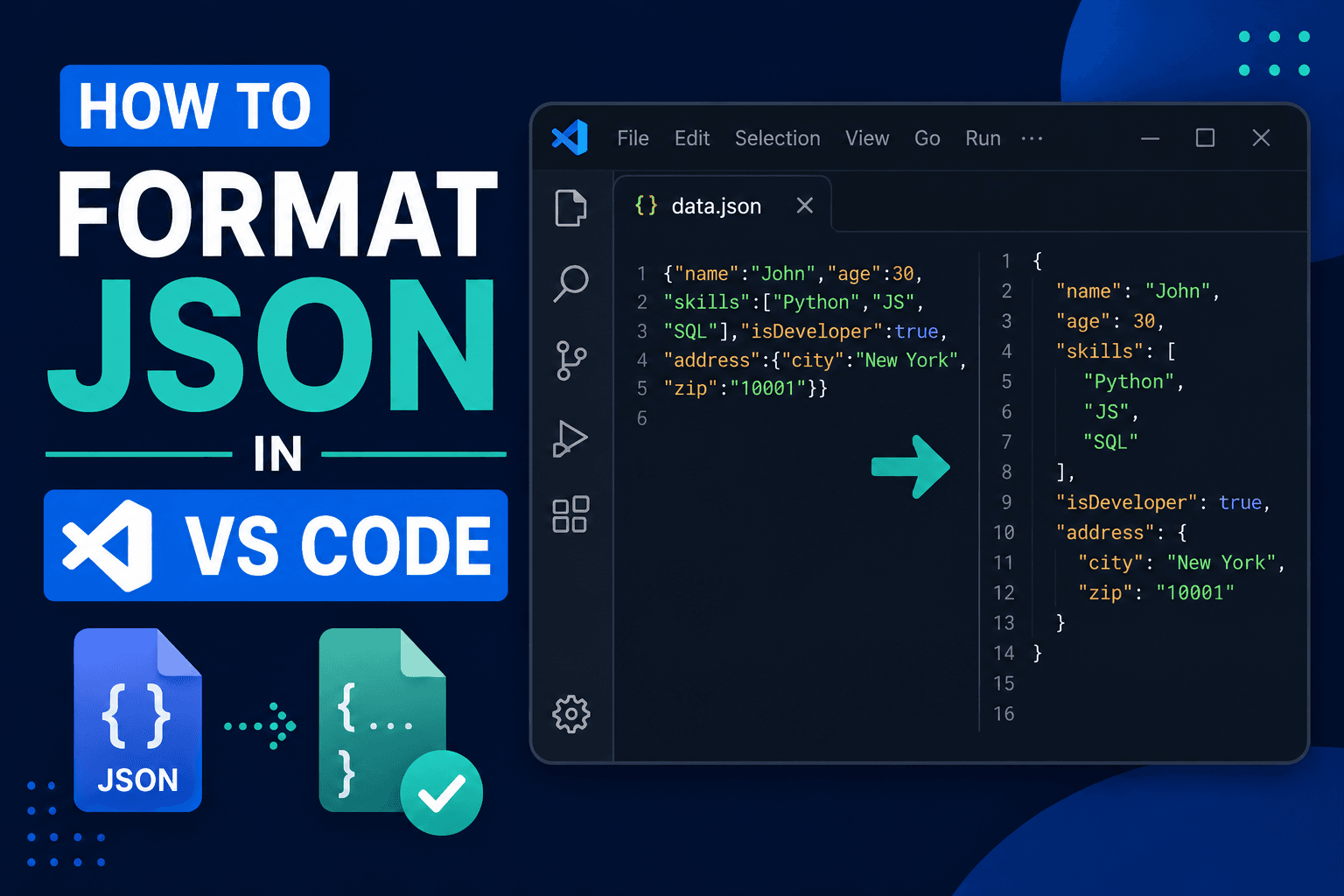
How to Format JSON in VS Code: Shortcuts & Prettify (2026)
Press Shift+Alt+F (Shift+Option+F on Mac) to format JSON in VS Code instantly. Set up format on save, prettify with Prettier, minify JSON, and fix common errors.
How to Format JSON in Notepad++: Quick Setup (2026)
Format JSON in Notepad++ with the JSTool plugin. Includes setup, shortcuts, validation, minification, troubleshooting, and formatting tips.