9 Best CSV Editors for Mac in 2026 (Free and Paid)

On this page
A CSV can look correct in Finder and still change as soon as a spreadsheet opens it. Postal codes may lose leading zeros, long identifiers may appear in scientific notation, and date-like text may be interpreted as calendar dates.
LibreOffice Calc is the strongest free choice when those values must remain unchanged because its import dialog exposes delimiters, encoding, language, and column types before loading the file. Modern CSV is better for direct grid editing without spreadsheet formulas, while TableTool provides a simpler free Mac editor.
The nine editors below cover controlled spreadsheet imports, dedicated CSV grids, developer tools, browser collaboration, and large-file inspection. Choose according to what matters most: preserving text values, editing cells quickly, reviewing raw delimiters, or exploring a dataset that is too large for an ordinary spreadsheet.
The 9 Best CSV Editors for Mac in 2026
1. LibreOffice Calc
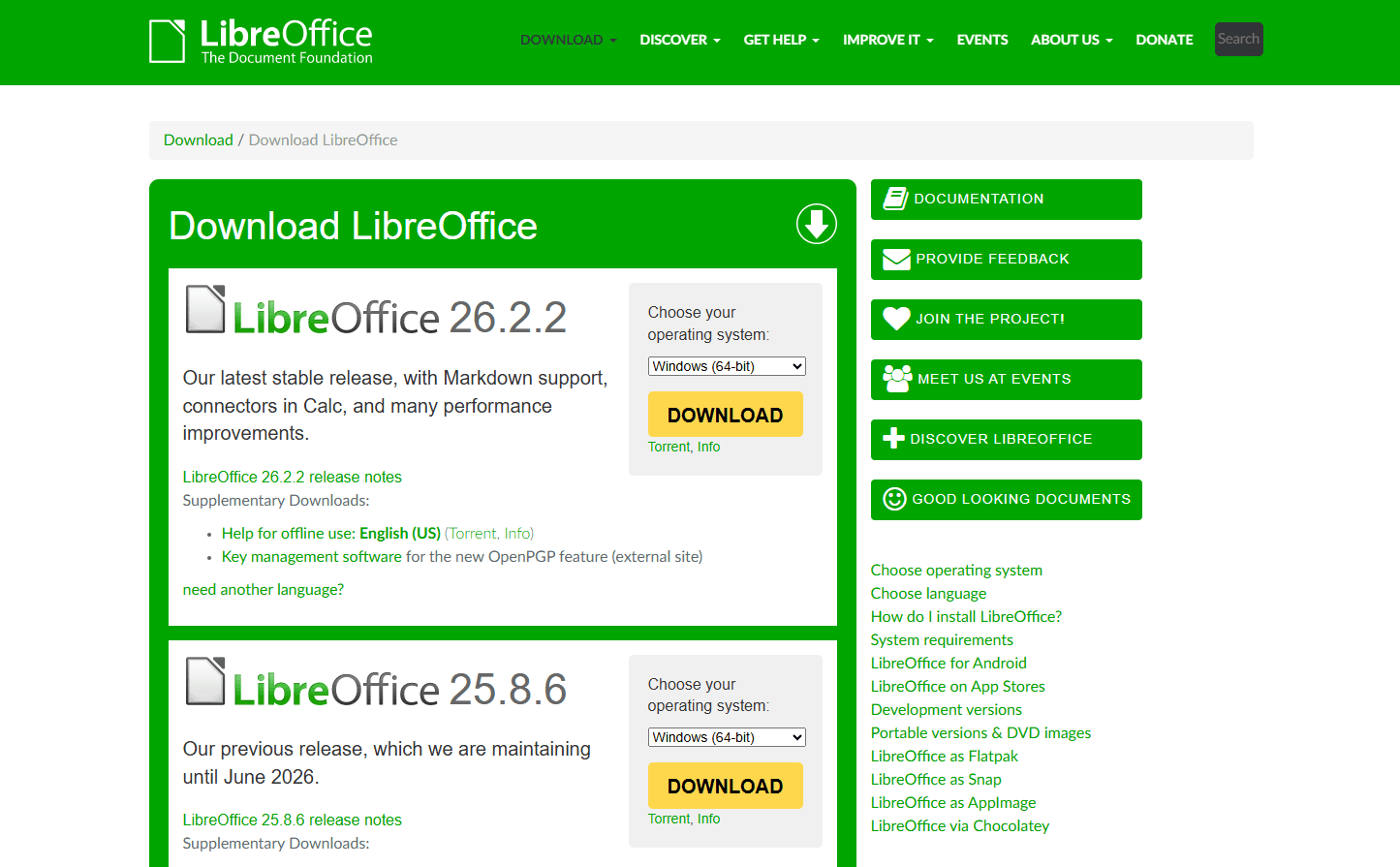
LibreOffice Calc is the strongest free general-purpose choice when a CSV needs spreadsheet functions and controlled import. Its Text Import dialog appears before the sheet opens.
Install on Mac:
brew install --cask libreofficeOr download from libreoffice.org.
What you get:
- Import dialog that appears before data loads (choose delimiter, set encoding, assign column types)
- Mark columns as "Text" to prevent conversion of zip codes, phone numbers, product IDs
- Full spreadsheet environment: sorting, filtering, formulas, conditional formatting, pivot tables
- Current builds support macOS 11 or newer on Intel and Apple silicon Macs
- Free and open-source software
- Export to CSV, Excel, PDF, and other formats
What you don't get:
- The speed and simplicity of a dedicated CSV editor
- A guarantee that very large files will fit the spreadsheet grid or available memory
- Mac-native look and feel (interface is cross-platform, not macOS-specific)
The import dialog is what makes LibreOffice useful for CSV work. It exposes character set, separators, string delimiters, language, quoted-field handling, and column types. The official Text Import documentation recommends applying the Text type when leading zeros must be retained.
Calc is heavier than a dedicated grid, but it remains the best free option here when formulas, pivot tables, or charts are part of the workflow. Keep an .ods copy because CSV cannot store those workbook features.
Download: Download LibreOffice Calc Free and open source
2. Modern CSV
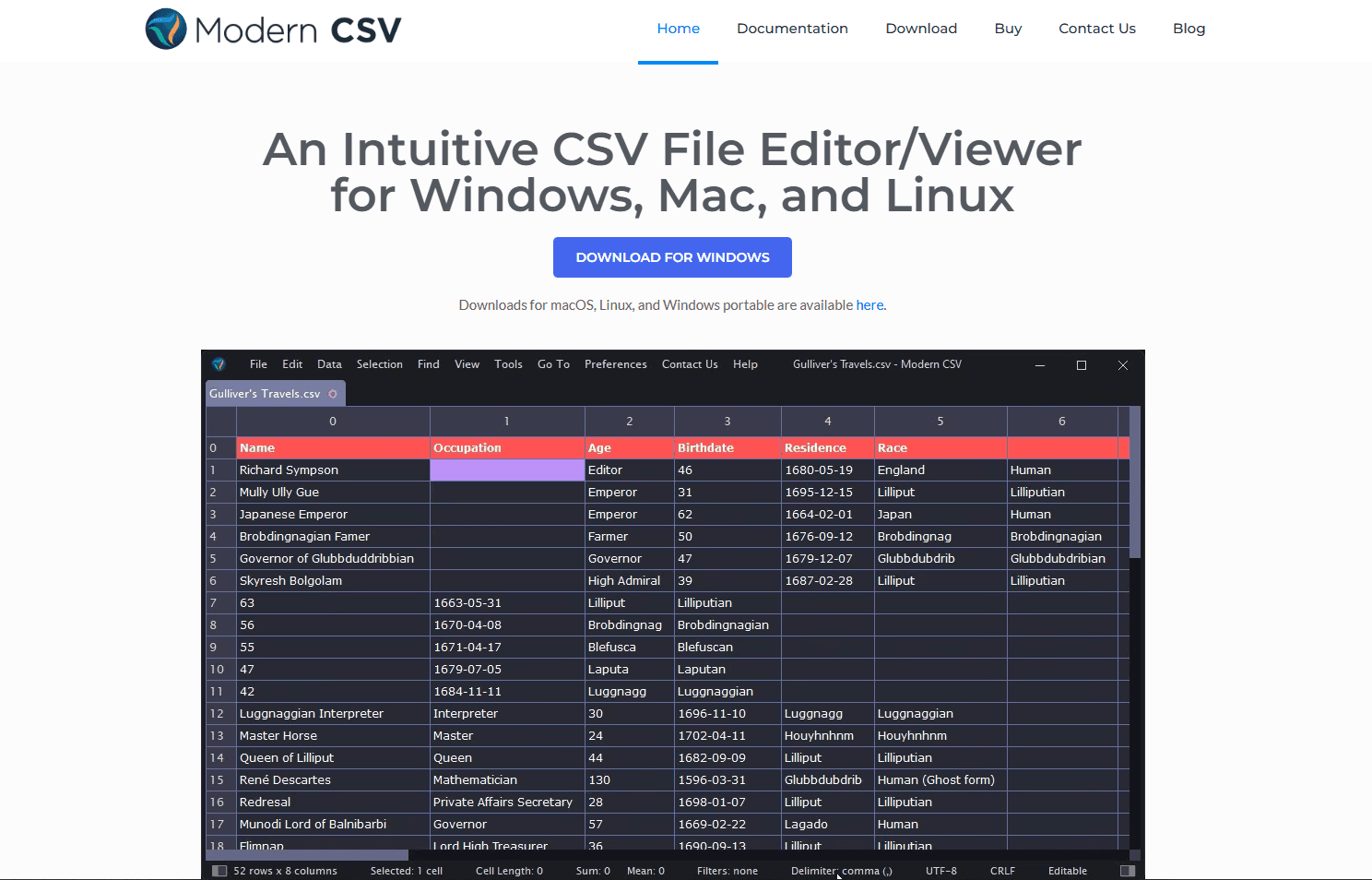
Modern CSV is a dedicated table editor for macOS, Windows, and Linux. Its free edition does not expire and includes direct cell editing, row and column operations, sorting, delimiter detection, and read-only mode.
Install on Mac:
Download from moderncsv.com or install it with brew install --cask modern-csv. The current Mac build requires macOS 13 or newer.
What you get:
- Clean grid interface for delimited text
- Table view with click-to-edit cells
- Multi-cell selection and column dragging
- Read-only mode for safe inspection without accidental edits
- Fast search across entire file
- No file-size restriction imposed by the free license
What you don't get:
- Every cleanup and analysis command in the free edition
- A guarantee that every file will fit available memory
- Spreadsheet formulas or pivot tables
The free edition covers opening, viewing, editing, and saving CSV files without requiring payment details. Advanced features are divided among paid license tiers, so check the vendor's free-edition comparison before relying on a specific cleanup or analysis command.
Download: Download Modern CSV Free edition available for macOS
3. TableTool
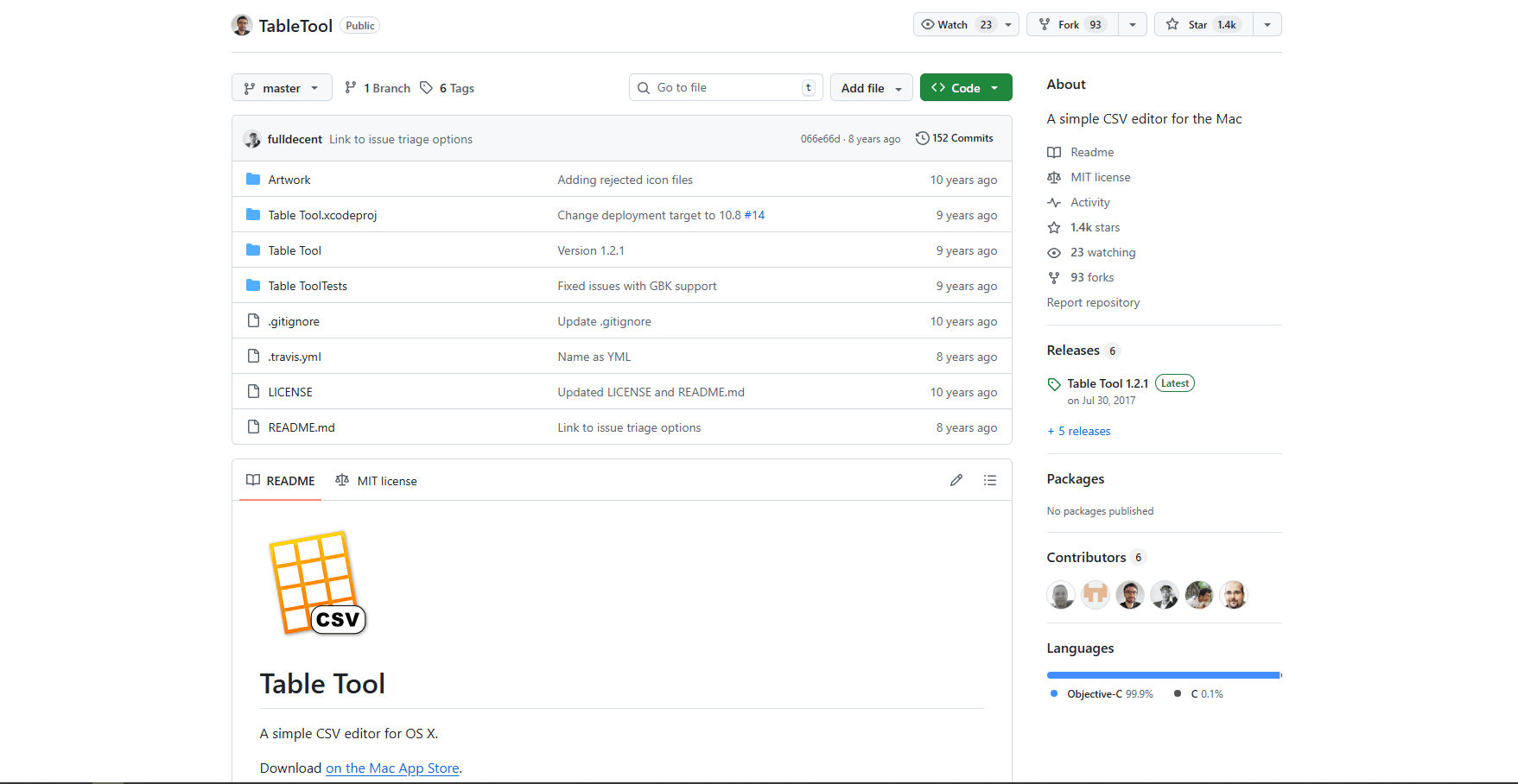
TableTool is a free Mac CSV editor, not a Finder Quick Look plugin. It opens delimited files in a grid, detects format details, and lets you edit cells, rows, and columns before saving or converting the file.
Install on Mac:
Download it from the Mac App Store. The source is also available in the TableTool GitHub repository.
What you get:
- Automatic detection of delimiters, character encoding, decimal separators, and quote style
- Manual format controls when automatic detection is wrong
- Grid-based cell, row, and column editing
- Conversion to a different delimiter or encoding
- Free software under the MIT License
What you don't get:
- Finder Quick Look integration
- Spreadsheet formulas, charts, or analysis dashboards
- The broader cleanup features available in Modern CSV or Easy CSV Editor
TableTool is useful when the job is simply to open, correct, and resave a CSV with explicit format settings. Its deliberately narrow scope makes it easier to learn than a spreadsheet, but it is not designed for formulas or data analysis.
Download: Download TableTool Free and open source
CSV Editor Comparison Table
4. Visual Studio Code with Rainbow CSV
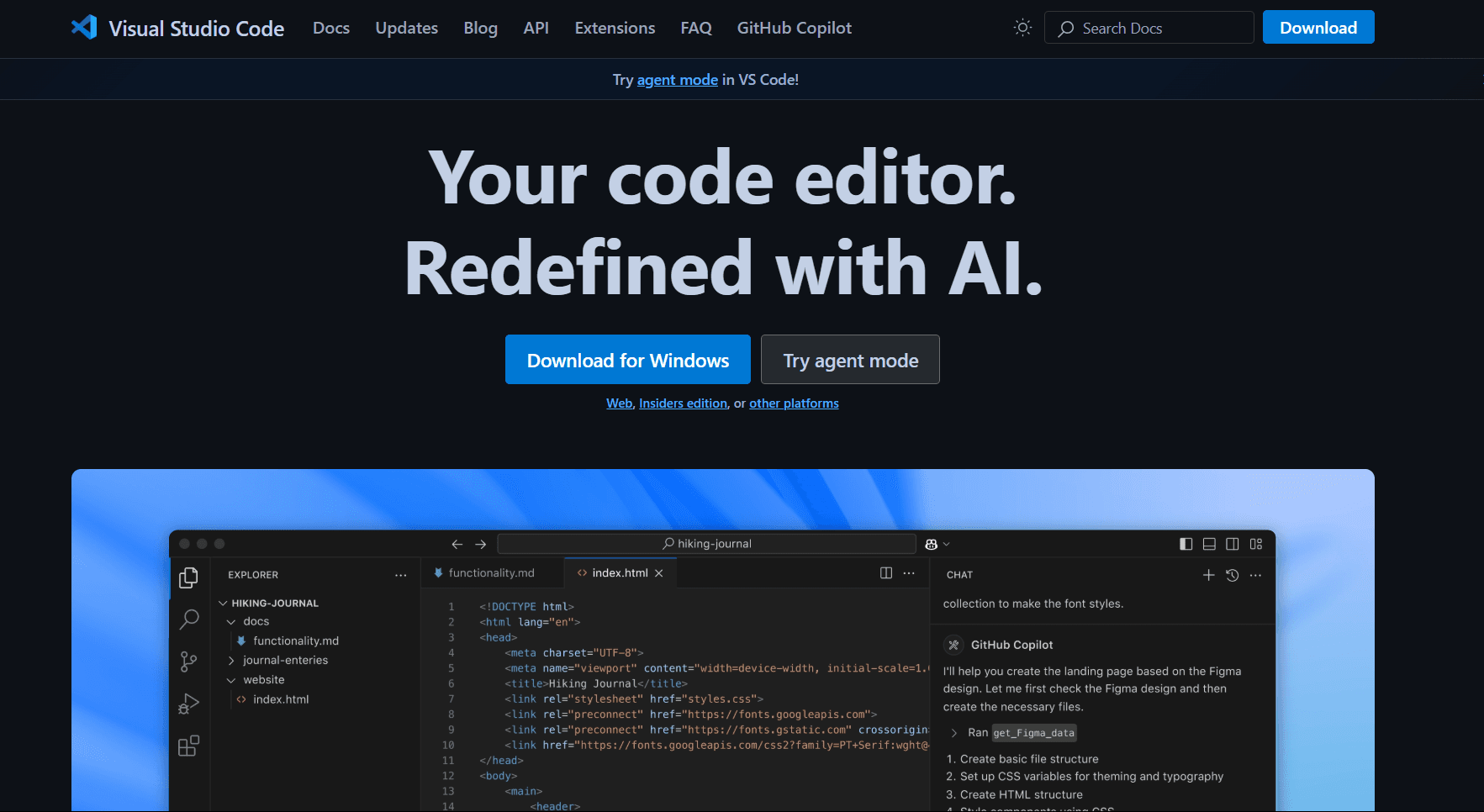
Visual Studio Code with Rainbow CSV keeps the document as visible text and adds CSV-aware highlighting, validation, and queries. Install the Rainbow CSV extension after downloading VS Code.
Install on Mac:
brew install --cask visual-studio-codeOr download from code.visualstudio.com.
Then install Rainbow CSV: Press Cmd + Shift + X, search "Rainbow CSV", install.
What you get:
- Color-coded columns (each column gets a different color for easier tracking)
- RBQL (Rainbow Query Language) for running SQL-like queries directly on CSV data
- Column alignment and column number display on hover
- Convert between different delimiter formats (CSV to TSV, etc.)
- VS Code's multi-cursor editing for batch changes
- Powerful search/replace with regex
- Integrated terminal for running command-line tools
What you don't get:
- Visual table view (you're working with raw text, not a spreadsheet)
- Click-to-edit cells (you edit text directly)
- A graphical sort or filter menu; those operations use RBQL queries
Rainbow CSV adds column awareness to VS Code's text editing. Each column receives a distinct color, which makes field boundaries easier to track in the raw document.
The RBQL feature is powerful. You can run queries like SELECT a1, a3 WHERE a2 > 100 directly on your CSV without importing it into a database.
For visual browsing and cell-by-cell editing, a dedicated CSV tool is more comfortable. For queries, Git diffs, and exact text repair, Rainbow CSV is the stronger fit.
Download: Download VS Code Free, then install Rainbow CSV from Extensions marketplace
5. Google Sheets (Browser-Based)
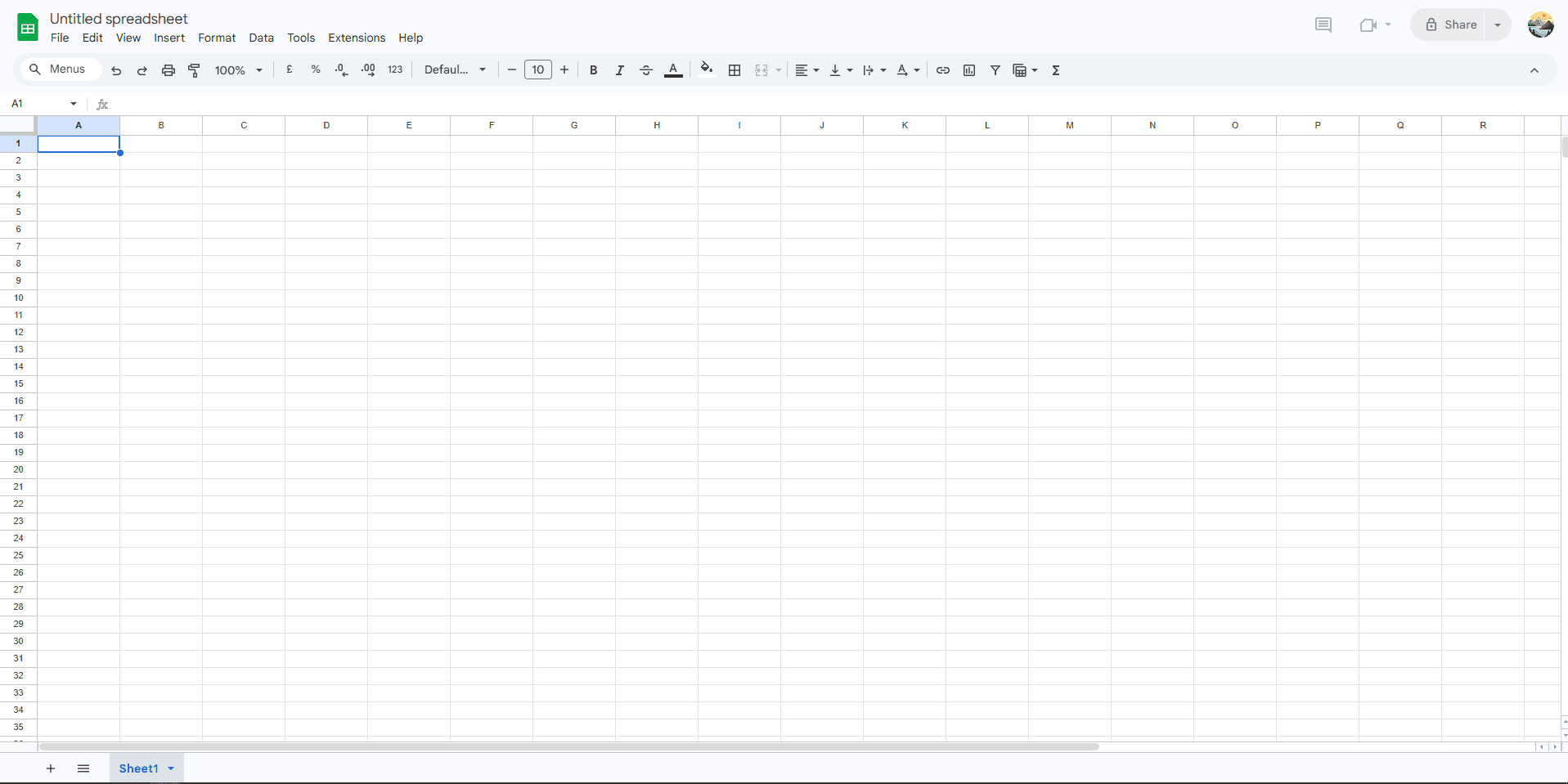
Google Sheets imports CSV data into a browser spreadsheet and is strongest when several people need to review, comment on, or edit the same table.
What you get:
- Direct CSV import (drag file into Google Drive or import into new sheet)
- Full spreadsheet toolkit: sorting, filtering, formulas, conditional formatting, pivot tables
- Collaboration features: share sheets, edit simultaneously, leave comments, track change history
- Automatic saving (no risk of losing work)
- Access from any computer with a browser
What you don't get:
- Import dialog to control column types (auto-converts data like Numbers)
- Local-only processing; imported data is stored in Google services
- Direct handling of every large CSV; Google recommends BigQuery and Connected Sheets when a file is too large for Sheets
- Offline access unless it has been configured for recent files in a supported browser
You can share a sheet with colleagues, edit simultaneously, leave comments on specific cells, and review version history. This is useful for teams cleaning or checking moderate datasets together.
The official Google Sheets import guidance lets you choose an import location and separator, but it does not expose LibreOffice-style per-column type controls. Check leading zeros, long identifiers, and date-like strings after import.
Use Google Sheets when collaboration matters more than keeping the source on one Mac. Organization policy should determine whether the data may be uploaded.
Check it out: Try Google Sheets Free with Google account
6. Sublime Text with Advanced CSV
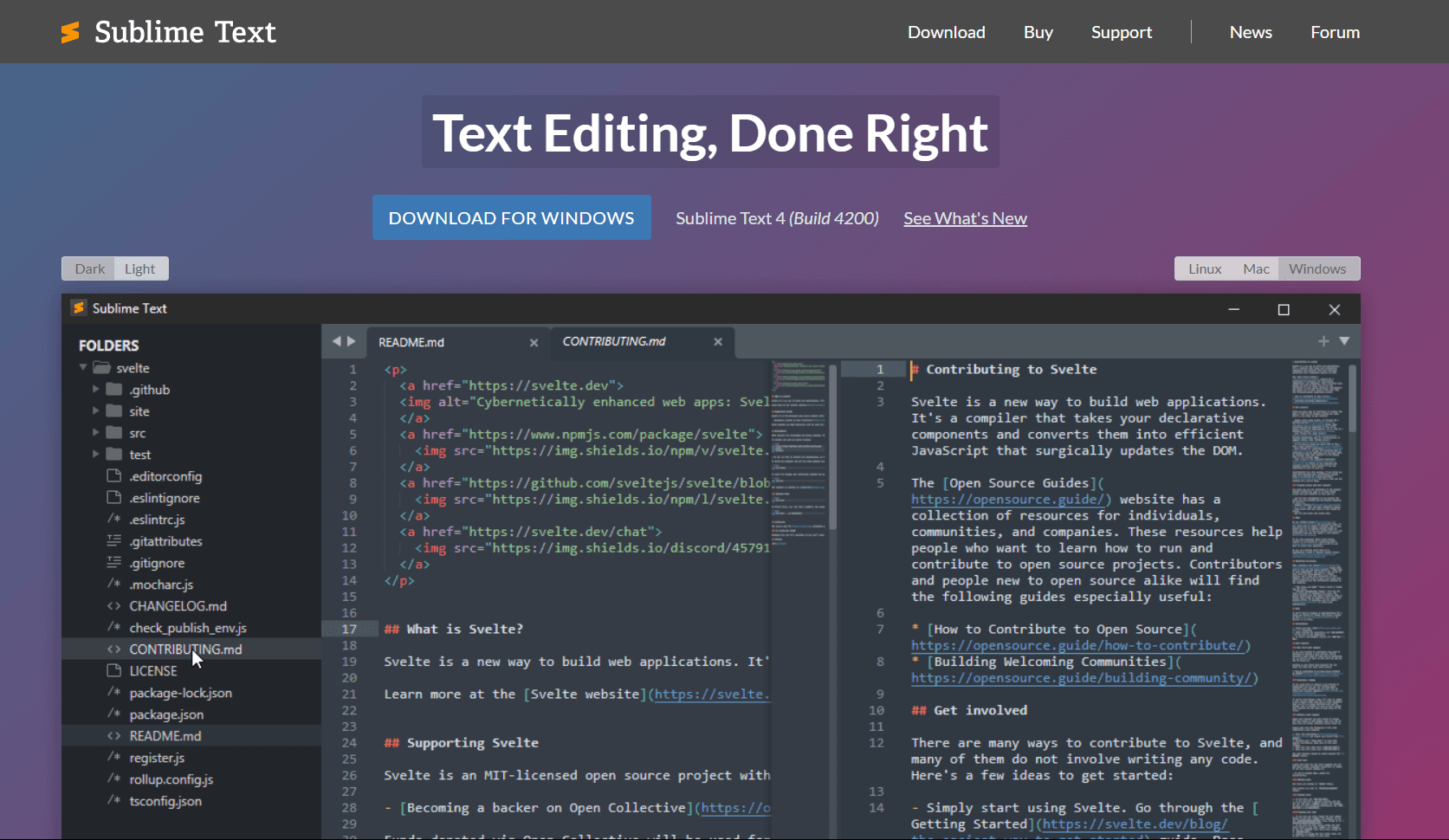
Sublime Text with Advanced CSV provides a keyboard-driven text workflow. The package can align or collapse columns, select and reorder columns, insert or delete columns, and sort CSV data.
Install on Mac:
brew install --cask sublime-textOr download from sublimetext.com.
Then install Advanced CSV: Cmd + Shift + P → "Install Package Control" → Cmd + Shift + P → "Package Control: Install Package" → search "Advanced CSV".
What you get:
- Column highlighting and alignment
- Sorting and filtering by column
- Ability to restructure CSV data (add/remove columns, reorder)
- Sublime Text's multi-cursor and regular-expression tools
- Multi-cursor editing for batch changes
- Powerful search/replace with regex
- A Universal 2 Sublime Text build for Intel and Apple silicon Macs
What you don't get:
- Visual table view (working in text view, not spreadsheet)
- Click-to-edit cells (you edit text directly)
- Spreadsheet formulas or pivot tables
- Complete support for quoted newlines; the package treats them as row separators
Multi-cursor feature is especially powerful for CSV files. Need to add a prefix to every value in a column? Select the first instance, hit Cmd + D repeatedly to select all matching instances, and type your change once. It applies simultaneously to every selected occurrence.
Advanced CSV is free, but Sublime Text is commercial software. The Package Control listing also shows that Advanced CSV has not been updated for many years, so test it on a copy before adopting it for current production files.
For visual, click-and-edit work, a dedicated grid will feel more natural. Use this combination only if Sublime Text is already central to your workflow and the CSV does not rely on multiline quoted fields.
Download: Download Sublime Text Free version with occasional purchase prompts
7. Easy CSV Editor
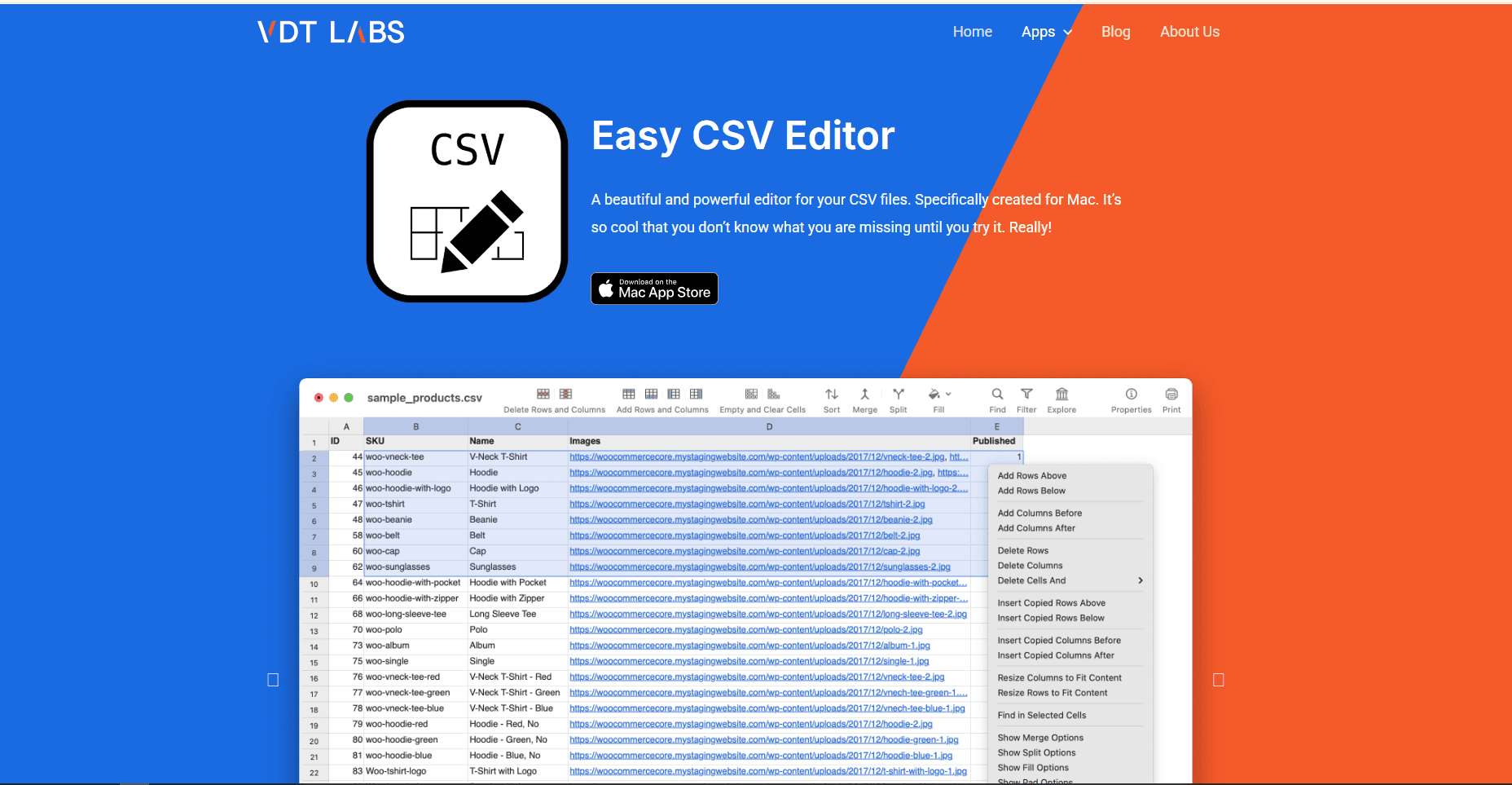
Easy CSV Editor is a current Mac-only application for CSV and TSV files. It provides a spreadsheet-style grid with controls for delimiters, text encoding, inconsistent rows, comments, filtering, and sorting.
What you get:
- Native macOS interface with tabs, undo, redo, and Dark Mode
- Table view with sortable columns and inline editing
- Add or remove rows and columns
- Handles different delimiters and encoding settings
- Configurable data detection and formatting
- Fast search with filter mode (shows only matching rows)
- Document comparison tool (highlight differences between two CSV files)
- Tools for splitting large CSV files
What you don't get:
- Spreadsheet formulas or pivot tables
- A permanently free desktop edition
- Every import and export format in the base purchase
The document comparison tool is useful. If you have two versions of a CSV file and want to see what changed between them, Easy CSV Editor can highlight the differences. Helpful when debugging data pipeline issues or verifying an export matches expectations.
The Mac app is paid, with optional in-app purchases for features such as additional import and export formats. The current App Store listing identifies macOS 11 as the minimum and shows recent maintenance updates.
Download: Download Easy CSV Editor Paid Mac App Store app
8. Tad Viewer
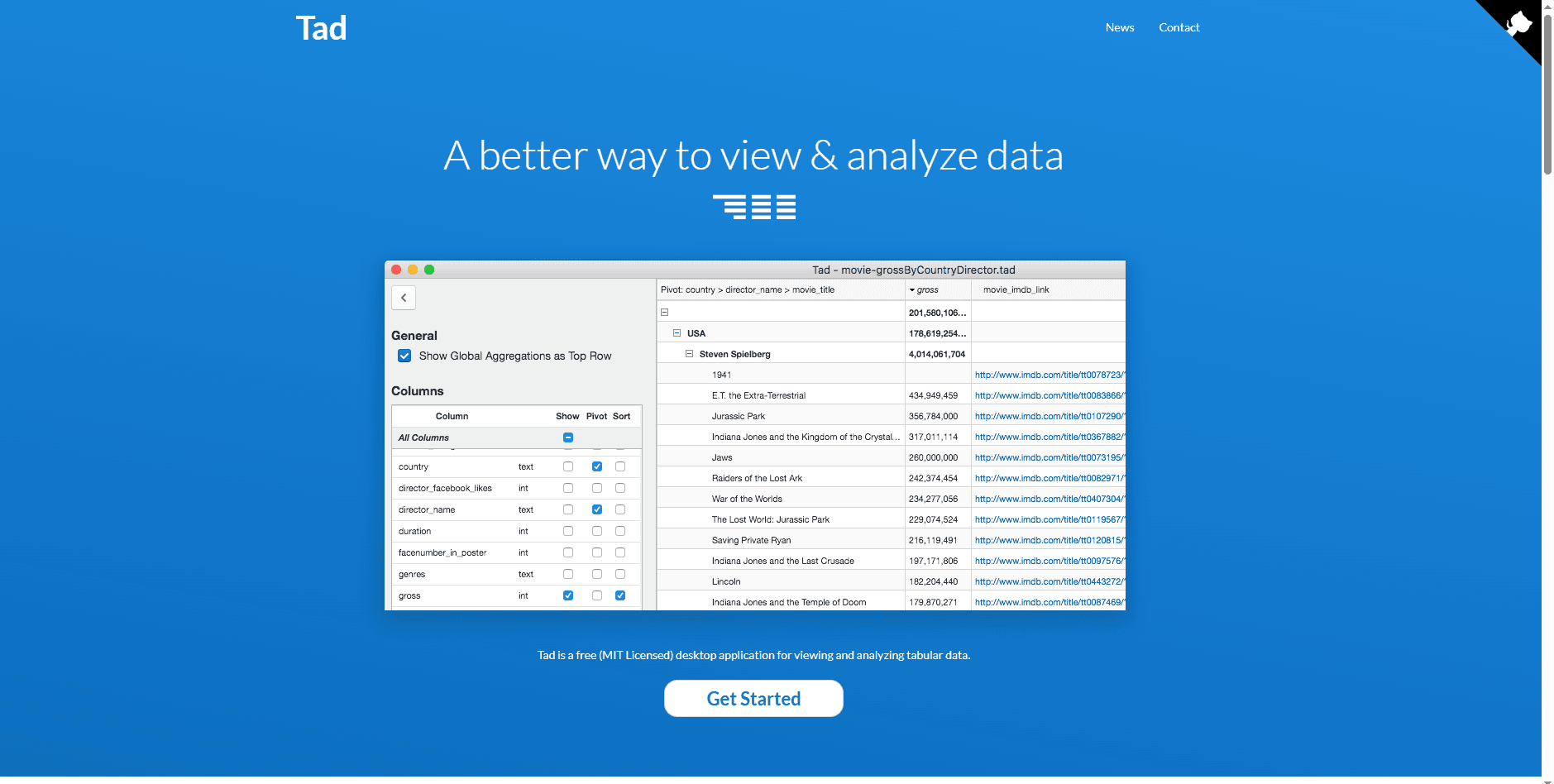
Tad Viewer is an open-source desktop application for viewing and analyzing CSV, Parquet, SQLite, and DuckDB data. It uses DuckDB for queries and SlickGrid to render a scrollable table.
Install on Mac:
Download the Intel or Apple silicon build from the GitHub releases page.
What you get:
- Clean table view with fast scrolling
- Column sorting and filtering
- Summary statistics for columns (counts, sums, averages)
- Cross-tabulations for quick data exploration
- Export of filtered tables to CSV or Parquet
- Separate macOS builds for Intel and Apple silicon
What you don't get:
- Editing capability (primarily a viewer and analyzer)
- Spreadsheet formulas or pivot tables
Tad is designed for exploring tabular data through filters, pivots, aggregates, sorts, and column selection. Those capabilities make it useful for narrowing a dataset before exporting a smaller result.
Tad is a viewer and analyzer rather than a cell editor. The latest listed release is version 0.14.0 from June 2024, so verify compatibility with your macOS version before adopting it for a critical workflow.
Download: Download Tad Viewer Free and open source
9. Apple Numbers
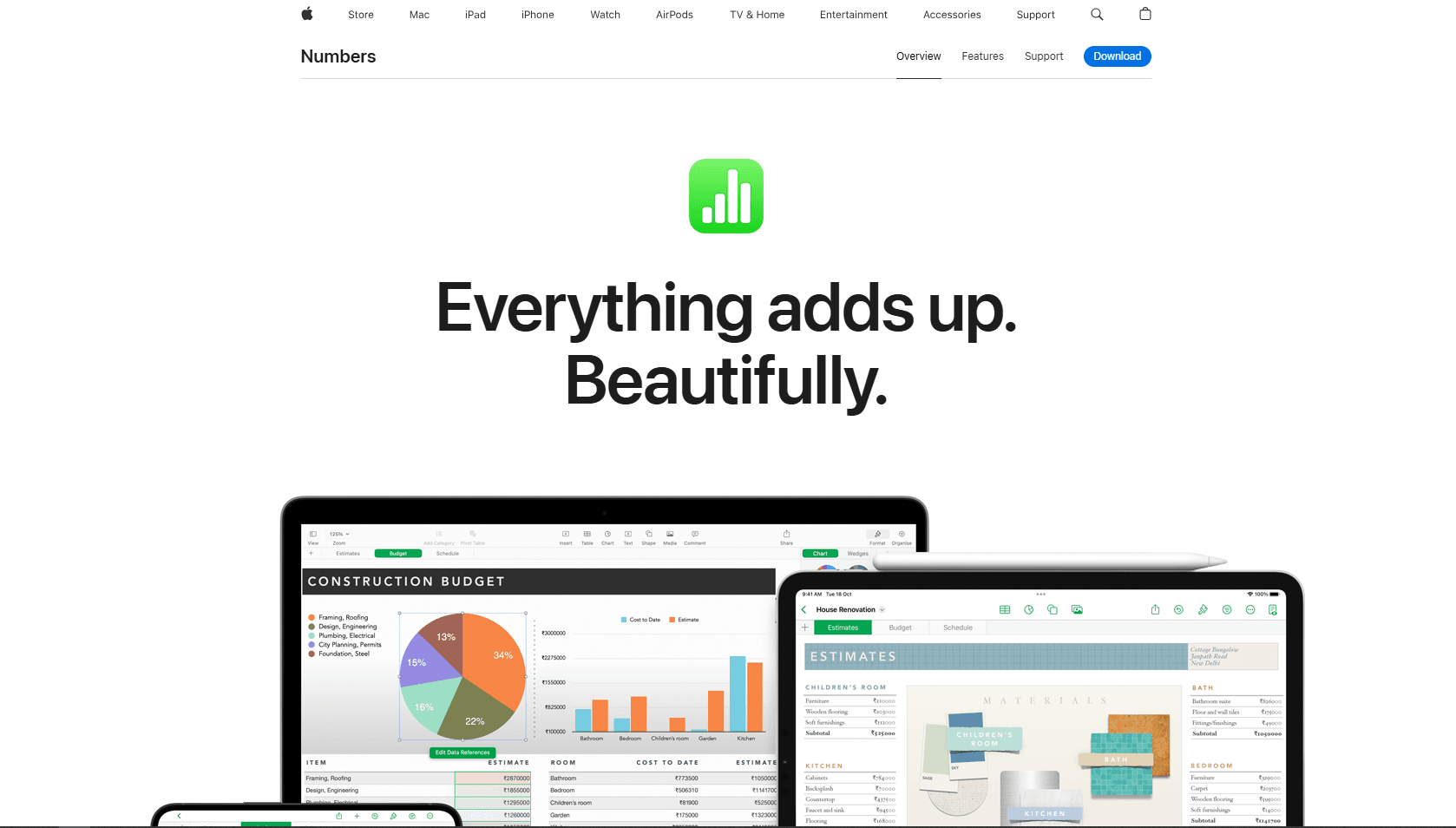
Apple Numbers can import and edit CSV files, then export a table to CSV or TSV. Core spreadsheet creation and editing remain free, while Apple offers optional premium features through Apple Creator Studio.
Install on Mac:
Download Numbers from the Mac App Store if it is not already installed.
What you get:
- A familiar Mac spreadsheet with formulas, charts, filters, and pivot tables
- Import controls for delimiters, text qualifiers, and text encoding
- CSV and TSV export with encoding options
- Real-time collaboration through iCloud
What you don't get:
- Per-column type selection in the text import settings
- A CSV-first editing model that exposes quoting and line endings
- Preservation of fonts, charts, formulas, or multiple tables in a plain CSV export
Apple documents how to adjust import settings before editing and how to export a CSV copy. Check identifiers and date-like values before saving because Numbers interprets the file as a spreadsheet table.
Download: Download Apple Numbers Free for core spreadsheet editing
Which CSV Editor Should You Actually Use?
If you need spreadsheet features, use LibreOffice Calc. Its import dialog gives you the clearest per-column controls before loading the data.
If you just need to edit CSV files without spreadsheet features, use Modern CSV. Its free edition covers direct grid editing, sorting, and common row or column operations.
If you're a developer who lives in VS Code, add the Rainbow CSV extension. It gives you column awareness and SQL-like queries without leaving your editor.
If you want a simple free Mac grid, install TableTool. It opens as a standalone editor and can change cells, delimiters, and encoding.
If a dataset is too large for an ordinary spreadsheet, use Tad Viewer to filter, pivot, and export a smaller result. It is a viewer, so make cell-level corrections in Modern CSV or another editor.
Frequently Asked Questions
Does Mac Numbers handle CSV files properly?
Numbers can import, edit, and export CSV files. Its import settings cover delimiters, text qualifiers, and encoding, but they do not offer LibreOffice-style per-column type assignment. Check leading zeros, long identifiers, and date-like text before exporting the result.
What's the best free CSV editor for Mac?
LibreOffice Calc is the best free option when you need spreadsheet features and controlled import. Modern CSV is better for a dedicated grid, while TableTool suits basic editing and format conversion.
Can I open large CSV files on Mac without them freezing?
Modern CSV has no file-size restriction imposed by its free license, but actual capacity still depends on the file and available memory. Tad Viewer is a better fit for inspecting and filtering a large dataset without promising a specific size or opening time.
How do I stop Mac from converting CSV data when I open it?
Open LibreOffice Calc first, use File > Open, and set sensitive columns to Text in the import preview. A dedicated editor such as Modern CSV or Easy CSV Editor is another option. Reopen the saved result as text and verify identifiers before replacing the original.
Is LibreOffice good for CSV editing on Mac?
Yes. Its Text Import dialog exposes separators, encoding, language, quoted-field handling, and column types. The interface is less Mac-specific than Easy CSV Editor, but its import controls make it the strongest free spreadsheet option for text-sensitive CSV data.
Can I preview CSV files on Mac without opening an app?
Finder Quick Look may show a basic text preview, but TableTool does not install a special Quick Look table viewer. For a formatted grid, open the file in TableTool, Modern CSV, Easy CSV Editor, or Tad Viewer.
Using Windows? See our guide to the best CSV editors for Windows for Windows-specific options.
Related guides:
- How to Merge Excel Files for spreadsheet consolidation
- Best JSON Editor for Mac for JSON editing tools on macOS
- CSV Merger for combining multiple CSV files into one \
Read More
All Articles
6 Best CSV Editors for Linux in 2026 (GUI & Terminal)
Compare the best CSV editors for Linux, including VisiData, LibreOffice Calc, Gnumeric, Tad, csvkit, and qsv for GUI and terminal workflows.
7 Best CSV Extensions for VS Code in 2026
Compare seven current CSV extensions for VS Code, including text-aware editing, spreadsheet grids, data profiling, Python cleanup, and safe previews.
8 Best CSV Editors for Windows in 2026 (Free and Paid)
Compare eight current CSV editors for Windows, from free grid tools to large-file software, with clear limits for Excel imports, licensing, and safe CSV saves.