8 Best CSV Editors for Windows in 2026 (Free and Paid)

On this page
Windows makes CSV files easy to open, but a quick double-click can change the data before you edit anything. Excel may remove leading zeros, reinterpret dates, or display long identifiers in scientific notation. A table can still look correct while the underlying values no longer match the original file.
LibreOffice Calc is the best free starting point when you need to control how columns are imported. A dedicated CSV editor is better for direct row and column cleanup, while large exports need software designed for searching, filtering, and saving data beyond ordinary worksheet limits.
The key choice is not spreadsheet versus text editor. It is how much control the file needs during import, editing, and export. The ranking below separates those workflows so you can choose without risking identifiers, encoding, quoted fields, or large datasets.
1. LibreOffice Calc - Best free CSV editor overall
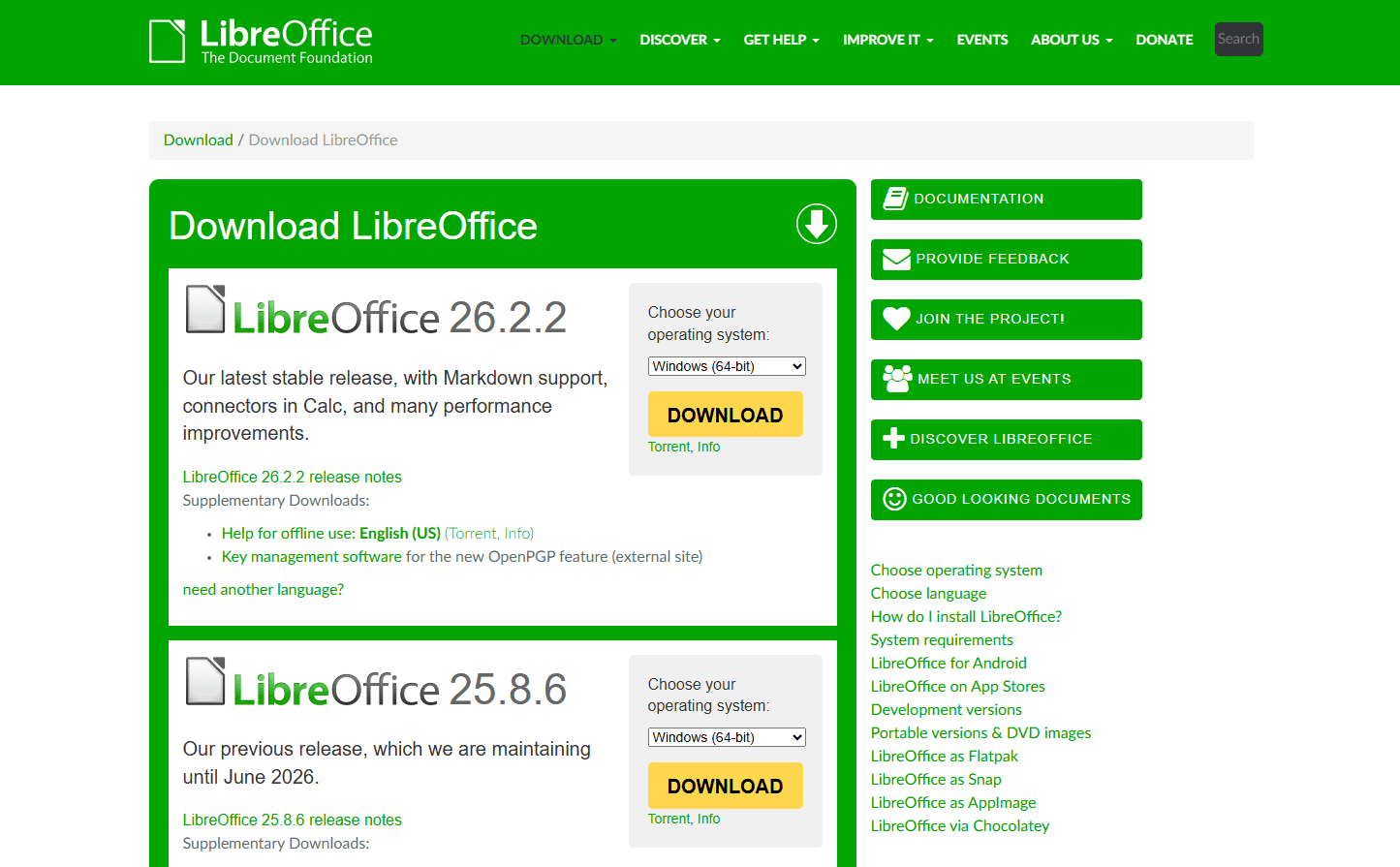
LibreOffice Calc gives Windows users spreadsheet tools without requiring a Microsoft 365 subscription. Its main CSV advantage appears before the sheet opens: the Text Import dialog lets you choose the character set, separator, text delimiter, language, and column format.
That control is useful for fragile identifiers. You can select a column in the preview and set it to Text, or disable special-number detection when values that resemble dates and scientific notation should stay literal. LibreOffice also documents an option to treat fully quoted fields as text.
Strengths:
- Free and open source
- Import preview with delimiter, encoding, language, and column-format controls
- Familiar sorting, filtering, formulas, and spreadsheet navigation
- Configurable field delimiter, text delimiter, character set, and quoting on export.
Limitations:
- Spreadsheet features add overhead when you only need a small text correction
- CSV export saves the active sheet only and drops formulas, formatting, and other workbook features.
- Files beyond a spreadsheet's practical grid or memory limits need a large-file tool.
Calc is the safest general recommendation when you need a visual table and want to inspect how text will be interpreted before loading it. Review the LibreOffice CSV import documentation or download LibreOffice.
2. Rons Data Edit - Best dedicated Windows CSV editor
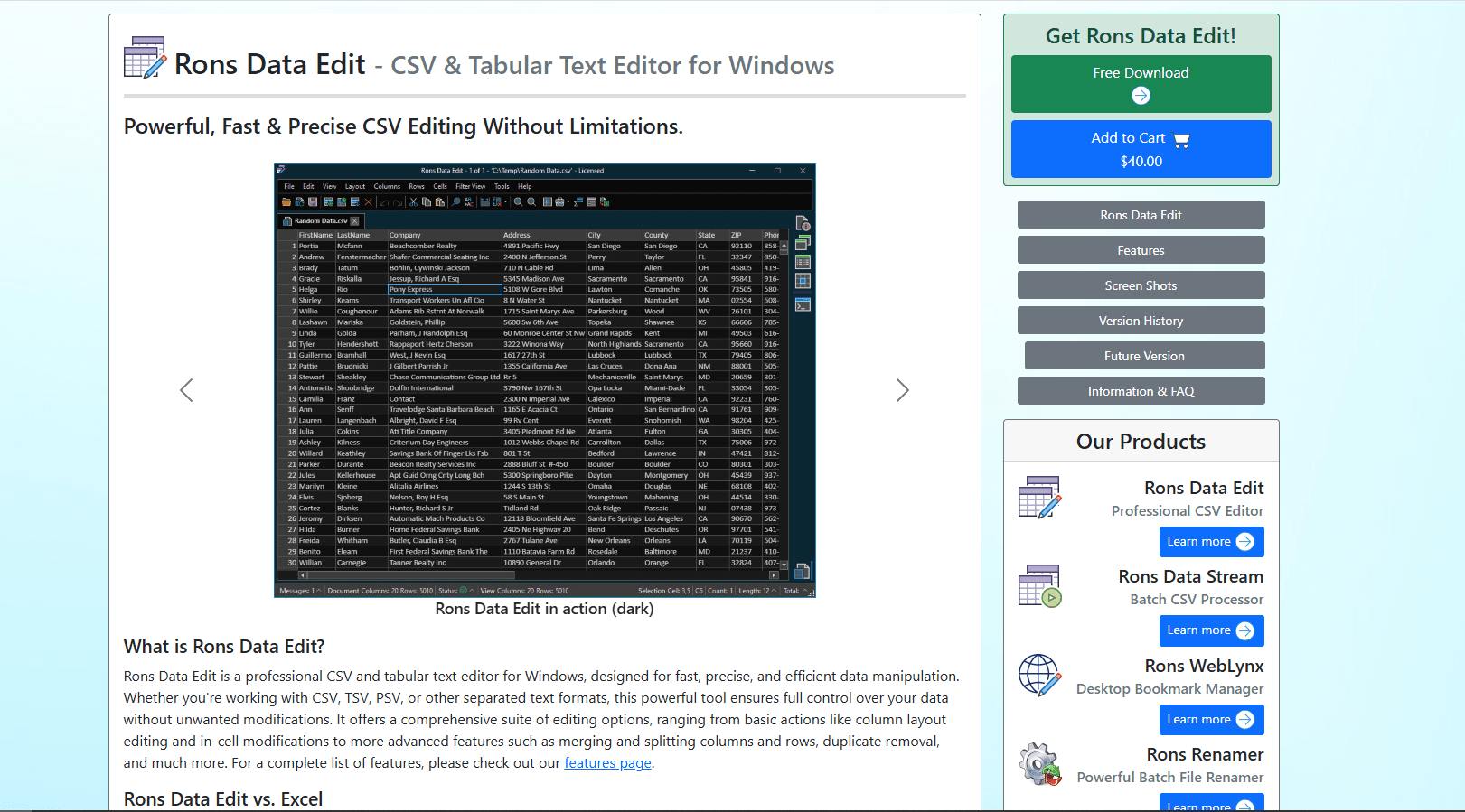
Rons Data Edit is designed around separated text rather than spreadsheet calculations. It opens CSV, TSV, PSV, and other delimited files in a grid, then provides tools to sort data, remove duplicates, split or merge columns, filter rows, and change the table structure.
The name can cause confusion in older roundups. Rons CSV Editor and Rons Editor are not separate current products. The developer renamed the application to Rons Data Edit, so it appears only once in this ranking.
Strengths:
- Purpose-built grid for editing delimited text on Windows
- Installer and portable downloads
- Sorting, filtering, duplicate removal, and row or column restructuring
- Current vendor support for Windows 8 through Windows 11 on 32-bit and 64-bit systems.
Limitations:
- The Lite edition can save no more than 2,500 rows and displays an advertising banner
- Removing the save cap requires the paid Pro edition
- It is Windows-only and requires .NET Framework 4.8.
Choose Rons Data Edit when spreadsheet calculations are irrelevant and the job is to clean or reshape a moderate CSV in a dedicated grid. The current download page explains the Lite save limit, Pro license, portable build, and supported Windows versions.
3. Modern CSV - Best free dedicated editor
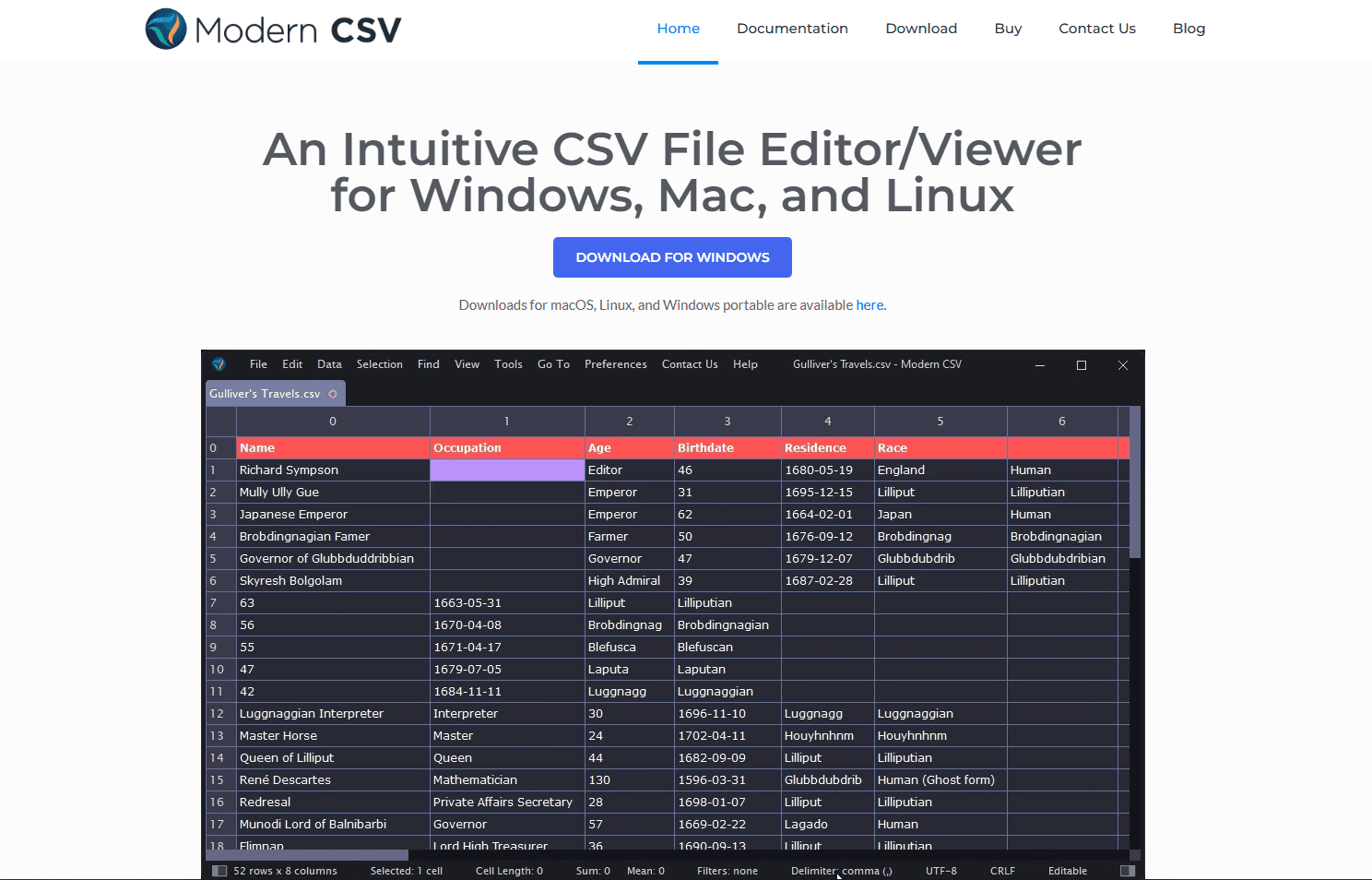
Modern CSV combines a spreadsheet-like grid with commands built for tabular text. The free edition supports multi-cell editing, row and column operations, column sorting, read-only mode, themes, and files without a license-enforced size limit. It can be used for personal or business work without supplying payment details.
Windows users can choose an installer or portable ZIP. The current version requires Windows 10 or later, so Rons Data Edit is a better fit for an older Windows 8 machine.
Strengths:
- Free edition that does not expire
- No file-size restriction imposed by the free license
- Installer and portable Windows packages.
- Multi-cell edits, column sorting, and direct table manipulation
- Cross-platform builds for teams that also use macOS or Linux.
Limitations:
- Advanced cleanup, analysis, and business features are divided among paid license tiers
- No license limit does not guarantee that every file will fit available memory
- Windows 8 and earlier are unsupported by the current release.
Modern CSV fits users who want a dedicated grid, a generous free tier, and the option to carry a portable copy. See the free-edition feature list and Windows download requirements before installing.
4. Delimit - Best for very large tabular files
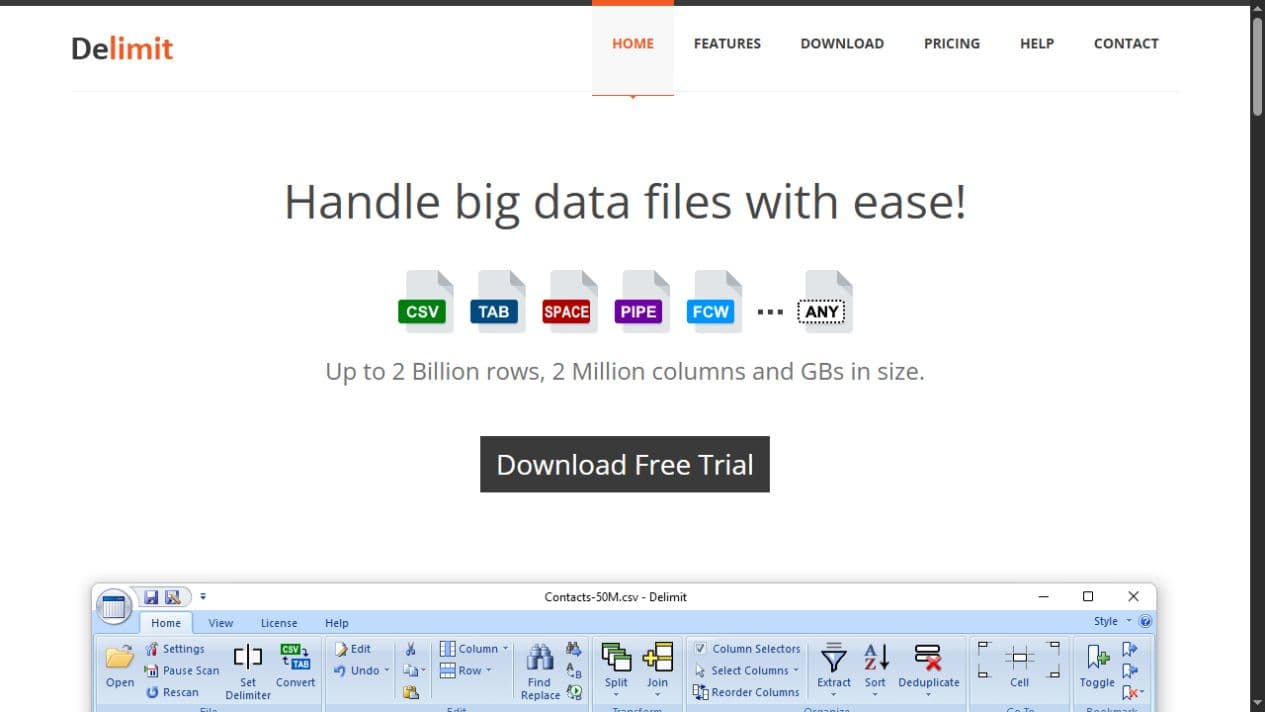
Delimit targets files that exceed ordinary spreadsheet limits. It can open, edit, search, filter, sort, split, join, convert, and deduplicate delimited or fixed-width data. Processing stays on the local Windows computer rather than uploading the dataset to a web service.
The developer advertises support for tables up to 2 billion rows and 2 million columns. Treat those figures as product limits, not a promise that every computer can work comfortably at that scale. Storage speed, row width, RAM, and the selected operation still affect usability.
Strengths:
- Built specifically for very large CSV and other tabular text files
- Supports custom separators and fixed-width records
- Filtering, extraction, splitting, joining, sorting, and duplicate removal
- Local desktop processing for sensitive data.
Limitations:
- Windows 10 or 11 is required for the current release
- The vendor lists 8 GB RAM as a minimum system requirement.
- The full feature set is paid; the trial later falls back to the restricted Lite edition
- More complex than necessary for occasional edits to small files.
Use Delimit when row count or file size is the main constraint and you need operations such as splitting, joining, or filtering without first loading the entire dataset into Excel. Confirm the latest requirements and license details on the official Delimit site.
5. EmEditor Professional - Best text-first large-file editor
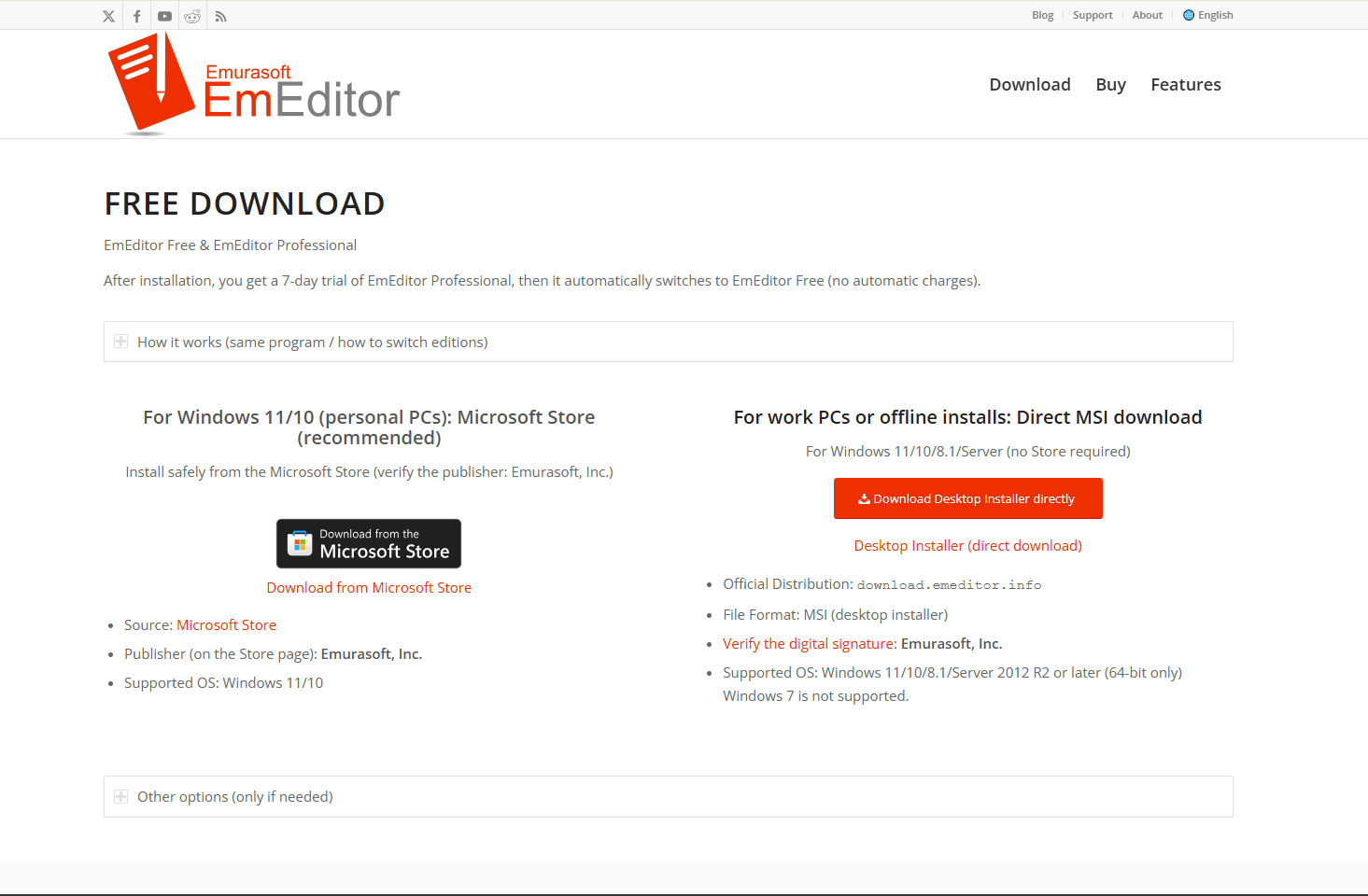
EmEditor Professional is a native Windows text editor with a CSV mode. It is a good match when you need to switch between raw text and a column view, search across a huge file, or inspect malformed rows that a spreadsheet cannot parse cleanly.
Licensing matters here. EmEditor Free does not include CSV tools, sorting, filtering, or the Large File Controller. It is also limited to personal use at home or school. The installer starts with a seven-day Professional trial and then switches to Free without an automatic charge.
Strengths:
- Professional edition includes CSV tools, sorting, filtering, and large-file controls
- Raw-text view makes delimiters, quotes, and line endings inspectable
- Regular-expression search and multi-selection tools suit repair work
- Microsoft Store and direct desktop installation options.
Limitations:
- CSV features require EmEditor Professional
- The free edition is not licensed for normal business use
- A text-first workflow is less approachable than a spreadsheet grid for occasional users.
Pick EmEditor Professional for large-file editing when exact text structure matters as much as the table view. Check the Free versus Professional comparison and current Windows download notes before relying on a specific feature.
6. Microsoft Excel - Best for Microsoft 365 workflows
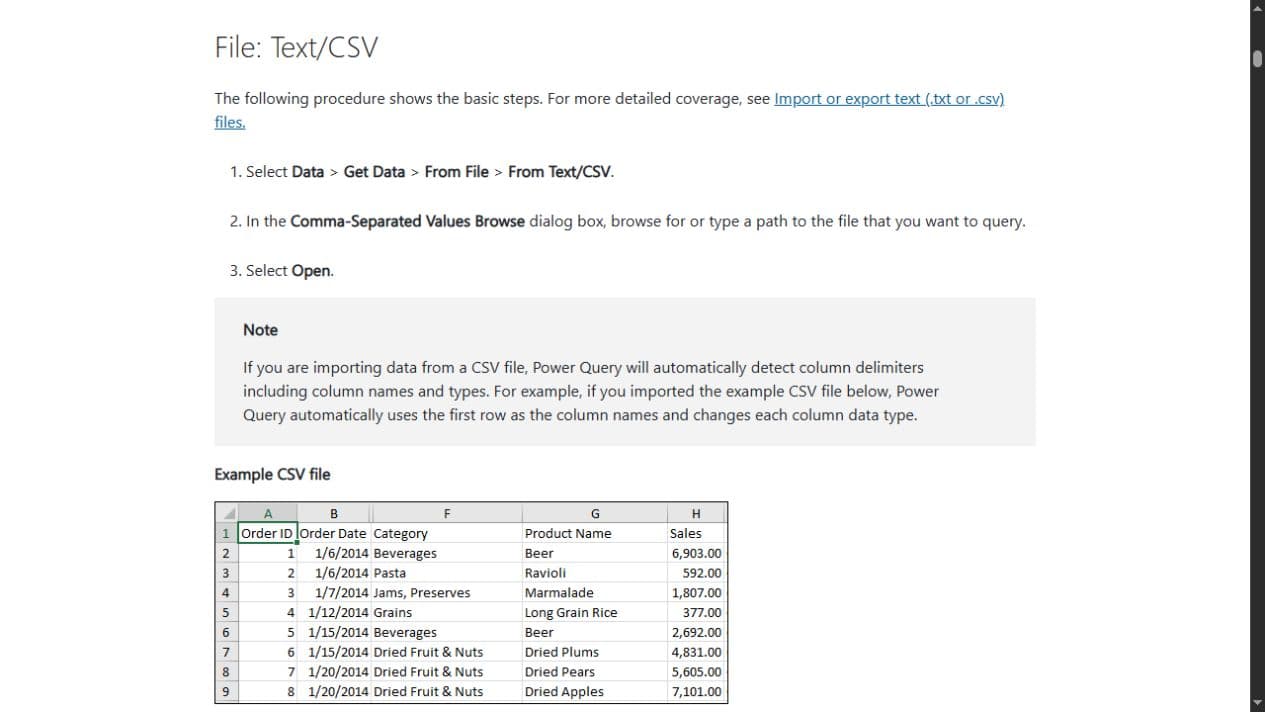
Microsoft Excel is often the Windows default for CSV files, but the safest path is not a File Explorer double-click. Use Data > Get Data > From File > From Text/CSV so that Power Query shows a preview and exposes the delimiter, file origin, and data-type steps.
Power Query automatically detects headers and types for unstructured sources. Microsoft also documents settings that disable automatic type detection, and each column's type can be changed in the query editor. That makes the import route more controllable than opening the CSV directly.
Strengths:
- Already available in many Microsoft 365 workplaces
- Power Query supports repeatable imports, transformations, and refreshes
- Strong formulas, charts, pivot tables, and team familiarity
- Import preview can expose delimiter and encoding problems before loading.
Limitations:
- Automatic type detection is enabled by default unless you change it
- Worksheets are limited to 1,048,576 rows and 16,384 columns.
- Saving as CSV keeps one worksheet and discards workbook-only features
- It is paid software, and direct opening remains risky for leading zeros and long identifiers.
Excel makes sense when the CSV is an input to an existing Microsoft reporting process. Follow Microsoft's Text/CSV import steps and review its Power Query type-detection settings before loading sensitive identifiers.
7. Notepad with CSV Lint - Best for validation and repair
Notepad keeps the CSV as visible plain text. Adding CSV Lint brings column coloring, metadata scans, datatype detection, validation against a schema.ini file, delimiter conversion, sorting, unique-value counts, and exports to formats such as JSON, XML, and SQL.
CSV Lint is available from Plugins > Plugins Admin in current Notepad versions. Its processing is offline, which makes it suitable for local quality checks when a browser tool is not acceptable.
Strengths:
- Free, open-source Windows editor with portable packages
- Raw text remains visible while CSV Lint highlights columns.
- Validation can reveal inconsistent rows before an import fails
- Useful conversions for delimiters, dates, decimal formats, JSON, XML, and SQL.
Limitations:
- It is not a spreadsheet-style grid editor
- Plugin installation may be blocked on managed work computers
- Manual text edits can break quoting if you do not understand the file's structure.
This combination is strongest as a quality-control and repair tool, especially for developers and data staff who need to locate malformed records. Installation and current features are documented in the CSV Lint project.
8. Google Sheets - Best for browser collaboration
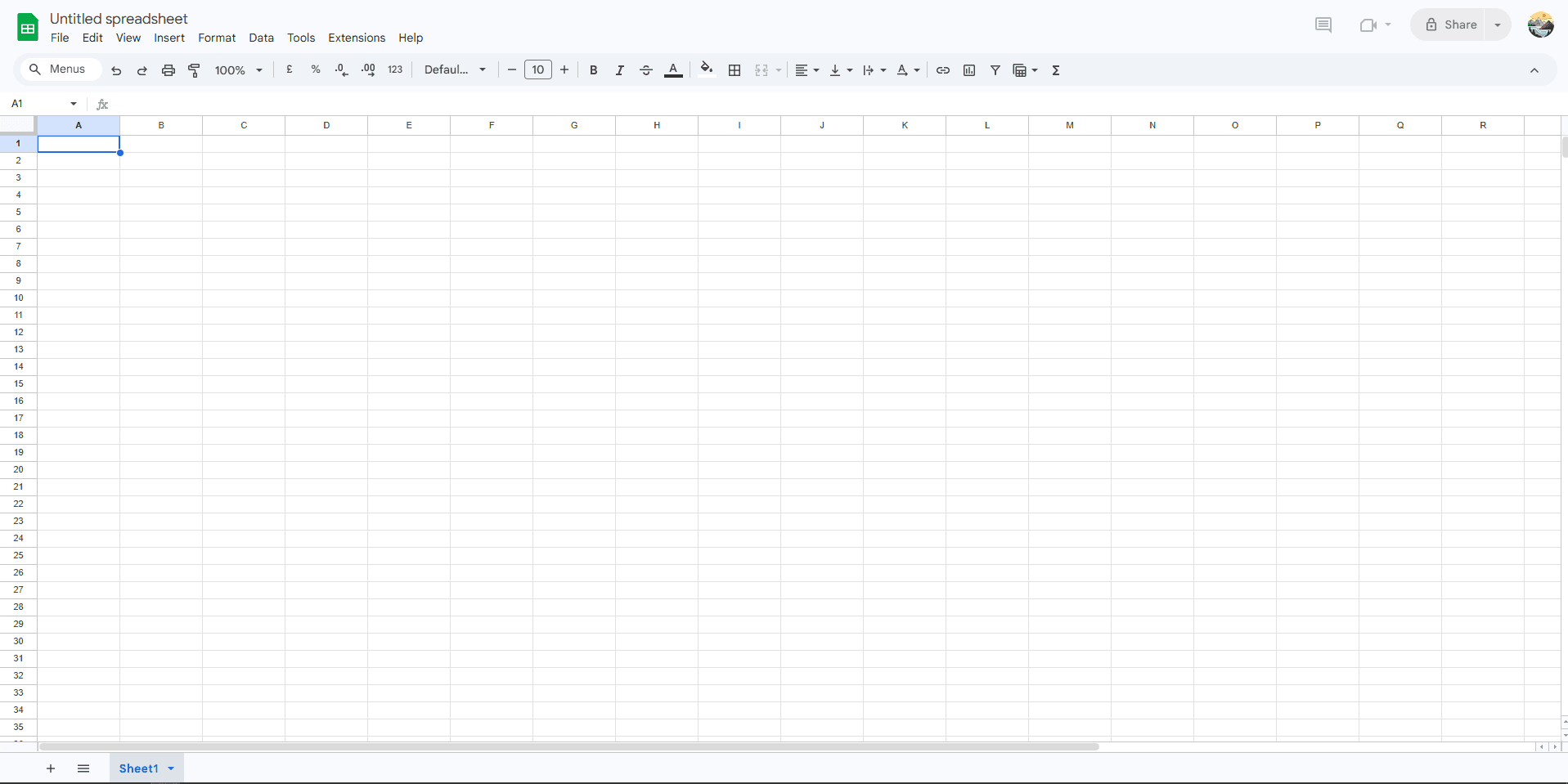
Google Sheets is not a native Windows application, but it provides a familiar grid in any current browser. Its import flow lets you upload a file, choose where the data should go, and select the separator type. Once imported, multiple people can comment, edit, and review changes together.
The tradeoff is that the CSV becomes a cloud spreadsheet while you work. That may be unsuitable for confidential data, regulated records, or files that must remain on a local network. Large uploads can also exceed direct Sheets import capacity; Google points those cases toward BigQuery and Connected Sheets.
Strengths:
- No desktop installation for ordinary use
- Real-time collaboration, comments, sharing controls, and version history
- Sorting, filtering, formulas, and browser access across operating systems
- CSV upload and download are built into the spreadsheet workflow.
Limitations:
- The file is uploaded to Google, subject to account and organization policies
- It is not suitable for the largest CSV files.
- Exporting a sheet back to CSV removes formulas, formatting, and multi-sheet structure
- Import and export controls are less detailed than dedicated CSV tools.
Choose Sheets when review and collaboration matter more than local-only processing. Google's data-ingestion guidance describes CSV uploads, separator selection, and the large-file path.
CSV editor comparison
Which CSV editor should you choose?
Start with the risk in the file rather than the longest feature list.
- For free spreadsheet editing: LibreOffice Calc provides the strongest import controls and familiar spreadsheet functions.
- For direct grid cleanup: Rons Data Edit is the most Windows-focused option, while Modern CSV has the more flexible free license and cross-platform builds.
- For files too large for spreadsheets: Delimit is built around large tabular operations. EmEditor Professional is better when you also need raw-text search and repair.
- For an existing Microsoft process: Use Excel through Power Query, then set identifier columns to Text before loading.
- For structural validation: Notepad with CSV Lint helps find inconsistent rows and datatype problems.
- For collaborative review: Google Sheets is convenient when company policy allows the upload and the file fits its limits.
If the task is joining exports rather than editing individual cells, use the browser-based CSV merger to combine compatible files locally. If the source export is JSON, the JSON to CSV converter can prepare it for a grid editor without installing another desktop program.
A safer Windows CSV workflow
- Duplicate the original and edit the copy.
- Identify the delimiter, text qualifier, encoding, and line ending.
- Mark identifiers and codes as text before spreadsheet import.
- Check records containing commas, quotes, non-English text, or embedded newlines.
- Save to a new filename when possible.
- Reopen the result as raw text and inspect difficult rows.
- Run a small validation import before replacing production data.
This process catches problems that a visual grid can hide. It also gives you a recoverable original if an editor rewrites encoding, quoting, or number formats.
Frequently asked questions
What is the best free CSV editor for Windows 11?
LibreOffice Calc is the best free general-purpose choice when you need spreadsheet functions and controlled import. Modern CSV is better when you want a dedicated grid without formulas. Notepad with CSV Lint is the stronger free option for validation and raw-text repair.
How do I stop Excel from removing leading zeros?
Import the file through Data > Get Data > From File > From Text/CSV instead of opening it directly. In Power Query, set the affected columns to Text and remove or change any automatic type-conversion step before loading the table.
Which Windows CSV editor is best for files over one million rows?
Excel worksheets stop at 1,048,576 rows. Delimit is the most specialized large-table option in this list. EmEditor Professional is a better choice when you need text-first search, regex replacement, or inspection of malformed CSV syntax.
Is a portable CSV editor safer than an online editor?
A portable editor can keep data on the local computer, but safety still depends on the software source, device security, and organization policy. Rons Data Edit, Modern CSV, and Notepad offer portable options. Download them only from the official vendor or project site.
Can CSV store formulas, formatting, or multiple sheets?
No. CSV stores text records and fields. Spreadsheet formulas may be exported as displayed values, while colors, fonts, charts, and additional sheets are lost. Save a workbook copy before exporting to CSV if those features must be retained.
Related CSV editor guides
Read More
All Articles
6 Best CSV Editors for Linux in 2026 (GUI & Terminal)
Compare the best CSV editors for Linux, including VisiData, LibreOffice Calc, Gnumeric, Tad, csvkit, and qsv for GUI and terminal workflows.

7 Best CSV Extensions for VS Code in 2026
Compare seven current CSV extensions for VS Code, including text-aware editing, spreadsheet grids, data profiling, Python cleanup, and safe previews.
9 Best CSV Editors for Mac in 2026 (Free and Paid)
Compare nine current CSV editors for Mac, including free spreadsheet tools, native grid editors, developer extensions, and large-file viewers.