How to Merge WAV Files: Free Tool + Python + FFmpeg Guide (2026)
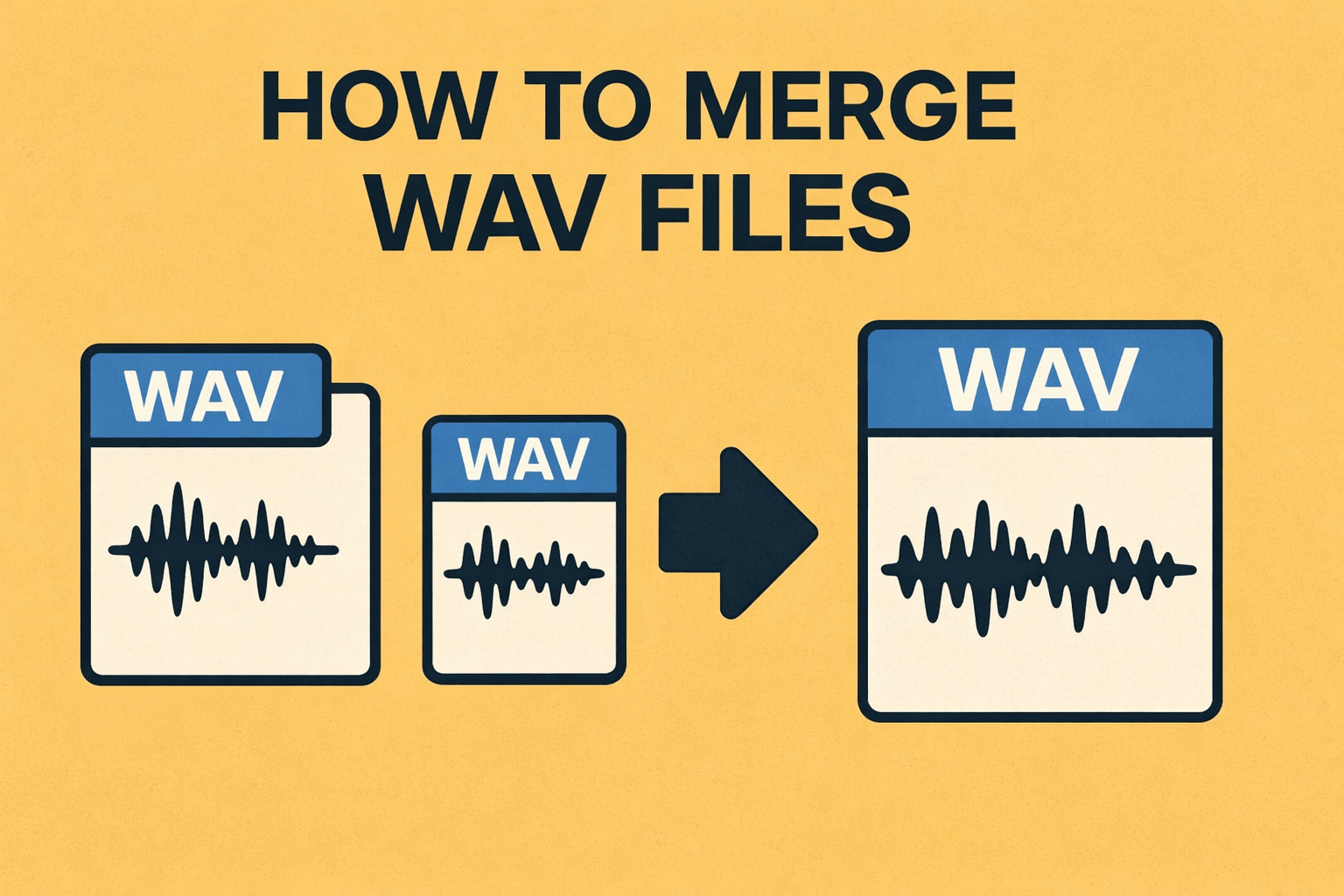
Merging WAV files comes up in podcast editing, voiceovers, music production, and any workflow where recordings are split into segments. The key detail is that WAV is uncompressed, so the goal is usually a clean, lossless join without introducing artifacts.
This guide covers a few practical ways to do it: a quick browser-based merge, Python for automation (including optional crossfades and normalization), FFmpeg for fast command-line workflows, and Audacity when you want visual control over timing. It also covers common gotchas like mismatched sample rates and adding silence gaps.
What Is a WAV File?
WAV (Waveform Audio File Format): uncompressed audio format developed by Microsoft and IBM.
Stores raw PCM (Pulse Code Modulation) audio data. Makes it gold standard for lossless audio quality.
WAV File Characteristics:
Uncompressed: No data lost. What record equals exactly what get back.
High quality: Support up to 32-bit depth and sample rates beyond 96kHz.
File size tradeoff: 3-minute stereo WAV at 44.1kHz/16-bit runs roughly 30MB.
Universal compatibility: Virtually every audio application and operating system can handle them.
RIFF container: Uses Resource Interchange File Format with specific header structure.
WAV files uncompressed means merging requires careful handling. Audio headers, sample rates, bit depths, and channel configurations need proper management for correct output file playback.
Why Merge WAV Files?
There are a lot of practical reasons:
Podcast production where you need to stitch together an intro, interview segments, and an outro into a single episode. Music production where you're combining individual instrument stems or song sections. Audiobook creation where chapter recordings need to be merged into complete sections. Voice recordings from multiple takes of a voiceover session. Game audio where you're assembling sound effect sequences or ambient audio loops. Call center recordings where segmented calls need to be merged for archival. Scientific data where sensor audio recordings need to be combined for analysis. Film and video work where you're assembling dialogue, foley, and music tracks.
Method 1: Use the Free Online WAV Merger (No Code Required)
This is the fastest option for joining WAV files without installing software. Everything runs locally in the browser.
Try it here: merge-json-files.com/wav-merger
How it works:
- Open the WAV merger page
- Drag and drop WAV files (or browse to select them)
- Reorder clips into the right sequence
- Configure options (optional):
- add silence gaps between clips
- enable crossfades
- enable volume normalization
- Click "Merge WAV Files"
- Preview the merged audio
- Download the combined WAV
The merge runs locally using the Web Audio API, producing standard PCM WAV output without compression artifacts. Sample rate differences are handled by resampling to a consistent rate, and the preview makes it easy to validate the final timing before downloading.
Method 2: Merge WAV Files Using Python
Python gives you powerful audio processing capabilities through libraries like wave, pydub, and scipy. Here are two approaches depending on what you need.
Basic Approach with the wave Module (Standard Library)
The built-in wave module works for merging WAV files without installing any third-party packages:
import wave
import glob

def merge_wav_files(input_files, output_file):
    """Merge multiple WAV files into one."""
    if not input_files:
        print("No input files provided.")
        return

    # Open the first file to get audio parameters
    with wave.open(input_files[0], 'rb') as first:
        params = first.getparams()
        frames = [first.readframes(first.getnframes())]

    # Read remaining files
    for filepath in input_files[1:]:
        with wave.open(filepath, 'rb') as w:
            if w.getparams()[:3] != params[:3]:
                print(f"Skipping {filepath}: incompatible format")
                continue
            frames.append(w.readframes(w.getnframes()))

    # Write merged output
    with wave.open(output_file, 'wb') as out:
        out.setparams(params)
        for frame_data in frames:
            out.writeframes(frame_data)

    print(f"Merged {len(frames)} files into {output_file}")

# Usage
files = sorted(glob.glob("./audio/*.wav"))
merge_wav_files(files, "merged_output.wav")
Advanced Approach with PyDub (Recommended)
PyDub makes complex audio operations straightforward, including crossfades and volume adjustments:
from pydub import AudioSegment
import glob

def merge_with_pydub(input_files, output_file, silence_ms=0, crossfade_ms=0):
    """Merge WAV files with optional silence gaps and crossfade."""
    combined = AudioSegment.empty()
    silence = AudioSegment.silent(duration=silence_ms)

    for i, filepath in enumerate(input_files):
        audio = AudioSegment.from_wav(filepath)

        if i == 0:
            combined = audio
        else:
            if crossfade_ms > 0:
                combined = combined.append(audio, crossfade=crossfade_ms)
            elif silence_ms > 0:
                combined = combined + silence + audio
            else:
                combined = combined + audio

    # Normalize volume
    combined = combined.normalize()

    combined.export(output_file, format="wav")
    print(f"Merged {len(input_files)} files → {output_file}")
    print(f"Duration: {len(combined) / 1000:.1f} seconds")

# Usage
files = sorted(glob.glob("./audio/*.wav"))
merge_with_pydub(files, "merged.wav", silence_ms=500, crossfade_ms=100)
Install PyDub first: pip install pydub
Python gives you full control over audio parameters, lets you automate batch merging of hundreds of files, and supports silence gaps, crossfades, normalization, and effects. The wave module requires all files to have matching parameters, while PyDub is more flexible but requires FFmpeg installed on your system. Large files can consume significant memory with either approach.
Method 3: Merge WAV Files with FFmpeg (Command Line)
FFmpeg is the Swiss Army knife of audio and video processing. If you're comfortable with the command line, this is an incredibly powerful option.
Simple Concatenation:
Create a text file listing your WAV files:
# filelist.txt
file 'intro.wav'
file 'chapter1.wav'
file 'chapter2.wav'
file 'outro.wav'
Then run:
ffmpeg -f concat -safe 0 -i filelist.txt -c copy merged.wav
The -c copy flag performs a stream copy without re-encoding, which preserves the original quality.
Merge with Silence Gaps:
# Generate 1 second of silence
ffmpeg -f lavfi -i anullsrc=r=44100:cl=stereo -t 1 silence.wav

# Concatenate with silence between clips
ffmpeg -f concat -safe 0 -i filelist_with_silence.txt -c copy merged.wav
Merge Files with Different Sample Rates:
ffmpeg -i file1.wav -i file2.wav -i file3.wav \
  -filter_complex "[0:a][1:a][2:a]concat=n=3:v=0:a=1[out]" \
  -map "[out]" -ar 44100 merged.wav
Apply Crossfade Between Two Files:
ffmpeg -i file1.wav -i file2.wav \
  -filter_complex "acrossfade=d=2:c1=tri:c2=tri" \
  merged.wav
FFmpeg is extremely fast and handles any audio format, sample rate, or channel configuration you throw at it. It's scriptable for CI/CD pipelines and batch operations. The stream copy mode means zero quality loss. The learning curve for the command-line syntax is the main barrier, and complex filter chains can be tricky to debug. You'll need to install it separately from ffmpeg.org.
Method 4: Merge WAV Files in Audacity (Visual Editor)
Audacity is a free, open-source audio editor that gives you a visual approach to merging.
Step by step:
- Open Audacity and go to File > Import > Audio
- Select all WAV files you want to merge (hold Ctrl or Cmd to select multiple)
- Each file shows up as a separate track in the timeline
- Arrange tracks using the Time Shift Tool (F5) to position clips end to end
- Select all tracks (Ctrl+A), then go to Tracks > Align Tracks > Align End to End
- Mix down by going to Tracks > Mix > Mix and Render to combine everything into one track
- Export with File > Export > Export as WAV
Adding Crossfades in Audacity:
Overlap the end of one clip with the beginning of the next, select the overlapping region, go to Effect > Crossfade Tracks, and choose your fade type (constant gain or constant power).
Audacity gives you visual waveform editing, real-time preview, and built-in effects like normalization, EQ, and noise reduction. It's free and open source. The downside is that it's a manual process, so it's not suitable for batch operations. It can also be slow with very large files and requires learning the interface.
Comparison of WAV Merge Methods
| Method | Best For | Skill Level | Quality | Batch Support | Crossfade |
|---|---|---|---|---|---|
| Online Tool | Quick tasks | Beginner | Lossless | Yes, multiple files | Yes |
| Python | Automation | Intermediate | Lossless | Yes, hundreds of files | Yes (PyDub) |
| FFmpeg | DevOps/Scripts | Advanced | Lossless | Yes, scripted | Yes |
| Audacity | Visual editing | Intermediate | Lossless | No, manual | Yes |
Understanding WAV File Structure
To merge WAV files properly, it helps to know what's going on inside them:
RIFF Header (12 bytes)
├── ChunkID: "RIFF"
├── ChunkSize: file size - 8
└── Format: "WAVE"

fmt Sub-chunk (24 bytes)
├── AudioFormat: 1 (PCM)
├── NumChannels: 1 (mono) or 2 (stereo)
├── SampleRate: 44100, 48000, etc.
├── ByteRate: SampleRate × NumChannels × BitsPerSample/8
├── BlockAlign: NumChannels × BitsPerSample/8
└── BitsPerSample: 16, 24, or 32

data Sub-chunk
├── SubchunkID: "data"
├── SubchunkSize: NumSamples × NumChannels × BitsPerSample/8
└── Data: raw PCM audio samples
When merging WAV files, the tool needs to read and validate each file's RIFF header, make sure sample rate, bit depth, and channels match (or resample), concatenate the raw audio samples, and write a new header with the correct file size and data chunk size for the merged file.
Our online tool handles all of this automatically, so you don't need to think about any of these technical details.
Advanced Merging Options Explained
Silence Gaps
Adding silence between audio clips is useful for a few situations. Podcast segments benefit from natural pauses between topics, typically 0.5 to 2 seconds. Audiobook chapters need clear separation between sections, usually 1 to 3 seconds. And music compilations often have gaps between songs, typically 2 to 4 seconds.
Crossfade Transitions
Crossfading overlaps the end of one clip with the beginning of the next, creating a smooth blend. Short crossfades (100 to 500ms) eliminate clicks and pops between clips. Medium crossfades (500ms to 2s) create smooth transitions for podcast segments. Long crossfades (2 to 5s) produce DJ-style blending between music tracks.
Volume Normalization
Normalization adjusts the volume of all clips to a consistent level. Peak normalization scales audio so the loudest peak reaches a target level. RMS normalization balances perceived loudness across clips. LUFS normalization is the broadcast standard used in podcasts and streaming platforms.
Best Practices for Merging WAV Files
Keep originals. Always work with copies of your source files. Never modify the originals.
Match sample rates. For best quality, make sure all files use the same sample rate before merging. The most common rates are 44100Hz (CD quality) and 48000Hz (video standard).
Match bit depths. Mixing 16-bit and 24-bit files can cause artifacts. Convert everything to the same bit depth first.
Match channels. Don't mix mono and stereo files without conversion. Most tools handle this, but always verify the output.
Listen before exporting. Preview the merged result to catch clicks, gaps, or volume jumps.
Name files sequentially. Use numbered prefixes like 01_intro.wav, 02_chapter1.wav so tools process them in the correct order.
Check total file size. WAV files are uncompressed, so a 60-minute merge at 44.1kHz stereo 16-bit will be about 600MB.
Use metadata. Add title, artist, and other metadata to the merged file for better organization.
Common Use Cases with Examples
Podcast Episode Assembly
01_intro_jingle.wav (5 seconds)
  + 0.5s silence
02_host_intro.wav (30 seconds)
  + crossfade 200ms
03_interview_part1.wav (15 minutes)
  + 1s silence
04_ad_break.wav (30 seconds)
  + 1s silence
05_interview_part2.wav (15 minutes)
  + crossfade 200ms
06_outro.wav (10 seconds)
Music Album Compilation
track01_opening.wav + 2s gap
track02_verse.wav + 2s gap
track03_chorus.wav + 2s gap
...
track12_finale.wav
Audiobook Chapter Merge
chapter01.wav + 3s silence
chapter02.wav + 3s silence
chapter03.wav + 3s silence
...
chapter20.wav
Frequently Asked Questions
Does merging WAV files reduce audio quality?
No. When it’s done correctly, merging WAV files is lossless: the raw PCM audio is concatenated without re-encoding or compression. A browser-based merge preserves the quality of the source audio.
Can I merge WAV files with different sample rates?
Yes, but they need to be resampled to a common sample rate. The browser-based tool resamples automatically. In FFmpeg, use -ar to set the target rate.
What's the maximum number of WAV files I can merge?
There’s no fixed number. In the browser, the practical limit is available memory. With Python and FFmpeg, the constraints are disk space and RAM.
Can I merge WAV and MP3 files together?
Not directly. Convert MP3 to WAV first (for example with FFmpeg), then merge the WAV files. WAV-only input keeps the process lossless from start to finish.
How do I merge WAV files on my phone?
Use a mobile browser and open merge-json-files.com/wav-merger, then upload the clips and merge.
Final Thoughts
The best method depends on the workflow:
- For a quick join and preview: a browser-based merge is the simplest option.
- For automation or batch processing: Python gives flexibility (crossfades, silence gaps, normalization).
- For fast command-line work: FFmpeg is hard to beat.
- For visual editing and precise timing: Audacity is a strong choice.
No matter which approach is used, work from copies, confirm sample rates and channels match, and preview the result before treating it as final.
Related Guides: Check out how to merge JSON files and how to split JSON files for more file processing tutorials.
Read More
All Articles
How to Create JSON File in Java: org.json, Gson & Jackson (2026)
Create JSON files in Java using org.json, Gson, or Jackson libraries. Complete guide with code examples for JSON creation, file writing, nested objects, and best practices for Java developers.

How to Add Image in JSON: URL, Base64 & File Path Methods (2026)
Add images to JSON using URLs, base64 encoding, or file paths. Complete guide with code examples, size optimization tips, and best practices for each method in web and mobile apps.
How to Merge GPX Files: Free Tool + Python + GPSBabel Guide (2026)
Merge multiple GPX files into one using free online tool, Python, or GPSBabel. Complete guide for combining GPS tracks, waypoints, and routes from Garmin, Strava, Komoot, and other devices.