6 Best JSON Editors for Linux in 2026 (GUI & Terminal)

On this page
Linux users can choose between full development environments, native desktop editors, and terminal-first tools. The right choice is less about the distribution and more about whether you need JSON Schema validation, a lightweight text editor, or an editor that works comfortably over SSH.
VS Code is the strongest general recommendation because its JSON support works without extensions. Zed is the most interesting newer option for a fast graphical editor, while Neovim, Kate, Sublime Text, and gedit serve more specific Linux workflows. The ranked list starts with editors; jq appears afterward as a command-line companion because it processes JSON rather than editing text interactively.
1. Visual Studio Code (Best All-Around JSON Editor)
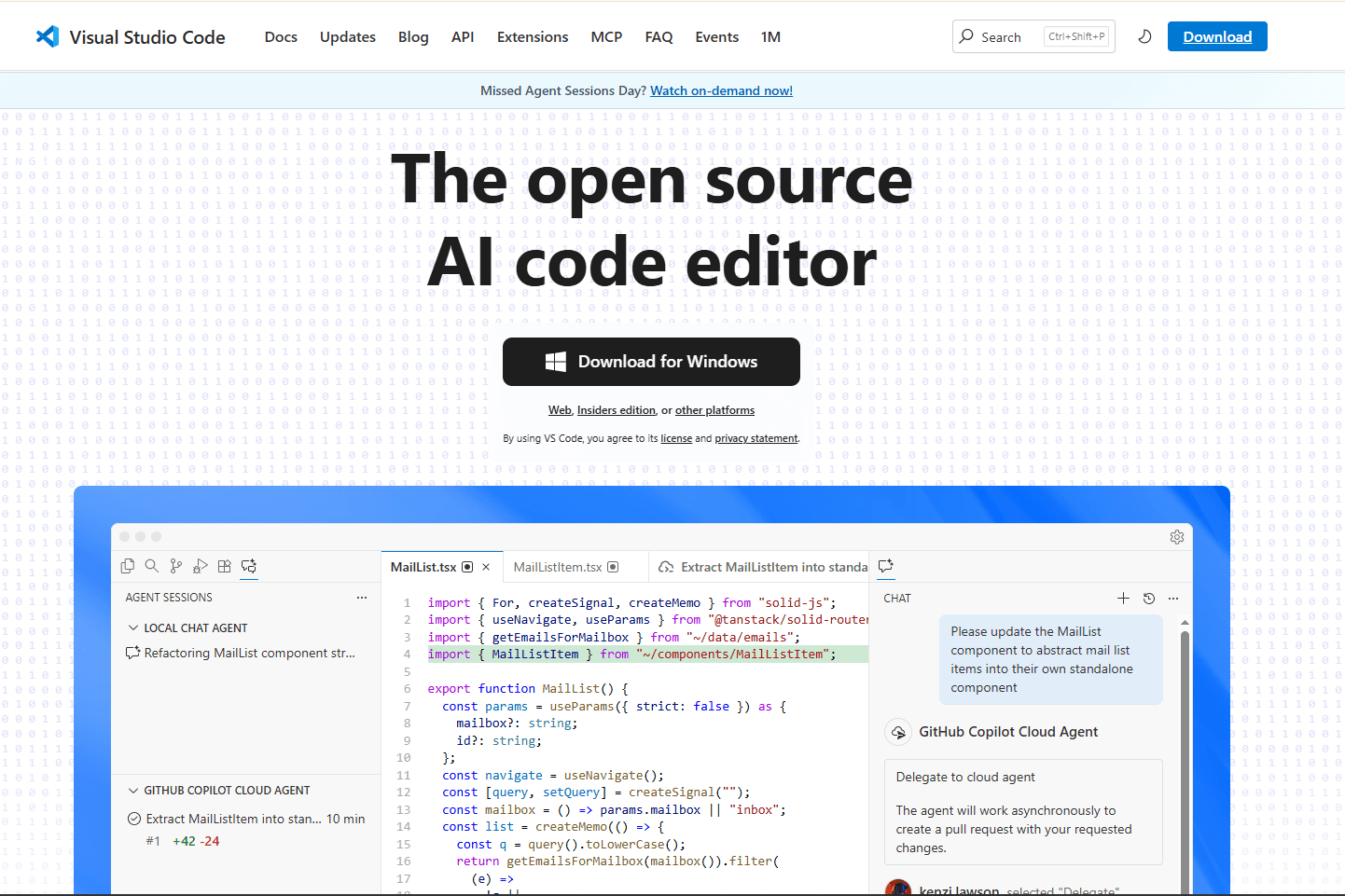
Visual Studio Code provides JSON formatting, folding, validation, and schema-aware suggestions without requiring an extension. It is the best fit when JSON files live beside application code, Git repositories, and project configuration.
What you get:
- Syntax diagnostics and formatting with Ctrl + Shift + I on Linux
- Suggestions for properties and values
- JSON Schema associations through $schema or json.schemas
- Folding and symbol navigation for nested objects
- Integrated Git, terminal, and project-wide search
What you do not get:
- A dedicated collapsible JSON tree
- The small footprint of a focused native text editor
Microsoft publishes official Debian, RPM, and Snap packages. Choose the package that matches your distribution and update preferences; the official Linux setup guide documents each route. VS Code is free to use, but the Microsoft distribution has a product license while the underlying Code - OSS source is MIT-licensed.
2. Zed (Best Modern Linux GUI Editor)

Zed now offers native JSON and JSONC support on Linux. Its built-in JSON language server provides diagnostics, completion, formatting, and JSON Schema validation, making it a credible alternative for users who want project editing without copying their VS Code setup.
What you get:
- Native JSON syntax support using Tree-sitter
- Built-in JSON language server
- Schema validation for files such as package.json and tsconfig.json
- Custom schema mappings through project settings
- Project search, Git tools, and an integrated terminal
What you do not get:
- A node-based tree editor for exploring JSON values
- Support for older Linux graphics stacks that lack Vulkan 1.3
The official installer supports 64-bit x86 and Arm Linux systems. Review the Zed Linux requirements before installing it on older hardware or inside a virtual machine.
3. Vim or Neovim (Best Terminal JSON Editor)

Vim and Neovim suit developers who edit configuration files locally, over SSH, or inside terminal multiplexers. Basic JSON highlighting works with little setup, while a language server adds schema-driven diagnostics and completion.
What you get:
- Terminal-based editing over local and remote sessions
- Syntax highlighting, bracket matching, and folding
- JSON validation and completion through coc-json or an LSP client
- Formatting through the language server or external commands such as jq
- A highly configurable keyboard-driven workflow
What you do not get:
- A visual JSON tree
- Quick onboarding for readers unfamiliar with modal editing
Vim users running coc.nvim can install the maintained JSON extension with :CocInstall coc-json. Neovim users can connect its built-in LSP client to vscode-json-language-server after installing vscode-langservers-extracted with npm. The Neovim LSP documentation explains the client side, while the language server package supplies the server executable.
4. Kate (Best Native Editor for KDE Plasma)
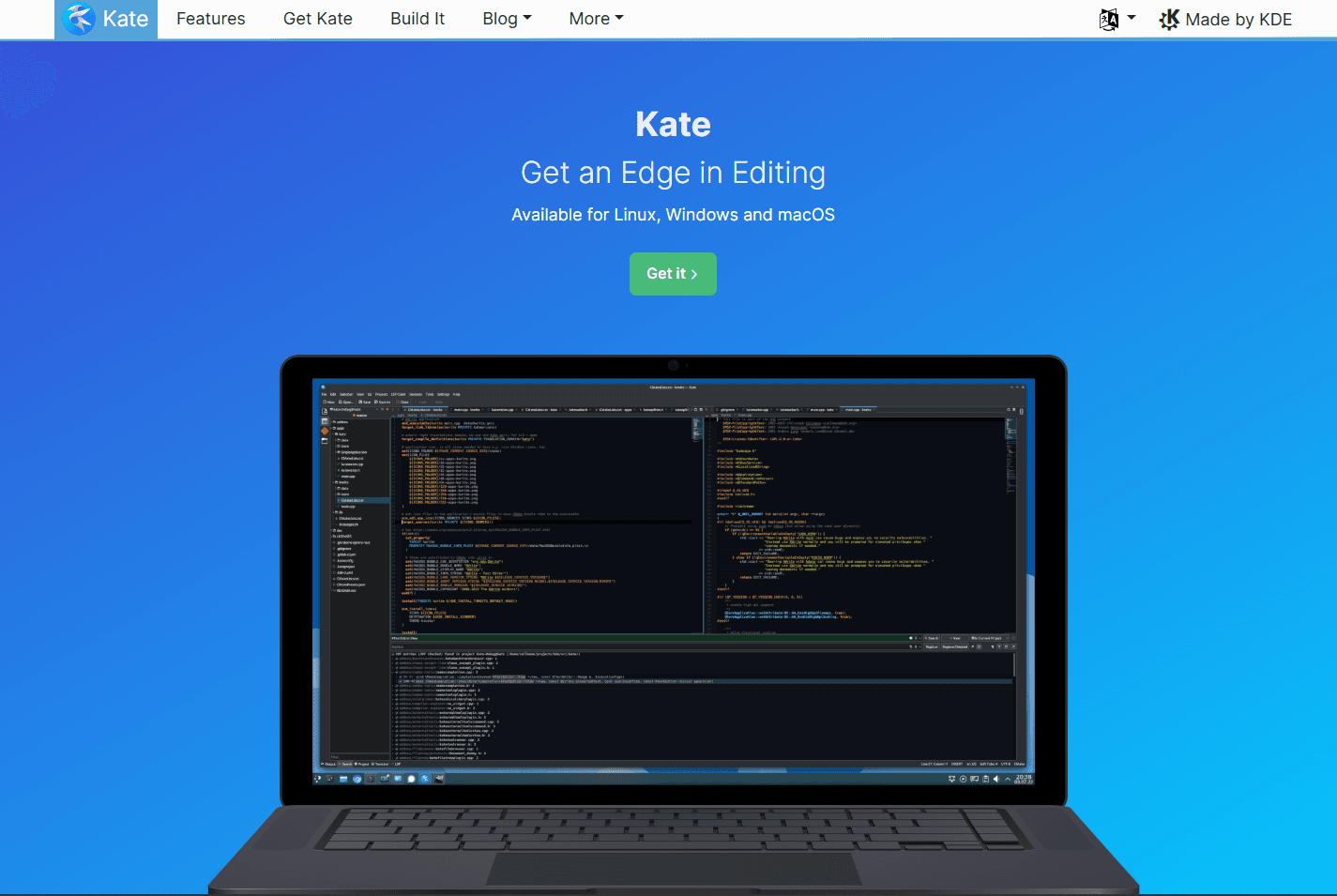
Kate is a native Qt editor that fits naturally on KDE Plasma but also runs on other Linux desktops. JSON highlighting and folding work immediately, and Kate's project, terminal, and search panels make it useful beyond one-file edits.
What you get:
- Built-in JSON syntax highlighting and code folding
- Project-wide search and an integrated terminal
- A formatting plugin that can use jq, Prettier, or clang-format for JSON
- Generic Language Server Protocol client support
- Native KDE themes and desktop integration
What you do not get:
- JSON Schema diagnostics without configuring a compatible language server
- A dedicated JSON tree view
Install Kate through your distribution, such as sudo apt install kate on Debian or Ubuntu and sudo pacman -S kate on Arch. KDE's formatting plugin documentation lists the available JSON formatters and explains format-on-save support.
5. Sublime Text (Best for Fast Raw-Text Editing)

Sublime Text is a responsive cross-platform editor with built-in JSON highlighting, multiple selections, split views, and project search. It works well for raw-text editing when you do not need a tree interface.
What you get:
- JSON syntax highlighting and folding
- Multiple selections and project-wide search
- Formatting commands through the Pretty JSON package
- Schema validation and completion through the LSP and LSP-json packages
- Official repositories for several Linux distributions
What you do not get:
- A built-in JSON tree
- A permanent free edition
Sublime Text can be evaluated before purchase, but continued use requires a license. Its Linux repository instructions cover Debian, Ubuntu, Arch, Fedora, and openSUSE, including x86-64 and selected Arm packages.
6. gedit (Best Simple GTK Editor)
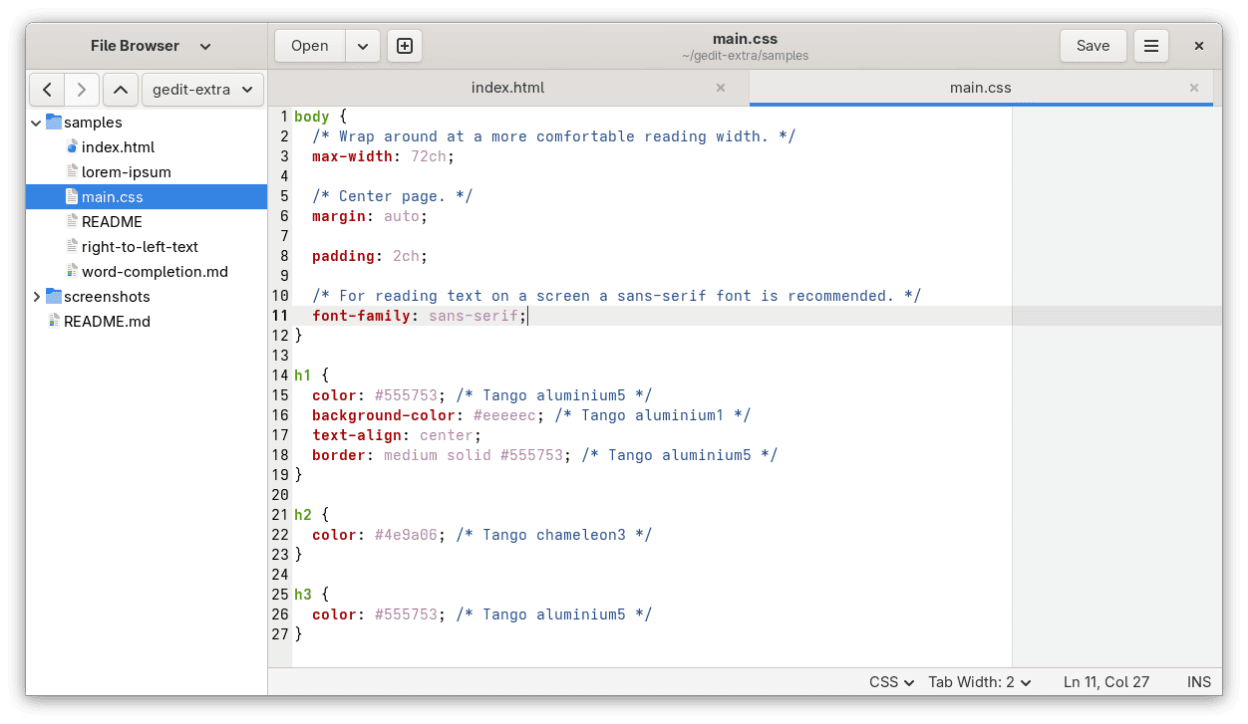
gedit remains a maintained GTK text editor and a practical option for straightforward JSON changes. It provides syntax highlighting, search and replace, line numbers, and a familiar graphical interface without requiring an IDE workspace.
What you get:
- Basic JSON syntax highlighting
- Familiar GTK menus and keyboard shortcuts
- Search, replace, line numbers, and tabbed files
- Availability in current Linux distribution repositories
What you do not get:
- JSON Schema validation or completion
- A JSON tree or JSON-specific editing panel
- The older breadth of Python-based plugins
gedit is no longer the default editor across current GNOME desktops; GNOME Text Editor is a separate core application. Install gedit explicitly where needed with a command such as sudo apt install gedit. It is suitable for small configuration changes, while schema-sensitive work belongs in VS Code, Zed, or a configured language-server editor.
jq: The Best Command-Line JSON Companion
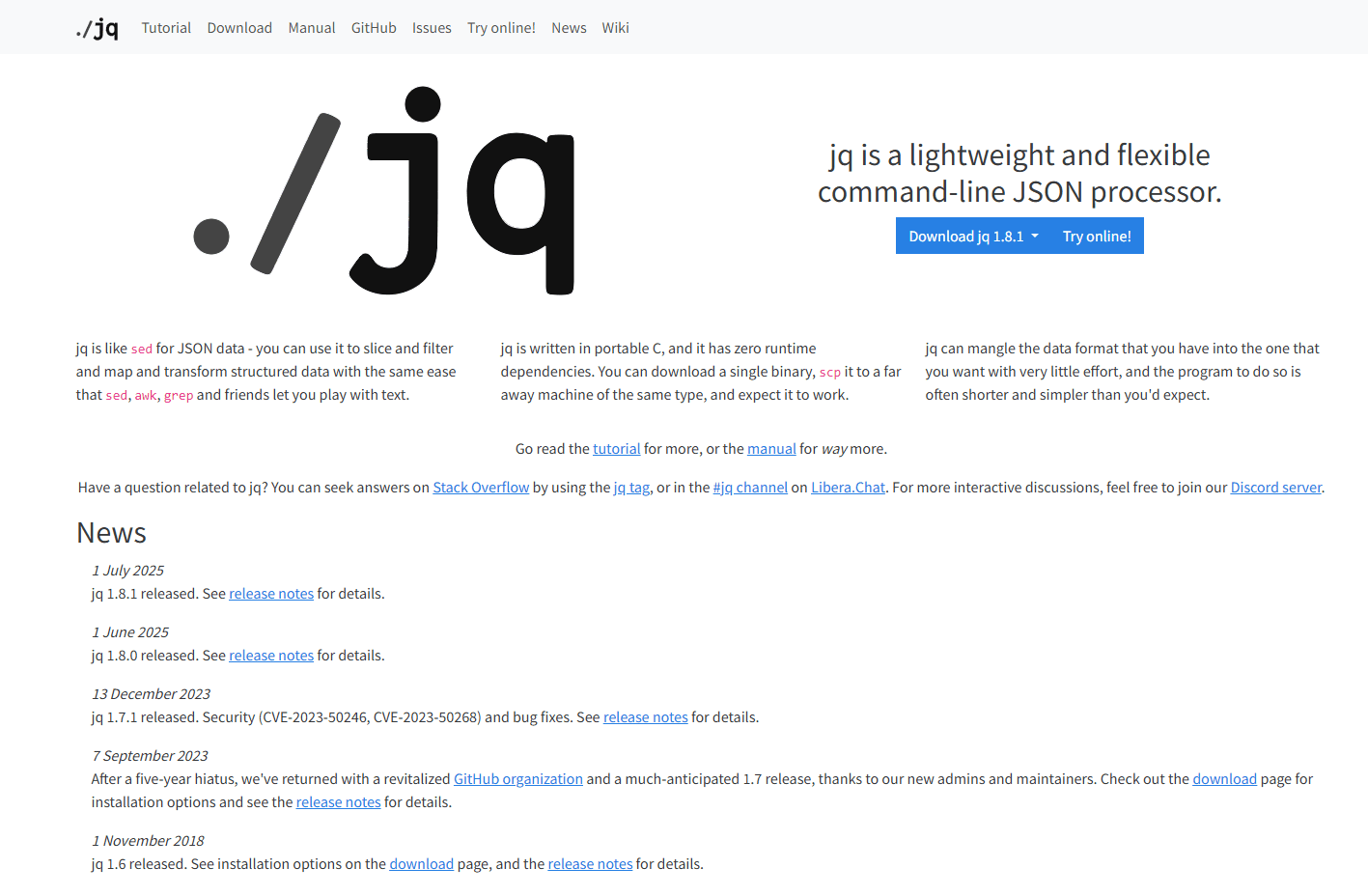
jq is a command-line JSON processor, not an interactive editor, so it should not occupy a ranked editor position. It is still one of the most useful additions to any Linux JSON workflow because it can validate, format, select, filter, and transform data in pipelines.
Common commands include:
- Pretty-print a file: jq . file.json
- Extract a value: jq '.user.email' file.json
- Filter an array: jq '.[] | select(.active == true)' file.json
- Read large input incrementally: jq --stream '...' file.json
Install jq with sudo apt install jq on Debian or Ubuntu, sudo dnf install jq on Fedora, or sudo pacman -S jq on Arch. Ordinary jq filters parse each JSON value before processing it; the explicit --stream mode produces path-and-value events for incremental work on very large inputs.
JSON Editor Comparison Table
Which Linux JSON Editor Should You Use?
Choose VS Code when JSON is part of a software project and you want schema validation without setup. Zed provides a similar schema-aware foundation in a newer editor, but its Vulkan requirement deserves checking on older machines and virtual environments.
Kate is the natural graphical option on KDE Plasma, while gedit covers basic GTK editing without development features. Sublime Text fits readers who value fast navigation and multiple selections and are comfortable purchasing a license after evaluation.
For terminal work, use Vim or Neovim when you need to modify files interactively and jq when you need to inspect or transform data in a pipeline. They solve different parts of the workflow and often work best together.
Quick Picks for Linux JSON Editing
For browser-based preprocessing, use the JSON splitter, JSON flattener, or JSONL to JSON converter before opening the result in a desktop editor.
Frequently Asked Questions
What is the best JSON editor for Linux?
VS Code is the best general-purpose JSON editor for Linux because formatting, diagnostics, folding, suggestions, and JSON Schema associations work without third-party extensions. Zed is the strongest newer alternative when its Linux graphics requirements suit your machine.
What is the best JSON editor for Ubuntu?
VS Code is the strongest choice for development and schema-aware configuration files. Kate is a capable native desktop alternative, while gedit works for small edits when validation and completion are unnecessary. All three can run on Ubuntu, although they provide very different levels of JSON assistance.
How can I format JSON from the Linux terminal?
Run jq . file.json after installing jq, or use python3 -m json.tool file.json when Python is already available. Both write formatted output to the terminal. Redirect the output to a different file if you want to save it, such as jq . file.json > formatted.json.
Does VS Code support JSON Schema on Linux?
Yes. VS Code can associate a schema through a top-level $schema property or the json.schemas editor setting. Schema associations provide value validation, property suggestions, and documentation while you edit, with the same JSON features available across its supported desktop platforms.
Is jq a JSON editor?
No. jq is a command-line processor that reads JSON and writes selected or transformed results. Pair it with Vim, Neovim, Kate, or another editor when you need interactive text changes, and use jq for formatting, filtering, validation, or automation.
If you need to combine multiple files before editing, the JSON merger tool processes them directly in your browser.
Related Reading
Working on another desktop platform? See the best JSON editors for Mac or the best JSON editors for Windows.
Editor-specific guides:
Read More
All Articles
7 Best JSON Editor Apps for Android in 2026 (Compared & Ranked)
Compare seven current JSON editor apps for Android, including visual tree editors, fast text editors, Git tools, and a browser option.
4 Best JSON Plugins for Notepad++ in 2026
Compare the best JSON editor plugins for Notepad++ for formatting, tree navigation, linting, schema validation, and file comparison.
5 Best JSON Plugins for Sublime Text in 2026
Compare 5 current Sublime Text JSON plugins for formatting, live linting, schema validation, jq transformations, and structural navigation.