6 Best CSV Editors for Linux in 2026 (GUI & Terminal)

On this page
Linux offers two useful ways to work with CSV files: a spreadsheet-style grid for direct edits, or terminal tools for filtering, transforming, and inspecting data. The right choice depends on whether you need formulas, repeatable commands, remote access, or a viewer for a dataset that is awkward to load into a spreadsheet.
VisiData provides an interactive terminal table, while csvkit and qsv fit shell scripts and pipelines. LibreOffice Calc and Gnumeric offer familiar spreadsheet interfaces. Tad is a viewer and analysis tool rather than a cell editor, which makes it useful when you need to filter or pivot a large export before editing a smaller result elsewhere.
The choice depends on your workflow. Terminal users want tools that work with pipes, scripts, and SSH sessions. GUI users want visual editing with formulas and formatting. Data analysts need performance on massive datasets.
Use VisiData for interactive terminal work. Use LibreOffice Calc for spreadsheet-style editing with formulas and controlled CSV import. Use csvkit when its focused commands and SQL bridge fit the job, or qsv when you want a broader Rust-based command set.
The six options below cover GUI editing, terminal exploration, automation, and large-file viewing without relying on unverified speed or file-size promises.
1. VisiData (Best for Terminal and Large Files)
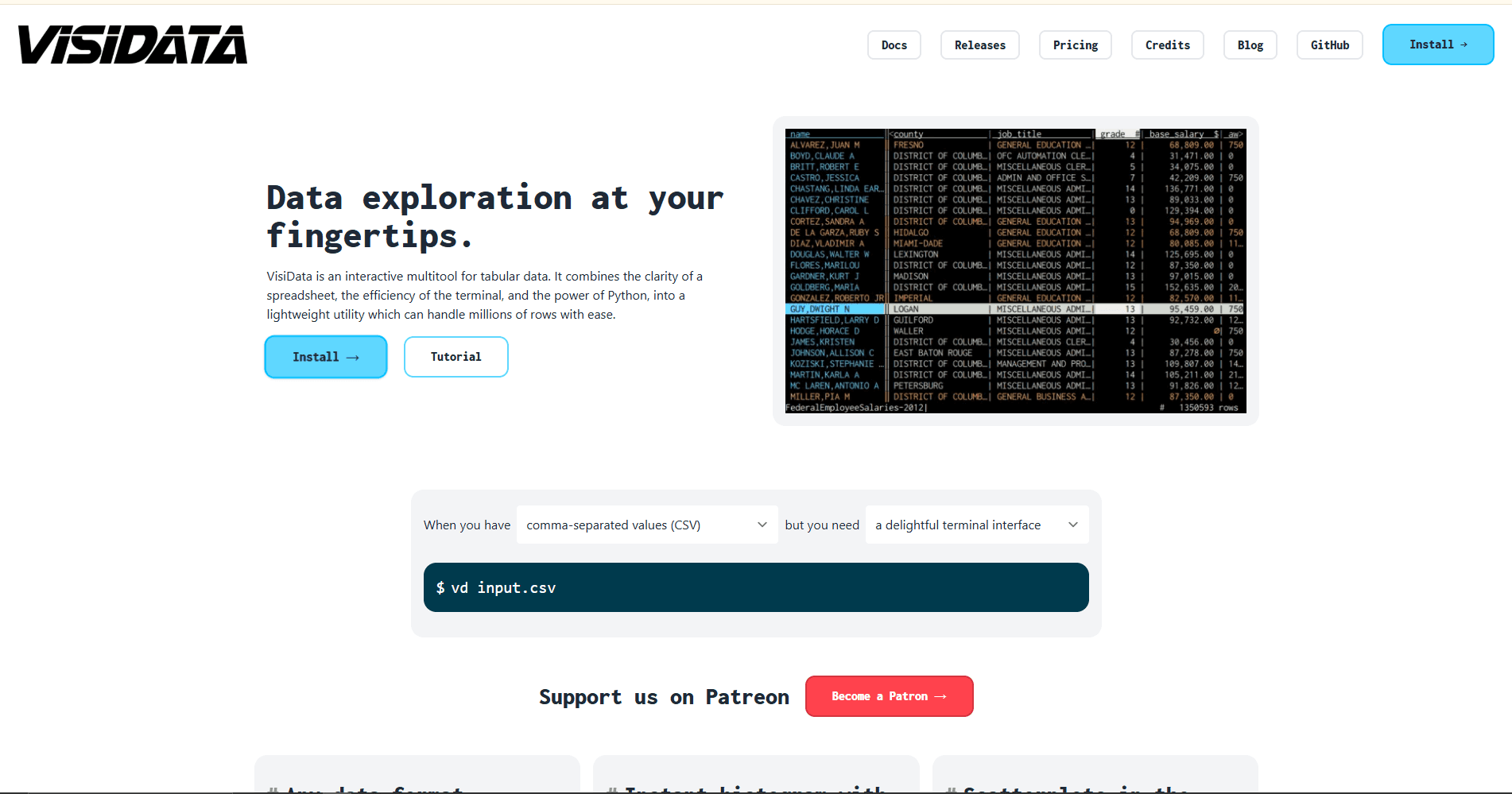
VisiData is a terminal-based spreadsheet and data exploration tool. Its CSV loader adds rows asynchronously, so you can begin inspecting early rows while the rest of the file continues loading. Loaded rows are still retained in memory, so available RAM and the shape of the dataset remain relevant.
The official installation page lists packages for Debian, Fedora, NixOS, Guix, and Arch Linux. You can also install it with pip3 install visidata.
Open a CSV file with vd filename.csv. The file appears in a spreadsheet-style terminal interface where you can move through loaded rows, inspect columns, and apply commands.
What you get:
- Keyboard-driven navigation, selection, sorting, and filtering
- Frequency tables and pivot-style summaries
- Python expressions for derived columns and transformations
- Support for CSV, TSV, JSON, SQLite, and many other tabular formats
- Save and conversion commands for supported output formats
What you don't get:
- GUI interface (terminal only)
- Formulas like Excel (uses Python expressions instead)
- Visual comfort for non-terminal users
Performance reality:
VisiData's incremental loader improves time to first view, but it is not a promise of constant memory use or unlimited file size. The practical limit depends on row width, column count, data types, and available memory. Check the VisiData loading documentation before choosing it solely for a very large file.
When this is best:
If you work in the terminal regularly. If you process large CSV files that crash spreadsheet applications. If you need quick data exploration without opening a GUI. If you work over SSH on remote servers.
VisiData has a learning curve because most operations use keyboard commands. Its documentation includes tutorials, a quick reference, and in-app help through Ctrl+H.
2. LibreOffice Calc (Best All-Around GUI Editor)
LibreOffice Calc is a free, open-source spreadsheet application with formulas, charts, sorting, and filtering. Its main CSV advantage is the Text Import dialog, which appears before the data is placed in a worksheet.
Install it from your distribution's software manager or use the official LibreOffice download page. Debian and Ubuntu users can typically install the Calc package with sudo apt install libreoffice-calc, while Fedora provides LibreOffice through its repositories.
What you get:
- Excel-like interface with cells, rows, columns
- Formulas work (=SUM(), =VLOOKUP(), =IF(), etc.)
- Sorting and filtering via Data menu
- Charts and graphs
- Conditional formatting
- Find and replace with regex support
- Multiple sheet support
What you don't get:
- A terminal-first editing workflow
- A good fit for datasets beyond spreadsheet grid or memory limits
- Preservation of formulas, formatting, and multiple sheets in a CSV export
CSV-specific workflow:
Before opening the file, confirm the character set, separator, text delimiter, language, and column types. Set identifiers, postal codes, and other text-sensitive columns to Text so Calc does not reinterpret them as numbers or dates.
Edit cells directly, then save through File > Save As > Text CSV. The export dialog controls the field delimiter, text delimiter, character set, and quoting. CSV saves only the active sheet's data, not formulas, formatting, charts, or other workbook features.
Performance limitations:
Calc is constrained by its worksheet grid and by available memory. A file can become impractical before either limit is reached because row width, formulas, and formatting all add overhead.
Large file workaround:
Use a CSV-aware command-line tool or viewer to filter, select, or split the data before opening it in Calc. A line-based utility can split a record incorrectly when a quoted field contains an embedded line break.
When this is best:
If you need a visual spreadsheet interface. If you use formulas and charts. If you share files with spreadsheet users. If you want to control column types during import.
LibreOffice Calc will feel familiar to readers who already use spreadsheet software, though the CSV import and export dialogs deserve careful review.
3. csvkit (Best for Command-Line Scripting)
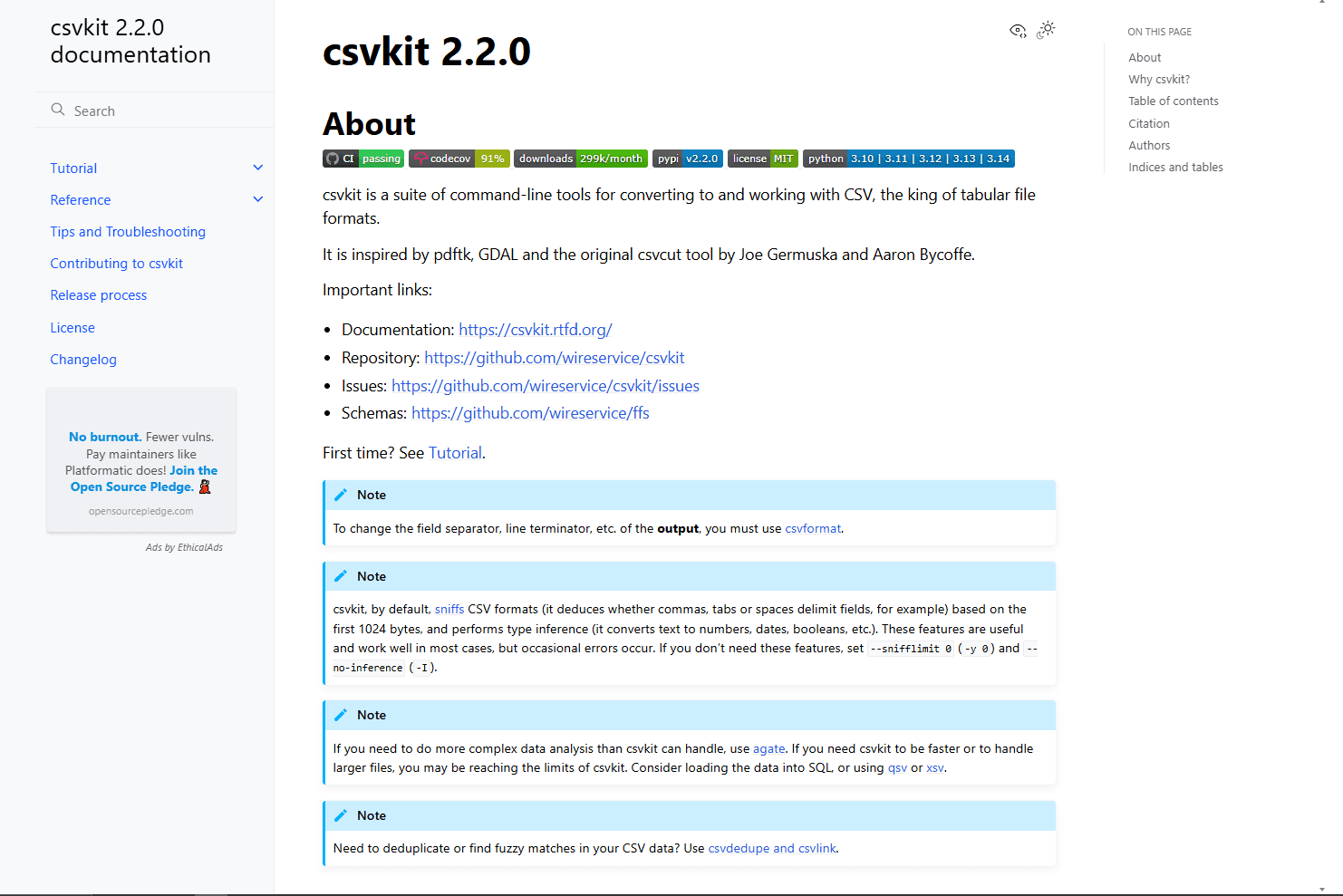
csvkit is a maintained suite of command-line tools for converting and processing CSV data. Each command has a focused role, and the tools accept standard input so they can be chained in Unix pipes.
The project recommends installing csvkit in a virtual environment. Use pip install csvkit inside that environment, or install the distribution package when an appropriate version is available.
What you get:
- Unix philosophy design (each tool does one thing well)
- SQL queries on CSV files without a database (csvsql)
- Statistics generation (csvstat shows min, max, mean, median)
- CSV joining, filtering, and transformation
- Integration with Unix pipes and scripts
- Import from Excel or JSON and export to JSON or other delimited layouts
What you don't get:
- Predictable memory use across every command; some operations buffer the complete input
- Visual interface (command-line only)
- Real-time interactive editing
Core tools:
Performance:
csvkit's own documentation distinguishes row-by-row commands such as csvcut from commands such as csvstat that load the complete input. It also performs delimiter sniffing and type inference by default. Use --snifflimit 0 and --no-inference when automatic detection is unnecessary or could reinterpret identifiers.
When this is best:
If you work with CSV files in shell scripts. If you need reproducible data processing pipelines. If you filter and transform CSVs regularly. If you want SQL queries without setting up a database.
csvkit works well with other Unix tools, but use CSV-aware commands when quoted commas or embedded line breaks make ordinary text processing unsafe. The official command reference documents which operations stream rows and which need more memory.
4. qsv (Best for High-Performance CLI Processing)
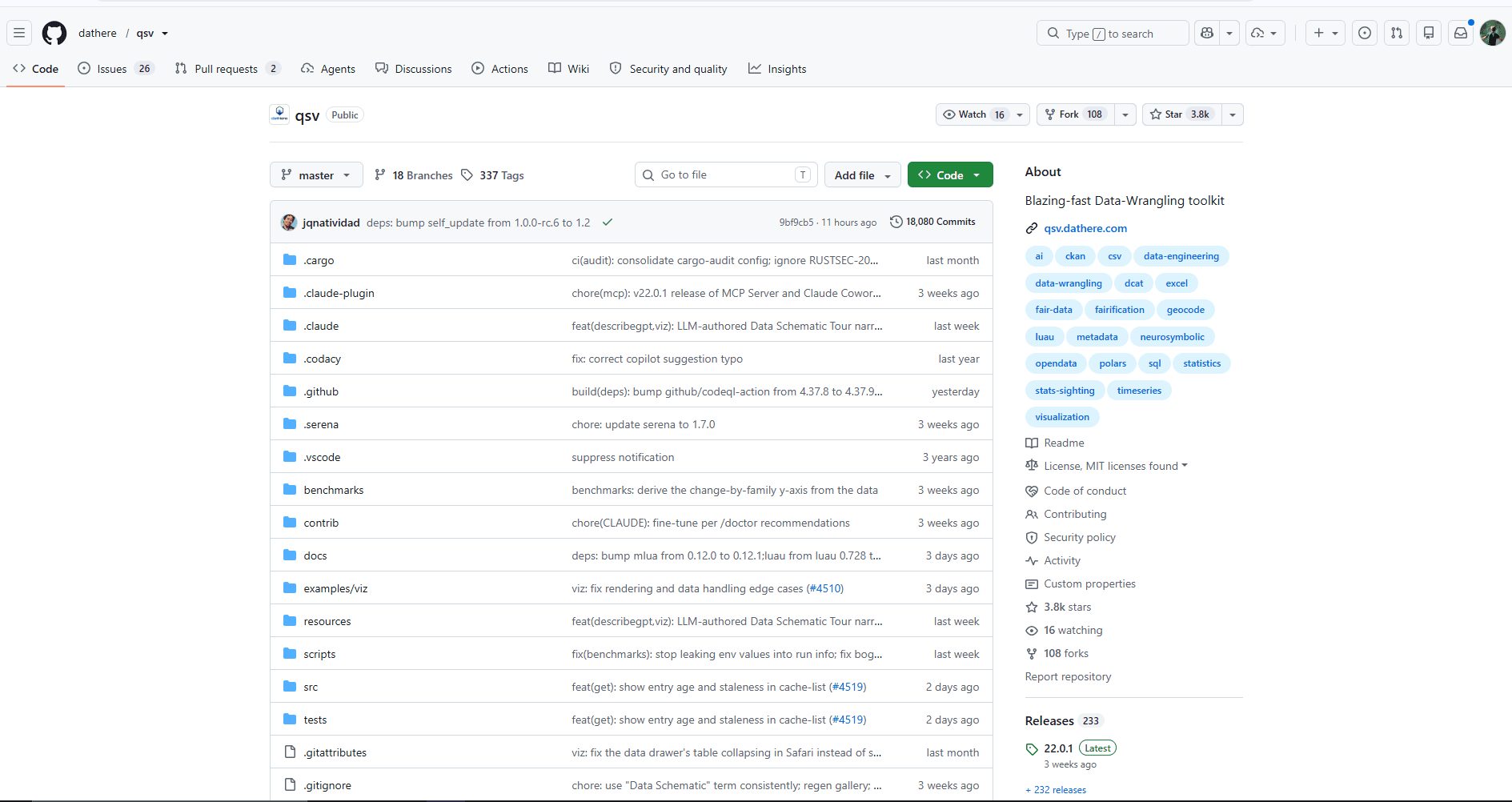
qsv is a maintained Rust-based toolkit for querying, filtering, sorting, joining, validating, and converting tabular data. It fills the performance-focused command-line role previously associated with xsv, whose official repository is now archived and unmaintained.
The qsv installation guide provides prebuilt Linux binaries and package-manager routes for Arch, Homebrew on Linux, Nix, Void Linux, Conda, and Mise. Available commands can vary by binary build because some features are optional.
What you get:
- Commands for selecting, searching, sorting, joining, validating, and summarizing CSV data
- Index files and caches that supported commands can reuse
- External sorting and deduplication commands for jobs that should not stay entirely in memory
- Conversion to formats such as JSON Lines, Parquet, Excel, ODS, SQLite, and PostgreSQL
- Standard input and output for composing shell pipelines
What you don't get:
- A spreadsheet grid in the command-line package
- Identical features in every prebuilt or package-manager variant
- A guarantee that every command uses bounded memory
Performance reality:
qsv includes multithreaded commands, optional indexing, and external-memory operations, but results still depend on the selected command, build features, storage, CPU, and data shape. Check qsv --version to see which features are enabled instead of assuming a package includes the complete command set.
Indexing for repeated work:
Run qsv index largefile.csv to create a sidecar index. Commands marked as index-aware in the official command list can then reuse it. Rebuild the index after the source CSV changes.
Common commands:
When this is best:
If you need a maintained command-line toolkit for repeatable CSV processing. If your workflow benefits from indexes, external sorting, validation, or conversion. If you need to combine CSV commands in automated pipelines.
qsv has a much broader command set than the archived xsv project, but that breadth also makes its documentation and feature flags worth checking before deployment.
5. Gnumeric (Lightweight GUI Alternative)
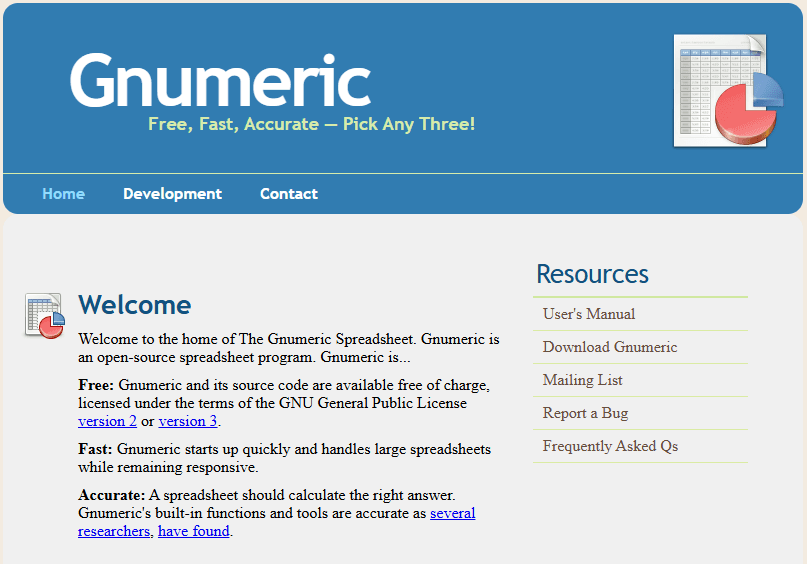
Gnumeric is a free, open-source spreadsheet maintained by the GNOME project. It provides a focused desktop interface, formulas, charts, and configurable text import without installing a complete office suite.
The project recommends installing Gnumeric through your Linux distribution's standard software manager. Common package commands include sudo apt install gnumeric on Debian or Ubuntu and sudo dnf install gnumeric on Fedora.
What you get:
- Focused spreadsheet interface
- Familiar formulas such as =SUM(), =AVERAGE(), =VLOOKUP(), and =IF()
- CSV import/export
- Basic charts
- Sorting and filtering
What you don't get:
- Advanced charting options
- Extensive template library
- Large extension ecosystem
- A documented file-size promise for every system and dataset
Performance:
The Gnumeric project describes the application as quick to start and responsive with large spreadsheets, but it does not publish a universal CSV size or memory limit. Actual behavior depends on the worksheet dimensions, cell contents, formulas, and available resources.
CSV handling:
Use File > Open and choose the CSV. The Text Import dialog provides encoding, line-break, delimiter or fixed-width, row-range, preview, and per-column format controls.
Edit cells by clicking and typing. Use Format > Cells for display formats, Data > Sort for ordering, and Data > Filters > Auto Filter for column filters.
Save through File > Save As and choose Text export (configurable). Confirm the delimiter, quoting, encoding, and line endings before replacing the original file.
Formula support:
Gnumeric supports a broad set of spreadsheet functions and can open several Excel formats. A CSV file cannot retain formulas, cell formatting, charts, or multiple sheets, so save a workbook copy if those features matter.
When this is best:
If you want spreadsheet features without installing a complete office suite. If you need configurable text import and a conventional cell grid. If Gnumeric is well packaged by your Linux distribution.
Gnumeric has fewer office-suite integrations than LibreOffice Calc, but its text import controls make it a credible alternative for direct CSV editing.
6. Tad (Best for Viewing Huge Files)
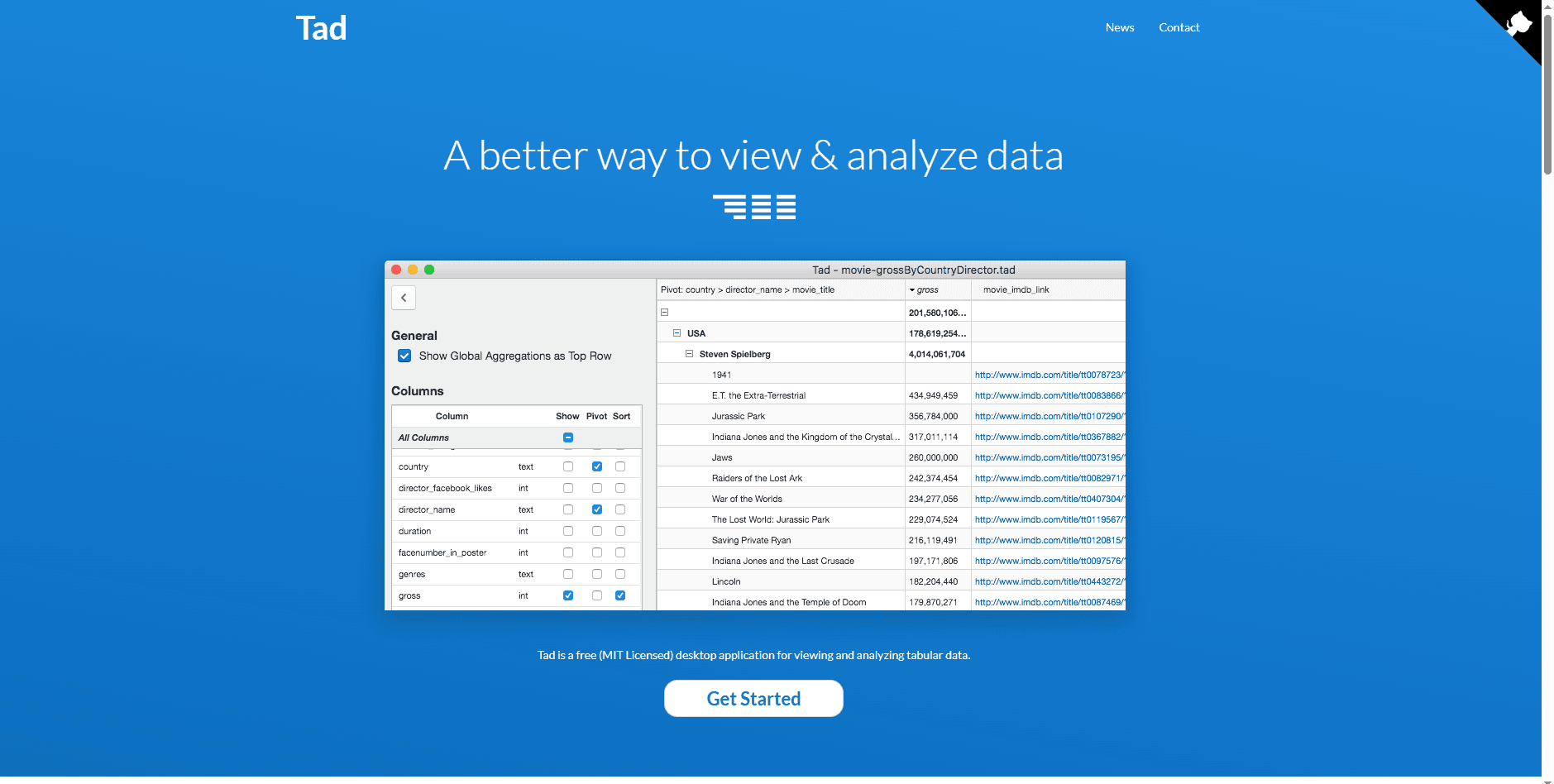
Tad is a free desktop application for viewing and analyzing CSV, Parquet, SQLite, and DuckDB data. It uses DuckDB for storage and analytic queries, then presents the results in a scrollable grid and pivot-table interface.
Download a current Linux package from the official releases page. The developer describes Tad as a hobby project and warns that users may encounter bugs and interface problems, so validate exported results before using them in a production workflow.
What you get:
- A virtualized grid designed for large tabular datasets
- Column selection, ordering, sorting, and filtering
- Pivot tables for data aggregation
- Export of filtered results to CSV or Parquet
- Direct viewing of CSV, Parquet, SQLite, and DuckDB sources
What you don't get:
- Cell editing (primarily a viewer, not an editor)
- Spreadsheet formulas or direct cell calculations
- A native GTK interface; Tad is an Electron application
- The release cadence and support model of a commercial desktop product
What makes Tad different:
Tad delegates filtering, aggregation, sorting, and pivot operations to DuckDB and uses a virtualized grid for scrolling. This differs from placing every record into ordinary spreadsheet cells, but it does not guarantee a fixed opening time or memory footprint.
Workflow:
Open large CSV in Tad. Apply filters to narrow down to relevant rows. Export filtered result to new CSV. Edit the smaller file in your preferred editor.
This can keep a large source out of a spreadsheet workflow until you have reduced it to the rows and columns that need editing.
When this is best:
If you need to explore a large CSV without editing individual cells. If you want visual filtering and pivoting before processing with command-line tools. If you receive tabular exports from databases or logs.
Tad fills the gap between command-line tools and spreadsheet applications for large-file exploration. Review its official release notes and project caveat before adopting it as a long-term dependency.
Tool Comparison Table
Which CSV Editor Should You Actually Use?
If you want a GUI with formulas and detailed import controls, use LibreOffice Calc. Set text-sensitive columns explicitly during import and keep a workbook copy if formulas or formatting must survive.
If you work over SSH or prefer keyboard-driven exploration, use VisiData. Its asynchronous loader exposes early rows while the file continues loading, but you still need enough memory for the loaded data.
If you're building automation scripts, use csvkit for its focused commands and SQL bridge, or qsv for a larger Rust-based command set with indexing, validation, and external sort options.
If you only need to inspect and reduce a large file, Tad provides filtering, pivots, and export without pretending to be a cell editor. Its hobby-project status makes result validation especially important.
Quick Picks for Linux CSV Editing
For browser-based preprocessing before desktop editing, try the CSV merger tool to combine multiple files, or the JSON to CSV converter for format conversion.
Frequently Asked Questions
What's the best CSV editor for Ubuntu?
LibreOffice Calc is the best GUI starting point when you need formulas and control over delimiter, encoding, and column types. Install VisiData with sudo apt install visidata when an interactive terminal workflow or SSH access matters. For scripted transformations, compare csvkit with qsv.
How do I edit large CSV files on Linux?
Choose the operation before choosing the tool. VisiData can begin showing rows while its loader continues and supports interactive edits, but loaded data still consumes memory. qsv provides index-aware and external-memory commands for scripted processing. Tad is a visual viewer that can filter, pivot, and export a smaller result but does not edit individual cells.
Can LibreOffice Calc handle large CSV files?
Calc is bounded by its worksheet grid and the resources available on the computer. Wide rows, formulas, formatting, and type conversion can make a dataset impractical before a fixed file-size threshold. Filter or split the CSV with a CSV-aware command before opening it, especially when records may contain quoted line breaks.
What are csvkit and qsv used for?
csvkit and qsv are command-line CSV toolkits for scripting and automation. csvkit provides commands such as csvcut, csvgrep, and csvsql. qsv offers a broader Rust-based command set with indexing, validation, conversion, and external sorting. Both integrate with shell pipelines, but their parsing and memory behavior vary by command.
How do I open CSV files in terminal on Linux?
VisiData: vd filename.csv for an interactive table. csvkit: csvlook filename.csv for formatted output. qsv: qsv table filename.csv for aligned output. head filename.csv shows raw physical lines, which may not equal complete records when fields contain embedded line breaks. Avoid column -s, for quoted CSV because it does not parse CSV quoting rules.
What's the fastest CSV tool for Linux?
There is no universal winner because parsing, sorting, joins, storage, CPU, and data shape affect results differently. qsv is the performance-focused recommendation in this list because it provides multithreaded commands, optional indexes, and external-memory operations. Benchmark the exact command and representative data before choosing it for a production pipeline.
Related Reading
For CSV editing on other platforms, see the best CSV editors for Windows and best CSV editors for Mac guides.
IDE integration: Best CSV extensions for VS Code for CSV editing workflows in VS Code.
Read More
All Articles
7 Best CSV Extensions for VS Code in 2026
Compare seven current CSV extensions for VS Code, including text-aware editing, spreadsheet grids, data profiling, Python cleanup, and safe previews.
9 Best CSV Editors for Mac in 2026 (Free and Paid)
Compare nine current CSV editors for Mac, including free spreadsheet tools, native grid editors, developer extensions, and large-file viewers.
8 Best CSV Editors for Windows in 2026 (Free and Paid)
Compare eight current CSV editors for Windows, from free grid tools to large-file software, with clear limits for Excel imports, licensing, and safe CSV saves.