7 Best CSV Extensions for VS Code in 2026

On this page
VS Code can edit a CSV file without an extension, but it treats the document as plain text. That is useful for Git diffs, regular-expression searches, and exact delimiter inspection. It is less useful when you need clickable cells, column filters, or a quick way to find uneven records.
The best extension therefore changes with the job. Rainbow CSV keeps the text editor and adds column awareness. Grid editors replace the text view with a table, while analysis tools focus on profiles and repeatable cleanup rather than one-cell corrections.
Save behavior is the important difference. Some extensions preserve the source as delimited text, some parse and rewrite it, and some leave the original untouched until you export. The ranking below favors tools that document those tradeoffs clearly.
1. Rainbow CSV - Best text-first CSV extension
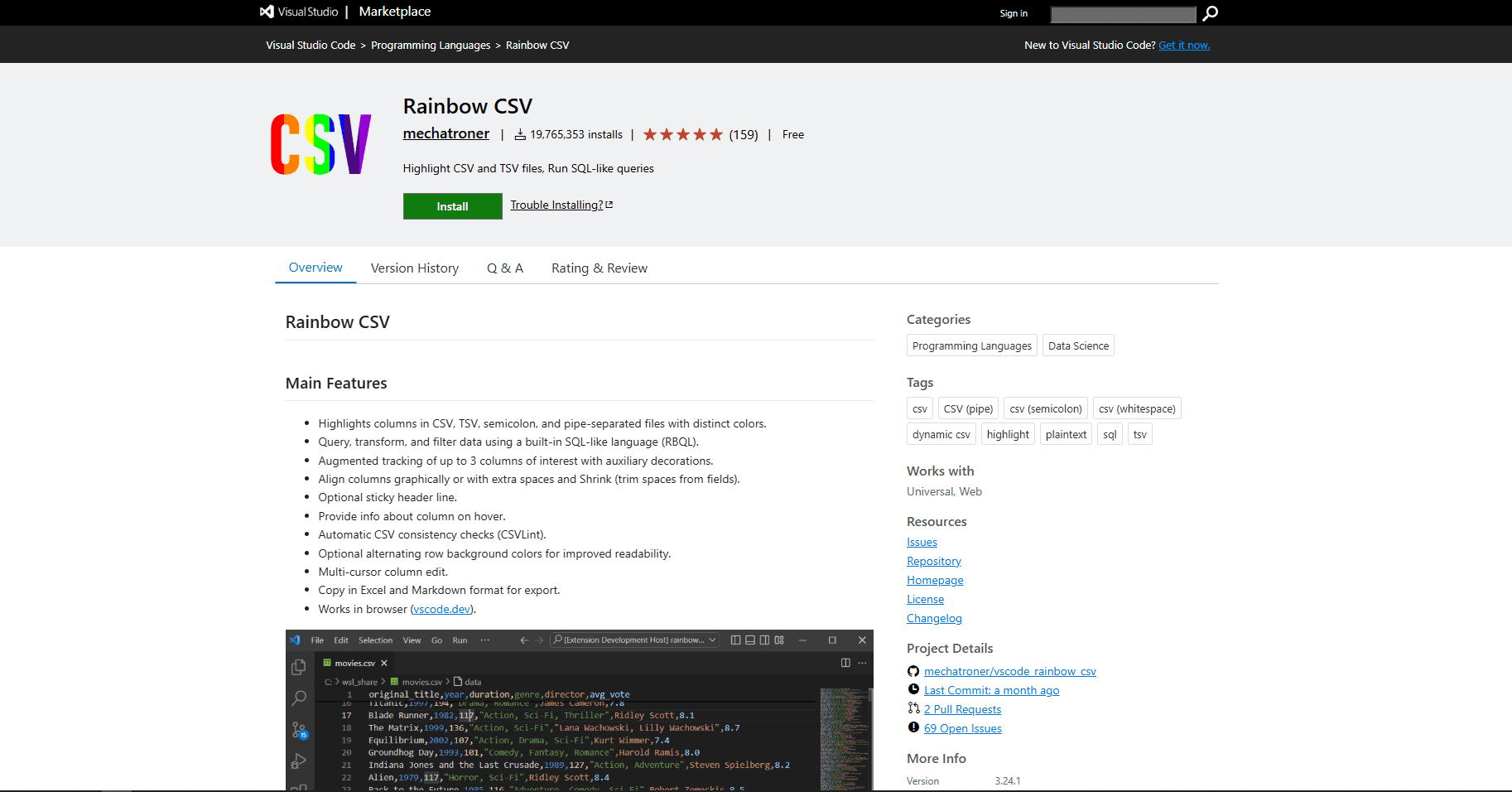
Rainbow CSV adds CSV awareness without hiding the source text. It assigns a color to each column, detects common separators, checks rows for inconsistent field counts or quoting, and shows column information on hover.
Its main advantage is RBQL, a SQL-like query language for filtering and transforming tabular text. A query such as SELECT a1, a3 WHERE a2 > 100 can produce a smaller result without first importing the file into a database. The extension also supports virtual alignment, whitespace alignment, column tracking, multi-cursor column edits, and copying selected data as Excel or Markdown tables.
What works well:
- CSV, TSV, semicolon-separated, pipe-separated, whitespace-separated, and custom-delimiter modes
- Automatic consistency checks for field counts and double quotes
- Text remains visible for Git review and manual repair
- Works in desktop VS Code and vscode.dev
Watch for:
- There is no spreadsheet grid or click-to-edit cell interface
- The extension documents extra setup beyond 300,000 lines or 20 MB
- VS Code disables Rainbow CSV features for files above 50 MB
- Multiline fields require its Dynamic CSV mode
Choose Rainbow CSV when the CSV belongs in a code repository or when queries and precise text edits matter more than a spreadsheet-like view.
2. CSV Edit - Best for format-conscious grid editing
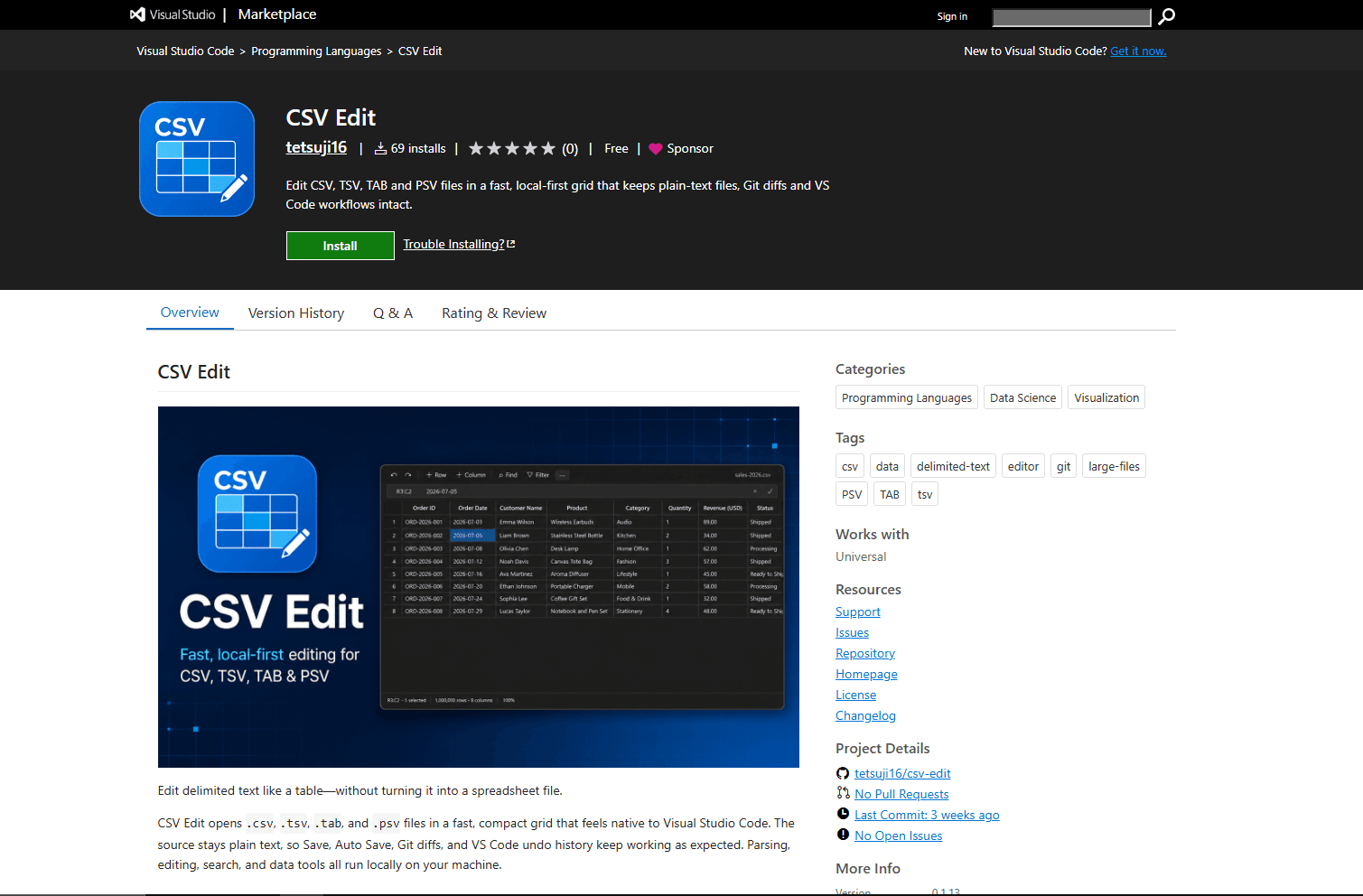
CSV Edit opens CSV, TSV, TAB, and PSV files in a compact grid while keeping the underlying document as ordinary delimited text. Save, Auto Save, VS Code undo history, and Git diffs continue to work with the source file.
This is the strongest direct editor in the list when file structure matters. The publisher documents preservation of the delimiter, quoted fields, multiline values, byte-order mark, and line endings. You can switch between grid and text views, edit rectangular selections, reorder rows or columns, filter data, find and replace values, and preview bulk transformations before applying one undoable change.
What works well:
- Local parsing, editing, search, transformation, and validation
- Uneven-row, empty-header, and duplicate-header checks
- Cleanup tools for whitespace, letter case, blanks, and duplicate rows
- Keyboard editing and TSV clipboard support for pasting into spreadsheets
Watch for:
- Requires VS Code 1.130 or newer
- It is a dedicated delimited-text editor, not a formula or chart tool
- Bulk cleanup still deserves a Git diff or backup review before commit
Pick CSV Edit when you want a grid but still care about quotes, embedded line breaks, encoding markers, and line-ending stability.
3. CSV Grid Editor - Best for profiling and large-file previews
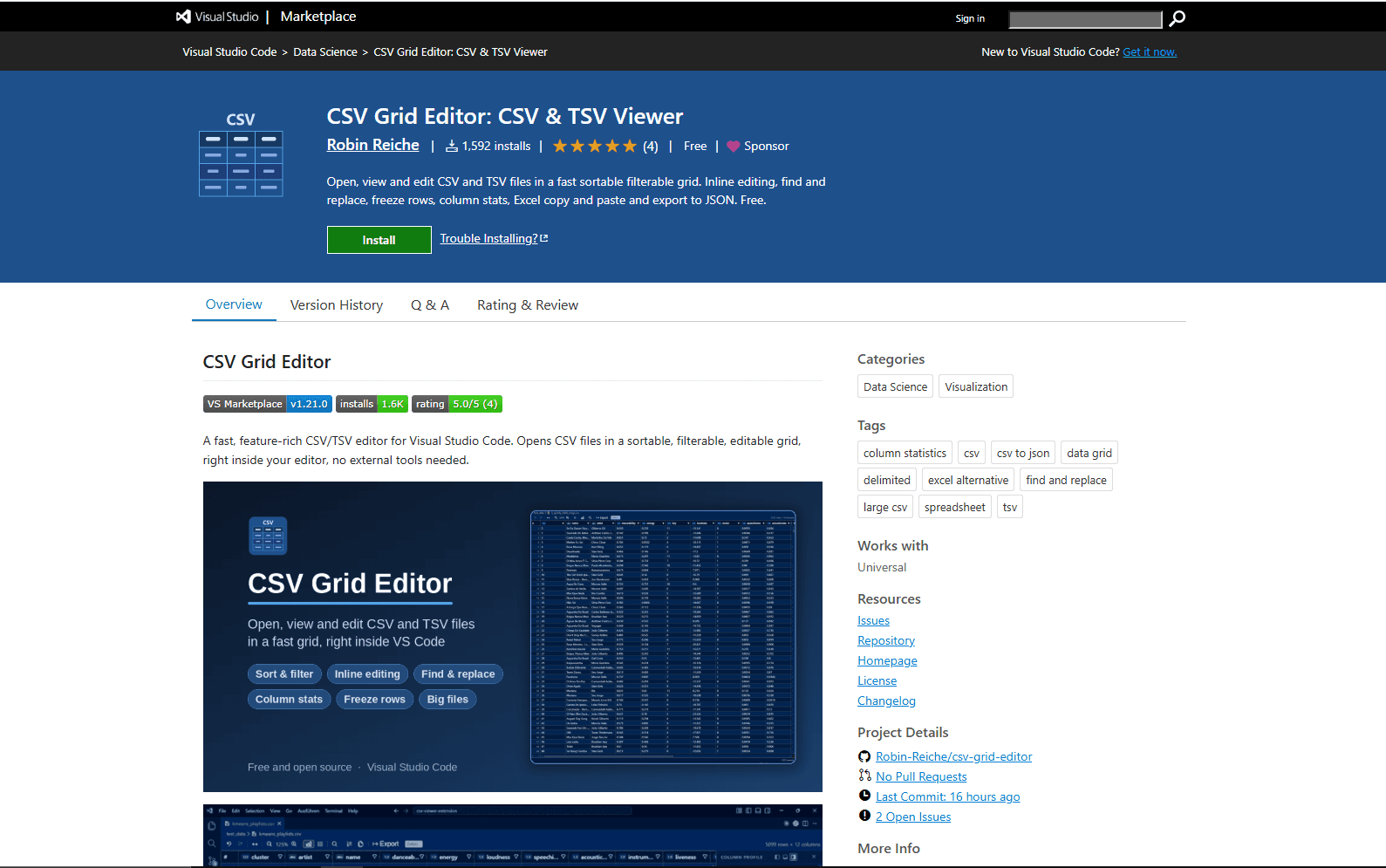
CSV Grid Editor combines cell editing with a column profile panel. The panel reports inferred types, fill rate, null percentage, distinct values, common values, and distributions. That makes it useful when an unfamiliar export needs inspection before editing.
It also has a thoughtful large-file route. Files above 10 MB open a menu for the full grid, the first or last 1,000 records, or plain text. Files above 50 MB add a 500-row paged view. The preview and paged modes are for inspection, while full-file mode is the editable path.
What works well:
- Inline cells, row and column operations, undo, find and replace
- Sort and filter controls in column headers
- Multiline cell editing with documented CRLF preservation
- Selection statistics plus JSON, JSON Lines, XML, and Markdown exports
Watch for:
- Type badges are inferred from values, so identifiers may look numeric even when they should remain text
- Paged mode is read-only
- Opening the full file may still be slow for very large datasets
Use CSV Grid Editor when you need a visual editor and want quality signals or bounded previews before loading the complete table.
4. Data Wrangler - Best for cleaning and analysis
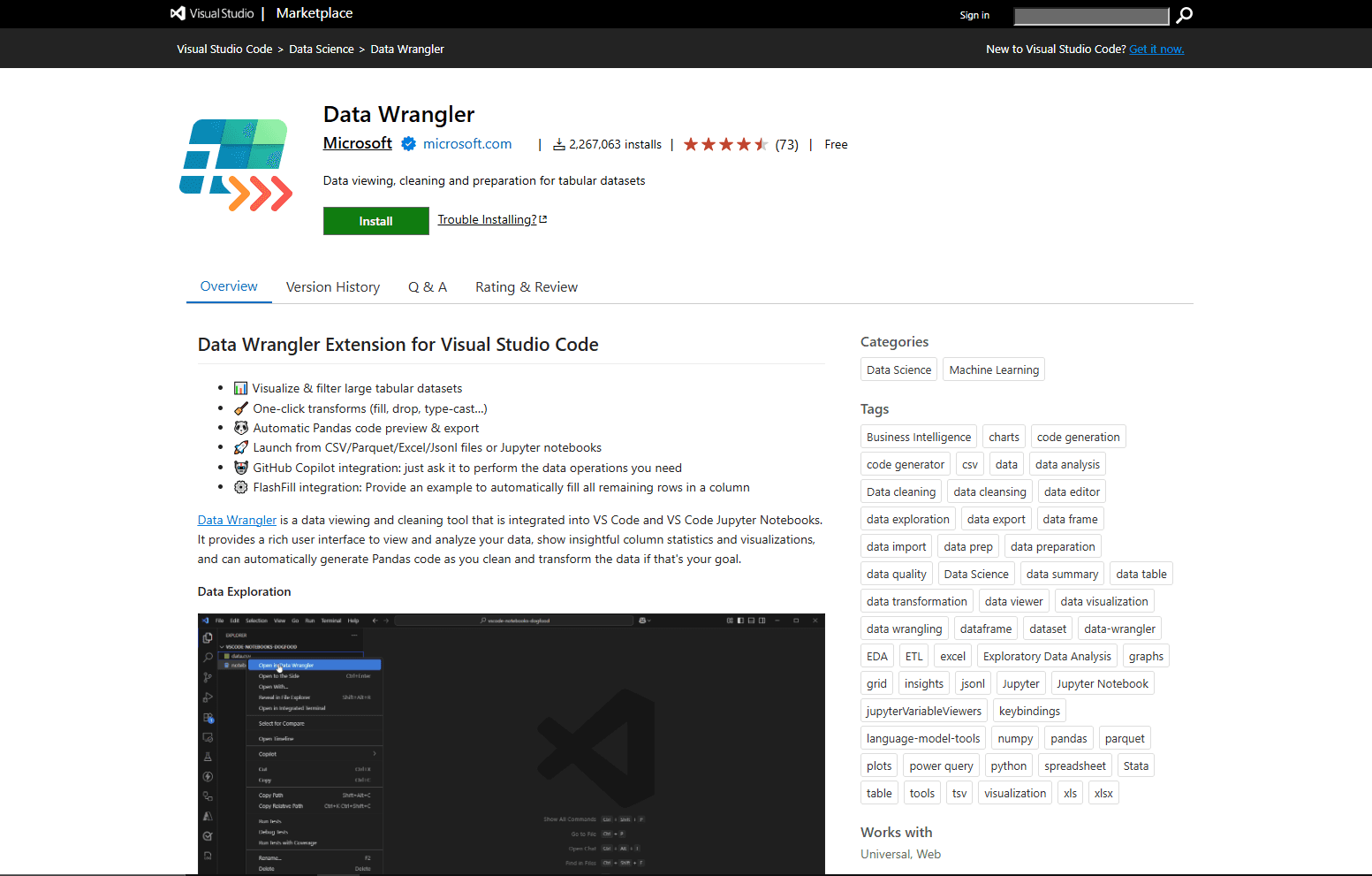
Data Wrangler by Microsoft is closer to a data-preparation workspace than a normal CSV editor. It opens CSV, Parquet, Excel, and JSON Lines files, shows column summaries and distributions, and provides operations for filtering, filling missing values, changing types, and reshaping data.
Each operation can generate Pandas code. That makes a cleanup repeatable in a notebook or script instead of leaving the logic inside a one-off manual edit. Data Wrangler works in a sandboxed view and does not modify the original dataset until you explicitly export the changed data.
What works well:
- Column statistics, missing-value indicators, distributions, filters, and sorts
- Data-diff preview before applying a transformation
- Generated Python and Pandas code for reproducible cleanup
- Direct launch from a local .csv file or a notebook DataFrame
Watch for:
- Requires Python 3.8 or newer
- A local interpreter workflow also needs the Python and Jupyter extensions plus required packages such as Pandas
- It is slower to set up than a simple grid editor
- The extension collects usage telemetry and respects VS Code's telemetry.telemetryLevel setting
Choose Data Wrangler for analysis and repeatable transformations. Use CSV Edit or CSV Grid Editor for quick cell-by-cell corrections.
5. Edit CSV - Best familiar spreadsheet-style grid
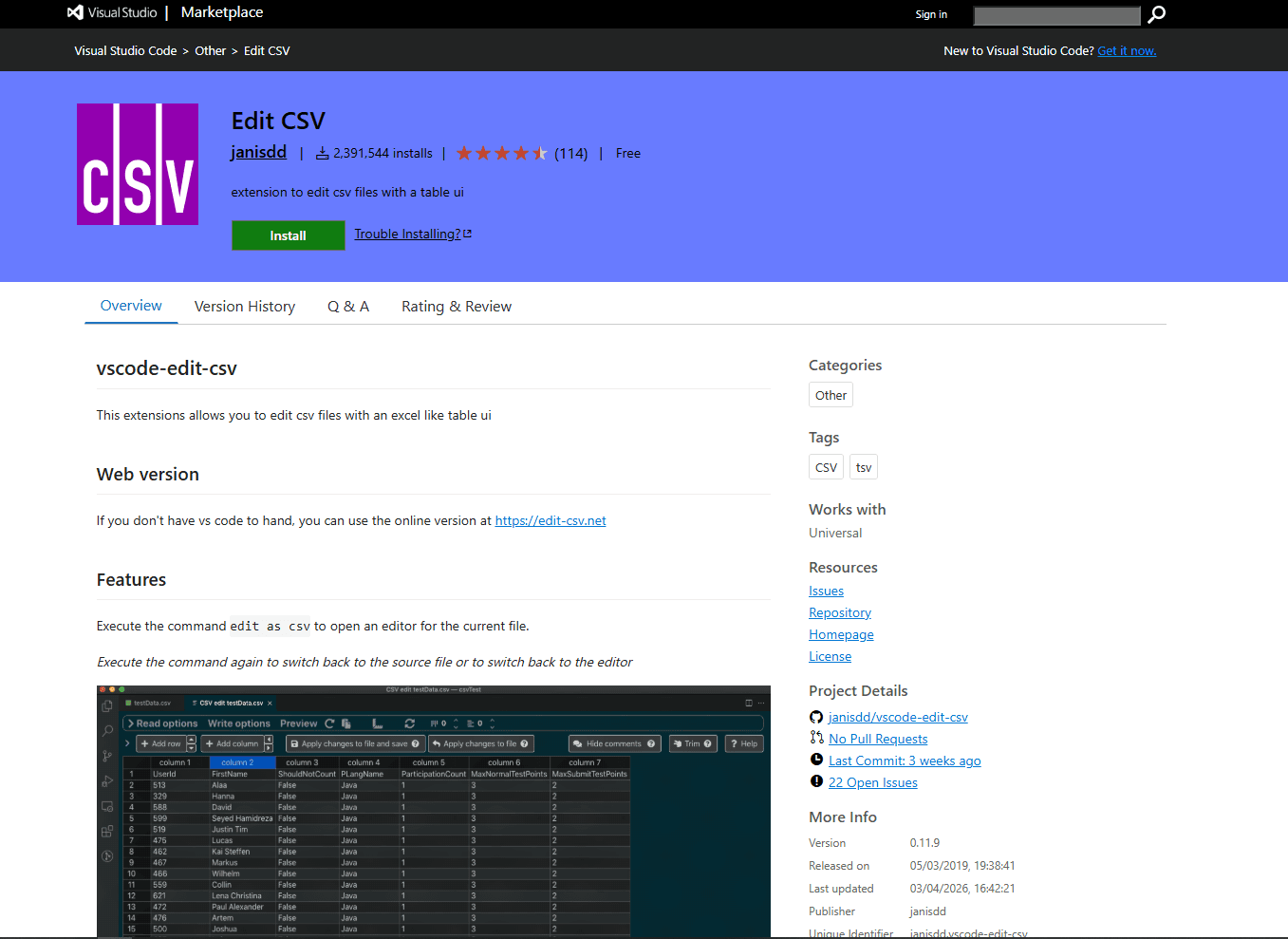
Edit CSV opens the active CSV or TSV document in an Excel-like table. Run Edit as CSV from the Command Palette, change cells in the grid, then apply the result back to the source document.
The familiar layout makes it easy to add rows, adjust columns, copy ranges, and use drag-to-fill behavior. Its documentation is also unusually clear about save risks, which is useful when the exact representation matters.
What works well:
- Familiar cell grid with keyboard navigation and context menus
- Undo and redo in both the table and source document
- Configurable parsing and export behavior
- Optional Excel-like automatic fill for numbers, month names, and dates
Watch for:
- Source changes made while the table is open do not flow back into the grid
- Empty lines are skipped
- Mixed quoted and unquoted values in one column can be normalized on save
- The whole file is stringified and retained in the webview, so the publisher warns that it does not scale well for large CSV files
Edit CSV is a good fit for moderate, regular tables where a familiar grid matters more than exact preservation of blank lines or mixed quoting.
6. XLSX, CSV, TSV & Markdown Editor - Best multi-format editor
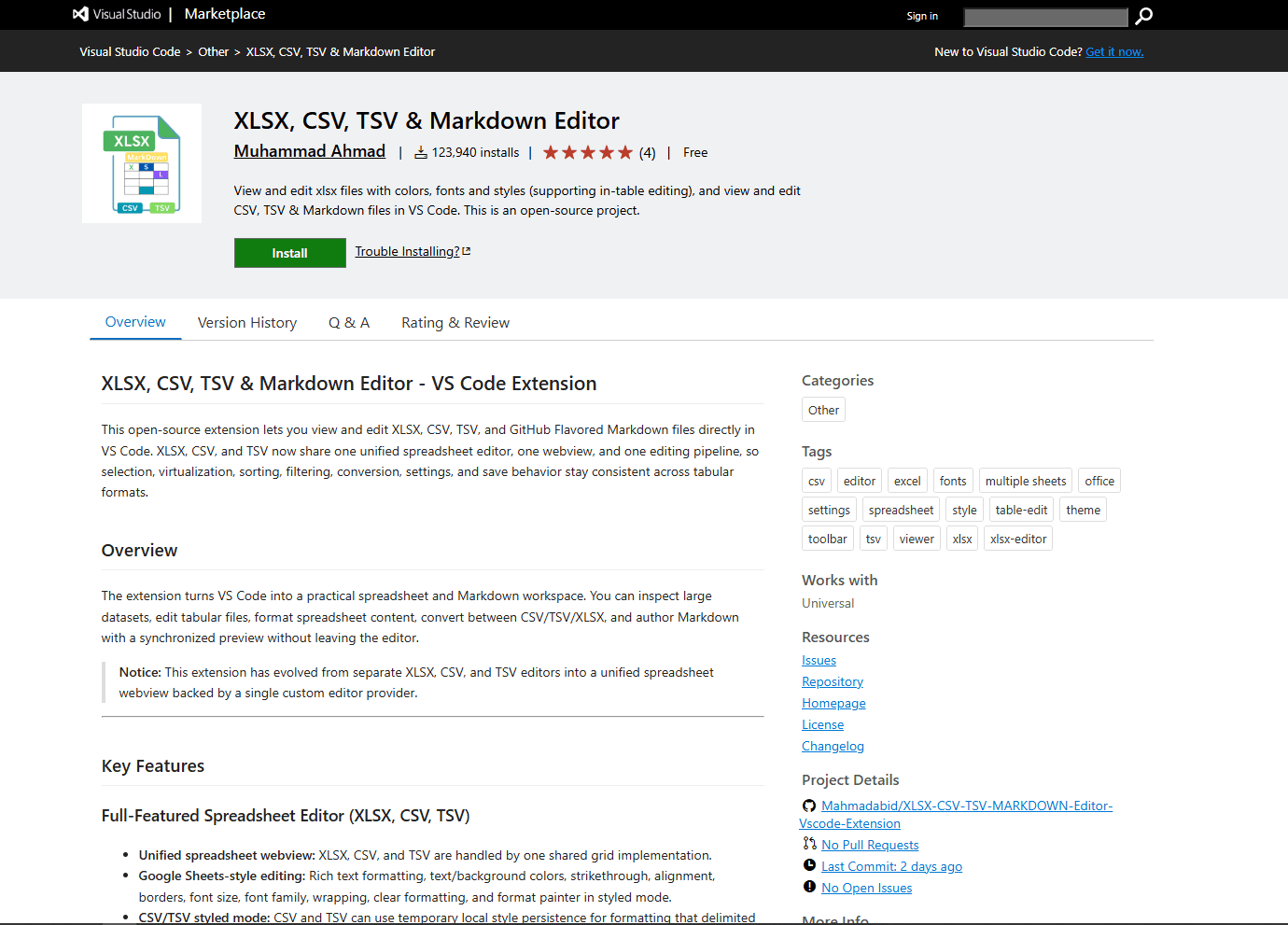
XLSX, CSV, TSV & Markdown Editor uses one spreadsheet grid for XLSX, CSV, and TSV files. It supports cell editing, sorting, filtering, multi-cell selection, conversion among those formats, version history, and windowed rendering.
Its styled mode deserves a careful distinction. CSV and TSV cannot store fonts, colors, borders, or other spreadsheet formatting. The extension keeps that styling in local extension state and can carry it into an XLSX conversion, while plain mode writes directly to the delimited file.
What works well:
- One table editor for CSV, TSV, and XLSX
- Conversion among the three tabular formats
- Filters, sorting, autosave controls, file history, and rollback
- Markdown editing and synchronized preview in the same extension
Watch for:
- CSV styling is not stored in the CSV itself
- The broad feature set is unnecessary if you only edit small CSV files
- Converting to XLSX changes the file format and should not replace a required CSV deliverable
Install this extension when a project regularly moves data among delimited files, Excel workbooks, and Markdown tables.
7. CSV & Excel Viewer - Best read-only preview
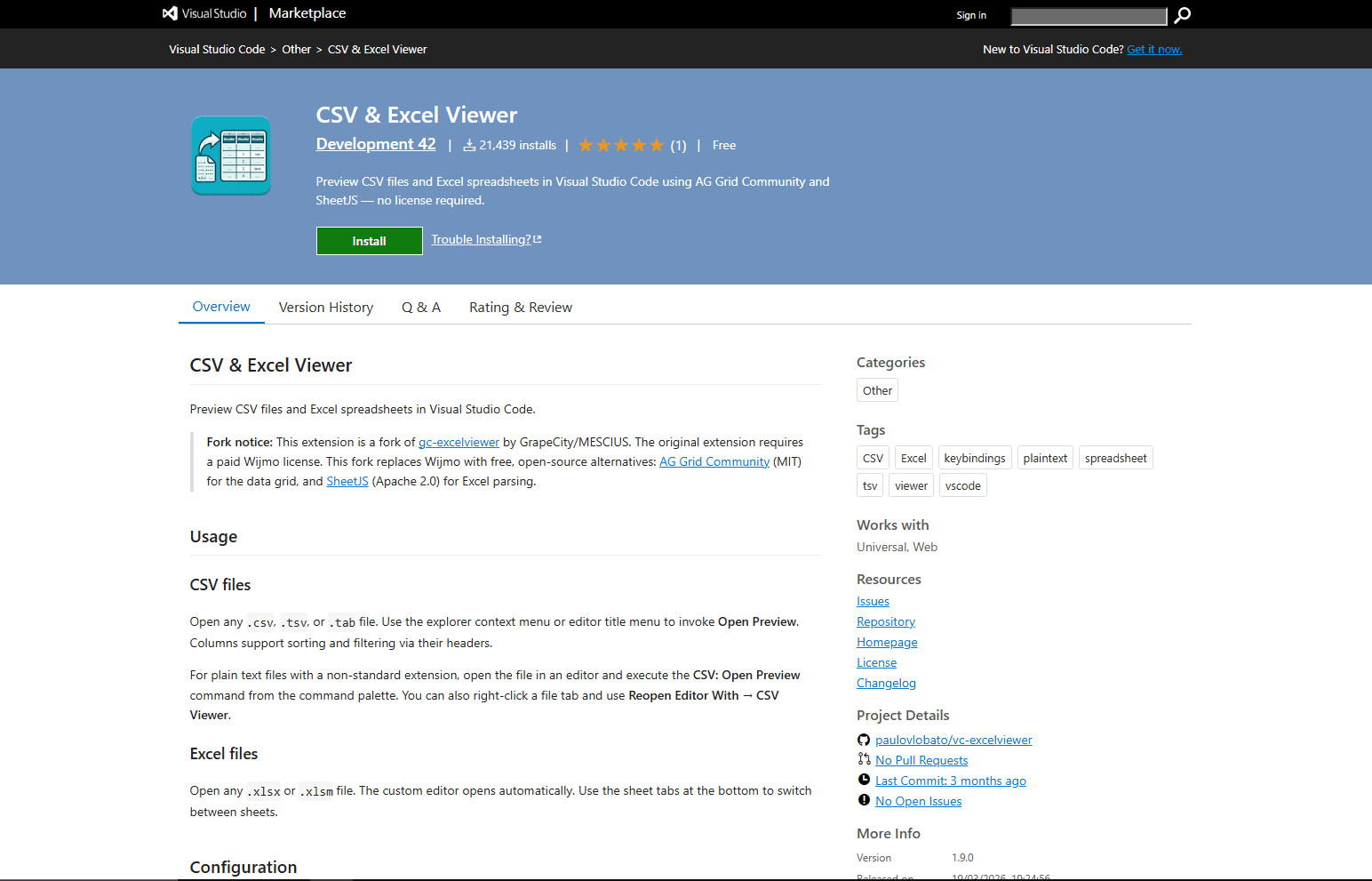
CSV & Excel Viewer previews CSV, TSV, TAB, XLSX, and XLSM files in a grid. For CSV data, column headers provide sorting and filtering without rewriting the source file.
The settings cover separators, quote characters, headers, comments, column sizing, line numbers, value formatting, and text wrapping. It is a current open-source fork of the older GrapeCity viewer. The original Marketplace listing now says that extension is no longer actively maintained, so this ranking uses the fork for the preview role.
What works well:
- Read-only inspection with sort and filter controls
- CSV parsing settings for non-default delimiters and quotes
- Worksheet tabs for Excel workbooks
- No risk of an accidental cell edit in the preview
Watch for:
- It does not edit or save CSV cells
- Separator and header settings may need adjustment for unusual exports
- Display formatting can change how a value looks without changing the source text
Use CSV & Excel Viewer for code review, data inspection, or opening a workbook when no edit should reach the file.
CSV extension comparison
How to edit CSV safely in VS Code
CSV has no column types, so an ID such as 00125 can be mistaken for a number by an analysis or spreadsheet tool. Quoted commas, embedded line breaks, byte-order marks, and mixed line endings create similar surprises when a grid parses and rewrites the file.
Use this short workflow when the output feeds another system:
- Duplicate the source file or commit it before opening a custom grid.
- Confirm the delimiter, quote character, encoding, and header row.
- Check at least one record containing commas, quotes, non-English text, and embedded line breaks.
- Save to a new file when the extension supports it.
- Review the Git diff or reopen the result as plain text.
- Validate a small import before replacing the production file.
Rainbow CSV and CSV Edit make the raw representation easiest to inspect. Edit CSV needs extra care when blank rows or mixed quoting are meaningful. Data Wrangler is the safer analysis route when you want the original unchanged until export.
Which VS Code CSV extension should you choose?
Install Rainbow CSV if you want CSV-aware text editing, RBQL queries, and visible diffs. Choose CSV Edit when you need clickable cells without giving up documented delimiter, quote, multiline, BOM, and line-ending preservation.
CSV Grid Editor is better when column profiles or head, tail, and paged previews help you understand the file first. Data Wrangler is the right tool when cleanup should become reusable Pandas code. Use CSV & Excel Viewer when inspection is the whole task and the source must remain untouched.
For very large files, do not assume that a VS Code grid can load the full dataset. Use a bounded preview, split the file, or move to a tool built for large tabular data. The Windows CSV editor guide, Mac CSV editor guide, and Linux CSV editor guide cover desktop and command-line alternatives.
Frequently asked questions
Can VS Code edit CSV files like Excel?
Yes, through a custom grid extension. CSV Edit, CSV Grid Editor, Edit CSV, and XLSX, CSV, TSV & Markdown Editor all provide cell-based interfaces. They do not turn CSV into a full spreadsheet format, so formulas, multiple sheets, fonts, and charts are not part of the CSV file.
Which extension is best for preserving leading zeros?
Rainbow CSV leaves the value visible as text, which makes 00125 easy to verify. CSV Edit also documents preservation of the delimited representation. In Data Wrangler, review inferred types before applying a type conversion or exporting the result.
Can Rainbow CSV run SQL on a CSV file?
Rainbow CSV includes RBQL, a SQL-like language for selecting, filtering, grouping, joining, and transforming rows. It uses column variables such as a1 and a2. RBQL resembles SQL but is not a full database engine.
What is the best option for a large CSV file?
CSV Grid Editor has explicit head, tail, plain-text, and paged preview paths for files that should not be loaded into one grid. Rainbow CSV documents stricter VS Code limits: extra setup is needed above 300,000 lines or 20 MB, and its features are disabled above 50 MB. Full editing may require a dedicated large-file tool outside VS Code.
Related editor guides
Read More
All Articles
6 Best CSV Editors for Linux in 2026 (GUI & Terminal)
Compare the best CSV editors for Linux, including VisiData, LibreOffice Calc, Gnumeric, Tad, csvkit, and qsv for GUI and terminal workflows.
9 Best CSV Editors for Mac in 2026 (Free and Paid)
Compare nine current CSV editors for Mac, including free spreadsheet tools, native grid editors, developer extensions, and large-file viewers.
8 Best CSV Editors for Windows in 2026 (Free and Paid)
Compare eight current CSV editors for Windows, from free grid tools to large-file software, with clear limits for Excel imports, licensing, and safe CSV saves.