8 Best Markdown Editors for Linux in 2026 (GUI & Terminal)

On this page
Linux gives you several good ways to edit Markdown, from terminal tools that work over SSH to desktop apps with live preview and export controls. The best choice depends less on the distribution you use and more on how you write.
Vim or Neovim suits a keyboard-driven terminal workflow. VS Code combines Markdown preview with Git, extensions, and remote editing. Kate integrates naturally with KDE, while ghostwriter removes interface clutter when you want to concentrate on a draft.
This guide compares terminal tools, native desktop apps, and cross-platform editors for Ubuntu, Fedora, Arch Linux, and related distributions. It also explains the tradeoffs that matter before you install one.
1. Vim / Neovim with Markdown Plugins (Best for Terminal)

Vim is pre-installed on many Linux distributions. Neovim is a modern fork with a built-in LSP client, but a language server must be installed and configured separately.
For Markdown work, add the vim-markdown plugin for syntax highlighting and folding. Neovim users can connect the built-in LSP client to a Markdown server such as Marksman.
What you get:
- Syntax highlighting for Markdown
- Code folding for headers and sections
- Table formatting with vim-table-mode
- Live preview via markdown-preview.nvim
- Works over SSH (no GUI needed)
- Low-overhead terminal workflow
- Suitable for remote editing and large plain-text documents
- Keyboard-driven workflow
What you don't get:
- No visual preview in terminal (requires browser plugin)
- Steep learning curve for beginners
- No WYSIWYG editing
- Requires plugin configuration
Install on Ubuntu/Debian: sudo apt install vim or sudo apt install neovim
Install on Fedora: sudo dnf install vim-enhanced or sudo dnf install neovim
Install on Arch: sudo pacman -S vim or sudo pacman -S neovim
Vim fits developers who live in the terminal, work on remote servers via SSH, or prefer keyboard-driven editing. If you're already a Vim user, adding Markdown support takes minutes.
2. Visual Studio Code (Best All-Around for Linux)
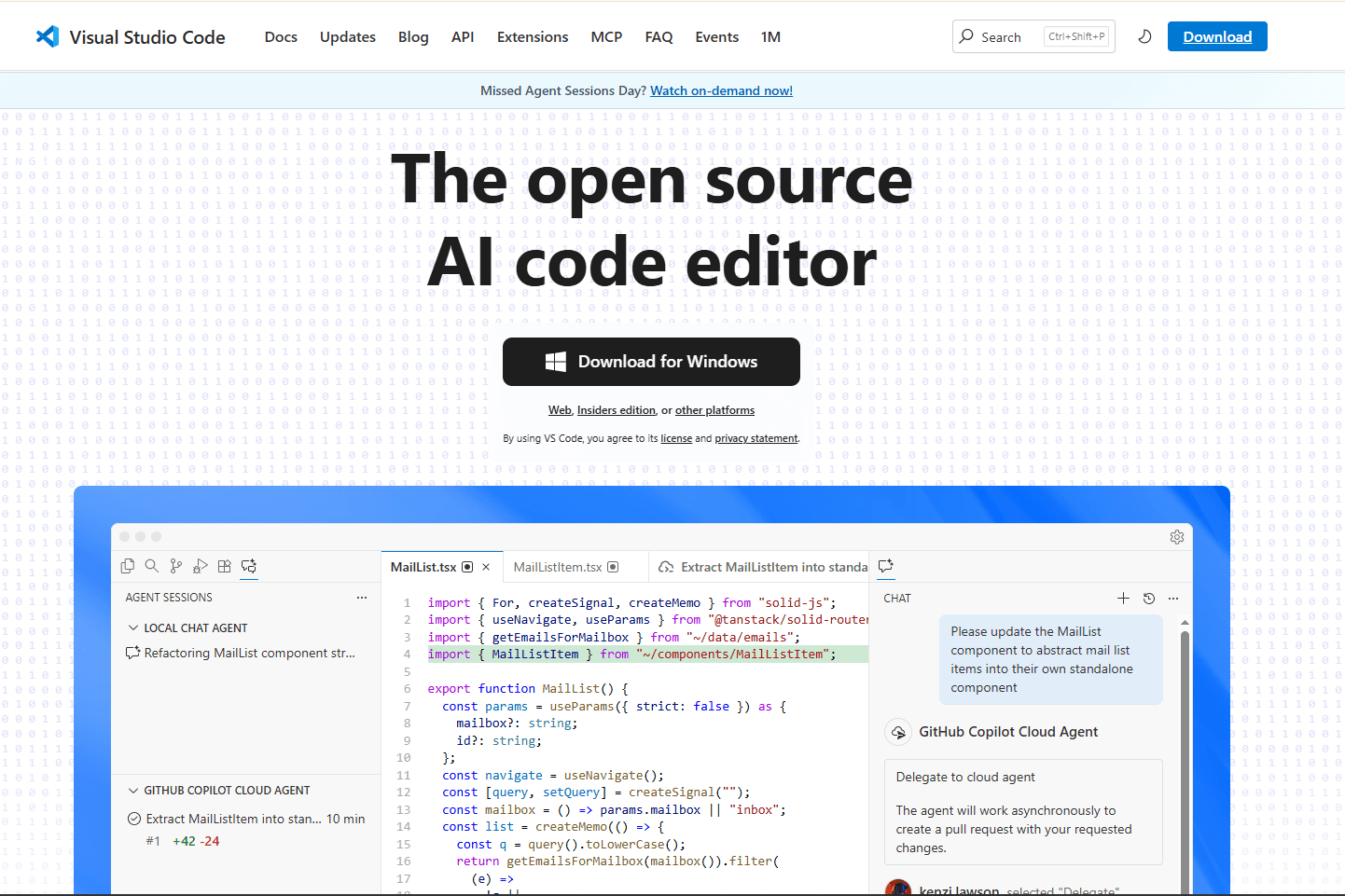
VS Code provides a complete Markdown editing experience on Linux. Microsoft releases official .deb, .rpm, and Snap packages.
Choose the package format that matches your distribution and update preferences. Microsoft's Linux setup page documents each official option.
What you get:
- Syntax highlighting and optional built-in link validation
- Automatic formatting (Ctrl + Shift + I)
- Live preview pane (Ctrl + K V)
- Outline view for navigation
- Git integration (commit, push, pull from editor)
- Extensions (Markdown All in One, Preview Enhanced, markdownlint)
- Remote SSH editing (edit files on remote servers)
- Settings Sync across signed-in devices
What you don't get:
- Higher resource use than terminal or lightweight Qt editors
- Not native Linux (Electron-based)
- Slower launch than native apps
Install on Ubuntu/Debian: Download .deb from code.visualstudio.com or add Microsoft's repository
Install on Fedora: Download .rpm or use sudo rpm --import https://packages.microsoft.com/keys/microsoft.asc then add repo
Install on Arch: yay -S visual-studio-code-bin (from AUR)
VS Code fits developers who need Git integration, extensions, and remote editing. If you're already using VS Code for development, adding Markdown work costs nothing extra.
For VS Code power users, see best Markdown extensions for VS Code to add diagrams, spell checking, and advanced export features.
3. Kate (Best Native KDE Editor)
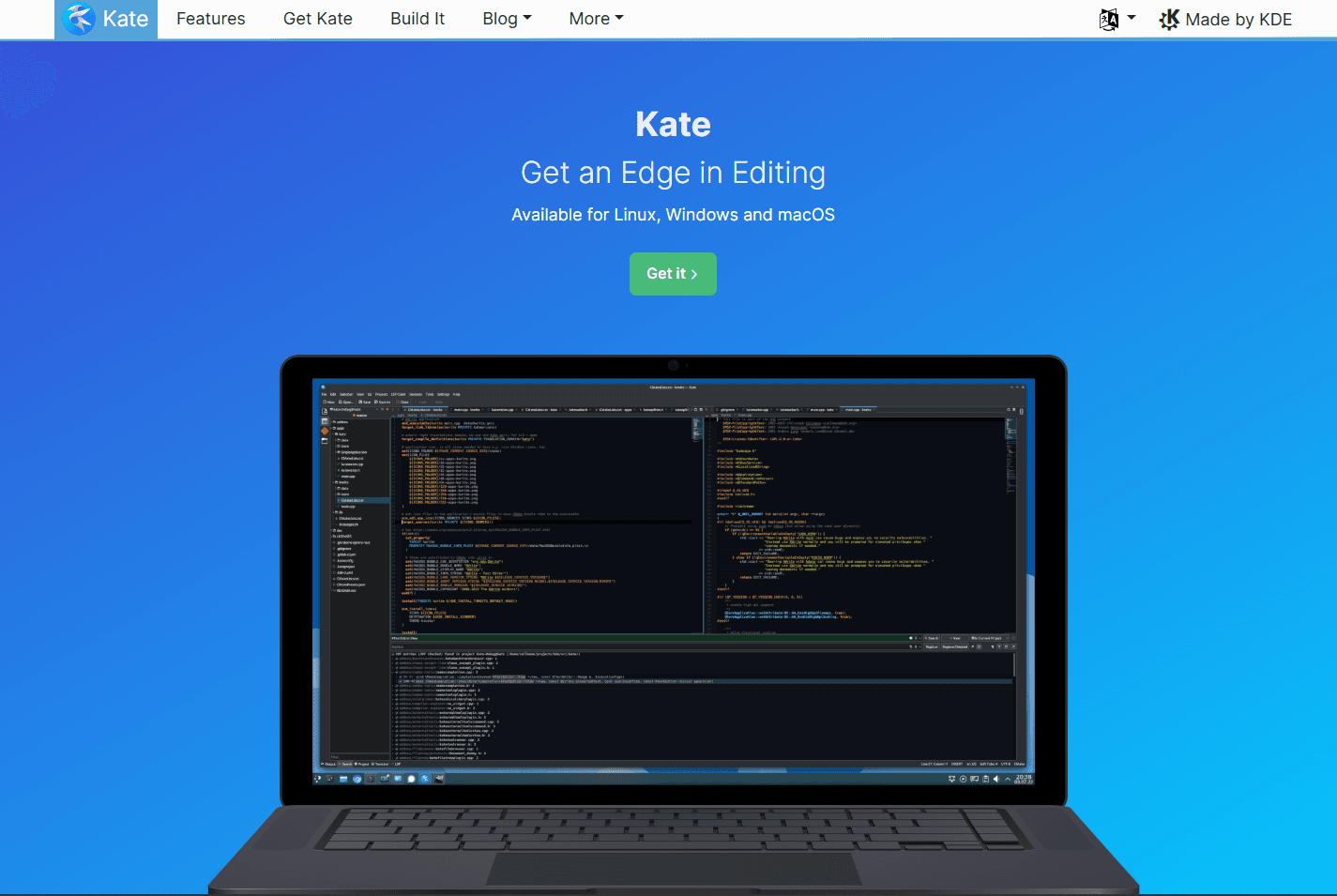
Kate is KDE's text editor. On KDE Plasma it may already be installed, while on GNOME or other desktops it installs cleanly.
Kate is a native Qt application with no Electron or JVM dependency. Its optional Document Preview plugin can display rendered Markdown beside the source.
What you get:
- Markdown syntax highlighting built-in
- Code folding for headers and sections
- LSP client plugin for compatible language servers
- Split view for editing multiple files
- Session management (save and restore workspace)
- Git integration via plugin
- Document Preview plugin for rendered Markdown
What you don't get:
- No dedicated tree view for Markdown
- No WYSIWYG editing
- Preview must be enabled through the Document Preview plugin
Install on Ubuntu/Debian: sudo apt install kate
Install on Fedora: sudo dnf install kate
Install on Arch: sudo pacman -S kate
Kate fits KDE users who want a native Linux text editor with Markdown support. It's lighter than VS Code and offers more editing tools than basic text editors.
4. ghostwriter (Best Distraction-Free Writing)
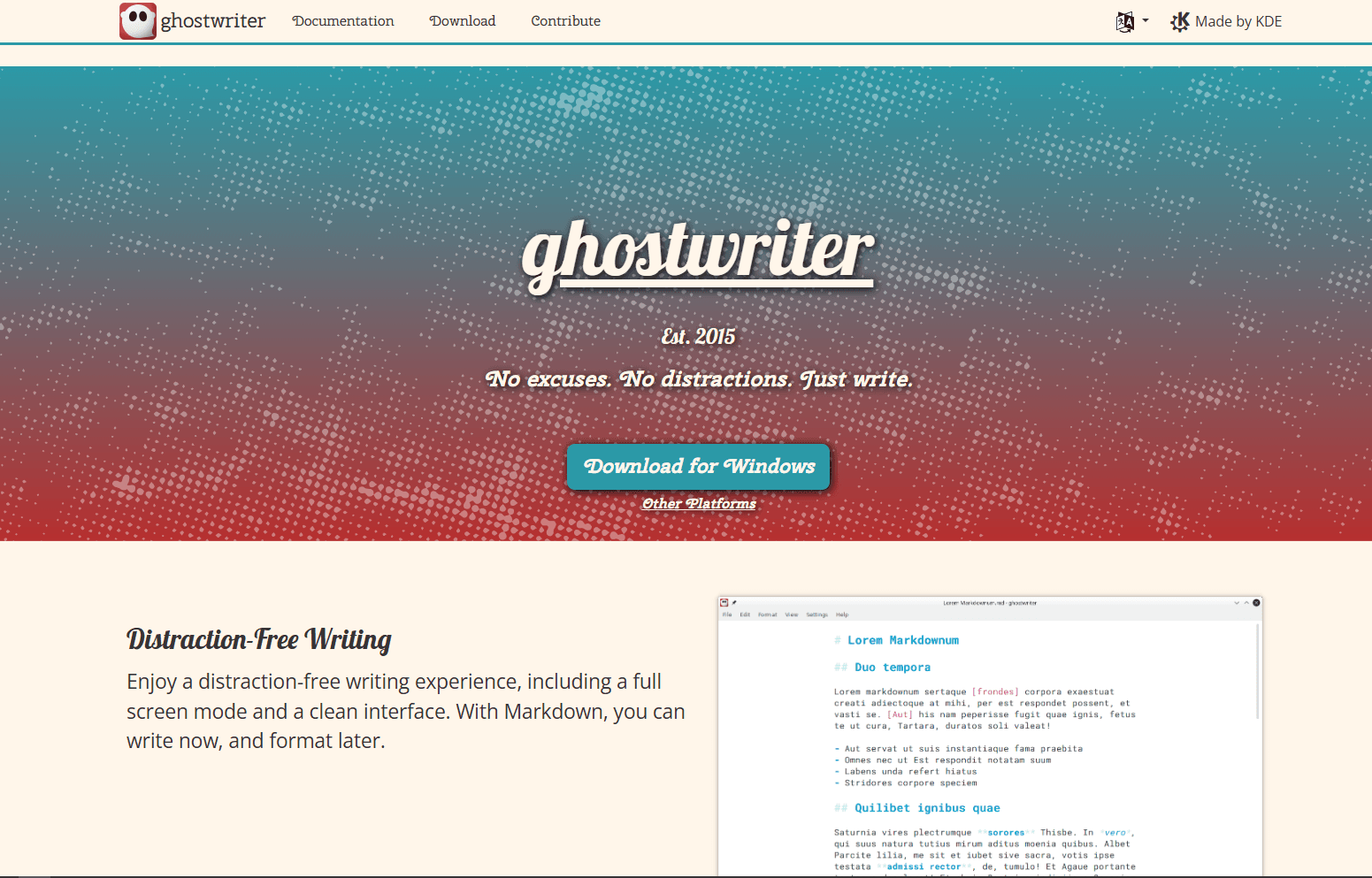
ghostwriter is a distraction-free Markdown editor from KDE. It is free and open-source, with Linux packages available through distributions and Flathub.
The interface keeps attention on the text by removing persistent toolbars, sidebars, and formatting controls. Its preview pane is optional and can be hidden completely.
What you get:
- Hemingway mode (disables backspace and delete while drafting)
- Focus mode (dims everything except current line, sentence, or paragraph)
- Fullscreen mode with no distractions
- Customizable themes for long-form writing
- Writing statistics (word count, character count, page count, reading time, WPM)
- Live preview with GitHub Flavored Markdown
- Math support via MathJax
- Export options through its supported Markdown processors
What you don't get:
- No Git integration
- No plugin system
- No linking between documents
- No sync service
Install on Ubuntu/Debian: sudo apt install ghostwriter
Install on Fedora: sudo dnf install ghostwriter
Install on Arch: sudo pacman -S ghostwriter
ghostwriter fits people drafting blog posts, articles, books, or other long-form content. It combines a quiet writing space with an optional preview and useful writing statistics.
5. Typora (Best WYSIWYG Experience)
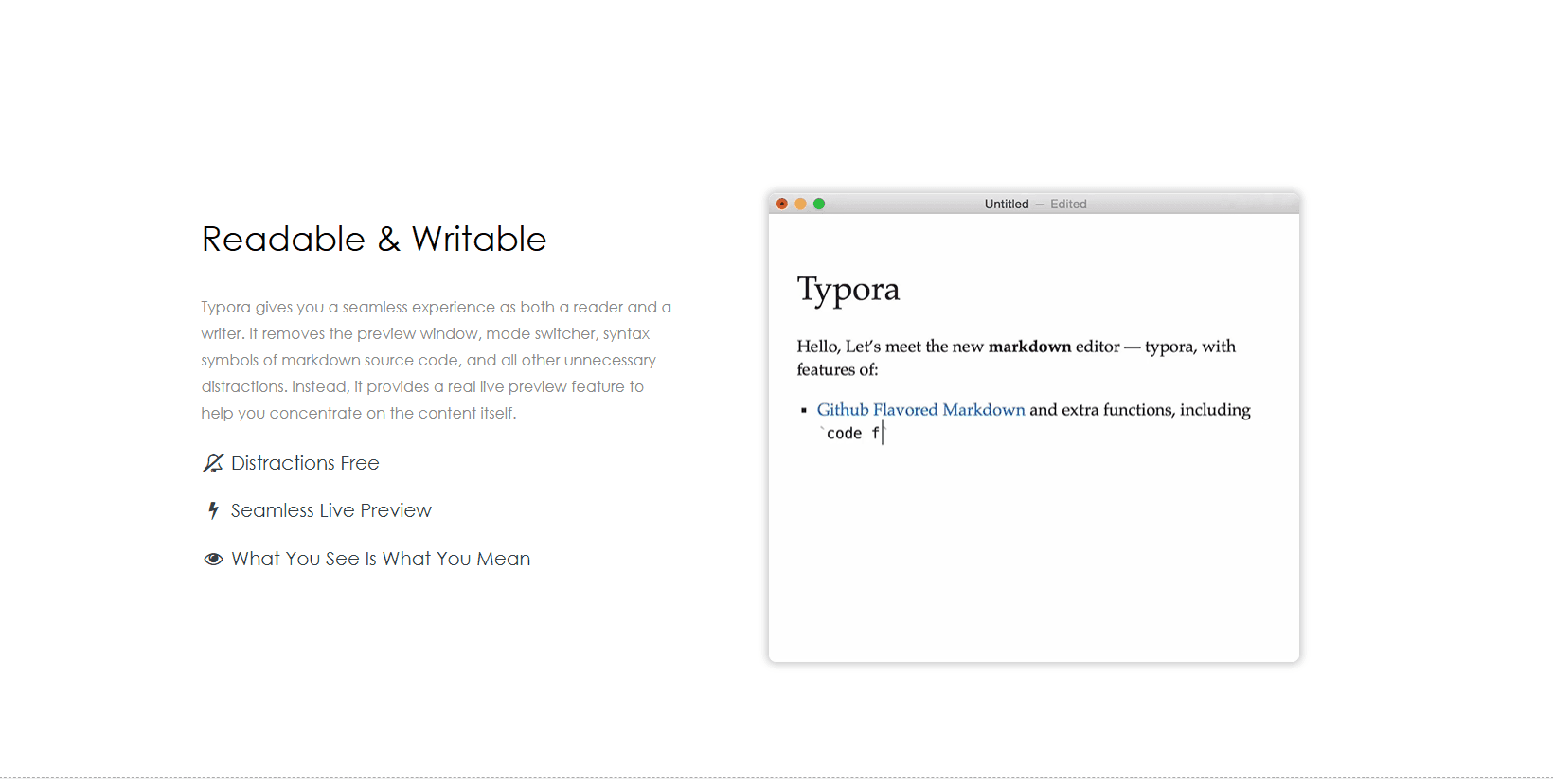
Typora shows formatted text as you type instead of separating the editor and preview into two panes. Type # Heading and it becomes a heading immediately. A license currently starts at $14.99 before tax and covers up to three devices.
Typora provides official Debian packages and tar archives for x64 and ARM Linux systems. It does not provide an official RPM package.
What you get:
- WYSIWYG editing (see formatted text as you type)
- Visual table editor (click to add rows/columns)
- Drag-and-drop image handling
- Math support via LaTeX ($$ for equations)
- Customizable themes via CSS
- Diagram support (Mermaid, flowcharts)
- Export to PDF, HTML, Word, LaTeX, ePub
What you don't get:
- A paid license is required after the trial
- No built-in sync (manage files yourself)
- No plugin ecosystem
- No Git integration
Install on Ubuntu/Debian: Download .deb from typora.io
Install on Fedora: Download the Linux tar archive from Typora's release page
Install on Arch: yay -S typora (from AUR)
Typora fits technical writers, students, and researchers who prefer seeing formatted text instead of Markdown syntax. It is the clearest option here for a document-like writing experience.
6. Obsidian (Best for Linked Note-Taking)

Obsidian is a knowledge base that works on local Markdown files. It is free for personal, commercial, and non-profit use. Paid Sync and Publish services are optional.
Obsidian provides Linux packages in .deb, AppImage, and Snap formats. Its download page also links to a community-maintained Flatpak.
What you get:
- Bidirectional links (see which notes link to current note)
- Graph view for visualizing note connections
- Daily notes with customizable templates
- Tag-based organization with nested tags
- Plugin ecosystem (calendars, kanban boards, diagrams, spaced repetition)
- Canvas feature (arrange notes visually)
- Live preview or source mode
- Sync options through Obsidian Sync or separately configured file-sync tools
What you don't get:
- Not native Linux (Electron-based)
- Publishing requires the optional Obsidian Publish service or another workflow
- Shared vaults require Obsidian Sync, and the same file cannot be edited collaboratively in real time
- Steeper learning curve
Install on Ubuntu/Debian: Download .deb from obsidian.md
Install on Fedora: Download AppImage from obsidian.md
Install on Arch: yay -S obsidian (from AUR)
Obsidian fits researchers, students, and writers building interconnected knowledge bases. If you're taking notes that reference each other, its backlinks and graph view make those relationships easier to inspect.
7. Zettlr (Best for Academic Writing)
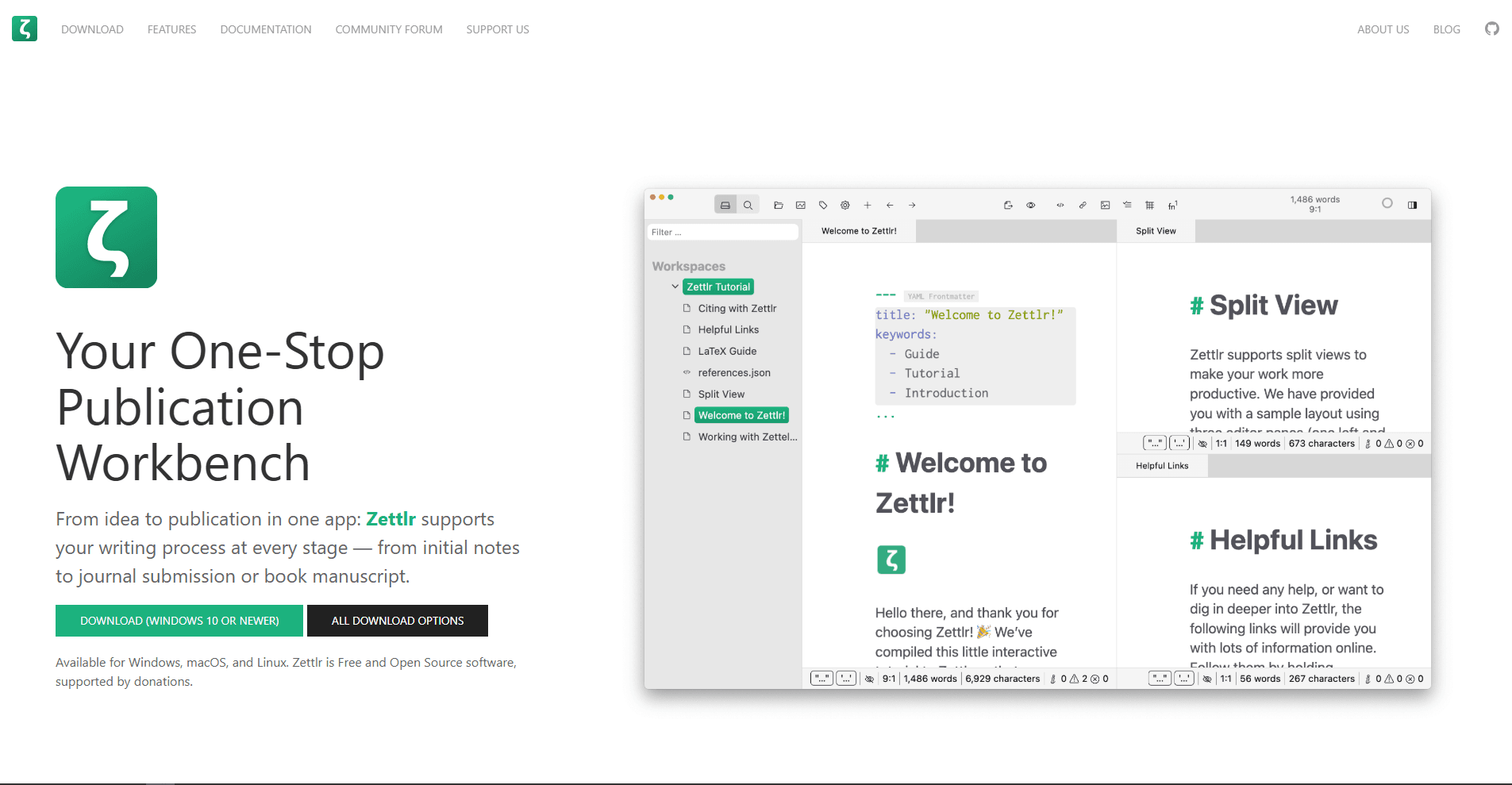
Zettlr is a free, open-source Markdown editor built for researchers and academics. Official Linux packages are available for major distributions.
Zettlr places the file manager on the left, the editor in the center, and the preview on the right. This layout makes it easier to work with several documents and references at once.
What you get:
- Citation management with BibTeX integration
- Footnotes and endnotes support
- Zettelkasten note-linking system
- Export to PDF via Pandoc with academic templates
- Word count and reading time statistics
- Project management for multi-document works
- Type @citationkey for autocomplete from references
- Citations format automatically (APA, MLA, Chicago, etc.)
What you don't get:
- Not native Linux (Electron-based)
- No mobile apps
- No built-in sync (manage files yourself)
- Steeper learning curve
Install on Ubuntu/Debian: Download .deb from zettlr.com
Install on Fedora: Download .rpm from zettlr.com
Install on Arch: sudo pacman -S zettlr
Zettlr fits graduate students, researchers, and academics writing papers or dissertations. Its citation management and academic formatting tools are designed for that workflow.
8. Pandoc (Best Command-Line Converter)
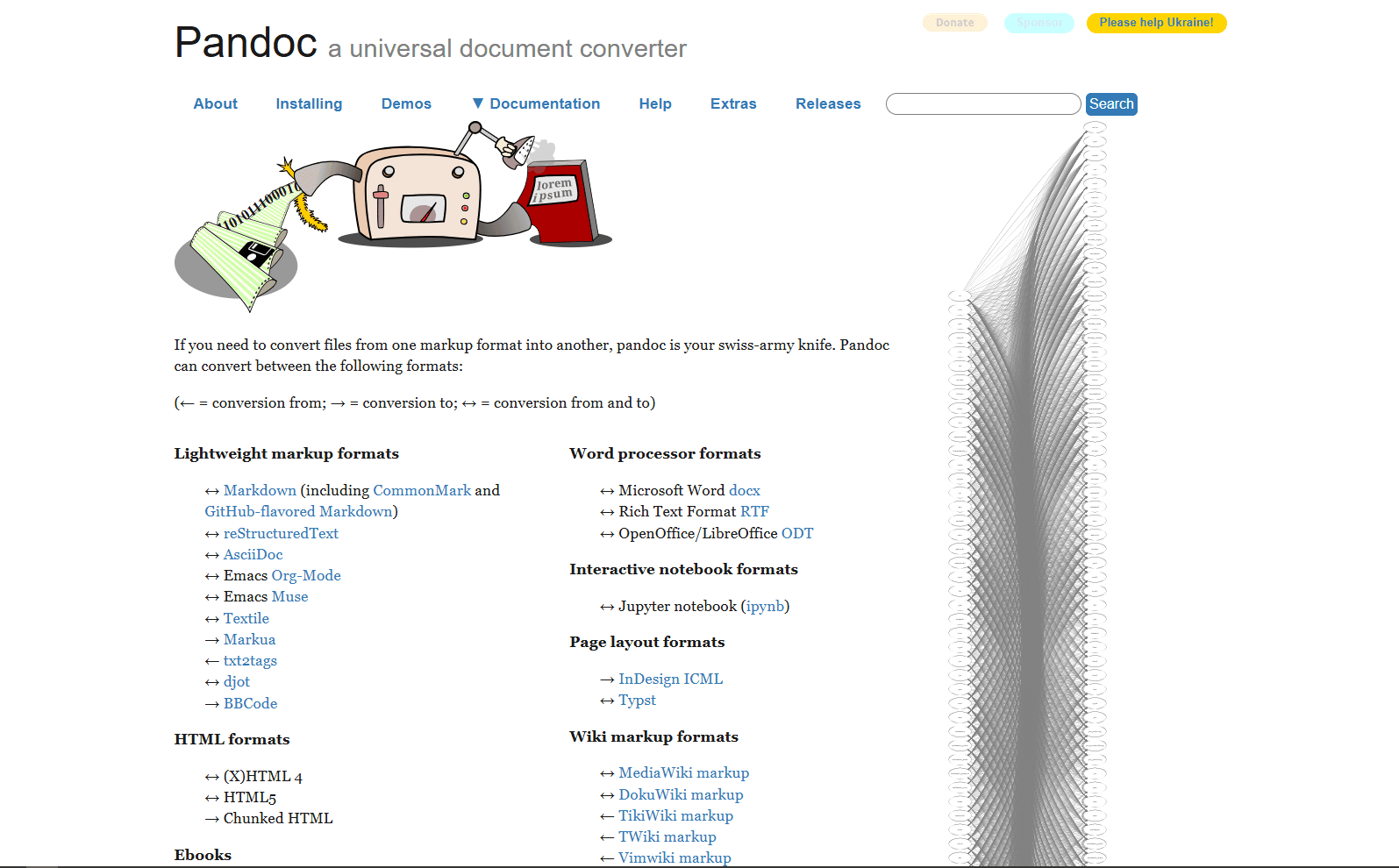
Pandoc is not an editor but a universal document converter. It converts Markdown to many document formats from the command line.
Pandoc is useful when an editor cannot produce the output format you need. Write in any editor, then convert the saved Markdown file with Pandoc.
What you get:
- Convert Markdown to PDF, HTML, DOCX, LaTeX, EPUB, and many other formats
- Template system for custom output
- Citation support via BibTeX
- Math rendering via LaTeX
- Table of contents generation
- Cross-references and footnotes
- Works in scripts and automation
What you don't get:
- No editing (converter only)
- No preview (use browser or PDF viewer)
- PDF output requires a compatible external PDF engine, such as LaTeX, WeasyPrint, or Typst
Install on Ubuntu/Debian: sudo apt install pandoc
Install on Fedora: sudo dnf install pandoc
Install on Arch: sudo pacman -S pandoc
Example usage:
- Convert to HTML: pandoc input.md -o output.html
- Convert to PDF: pandoc input.md -o output.pdf
- Convert to DOCX: pandoc input.md -o output.docx
Pandoc fits anyone who needs to convert Markdown to other formats. Combine it with any text editor for a complete Markdown workflow.
Markdown Editor Comparison Table
Which Markdown Editor Should You Actually Use?
Choose the editor that matches the way you spend most of your writing time:
- VS Code: The strongest general-purpose choice for developers who want preview, Git tools, extensions, and remote editing in one app.
- Kate: A natural fit for KDE users who want a native Qt editor. Enable Document Preview to view the rendered page beside the source.
- Vim or Neovim: Best for terminal and SSH workflows. Plugins can add folding, browser preview, tables, and language-server features.
- ghostwriter: Best when a quiet, full-screen writing environment matters more than project or Git tools.
- Typora: The easiest transition from a word processor because formatting appears directly in the document as you type.
- Obsidian: Best for a linked knowledge base built around backlinks, graph view, daily notes, and plugins.
- Zettlr: Best for papers, dissertations, and other academic work that depends on citations and structured exports.
- Pandoc: Add it to any editor when you need command-line conversion to PDF, DOCX, HTML, EPUB, or other formats.
Platform-Specific Tips
Ubuntu/Debian users:
- Use apt for most editors (Kate, ghostwriter, Vim, Pandoc)
- Download .deb packages for VS Code, Typora, Obsidian, Zettlr
- VS Code also has an official Snap package
Fedora users:
- Use dnf for most editors
- Download .rpm packages for VS Code and Zettlr; Typora provides a Linux tar archive instead
- Use AppImage for Obsidian (works without installation)
Arch users:
- Use pacman for official repo packages (Vim, Kate, ghostwriter, Pandoc)
- Zettlr is available as an Arch package; VS Code, Typora, and Obsidian also have community-maintained options
- Review AUR package sources and maintainers before installing them
For remote editing:
- Use Vim over SSH (no GUI needed)
- Use VS Code Remote SSH extension (edit remote files with local GUI)
- Use rsync or Git to sync files between machines
For PDF export:
- Install a compatible PDF engine. One Ubuntu option is LaTeX: sudo apt install texlive-latex-base texlive-latex-extra
- Use Pandoc: pandoc input.md -o output.pdf
- Or use the export workflow in Typora, ghostwriter, or Zettlr
Frequently Asked Questions
What's the best free Markdown editor for Linux?
VS Code is the strongest free choice for developers who want preview, Git integration, and extensions in one place. Install it through your package manager or download an official .deb, .rpm, or Snap package from code.visualstudio.com. Kate and ghostwriter are lighter Qt-based alternatives.
Does VS Code work well on Linux for Markdown?
Yes. VS Code on Linux has the same Markdown features as Windows and Mac: syntax highlighting, an outline, optional link validation, live preview, and extensions. Microsoft provides official .deb, .rpm, and Snap packages, so choose the format that matches your distribution and update workflow. Memory usage is higher than native editors but acceptable on modern systems.
How do I edit Markdown in the terminal on Linux?
Use Vim or Neovim with Markdown plugins. Install vim-markdown for syntax highlighting and folding. For live preview, use markdown-preview.nvim, which opens the preview in a browser. Neovim includes an LSP client; pair it with a separately installed Markdown server such as Marksman. Install on Ubuntu: sudo apt install vim or sudo apt install neovim. This workflow also works over SSH.
What's the best lightweight Markdown editor for Linux?
Choose Kate on KDE when you want syntax highlighting, plugins, and document preview. Choose ghostwriter when focus modes and a distraction-free interface matter more. Both are native Qt applications and can be installed on Ubuntu with sudo apt install kate or sudo apt install ghostwriter.
How do I convert Markdown to PDF on Linux?
Use Pandoc. Install with sudo apt install pandoc (Ubuntu/Debian), sudo dnf install pandoc (Fedora), or sudo pacman -S pandoc (Arch). Convert with pandoc input.md -o output.pdf. Pandoc also needs a compatible PDF engine; LaTeX is one option, while WeasyPrint and Typst are supported alternatives. Typora, ghostwriter, and Zettlr provide their own export workflows.
Is Obsidian good for Markdown on Linux?
Yes, especially for note-taking with links between notes. Obsidian provides Linux packages in .deb, AppImage, and Snap formats. Type [[note name]] to link notes together. The graph view shows connections visually. The app is free for personal and commercial use and works offline with local files. It is best suited to research, project planning, or knowledge bases.
What's the best Markdown editor for Ubuntu?
VS Code is the broadest choice for developers who need Git integration and extensions. Kate is better suited to KDE users who want a lightweight native editor, while ghostwriter focuses on distraction-free writing. Download the VS Code .deb package from code.visualstudio.com, or install Kate with sudo apt install kate and ghostwriter with sudo apt install ghostwriter.
Related Reading
Using a different platform? See platform-specific Markdown editor guides:
- Best Markdown editors for Mac for macOS-specific options
- Best Markdown editors for Windows for Windows 11 and 10
Using VS Code for Markdown? See best Markdown extensions for VS Code for plugins that add diagrams, spell checking, and advanced export.
For JSON editing on Linux, check best JSON editors for Linux.
Read More
All Articles
8 Best Markdown Editors for Android in 2026 (Free & Paid)
Find the best Markdown editor for Android with sync, live preview, and offline editing. Compare Markor, JotterPad, Obsidian, and more for phones and tablets.
9 Best Markdown Editors for Mac in 2026 (Free & Paid)
Find the best Markdown editor for macOS with native performance. Compare iA Writer, Typora, VS Code, Obsidian, and more for writing, note-taking, and documentation.

10 Best Markdown Editors for Windows in 2026 (Free & Paid)
Find the best Markdown editor for Windows 11 and 10. Compare VS Code, Typora, MarkText, Obsidian, and more for writing, documentation, and note-taking with live preview.