8 Best SVG Editors for Linux in 2026 (Free & Open Source)

On this page
Choosing an SVG editor on Linux starts with the install path. Ubuntu and Debian users may find a familiar package-manager route, while other distributions may favor Flatpak or their own repositories. A browser editor avoids packaging altogether but changes how local files, fonts, accounts, and offline work are handled.
The word “editor” also hides three different jobs. A visual vector editor changes paths and nodes, a design platform creates assets for SVG export, and a structured editor exposes the XML behind the picture. Those jobs should not be ranked as if they were identical.
Inkscape is the strongest general answer because SVG is its working format and it runs locally. Six of the eight picks below are free and open source. Boxy SVG and Figma are proprietary, but they remain useful comparisons for code-aware asset editing and team design workflows.
1. Inkscape - Best Overall SVG Editor for Linux
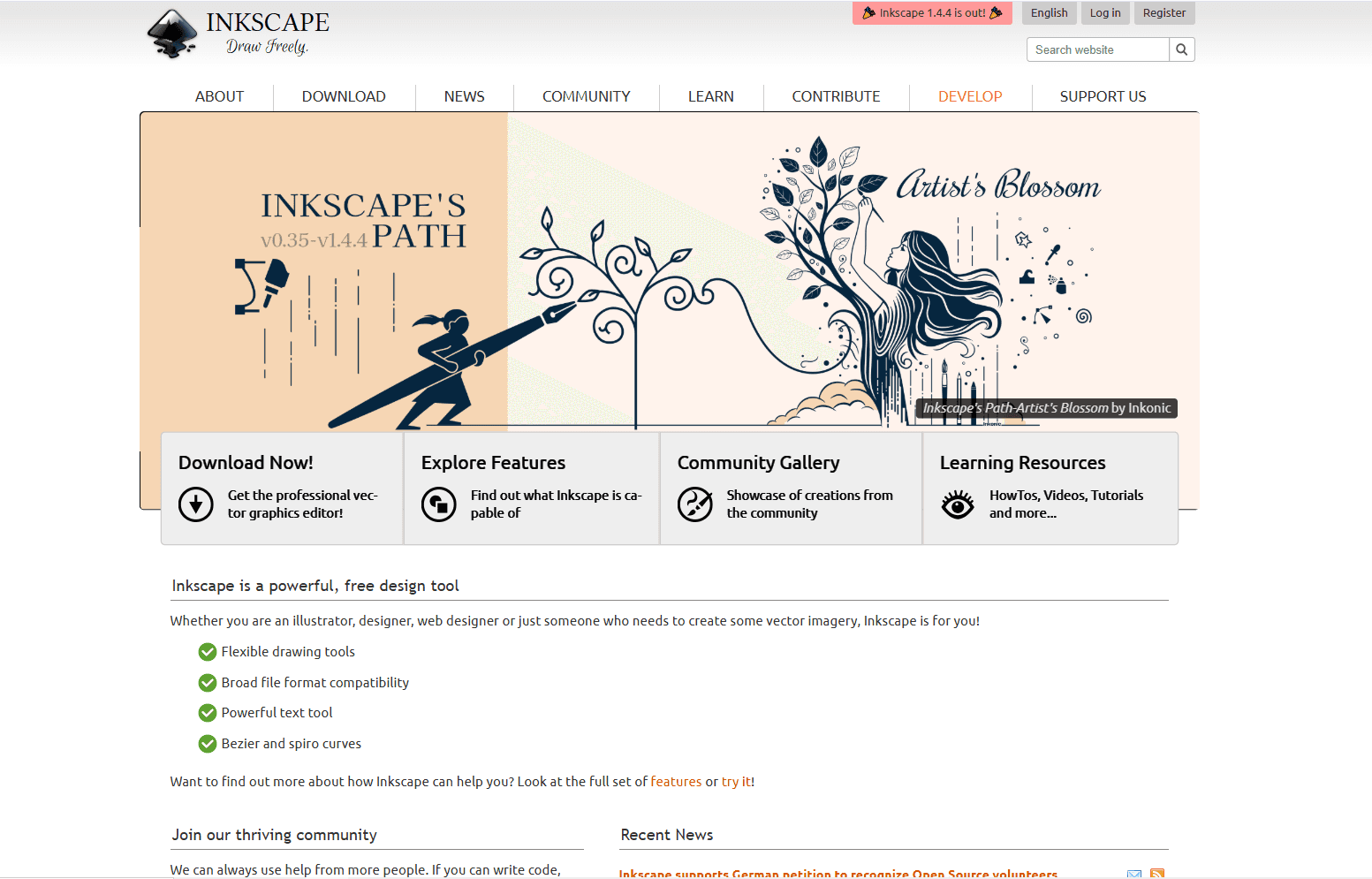
Inkscape is the best SVG editor for most Linux users. It combines direct node editing, path operations, shapes, text, gradients, layers, clipping, masks, tracing, and an XML editor in one free, open-source desktop application. SVG is its native working format rather than an export format added to a broader office or design tool.
That distinction matters when repairing an existing icon or logo. You can select individual nodes, join or break paths, adjust the canvas, inspect object IDs, and save another SVG without first converting the artwork into a proprietary project format.
Linux installation is flexible, but the source matters. The official Inkscape installation page recommends the system software installer on most distributions and documents sudo apt install inkscape for Debian and Ubuntu. It also warns that a distribution repository may not contain the newest stable release yet, so compare the packaged version with Inkscape's current download page when a recent fix is important.
Keep an editable master before preparing a web copy. Inkscape-specific document data can be useful when you reopen the file, while a separate plain SVG is easier to hand to a browser, codebase, or another editor.
Good fit if:
- You need one local application for drawing, tracing, node repair, and SVG export.
- Free software and an offline workflow are requirements.
- You edit existing SVG files as well as create new artwork.
Skip it if:
- You want simultaneous browser collaboration with a design team.
- A smaller SVG-only interface matters more than a broad toolset.
2. Boxy SVG - Best Focused Editor for Web Assets
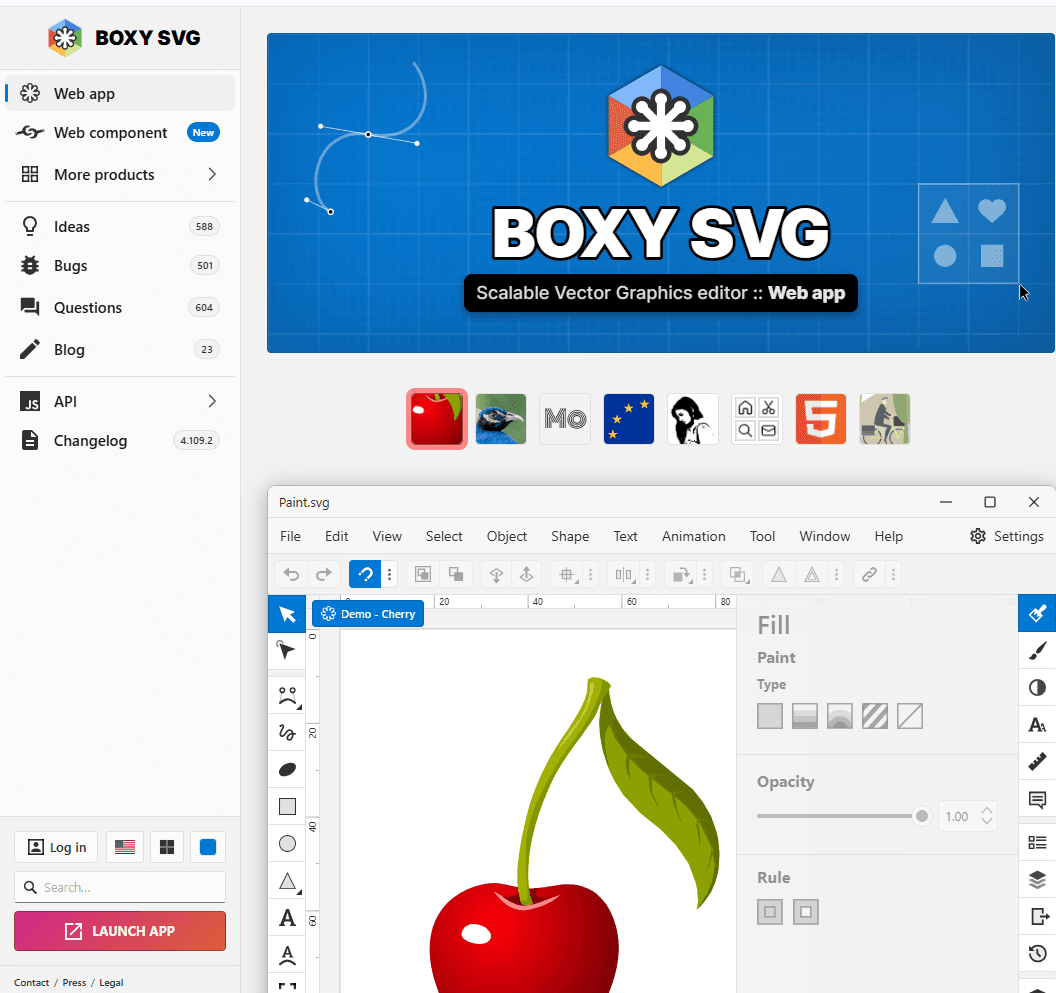
Boxy SVG narrows the workspace around SVG. Its Linux package supports visual editing of geometry, transforms, fills, gradients, paths, symbols, markers, and document views. The code inspector is useful when IDs, classes, metadata, or CSS need to survive a visual edit.
The official Flathub listing confirms that the package is maintained by Boxy SVG's developer and is available for both x86_64 and aarch64. It can save SVG and SVGZ, then export PNG, JPEG, WebP, PDF, or HTML. The same product can also run as an installable web app.
Boxy SVG is proprietary, and continued use after its trial requires a subscription. That makes it harder to recommend than Inkscape for a Linux user who prioritizes free software. Its case is focus: a developer or designer working mostly on icons, logos, sprites, and browser assets may prefer a smaller SVG-centered tool over Inkscape's wider interface.
Good fit if:
- You want visual editing and a code inspector in the same application.
- IDs, classes, symbols, and SVG structure are part of the handoff.
- A maintained Flatpak is preferable to a distribution-specific package.
Skip it if:
- You require an open-source editor with no subscription.
- The project includes complex illustration, print, or page-layout work.
3. Penpot - Best Open-Source Choice for Design Teams
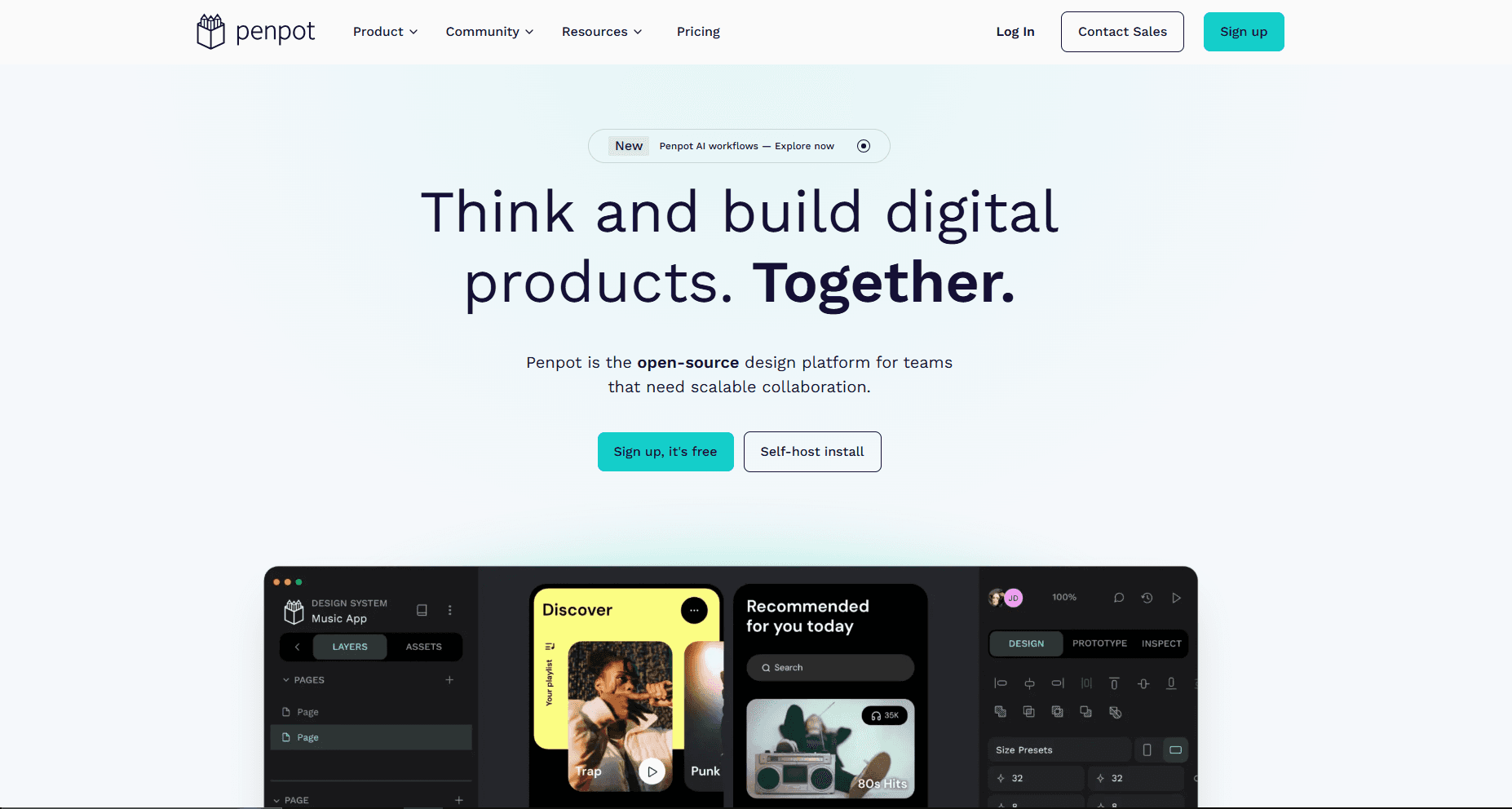
Penpot is an open-source browser design platform rather than a traditional Linux desktop editor. It fits teams that create interface icons, components, illustrations, and design-system assets together, then deliver those elements as SVG.
Its workspace includes paths, editable Bezier nodes, shapes, layers, components, shared libraries, comments, and developer inspection. Penpot's export documentation supports SVG alongside PNG, JPEG, WebP, and PDF, with reusable export presets for individual or multiple elements.
Linux teams can use Penpot's hosted service or self-host it. Self-hosting can keep the collaboration layer under an organization's control, but it adds deployment, updates, backups, and account administration. The hosted version removes that work but is not a local-file desktop workflow.
Penpot should be treated as a design source, not a perfect round-trip editor for arbitrary SVG markup. Its documentation also notes that background blur is not included in current exports. Reopen the exported file before delivery when masks, filters, text, or effects matter.
Good fit if:
- A Linux-friendly, open-source team workspace matters more than a desktop binary.
- You create UI components and export selected layers as SVG.
- Your organization wants the option to self-host the design platform.
Skip it if:
- You only need to correct one local SVG file.
- Direct XML cleanup and exact round-trip preservation are the main jobs.
4. SVGEdit - Best No-Install and Self-Hosted SVG Editor
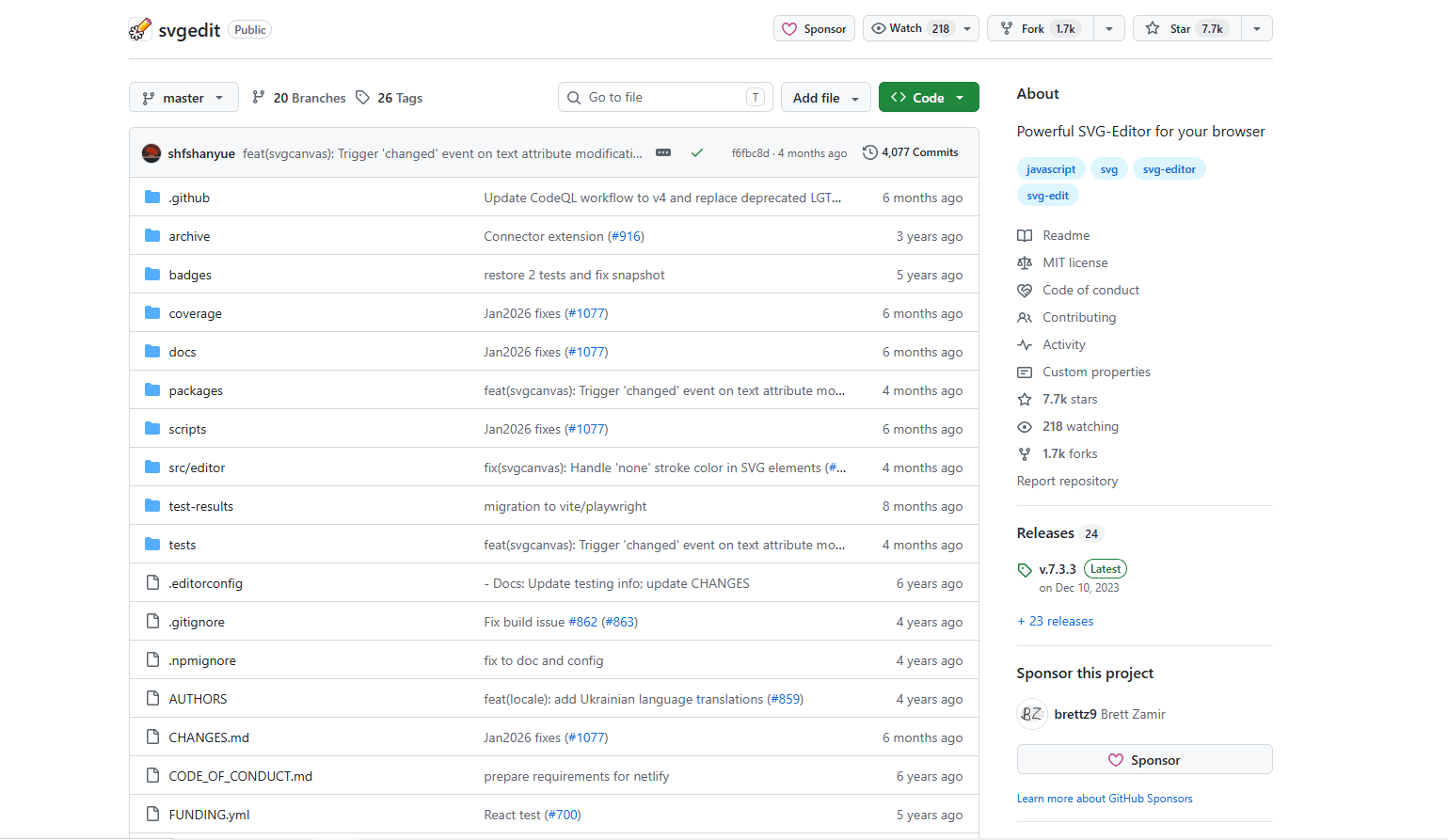
SVGEdit is an MIT-licensed SVG drawing editor written for the browser. It works in current desktop browsers and provides a visual canvas for shapes, paths, text, fills, strokes, grouping, and common object operations without requiring a Linux package.
The project currently recommends its Version 7 build. You can use the hosted build for quick work or build and serve it inside your own environment. The repository documents the local setup and exposes the underlying SVG canvas for teams that want to embed or extend the editor.
SVGEdit is most useful when installing software is inconvenient or a small internal SVG editor needs to run on a private server. Its interface and drawing depth are less complete than Inkscape, and the live development build should not replace a stable desktop tool for important source artwork without a backup.
Good fit if:
- You need an open-source editor that runs in a browser.
- A self-hosted tool is preferable for internal assets.
- The work involves basic shapes, paths, text, and small corrections.
Skip it if:
- Complex illustration, typography, filters, or print output are required.
- You want a polished local desktop workflow with distribution integration.
5. Figma - Best for Existing Product-Design Workflows
Figma is usable on Linux through its browser application. Figma's current system requirements explicitly support Linux systems that can run a supported browser, but the company provides desktop applications only for Windows and macOS. Figma also has no dedicated offline mode, so this option depends on a reliable connection.
Choose Figma when the SVG belongs to a product-design system. Components, shared libraries, comments, multiplayer editing, and developer handoff are more important here than local package management. Layers, frames, groups, components, sections, and selections can be exported as SVG.
The export is not neutral. Figma's SVG export documentation says text is outlined by default, strokes are exported as fills, and SVG exports use 1x scale. Options can preserve editable text, include IDs, or simplify strokes, but every choice can change the resulting markup.
Good fit if:
- Your designers and developers already work in Figma.
- SVG files are interface assets produced from components or frames.
- Comments, libraries, and handoff outweigh local-file control.
Skip it if:
- You need an official Linux desktop application or offline-first editing.
- The job is repairing raw SVG structure rather than designing an asset.
6. Karbon - Best Native Option for KDE Plasma
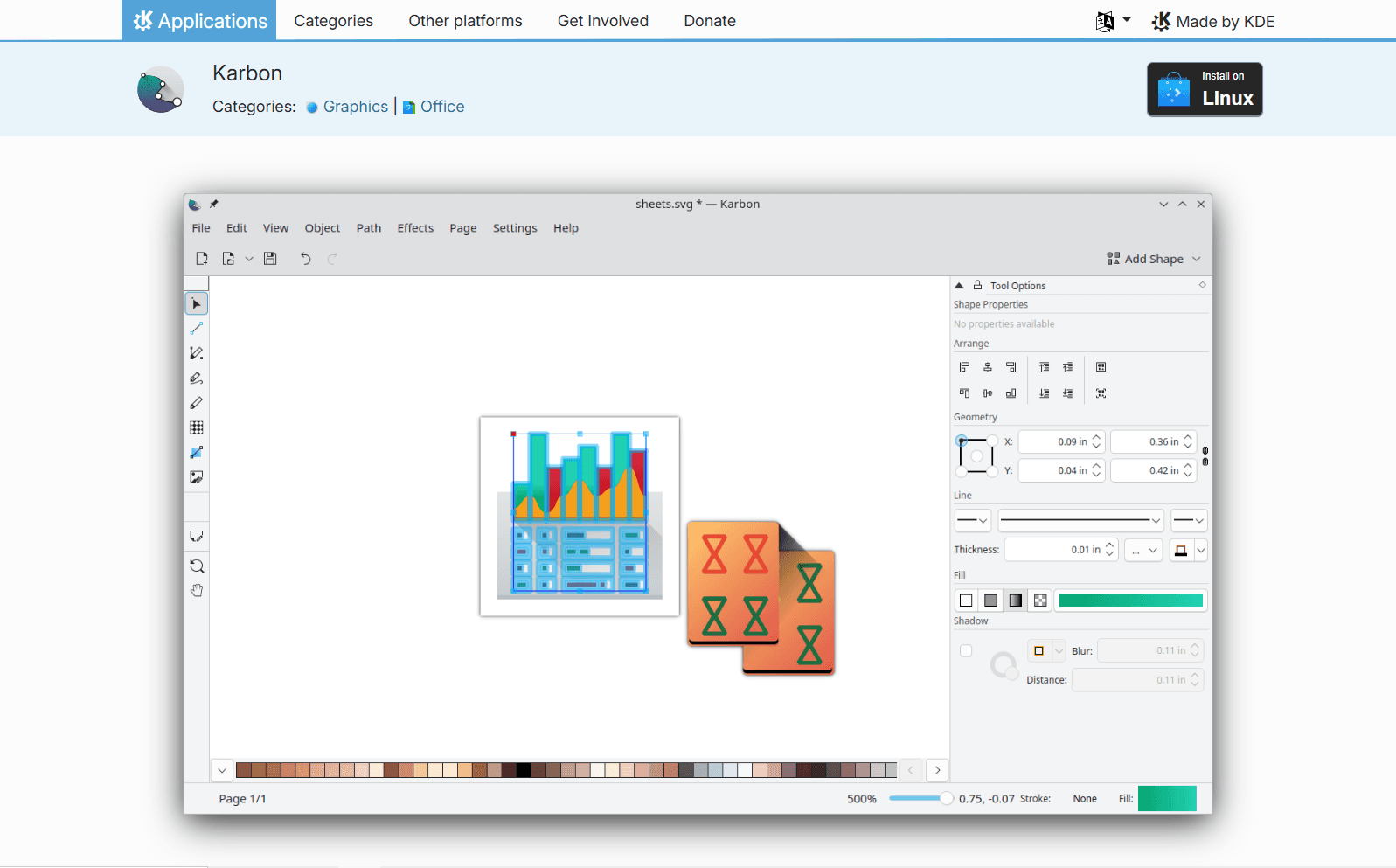
Karbon is the vector drawing application in the Calligra suite. KDE's current application page confirms that it can load and write SVG, edit paths on the canvas, and manage layers. Its tools also cover shapes, calligraphy paths, gradients, patterns, snapping, and boolean path operations.
This is the strongest alternative for someone who wants a Qt and KDE-oriented desktop tool with a smaller scope than Inkscape. Karbon can be installed through Discover or a distribution package manager, though the exact package version depends on the distribution.
Karbon's development follows the wider Calligra release cycle. It has current releases, but it does not have Inkscape's SVG-centered documentation, extension ecosystem, or breadth. Check an exported file in a browser before using it for production web assets.
Good fit if:
- You use KDE Plasma and prefer a Calligra application.
- Layers, paths, gradients, snapping, and ordinary SVG export cover the job.
- A local free and open-source desktop editor is required.
Skip it if:
- You need the deepest SVG repair and tracing workflow.
- Team libraries or browser collaboration are part of the project.
7. LibreOffice Draw - Best for Diagrams Exported as SVG
LibreOffice Draw is a diagram and vector-layout application, not an SVG-native editor. It earns a place for organization charts, process diagrams, annotated figures, simple technical drawings, and documentation graphics that need an SVG delivery copy.
Draw provides connectors that stay attached when objects move, grids and snap lines, dimension lines, shapes, text, layers, and object grouping. Its export command can write either the whole page or the selected graphic objects to another format. LibreOffice's current export documentation lists SVG and compressed SVGZ as Draw export formats.
Keep the editable master as an .odg file. Treat SVG as the exported copy and inspect it after export. Draw is a poor match for repairing existing icon paths, cleaning browser markup, or preserving a complex SVG's original structure.
Good fit if:
- You create flowcharts, organization charts, or documentation diagrams.
- LibreOffice is already part of the Linux workstation.
- The SVG is a delivery format rather than the editable source.
Skip it if:
- You need direct node repair in an existing SVG.
- Clean, minimal web markup is the primary requirement.
8. Xfig - Best for X11 and LaTeX Technical Drawings
Xfig is a menu-driven technical drawing program for the X Window System. Its native source is a .fig document, and the separate fig2dev backend exports that drawing to SVG, PDF, PostScript, TikZ, several LaTeX formats, and raster formats.
That workflow explains its position. Xfig is useful for established academic, engineering, and Unix documentation pipelines where the same figure must feed TeX and SVG output. The Debian Xfig manual documents both the X11 editing model and the formats produced by fig2dev.
Xfig is not a modern general-purpose SVG editor and should not be chosen for round-trip changes to an existing website icon. Its interface assumes an older X11 interaction style, and SVG is an export target rather than the working format.
Good fit if:
- Your documentation pipeline already uses Xfig, LaTeX, TikZ, or PostScript.
- Simple technical figures must be exported to several formats.
- An X11 application and keyboard-driven Unix workflow are acceptable.
Skip it if:
- You need to open, repair, and resave arbitrary SVG files.
- Modern illustration, design-system, or browser-asset work is the goal.
Linux SVG Editor Comparison
Best Free and Open-Source SVG Editors for Linux
If the license is the deciding factor, six entries in this list qualify as free and open-source software. They do not all solve the same SVG job:
Boxy SVG and Figma are not open source. They stay in the main ranking because some Linux users need a focused commercial SVG editor or a browser design platform already used by their team. Readers who want only free software can choose from the six options above.
Inkscape Alternatives for Linux
An Inkscape alternative should be chosen by the part of Inkscape you want to replace. There is no smaller editor in this list that duplicates its full combination of drawing, tracing, path repair, XML inspection, and native SVG saving.
- Choose Boxy SVG for a narrower SVG workspace with visual editing and a code inspector.
- Choose Karbon for a free desktop vector editor that fits a KDE and Calligra setup.
- Choose SVGEdit when the editor must run in a browser or on a self-hosted internal page.
- Choose Penpot when collaboration, shared components, and self-hosting matter more than local SVG round trips.
- Choose GodSVG for direct structured XML and live-preview work, but account for its late-alpha status and keep backups.
Karbon vs Inkscape
Karbon and Inkscape can both load, edit, and write SVG, but their scope differs. Inkscape is the safer default for detailed SVG work. Karbon makes more sense when a compact KDE-oriented vector application covers the required paths, layers, gradients, snapping, and boolean operations.
How to Edit and View SVG Files on Linux
To edit an SVG file on Linux without losing the original structure, use a visual editor that opens SVG directly. Inkscape is the default recommendation; Boxy SVG, SVGEdit, and Karbon cover narrower workflows.
-
Make a copy of the incoming .svg file before editing it.
-
Open the copy in the editor and confirm the canvas, dimensions, and viewBox.
-
Use the node or path tool for geometry changes. Use the XML or code view only when IDs, classes, metadata, or element order matter.
-
Save an editable master. If the application uses another native format, export a separate SVG for delivery.
-
Open the exported file in a browser and check its bounds, text, fills, strokes, masks, filters, and linked images.
A normal browser is often the simplest SVG viewer on Linux when you only need to confirm that a file renders. Use Inkscape when you need to select objects or inspect the document, and use a text editor when the XML source itself is the subject. A viewer can reveal a rendering problem, but it cannot repair nodes, transforms, or an incorrect viewBox.
The Linux Install Choice Changes the Workflow
The same editor can behave differently depending on how it reaches the machine. Use these rules before choosing a package:
- Distribution package: Good for updates through the normal package manager. Check the version because a stable distribution may intentionally ship an older build.
- Flatpak: Useful for a current cross-distribution package. Confirm that file access, fonts, and external tools work with the package permissions you use.
- Browser or PWA: Avoids distribution differences. It may require an account, network access, or browser-managed downloads depending on the product.
- Self-hosted browser app: Keeps deployment under your control, but your team becomes responsible for updates, storage, backups, and access.
Do not copy an install command from another distribution. Use the official project page or your distribution's package search, then confirm the package name and version before installation.
A Safer SVG Export Workflow
An SVG can look correct on the canvas and still fail after handoff. Text may be outlined, masks can change, hidden objects can remain, and the viewBox can include unwanted space.
Use a three-file workflow for important assets:
- Keep the untouched incoming SVG or original source file.
- Save the editor's working document when it uses a separate format such as .odg, .fig, .penpot, or a cloud design file.
- Export a new delivery SVG, reopen it in a browser, and inspect the bounds, text, strokes, masks, filters, IDs, and linked images.
For web delivery, SVGO can remove redundant metadata, comments, hidden elements, and other unnecessary markup. Install it with npm install -g svgo and write to a separate file with svgo artwork.svg -o artwork.min.svg. Do not optimize over the only editable copy because optimization can combine or rewrite structure that a later visual edit needs.
Which Linux SVG Editor Should You Choose?
Match the editor to the way you work on Linux:
- Inkscape: Choose it for local visual editing, path repair, tracing, and general SVG work without a subscription.
- Boxy SVG: Pick it when SVG and CSS structure matter and a proprietary Flatpak or PWA is acceptable.
- SVGEdit: Use it when a no-install or self-hosted browser editor matters more than drawing depth.
- Penpot: Choose it for an open-source team design system with a self-hosting option.
- Figma: Pick it when your organization already uses Figma and the supported browser app meets your needs.
- Karbon: Use it for a KDE-centered desktop workflow.
- LibreOffice Draw: Choose it for diagrams that end as SVG rather than direct SVG repair.
- Xfig: Pick it only when technical documents, LaTeX, or an existing .fig workflow make its export model useful.
Frequently Asked Questions
What is the best SVG editor for Linux?
Inkscape is the best overall SVG editor for Linux because it runs locally, uses SVG as its native format, and supports detailed path, node, text, layer, gradient, tracing, and export work. Boxy SVG is a focused proprietary alternative, while Penpot and Figma fit team design systems better.
What is the best free and open-source SVG editor for Ubuntu?
Inkscape is the strongest free and open-source choice for Ubuntu. Its official installation guide documents sudo apt install inkscape for Debian and Ubuntu. Check the version in your repository against the current Inkscape release if you need a recent fix. Karbon is another open-source desktop option, especially on KDE Plasma.
Can Figma run on Linux?
Yes, in a supported browser. Figma officially supports Linux systems that meet its browser requirements, but it does not provide an official Linux desktop application. SVG export is available in the browser, including options for IDs, text outlining, and stroke simplification.
Can I edit SVG code and see the result on Linux?
Boxy SVG combines a visual editor with an SVG and CSS inspector. GodSVG exposes structured SVG elements and live code more directly, but its own repository describes the application as late alpha. Keep backups and avoid making it the only editor for important production files.
Is LibreOffice Draw a real SVG editor?
LibreOffice Draw is a vector drawing and diagram tool that can export SVG. It is useful when a diagram starts in Draw, but it is not the right choice for precise round-trip editing of an existing SVG file. Keep the .odg source and inspect the exported SVG separately.
How do I make an SVG smaller on Linux?
Remove hidden objects, simplify traced paths, avoid unnecessary embedded raster images, and export only the required artwork. Then run SVGO against a copy. Reopen the optimized file and check appearance, accessibility text, IDs, and scaling before replacing the production asset.
Related SVG and Linux Guides
Read More
All Articles
8 Best SVG Editors & Viewers for iPad in 2026
Compare eight SVG editors and viewers for iPad, from Apple Pencil vector tools to local viewers, source editing, and clean SVG export.
8 Best SVG Editors for Mac in 2026 (Vector & Web Design)
Compare the best SVG editors for Mac, including Boxy SVG, Inkscape, Affinity, Linearity Curve, Sketch, Figma, Illustrator, and Amadine for clean vector workflows.
8 Best SVG Editors for Windows in 2026 (Free & Pro)
Compare the best SVG editors for Windows, including Boxy SVG, Inkscape, Affinity, VectorStyler, Illustrator, CorelDRAW, Figma, and SVGEdit.