8 Best SVG Editors for Mac in 2026 (Vector & Web Design)

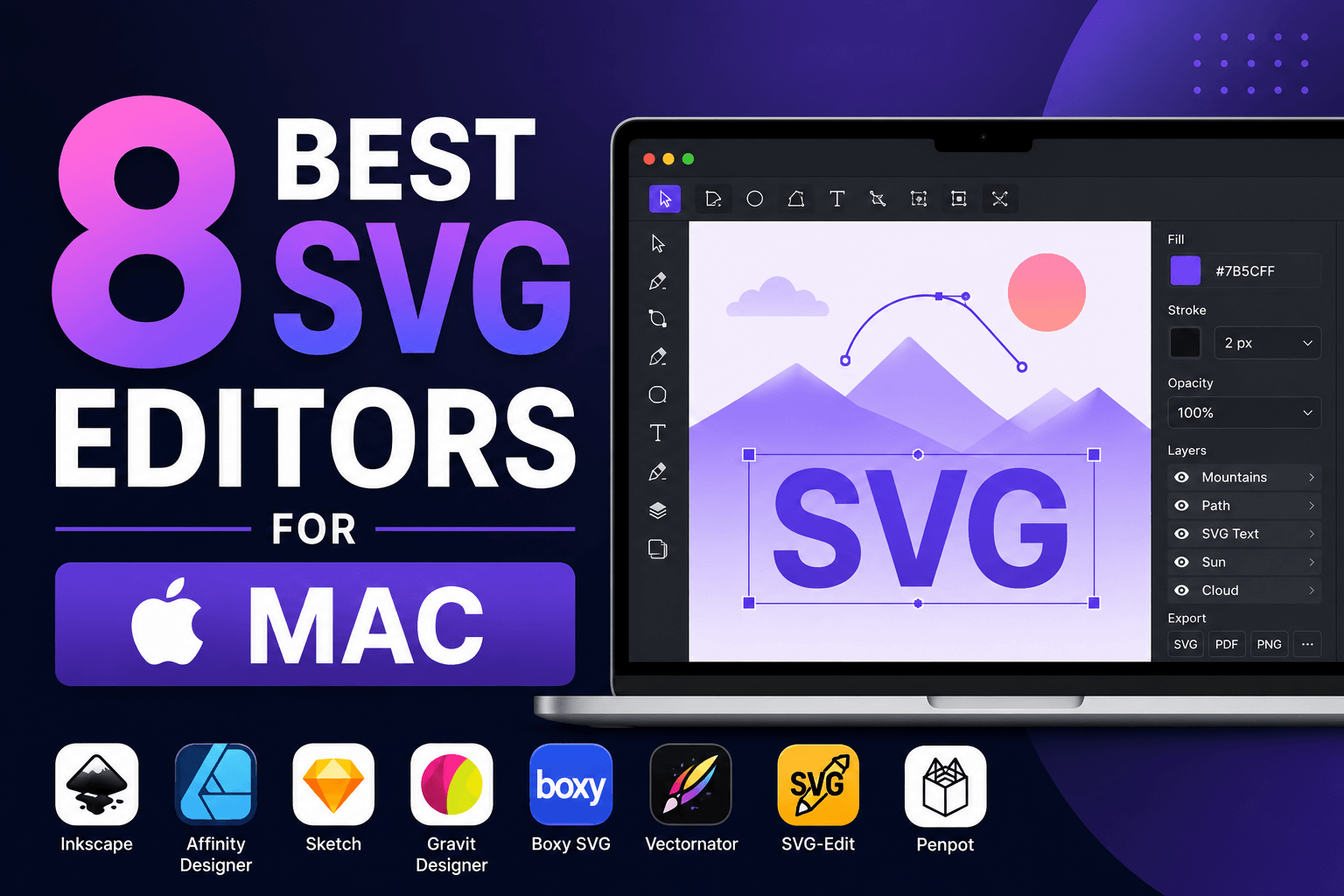
On this page
You only notice a bad SVG editor after the file leaves your Mac. The icon looks sharp in the editor, then ships with a messy viewBox, extra metadata, flattened text, broken masks, or a file size that makes no sense for a simple shape.
That is why drawing tools are only part of choosing a Mac SVG editor. A good editor should let you adjust paths precisely, export clean markup, preserve scale, and hand the file to a website, app, or design system without creating cleanup work for someone else.
This guide focuses on SVG editing on macOS: icons, logos, UI assets, diagrams, marketing illustrations, and web graphics. Some apps are better for designers. Some are better for developers. Some are good for making artwork but need a second pass before the SVG goes into production.
What Matters in a Mac SVG Editor
Start with what must remain editable and where the finished SVG will be used. These five checks separate a useful Mac editor from a drawing app that merely exports SVG:
- SVG output: Look for exports without unused groups, hidden layers, oversized embedded images, or unnecessary app metadata.
- Path controls: Confirm that you can edit nodes, handles, strokes, corners, and boolean operations without rebuilding the artwork.
- Scaling: The editor should make the canvas and viewBox easy to inspect so the SVG scales correctly in browsers, apps, and icon systems.
- Text handling: Check whether text can stay editable or be converted to outlines when the recipient does not have the original font.
- Mac workflow: Consider Apple Silicon support, trackpad behavior, Finder or iCloud access, local storage, and whether the app works offline.
1. Boxy SVG (Best for Clean SVG Editing)
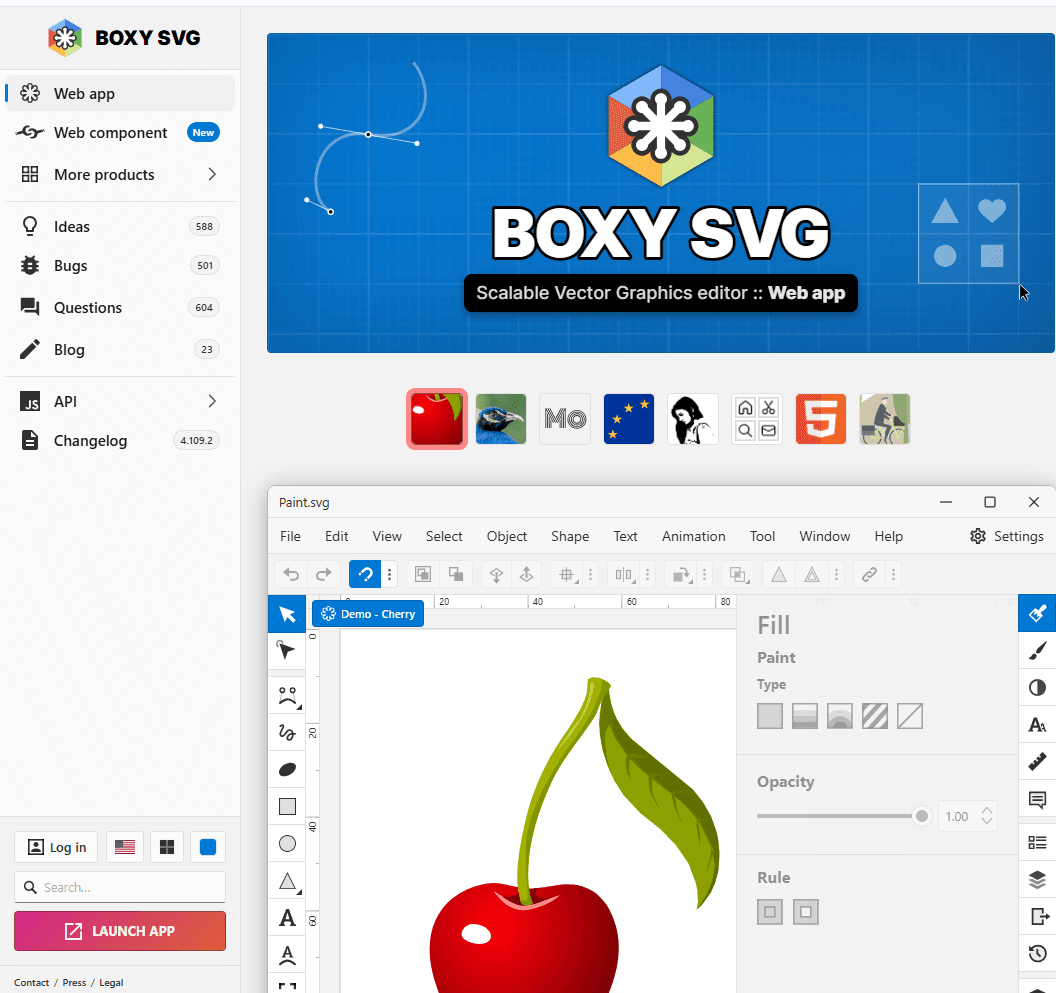
Boxy SVG is the most SVG-focused option on this list. It is built around the SVG format itself, not around print design, photo editing, or general-purpose illustration.
That matters if your goal is to edit an actual .svg file and keep it usable for the web. Boxy SVG gives you visual editing tools, path controls, shape tools, gradients, symbols, and a code-aware workflow without burying SVG behind a heavy design-suite interface.
What you get:
- SVG-first editing instead of SVG as an afterthought
- Clean path, shape, text, gradient, and marker tools
- Visual editing plus direct access to SVG structure
- Works well for icons, logos, simple illustrations, and UI assets
- Lighter workflow than Illustrator or full design suites
- Desktop and browser-based options
What you don't get:
- Deep print-production tools
- Full design-system collaboration like Figma
- The same plugin ecosystem as Illustrator or Sketch
- Best workflow for large multi-page brand systems
Boxy SVG is the editor I would try first if the file itself matters. For example, when you need to fix an icon's bounds, remove extra groups, adjust strokes, or make a simple logo export cleanly, it feels closer to the problem than a giant creative suite.
It is not trying to replace every design app on your Mac. That is the point. For practical SVG cleanup and direct vector editing, the smaller scope is an advantage.
Download: Get Boxy SVG from the Mac App Store
2. Inkscape (Best Free SVG Editor for Mac)
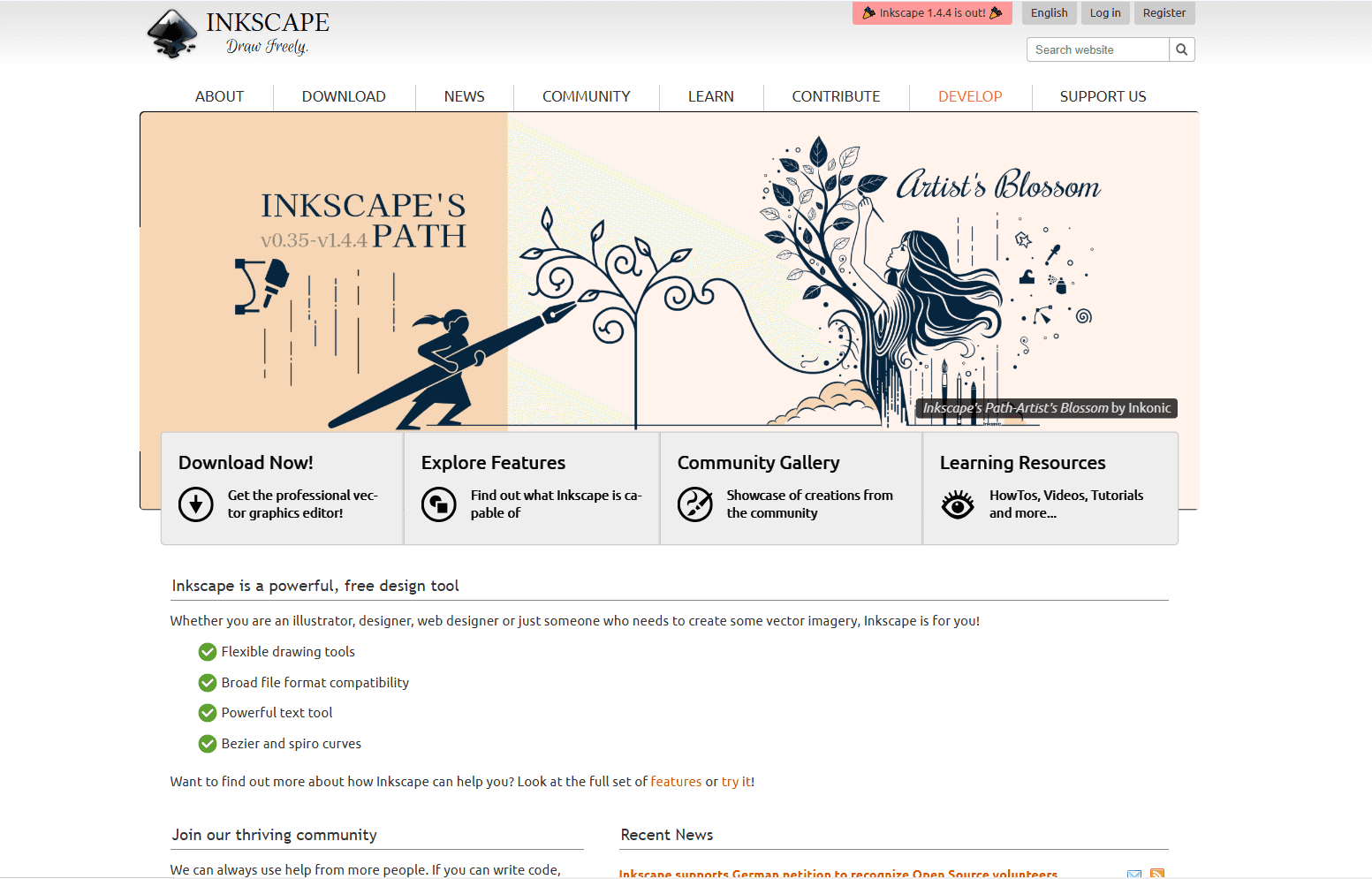
Inkscape is the strongest free and open-source SVG editor for Mac. It uses SVG as its native format, provides Mac downloads for Intel and Apple Silicon, and includes serious vector tools: path editing, boolean operations, layers, gradients, text on path, clones, alignment, tracing, and extensions.
The tradeoff is the interface. Inkscape is powerful, but it does not feel as Mac-native as Sketch, Linearity Curve, or Amadine. Dialogs, panels, and shortcuts can feel more cross-platform than polished macOS.
What you get:
- Free and open source
- SVG as the native working format
- Strong node and path editing
- Boolean operations and object alignment
- Bitmap tracing for turning raster logos into vectors
- Extension support for advanced workflows
- Good option for students, hobbyists, and budget-conscious teams
What you don't get:
- Polished native Mac interface
- Smoothest trackpad and gesture behavior
- Best beginner experience
- Cloud collaboration or design-system handoff
Inkscape fits people who want capability without a subscription. It is especially good when you need to inspect or repair SVG artwork, trace an old PNG logo, or work with open-source tooling.
For polished UI design or quick marketing graphics, it can feel heavier than necessary. For free SVG editing on Mac, it is still hard to beat.
Download: Get the current Inkscape release
3. Affinity (Best Free Professional Vector App)
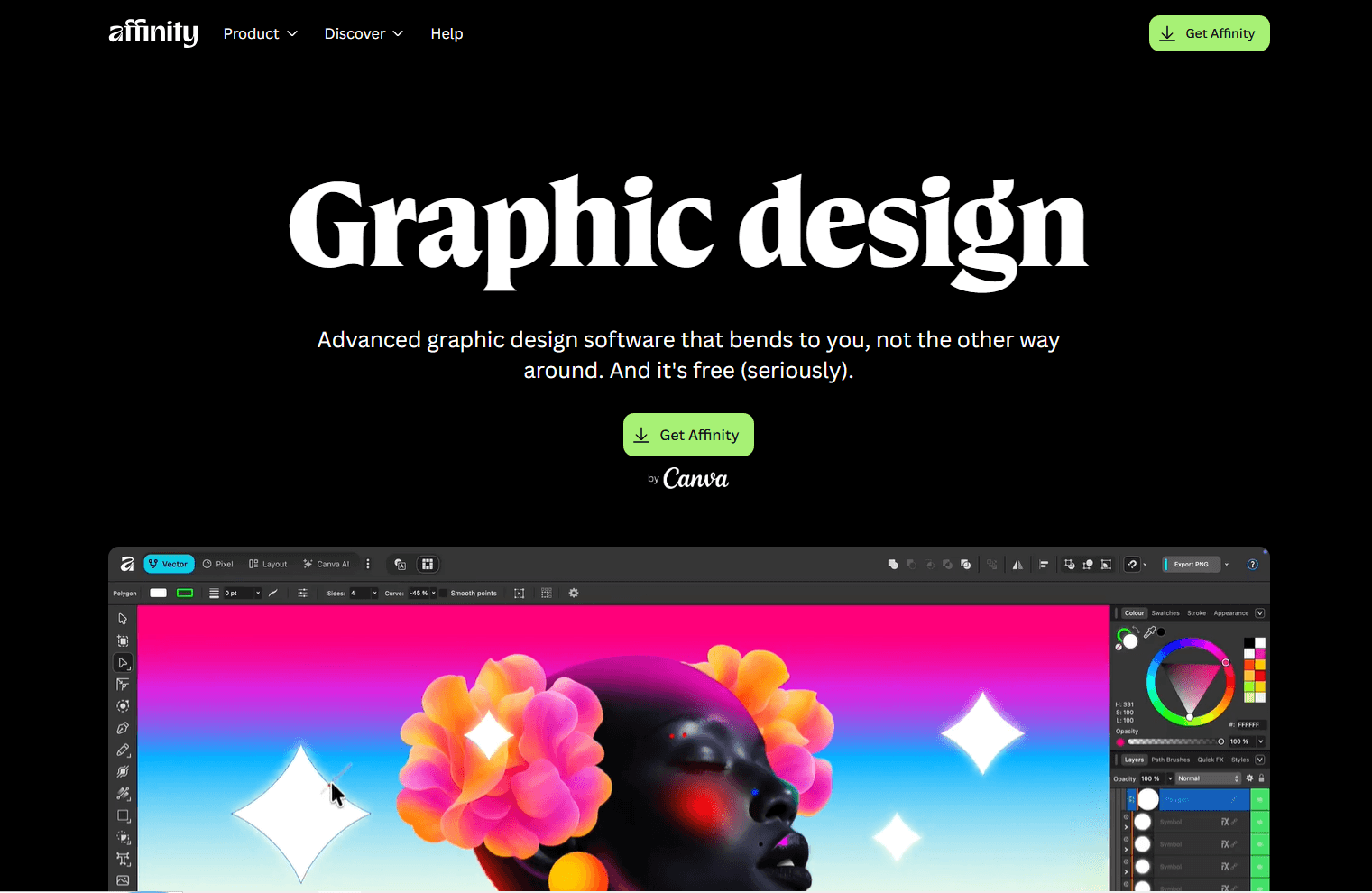
Affinity is now Canva's unified creative app rather than the old separate Affinity Designer, Photo, and Publisher lineup. For Mac users, that makes it one of the most interesting Illustrator alternatives in 2026: vector, raster, and layout tools live in one desktop app.
For SVG work, Affinity is best when the SVG is part of broader design work: logos, brand assets, marketing graphics, app illustrations, social images, or print-adjacent files that also need PDF, PNG, or layout output.
What you get:
- Professional vector tools in a full creative app
- Strong shape building and path editing
- Good Mac desktop workflow
- Raster and vector editing in one place
- Useful for logos, brand systems, illustrations, and layouts
- Free for individuals, with optional Canva AI features tied to eligible premium plans
What you don't get:
- SVG-first code inspection like Boxy SVG
- The same SVG purity as tools built around SVG markup
- Longstanding standalone Affinity Designer workflow for new users
- An account-free setup, because download and activation require a free Canva account
Affinity is a good pick when you want a serious vector editor without paying for Illustrator. It is less ideal if your main job is cleaning production SVG code for a website.
Use Affinity to design the asset. Use Boxy SVG, SVGO, or a code editor to do the final web cleanup if the exported SVG needs to be extremely lean.
Download: Get Affinity
4. Linearity Curve (Best Native Mac and iPad Workflow)

Linearity Curve feels built for Apple-device creative work. It runs on Mac, iPad, and iPhone, supports Apple Silicon, and focuses on a smoother visual design experience than older desktop vector editors.
It is strongest for designers who move between Mac and iPad, sketch with Apple Pencil, or create brand graphics and illustrations that later export to SVG, PDF, AI, or raster formats. The free plan stores up to eight files in Linearity Cloud; local Mac storage, offline work, and unlimited files require Pro.
What you get:
- Mac, iPad, and iPhone workflow
- Apple Silicon support
- Pen, node, shape, text, and gradient tools
- Auto Trace for vectorizing images
- Local offline editing with the Pro plan
- SVG, PDF, AI, and raster export options
- Good fit for illustrators and brand designers
What you don't get:
- Developer-style SVG code editing
- Best workflow for hand-cleaning markup
- The same desktop power depth as Illustrator
- Ideal workflow if you only edit SVG files occasionally
Linearity Curve is pleasant when the creative process matters: drawing, tracing, adjusting curves, making visual assets, and moving between devices. It is less direct if the job is "open this SVG and remove bad markup."
If you like Mac-native polish and also use an iPad, Curve deserves a serious look.
Download: Get Linearity Curve
5. Sketch (Best for UI Icons and Mac-Only Product Design)
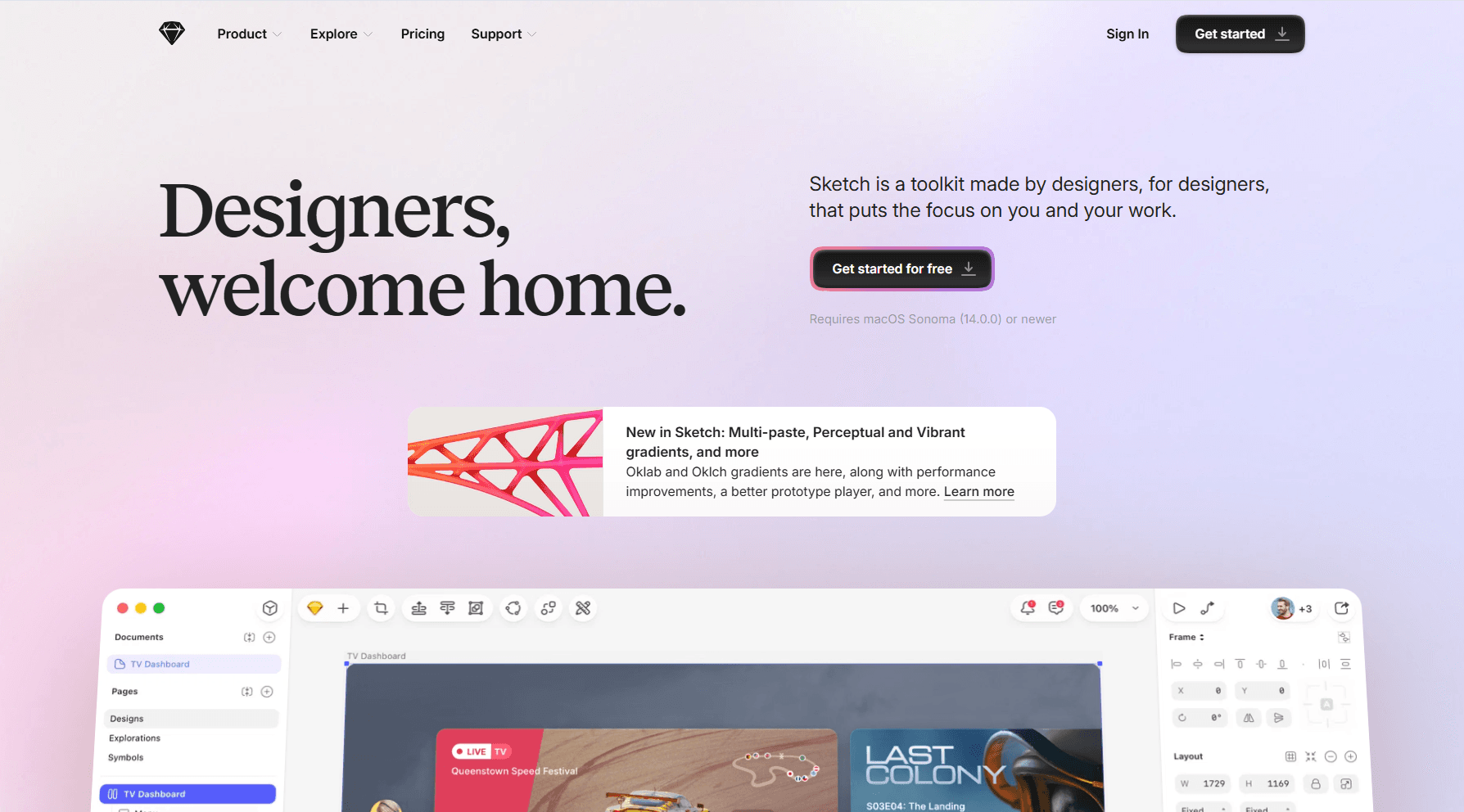
Sketch is a Mac-first product design tool. It is not a pure SVG editor, but it is excellent for UI assets, app icons, interface illustrations, symbols, components, and developer handoff.
Sketch makes the most sense when SVG export is part of a larger product-design workflow. You design screens, maintain components, export icons, share specs, and hand assets to developers.
What you get:
- Native macOS editor
- Focused UI and product design workflow
- Strong symbols, components, and libraries
- Offline local editing, including a Mac-only license option
- Developer handoff and asset export
- Good fit for app and web interface design
What you don't get:
- Windows or Linux desktop app
- SVG-first file editing
- Best choice for print illustration
- Best choice for raw SVG cleanup
Sketch is a strong choice for Mac product designers who need SVG exports from a design system. It is not the first tool I would open for repairing an existing SVG from the web.
If your SVGs are icons and UI assets, Sketch works well. If your SVGs are standalone vector files that need markup-level control, Boxy SVG or Inkscape is more direct.
Download: Get Sketch
6. Figma (Best for Team SVG Export and Collaboration)
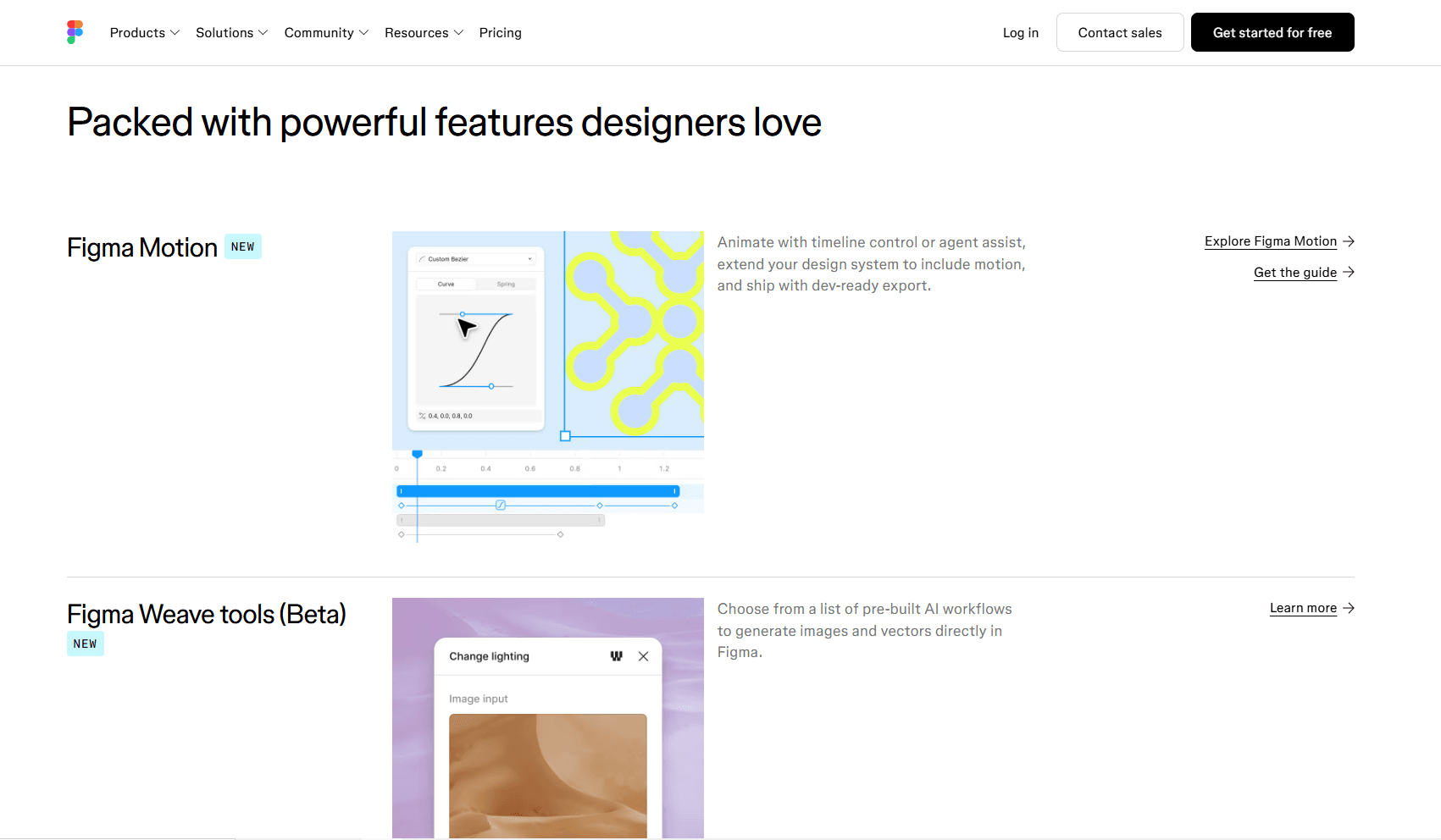
Figma is not Mac-only, but many Mac design teams live in it. It runs in the browser and desktop app, handles vector shapes, exports SVG assets, and makes collaboration easier than local-file tools.
Figma is best when the SVG is part of a team workflow: icons, buttons, interface states, design systems, or assets that developers inspect and export.
What you get:
- Real-time collaboration
- Web and Mac desktop app workflows
- Easy SVG export from frames, groups, components, and layers
- Strong design-system workflow
- Developer handoff and inspection
- Works well for UI icons and web graphics
What you don't get:
- Full offline-first Mac workflow
- Deep SVG markup control
- Best export cleanliness for every production case
- Traditional illustration depth compared with Illustrator or Inkscape
Figma's SVG export documentation supports exporting layers, frames, components, groups, sections, slices, and whole pages, as well as copying selected content as SVG. Text is outlined by default, and strokes may be exported as fills; settings can preserve editable text, include IDs, or simplify strokes. Check those options before committing an asset to a production codebase.
Use Figma when collaboration matters more than perfect SVG markup. Figma does not provide a dedicated offline mode, so keep a local editor available when reliable offline access is required. Use a focused editor or SVGO when final file size and structure matter.
Use it: Open Figma
7. Adobe Illustrator (Best for Professional Illustration and Agencies)
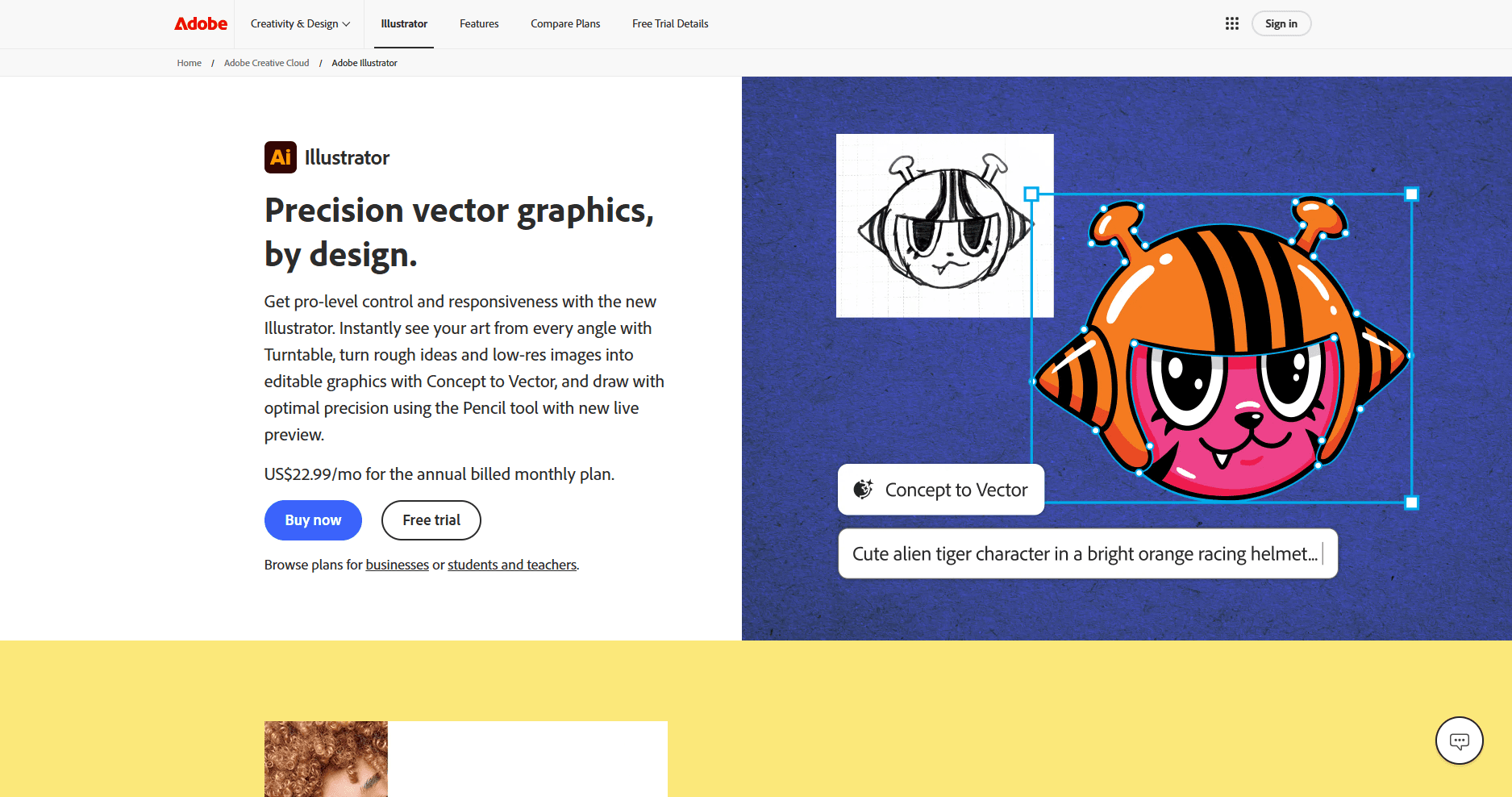
Adobe Illustrator is still the heavyweight choice for professional vector illustration. It has deep tools for logos, icons, typography, packaging, print graphics, patterns, complex shapes, and production workflows.
For Mac users already in Creative Cloud, Illustrator fits established agency and brand workflows. It combines Creative Cloud libraries with detailed path, typography, illustration, packaging, and print-production tools.
What you get:
- Professional vector design tools
- Excellent path, type, shape, and illustration features
- Strong print and brand-production workflow
- Broad compatibility with agencies and clients
- Creative Cloud libraries and Adobe ecosystem integration
- Advanced AI-assisted vector features
What you don't get:
- A one-time purchase option
- Lightweight Mac workflow
- Cleanest SVG export by default
- Simple interface for occasional SVG edits
Illustrator is overkill if you only need to resize icons, edit paths, or export simple web graphics. It makes more sense when SVG is one output from a professional design pipeline.
If you use Illustrator for SVG, check the exported file before shipping. Illustrator can produce good SVG, but production web assets often benefit from cleanup.
Download: Get Adobe Illustrator
8. Amadine (Best Friendly Mac Vector Editor)
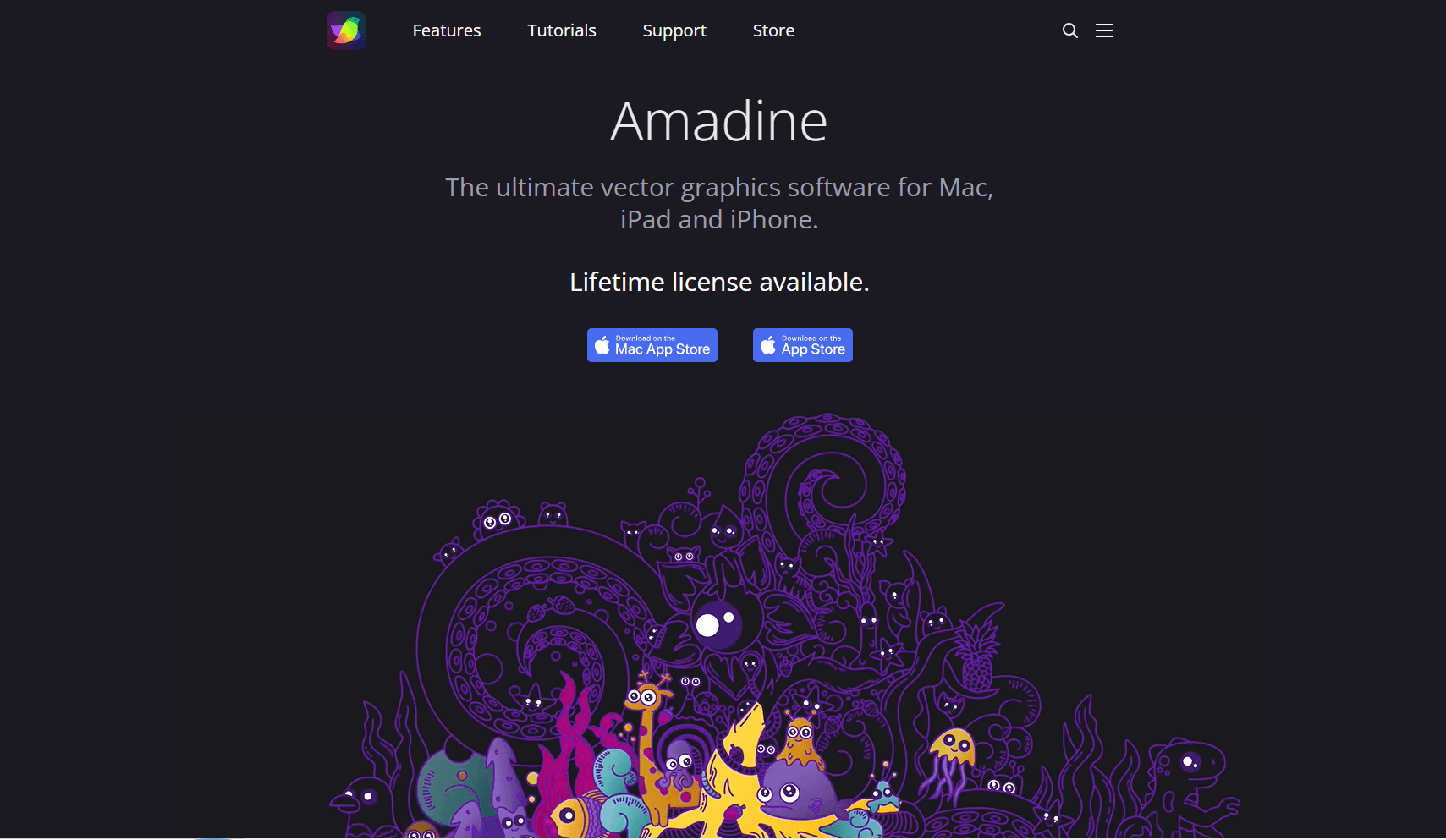
Amadine is a Mac, iPad, and iPhone vector design app with a friendlier learning curve than many professional tools. It imports SVG, PDF, and AI files and exports SVG, PDF, PNG, JPEG, and TIFF, but export and Image Trace require a subscription or lifetime license.
It is best for Mac users who want a comfortable vector editor for logos, posters, web graphics, UI elements, diagrams, and illustrations without jumping straight into Illustrator.
What you get:
- Native-feeling Mac vector workflow
- Mac, iPad, and iPhone support
- SVG and PDF output
- Shape, path, corner, recolor, and drawing tools
- Native Mac workflow with iCloud integration
- Easier learning curve than Inkscape or Illustrator
What you don't get:
- SVG-first markup controls
- SVG export without a paid license
- Figma-style collaboration
- Deepest professional print workflow
Amadine fits solo creators, small businesses, students, and Mac users who want a visual vector editor without a steep learning curve. It is not the most technical SVG tool, but it is approachable.
Use it when you want to make and edit artwork. Choose Boxy SVG or Inkscape when the SVG file structure itself is the job.
Download: Get Amadine
SVG Editor Comparison Table
Which SVG Editor Should You Actually Use on Mac?
Match the editor to the work you do most often:
- Boxy SVG: Choose it for focused editing when the SVG file itself matters most.
- Inkscape: Pick it for free SVG-native editing if you do not mind a less Mac-native interface.
- Affinity: Use it when SVG is one part of broader vector, raster, or layout work.
- Linearity Curve: Choose it for a connected Mac and iPad drawing workflow.
- Sketch: Pick it when most of your SVGs are UI icons and product-design assets.
- Figma: Use it when collaboration, design systems, and developer handoff drive the workflow.
- Illustrator: Choose it for Adobe-based projects or complex professional illustration.
- Amadine: Pick it for approachable, everyday vector design on Mac.
Quick Picks for Mac SVG Editing
Best overall for SVG files: Boxy SVG
Best free option: Inkscape
Best free professional vector app: Affinity
Best for UI designers: Sketch or Figma
Best for illustrators: Illustrator or Linearity Curve
Best for beginners on Mac: Amadine
Best for production web cleanup: Boxy SVG plus SVGO
Tips for Cleaner SVG Exports on Mac
Before shipping an SVG to a website or app, open the file in a code editor and check the basics.
Look for a clean viewBox. If the SVG has fixed width and height but no useful viewBox, it may scale poorly in responsive layouts.
Remove hidden layers and unused groups. Design tools often keep objects that are invisible on the canvas but still present in the exported file.
Convert text to outlines only when needed. Keeping text editable helps during design. Converting text to paths avoids missing-font issues when the SVG ships.
Avoid embedding large raster images inside SVG. A tiny-looking SVG can become huge if it contains base64-encoded PNG data.
Run final web assets through an optimizer like SVGO if file size matters. Visual editors are good for design. Optimizers are better at removing redundant markup.
Frequently Asked Questions
What is the best SVG editor for Mac?
Boxy SVG is the best choice if your main goal is editing clean SVG files. Inkscape is the best free option. Affinity, Sketch, Figma, Linearity Curve, Illustrator, and Amadine are better when SVG export is part of a larger design workflow.
What is the best free SVG editor for Mac?
Inkscape is the best fully free and open-source SVG editor for Mac. Affinity is also a strong free option for broader vector design, but Inkscape is more directly SVG-native.
Can I edit SVG files in Preview on Mac?
Preview is not a dependable SVG editor, and Apple's current Preview guide does not list SVG among the image formats it supports for conversion. Open the file in Safari for a browser rendering check, then use Boxy SVG, Inkscape, Affinity, Sketch, Figma, Illustrator, Linearity Curve, or Amadine when you need to edit paths, shapes, text, or export settings.
Is Figma good for SVG editing?
Figma is good for creating and exporting SVG assets from a design system. It is not the best tool for editing raw SVG markup or cleaning existing SVG files. Use Figma for collaboration and handoff, then optimize final assets before shipping.
Is Illustrator worth it just for SVG files?
Usually no. Illustrator is excellent for professional vector illustration, but it is expensive and heavier than necessary for basic SVG editing. Use Illustrator if you already need Adobe's broader design workflow.
How do I make SVG files smaller on Mac?
Remove unused layers, simplify paths, avoid embedded raster images, export only the selected asset, and run the final SVG through an optimizer like SVGO. Also check whether text, gradients, masks, and filters are adding unnecessary complexity.
Related Reading
Read More
All Articles
8 Best SVG Editors for Windows in 2026 (Free & Pro)
Compare the best SVG editors for Windows, including Boxy SVG, Inkscape, Affinity, VectorStyler, Illustrator, CorelDRAW, Figma, and SVGEdit.
8 Best SVG Editors & Viewers for iPad in 2026
Compare eight SVG editors and viewers for iPad, from Apple Pencil vector tools to local viewers, source editing, and clean SVG export.
8 Best SVG Editors for Linux in 2026 (Free & Open Source)
Compare the best free and open-source SVG editors for Linux and Ubuntu, including Inkscape alternatives, vector tools, SVG viewers, and browser apps.