7 Best XML Editors for Linux in 2026 (GUI & Terminal)

On this page
Linux text editors can open XML, but serious schema work needs more than syntax highlighting. Features such as XSD validation, XPath support, and schema-aware autocomplete usually require a plugin, language server, or dedicated XML tool.
For most developers, the best starting point is VS Code with the Red Hat XML extension. It adds XSD and DTD validation, formatting, and schema-aware autocomplete. The xmllint command-line tool complements it with repeatable checks for scripts and CI pipelines.
The right editor depends on the work. Configuration files, data exports, and SVG files may only need clean formatting and syntax highlighting. Schema-driven XML, XPath queries, and XSLT transforms call for validation, intelligent completion, or debugging tools.
The seven options below include lightweight editors, terminal tools, and professional XML environments.
1. VS Code with Red Hat XML Extension
Best for most Linux developers doing XSD validation and schema work
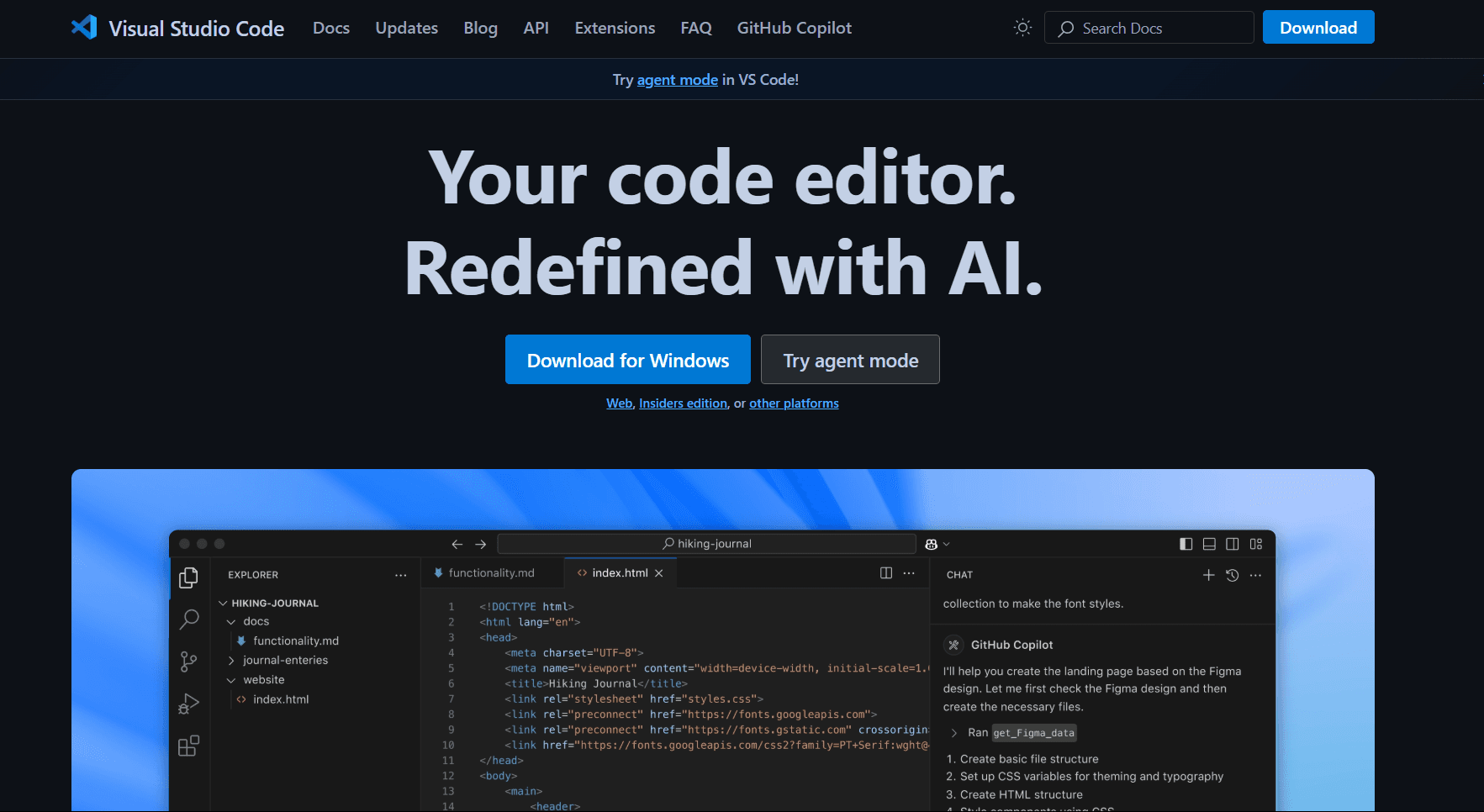
VS Code is the main recommendation for most Linux developers working with XML. Its built-in support is limited to basic syntax highlighting, but the Red Hat XML extension adds the validation and schema features needed for structured work.
What you get:
- XSD and DTD validation with real-time error squiggles
- Schema-aware autocomplete (suggests valid child elements and attributes)
- XSL authoring support
- XML catalogs, document outlines, and folding
- Format on save
- Integrated terminal, Git integration
What you don't get:
- A lightweight native interface (VS Code is Electron-based)
- Visual schema designers
- A built-in XPath evaluator or XSLT debugger
Choose the package that matches your distribution: .deb for Ubuntu or Debian, and .rpm for Fedora-based systems. After installing VS Code, add the Red Hat XML extension from the Extensions view.
Schema association is the most important setup step. In settings.json, add an xml.fileAssociations entry with a pattern for the XML files and a systemId pointing to the XSD:
"xml.fileAssociations": [
  {
    "pattern": "config/*.xml",
    "systemId": "/home/username/schemas/config.xsd"
  }
]
Once associated, every matching file is validated automatically, with errors marked as you type. Validation is enabled by default and can be controlled through xml.validation.enabled.
Behind the extension, the LemMinX language server provides validation, completion, hover information, and other XML language features.
The tradeoff is resource use. VS Code is an Electron application, so Geany or Kate may feel more comfortable on a low-memory machine.
Download: VS Code for Linux
2. oXygen XML Editor
Best for professional XML authoring, DITA documentation, and XSLT debugging
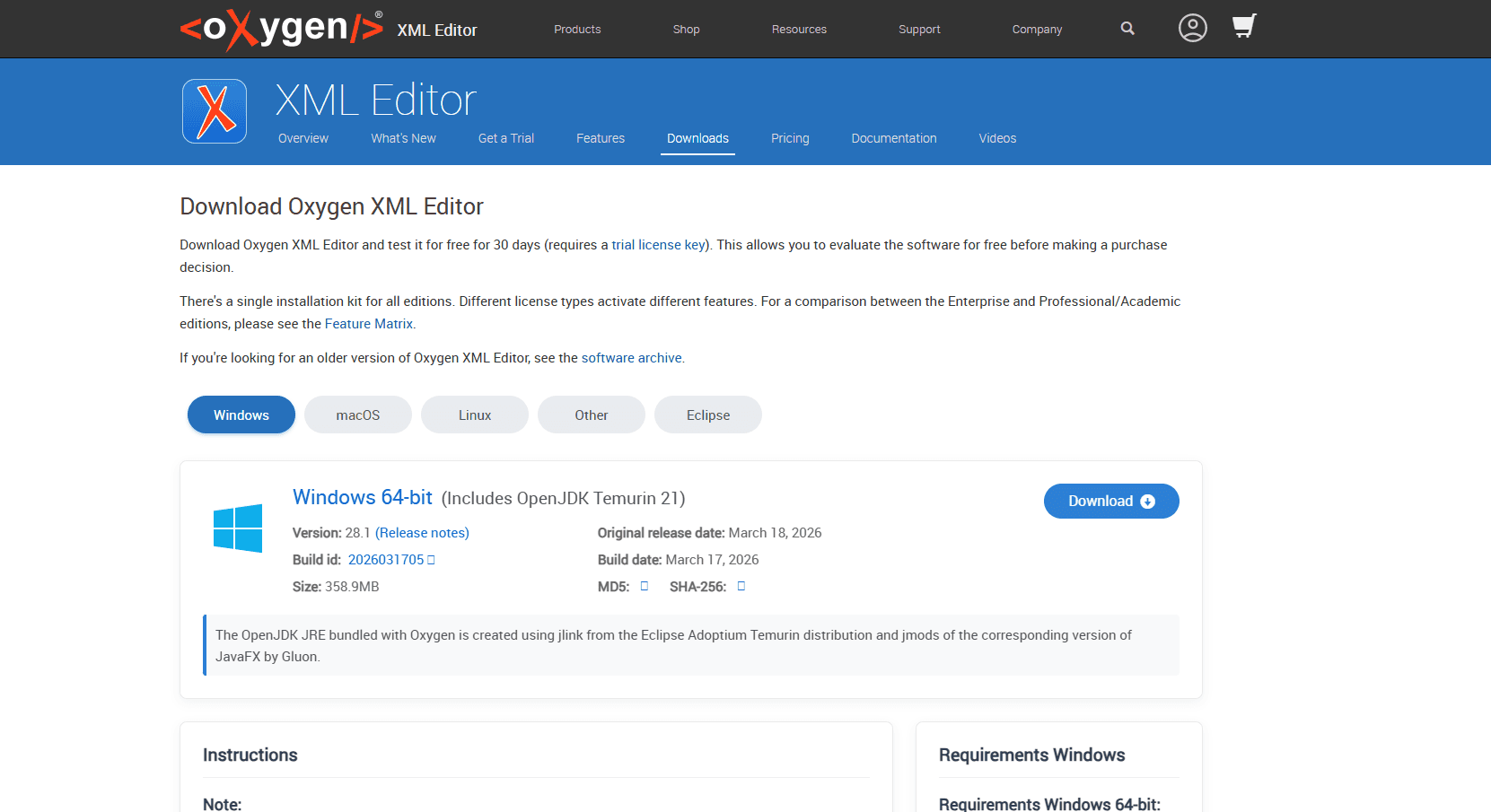
oXygen is the professional option for people who work with XML as a primary deliverable rather than an occasional configuration format.
What you get:
- XSLT debugger with step-through execution
- XQuery execution environment for XML databases
- Built-in XSD and DTD authoring with visual schema designer
- DITA publishing support (PDF and HTML5 output)
- XML refactoring tools for renaming elements across hundreds of files
- Full XSD 1.1 support
- 30-day free trial with all features
What you don't get:
- Free version
- A lightweight footprint
The standard Linux installer is distributed as a .sh file and bundles Java 21. The all-platform package instead requires a compatible Java 21 installation.
oXygen is best suited to technical writers using DITA, developers debugging complex XSLT transforms, and teams that create or maintain XML schemas. Those workflows benefit from its visual design tools and integrated debuggers.
Pricing is the main barrier. oXygen offers a 30-day trial, followed by paid licenses with different editions and license types. VS Code is the more practical choice for occasional XML work; oXygen makes more sense when its specialist tools are part of a daily workflow.
Download: oXygen XML Editor
3. xmllint (terminal)
Best for validation in scripts, CI pipelines, and pre-commit hooks
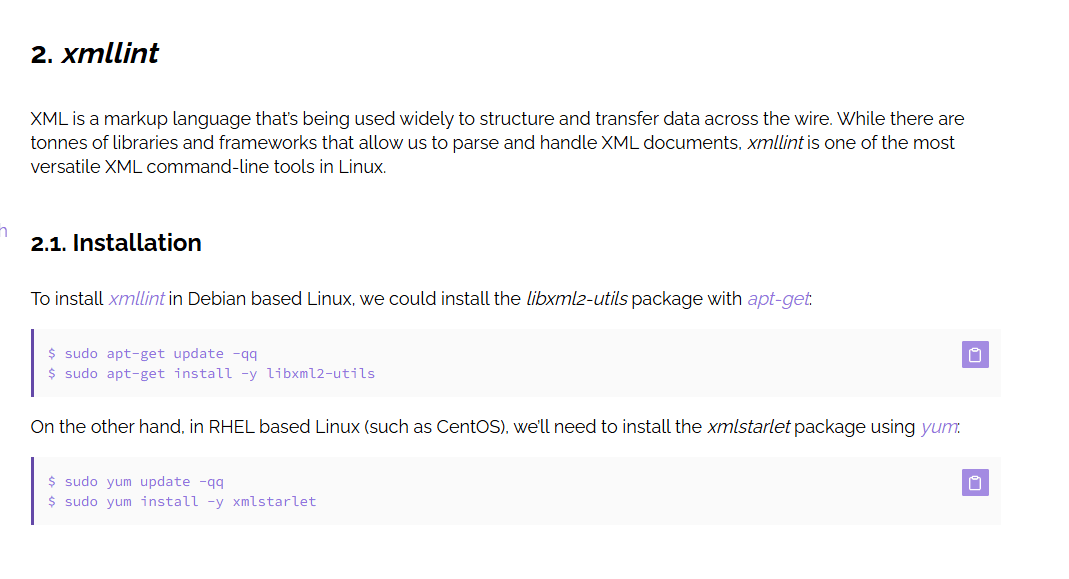
xmllint is not a GUI editor. It is a focused command-line tool for repeatable validation, formatting, and XPath queries in scripts or CI pipelines.
What you get:
- Pretty printing: xmllint --format file.xml
- XSD validation: xmllint --schema schema.xsd --noout file.xml
- DTD validation: xmllint --valid --noout file.xml
- XPath queries: xmllint --xpath "//product[@id='123']/name/text()" catalog.xml
- Scriptable (exit code 0 on success, non-zero on failure)
- CI pipeline integration
What you don't get:
- GUI or interactive editing
- Real-time validation as you type
Install: apt install libxml2-utils on Ubuntu, dnf install libxml2 on Fedora, pacman -S libxml2 on Arch.
Integrate xmllint into a pre-commit hook so XML files are validated before every git commit. Create .git/hooks/pre-commit with this content:
#!/bin/bash
for file in $(git diff --cached --name-only | grep '\.xml$'); do
  xmllint --schema schema.xsd --noout "$file"
  if [ $? -ne 0 ]; then
    echo "XML validation failed for $file"
    exit 1
  fi
done
Make the hook executable with chmod +x .git/hooks/pre-commit. A successful check returns exit code 0; invalid XML or another error returns a non-zero code and stops the commit.
There is no GUI or interactive editor. Use xmllint to check and transform XML, then pair it with an editor for authoring.
Install guide: xmllint Installation and Usage Guide
4. Geany
Best for fast editing of XML config files and data exports without schema validation
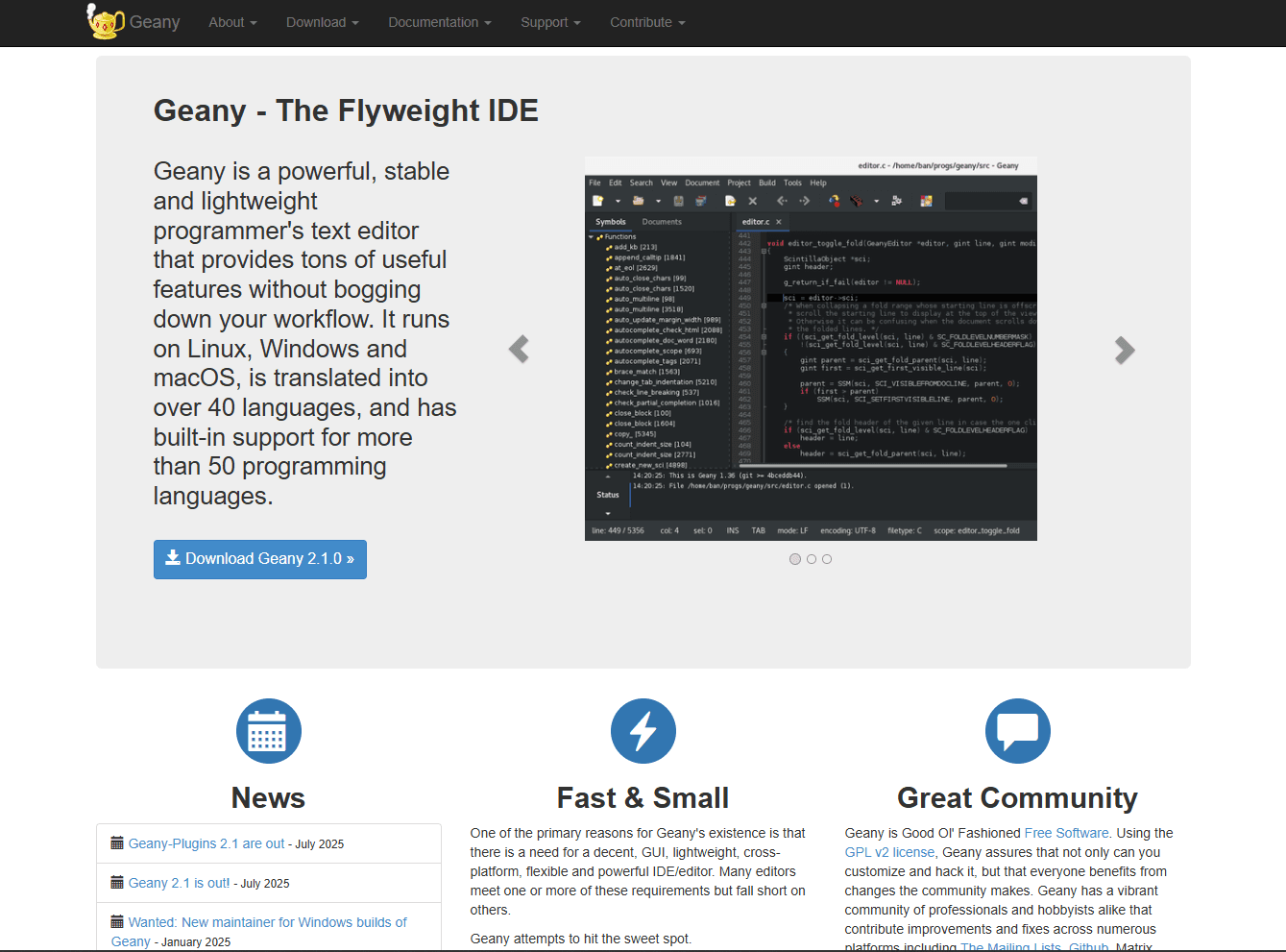
apt install geany on Ubuntu or dnf install geany on Fedora.
What you get:
- Fast, lightweight editing
- XML syntax highlighting with tag auto-close
- Code folding to collapse large XML structures
- Built-in terminal panel (run xmllint without leaving editor)
- Optional Split Window plugin for side-by-side files
- Lightweight memory footprint
- Completely free
What you don't get:
- XSD validation (no schema understanding)
- XPath support
- XSLT transforms
- Schema-aware autocomplete
Geany's terminal panel lets you edit XML and run xmllint without switching windows. This works well for files such as Maven pom.xml or Spring applicationContext.xml when you do not need schema-aware feedback while typing.
Download: Geany Text Editor
5. Kate
Best for KDE Plasma users who want native Qt performance with plugin-based validation
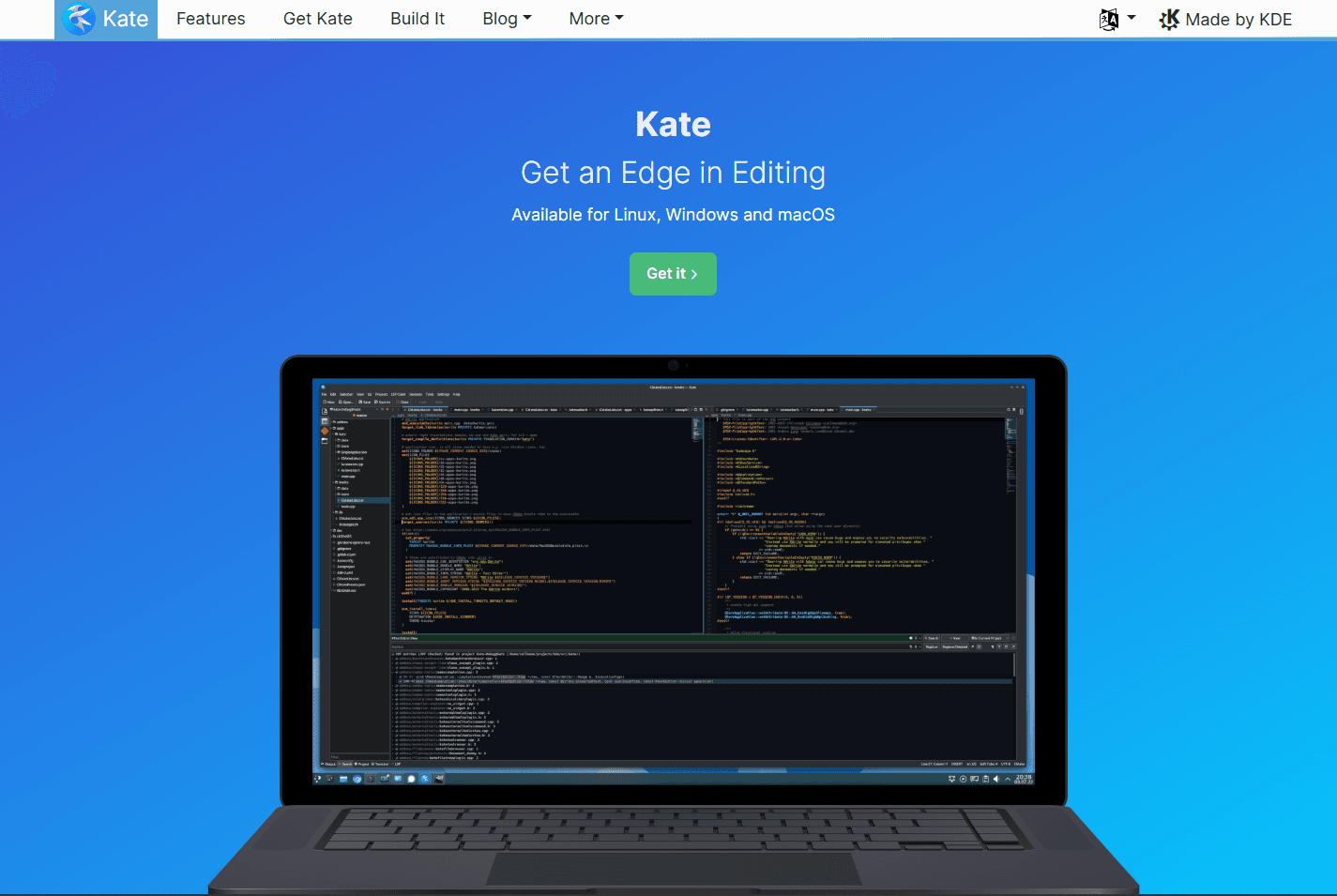
Kate is KDE's text editor and is pre-installed on many Plasma desktops. Install it with apt install kate on Ubuntu or pacman -S kate on Arch.
What you get:
- Native Qt performance
- XML Validation plugin backed by xmllint
- XML Completion plugin for DTD-based suggestions
- Built-in terminal panel
- Project management with cross-file search
- Code folding and structure view
- Pre-installed on KDE Plasma
- Completely free
What you don't get:
- XSD-aware autocomplete
- Built-in XPath or XSLT tools
- Out-of-box validation without xmllint installed
Kate includes separate XML Validation and XML Completion plugins. The validation plugin uses xmllint to check well-formedness and declared DTDs, then presents errors as clickable entries.
First, install xmllint through your distribution's libxml2 package. Then enable XML Validation under Settings > Configure Kate > Plugins. For XSD validation, run xmllint --schema schema.xsd --noout file.xml in the terminal panel.
XML Completion is a separate plugin. It can suggest elements and attributes from a DTD after the DTD has been converted to Kate's meta-DTD format.
Kate fits KDE Plasma users who prefer a native Qt application to an Electron editor. Its plugins handle well-formedness and DTD checks, while the terminal provides a direct route to XSD validation.
Download: Kate Text Editor
6. Emacs with nxml-mode
Best for Emacs users who need real-time RelaxNG validation as they type
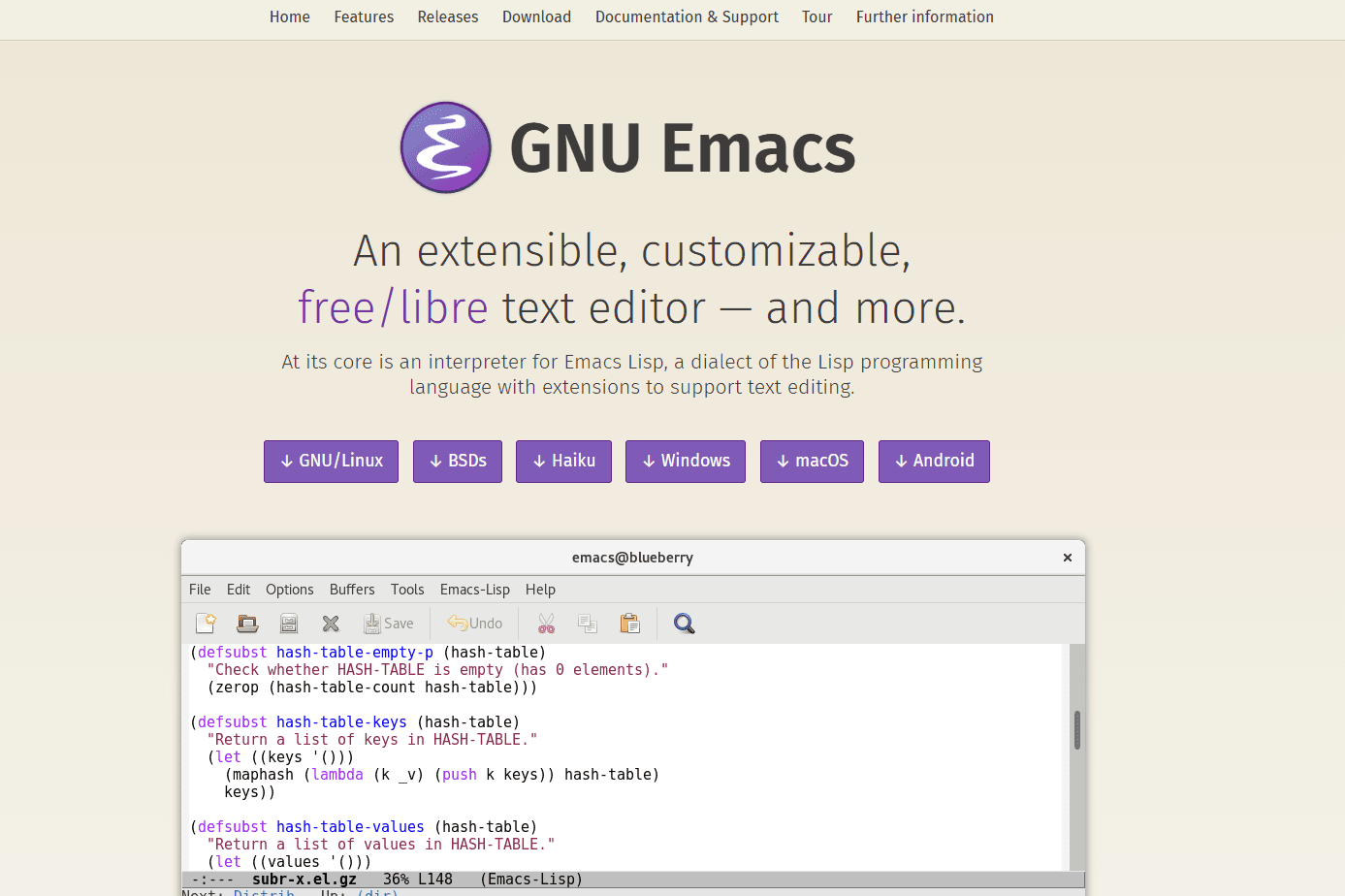
GNU Emacs includes nxml-mode, which provides continuous RELAX NG validation and schema-aware editing.
What you get:
- Real-time validation (instant feedback as you type)
- RelaxNG schema support
- Schema-aware completion with C-M-i or M-TAB
- Built into Emacs (no installation needed)
- Completely free
What you don't get:
- XSD schema support (RelaxNG only, requires conversion)
- XPath queries
- XSLT transforms
- Easy learning curve (Emacs expertise required)
nxml-mode validates continuously rather than waiting for a save. Content that violates the active RELAX NG schema is highlighted while you edit.
Install Emacs through your distribution's package manager; nxml-mode activates for XML files. Select a RELAX NG schema manually with C-c C-s C-f, or let Emacs locate one through its schema rules.
This option makes sense for existing Emacs users. If you are new to Emacs, learning the editor and nxml-mode together is a much larger commitment than setting up VS Code.
Download: GNU Emacs
7. Neovim with xml-language-server
Best for terminal-first developers who live in Neovim
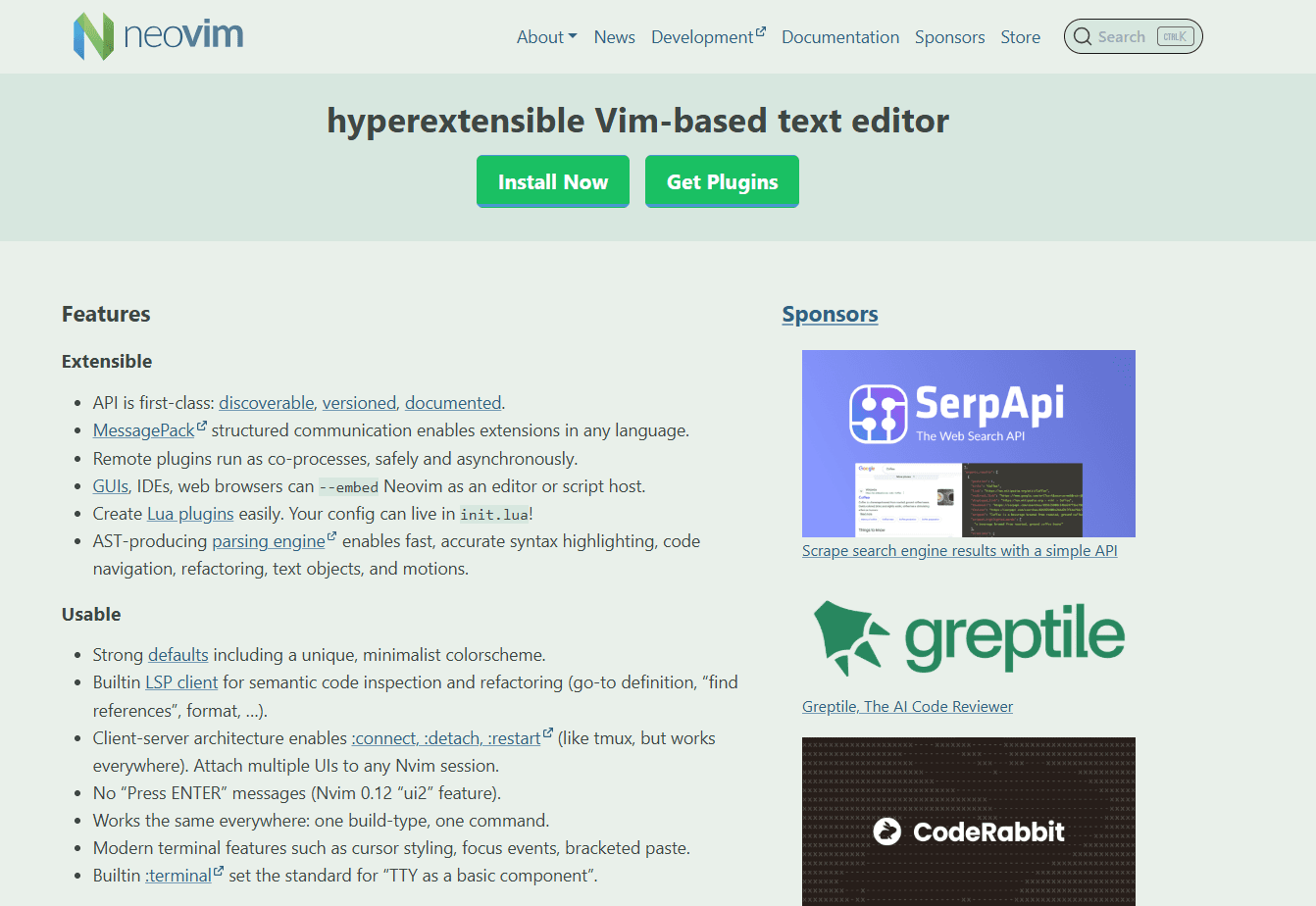
Neovim pairs its built-in LSP client with LemMinX for terminal-based, schema-aware XML editing.
What you get:
- XSD and DTD validation through LemMinX
- Schema-aware autocomplete
- Real-time validation as you type
- Terminal-based workflow
- Standard LSP keybindings (gd, K, ]d, [d)
- No GUI context switching
- Completely free
What you don't get:
- Easy setup (requires nvim-lspconfig already configured)
- Beginner-friendly (Neovim expertise required)
- Visual interface
- Quick onboarding
Install LemMinX through Mason with :MasonInstall lemminx. The same language server powers the Red Hat XML extension, providing schema-aware diagnostics and completion inside Neovim.
With Neovim 0.11 or later and the current nvim-lspconfig package, enable the supplied LemMinX configuration in init.lua:
vim.lsp.enable('lemminx')Choose this setup if Neovim is already your primary editor and you want schema-aware XML support without leaving the terminal.
Download: Neovim
Extension Comparison
Which XML Editor Should You Actually Use on Linux?
For most developers: Choose VS Code with the Red Hat XML extension. It is free and covers XSD and DTD validation, schema-aware completion, and formatting across major Linux distributions.
For terminal-first workflows: Use Neovim with LemMinX for editing and xmllint for scripts. Both fit naturally into a terminal-based workflow.
For KDE Plasma: Use Kate with its XML Validation plugin and xmllint. Editing, project search, and command-line schema checks remain inside a native Qt application.
For professional XML authoring: Choose oXygen for DITA, visual schema work, or XSLT debugging. Its specialist tools cover tasks that general-purpose editors do not.
For quick configuration edits: Choose Geany. It starts quickly and includes a terminal panel for running xmllint when needed.
For a closer look at extensions, see the best XML editor for VSCode. Platform-specific alternatives are covered in the best XML editor for Mac and best XML editor for Android guides.
Frequently Asked Questions
What is the best free XML editor for Linux?
VS Code with the Red Hat XML extension is the best free option for most Linux users. It provides XSD and DTD validation, schema-aware completion, formatting, document outlines, and XML catalog support. Install the appropriate VS Code package for your distribution, then add the extension from the Extensions view.
How do I validate XML against an XSD schema on Linux?
Run xmllint --schema schema.xsd --noout file.xml from the command line. On Ubuntu, install it with apt install libxml2-utils. Exit code 0 means the document is valid; a non-zero code signals invalid XML or another error, which makes the command useful in CI pipelines. For validation inside an editor, configure schema association in VS Code.
Does VS Code support XML validation and editing on Linux?
Yes. Install the Red Hat XML extension, then associate files with an XSD or DTD through xml.fileAssociations in settings.json. Each entry uses a pattern and systemId, and matching files are validated while you edit.
How do I format and pretty print an XML file on Linux?
Run xmllint --format file.xml > formatted.xml to write an indented copy while preserving the original. VS Code can format XML inside the editor through the Red Hat extension; Kate users can run xmllint from the terminal panel.
Related Reading
If you're working with other file formats or need to compare tools across different platforms, these guides help:
Need to work with XML files? Use the XML merger tool to combine multiple XML files or the XML file splitter to split large XML files.
Read More
All Articles
9 Best XML Editors for Mac in 2026 (Free & Paid)
Compare nine XML editors for Mac, from free text editors to professional tools for XSD validation, XSLT, XQuery, and schema-driven work.
9 Best XML Editors for Windows in 2026 (Free & Tested)
Compare the best XML editors for Windows, including VS Code, Notepad++, XML Notepad, and Oxygen for validation, schema support, and large files.
7 Best XML Editor Apps for Android in 2026 (Tested & Ranked)
Find the best XML editor for Android for plain text XML, remote files, Git projects, and binary XML inside APKs. Compare QuickEdit, MP Manager, Acode, and more.