7 Best HTML Editors for Linux in 2026 (Free & Open Source)

On this page
Choosing an HTML editor on Linux is not only about syntax highlighting. The package format, desktop environment, browser-preview workflow, and need for terminal or SSH access can all change which editor feels practical on the same machine.
VS Code with the Live Server extension is the best overall choice for active web projects. Its built-in HTML support handles completion, formatting, validation, and Emmet abbreviations, while Live Server adds the browser refresh loop that plain text editors lack.
The main tradeoff is scope. VS Code offers the broadest development environment, Geany and Bluefish keep the graphical workflow smaller, and Neovim or Micro make more sense when editing happens in a terminal. Automatic browser reload also narrows the field: most lighter editors can launch or serve a page, but they still require a manual refresh.
1. VS Code with Live Server Extension (Best for Active Web Development)
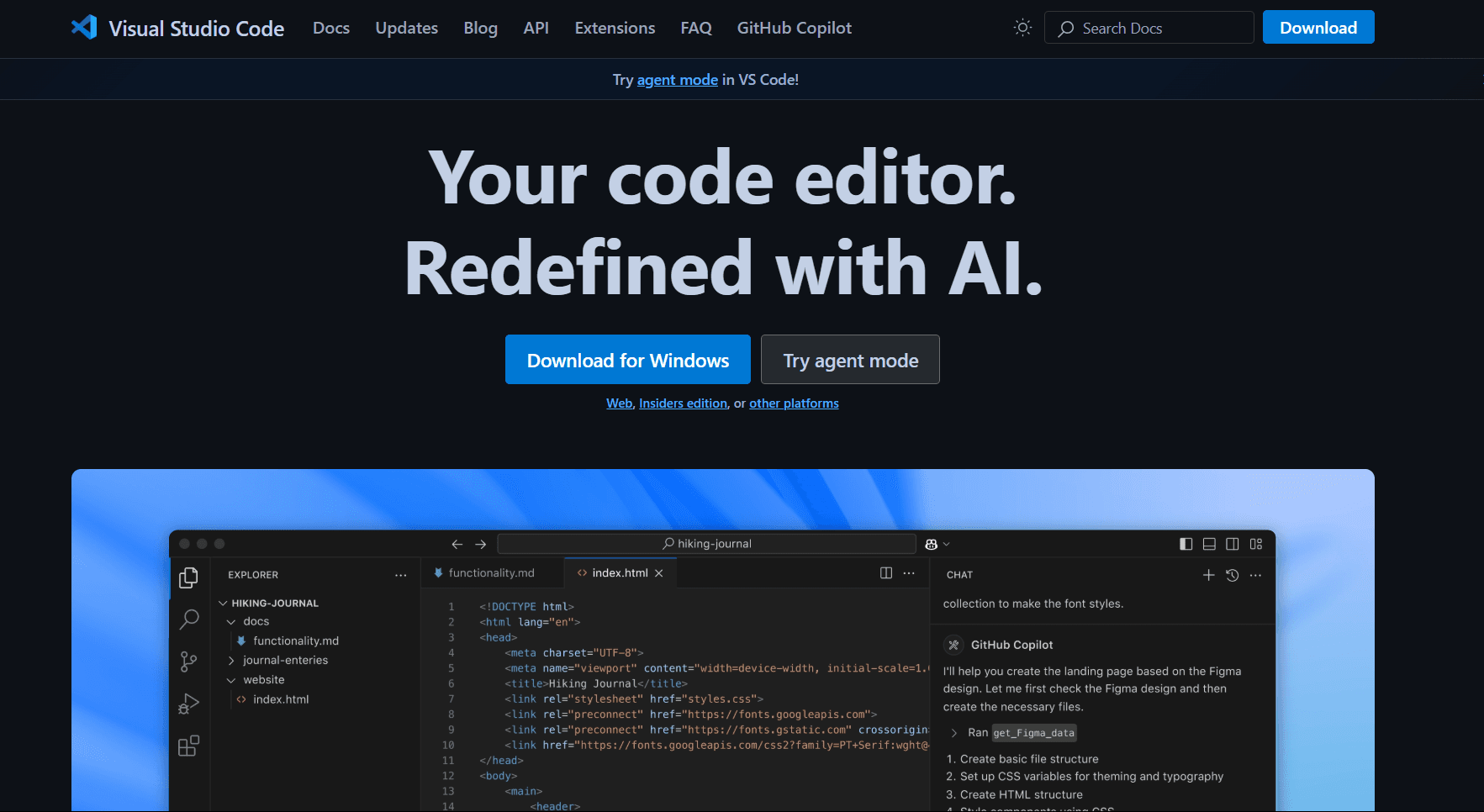
VS Code earns first place because its useful HTML features do not begin with Live Server. The editor already provides IntelliSense for tags and attributes, closing-tag suggestions, document symbols, formatting, folding, embedded CSS and JavaScript validation, and built-in Emmet support. Live Server then adds automatic browser refresh when files are saved.
Linux installation is well documented. Use the .deb package on Debian or Ubuntu, the .rpm package on Fedora-family distributions, or the official Snap package. The VS Code Linux setup guide explains each route and the repository setup used for package-manager updates. VS Code is free to use, although Microsoft's distribution uses its product license while the underlying Code - OSS source is MIT-licensed.
What you get:
- HTML IntelliSense, formatting, folding, and validation
- Built-in Emmet abbreviation expansion
- Automatic browser refresh through Live Server
- Integrated terminal, Git tools, and project-wide search
- Extensions for frameworks, linters, and deployment workflows
What you don't get:
- The smaller footprint of a native GTK or Qt editor
- Live browser refresh without installing an extension
- A minimal interface for one-file edits
After installing VS Code, open the Extensions panel with Ctrl + Shift + X and find Live Server by Ritwick Dey. Open the folder containing the HTML, CSS, and JavaScript files, then select Go Live. The extension starts a local server, opens the project in a browser, and reloads the page after saved changes.
Pick VS Code when HTML is part of a larger website or application and you regularly move between markup, styles, scripts, Git, and a terminal. Geany is a better second choice when that surrounding toolset would mostly sit unused.
2. Geany (Best Lightweight HTML Editor)
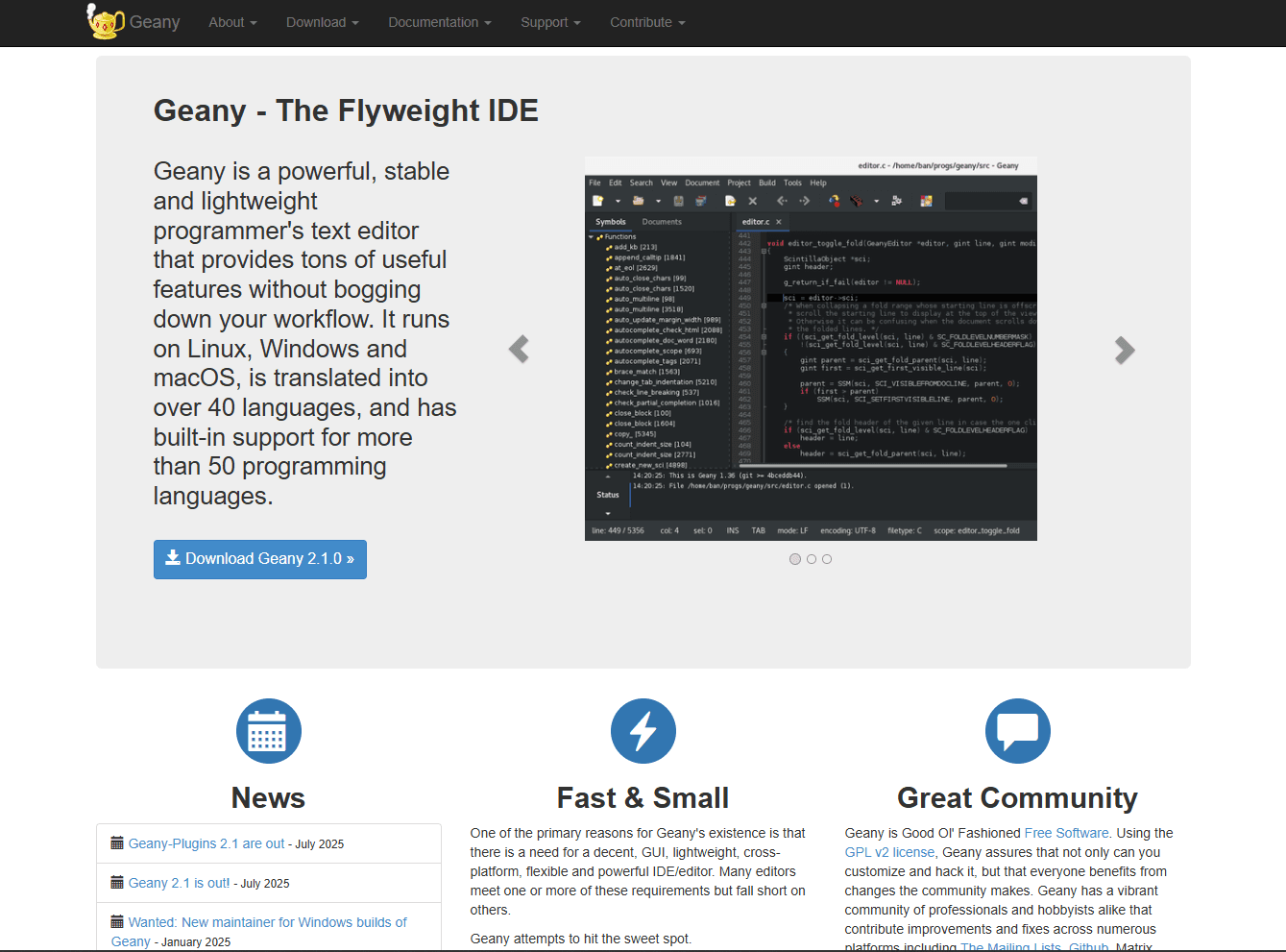
Geany takes the second position because it provides an IDE-like workspace without an Electron runtime or a large extension setup. The project describes itself as a small GTK-based IDE that stays independent of a particular desktop environment, so it fits KDE, GNOME, Xfce, and other Linux desktops.
HTML syntax highlighting, folding, and automatic XML or HTML tag completion work inside the editor. Geany can also expose an embedded terminal when VTE support is available, and its plugin set adds tools such as a file browser without turning the base application into a full web platform.
What you get:
- Built-in HTML syntax highlighting
- XML and HTML tag completion
- Code folding and symbol navigation
- Configurable browser launch through the Execute command
- Optional terminal and file-browser panels
- A free, open-source GTK application
What you don't get:
- Automatic live reload (manual F5 refresh)
- Emmet support
- Framework-aware IntelliSense
- VS Code's breadth of web extensions
Install Geany through the distribution package manager, which the official Geany repository recommends for Linux users. Common commands include sudo apt install geany on Debian or Ubuntu and sudo pacman -S geany on Arch, although the version depends on the distribution repository.
For HTML preview, configure the file type's Execute command to open the current document in a browser. F5 runs that command with the default keymap, but the workflow remains manual: save the file, run Execute again, and refresh or reopen the browser view. Pick Geany for small sites and quick edits where a full browser-reload extension is unnecessary.
3. Bluefish (Best for Dedicated Web Development)
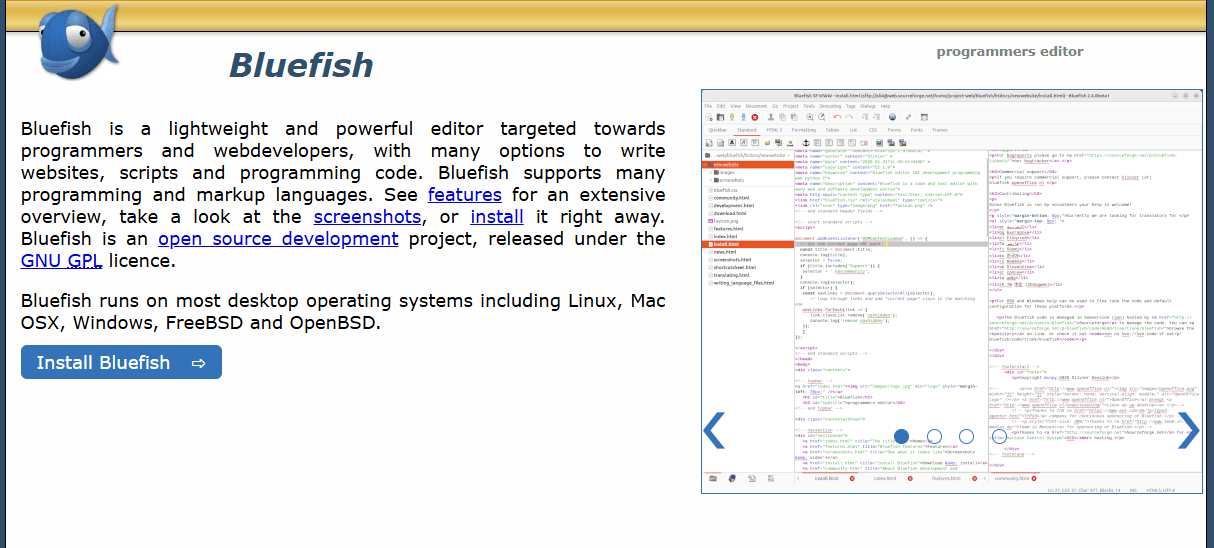
Bluefish is the most web-specific native editor in this list. It is aimed at programmers and web developers rather than general note-taking, with HTML dialogs, tag tools, snippets, projects, remote-file support, and regular-expression search across files.
The project is actively maintained rather than merely surviving in distribution archives. Bluefish 2.4 releases arrived in 2026, adding a stable side-by-side document view, simultaneous editing of matching opening and closing tags, interface presets, and fixes for current desktop themes.
What you get:
- HTML toolbars, dialogs, and tag insertion
- Project management built-in
- Emmet abbreviation support
- Remote file loading and saving
- Multi-file search with regular expressions
- A free, open-source GTK application
What you don't get:
- Live reload
- Large extension ecosystem
- Framework-level code intelligence
- A modern interface comparable to newer editors
Create a Bluefish project when a site contains many related HTML, CSS, JavaScript, and template files. The editor remembers the project structure, keeps multiple documents open, and can run external commands for tasks such as validation or browser preview. Its Emmet support also reduces the typing needed for repeated markup.
Install it with sudo apt install bluefish on Debian or Ubuntu or sudo dnf install bluefish on Fedora. Choose Bluefish over Geany when web-specific menus, projects, remote files, and snippets matter more than a smaller general-purpose interface. Choose VS Code instead when language extensions and automatic browser refresh are central to the job.
4. Neovim with HTML LSP (Best for Terminal Users)
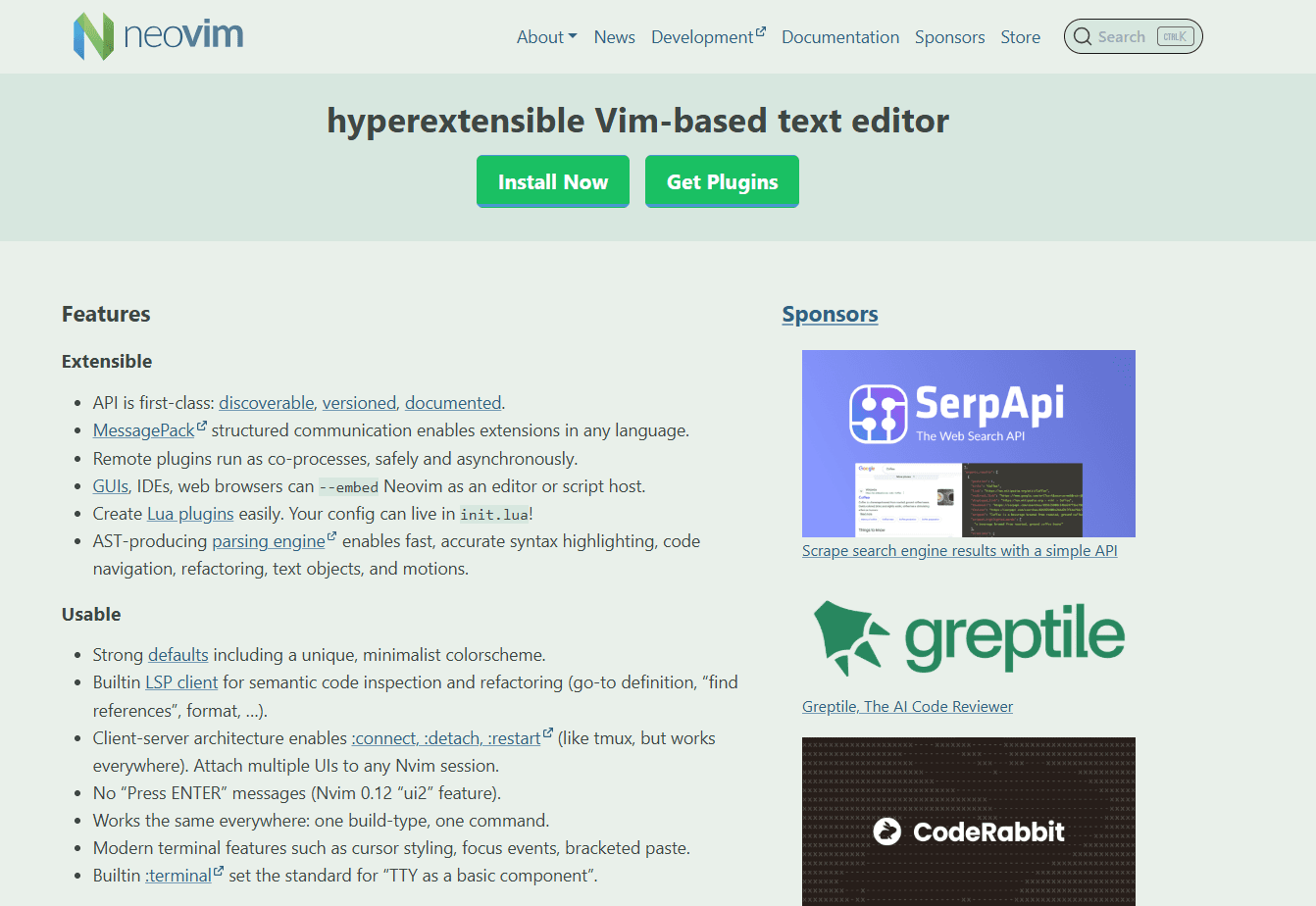
Neovim is the strongest option here for developers who want serious HTML assistance without leaving a terminal. Basic highlighting works immediately, but completion, hover information, and diagnostics come from a separate HTML language server connected to Neovim's built-in LSP client.
That client-server distinction is easy to miss. Installing Neovim does not install an HTML server, and installing a server does not automatically enable it for HTML buffers. A working setup needs both pieces plus a configuration that starts the server for the correct file type.
What you get:
- Terminal editing locally or over SSH
- Completion, hover details, and diagnostics through LSP
- Emmet support through emmet-ls
- Modal editing, splits, buffers, and extensive configuration
- A free, open-source editor
What you don't get:
- Easy setup (requires Neovim configuration)
- Visual preview
- Browser reload without another tool
- Familiar controls for readers new to modal editing
One convenient setup uses the optional mason.nvim plugin. Run :MasonInstall html-lsp for the HTML server and :MasonInstall emmet-ls for Emmet, then enable both through your LSP configuration. Mason manages the external tools; it does not replace the configuration in init.lua or init.vim.
Install Neovim with sudo apt install neovim on Debian or Ubuntu or sudo pacman -S neovim on Arch. The official Neovim LSP documentation explains why a third-party server is required. Pick this route when the terminal is already your main workspace; Micro is easier when the job is only a quick remote correction.
5. Kate (Best for KDE Plasma Users)
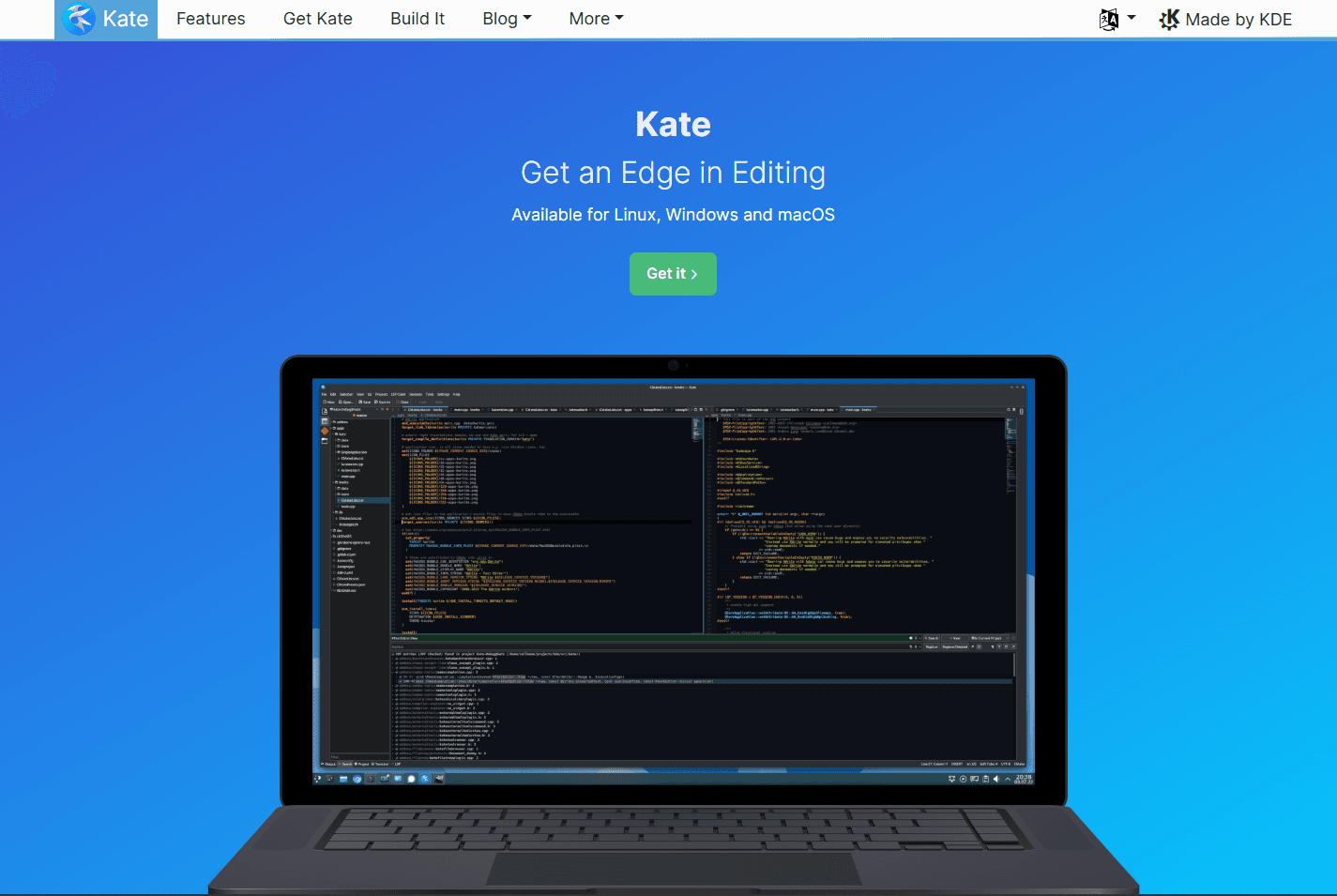
Kate is the most natural graphical choice for KDE Plasma. It follows KDE themes and conventions while still providing the parts of a development workspace that matter for HTML: projects, file browsing, search, code folding, an integrated terminal, and an optional LSP client.
Kate works outside KDE as well, but package dependencies and visual integration are most predictable on a Plasma desktop. It may already be present on some KDE-focused distribution images, though readers should not assume every Kubuntu, KDE neon, or Manjaro KDE installation includes it.
What you get:
- HTML syntax highlighting and code folding
- Project and file-browser plugins
- An integrated terminal panel
- Language-server support through the LSP Client plugin
- Native KDE integration
- A free, open-source application
What you don't get:
- Live reload
- Language-server features without installing a server
- Built-in Emmet abbreviation expansion
- The smallest dependency set on a non-KDE desktop
HTML syntax highlighting works without setup. For completion and diagnostics, enable the LSP Client plugin, install a compatible HTML language server, and point Kate to that executable. The plugin is the client layer, so enabling it alone does not supply the server.
Kate does not include browser reload, but its terminal panel provides a simple preview route. Run python3 -m http.server from the project directory, open localhost:8000 in a browser, and refresh after saving. This keeps the server beside the editor without pretending that Kate has a built-in live preview.
Install Kate with sudo apt install kate on Debian or Ubuntu or sudo pacman -S kate on Arch. Choose it before VS Code when KDE integration and a native Qt interface matter more than an extension marketplace or automatic browser refresh.
6. Brackets (Best for CSS Inline Editing)
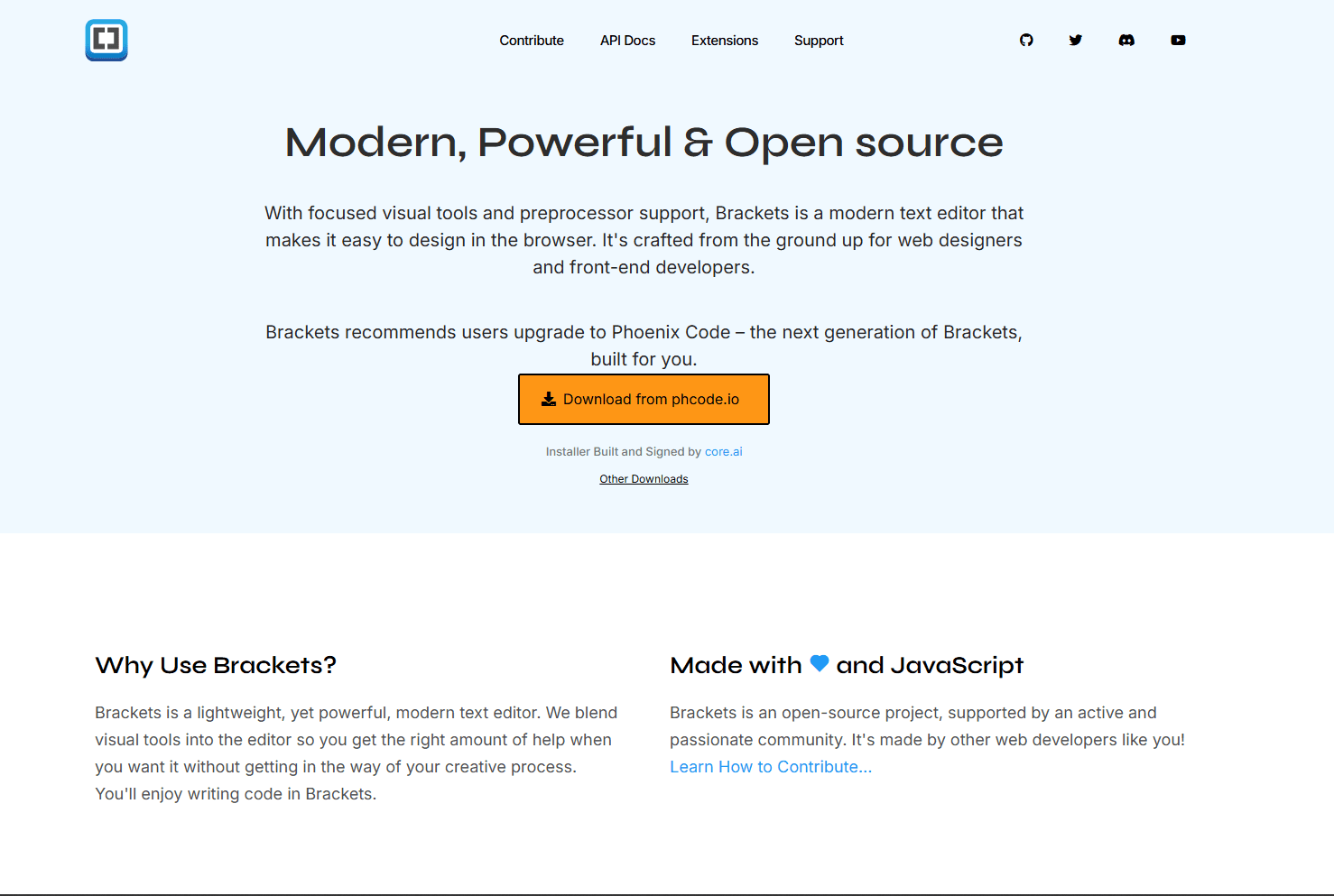
Brackets remains in this ranking for one distinctive workflow: editing a class rule beside the HTML that uses it. In a compatible legacy build, place the cursor on a class name and press Ctrl + E to open the related CSS rules inline instead of switching files.
Its Live Preview feature can connect the editor to Chrome, update styles while you work, and highlight the page element associated with the current HTML. That combination made Brackets unusually direct for small HTML and CSS projects.
What you get:
- Live Preview with element highlighting
- CSS Quick Edit with Ctrl + E
- Real-time CSS changes in preview
- Open-source desktop code
- A focused HTML, CSS, and JavaScript interface
What you don't get:
- Active desktop feature development
- A current extension ecosystem
- A current official Linux package
- Predictable compatibility with current distributions
The problem is current availability. The Brackets desktop repository is in maintenance mode and accepts security patches only; active development moved to Phoenix Code. Current desktop release assets also do not provide a dependable official Linux installation path for a new user.
Keep Brackets only if an existing Linux installation already works with the project and browser. Do not build a new long-term workflow around an old AppImage from an unofficial archive. VS Code with Live Server is the safer current replacement, even though it does not reproduce Brackets' inline CSS interaction exactly.
7. Micro (Best for Terminal Editing Without Vim)
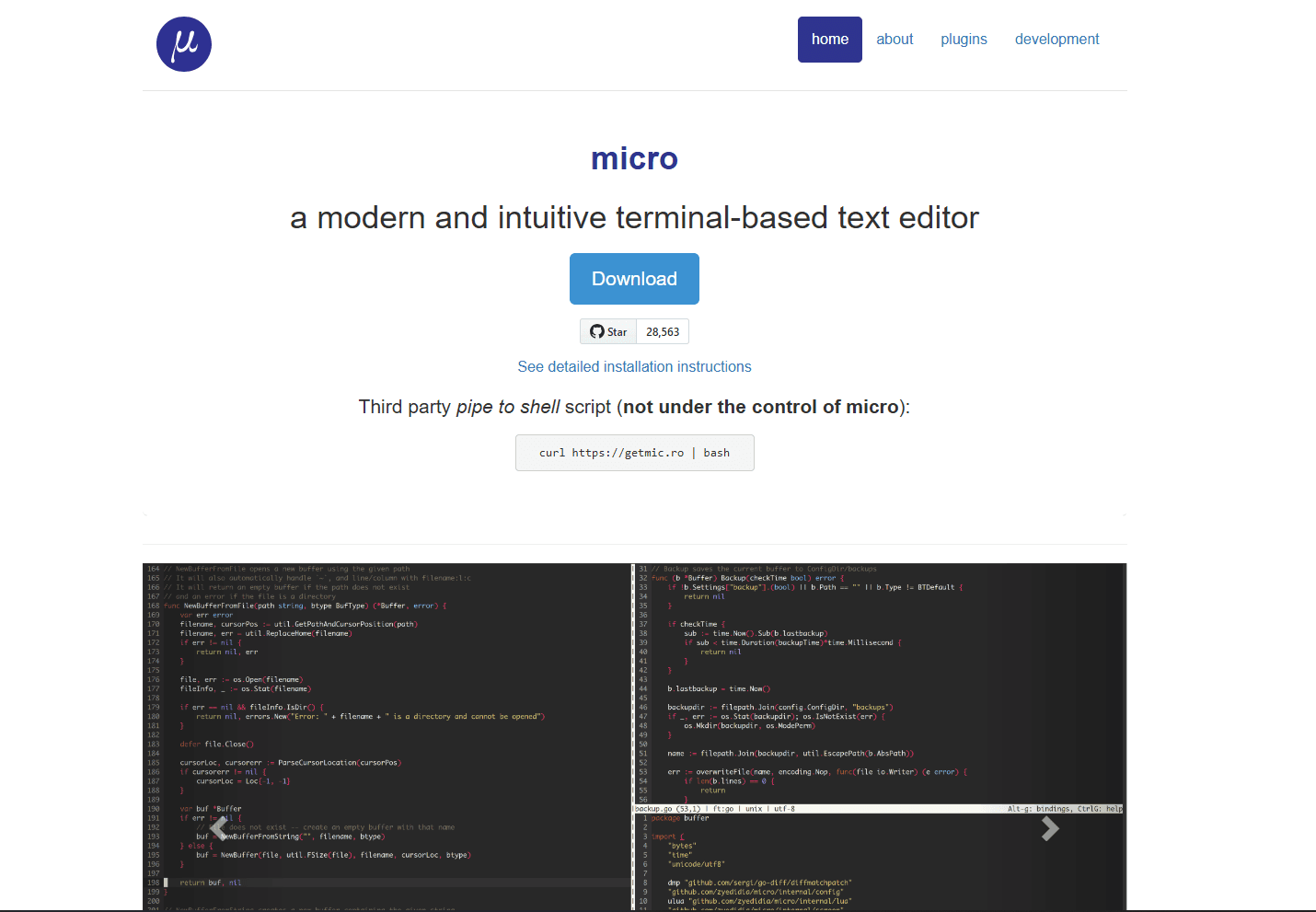
Micro is the easiest terminal editor in this list to approach without learning Vim commands first. It uses familiar shortcuts, supports the mouse, and opens files directly in a terminal or SSH session.
Micro is more capable than a basic emergency editor. The official project documents multiple cursors, splits and tabs, persistent undo, a diff gutter, a Lua plugin system, simple completion, automatic linting hooks, and syntax highlighting for more than 130 languages.
What you get:
- Familiar save, copy, paste, and undo shortcuts
- Mouse selection, splits, tabs, and multiple cursors
- HTML syntax highlighting
- A built-in plugin manager and help system
- Terminal and SSH operation
- A free, open-source editor
What you don't get:
- Live preview
- Emmet support
- HTML language-server features by default
- A graphical project or browser panel
The basic controls are direct: Ctrl + S saves, Ctrl + C and Ctrl + V copy and paste, and Ctrl + Q quits. Press Ctrl + E and enter help to open Micro's built-in documentation when a less common command is needed.
Install it with sudo apt install micro where the distribution provides a package, or use snap install micro --classic. Pick Micro for quick corrections to an HTML template or configuration file on a server. Pick Neovim instead when completion, diagnostics, Emmet, and a deeply configured terminal workflow justify the extra setup.
HTML Editor Comparison
Which Linux HTML Editor Should You Actually Use?
Choose VS Code with Live Server when HTML is part of an active website or application. It provides the clearest path from editing to browser feedback, and the same workspace covers CSS, JavaScript, Git, search, and terminal commands.
Choose Geany for a smaller native editor that can still manage code, files, and a terminal. Choose Bluefish when the project is primarily web content and benefits from HTML dialogs, Emmet, remote files, snippets, and multi-file search. KDE Plasma users should try Kate first when desktop integration matters more than live reload.
For terminal and SSH work, Micro is the easier choice for occasional changes. Neovim with HTML LSP takes longer to configure, but it is the better terminal environment for someone who writes HTML regularly and wants completion, hover details, diagnostics, and Emmet.
Keep Brackets only for an existing compatible installation that relies on Quick Edit or its original Live Preview behavior. Its maintenance status and missing current Linux package make it a poor foundation for a new setup.
Frequently Asked Questions
What is the best free HTML editor for Linux?
VS Code with the Live Server extension is the best free HTML editor for most Linux web projects. HTML completion, formatting, validation, and Emmet work in the base editor, while Live Server adds automatic browser refresh. Geany is the better lightweight graphical alternative and is fully open source.
How do I get live preview for HTML on Linux?
Install VS Code and add Live Server by Ritwick Dey, then select Go Live from the status bar. For an editor-independent method, run python3 -m http.server in the project directory and open localhost:8000 in a browser. Geany and Kate can launch or host a manual preview, but neither reloads the browser automatically without another tool.
Does VS Code work well for HTML development on Linux?
Yes. VS Code provides the same core HTML language support on Linux as on its other desktop platforms, including IntelliSense, formatting, validation, folding, document symbols, and Emmet. Microsoft supplies .deb, .rpm, and Snap installation routes. Its Electron base is broader than a focused native editor, but that extra scope is useful for multi-file web projects.
What is a lightweight HTML editor for Ubuntu?
Geany is the best lightweight graphical HTML editor for Ubuntu in this list. Install it with sudo apt install geany for syntax highlighting, tag completion, folding, and a configurable browser command. For terminal editing, Micro uses familiar shortcuts and requires less setup than Neovim, while Kate is the natural alternative on a KDE Plasma desktop.
Related Reading
If you need to combine multiple HTML files into one, the HTML merger tool handles that directly in your browser without installing anything.
Other platform options:
Desktop alternatives:
If you're working with other file formats, check out the CSV merger, Excel merger, JSON merger, or XML merger tools.
Read More
All Articles
7 Best HTML Editor Apps for Android in 2026 (Tested & Ranked)
Compare 7 best HTML editor apps for Android with live preview, Emmet support, and cloud sync. Find the right editor for mobile web development.
6 Best CSV Editors for Linux in 2026 (GUI & Terminal)
Compare the best CSV editors for Linux, including VisiData, LibreOffice Calc, Gnumeric, Tad, csvkit, and qsv for GUI and terminal workflows.
8 Best Markdown Editors for Linux in 2026 (GUI & Terminal)
Compare eight of the best Markdown editors for Linux, including VS Code, Kate, Vim, ghostwriter, and terminal tools for Ubuntu, Fedora, and Arch Linux.