8 Best SVG Editors for Windows in 2026 (Free & Pro)

On this page
A Windows SVG workflow can get messy in small, annoying ways. You download an icon from a client folder, open it in a design app, make one tiny color change, export it again, and suddenly the file has extra groups, a different canvas size, or text that no longer behaves the way it did before.
That is the part most "vector editor" lists skip. SVG is artwork and code that needs to scale in browsers, sit inside React components, load quickly, and survive handoff between designers and developers.
This guide is for Windows users who need to create, edit, clean up, or export SVG files without turning a simple icon job into a full production headache. Some tools are better for pure SVG editing. Others are better for illustration, UI design, signage, or team collaboration.
What Matters in a Windows SVG Editor
Choose the editor around the file's destination, not the length of its feature list. Check these five areas before installing anything:
- SVG output: Prefer exports without unused groups, hidden layers, oversized embedded images, or unnecessary app metadata.
- Path controls: Look for direct node, curve, stroke, path-joining, simplification, and boolean tools.
- Scaling: The canvas dimensions and viewBox should be easy to inspect so the SVG scales correctly in browsers, apps, and icon systems.
- Windows setup: Decide whether you need a desktop installer, browser app, PWA, or open-source package, then confirm support for your Windows version.
- Workflow fit: SVG-first editors suit icons and web assets. Full vector suites suit illustration, print, or signage, while shared design platforms suit product teams.
1. Boxy SVG (Best for Clean SVG Editing)
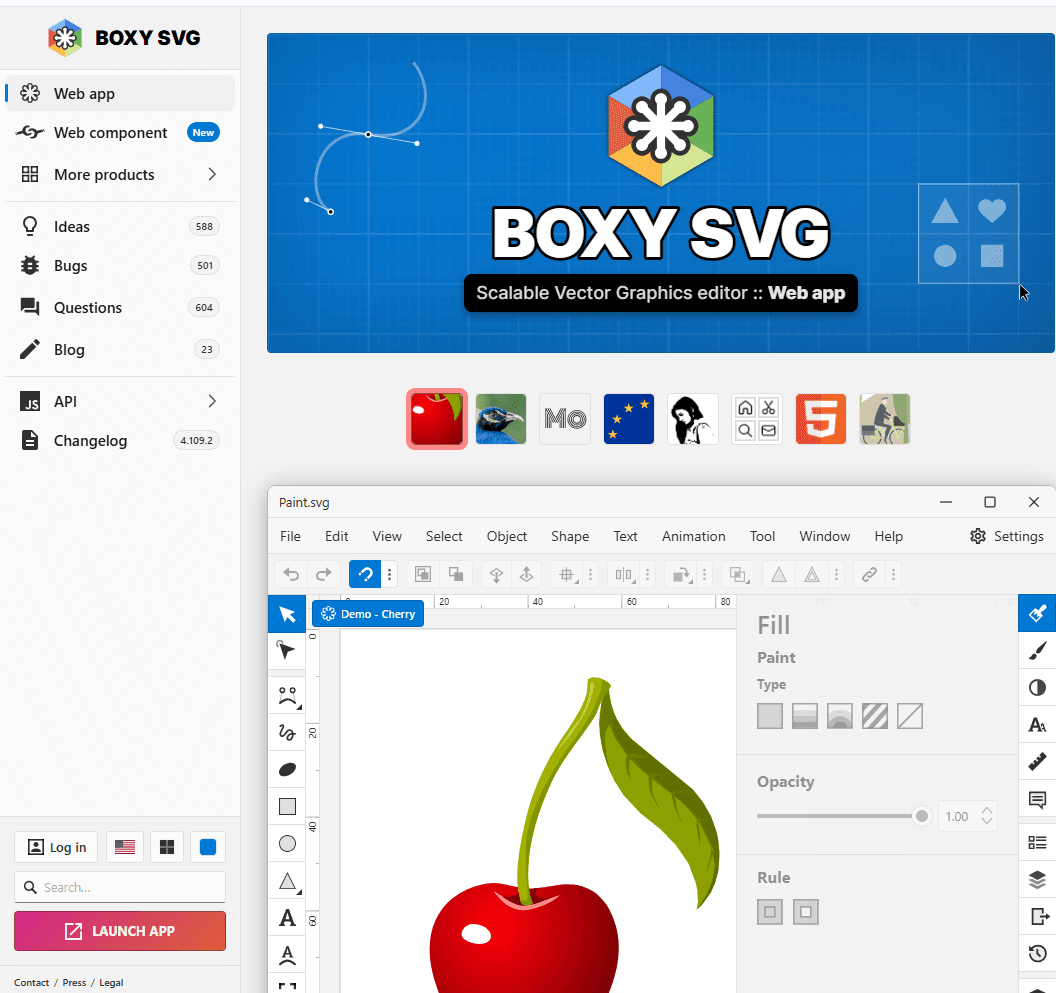
Boxy SVG is the most direct choice when the file you care about is an SVG. It is not trying to be a full print suite or a giant creative platform. It focuses on SVG drawing and editing.
That makes it useful on Windows when you need to open an existing SVG, adjust shapes, inspect structure, edit paths, change gradients, and export something that still behaves like an SVG file rather than a mysterious design-app artifact.
What you get:
- SVG-first editing workflow
- Shape, path, text, gradient, marker, and symbol tools
- Visual editing with SVG-aware structure
- Good fit for icons, logos, UI assets, and web graphics
- Lighter interface than Illustrator or CorelDRAW
- Browser access and an installable PWA on Windows
What you don't get:
- Full print-production workflow
- Deep agency illustration ecosystem
- Figma-style collaboration
- Best choice for complex multi-page documents
Boxy SVG is the practical first stop for Windows users who need to edit SVG files themselves. It is especially useful when the goal is clean web output, not a poster, brochure, or full design system.
If you regularly open SVG files from developers, icon libraries, app projects, or client websites, Boxy SVG keeps the workflow close to the file format.
Download: Get Boxy SVG
2. Inkscape (Best Free SVG Editor for Windows)
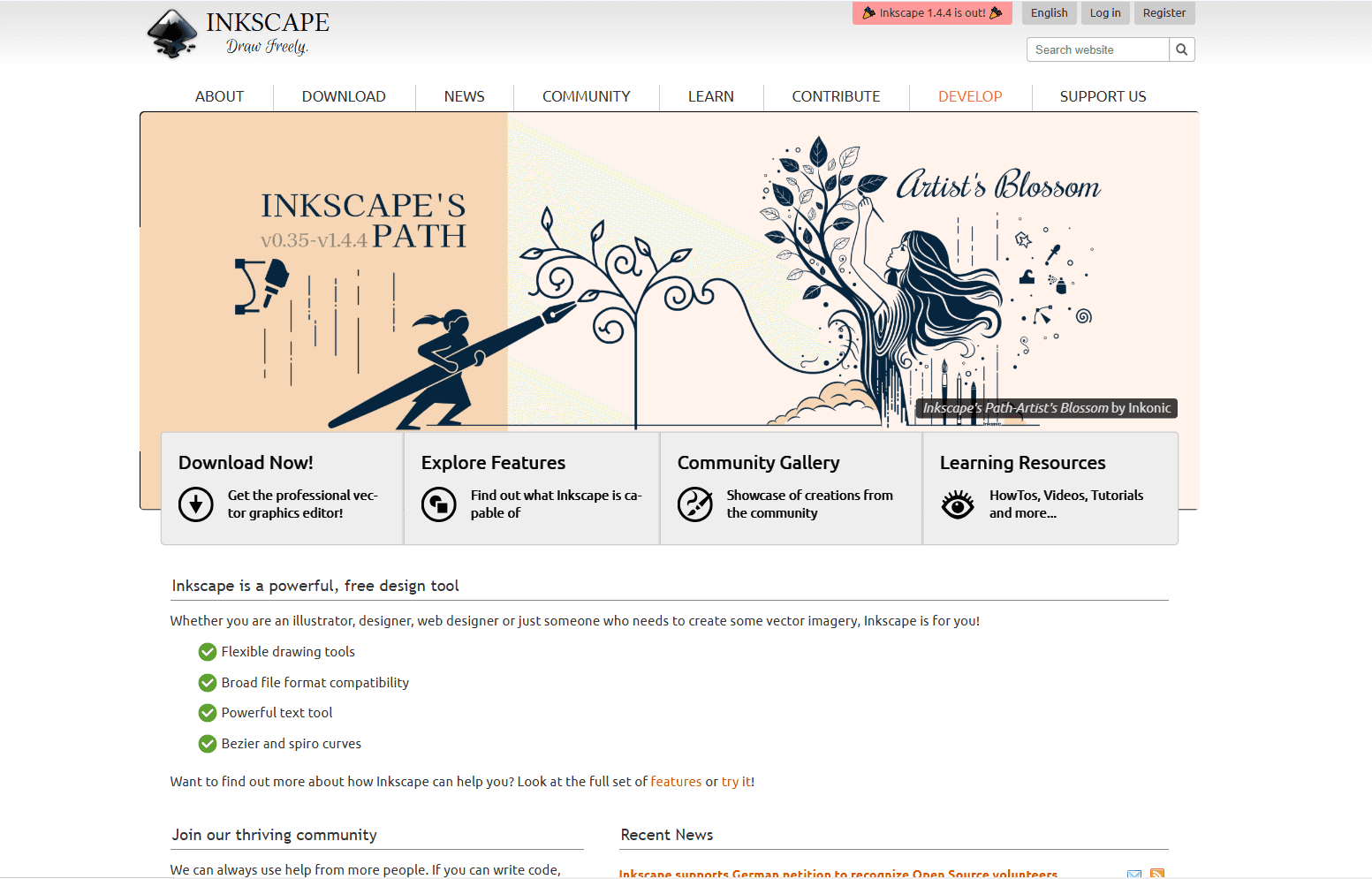
Inkscape is the best free and open-source SVG editor for Windows. It uses SVG as its native format and gives you serious vector editing tools without a subscription.
The interface is not the slickest option on this list, but the capability is real. You get node editing, path operations, boolean tools, alignment, layers, gradients, text on path, bitmap tracing, and extension support. Inkscape 1.4.4 also added official installation files for Windows on ARM.
What you get:
- Completely free and open source
- SVG as the native file format
- Strong node and path editing
- Bitmap tracing for old logos or raster icons
- Boolean operations and alignment tools
- Useful extensions for advanced workflows
- Works well for students, hobbyists, developers, and budget-conscious teams
What you don't get:
- Most polished Windows-native interface
- Easiest beginner experience
- Built-in team collaboration
- Guaranteed smooth performance with very complex documents
Inkscape fits the person who wants real SVG control and does not want to pay for Illustrator. It is also a good safety tool to keep installed even if you mostly use another editor.
Use it for repair work, tracing, open-source projects, and technical SVG edits. If you want a simpler interface for basic web icons, Boxy SVG is the more focused option.
Download: Get Inkscape
3. Affinity (Best Free Professional Vector App)
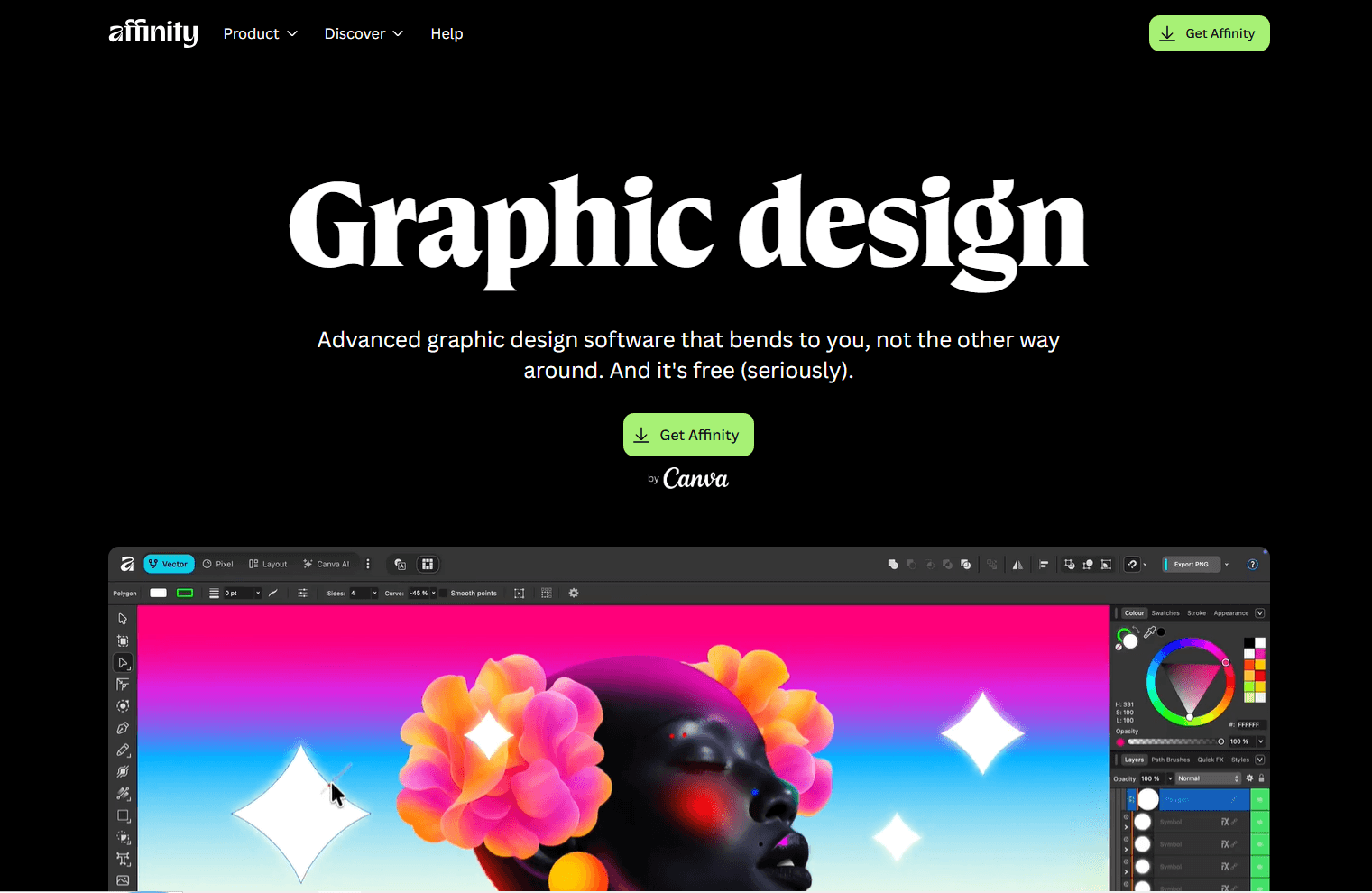
Affinity is now Canva's unified creative app rather than the old standalone Affinity Designer. For Windows users, that makes it a free professional design option for vector work.
Affinity is not an SVG-only editor. It is better understood as a broader creative app with vector, raster, and layout workflows. That is useful when the same project needs a logo, social graphic, product card, PDF export, and SVG version.
What you get:
- Professional vector design tools
- Good path, shape, layout, and image-editing workflow
- Free for individuals, including its vector and export tools
- Strong alternative to subscription-based creative tools
- Useful for logos, brand graphics, illustrations, and marketing assets
- Windows desktop workflow instead of browser-only editing
What you don't get:
- SVG-first code inspection
- Same direct SVG cleanup feel as Boxy SVG
- Longstanding standalone Affinity Designer workflow for new installs
- An account-free setup, because download and activation require a free Canva account
- Best workflow if you only need quick icon edits
Affinity is a strong pick when SVG export is one part of broader design work. Its creative and export tools are free for individuals, while optional Canva AI features require an eligible Canva premium plan. It is less ideal when your whole task is "make this SVG markup cleaner."
Use Affinity to create polished vector assets. Use Boxy SVG, Inkscape, or an optimizer afterward if the final SVG needs to be production-clean for a website.
Download: Get Affinity
4. VectorStyler (Best No-Subscription Illustrator Alternative)
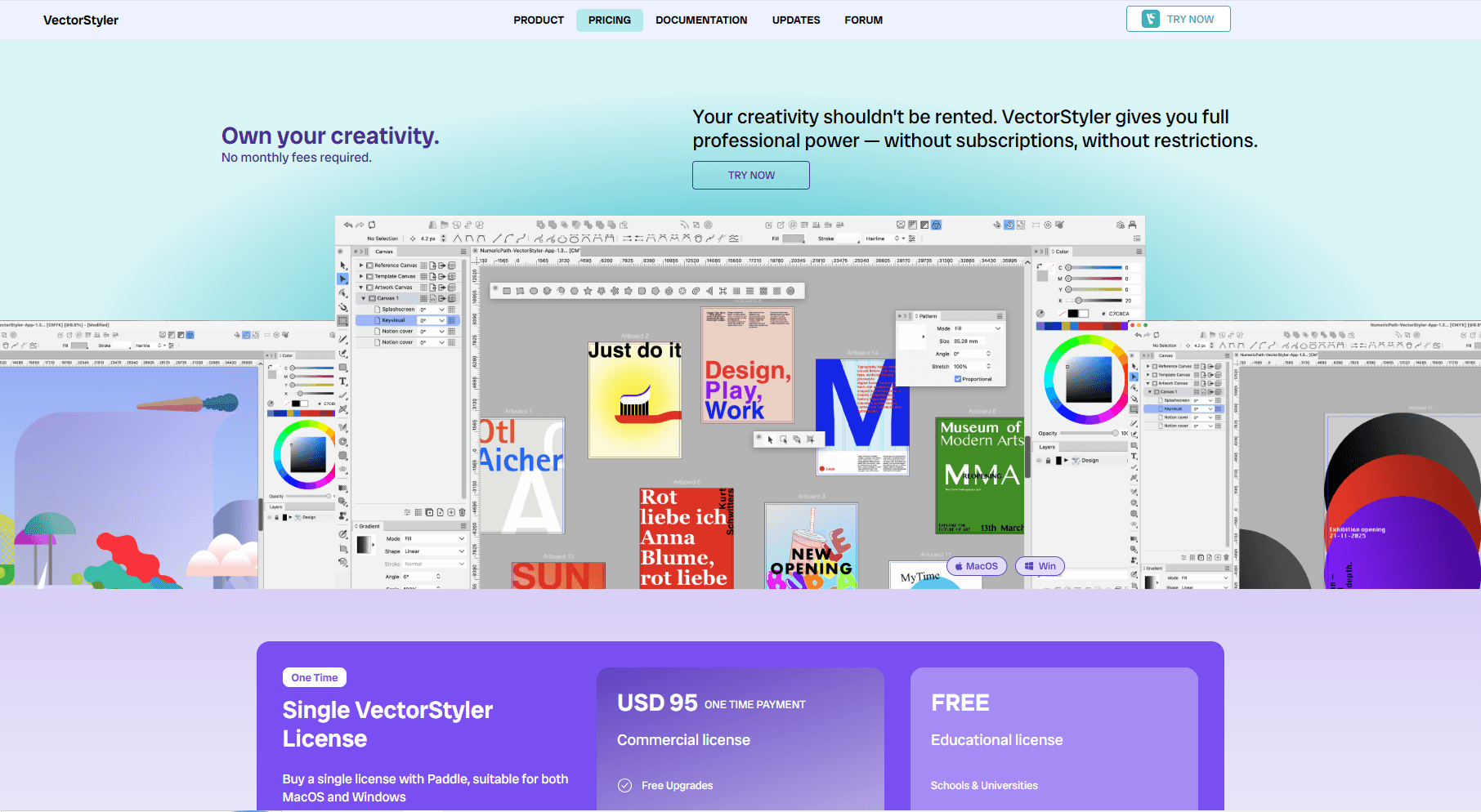
VectorStyler is a powerful vector illustration app for Windows and macOS with a one-time license. It has a deep toolset for advanced vector drawing.
It supports documented formats including PDF, SVG, PostScript, EPS, PNG, JPEG, and TIFF, and it is built for people who want serious vector tools without renting software forever. The Windows application also has a fully enabled 42-day trial.
What you get:
- Native Windows app
- One-time license instead of subscription
- Advanced path and shape tools
- Vector brushes, effects, styles, typography, and snapping
- SVG, PDF, PostScript, EPS, PNG, JPEG, and TIFF format support
- Good fit for illustrators who want depth without a monthly subscription
What you don't get:
- Free consumer-friendly option
- Built-in team collaboration
- Simplest beginner interface
- Figma-style collaboration or web handoff
VectorStyler is best for people who already understand vector editing and want more control. It can be too much for quick SVG cleanup, but it is impressive for detailed illustration work.
If Illustrator feels expensive and Inkscape feels too rough, VectorStyler is worth testing.
Download: Get VectorStyler
5. Adobe Illustrator (Best for Professional Illustration)
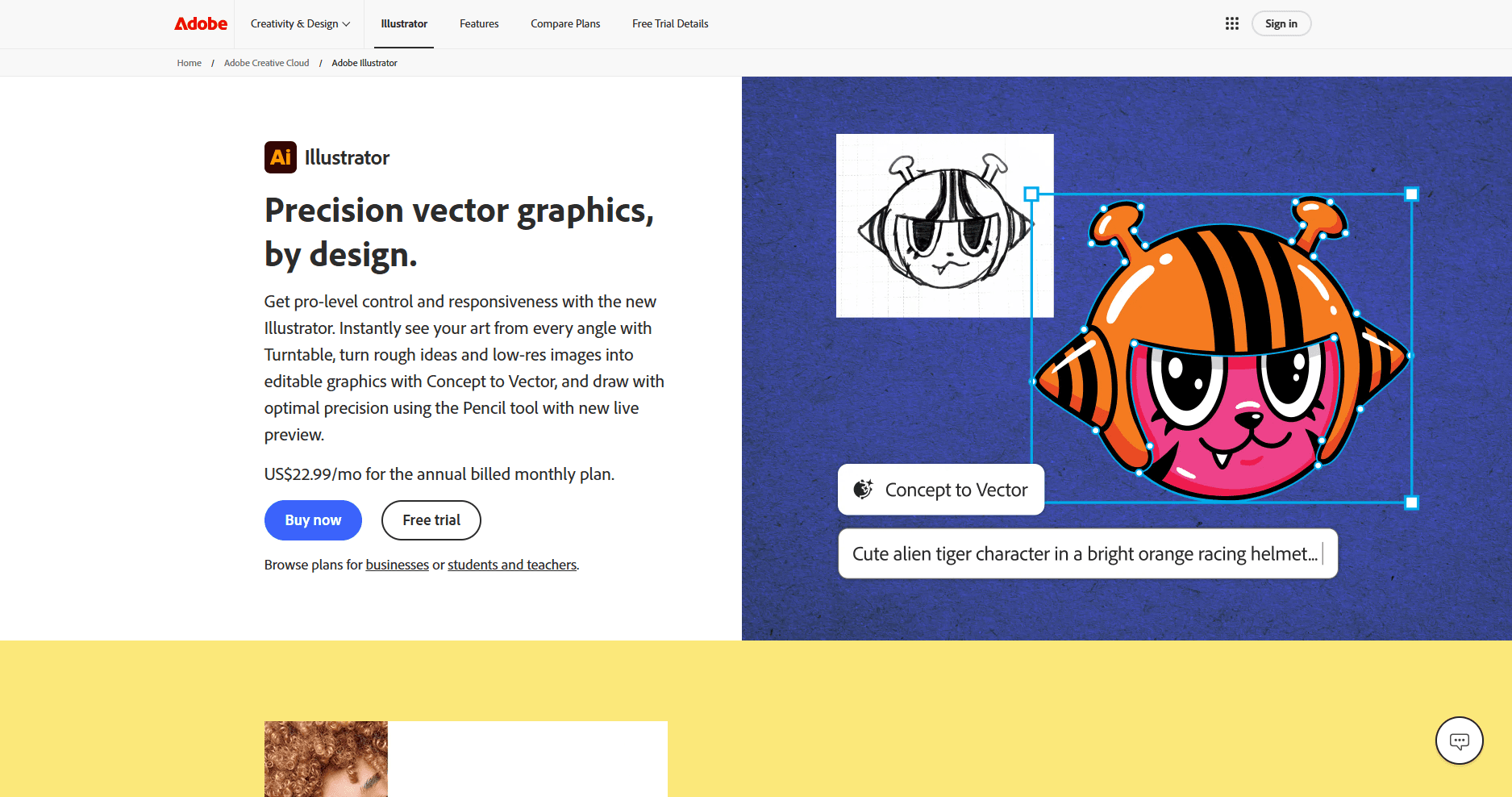
Adobe Illustrator is a professional vector editor for agencies, illustrators, and brand teams. On Windows, it fits when clients expect Adobe files, Creative Cloud libraries, advanced typography, and deep illustration tools.
Illustrator is excellent for creating complex vector artwork. It is less attractive if you only need to change an SVG color or adjust an icon's bounds.
What you get:
- Professional vector illustration tools
- Strong path, type, shape, brush, and pattern features
- Deep Adobe ecosystem support
- Good compatibility with agency and client workflows
- Advanced AI-assisted vector features
- Useful for logos, packaging, print, web graphics, and brand systems
What you don't get:
- Low price
- Lightweight install
- Cleanest SVG export by default
- Best experience for occasional SVG edits
Illustrator makes sense when SVG is one export format from serious design work. It is usually overkill for simple web SVG editing.
If you export SVG from Illustrator for production, inspect the result before shipping. Adobe's SVG export guidance covers minification, IDs, text, artboards, and component export. You may still want to simplify paths, remove metadata, and run the file through an optimizer.
Download: Get Adobe Illustrator
6. CorelDRAW (Best for Windows Production Graphics)
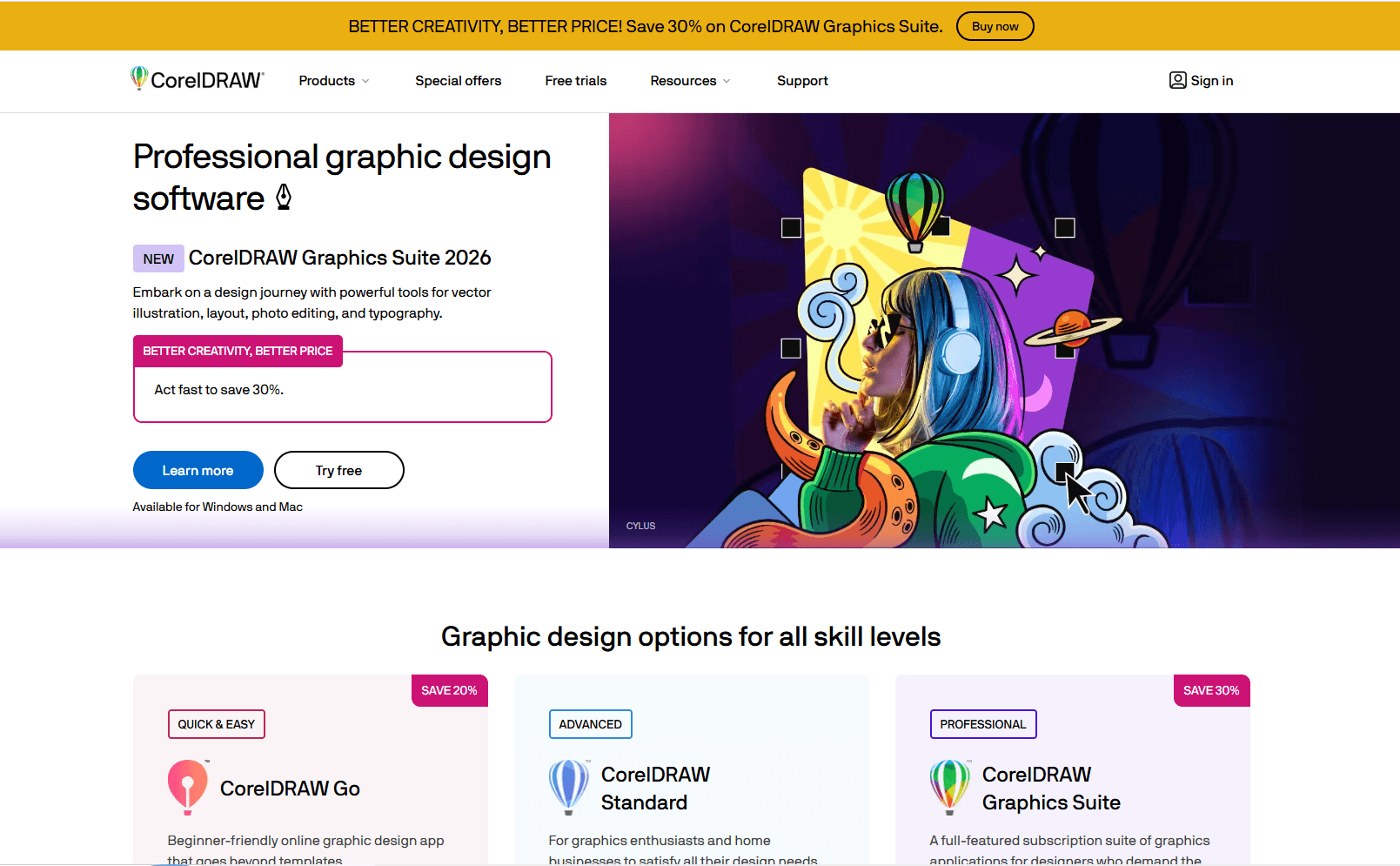
CorelDRAW has a long Windows history and still fits production-heavy design work: signage, vinyl cutting, print shops, engraving, packaging, marketing graphics, and technical vector layouts.
For SVG specifically, CorelDRAW is strongest when SVG is part of a broader production workflow. It is not the cleanest tool for a developer editing a small icon, but it is practical for Windows users who already work in print, signs, or commercial graphics.
What you get:
- Mature Windows vector design suite
- Strong production graphics workflow
- Vector illustration, layout, photo editing, and typography tools
- Available for Windows, macOS, and the web
- Good fit for signs, print, apparel, engraving, and business graphics
- Subscription and one-time purchase options, plus a free trial
What you don't get:
- Lightweight SVG-only workflow
- Free open-source option
- Best interface for developers
- Cleanest web SVG output without cleanup
CorelDRAW Graphics Suite 2026 combines SVG import and export with illustration, page layout, photo editing, and production-oriented format support. If your SVGs go to a cutter, printer, or production machine, CorelDRAW may fit better than Figma or Boxy SVG.
For web icons and app assets, choose a more SVG-focused tool.
Download: Get CorelDRAW
7. Figma (Best for Team SVG Export)
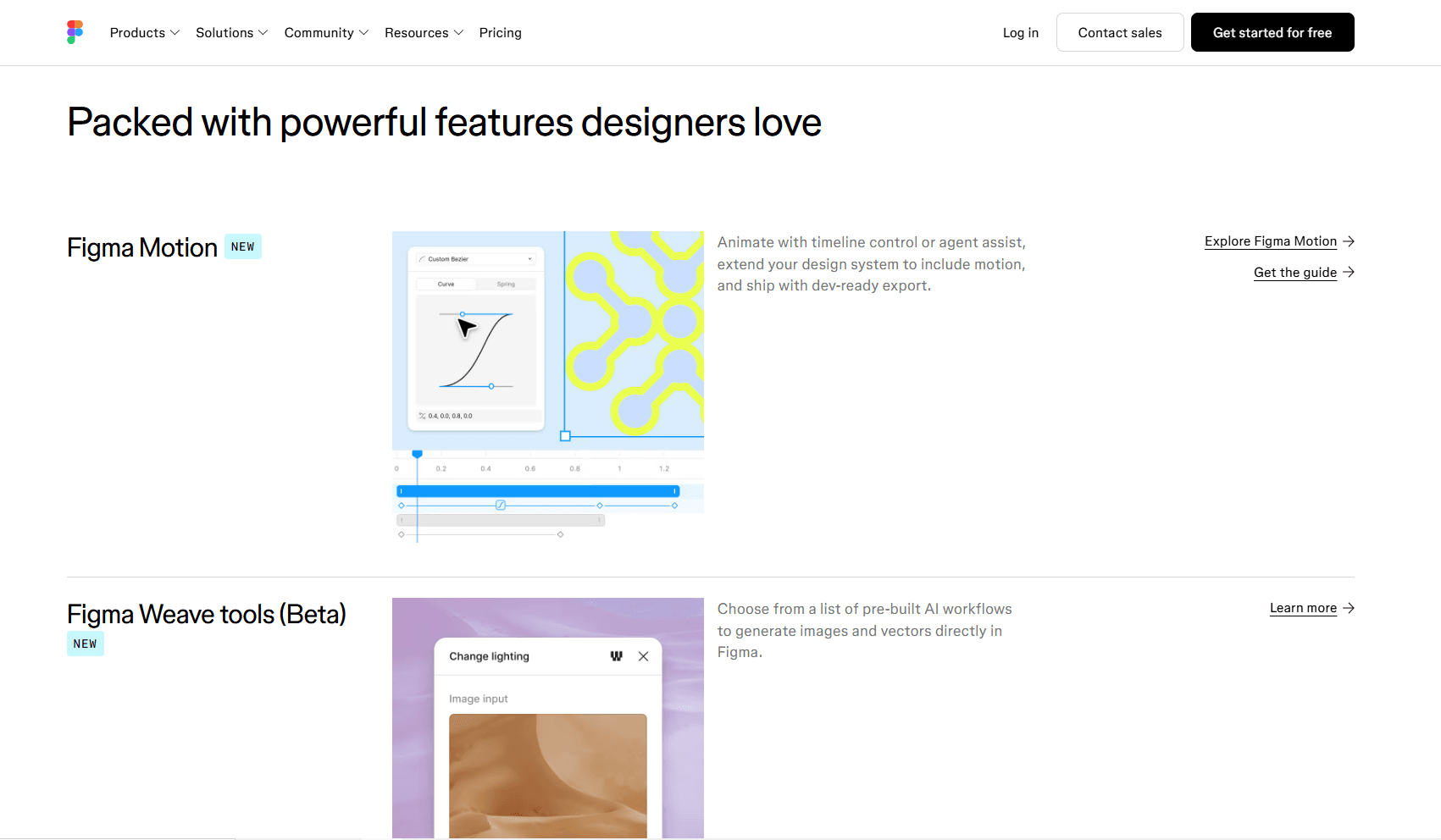
Figma is not Windows-specific, but its browser and desktop interfaces let Windows teams create and export SVG assets for websites and apps.
Figma works best when SVG export is part of a design-system workflow: icons, components, product screens, buttons, empty states, illustrations, and developer handoff.
What you get:
- Works in browser and desktop app
- Real-time collaboration
- Easy SVG export from layers, frames, groups, and components
- Design systems, components, variables, and Dev Mode workflows
- Good fit for product teams and web apps
- Free plan available
What you don't get:
- Offline-first desktop workflow
- Raw SVG markup editing
- Deep illustration tools like Illustrator or VectorStyler
- Perfect production SVG output every time
Figma's export workflow is convenient: select the asset, add an export setting, choose SVG, and export. Its current SVG settings outline text by default, export strokes as fills, and provide controls for IDs and stroke simplification. Disable Outline text when the recipient must edit the text, then verify that the same fonts are available.
Still, Figma is a cloud-based design-system tool first and does not provide a dedicated offline mode. For final production SVGs, check text handling, file size, path complexity, and unnecessary wrappers before committing assets to code.
Use it: Open Figma
8. SVGEdit (Best No-Install Browser SVG Editor)
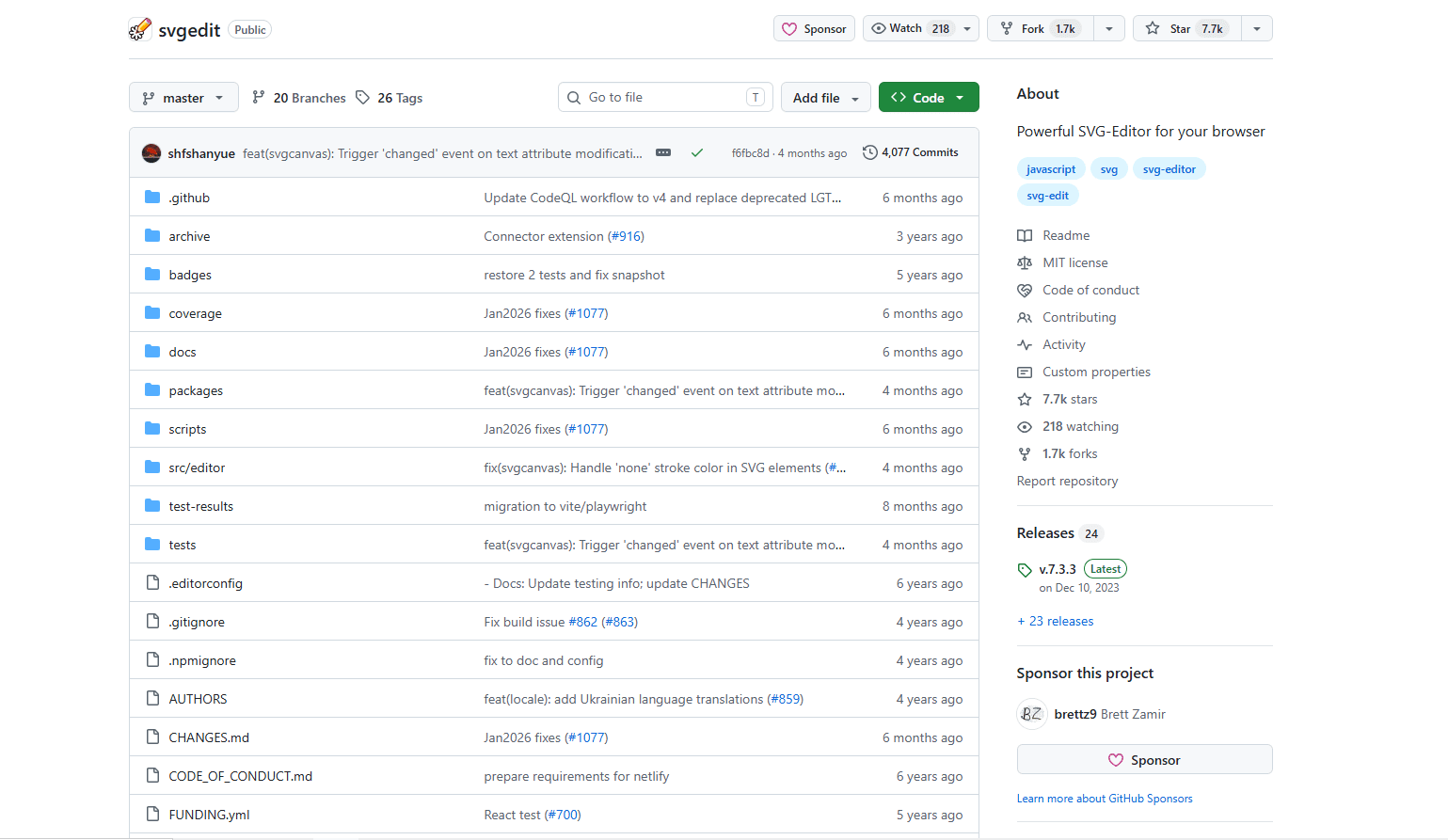
SVGEdit is a web-based open-source SVG editor that runs in modern browsers. It is not as polished as commercial desktop tools, but it is useful when you need a quick no-install option, and its official repository continues to publish releases.
This matters on Windows machines where installing software is restricted: office PCs, school labs, locked-down enterprise laptops, or shared machines.
What you get:
- Browser-based SVG editing
- Open-source project
- No desktop install required
- Basic drawing and shape editing
- Useful for quick edits on restricted Windows machines
- Can be self-hosted by technical teams
What you don't get:
- Full professional illustration workflow
- Best UI polish
- Deep typography or print tools
- Native Windows file integration and desktop-suite features
SVGEdit is not the editor I would choose for serious daily design. It is the tool I would remember when I need to make a small edit and cannot install anything.
For sensitive SVG files, prefer local desktop tools or a self-hosted SVGEdit instance instead of uploading private assets into random online editors.
Use it: SVGEdit on GitHub
SVG Editor Comparison Table
Which SVG Editor Should You Actually Use on Windows?
Match the editor to the work you do most often:
- Boxy SVG: Choose it for a focused, direct SVG editing workflow.
- Inkscape: Pick it when you need a free desktop editor for general SVG work.
- Affinity: Use it when SVG is one part of broader professional design work.
- VectorStyler: Choose it for advanced illustration tools without a subscription.
- Illustrator: Pick it for agency work, Adobe files, or complex professional vector art.
- CorelDRAW: Use it when SVG connects to signs, print, cutting, engraving, or production graphics.
- Figma: Choose it when SVG assets belong to a shared product design system.
- SVGEdit: Pick it for quick browser-based edits when you cannot install software.
Quick Picks for Windows SVG Editing
Best overall for SVG files: Boxy SVG
Best free editor: Inkscape
Best free professional design app: Affinity
Best no-subscription pro app: VectorStyler
Best for production shops: CorelDRAW
Best for teams: Figma
Best no-install option: SVGEdit
Best for agency workflows: Adobe Illustrator
Tips for Cleaner SVG Files on Windows
Before exporting, select only the object or frame you actually need. Full-canvas exports often include empty space or unrelated hidden objects.
Check the viewBox after export. If the SVG does not scale correctly in a browser, the viewBox is often the first thing to inspect.
Avoid embedding large images inside SVG unless you really need them. A simple-looking SVG can become huge when it carries base64 image data.
Convert text to paths when the SVG must render exactly everywhere. Keep text editable when the file is still in design.
Simplify paths after tracing bitmap logos. Auto-trace tools often create hundreds or thousands of unnecessary points.
Run final web assets through an optimizer like SVGO. Visual editors are for editing. Optimizers are better at removing redundant markup.
Frequently Asked Questions
What is the best SVG editor for Windows?
Boxy SVG is the best choice for direct SVG editing on Windows. Inkscape is the best free desktop option. Illustrator, CorelDRAW, VectorStyler, Affinity, and Figma are better when SVG export is part of a larger design workflow.
What is the best free SVG editor for Windows?
Inkscape is the best fully free and open-source SVG editor for Windows. Affinity is also a strong free option for broader vector design, but Inkscape is more directly SVG-native.
Can I edit SVG files in Paint on Windows?
Microsoft Paint does not provide the node, path, and SVG export controls required for vector editing. Use Boxy SVG, Inkscape, Affinity, Illustrator, CorelDRAW, VectorStyler, Figma, or SVGEdit when you need to edit vector paths and export SVG.
Is Inkscape good enough for professional SVG work?
Yes, especially for technical SVG editing, path cleanup, tracing, and open-source workflows. It is less polished than commercial tools, but it is capable. For agency collaboration or complex brand systems, Illustrator, CorelDRAW, Figma, or Affinity may fit better.
Is Figma good for SVG editing on Windows?
Figma is good for creating and exporting SVG assets from UI designs. It is not the best tool for raw SVG cleanup or markup-level editing. Use it for design systems and team handoff, then optimize final SVG files before production.
How do I reduce SVG file size on Windows?
Remove hidden layers, simplify traced paths, avoid embedded raster images, export only the selected asset, and run the final file through an SVG optimizer. Also check gradients, masks, filters, and text outlines because they can add complexity quickly.
Related Reading
Read More
All Articles
8 Best SVG Editors for Mac in 2026 (Vector & Web Design)
Compare the best SVG editors for Mac, including Boxy SVG, Inkscape, Affinity, Linearity Curve, Sketch, Figma, Illustrator, and Amadine for clean vector workflows.
8 Best SVG Editors & Viewers for iPad in 2026
Compare eight SVG editors and viewers for iPad, from Apple Pencil vector tools to local viewers, source editing, and clean SVG export.
8 Best SVG Editors for Linux in 2026 (Free & Open Source)
Compare the best free and open-source SVG editors for Linux and Ubuntu, including Inkscape alternatives, vector tools, SVG viewers, and browser apps.