9 Best XML Editors for Windows in 2026 (Free & Tested)

On this page
VS Code with the Red Hat XML extension is the best free option for most Windows users. It adds XSD and DTD validation, error highlighting, schema-aware completion, formatting, and outline navigation. Choose XML Notepad for a visual tree or Notepad with XML Tools for quick edits.
Oxygen XML Editor is better suited to advanced work such as XSLT and XQuery debugging, visual schema design, publishing, and XML databases. This guide compares nine Windows options, including free tools, free editions, and paid evaluations.
What Makes a Good XML Editor
Look for the features that match your XML workflow:
- Well-formedness checks: Catch broken nesting, missing tags, and invalid attributes while you type.
- Schema validation: Verify the document against its XSD, DTD, RELAX NG, or Schematron rules.
- Tree or outline navigation: Make deeply nested files easier to explore.
- XPath support: Find nodes by structure instead of searching for repeated text.
- Large-file handling: Test unusually large documents with your own data because plugins, schemas, and nesting can affect performance.
- Local processing: Use a desktop editor for confidential XML unless your organization permits the chosen online service.
The 9 Best Free XML Editors for Windows in 2026
1. Visual Studio Code
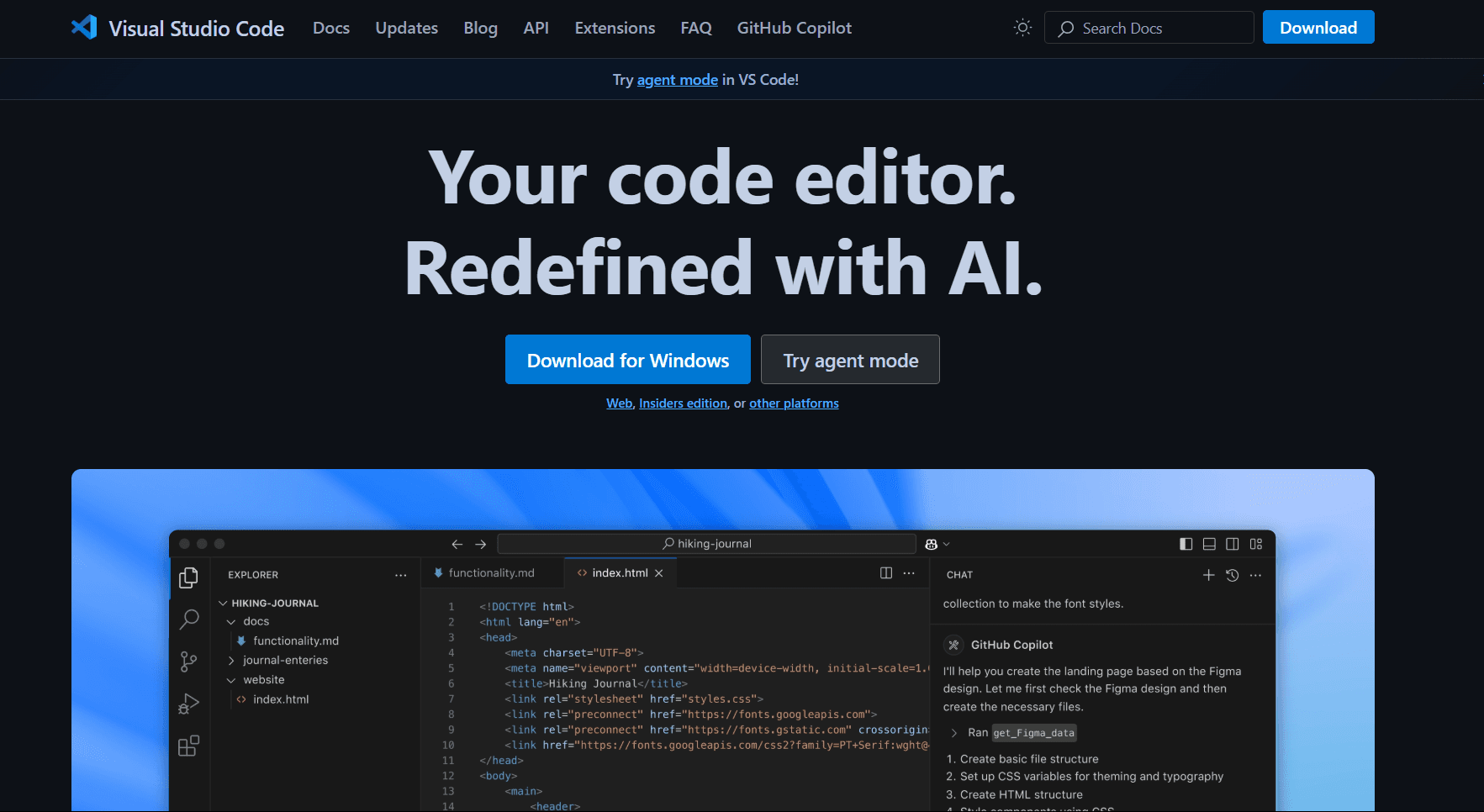
Visual Studio Code becomes a genuinely powerful XML environment once the right extension is installed.
The extension you want is XML by Red Hat. It's free, actively maintained, and transforms VS Code's basic XML support into something much more capable.
What you get:
- Full XSD and DTD validation
- Context-aware auto-completion based on your schema
- Real-time error highlighting
- Document formatting
- Document symbols and outline navigation
- XML catalogs support for managing schema references
- Integrated terminal, Git integration, multi-file search
- Customizable keyboard shortcuts
What you don't get:
- Visual schema designers
- Built-in XSLT debuggers
- Some specialized features that dedicated XML IDEs provide
The setup is straightforward. Install the extension, make sure your XML files reference their schema, and you're up and running. If you need to evaluate XPath expressions, add a separate XPath-capable tool or use one of the dedicated editors below.
Download: VS Code. Free to use.
2. Notepad with XML Tools Plugin
Notepad with the XML Tools plugin becomes a capable XML editor for quick work. The combination gives you formatting, validation, and XPath tools without a full IDE.
What you get:
- Auto formatting (prettify minified XML)
- Tag matching and highlighting
- XPath evaluation
- XSD and DTD validation
- Portable (runs from USB drive)
- Extremely lightweight
- Fast file opening and editing
- Completely free and open source
What you don't get:
- Tree view navigation
- Schema-aware auto completion
- XSLT debugging
The XML Tools plugin adds auto formatting (turning a single line XML blob into readable, properly indented content), tag matching, XPath evaluation, and validation against XSD or DTD schemas. Go to Plugins > Plugins Admin, search for XML Tools, install it, and you're done. The plugin integrates cleanly into Notepad and adds a dedicated menu for all its XML functions.
Download: Notepad. Free and open source (install XML Tools from Plugins Admin).
3. XML Notepad by Microsoft
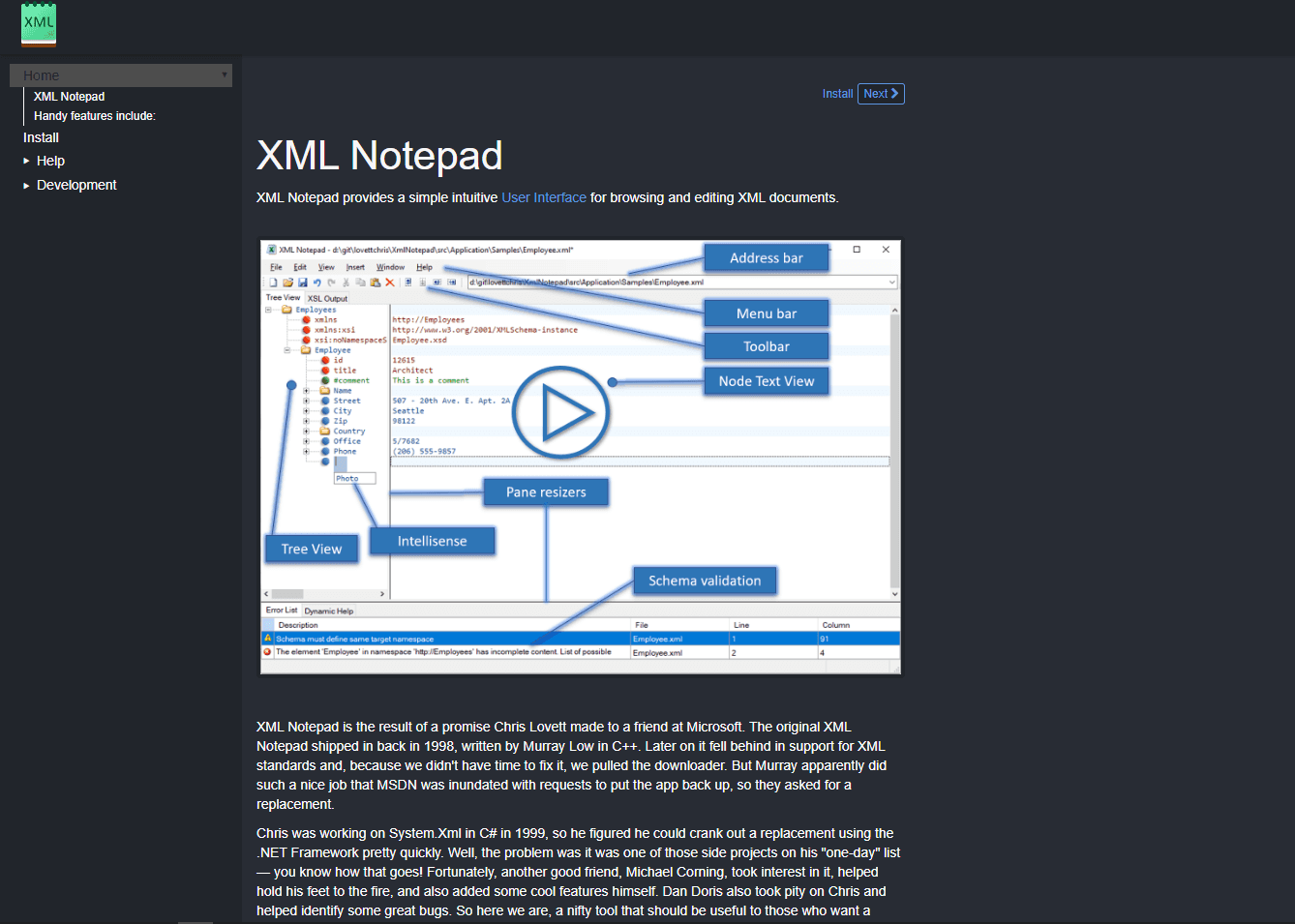
XML Notepad is a free, open source XML editor built by Microsoft, and it's one of the best visual XML editors available on Windows.
What you get:
- Dual panel tree and text view
- XSD schema validation with clear error descriptions
- XPath-aware find and replace
- XSLT output viewer for associated stylesheets
- XML diff tool (compare two documents side by side)
- Lightweight and fast
- Clean, modern interface
- Actively maintained by Microsoft on GitHub
- Completely free and open source
What you don't get:
- Advanced IDE features
- Plugin ecosystem
- Multi-file project management
- Integrated terminal or Git
The interface uses a dual panel layout. The left panel shows your document as a collapsible tree, and the right panel shows the attributes and values of the selected node. You can navigate your entire XML document by clicking through the tree, which makes exploring unfamiliar XML structures far more intuitive than scrolling through raw text.
Download: XML Notepad. Free and open source.
4. Oxygen XML Editor (Trial)
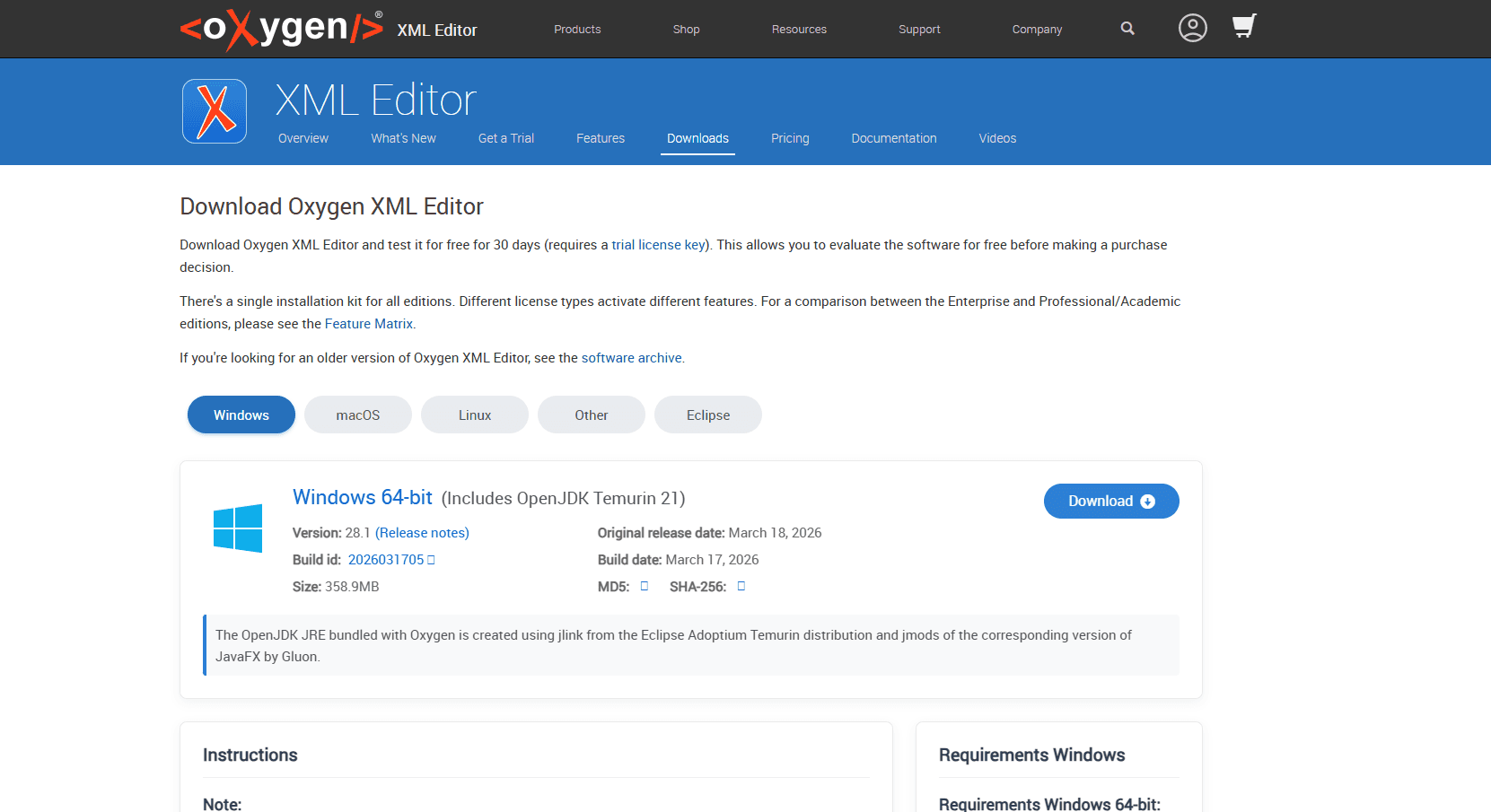
Oxygen XML Editor is a full XML development environment. If you do serious XML work professionally, whether that's schema development, XSLT transformations, XML database management, or working with industry standard formats like DITA and DocBook, Oxygen covers all of it.
What you get:
- Validation against XSD, DTD, RelaxNG, Schematron
- Schema-aware auto completion
- XSLT 1.0/2.0/3.0 debugger with step-through
- XPath and XQuery evaluation
- Visual XML schema designers
- XML diff and merge tools
- Native XML database integration
- DITA, DocBook, HL7 support
- Professional-grade features
- 30-day full-feature trial
What you don't get:
- Free long-term use (trial only)
- Lightweight footprint
- Simple interface (feature-heavy)
- Budget-friendly pricing after trial
The 30 day free trial gives access to every feature without limitations. It's worth using if a demanding XML project is coming up, even if a free tool is the long term plan. Seeing what a full XML IDE can do helps clarify which features actually matter.
After the trial, you'll need to purchase a license. For professionals who work with XML daily, the investment is easy to justify. For occasional XML editing, the free tools on this list are perfectly adequate.
Download: Oxygen XML Editor (trial). 30 day free trial.
5. Sublime Text with XML Plugins
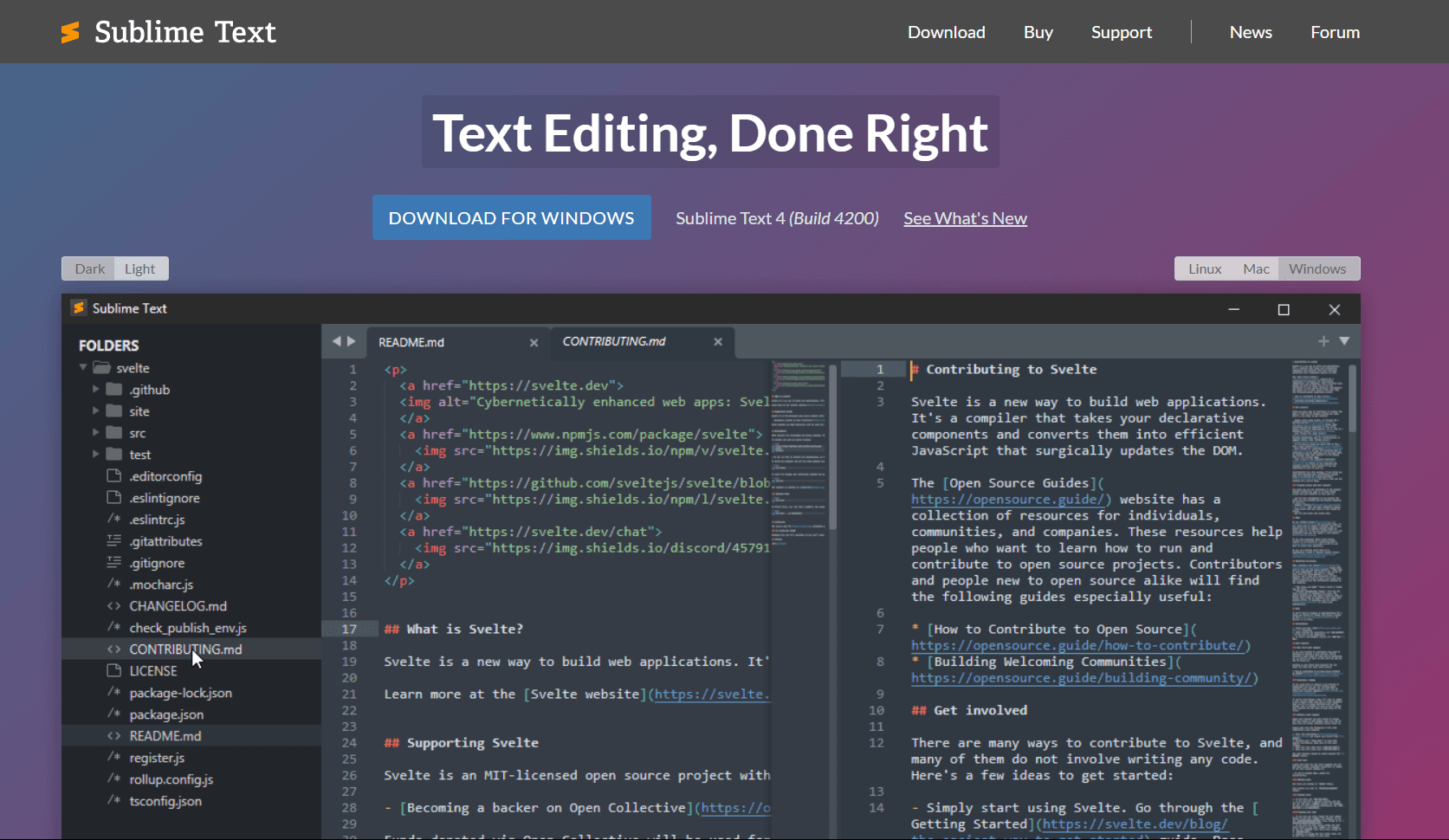
Sublime Text is a responsive general-purpose editor for working with XML as text. Its strengths are navigation, multiple selections, and a focused interface rather than built-in schema tooling.
What you get:
- Syntax highlighting and code folding
- Goto Anything (jump to lines/elements)
- Multi-cursor editing (rename all instances)
- Package Control for extensions
- Windows installer and portable builds
- Free evaluation with no enforced time limit
What you don't get:
- Schema-aware auto completion
- Built-in XSD validation or XPath evaluation
- Built-in tree view
- Visual schema tools
- Free continued use after evaluation
For additional functionality, install packages through Package Control or connect external command-line tools. Package availability and maintenance vary, so verify a package before relying on it. Sublime's multi cursor editing is particularly useful for XML: select a tag name, use Ctrl+D to select matching instances, and edit them together.
Download: Sublime Text. Free evaluation; a license is required for continued use.
6. FirstObject XML Editor
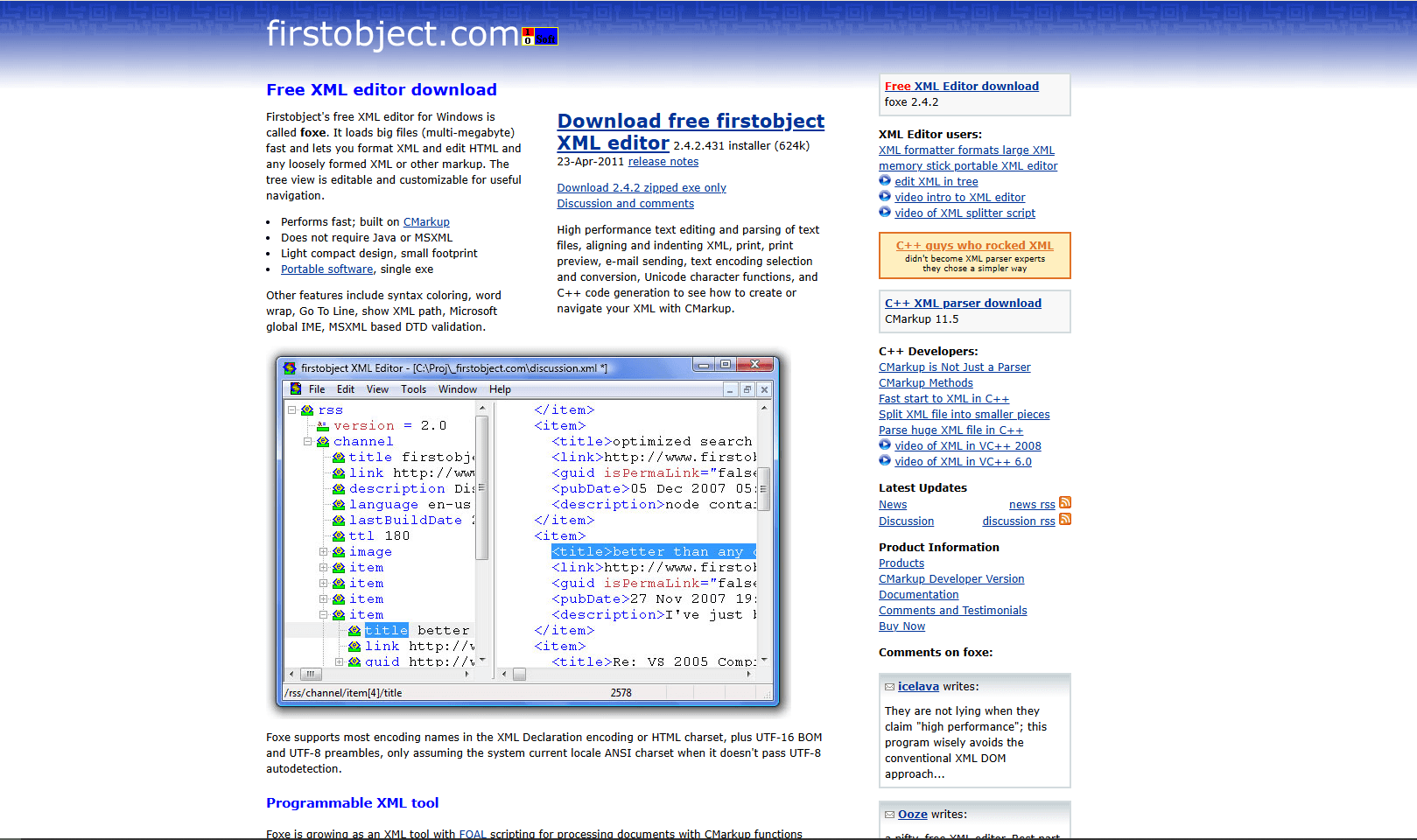
FirstObject's XML Editor, also called foxe, is a lightweight, free Windows application designed specifically for viewing and editing XML. It's small, fast, and focused entirely on XML, which means there's no distraction from features you don't need. Its official download is version 2.4.2 from 2011, so it should be treated as a legacy tool.
What you get:
- Tree view alongside text editor
- Data retrieval markup for extraction
- XML formatting and MSXML-based DTD validation
- Structure-aware find and replace
- Lightweight and fast
- Free for personal and commercial use
- No installation of full IDE required
What you don't get:
- Modern interface (feels dated)
- Easy learning curve for advanced features
- XSD schema validation
- Active development/updates
The interface provides a tree view alongside a text editor, similar to XML Notepad. You can navigate the tree to find elements and edit their values in the text panel. The official site describes fast handling of multi-megabyte files, but a maintained editor is a better default for new workflows.
Download: FirstObject XML Editor. Free for personal and commercial use.
7. Online XML Editor by CodeBeautify
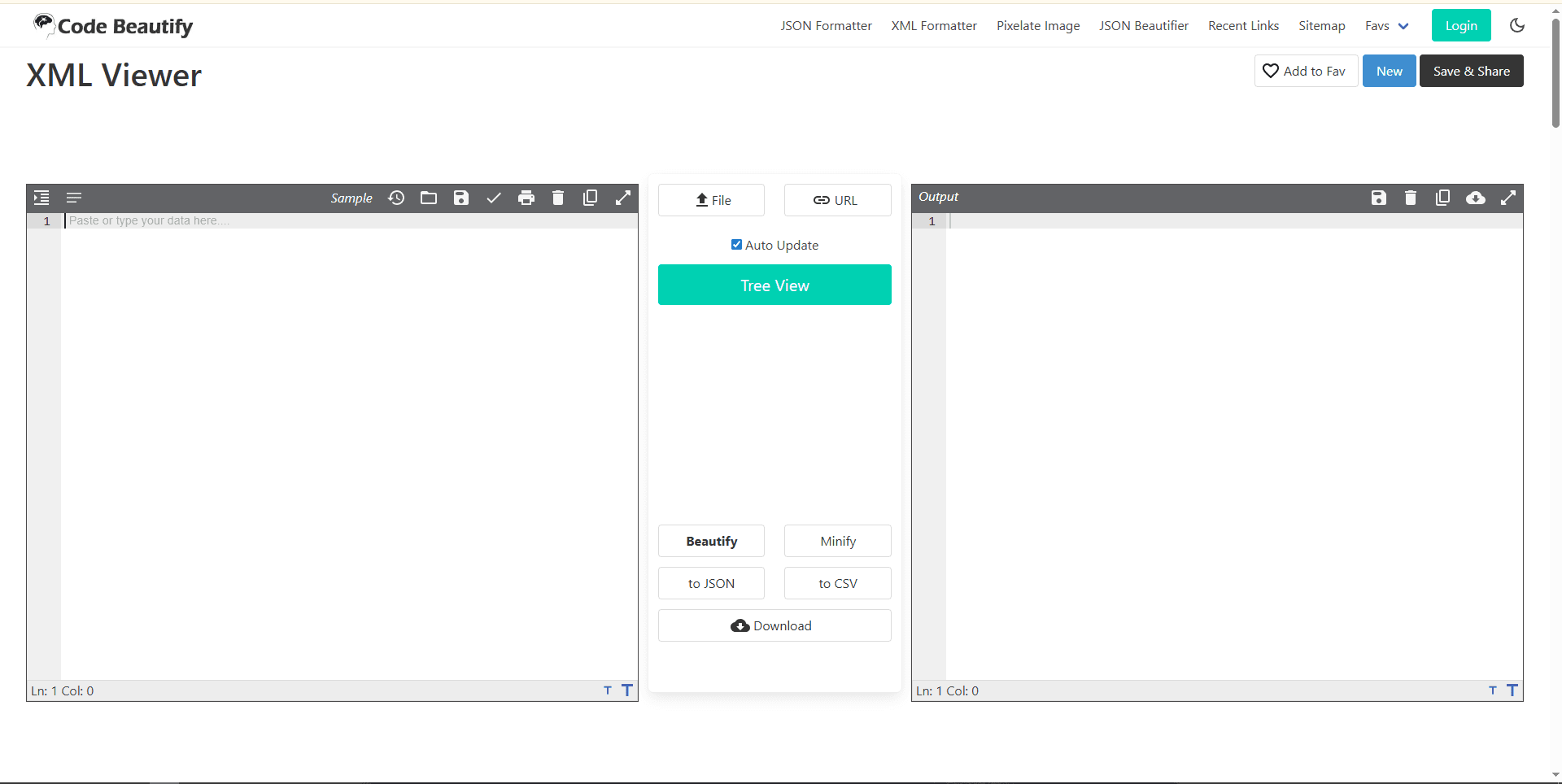
CodeBeautify XML Viewer is useful when you just need to quickly validate a non-sensitive XML snippet, format a messy payload, or convert between XML and JSON without installing a desktop app.
What you get:
- Formatting, minifying, and well-formedness checks
- Tree view alongside text editor
- Syntax highlighting
- Clear error messages
- Convert XML to JSON or CSV
- Related XML-to-YAML and XPath tools
- Works in a browser
- No account required
- No installation needed
What you don't get:
- Local-only processing
- Offline access (requires internet)
- XSD or DTD schema validation in the main viewer
- Advanced features
Paste your XML (or upload a file), and the tool formats it and checks whether it is well formed. The conversion tools are particularly useful for moving simple data between XML, JSON, CSV, and YAML. For credentials, customer records, proprietary configuration, or regulated data, use a local editor unless your organization's policy explicitly permits the online service.
Try it: CodeBeautify XML Editor. Free online tool.
8. XML Copy Editor
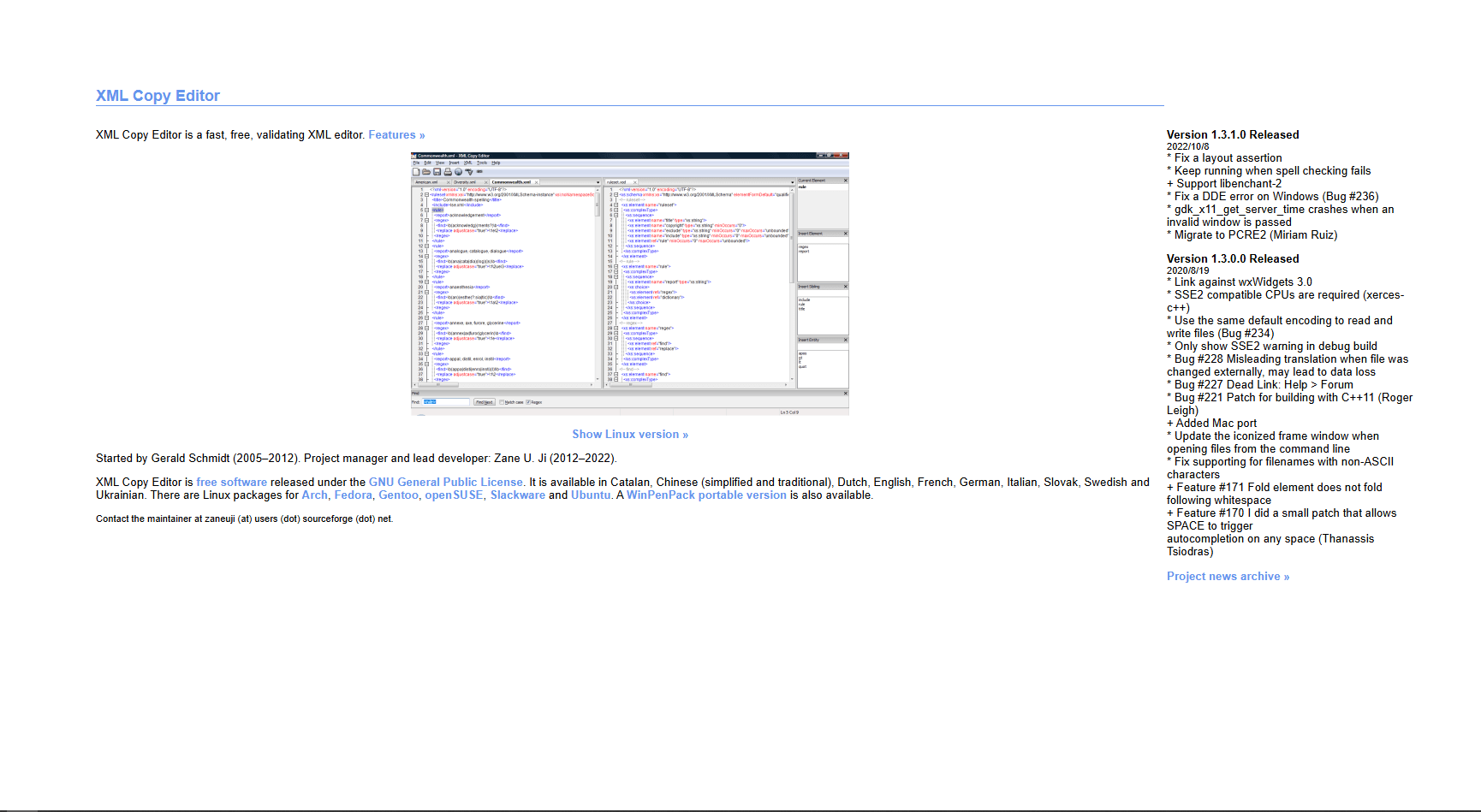
XML Copy Editor is a lightweight XML editor designed for Windows users who want a clean, focused editing experience without a heavy IDE. Its official site lists version 1.3.1.0 from October 2022, so it is best viewed as a mature legacy option.
What you get:
- Syntax highlighting
- DTD, XSD, and RELAX NG validation
- Well-formedness checking
- Spell checking for XML content
- XPath evaluation and XSLT transformations
- Pretty printing, folding, and tag completion
- Completely free
What you don't get:
- Modern interface
- Plugin ecosystem
- XSLT debugging
- Advanced IDE features
Key features include validation against DTD, XSD, and RELAX NG schemas, XPath, XSLT transformations, pretty printing, and spelling or style checks. Use a newer editor when current platform support and frequent updates are higher priorities.
Download: XML Copy Editor. Free XML editor.
9. Liquid Studio Community Edition
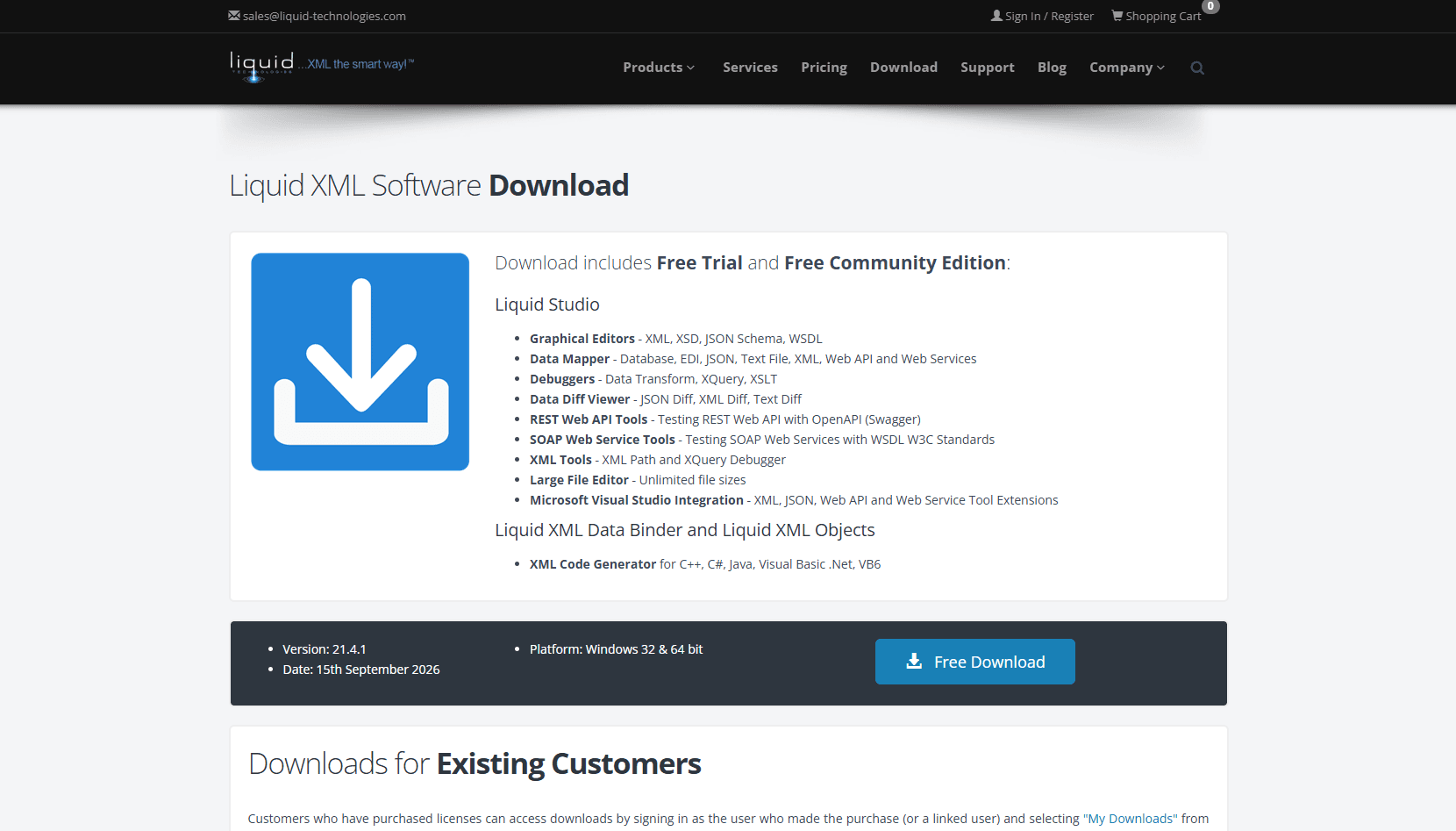
Liquid Studio Community Edition is a current Windows-focused option for users who want more XML tooling than a general code editor provides. The installer starts with a 15-day trial and then continues as the free Community Edition.
What you get:
- XML and XSD text editors with completion and validation
- Editors for DTD, XSLT, XQuery, WSDL, and related formats
- XSLT and XQuery execution
- A collapsible outline and syntax coloring
- XML formatting and validation in the large-file editor
- A free Community Edition after the trial expires
What you don't get:
- The complete graphical design and debugging feature set of the paid editions
- Cross-platform desktop support
- Open-source licensing
Liquid Studio is a useful middle ground for learning or occasional schema and transformation work on Windows. Check the vendor's edition comparison before depending on a designer, debugger, or code-generation feature because some capabilities require a paid edition.
Download: Liquid Studio. Includes the free Community Edition.
XML Editor Comparison Table (2026)
Practical Tips for Working with XML on Windows
- Validate against the correct schema: Well-formed XML can still violate the XSD, DTD, RELAX NG, or Schematron rules expected by another system.
- Learn basic XPath: Expressions such as //elementName and /root/child[@attribute='value'] cover many everyday searches.
- Keep a command-line option: If your toolchain includes xmllint, use xmllint --noout --schema schema.xsd yourfile.xml to validate or xmllint --format yourfile.xml to format a document.
- Escape content correctly: Write ampersands as & and less-than signs as <. In attributes, also escape the quotation mark used as the delimiter.
- Check the encoding: Make sure a declaration such as <?xml version="1.0" encoding="UTF-8"?> matches the file's actual encoding.
- Use an XML library: Generate XML with a parser or serializer instead of assembling markup with string concatenation.
Conclusion
Those are the nine XML editors worth considering for Windows in 2026. If you want the short version: VS Code with the Red Hat XML extension is the best free all rounder, XML Notepad by Microsoft is the best dedicated visual editor for tree based navigation, and Oxygen is the professional choice when the work justifies the investment.
A practical combination is VS Code for day to day editing, XML Notepad for visually browsing unfamiliar XML structures, and Notepad with XML Tools for quick formatting and validation.
Related Guides
Best XML extensions for VS Code for detailed VS Code XML plugin comparisons
Best XML plugins for Notepad for Notepad++ XML tools and setup
Best XML Editor for Mac if you're also working on macOS
Best XML Editor for Android for mobile XML editing on Android devices
Best JSON Editor for Windows for the top JSON editing tools on Windows
Read More
All Articles
9 Best XML Editors for Mac in 2026 (Free & Paid)
Compare nine XML editors for Mac, from free text editors to professional tools for XSD validation, XSLT, XQuery, and schema-driven work.
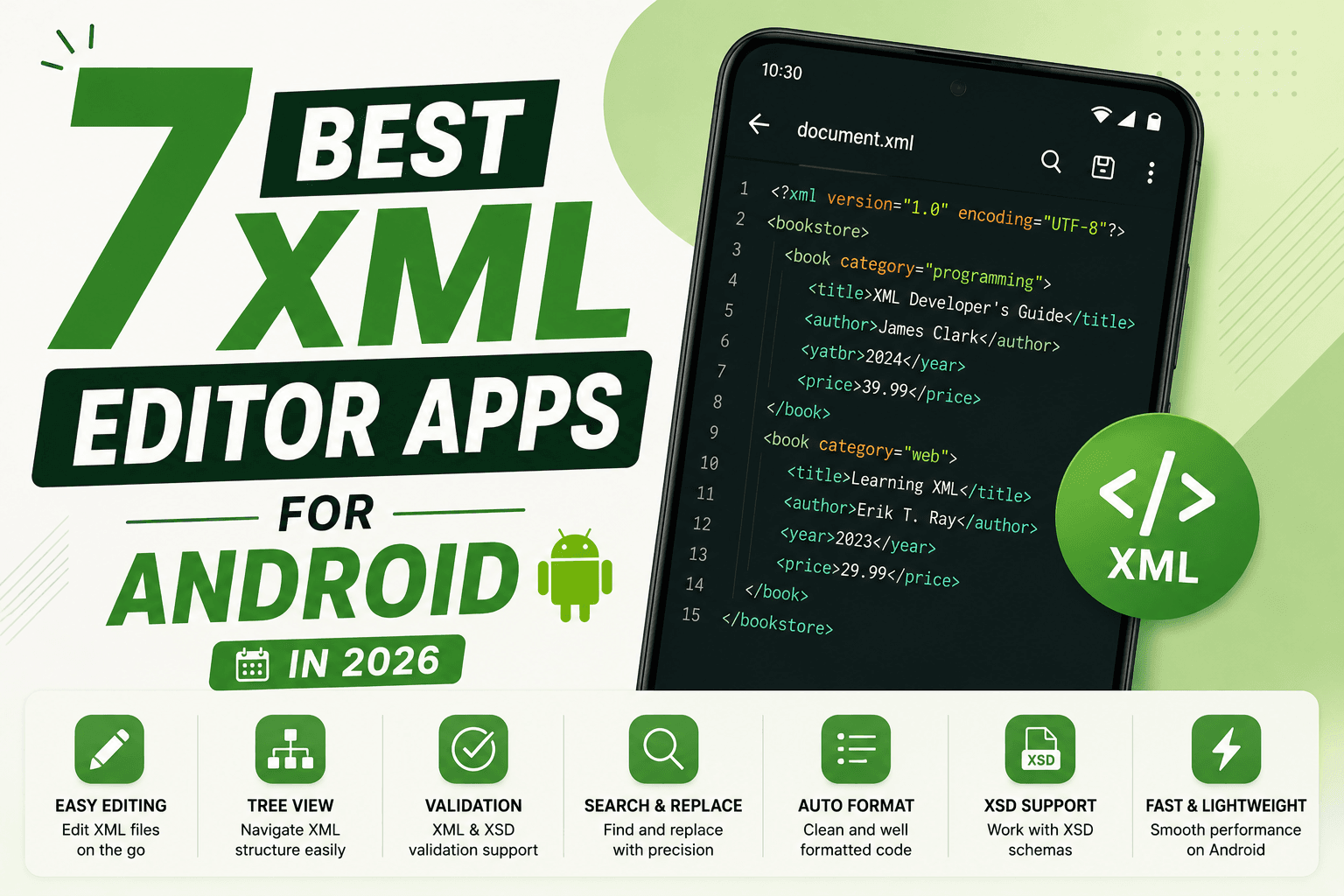
7 Best XML Editor Apps for Android in 2026 (Tested & Ranked)
Find the best XML editor for Android for plain text XML, remote files, Git projects, and binary XML inside APKs. Compare QuickEdit, MP Manager, Acode, and more.
7 Best XML Editors for Linux in 2026 (GUI & Terminal)
Compare the best XML editor for Linux options with XSD validation, XPath support, and XSLT. From VS Code to oXygen. Find the right one for your workflow.