5 Best YAML Editors for Home Assistant in 2026 (Config Editing)

On this page
Home Assistant YAML is not the same as a generic configuration file. Tags such as !include, live entity IDs, action names, and Home Assistant schemas all affect whether an editor can give useful feedback.
The main choice is where you want to edit. Studio Code Server and File Editor run inside Home Assistant. Desktop VS Code and Notepad need access to the configuration folder. Vim or Nano works through a terminal when you already have SSH access.
Studio Code Server is the best starting point for most Home Assistant OS users on supported hardware. Desktop VS Code offers a stronger local workspace, while File Editor is better for a quick correction.
1. Studio Code Server Add-on
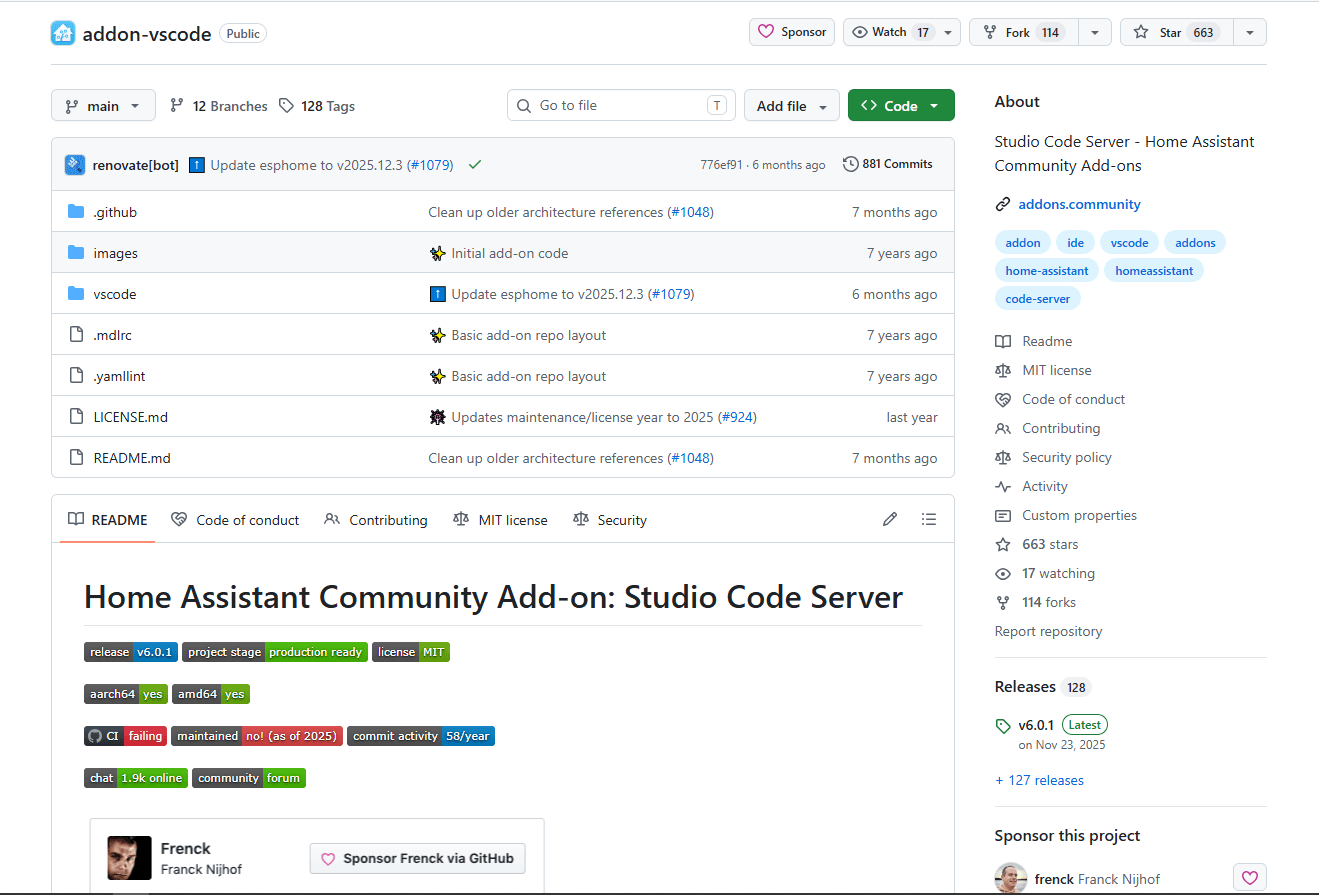
Studio Code Server is a Home Assistant Community app that places a browser-based VS Code workspace inside the Home Assistant frontend. It opens the mapped configuration directory directly and includes Home Assistant Config Helper preconfigured.
Install it from Settings → Apps → Install app, start it, and select Open Web UI.
What works well:
- Direct access to configuration.yaml and other files under /config.
- Completion for entity IDs and actions from the running Home Assistant instance.
- Home Assistant schema checks and support for !include tags.
- Jinja template highlighting and include-file navigation.
- An integrated terminal for Home Assistant CLI commands.
Watch for:
Studio Code Server requires Home Assistant to be running and currently supports AMD64 and ARM64 systems. It is maintained by the Home Assistant Community Apps project, not the official core app repository.
Choose it when you want one editor available from several computers without maintaining a separate desktop copy of the configuration.
2. VS Code with Home Assistant Config Helper
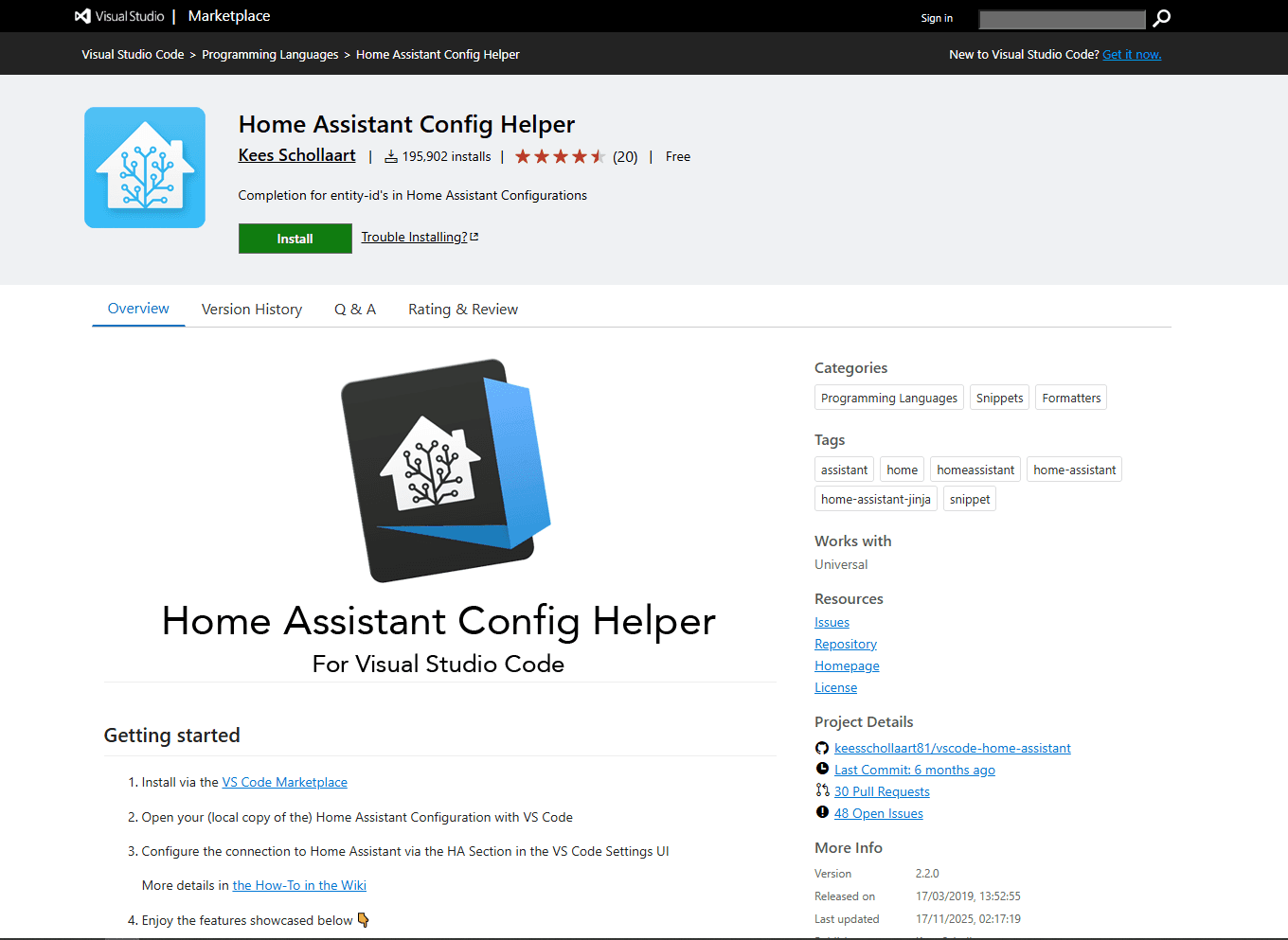
VS Code with Home Assistant Config Helper provides the same Home Assistant-aware editing in a desktop workspace. It is the better fit when VS Code is already part of your development setup.
Install the extension from the Extensions panel, open the Home Assistant configuration folder, and configure the connection in VS Code settings. A connected instance supplies entity and action data. The extension also applies Home Assistant schemas and understands include tags.
What works well:
- Entity ID and action completion from your Home Assistant instance.
- Schema validation for many configuration and dashboard files.
- Scoped validation and go-to-definition for !include references.
- Multiple windows, desktop shortcuts, Git tools, and other VS Code extensions.
- Local editing while Home Assistant is offline, although live completion is then unavailable.
Watch for:
The extension does not give VS Code access to your files. On Home Assistant OS, the documented desktop route is to install the Samba app, mount the config share, and open that folder in VS Code.
Remote SSH can also work when your installation exposes the configuration directory. The official Terminal & SSH app opens its own container, where the config folder is available at /config.
Choose this setup when you want a full desktop workspace and do not mind configuring both file access and the Home Assistant connection.
3. File Editor Add-on
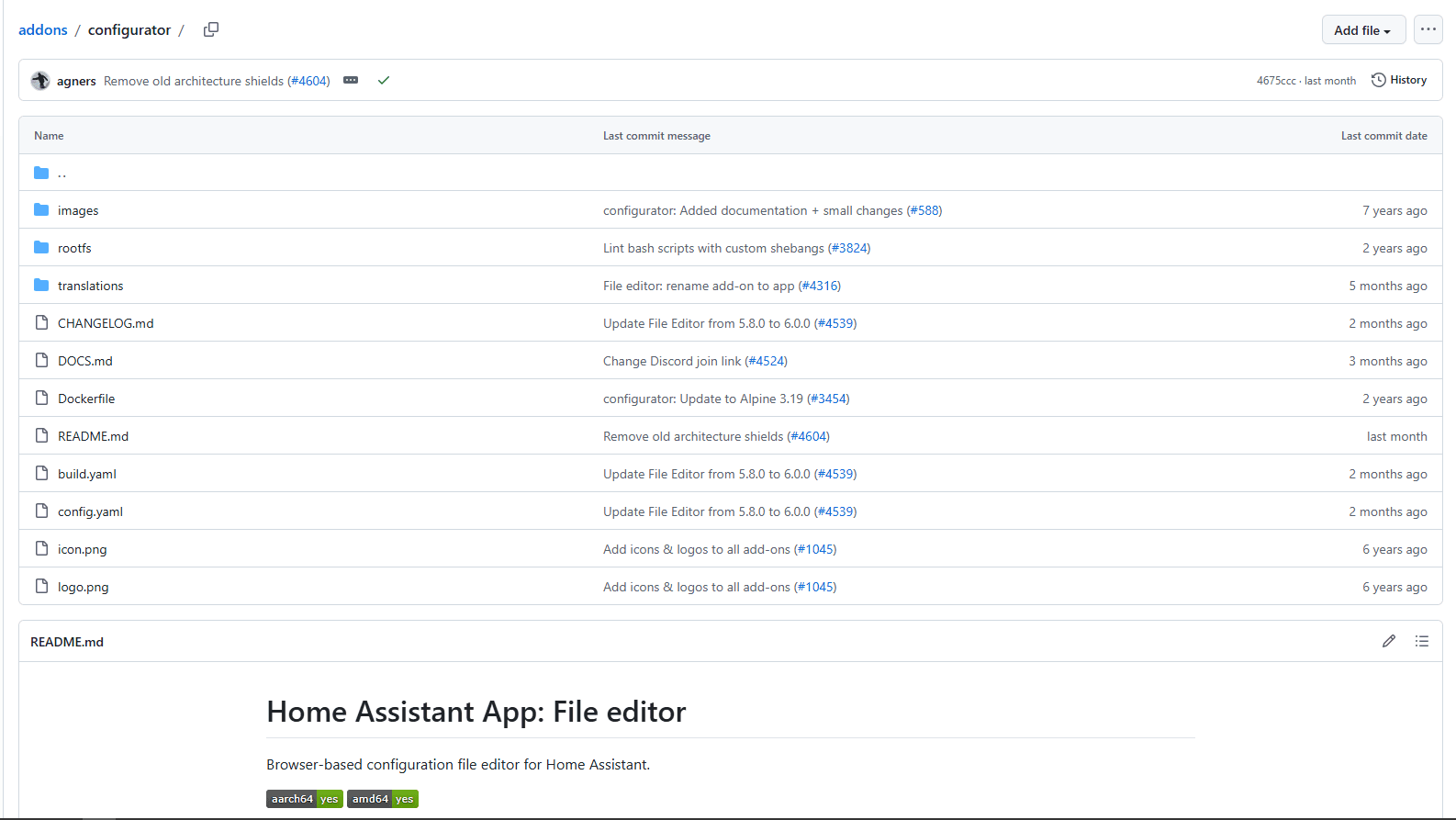
File Editor is the simpler official browser editor. It combines a file tree with the Ace text editor and checks YAML syntax while you type.
Install it from Settings → Apps, start it, and select Open Web UI. It requires little configuration for ordinary files in the Home Assistant config directory.
What works well:
- Quick access from the Home Assistant sidebar.
- YAML highlighting and syntax-error checks.
- File uploads, downloads, and basic Git actions.
- A smaller interface for focused edits.
Watch for:
File Editor checks YAML syntax, but it does not provide the same Home Assistant schema validation, entity completion, or include-aware navigation as Config Helper.
Use it for changing a value, fixing indentation, or commenting out a line. Move to Studio Code Server when an automation spans several files or you need schema guidance.
4. Notepad with SSH/Samba

Notepad is a practical Windows editor when you prefer a native desktop window. The simplest Home Assistant OS workflow is to mount the config folder with the Samba app and open the shared files directly.
What works well:
- Familiar Windows tabs and search tools.
- YAML syntax highlighting.
- Search and replace across multiple configuration files.
- Direct saving to a mounted Samba share.
Watch for:
Notepad treats the files as ordinary YAML. It does not know your entities, actions, Home Assistant schemas, or the meaning of !include.
SFTP is possible when an SSH app is configured to provide it, but the path and network port vary by setup. Samba is easier to explain and is the file-access route documented by Home Assistant for desktop editors.
Choose Notepad for straightforward text changes. Run Home Assistant's configuration check after every meaningful edit.
5. Vim/Nano via SSH
Vim and GNU nano provide terminal editing when you already manage Home Assistant through the command line. The official Terminal & SSH app includes terminal editors and exposes the configuration directory at /config.
Remote SSH is disabled until you add authentication and choose a network port in the app. Port 22222 is different: it belongs to the separate Home Assistant OS debug SSH procedure and is not the port assigned automatically by Terminal & SSH.
What works well:
- Direct editing inside the mapped configuration directory.
- Access from an SSH client after remote access is configured.
- Home Assistant CLI commands in the same terminal.
- A useful recovery path when a graphical editor is unavailable.
Watch for:
Vim and Nano provide no Home Assistant schemas, entity completion, or visual file tree. Indentation errors are also harder to spot in a narrow terminal.
Choose this method if terminal editing is already familiar. Before restarting, save a backup and run ha core check when the Home Assistant CLI is available.
Which Editor Should You Actually Use?
- Use Studio Code Server for regular Home Assistant OS configuration work from a browser.
- Use desktop VS Code when you want a local workspace, Git tools, and other extensions.
- Use File Editor for a quick change from the Home Assistant sidebar.
- Use Notepad++ when you prefer a Windows editor and already expose the config folder through Samba.
- Use Vim or Nano when the terminal is part of your normal administration workflow.
If Studio Code Server is unavailable because of architecture support, File Editor remains the simplest in-browser option. A Samba share with desktop VS Code provides the closest feature match.
Quick Picks for Home Assistant YAML Editing
Home Assistant YAML Editing Best Practices
- Use includes carefully. A line such as automation: !include automations.yaml inserts the parsed contents of that file at the automation key. The included file must contain the structure expected at that location.
- Keep states and booleans distinct. Use true and false for boolean settings. Quote on or off when you mean literal state text.
- Treat editor warnings as an early check. Config Helper can catch many schema and reference problems, but Home Assistant remains the final authority.
- Validate before applying changes. Go to Settings → Tools → YAML and select Check configuration. For a fuller command-line check, use ha core check.
- Keep a recoverable copy. Back up the working configuration before restructuring includes or changing several automations at once.
- Avoid manual edits to .storage. Home Assistant manages that directory, and unsupported changes can damage UI-managed configuration.
Recommended Setup
A safe workflow has three parts:
- Edit: Use Studio Code Server for regular work or File Editor for a focused correction.
- Check: Review editor diagnostics, then run Home Assistant's configuration check.
- Apply: Use a quick reload when the changed integration supports it. Restart only when Home Assistant requires one.
Desktop users can follow the same sequence with VS Code and a Samba-mounted config folder. Keep File Editor installed as a fallback because it remains available from the Home Assistant frontend.
Frequently Asked Questions
What's the best YAML editor for Home Assistant?
Studio Code Server is the best fit for most Home Assistant OS users on AMD64 or ARM64. It opens in the browser, edits the config directory directly, and includes Home Assistant Config Helper.
How do I edit configuration.yaml in Home Assistant?
On Home Assistant OS, install Studio Code Server or File Editor from Settings → Apps. For desktop editing, install the Samba app and open the shared config folder in VS Code or Notepad. Home Assistant Container users edit the host directory mounted as the container's config volume.
Does VS Code work with Home Assistant?
Yes. Home Assistant Config Helper adds schemas, include handling, and completion from a connected Home Assistant instance. You still need Samba, suitable SSH access, or another sync method to open the configuration files.
Can I edit Home Assistant configs on my phone?
Studio Code Server and File Editor both open in a browser. File Editor is easier for a focused change on a small screen. A larger display and keyboard are safer for indentation-heavy edits.
How do I validate Home Assistant YAML before restarting?
Open Settings → Tools → YAML and select Check configuration. On systems with the Home Assistant CLI, ha core check performs a fuller check.
What is the Studio Code Server add-on for Home Assistant?
It is a community-maintained Home Assistant app that runs code-server inside the Home Assistant frontend. It maps the configuration directory and includes Home Assistant and YAML extensions. Current builds support AMD64 and ARM64 systems.
Related Reading
For general YAML editing outside Home Assistant, see the best YAML editors for Windows, best YAML editors for Mac, and best YAML editors for Linux guides.
For VS Code extension comparisons, see Best YAML extensions for VS Code. The Best JSON extensions for VS Code guide covers adjacent JSON workflows.
Read More
All Articles
7 Best YAML Extensions for VS Code in 2026 (Tested & Ranked)
Find the best YAML extension for VS Code with schema validation, Kubernetes support, and auto-formatting. Compare Red Hat YAML vs YAML Language Support for professional workflows.
8 Best YAML Editors for Linux in 2026 (GUI & Terminal)
Compare 8 best YAML editors for Linux including VS Code, Kate, Vim, yamllint, and GUI tools. Covers terminal and desktop options for Ubuntu, Fedora, and Arch Linux users.
7 Best YAML Editors for Mac in 2026 (Free & Paid)
Find the best YAML editor for macOS with validation and syntax highlighting. Compare VS Code, Sublime Text, BBEdit, and more for Kubernetes, Docker, and CI/CD configs.