8 Best YAML Editors for Windows in 2026 (Free & Paid)

On this page
A YAML file can look correct and still contain an indentation mistake, an unsupported key, or an invalid value. Syntax highlighting makes the structure easier to read, while schema validation catches many application-specific errors.
Notepad++ handles quick edits with a lightweight Windows interface. For Kubernetes manifests that need schema validation, VS Code with the Red Hat YAML extension is the strongest general choice.
The eight editors below cover quick config changes, Kubernetes and Docker Compose, terminal workflows, and large files. Choose according to the level of validation you need.
1. VS Code with YAML Extension (Best for Kubernetes)
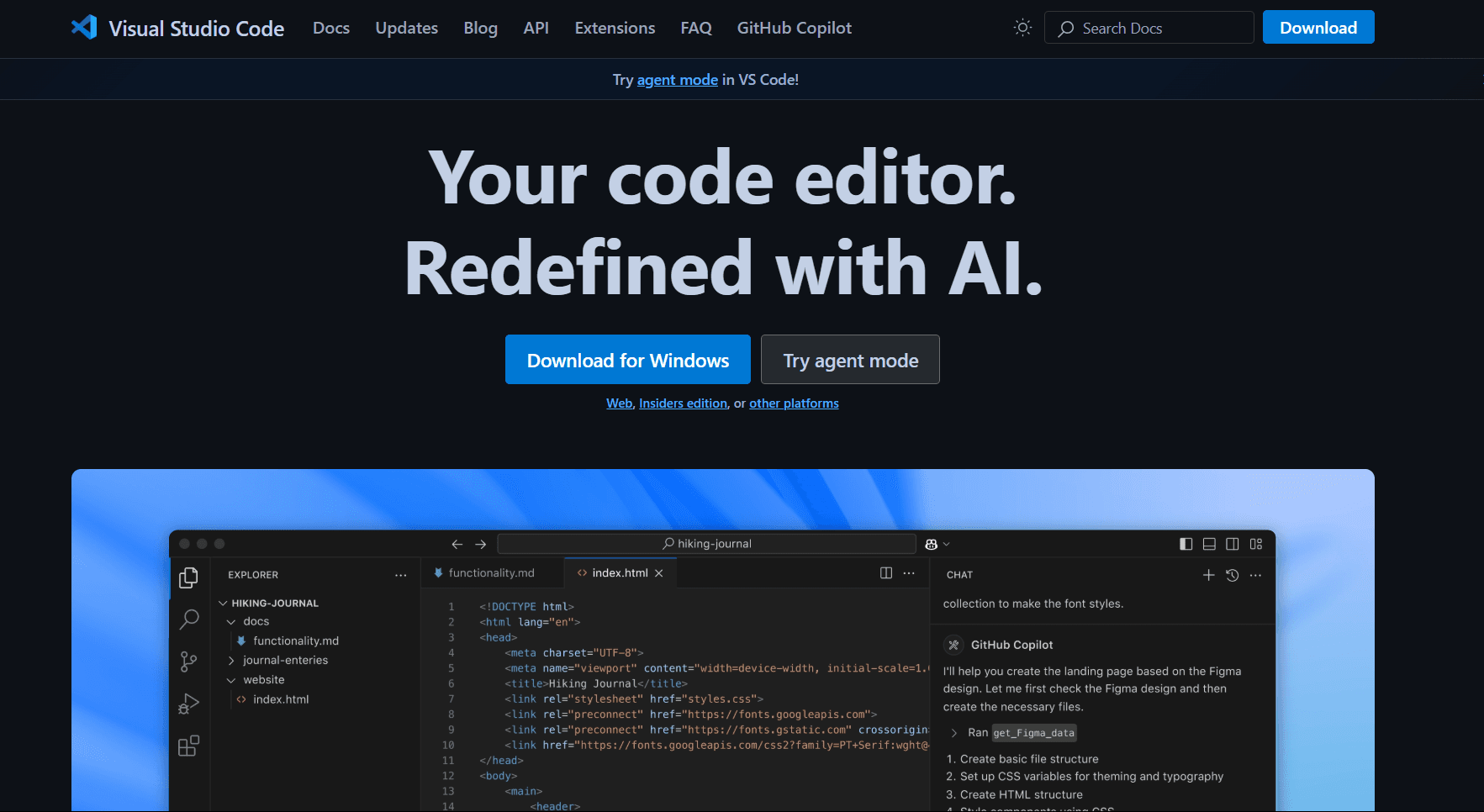
VS Code with the Red Hat YAML extension is a strong choice for editing Kubernetes manifests and schema-based YAML.
Install: Download from code.visualstudio.com or use winget: winget install Microsoft.VisualStudioCode
Install YAML extension: Press Ctrl + Shift + X, search "YAML" by Red Hat, click Install.
What you get:
- Schema validation (Kubernetes, Docker Compose, GitHub Actions, Azure Pipelines)
- Auto-completion based on schema
- Error detection as you type
- Hover documentation for properties
- Multi-document support (--- separators)
- Formatting (Shift + Alt + F)
- Outline view for navigation
- Git integration
- Remote development (edit files on remote servers)
Schema configuration:
{
  "yaml.schemas": {
    "kubernetes": "/*.yaml",
    "https://json.schemastore.org/github-workflow.json": ".github/workflows/*.yml",
    "https://raw.githubusercontent.com/compose-spec/compose-spec/master/schema/compose-spec.json": "docker-compose*.yml"
  }
}
What you don't get:
- A lightweight, Windows-native editor
- Useful validation without the correct schema association
VS Code fits DevOps engineers working with Kubernetes, developers writing Docker Compose files, or anyone who needs schema validation. If you're already using VS Code, adding YAML support takes one extension install.
2. Notepad (Best for Quick Edits)
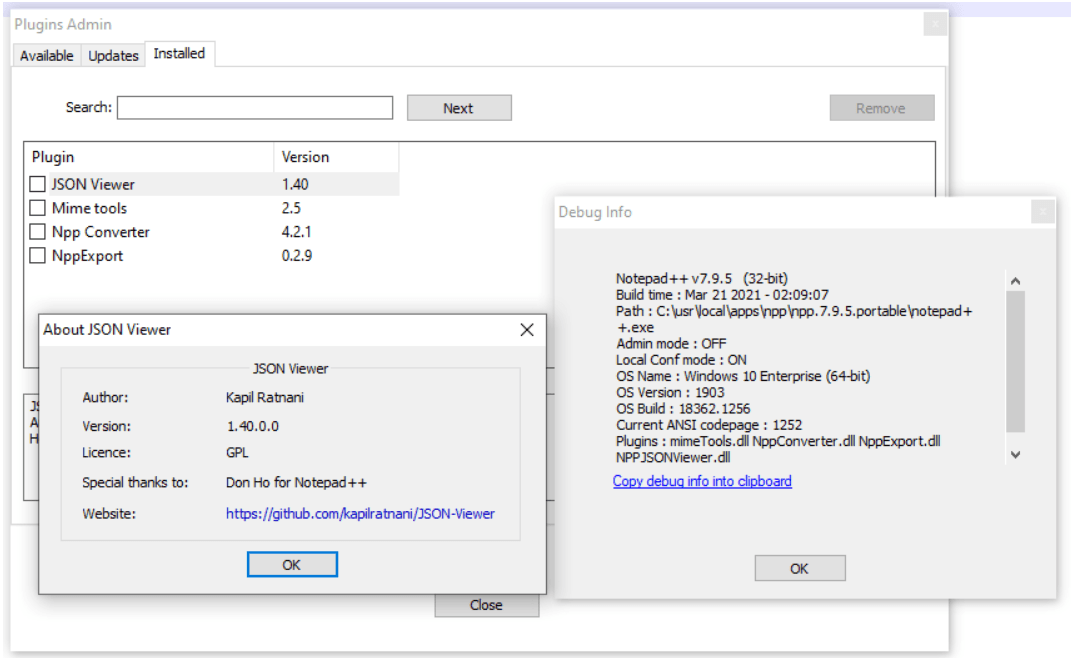
Notepad is lightweight and includes YAML syntax highlighting. A separate YAML Language plugin is not required in current releases.
Install: Download from notepad-plus-plus.org or use winget: winget install Notepad.Notepad
What you get:
- Syntax highlighting for YAML
- Code folding for nested structures
- Multi-tab editing
- Portable version (runs from USB)
What you don't get:
- No schema validation
- No auto-completion
- No error detection
Notepad fits quick edits to config files, system administrators who need lightweight tools, or anyone who wants a focused Windows editor. Validate important files with a separate tool.
3. Sublime Text (Best for Fast Text Editing)
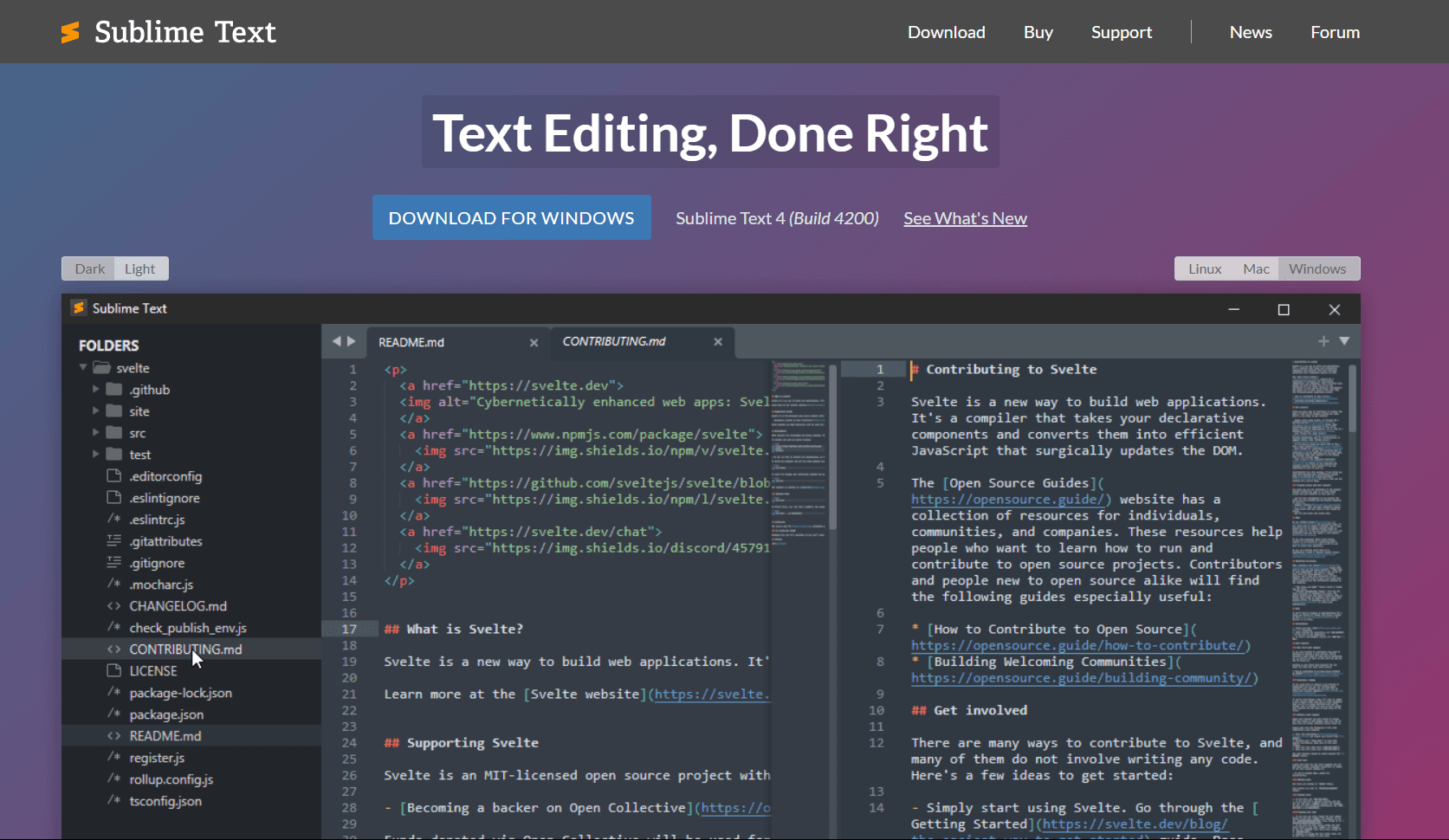
Sublime Text includes YAML syntax highlighting, folding, and fast navigation. Extra packages are only needed for features such as language-server validation.
Install: Download from sublimetext.com or use winget: winget install SublimeHQ.SublimeText
What you get:
- Syntax highlighting for YAML
- Code folding for nested structures
- Multi-cursor editing (Ctrl + D to select duplicates)
- Goto Anything (Ctrl + P for quick navigation)
- A free evaluation; continued use requires a license
What you don't get:
- No schema validation without extra setup
- No auto-completion
- No built-in preview
Sublime Text fits developers who value fast navigation and direct text editing over an all-in-one validation setup.
4. IntelliJ IDEA / PyCharm (Best for JetBrains Users)

IntelliJ IDEA and PyCharm have YAML support built in. Free core features and paid options are available.
If you're already using a JetBrains IDE for development, the YAML support is included.
What you get:
- Schema validation (Kubernetes, Docker Compose, etc.)
- Auto-completion based on schema
- Error detection and quick fixes
- Refactoring support (rename keys across files)
- Multi-file navigation
- Git integration
- Kubernetes plugin integration
What you don't get:
- A full IDE is not suitable for quick edits
- Some advanced features require a paid subscription
- Overkill for YAML-only editing
IntelliJ/PyCharm fits developers already using JetBrains IDEs. If you're writing Java, Python, or other languages in these IDEs, the YAML support is excellent. Don't install just for YAML editing.
5. Visual Studio (Best for .NET Developers)

Visual Studio is the full Microsoft IDE, not VS Code. Recent Visual Studio 2022 releases can open .yaml files with highlighting and schema assistance in supported workflows.
If you're already using Visual Studio for .NET development, YAML editing is built-in.
What you get:
- YAML syntax highlighting
- Schema-based completion where supported
- Git integration
- Works with Azure DevOps
What you don't get:
- A lightweight or dedicated YAML editor
- Schema coverage equal to the Red Hat VS Code extension
Visual Studio fits .NET developers who already use it. For Azure Pipelines, Microsoft also provides a web editor and a VS Code extension.
6. Vim / Neovim (Best for Terminal)
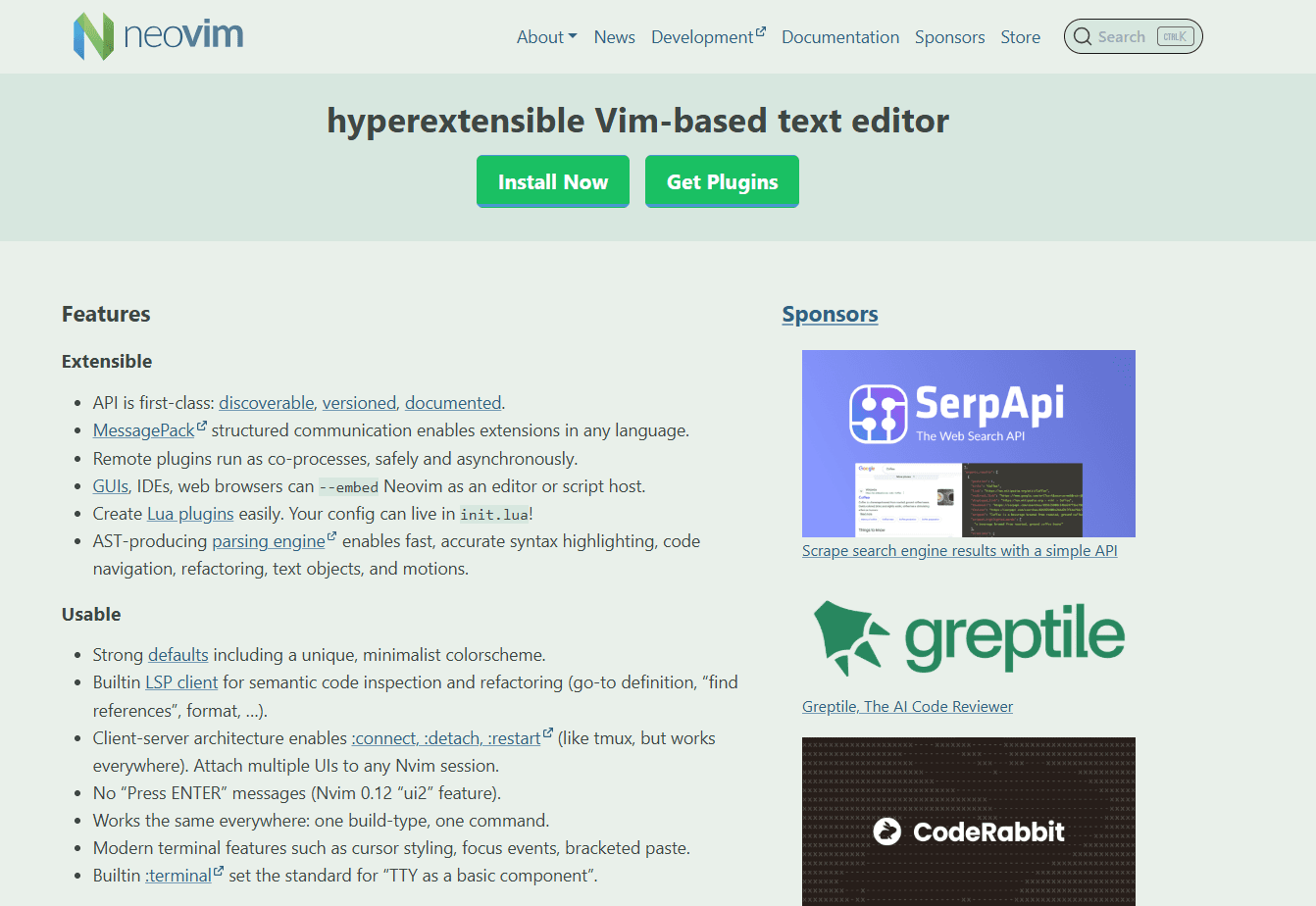
Vim and Neovim run through native Windows builds, Git Bash, or WSL. Built-in syntax support handles basic YAML editing.
Windows setup: Install Vim with winget install vim.vim, use a native Neovim release, or install either editor inside WSL.
What you get:
- YAML syntax highlighting
- Auto-indentation
- Code folding
- Works over SSH
What you don't get:
- No schema validation without LSP setup
- No auto-completion (without LSP)
- Steep learning curve
Vim fits developers who work in WSL, use SSH to edit remote configs, or prefer terminal-based workflows. Add yaml-language-server through an LSP client for schema support.
7. Pulsar (Best Atom-Style Editor)
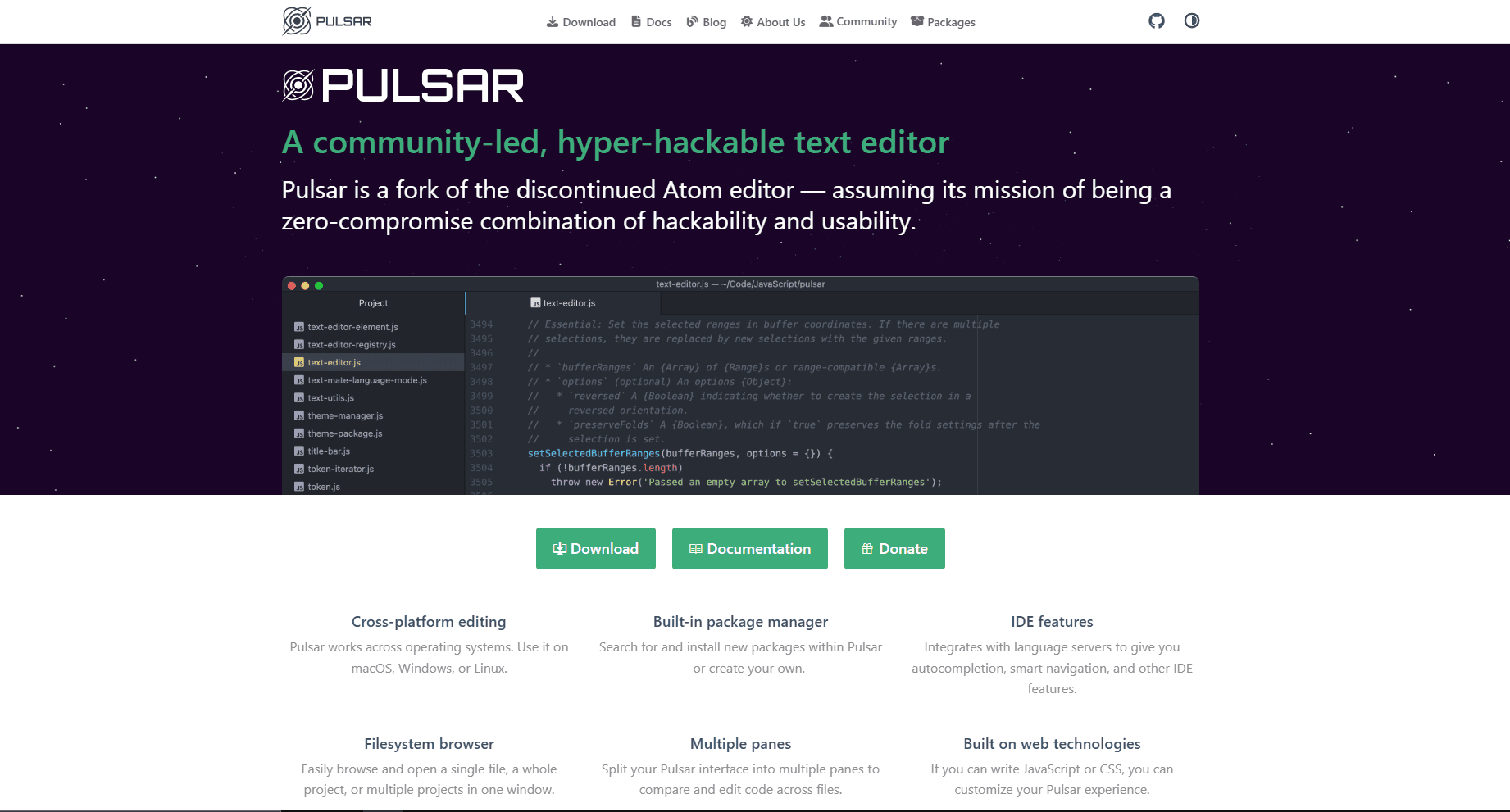
Pulsar is a community-led successor to Atom, which GitHub discontinued in 2022. It keeps Atom's customizable interface and package workflow.
Install: Use the Windows installer or portable build from the official installation guide. Windows may warn that the binaries are unsigned.
What you get:
- Git integration built-in
- Customizable via packages
- YAML support through pulsar-ide-yaml
- Free and open-source
What you don't get:
- Schema validation requires package setup
- Smaller package ecosystem than VS Code
Pulsar fits users who want a maintained Atom-style editor. VS Code provides simpler schema setup.
8. EmEditor (Best Windows-Native Option)
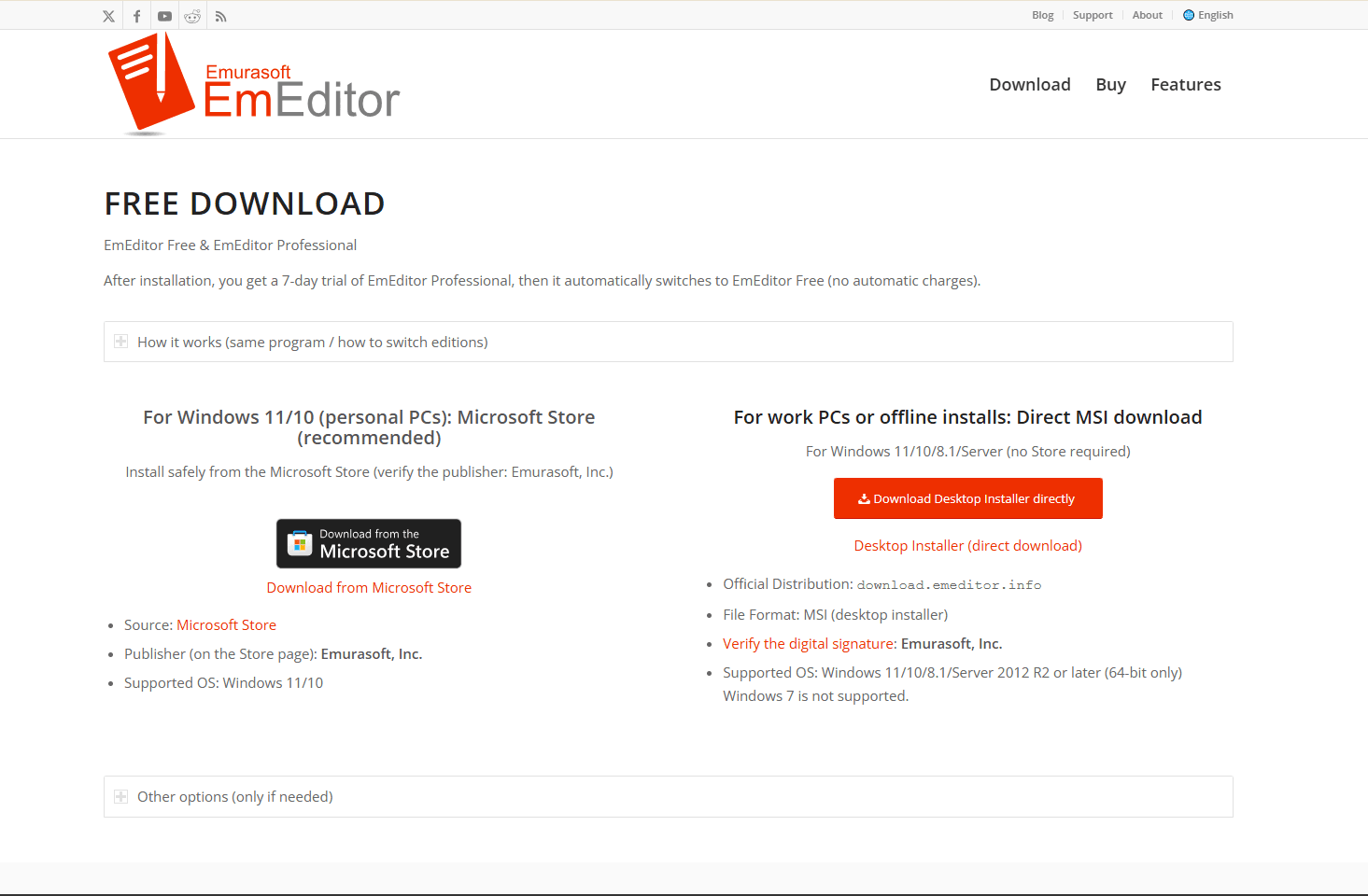
EmEditor is a native Windows text editor with free and paid editions. It is available as an installer, Store app, MSIX package, or portable download.
What you get:
- YAML syntax highlighting
- Tools for very large files
- Native Windows interface
- CSV mode (useful for YAML with tabular data)
- Macros and plugins
What you don't get:
- No schema validation
- No auto-completion
- Professional features require a subscription
EmEditor fits Windows power users who need to handle extremely large YAML files or want a native Windows app with advanced text manipulation.
YAML Editor Comparison Table
Recommendation
For most Windows developers working with Kubernetes or Docker, VS Code with the Red Hat YAML extension is the best starting point. Its schema validation and completion make complex configuration files easier to edit and check.
Choose Notepad for quick, lightweight changes. Sublime Text is better when you want fast navigation and more capable text-editing tools. If your project is already open in IntelliJ IDEA or PyCharm, use the built-in YAML support instead of installing another editor.
Vim or Neovim is the natural choice for terminal, WSL, and remote-server workflows. Using more than one editor is perfectly reasonable: VS Code for schema-aware project files, Notepad for small changes, and Vim or Neovim for remote work.
Platform-Specific Tips for Windows
Windows installation: Notepad, Pulsar, and EmEditor offer portable builds. Portable editions may not register file associations or context-menu actions automatically.
winget installation: Most editors install via winget:
- winget install Microsoft.VisualStudioCode
- winget install Notepad.Notepad
- winget install SublimeHQ.SublimeText
WSL integration: VS Code's WSL extension can edit files and run tools inside a Linux distribution:
- Install WSL: wsl --install
- Install the WSL extension
- Open WSL folder: code . from WSL terminal
PowerShell parsing: Install the powershell-yaml module to check whether a file can be parsed: Install-Module -Name powershell-yaml
Then parse YAML: Get-Content file.yaml | ConvertFrom-Yaml
Successful parsing does not confirm that the file follows an application schema.
Frequently Asked Questions
What's the best YAML editor for Windows?
VS Code with the Red Hat YAML extension is the best default for schema-aware work. It provides validation, completion, and error detection for many common configuration formats. For a lighter alternative, use Notepad.
How do I validate YAML on Windows?
Use VS Code with the Red Hat YAML extension for real-time validation. For syntax and style checks, install yamllint with pip install yamllint, then run yamllint file.yaml. For Kubernetes, use kubectl apply --dry-run=server -f file.yaml against an accessible cluster.
Does Notepad support YAML?
Yes. YAML syntax highlighting and code folding are built in. Notepad does not provide schema validation or schema-based completion by itself.
What's the best YAML editor for Kubernetes on Windows?
VS Code with the Red Hat YAML extension. It provides Kubernetes schema completion and reports many errors as you type. Use kubectl apply --dry-run=server -f manifest.yaml for an additional check against an accessible cluster.
Is there a Windows-native YAML editor?
Yes. EmEditor and Notepad are Windows-native. EmEditor focuses on large files and advanced text manipulation, while Notepad++ is free and convenient for quick edits. Neither provides application-schema validation by itself.
How do I edit Docker Compose files on Windows?
Use VS Code with the Red Hat YAML extension. Configure Docker Compose schema in settings.json:
"yaml.schemas": {
  "https://raw.githubusercontent.com/compose-spec/compose-spec/master/schema/compose-spec.json": "docker-compose*.yml"
}
The extension validates the file and provides completion for services, volumes, and networks. Run docker compose config afterward to parse and render the effective configuration.
Related Reading
For YAML editing on other platforms:
For other file formats on Windows:
Read More
All Articles
7 Best YAML Editors for Mac in 2026 (Free & Paid)
Find the best YAML editor for macOS with validation and syntax highlighting. Compare VS Code, Sublime Text, BBEdit, and more for Kubernetes, Docker, and CI/CD configs.
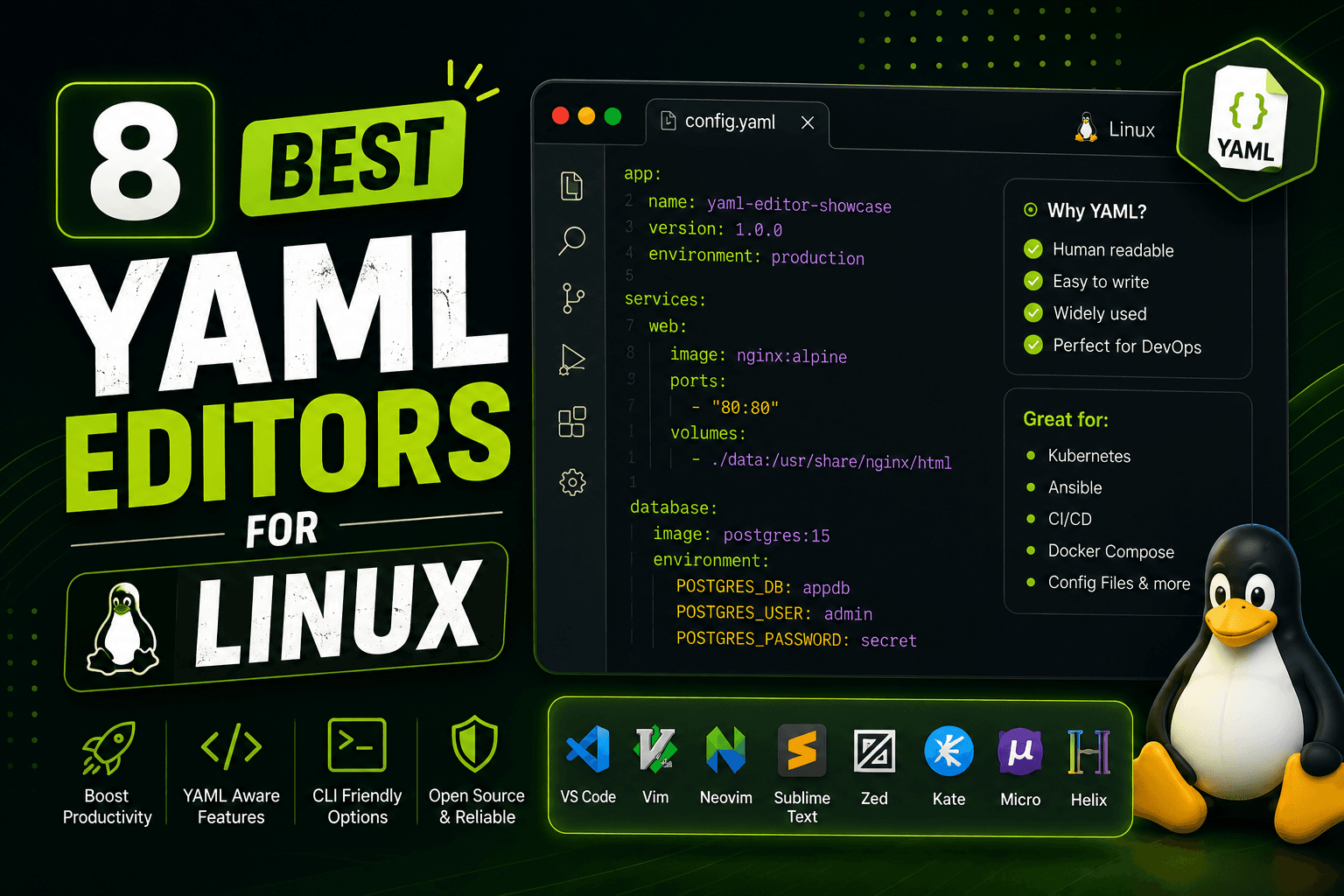
8 Best YAML Editors for Linux in 2026 (GUI & Terminal)
Compare 8 best YAML editors for Linux including VS Code, Kate, Vim, yamllint, and GUI tools. Covers terminal and desktop options for Ubuntu, Fedora, and Arch Linux users.
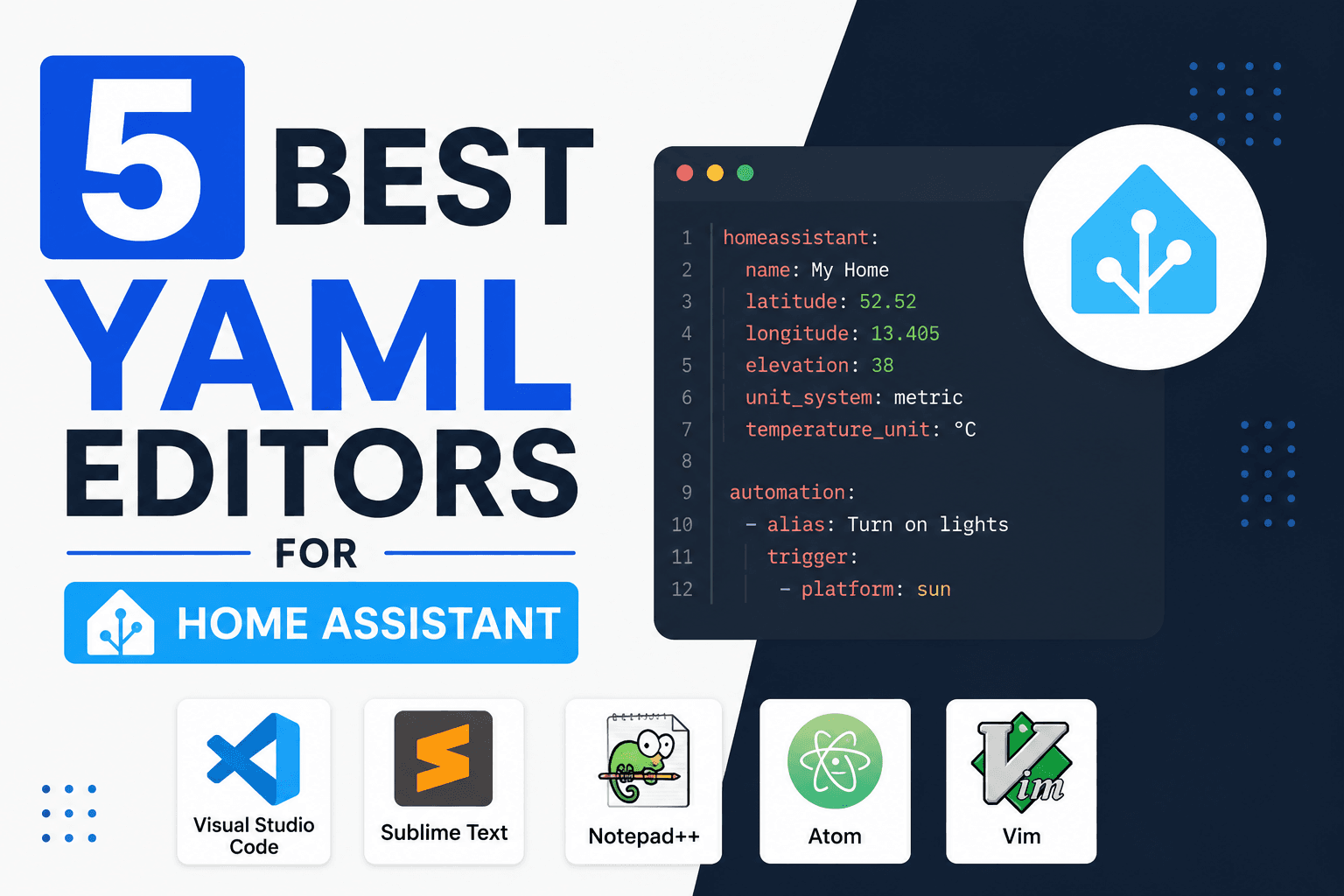
5 Best YAML Editors for Home Assistant in 2026 (Config Editing)
Compare the best YAML editors for Home Assistant, including Studio Code Server, Config Helper, File Editor, Notepad++, and Vim for configuration.yaml.