6 Best YAML Plugins for IntelliJ IDEA (2026)

On this page
IntelliJ IDEA has excellent YAML support built in. Schema validation, autocomplete, and formatting work out of the box. No plugins required for most YAML editing tasks.
The built-in support detects Kubernetes manifests automatically by recognizing apiVersion and kind fields. It validates against Kubernetes schemas and provides autocomplete for resource definitions. Same detection works for GitHub Actions, Docker Compose, and other common formats.
You add plugins when you need specialized workflows. The Kubernetes plugin connects to clusters and deploys directly from YAML files. The Helm plugin adds chart development features. The Cloud Code plugin provides Google Cloud and Skaffold support.
Use IntelliJ's built-in YAML support first. It handles 90% of use cases without plugins. Install Kubernetes plugin if you deploy to clusters from the IDE. Install Helm plugin if you develop Helm charts. Install Cloud Code if you use GKE or Skaffold.
This guide covers six plugins tested against Kubernetes deployments, Spring Boot configs, and CI/CD pipeline definitions in IntelliJ IDEA Ultimate and Community editions.
Built-in YAML Support in IntelliJ IDEA
Before installing plugins, understand what IntelliJ provides by default.
What's included:
- YAML syntax highlighting and code folding
- Automatic schema detection for common formats
- JSON Schema validation (works with YAML)
- Autocomplete based on detected schema
- Formatting and indentation control
- File structure view for navigation
- Integration with SchemaStore.org (600+ schemas)
Automatic schema detection:
Open a file named deployment.yaml with apiVersion and kind fields. IntelliJ recognizes it as a Kubernetes manifest and applies the Kubernetes schema. Type spec: and get autocomplete for containers, volumes, replicas.
Same detection works for docker-compose.yml, .github/workflows/*.yml, azure-pipelines.yml, and dozens of other formats. IntelliJ checks file name, location, and structure to infer the correct schema.
Manual schema assignment:
For custom schemas, right-click a YAML file → Associate with JSON Schema. Select a schema from SchemaStore or provide a custom schema URL. IntelliJ remembers this association for future files matching the pattern.
Spring Boot application.yml:
IntelliJ Ultimate automatically recognizes application.yml and application.yaml in Spring Boot projects. Autocomplete works for all Spring Boot configuration properties. Ctrl+Space after spring. shows available configuration keys.
Performance:
Schema validation happens in real-time with minimal lag. Files up to 50MB work smoothly. IntelliJ caches schema information so validation doesn't slow down editing.
For most Java, Kotlin, and Python developers, the built-in YAML support is sufficient. Plugins add value only for specific workflows described below.
1. Kubernetes Plugin (Best for Cluster Management)
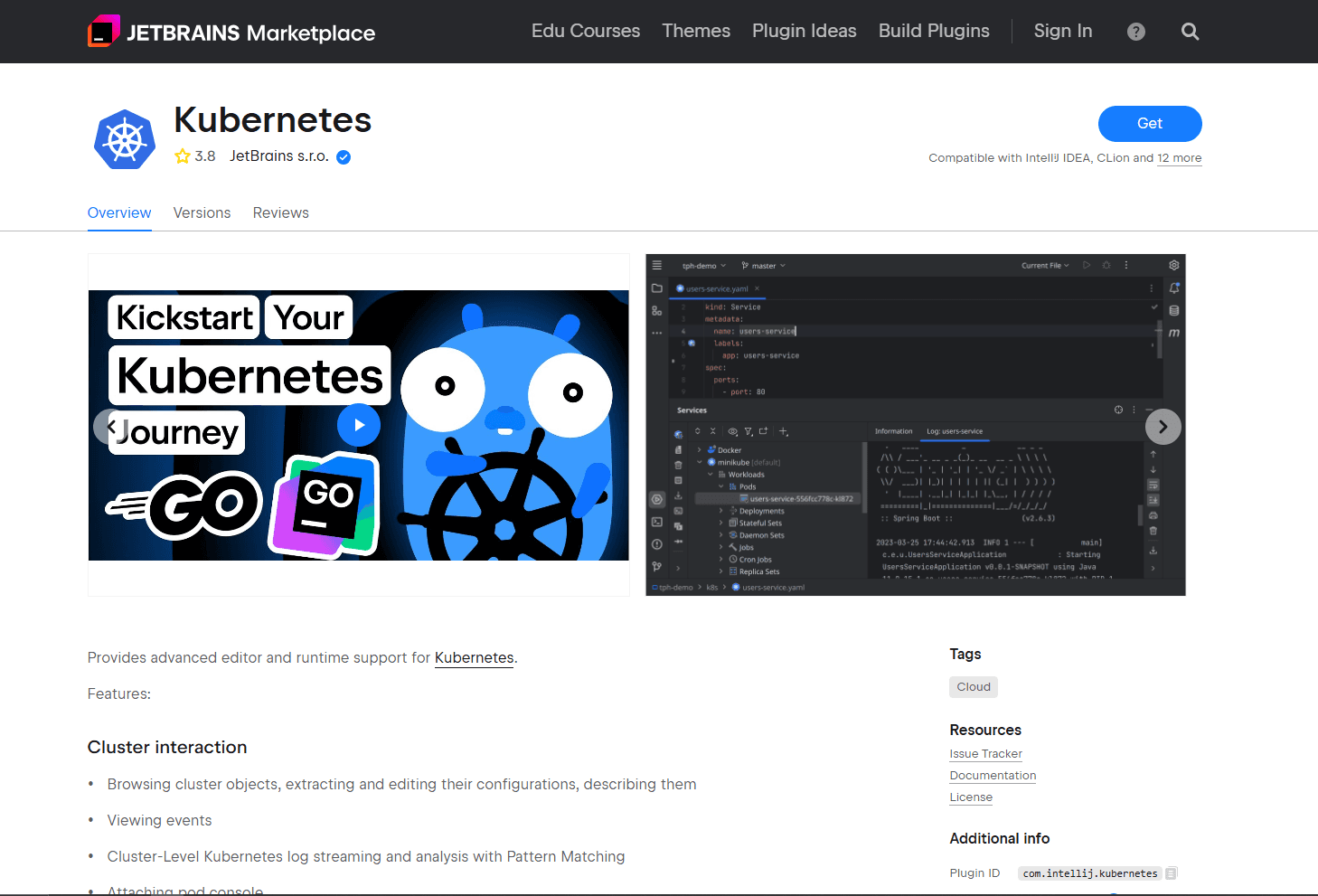
Kubernetes plugin by JetBrains adds cluster connection, resource inspection, and deployment capabilities directly in IntelliJ. Edit YAML manifests and deploy them without switching to Terminal.
Install from Settings (Ctrl+Alt+S) → Plugins → Marketplace. Search "Kubernetes", install the plugin by JetBrains, and restart IntelliJ.
What you get:
- Kubernetes tool window showing connected clusters from kubeconfig
- Resource browser with pods, deployments, services, ConfigMaps, Secrets in tree view
- Deploy YAML directly from editor with right-click → Apply to Cluster
- View pod logs without Terminal (integrated log viewer)
- Port forwarding UI for local access to cluster services
- Context switching between multiple clusters
- Enhanced YAML validation for Kubernetes manifests with cross-resource reference checking
- CRD (Custom Resource Definition) validation support
What you don't get:
- Helm chart development features (install Helm plugin separately)
- Multi-cluster management at enterprise scale (use dedicated tools like Lens or k9s)
- Works with IntelliJ Community Edition (requires Ultimate subscription)
When this is best:
If you deploy to Kubernetes clusters regularly from your IDE. If you debug pods and check logs frequently. If you switch between multiple cluster contexts. If you want to eliminate Terminal commands for basic kubectl operations.
The plugin eliminates dozens of Terminal commands per day for developers working with Kubernetes daily.
2. Helm Plugin (Best for Chart Development)
Helm plugin provides chart development features including Go template validation, values.yaml support, and chart linting integrated into IntelliJ.
Install from Settings → Plugins → Marketplace. Search "Helm", install, and restart IntelliJ. Requires helm CLI installed on your system.
What you get:
- Template file syntax highlighting with Go template support ({{ }} syntax)
- values.yaml validation and context-aware autocomplete
- Chart structure validation checking required files (Chart.yaml, templates/)
- Helm lint integration running helm lint with inline error display
- Template function autocomplete ({{ .Values. shows available paths)
- Chart dependencies management and validation
- Navigation between values.yaml and template references
- values.schema.json validation support
What you don't get:
- Helm chart installation from IDE (use Terminal or Kubernetes plugin)
- Helm repository management UI
- Works without Helm CLI installed (hard requirement)
When this is best:
If you develop Helm charts professionally. If you maintain multiple charts in a monorepo. If you want IDE-level support for Go templates in YAML. If you need instant feedback on chart structure and template errors.
The plugin significantly speeds up Helm chart development by catching errors before running helm install.
3. Cloud Code Plugin (Best for Google Cloud Platform)
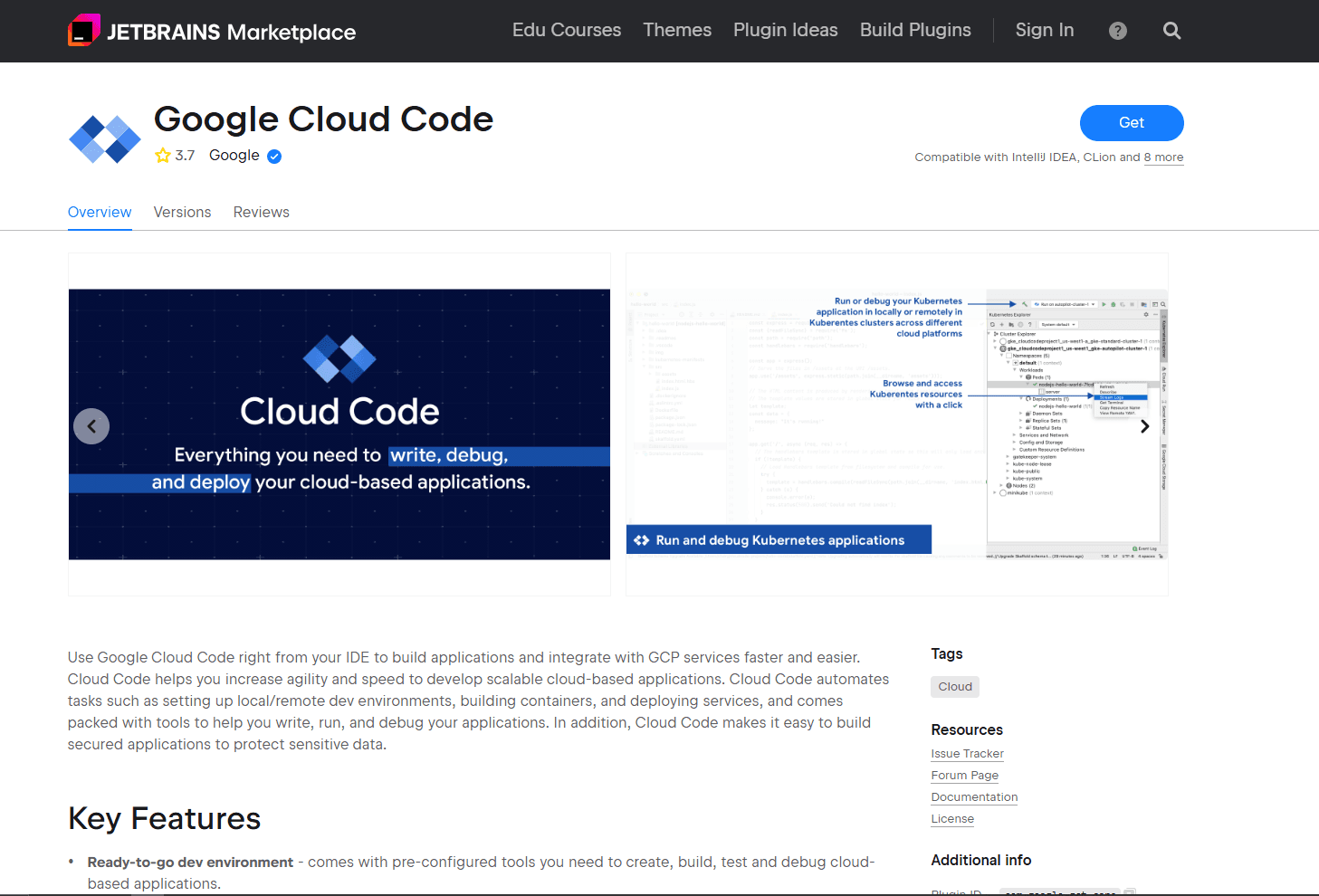
Cloud Code plugin by Google adds GKE support, Skaffold integration, and Cloud Run deployment focused on Google Cloud Platform workflows.
Install from Settings → Plugins → Marketplace. Search "Cloud Code", install by Google, and restart IntelliJ.
What you get:
- GKE cluster browser and management directly in IDE
- Skaffold YAML support with schema validation and autocomplete
- Cloud Run service deployment from IntelliJ
- Kubernetes YAML editing with GKE-specific validation (Autopilot constraints, etc.)
- Live development with Skaffold hot reload
- Log streaming from GKE pods integrated into IDE
- GCP API schema support for Cloud Build and Deployment Manager
- Google Cloud authentication integration
What you don't get:
- Support for AWS, Azure, or on-premise Kubernetes (GCP-focused)
- Works well without Google Cloud account
- Lightweight alternative to Kubernetes plugin (Cloud Code adds significant overhead)
When this is best:
If your infrastructure runs exclusively on Google Cloud Platform. If you use Skaffold for local development workflows. If you deploy to GKE or Cloud Run regularly from your IDE. If you want deep integration with GCP services.
The plugin streamlines GCP-specific workflows but adds lock-in. Use the Kubernetes plugin for cloud-agnostic development.
4. Docker Plugin (Best for Docker Compose — Built-in)
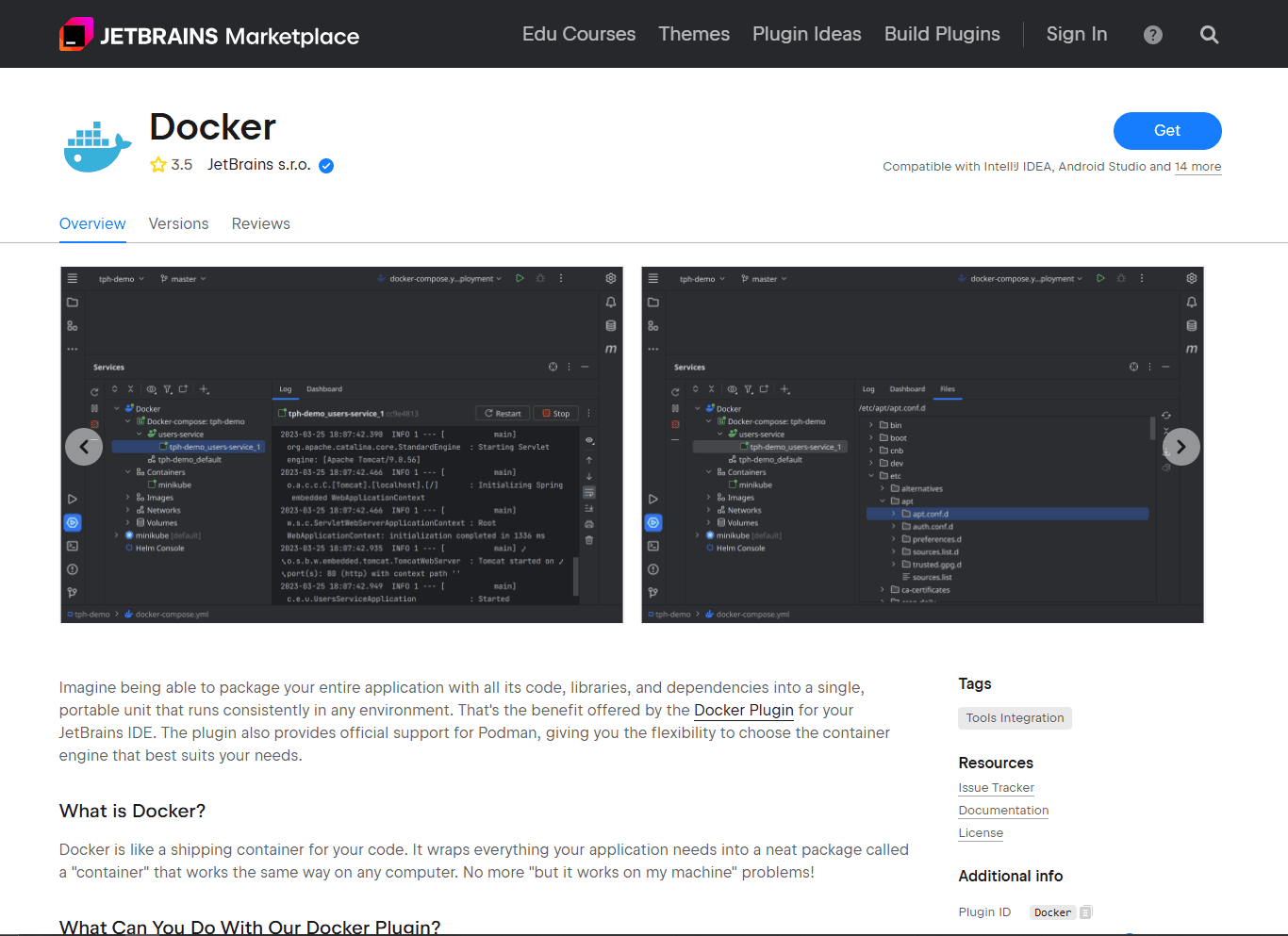
IntelliJ includes a Docker plugin by default that recognizes docker-compose.yml files and provides validation, autocomplete, and run configurations.
No installation needed. Open docker-compose.yml and IntelliJ activates Docker support automatically.
What you get:
- Docker Compose schema validation for versions 2.x and 3.x
- Service definition autocomplete with field suggestions
- Volume and network configuration validation
- Environment variable completion from .env files
- Run configurations for docker-compose commands (up, down, build)
- Gutter icons to start/stop services directly from editor
- Integration with Docker Desktop or Docker CLI
- Services tool window showing running containers with logs
What you don't get:
- Dockerfile linting (use separate Dockerfile linters)
- Container image scanning
- Docker Swarm or Kubernetes deployment features
When this helps:
If your project uses Docker Compose for local development. If you manage multi-container applications. If you want IDE-based container management instead of Terminal commands. If you need quick access to container logs and status.
The Docker plugin is always available in IntelliJ with no installation required.
5. .ignore Plugin (Best for Project Hygiene)
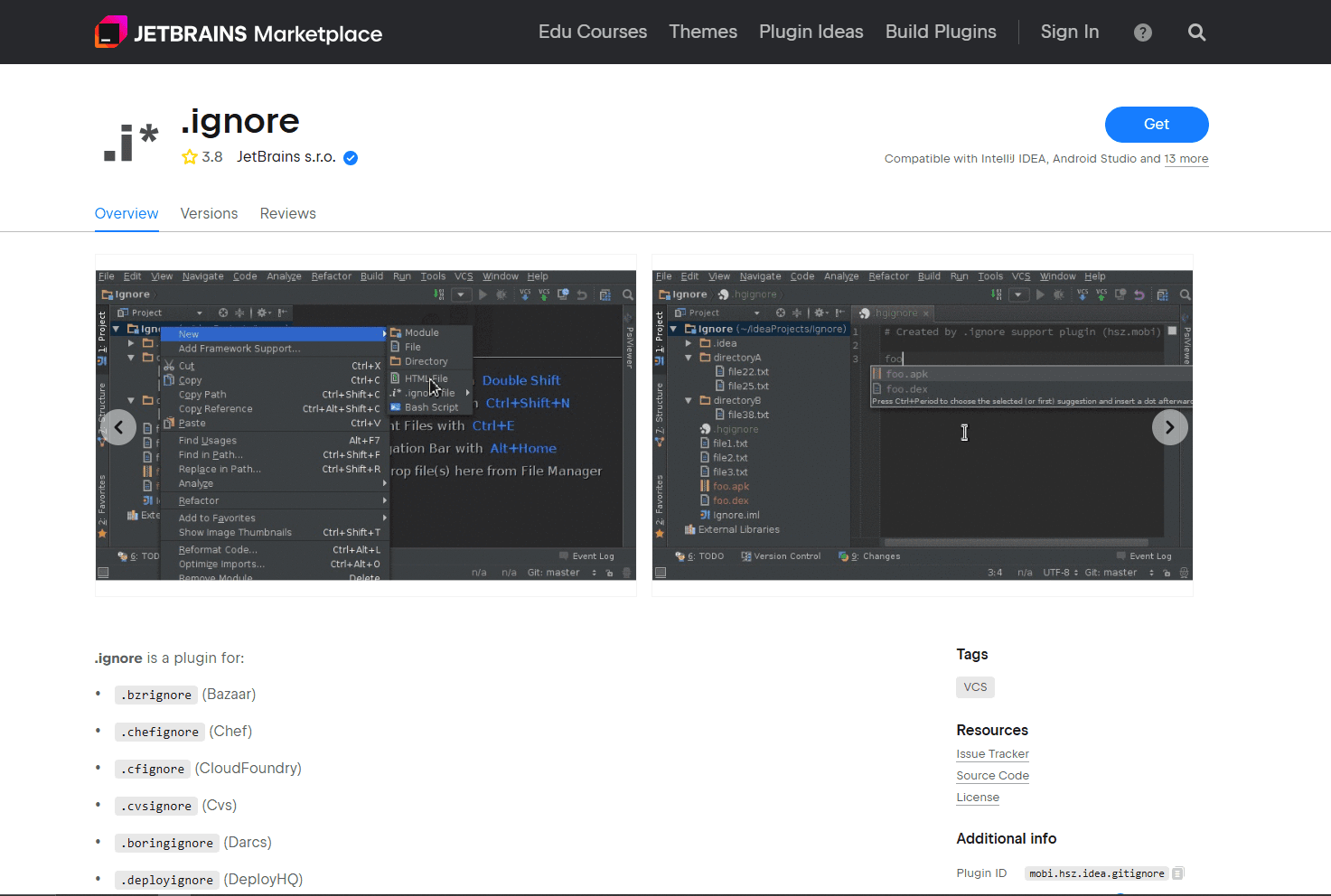
.ignore plugin helps manage .gitignore, .dockerignore, .helmignore, and similar files with templates, syntax highlighting, and file tree integration.
Install from Settings → Plugins → Marketplace. Search ".ignore", install, and restart IntelliJ.
What you get:
- Syntax highlighting for all ignore file formats (.gitignore, .dockerignore, .helmignore, .npmignore)
- Pre-built templates for common project types (Helm, Kubernetes, Docker, Node.js)
- File tree integration showing ignored files in different color
- Duplicate entry detection preventing redundant ignore patterns
- Coverage checking showing which files match ignore patterns
- Create ignore files from right-click context menu
- Pattern testing to verify which files will be ignored
What you don't get:
- Auto-generation of ignore patterns (you still write patterns manually)
- Git-specific features beyond ignore file editing
- Performance improvement for very large projects
When this is best:
If you frequently create or maintain ignore files. If you work with Helm charts needing .helmignore files. If you want visual feedback on which files are being ignored. If you maintain polyglot projects with multiple ignore file types.
The plugin is lightweight and adds quality-of-life improvements for ignore file management.
6. String Manipulation Plugin (Best for Text Transformations)
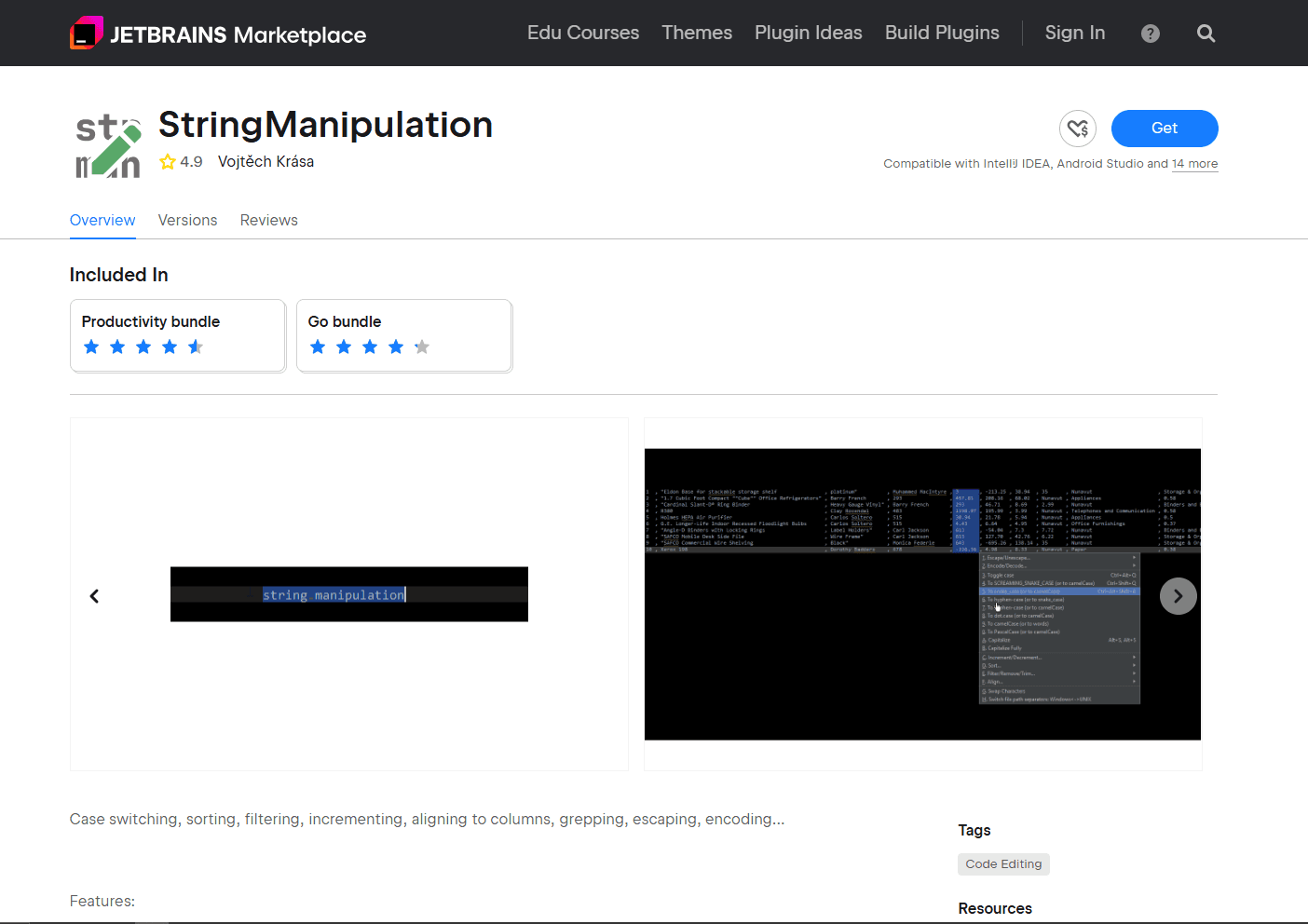
String Manipulation plugin adds 30+ text transformation tools useful for YAML editing including case conversion, encoding/decoding, and line manipulation.
Install from Settings → Plugins → Marketplace. Search "String Manipulation", install, and restart IntelliJ.
What you get:
- Case conversion (camelCase, snake_case, kebab-case, SCREAMING_SNAKE_CASE, PascalCase)
- Base64 encode/decode for Kubernetes secrets
- URL encode/decode for configuration values
- Line sorting (alphabetical or natural) and deduplication
- Increment/decrement numbers in versions
- Escape/unescape strings for various formats
- Multi-line string wrapping and formatting
- Accessible via keyboard shortcut Alt+M
What you don't get:
- YAML-specific validation or formatting
- Bulk file processing (works on selected text only)
- Undo across multiple transformations (each is separate)
Common YAML workflows:
When this is best:
If you frequently transform strings while editing YAML configuration. If you work with base64-encoded Kubernetes secrets. If you need quick case conversions for labels and annotations. If you want keyboard-driven text manipulation without external tools.
The plugin adds efficiency to repetitive text transformation tasks during YAML editing.
Plugin Comparison Table
Recommended Setup for Different Workflows
Spring Boot developers:
Built-in YAML support is sufficient. IntelliJ validates application.yml automatically. No plugins needed for configuration editing.
Kubernetes developers:
Install Kubernetes plugin for cluster management. Install Helm plugin if you develop charts. Built-in YAML support handles manifest editing.
GCP platform engineers:
Install Cloud Code for GKE and Skaffold integration. Install Kubernetes plugin for non-GKE clusters. Cloud Code provides the best GCP-specific workflow.
DevOps engineers:
Install Kubernetes plugin for cluster work. Install .ignore plugin for project hygiene. Install String Manipulation for quick text transformations. Built-in Docker support handles Compose files.
Backend developers editing configs:
Use built-in YAML support. Install String Manipulation if you frequently transform strings. No other plugins needed for occasional YAML editing.
IntelliJ YAML Settings
Configure YAML behavior in Settings (Ctrl+Alt+S) → Editor → Code Style → YAML:
- Set indent size to 2 spaces (YAML standard)
- Enable "Use tab character" = false (spaces only in YAML)
- Set "Wrap on typing" to Off (prevents auto-wrapping)
- Enable "Keep indents on empty lines" for cleaner structure
For validation settings: Settings → Languages & Frameworks → Schemas and DTOs → JSON Schema Mappings. Add custom schemas or modify existing mappings.
Frequently Asked Questions
Does IntelliJ have built-in YAML support?
Yes. IntelliJ IDEA includes comprehensive YAML support without plugins. You get syntax highlighting, schema validation, autocomplete, and formatting out of the box. The IDE automatically detects common formats like Kubernetes manifests, Docker Compose, and GitHub Actions. Schema validation works with JSON Schema files and includes 600+ schemas from SchemaStore.org. No plugin installation needed for most YAML editing tasks.
How do I validate YAML against a schema in IntelliJ?
IntelliJ validates YAML automatically if it detects the schema from file name or content. For custom schemas, right-click the YAML file → Associate with JSON Schema. Select a schema from SchemaStore or provide a URL to your custom schema. IntelliJ highlights validation errors in real-time. Red underlines indicate schema violations with hover tooltips explaining the error.
What's the best Kubernetes plugin for IntelliJ?
The Kubernetes plugin by JetBrains. Install from Settings → Plugins → Marketplace. It adds cluster connection, resource browsing, and YAML deployment from the editor. Right-click a manifest and select "Apply to Cluster" to deploy without Terminal. The plugin shows pod logs, port forwarding, and context switching. Works with any Kubernetes cluster using your kubeconfig file.
Does IntelliJ support Docker Compose YAML files?
Yes through the built-in Docker plugin. Open docker-compose.yml and IntelliJ activates schema validation and autocomplete automatically. Gutter icons let you start/stop services directly from the editor. The Services tool window shows running containers with logs and management controls. Multi-compose file support includes docker-compose.override.yml validation. No additional plugin installation required.
How do I get autocomplete for Spring Boot YAML in IntelliJ?
IntelliJ Ultimate recognizes application.yml in Spring Boot projects automatically. Type spring. and press Ctrl+Space for configuration property suggestions. The IDE reads Spring Boot's configuration metadata and provides autocomplete for all framework properties. IntelliJ Community edition doesn't include Spring Boot support. Upgrade to Ultimate or use the built-in generic YAML validation.
Can IntelliJ edit Helm chart templates?
Yes with the Helm plugin. Install from Settings → Plugins → Marketplace. The plugin adds Go template syntax highlighting within YAML files. Autocomplete works for {{ .Values. expressions based on your values.yaml file. The plugin validates chart structure and runs helm lint with errors displayed in the editor. Requires Helm CLI installed on your system.
Related Reading
For YAML editing in other environments, see the best YAML editors for Windows, best YAML editors for Mac, and best YAML editors for Linux guides.
IDE-specific guides:
- Best YAML extensions for VS Code for VS Code YAML plugin comparisons
- Best YAML plugins for Notepad for Notepad YAML tools
- Best JSON extensions for VS Code for JSON editing workflows
Format comparisons:
Read More
All Articles
6 Best YAML Plugins for Notepad++ in 2026 (Setup Guide)
Compare 4 best YAML plugins for Notepad++ including syntax highlighting, validation, and formatting. Step-by-step setup for YAML Language, Compare Plugin, and TextFX.
5 Best YAML Editors for Home Assistant in 2026 (Config Editing)
Compare the best YAML editors for Home Assistant, including Studio Code Server, Config Helper, File Editor, Notepad++, and Vim for configuration.yaml.
7 Best YAML Extensions for VS Code in 2026 (Tested & Ranked)
Find the best YAML extension for VS Code with schema validation, Kubernetes support, and auto-formatting. Compare Red Hat YAML vs YAML Language Support for professional workflows.