7 Best YAML Editors for Mac in 2026 (Free & Paid)

On this page
YAML errors in Kubernetes manifests can block deployments. Docker Compose files with incorrect indentation may not start containers, and CI/CD pipelines can fail on syntax mistakes. Schema validation catches many of these problems before they reach production.
VS Code with the Red Hat YAML extension validates against Kubernetes, Docker Compose, and GitHub Actions schemas. Sublime Text and BBEdit are better suited to direct text editing when schema validation is not the main requirement.
Seven YAML editors are compared below. Some validate schemas, some prioritize speed, and some work best for specific workflows.
1. VS Code with YAML Extension (Best for Kubernetes)
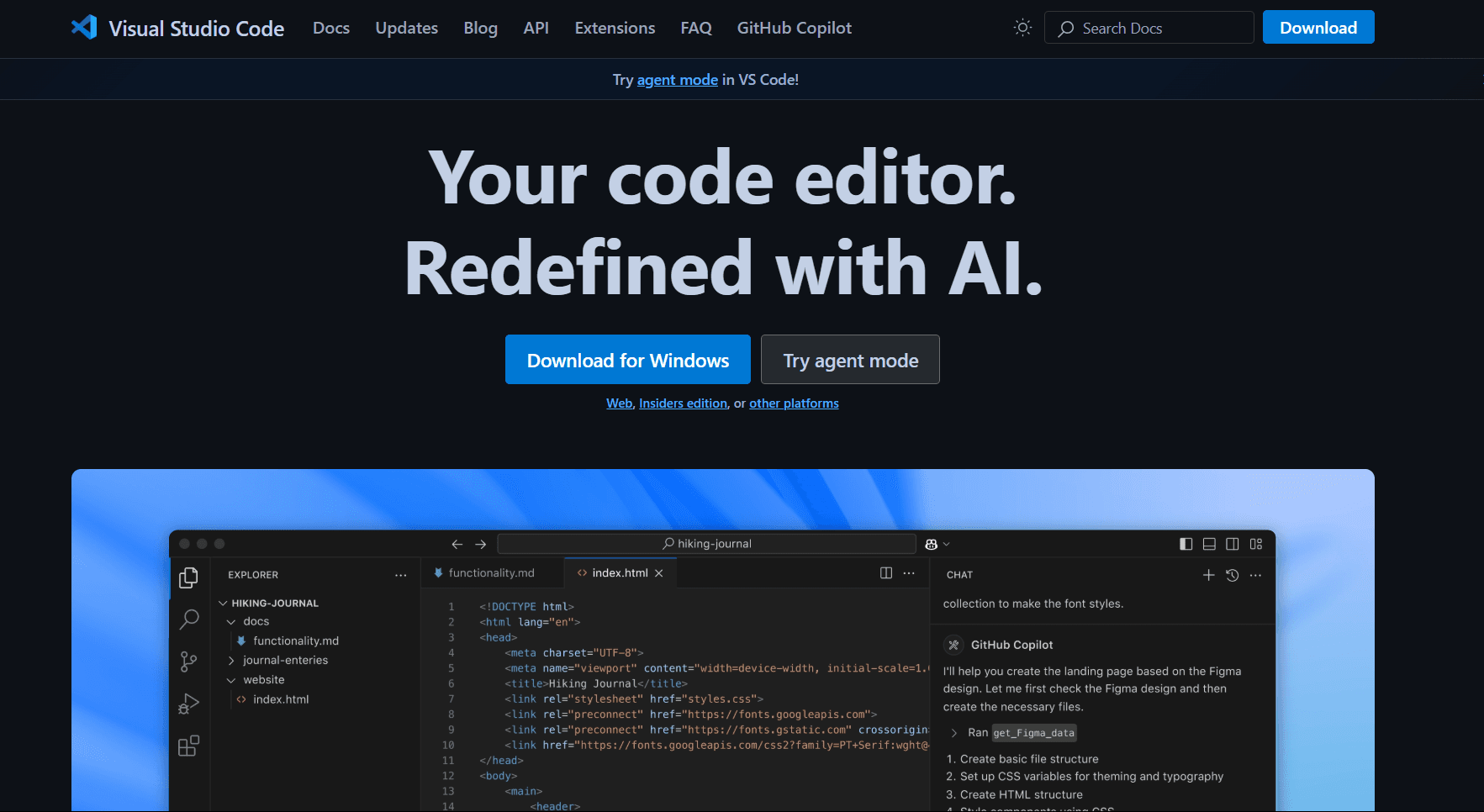
VS Code with the Red Hat YAML extension is the best default for editing Kubernetes manifests and other schema-based YAML.
Install VS Code: brew install --cask visual-studio-code or download from code.visualstudio.com
Install YAML extension: Press Cmd + Shift + X, search "YAML" by Red Hat, click Install.
What you get:
- Schema validation (Kubernetes, Docker Compose, GitHub Actions, etc.)
- Auto-completion based on schema
- Error detection as you type
- Hover documentation for properties
- Multi-document support (--- separators)
- Formatting (Shift + Option + F)
- Outline view for navigation
- Git integration
Schema configuration:
{
  "yaml.schemas": {
    "kubernetes": "/*.yaml",
    "https://json.schemastore.org/github-workflow.json": ".github/workflows/*.yml"
  }
}
What you don't get:
- A larger installation than a focused text editor
- Slower launch than native apps
- Not Mac-native (Electron-based)
VS Code fits DevOps engineers working with Kubernetes, developers writing Docker Compose files, or anyone who needs schema validation. If you're already using VS Code, adding YAML support takes one extension install.
2. Sublime Text with YAML Plugin (Best for Speed)
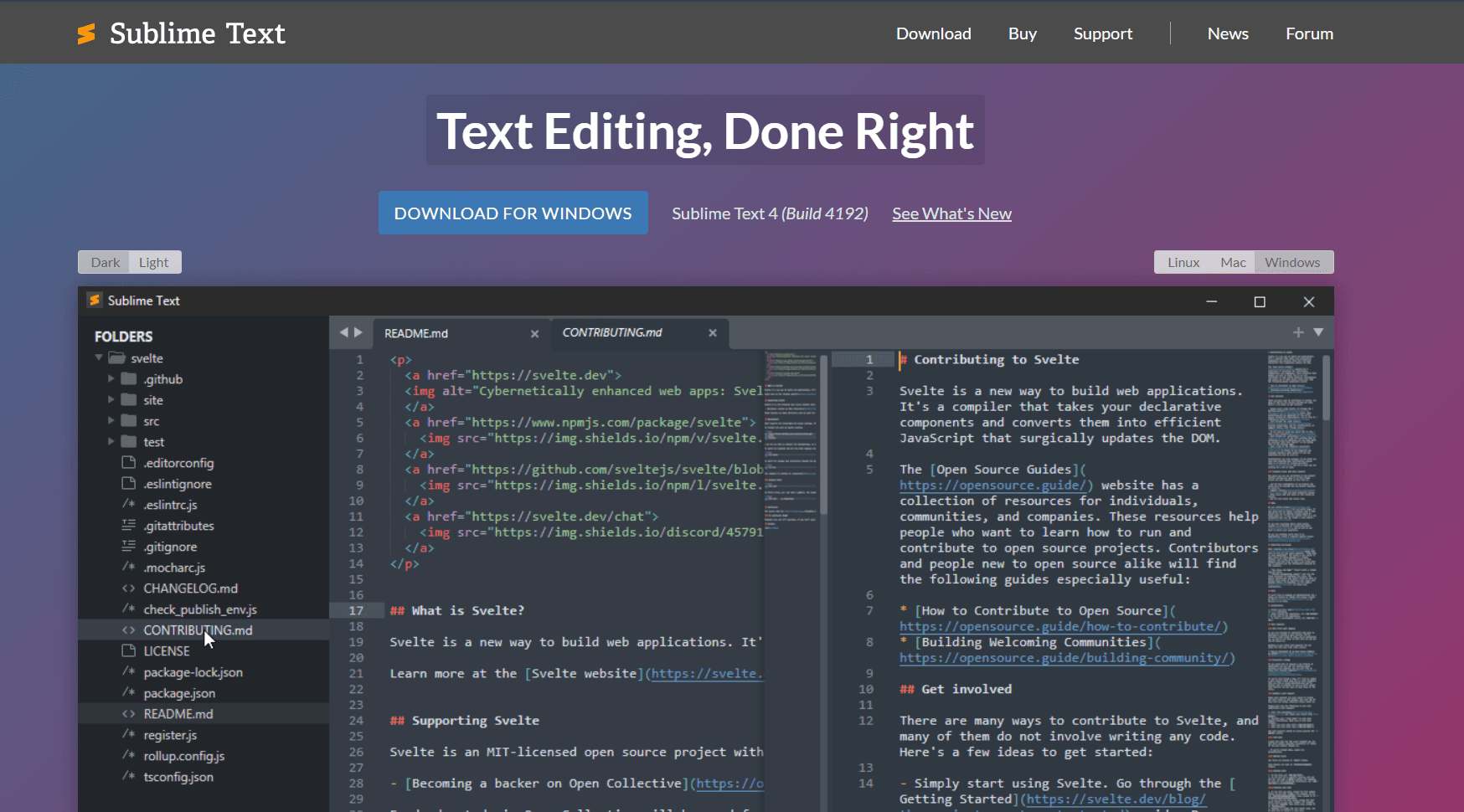
Sublime Text is a responsive editor for direct YAML editing. Add packages when you need extra syntax or language-server support.
Install: brew install --cask sublime-text or download from sublimetext.com
Setup:
- Install Package Control: Cmd + Shift + P > "Install Package Control"
- Install YAML package: Cmd + Shift + P > "Package Control: Install Package" > search "YAML"
What you get:
- Syntax highlighting for YAML
- Code folding for nested structures
- Multi-cursor editing (Cmd + D to select duplicates)
- Goto Anything (Cmd + P for quick navigation)
- A free evaluation before purchasing a license for continued use
What you don't get:
- No schema validation in the basic setup
- No schema-aware completion without additional configuration
- No built-in preview
Sublime Text fits developers who need speed over validation. It works best when you know the schema or use a separate validator.
3. BBEdit (Best Native Mac App)
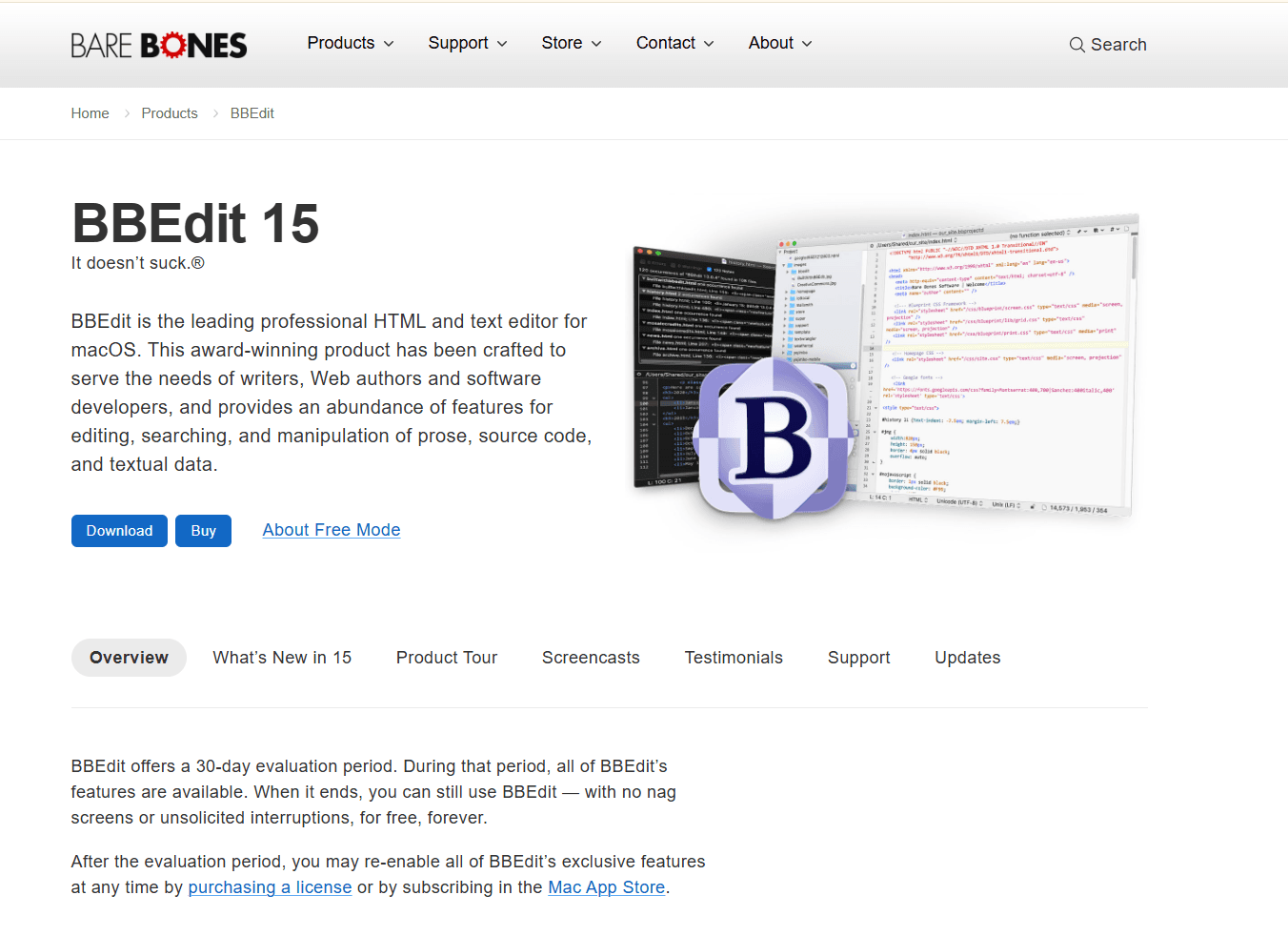
BBEdit is a native Mac text editor with excellent YAML support. After its evaluation period, it can continue in Free Mode or use a paid license for the full feature set.
Install: brew install --cask bbedit or download from barebones.com
What you get:
- YAML syntax highlighting built-in
- Code folding for nested structures
- Text manipulation tools (grep, multi-file search)
- Pattern matching with regex
- Native Mac app (respects Dark Mode, Quick Look)
- Universal build for Intel and Apple silicon Macs
What you don't get:
- No schema validation
- No auto-completion
- No YAML-specific linting
BBEdit fits Mac power users who want a native app with text manipulation tools. Good for editing YAML alongside other config files, or when you need regex-based find-and-replace.
4. Nova (Best for Mac-First Design)
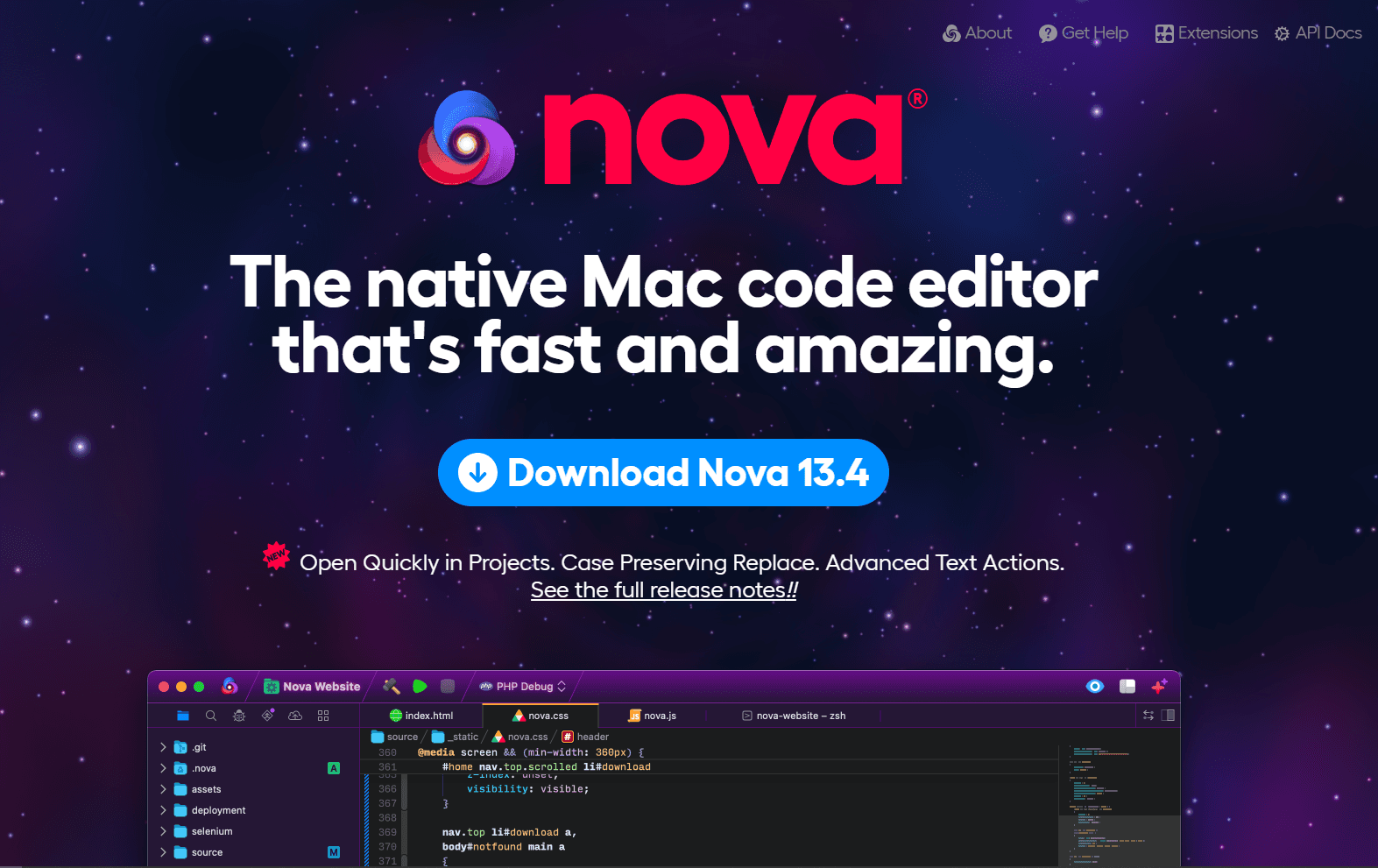
Nova by Panic is a native Mac code editor. Nova is sold as a paid license with one year of updates included, plus optional paid update renewal after that.
The interface is designed specifically for macOS. Native UI elements, Dark Mode integration, and system font support.
What you get:
- YAML syntax highlighting
- Extensions for validation (via Nova extensions)
- Native Mac app
- Git integration
- Beautiful Mac-native interface
What you don't get:
- Smaller extension ecosystem than VS Code
- No free tier (trial only)
- Limited YAML-specific features
Nova fits developers who value native Mac design and are willing to pay for it. The app is polished and feels like it belongs on Mac.
5. IntelliJ IDEA / PyCharm (Best for JetBrains Users)

IntelliJ IDEA and PyCharm have excellent YAML support built-in.
If you're already using a JetBrains IDE for development, the YAML support is included.
What you get:
- Schema validation (Kubernetes, Docker Compose, etc.)
- Auto-completion based on schema
- Error detection and quick fixes
- Refactoring support (rename keys across files)
- Multi-file navigation
- Git integration
What you don't get:
- Very heavy (not suitable for quick edits)
- Some wider IDE features require a subscription
- Overkill for YAML-only editing
IntelliJ/PyCharm fits developers already using JetBrains IDEs. If you're writing Java, Python, or other languages in these IDEs, the YAML support is excellent. Don't install just for YAML editing.
6. Vim / Neovim with YAML Plugin (Best for Terminal)
Vim is pre-installed on macOS. Add vim-yaml plugin for syntax highlighting and indentation support.
Setup for Neovim:
- Install Neovim: brew install neovim
- Install vim-plug:
sh -c 'curl -fLo "${XDG_DATA_HOME:-$HOME/.local/share}"/nvim/site/autoload/plug.vim --create-dirs https://raw.githubusercontent.com/junegunn/vim-plug/master/plug.vim'- Add to init.vim:
Plug 'stephpy/vim-yaml'What you get:
- YAML syntax highlighting
- Auto-indentation
- Code folding
- Works over SSH
- Suitable for keyboard-driven and remote workflows
What you don't get:
- No schema validation
- No auto-completion (without LSP)
- Steep learning curve
Vim fits developers who live in the terminal or work on remote servers via SSH. If you're already a Vim user, adding YAML support takes minutes.
7. TextMate (Best Lightweight Native App)
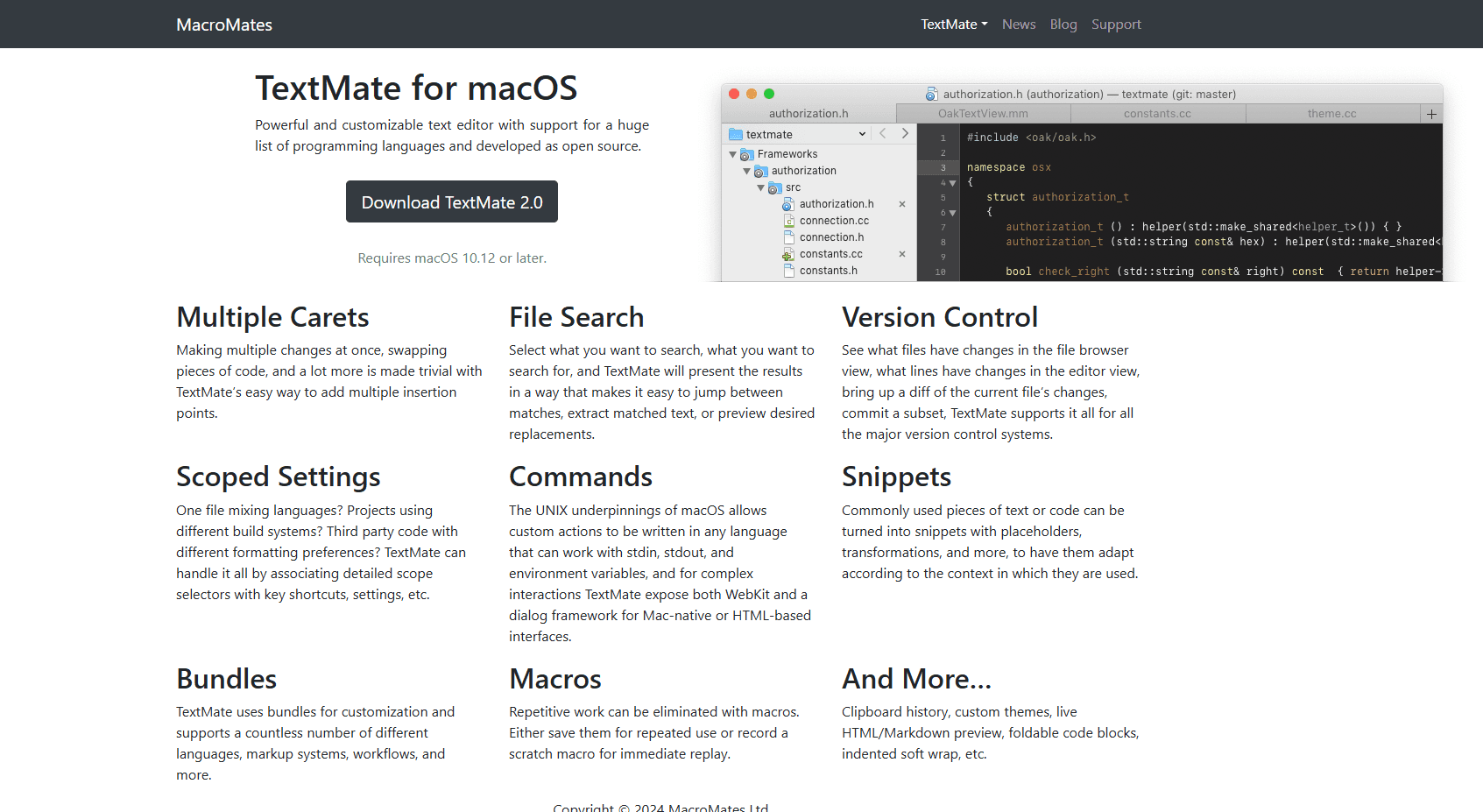
TextMate is a lightweight native Mac editor. Free and open-source.
Install: brew install --cask textmate or download from macromates.com
What you get:
- YAML syntax highlighting via bundle
- Code folding
- Snippets for common YAML patterns
- Native Mac app
- Search, snippets, macros, and multiple carets
What you don't get:
- No schema validation
- No auto-completion
- Fewer YAML-specific integrations than VS Code
TextMate fits Mac users who want a lightweight native app for quick YAML edits. Good for occasional editing without heavy IDE overhead.
YAML Editor Comparison Table
Recommendation
For most Mac developers, VS Code with the Red Hat YAML extension is the best starting point. Its schema-aware validation and completion are especially useful for Kubernetes manifests, Docker Compose files, and other configurations where a small mistake can disrupt a workflow.
Sublime Text is a better fit when you want a responsive editor for quick changes, although schema-based files still benefit from an LSP package or external validator. BBEdit is the stronger native choice for advanced search and text manipulation, while Nova offers a polished macOS interface with integrated project tools.
Terminal-first users can stay with Vim or Neovim and add a language server for validation and completion. You also do not need to use one editor for every task: VS Code can handle schema-heavy configuration, Sublime Text or BBEdit can cover quick local edits, and Vim or Neovim can remain your tool for remote servers.
Platform-Specific Tips for Mac
Apple Silicon optimization:
- VS Code offers Universal, Intel, and Apple silicon downloads
- Sublime Text uses a universal macOS binary, and BBEdit supports Intel and Apple silicon Macs
- Current JetBrains IDEs offer Apple silicon builds; use the vendor download page for the right architecture
Homebrew installation: Most editors install via Homebrew Cask:
- brew install --cask visual-studio-code
- brew install --cask sublime-text
- brew install --cask bbedit
- brew install --cask nova
- brew install --cask textmate
Quick Look preview: The old qlyaml Homebrew instruction is no longer current. If Finder preview matters, choose a maintained app-extension-based Quick Look tool that explicitly supports YAML and your macOS version.
Spotlight integration: Use Spotlight to locate YAML files, then open them in BBEdit, TextMate, or another editor. Search results depend on what macOS has indexed.
Frequently Asked Questions
What's the best YAML editor for Mac?
VS Code with the Red Hat YAML extension. Install VS Code with brew install --cask visual-studio-code, then install the YAML extension from the Extensions panel. You get schema validation for Kubernetes, Docker Compose, GitHub Actions, and more. Auto-completion and error detection work as you type. It's free and actively maintained. For a lighter native alternative, use Sublime Text or BBEdit.
How do I validate YAML on Mac?
Use VS Code with the Red Hat YAML extension for schema-aware validation. For command-line syntax and style checks, install yamllint with brew install yamllint and run yamllint file.yaml. When a cluster is available, kubectl apply --dry-run=server -f file.yaml performs a server-side check without persisting the resource.
Does VS Code work well for YAML on Mac?
Yes. VS Code has YAML support through the Red Hat extension. Schema validation works for Kubernetes, Docker Compose, GitHub Actions, and other formats, with completion and error detection as you type. VS Code also provides Universal, Intel, and Apple silicon downloads. The tradeoff is a larger application than focused editors such as BBEdit or Sublime Text.
What's the best YAML editor for Kubernetes on Mac?
VS Code with the Red Hat YAML extension is the easiest schema-aware option. Set the Kubernetes schema version for your target environment, then use kubectl apply --dry-run=server -f manifest.yaml when cluster-side validation is available.
Is there a native Mac YAML editor?
Yes. BBEdit, Sublime Text, Nova, and TextMate are Mac apps with YAML support. BBEdit and TextMate are Mac-focused editors, Sublime Text ships as a universal binary, and Nova is built for macOS. Their basic workflows emphasize text editing, so schema validation usually requires an extension or separate validator.
How do I edit Docker Compose files on Mac?
Use VS Code with the Red Hat YAML extension. Configure Docker Compose schema in settings.json:
"yaml.schemas": {
  "https://raw.githubusercontent.com/compose-spec/compose-spec/master/schema/compose-spec.json": "docker-compose*.yml"
}
The extension validates your compose file and provides auto-completion for services, volumes, and networks. For quick edits, Sublime Text or BBEdit work well.
Related Reading
For YAML editing on other platforms:
For other file formats on Mac:
Read More
All Articles
8 Best YAML Editors for Windows in 2026 (Free & Paid)
Find the best YAML editor for Windows 11 and 10 with validation and syntax highlighting. Compare VS Code, Notepad++, Sublime Text, and more for Kubernetes and Docker configs.
8 Best YAML Editors for Linux in 2026 (GUI & Terminal)
Compare 8 best YAML editors for Linux including VS Code, Kate, Vim, yamllint, and GUI tools. Covers terminal and desktop options for Ubuntu, Fedora, and Arch Linux users.
5 Best YAML Editors for Home Assistant in 2026 (Config Editing)
Compare the best YAML editors for Home Assistant, including Studio Code Server, Config Helper, File Editor, Notepad++, and Vim for configuration.yaml.