7 Best YAML Extensions for VS Code in 2026 (Tested & Ranked)

On this page
VS Code has basic YAML syntax highlighting built in. For most developers, that's not enough. Schema validation catches configuration errors before deployment. Auto-completion prevents typos in Kubernetes manifests. Real-time linting saves hours of debugging pipeline failures.
The YAML extension by Red Hat is the standard choice. Over 10 million downloads. Built-in schema validation for Kubernetes, Docker Compose, GitHub Actions, and 100+ other formats. Auto-formatting with configurable indentation. Works with zero configuration for most YAML files.
Install it with Cmd/Ctrl + Shift + X, search "YAML" by Red Hat, click Install. That covers 90% of YAML editing needs in VS Code.
For specialized workflows, four other extensions add capabilities Red Hat YAML doesn't have. YAML Language Support for multi-root workspace validation. Kubernetes extension for cluster management alongside manifest editing. Prettify YAML for opinionated formatting. indent-rainbow for visual indentation guides.
This guide covers seven extensions tested against real Kubernetes deployments, CI/CD pipelines, and configuration management workflows.
1. YAML by Red Hat (Best for Most Users)
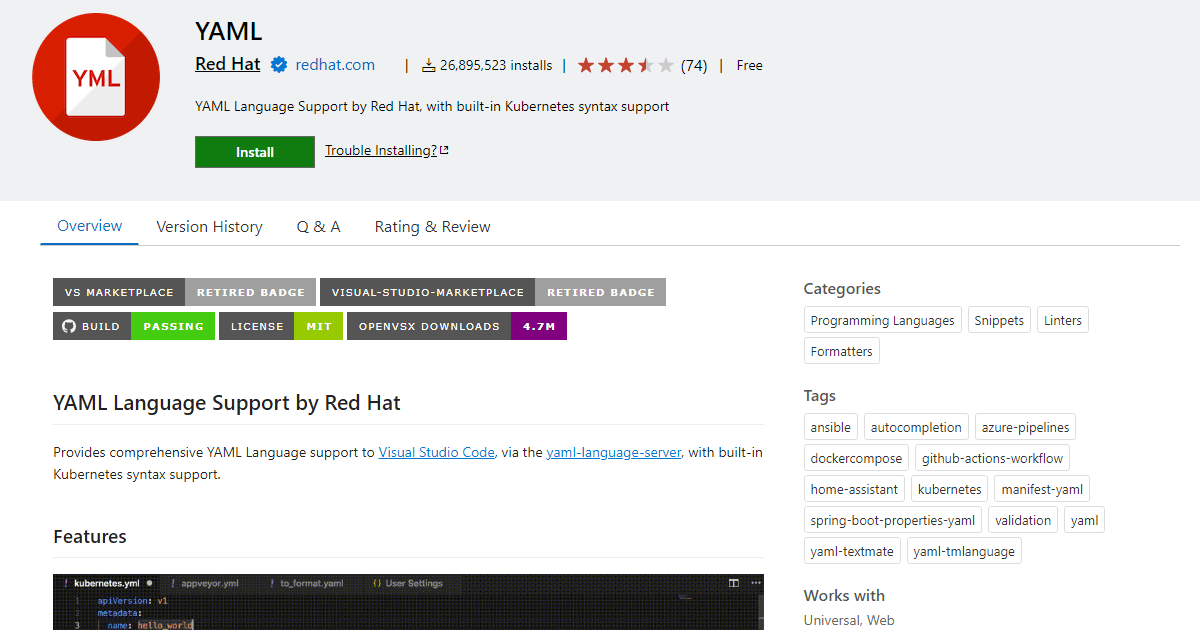
YAML by Red Hat is the most complete YAML solution for VS Code with over 10 million downloads. Schema validation, auto-completion, and formatting work out of the box for Kubernetes, Docker Compose, GitHub Actions, and 600+ other formats.
Install by opening Extensions panel (Cmd/Ctrl + Shift + X), search "YAML" by Red Hat, click Install. Or via command line: code --install-extension redhat.vscode-yaml
What you get:
- Schema validation for 600+ formats from SchemaStore.org (Kubernetes, Docker Compose, GitHub Actions, Azure Pipelines, CircleCI, Travis CI, etc.)
- Context-aware auto-completion based on schema (knows valid keys for current position)
- Real-time error detection as you type (catches indentation issues, type mismatches, missing required fields)
- Hover documentation showing field descriptions from schemas
- Document formatting with Shift + Alt + F or format on save
- Custom schema support for proprietary YAML formats
- Multi-document YAML file support (files with --- separators)
What you don't get:
- Visual tree view for nested structures
- Diff tool for comparing YAML files
- Kubernetes cluster management (use Kubernetes extension for that)
- Opinionated formatting like alphabetical key sorting
Schema configuration for custom formats:
Remote schema:
"yaml.schemas": {
  "https://json.schemastore.org/github-workflow.json": ".github/workflows/*.yaml"
}
Use public schema from SchemaStore.
Local schema:
"yaml.schemas": {
  "./custom-schema.json": "config/*.yaml"
}
Use project-specific schema file.
Multiple patterns:
"yaml.schemas": {
  "schema.json": ["config/*.yaml", "settings/*.yml"]
}
Apply one schema to multiple file patterns.
When this is best:
If you work with Kubernetes, CI/CD pipelines, or any schema-driven YAML. If you want validation that catches errors before deployment. If you need auto-completion to avoid memorizing YAML structure. If you edit YAML files regularly as part of development work.
The Red Hat YAML extension handles 90% of YAML editing needs in VS Code. Install this first before considering other extensions.
2. Kubernetes by Microsoft (Best for Kubernetes Workflows)
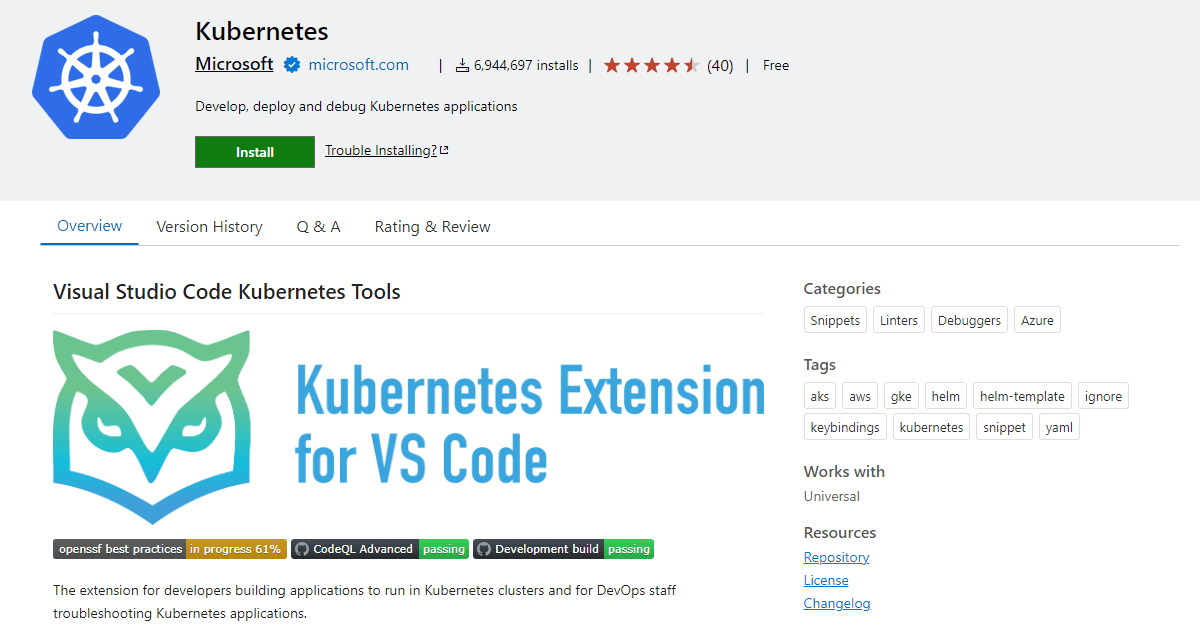
Kubernetes by Microsoft adds cluster management directly into VS Code. Edit manifests with validation, then apply them to your cluster without switching to Terminal.
Install from Extensions panel (Cmd/Ctrl + Shift + X) by searching "Kubernetes" by Microsoft, or via command line: code --install-extension ms-kubernetes-tools.vscode-kubernetes-tools. Requires kubectl installed and configured on your system.
What you get:
- Cluster explorer sidebar showing deployments, services, pods, ConfigMaps, Secrets in tree view
- Manifest validation with Kubernetes schema support (complements Red Hat YAML)
- Right-click "Apply" command to deploy YAML directly from editor
- Pod log viewer integrated into VS Code (no Terminal needed)
- Port forwarding UI for local access to cluster services
- Helm chart creation, linting, and template preview
- Describe resources inline without kubectl describe
- Debug containers with VS Code debugger attached to pods
What you don't get:
- Advanced multi-cluster management at scale (use Lens or k9s for that)
- Complex Helm templating beyond basic preview (install Helm extension)
- YAML editing outside Kubernetes context
- Works without kubectl installed (hard requirement)
Kubernetes-specific commands:
When this is best:
If you deploy to Kubernetes clusters regularly. If you want to eliminate context switching between VS Code and Terminal. If you need to browse cluster resources while editing manifests. If you work with Helm charts alongside raw Kubernetes YAML.
Install both Red Hat YAML and Kubernetes extensions. Red Hat YAML handles schema validation. Kubernetes extension handles cluster interaction. They work together seamlessly.
3. YAML Sort (Best for Organizing Large Files)
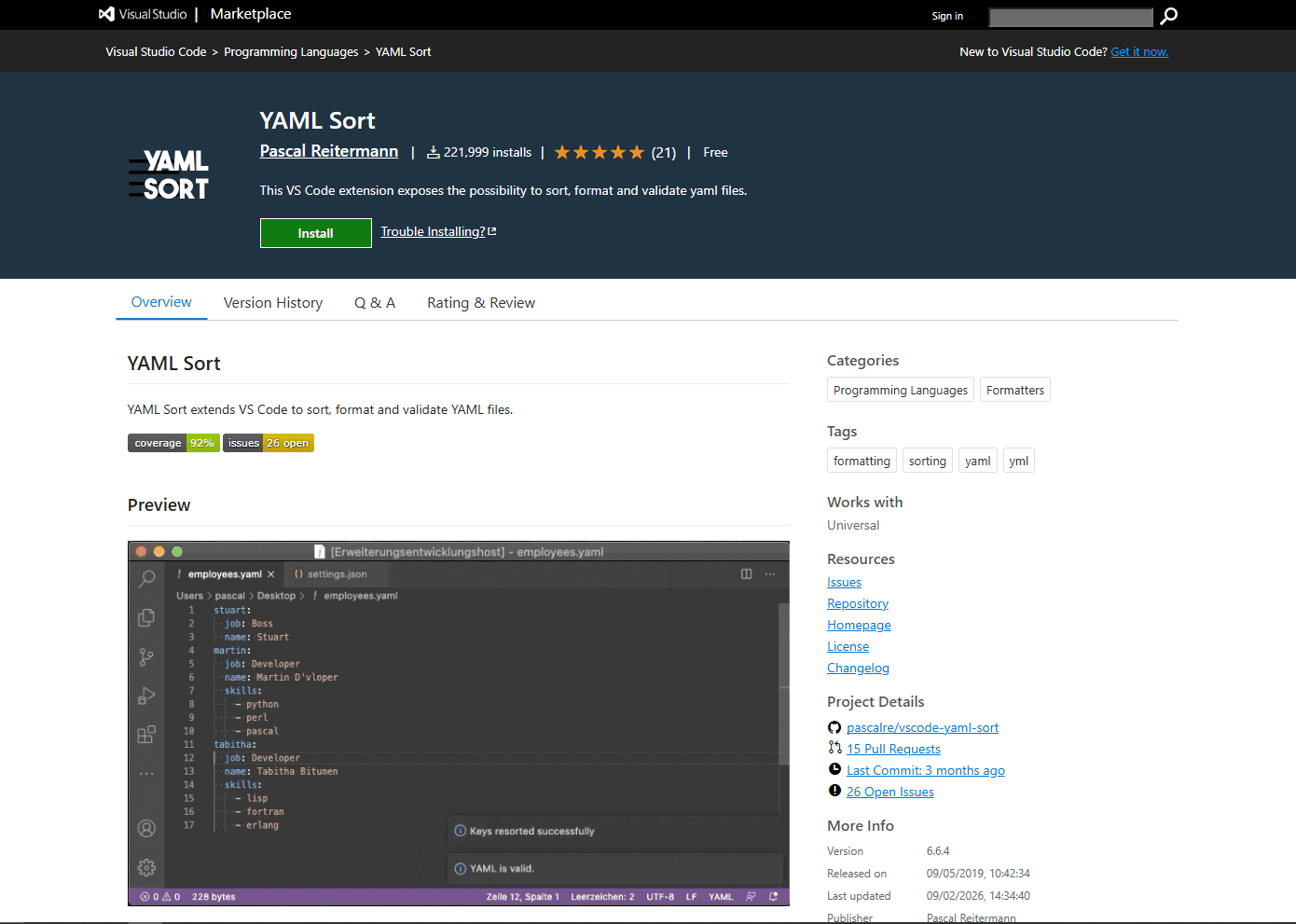
YAML Sort by PascalReitermann93 sorts YAML keys alphabetically or by custom order. Essential for maintaining consistent structure in large configuration files and Kubernetes manifests.
Install via command line: code --install-extension PascalReitermann93.vscode-yaml-sort or search "YAML Sort" in Extensions panel.
What you get:
- Alphabetical key sorting for consistent file structure
- Custom sort order with priority keywords
- Recursive sorting for nested structures
- Preserves comments during sorting
- Works with multi-document YAML files (--- separators)
- Format validation before sorting
- Undo support for all sorting operations
- Configurable sorting depth and rules
What you don't get:
- Schema validation or auto-completion
- Real-time error detection
- Hover documentation
- Works well when key order has semantic meaning (rare cases)
Custom sort configuration:
Kubernetes workflow:
Open a Kubernetes deployment with keys in random order. Run "Sort YAML" command (Ctrl/Cmd + Alt + S). Keys rearrange to standard order: apiVersion, kind, metadata, spec. This makes diffs cleaner and code reviews easier.
When this is best:
If you maintain large YAML configuration files edited by multiple people. If inconsistent key ordering makes git diffs messy. If you need to enforce structure conventions across your team. If you work with Kubernetes manifests that benefit from standardized key order.
Combine with Red Hat YAML for validation plus consistent structure.
4. Prettier (Best for Multi-Language Formatting)
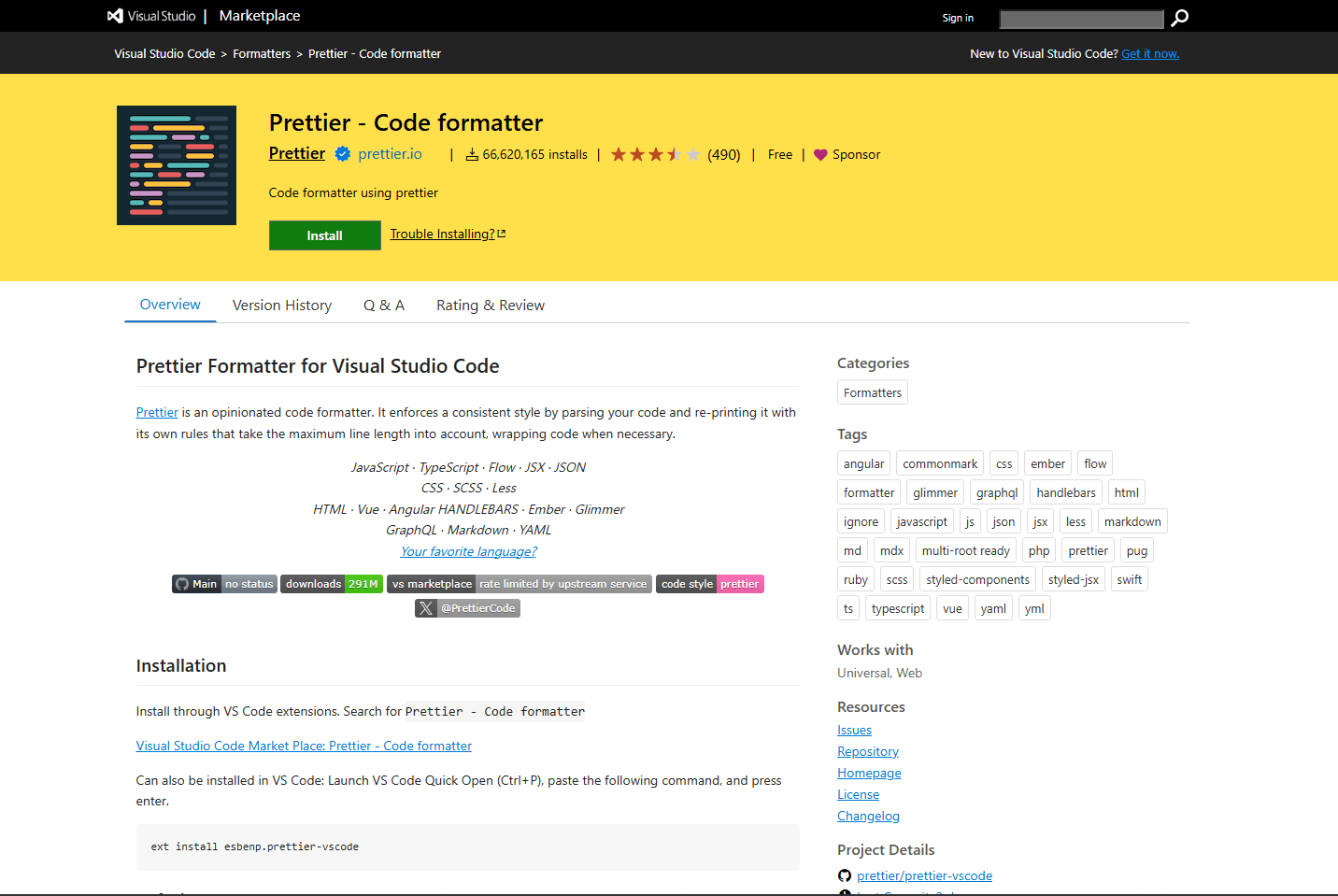
Prettier by Prettier is the industry-standard code formatter that handles YAML alongside JavaScript, TypeScript, JSON, Markdown, and 15+ other formats.
Install via command line: code --install-extension esbenp.prettier-vscode or search "Prettier - Code formatter" in Extensions panel.
What you get:
- Consistent formatting across YAML, JSON, JavaScript, TypeScript, HTML, CSS, Markdown
- Opinionated formatting that ends style debates
- Format on save for automatic consistency
- Team-wide formatting with shared .prettierrc config file
- Preserves code semantics while improving readability
- Integration with most modern build tools and CI/CD pipelines
- Over 40 million downloads and active maintenance
What you don't get:
- YAML schema validation or error detection
- Auto-completion based on schemas
- Language-specific features beyond formatting
- Flexibility for highly customized formatting rules
Prettier configuration for YAML:
When this is best:
If you work with multiple file formats and want one formatter for everything. If your team already uses Prettier for JavaScript/TypeScript. If you want opinionated formatting that eliminates style discussions. If you maintain projects where consistent formatting matters more than schema validation.
Prettier handles formatting. Red Hat YAML handles validation. Use both together for complete YAML support.
5. indent-rainbow (Best for Visual Indentation)
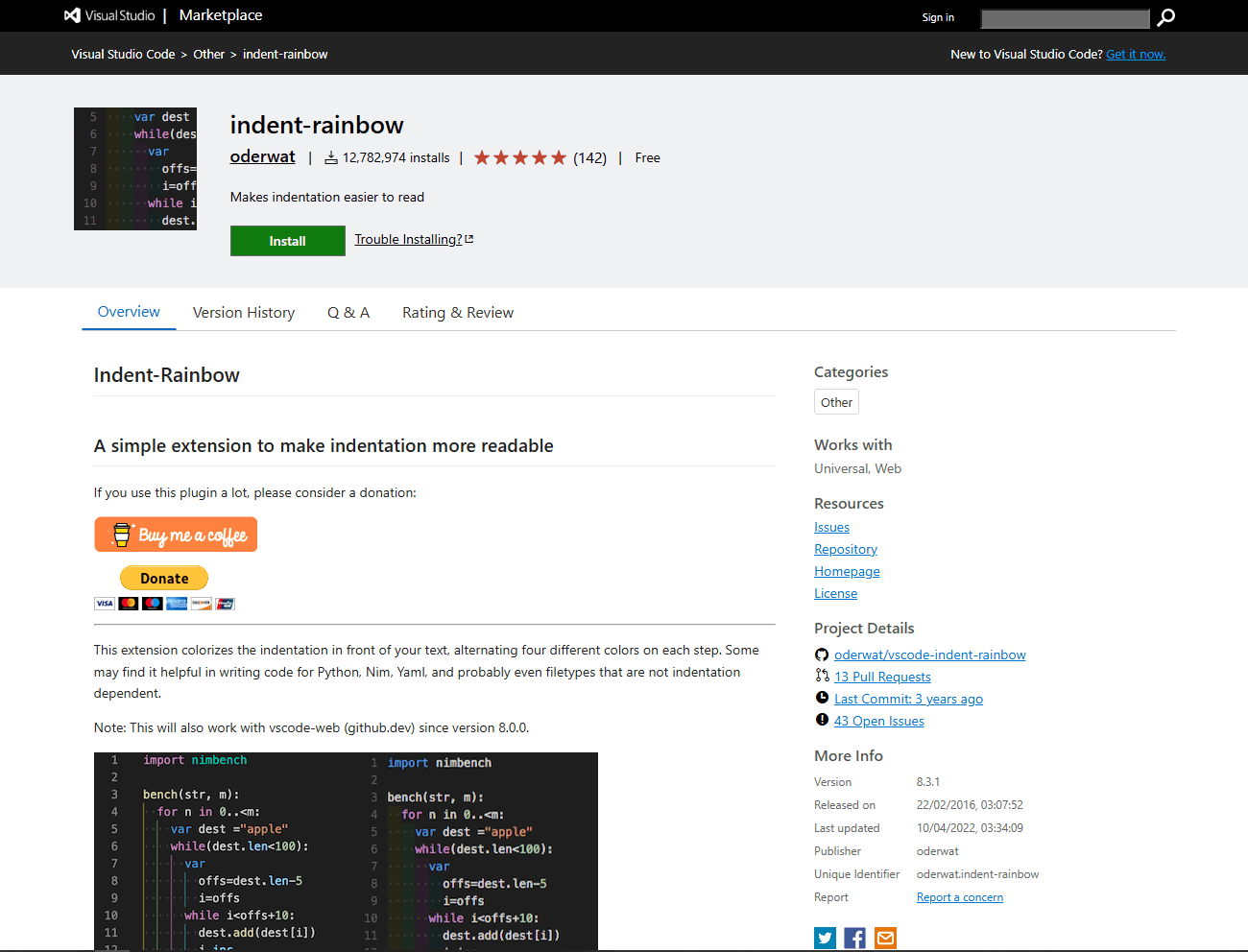
indent-rainbow colorizes indentation levels so misaligned YAML is visible immediately. Essential for indentation-sensitive languages like YAML, Python, and Terraform.
Install via command line: code --install-extension oderwat.indent-rainbow or search "indent-rainbow" in Extensions panel.
What you get:
- Color-coded indentation levels with subtle background colors
- Instant visual detection of misaligned indentation
- Configurable colors per indentation level
- Works with all indentation-sensitive languages (YAML, Python, Terraform, etc.)
- Separate colors for tabs vs spaces
- Error highlighting for mixed tabs and spaces
What you don't get:
- YAML-specific validation or formatting
- Schema awareness or auto-completion
- Any language-specific features
Why this matters for YAML:
YAML parsing fails when indentation is wrong. A line indented by three spaces instead of two breaks the entire file. Plain text makes these errors hard to spot. Colored indentation makes misalignment obvious before you save.
Example indentation colors:
When this is best:
If you edit YAML regularly and encounter indentation errors. If you work with deeply nested YAML structures. If you want visual clarity in any indentation-sensitive language. If you prefer visual cues over error messages after saving.
This extension benefits all indentation-based languages. Install once, use everywhere.
6. Even Better TOML (Best for Multi-Format Projects)
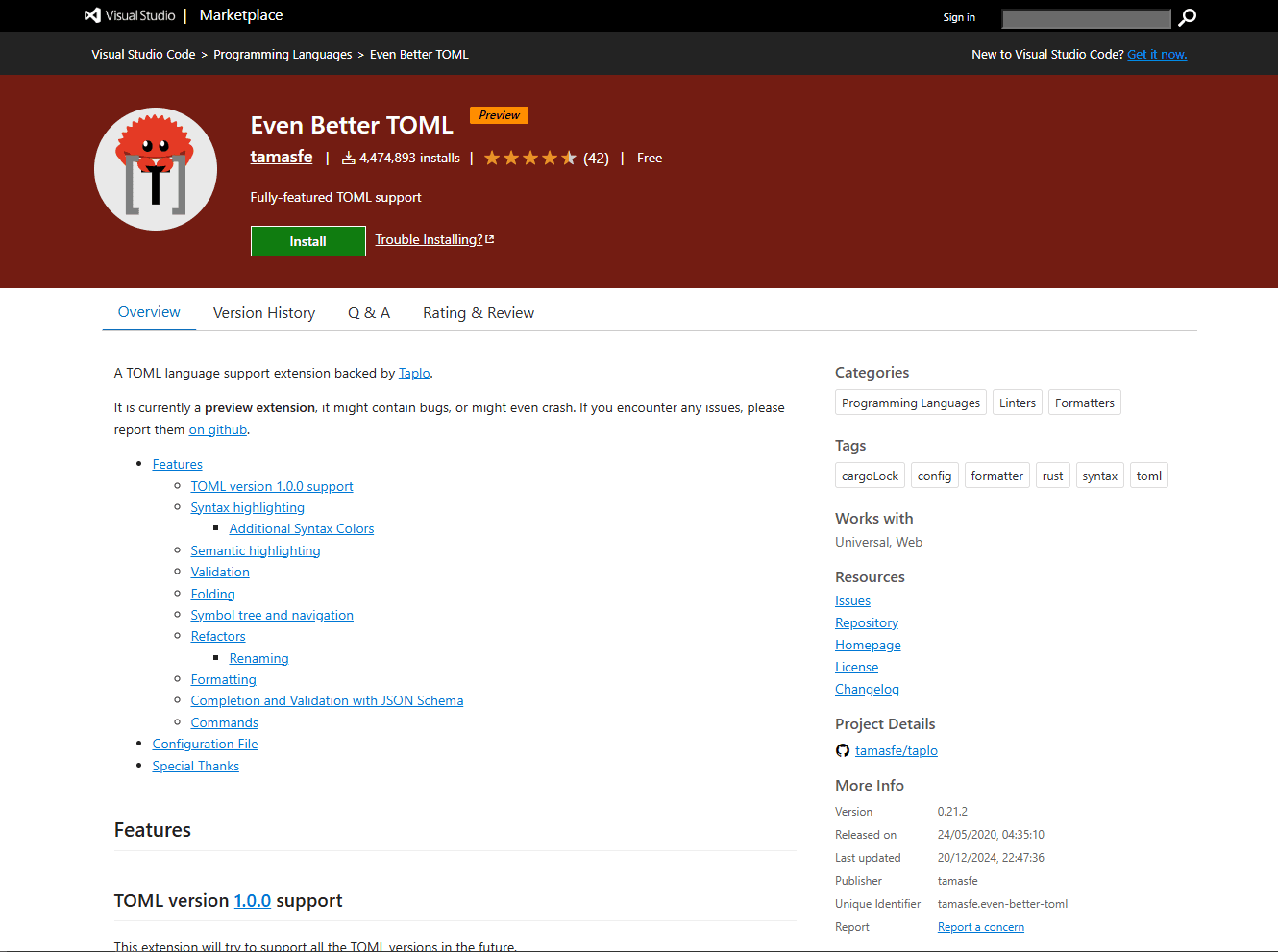
Even Better TOML adds TOML editing with the same quality as Red Hat YAML. Essential for projects using both YAML (Kubernetes, CI/CD) and TOML (Rust, Python packaging).
Install via command line: code --install-extension tamasfe.even-better-toml or search "Even Better TOML" in Extensions panel.
What you get:
- TOML syntax highlighting with semantic coloring
- Real-time error detection for invalid TOML syntax
- Document formatting for TOML files
- Schema validation for Cargo.toml, pyproject.toml, and other standard formats
- Hover documentation for recognized keys
- Auto-completion for known TOML schemas
- Works alongside YAML extension without conflicts
What you don't get:
- YAML file editing (stays inactive for YAML files)
- Conversion between TOML and YAML formats
- Preview or visualization features
Common TOML + YAML workflows:
When this is best:
If you work with Rust projects deploying to Kubernetes. If you maintain Python packages with GitHub Actions CI/CD. If you work in polyglot environments where both formats coexist. If you want consistent editing experience across configuration formats.
The extension uses language server architecture like Red Hat YAML. If you're comfortable with YAML validation, TOML editing feels identical.
7. Error Lens (Best for Inline Error Display)
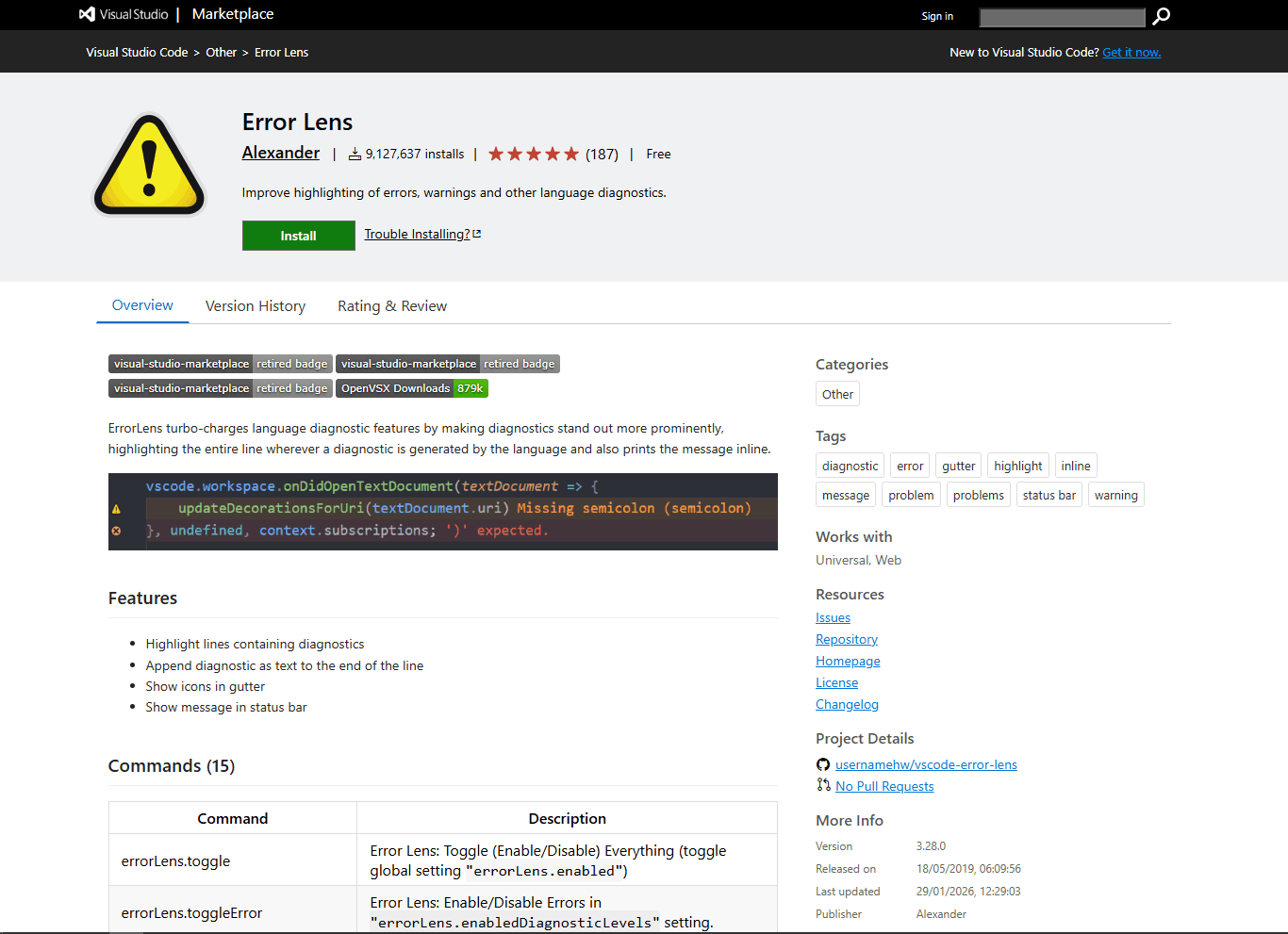
Error Lens displays validation errors inline next to the problematic code. Instead of checking the Problems panel, see errors immediately where they occur.
Install via command line: code --install-extension usernamehw.errorlens or search "Error Lens" in Extensions panel.
What you get:
- Inline error messages at the end of problematic lines
- Color-coded highlighting (red for errors, yellow for warnings, blue for info)
- Configurable message positioning and styling
- Works with all language extensions (YAML, JSON, TypeScript, Python, etc.)
- Real-time updates as you type
- Status bar showing total error/warning count
- Gutter icons indicating line severity
What you don't get:
- Any validation capabilities (displays errors from other extensions)
- Auto-fix or correction features
- YAML-specific functionality
Workflow comparison:
When this is best:
If you edit YAML with frequent schema validation errors. If you want to eliminate context switching to the Problems panel. If you prefer all information visible in the editor. If you work with multiple language extensions that provide diagnostics.
When to skip:
If inline messages feel cluttered. If you prefer minimalist editor appearance. If you check the Problems panel periodically anyway. This is personal workflow preference.
Error Lens enhances any extension that provides validation, including Red Hat YAML, Kubernetes, and all other language extensions.
Extension Comparison Table
Which Extension Should You Actually Use?
For most developers working with Kubernetes, CI/CD pipelines, or cloud infrastructure YAML:
Install Red Hat YAML first. It provides schema validation, auto-completion, and formatting for 600+ YAML formats. This covers 90% of YAML editing needs with zero configuration.
Add indent-rainbow for visual indentation clarity. YAML indentation errors are common and hard to spot without visual guides.
Add Error Lens if you want inline error messages instead of checking the Problems panel.
Install Kubernetes extension if you deploy to clusters regularly. It complements Red Hat YAML by adding cluster management and deployment features.
Install Even Better TOML if you work with Rust or Python projects where YAML and TOML coexist.
Add YAML Sort if you maintain large configuration files that benefit from consistent key ordering.
Add Prettier if your team uses it for other languages and wants unified formatting across all file types.
Quick Picks for VS Code YAML Extensions
Common YAML Issues These Extensions Solve
Schema validation errors: Red Hat YAML catches missing required fields, wrong value types, and invalid keys before deployment. Hover over underlined errors to see what's wrong and how to fix it.
Indentation mistakes: indent-rainbow makes misaligned indentation visible immediately. Two-space indents are one color, four-space indents are another. Misaligned lines stand out.
Kubernetes manifest errors: Kubernetes extension validates manifests against your cluster's API version. Catches deprecated fields and API changes before you deploy.
Inconsistent team formatting: Prettier or YAML Sort enforces consistent formatting. Format on save or command-based sorting keeps files uniform across developers.
Hard-to-spot errors in Problems panel: Error Lens displays errors inline where they occur. No scrolling to Problems panel and back to code.
Missing field documentation: Red Hat YAML shows hover tooltips with field descriptions from schemas. See what each field does without leaving the editor.
VS Code Settings for YAML Editing
Add these to settings.json for optimized YAML workflow:
This configuration enables automatic formatting, sets proper indentation, activates all validation features, and keeps files clean.
Frequently Asked Questions
What's the best YAML extension for VS Code?
YAML by Red Hat. It has built-in schema validation for Kubernetes, Docker Compose, GitHub Actions, and 600+ other formats. Auto-completion prevents typos. Real-time error detection catches issues before deployment. Install it from the Extensions panel by searching "YAML" by Red Hat. Free and maintained by Red Hat's developer tools team. Works with zero configuration for most YAML files.
How do I enable YAML validation in VS Code?
Install the YAML extension by Red Hat. Open Extensions panel (Cmd/Ctrl + Shift + X), search "YAML" by Red Hat, install. Validation activates automatically for recognized formats. For custom schemas, add to settings.json:
"yaml.schemas": {
  "path/to/schema.json": "*.yaml"
}
The extension validates as you type and highlights errors with descriptions.
Does VS Code support Kubernetes YAML auto-completion?
Yes with the YAML extension by Red Hat. It detects Kubernetes manifests automatically and provides schema-based auto-completion. Type spec: and press Ctrl + Space to see valid fields like containers, volumes, replicas. For enhanced K8s features like cluster management and deployment, install the Kubernetes extension by Microsoft alongside Red Hat YAML.
How do I format YAML files in VS Code?
Install YAML by Red Hat. Press Shift + Alt + F to format the current file. Enable format on save in settings.json:
"editor.formatOnSave": true,
"[yaml]": {
  "editor.defaultFormatter": "redhat.vscode-yaml"
}
This auto-formats every time you save. Configure indentation with "editor.tabSize": 2 under the [yaml] section.
What's the difference between Red Hat YAML and YAML Language Support?
Red Hat YAML has full schema validation against 600+ formats, schema-based auto-completion, and hover documentation. YAML Language Support is lighter with basic syntax checking and better multi-root workspace support but no schema validation. Use Red Hat YAML for Kubernetes, CI/CD pipelines, or any schema-driven YAML. Use YAML Language Support only if you need lightweight editing or encounter performance issues with Red Hat YAML.
How do I add custom YAML schema validation in VS Code?
Install Red Hat YAML extension. Add schema mapping to settings.json:
"yaml.schemas": {
  "https://example.com/schema.json": "config/*.yaml"
}
The URL can be a remote schema or local file path. The extension validates files matching the glob pattern against that schema. SchemaStore.org has 600+ public schemas you can reference for common formats.
Related Reading
For general YAML editing across platforms, check the best YAML editors for Windows and best YAML editors for Linux guides.
Using Notepad instead? See the best YAML plugins for Notepad guide.
Editor-specific guides:
- Best JSON extensions for VS Code for JSON editing in VS Code
- Best XML extensions for VS Code for XML workflow optimization
Read More
All Articles
5 Best YAML Editors for Home Assistant in 2026 (Config Editing)
Compare the best YAML editors for Home Assistant, including Studio Code Server, Config Helper, File Editor, Notepad++, and Vim for configuration.yaml.
8 Best YAML Editors for Linux in 2026 (GUI & Terminal)
Compare 8 best YAML editors for Linux including VS Code, Kate, Vim, yamllint, and GUI tools. Covers terminal and desktop options for Ubuntu, Fedora, and Arch Linux users.
7 Best YAML Editors for Mac in 2026 (Free & Paid)
Find the best YAML editor for macOS with validation and syntax highlighting. Compare VS Code, Sublime Text, BBEdit, and more for Kubernetes, Docker, and CI/CD configs.