
7 Best Text Editors for Mac in 2026 (Native & Fast)
Compare 7 best text editors for Mac including VS Code, Sublime Text, Nova, and Vim. Includes Apple Silicon support, resource-use notes, and native macOS integration features.
Read guide
Open and search large TXT files, logs, and plain-text data in your browser. Read in pages, jump to a line, and find the text you need without installing an editor. Your file contents stay on your device.
Open a large text file
Drop a TXT, LOG, CSV, JSON, or other plain text file here.
Read in small chunks, even for very large files. Available memory, storage speed, and browser limits still apply.
Finding one error in a huge log
2026-09-29 00:00:01 INFO  request=1 Request processed successfully
2026-09-29 00:00:02 INFO  request=2 Request processed successfully
2026-09-29 00:00:03 INFO  request=3 Request processed successfully
...
2026-09-29 14:02:17 INFO  request=9204551 Request processed successfully
2026-09-29 14:02:18 ERROR request=9204552 Connection timeout - retry scheduled
2026-09-29 14:02:19 INFO  request=9204553 Request processed successfully
...Line 1,284,107 ERROR request=1284107 Connection timeout
Line 4,550,032 ERROR request=4550032 Connection timeout
Line 9,204,552 ERROR request=9204552 Connection timeout
Line 12,876,410 ERROR request=12876410 Connection timeout
4 matches found. Click a result to open it,
with every match highlighted on the page.Four simple steps
Choose or drop one TXT, LOG, CSV, or other plain-text file. Nothing is uploaded.
The first page appears right away while line numbers are indexed in the background.
Find text anywhere in the file, open a match, or go straight to any line number.
Copy the visible page or save it as a UTF-8 text file to share an excerpt.
Real-world scenarios
Search a multi-gigabyte server or application log for an error message, request ID, or timestamp and jump straight to the matching line.
Read raw CSV, TSV, SQL dumps, JSONL, or XML exports without loading them into a spreadsheet or editor that would freeze.
Use Last lines to see the final entries of a log or export, like tail, without scrolling through millions of lines.
Copy the visible page or save it as a UTF-8 text file to attach the relevant part of a huge file to a ticket or email.
Common questions
Bash & Python
On Linux and macOS, less pages through a file of any size without loading it into memory, and head, tail, and sed -n print a specific range of lines. Use grep -n to find matches with line numbers, and tail -f to follow a log while it is being written. On Windows, the same commands are available in Git Bash or WSL.
# Page through a large file without loading it all (q to quit, / to search)
less -N application.log

# Show the first or last 200 lines
head -n 200 application.log
tail -n 200 application.log

# Print lines 50,000-50,200
sed -n '50000,50200p' application.log

# Find every match with its line number
grep -n "Connection timeout" application.log

# Follow a log as it grows
tail -f application.logIterating over a file object in Python reads one line at a time, so memory use stays flat even for multi-gigabyte files. The script below streams the file, records the line number and a short preview of each match, and stops after a result limit, the same approach this viewer uses in your browser. Pass errors="replace" so a stray invalid byte does not stop the scan.
def search_large_file(path, query, max_results=1000):
    """Stream a large text file line by line and report matches."""
    matches = []
    with open(path, "r", encoding="utf-8", errors="replace") as f:
        for line_number, line in enumerate(f, start=1):
            if query in line:
                matches.append((line_number, line.rstrip("\n")[:120]))
                if len(matches) >= max_results:
                    break
    return matches

for line_number, preview in search_large_file("application.log", "ERROR"):
print(f"{line_number:>10}: {preview}")In-depth walkthrough
Opening a large log in a conventional text box can require the entire file to be decoded and rendered at once, which is why editors freeze or crash on multi-gigabyte files. This viewer reads small portions of the file and displays one bounded page at a time. A background worker counts lines and builds a compact index, so the interface stays usable while the file is being scanned.
You can start reading before indexing finishes. Once the index is ready, enter a line number to move directly to that part of the file, or select Last lines to inspect the final section. The viewer recognizes Windows CRLF, Unix LF, and older CR line endings, including files that mix them.
There is no fixed file-size cap in the tool. That does not mean every device can open every file: browser limits, available memory, disk speed, and file structure affect performance. Whole-file indexing and search take longer as files grow. You can cancel a search, close the file, or open another file at any time.
Your selected file is read through the browser's local file interface. The viewer does not send its contents to a server, modify the original, or store a browser recovery copy. Reopening the page requires choosing the file again.
Leave encoding on Auto for UTF-8 files and files with a UTF-16 byte-order mark. If an older Windows export shows broken apostrophes or accented letters, try Windows-1252. For UTF-16 without a byte-order mark, choose the matching LE or BE option. Changing encoding reopens the file and rebuilds its line index.
The best large text file viewer for a quick inspection is one that reaches the relevant text without loading the whole document into an editor. Use this tool when you need local file access, line navigation, literal text search, and a readable excerpt in the browser, with nothing to install.
For editing smaller documents, use the TXT File Maker. To break a large file into smaller parts, use the TXT File Splitter. To combine several logs in order, use the TXT Merger. Structured JSON Lines data has a dedicated JSONL Viewer.
If you need live log following, regular expressions, or repeated searches over massive archives, a command-line workflow such as less, grep, and tail -f may fit better. The examples above show the equivalent commands.
Hand-picked guides to go deeper
Compare 7 best text editors for Mac including VS Code, Sublime Text, Nova, and Vim. Includes Apple Silicon support, resource-use notes, and native macOS integration features.
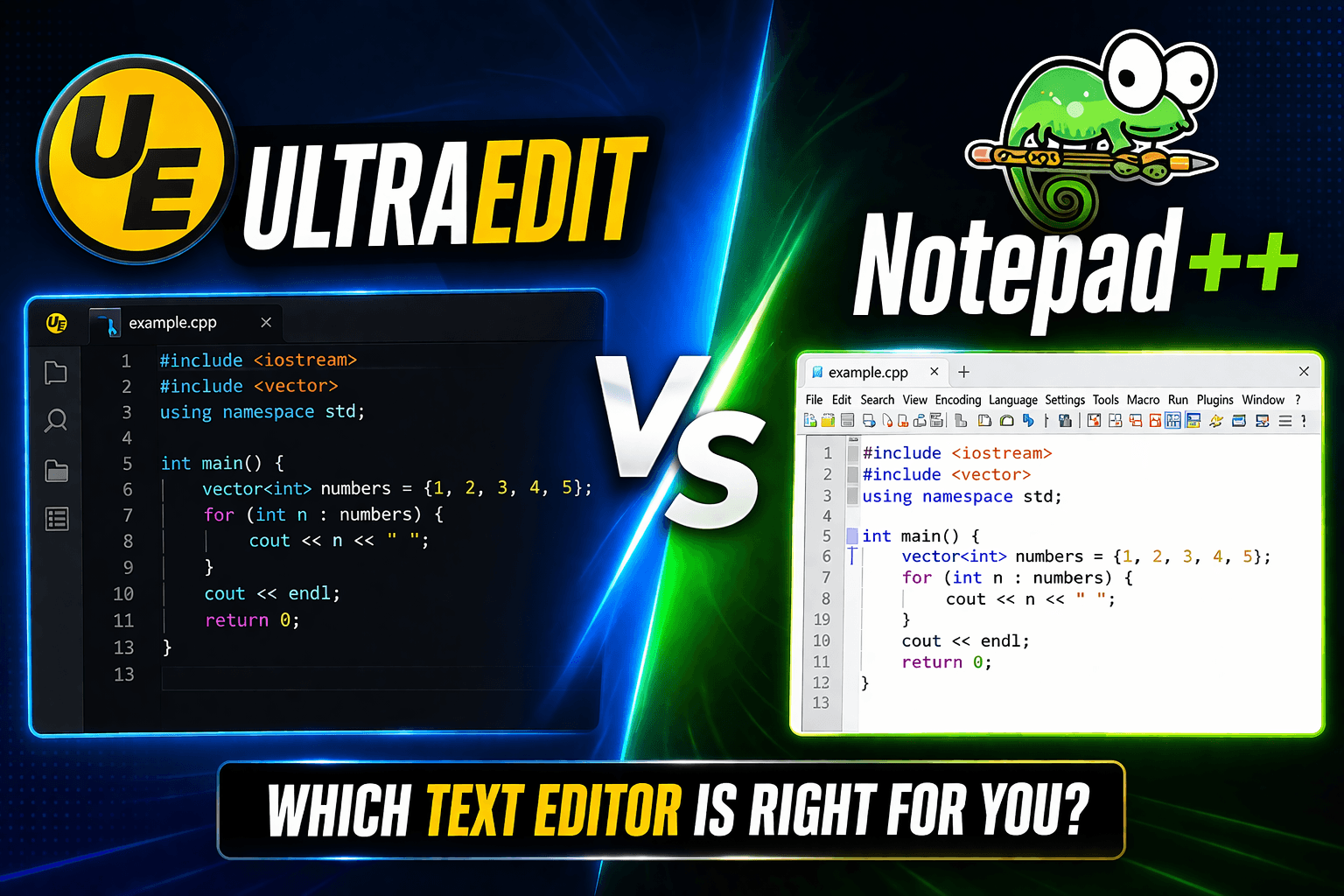
Compare UltraEdit vs Notepad++ for large files, feature depth, pricing model, and Windows text editing use cases.
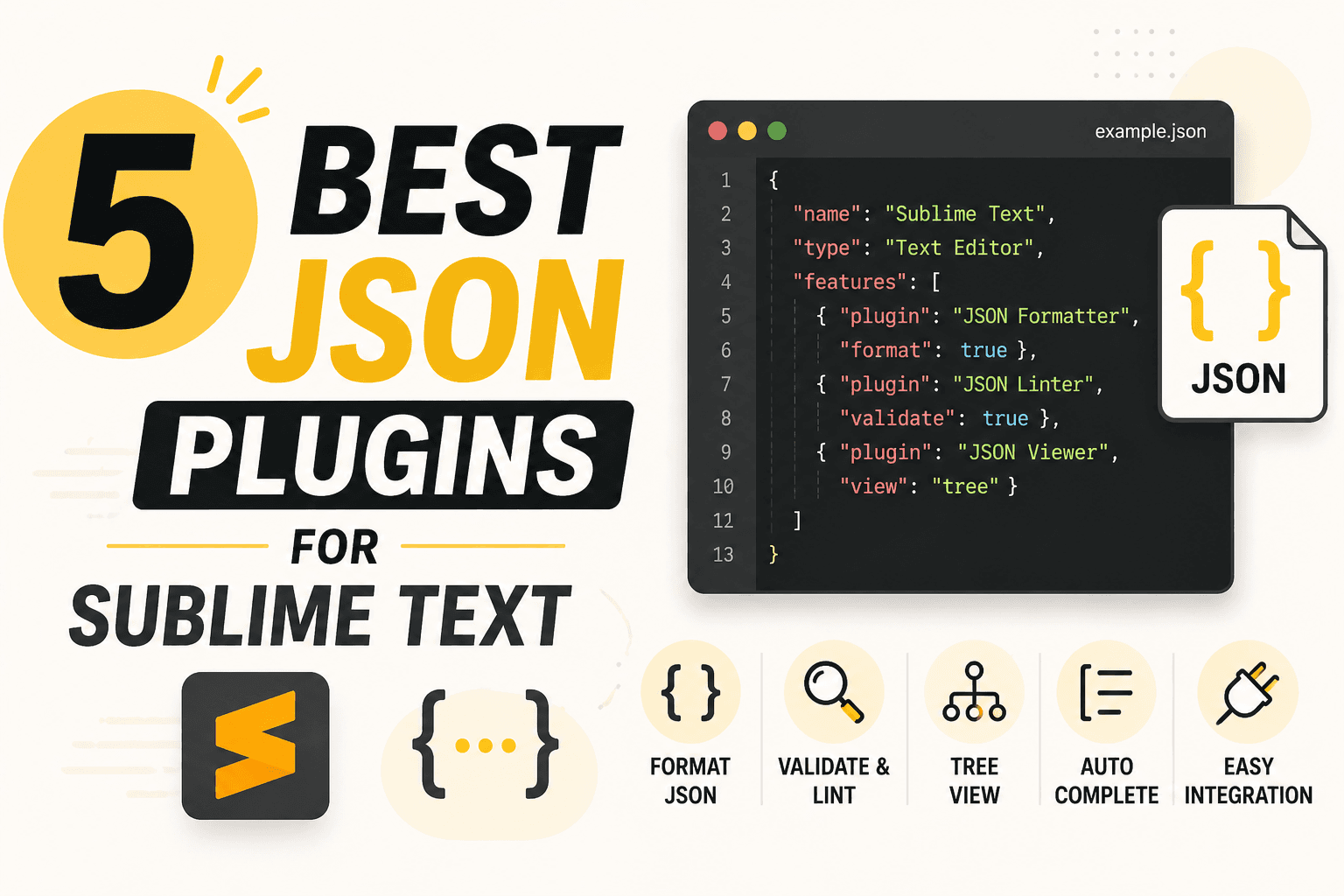
Compare 5 current Sublime Text JSON plugins for formatting, live linting, schema validation, jq transformations, and structural navigation.