5 Best JSON Plugins for Sublime Text in 2026

On this page
Sublime Text has built-in JSON syntax highlighting, bracket matching, and code folding. It does not provide JSON-aware formatting, schema validation, or query tools. You can read and edit JSON, but plugins add the workflows below.
Pretty JSON adds formatting and minification. SublimeLinter-json adds continuous syntax checking. LSP-json provides schema validation and completion, Jq handles queries and transformations, and TreeSitter adds structural navigation.
Without plugins, you cannot turn compact single-line JSON into readable text with a JSON-specific command. Syntax highlighting may reveal obvious mistakes, but it does not verify the document or check its values against a schema.
These five plugins are ranked by usefulness for current Sublime Text workflows. Pretty JSON handles routine cleanup, SublimeLinter-json catches malformed syntax, LSP-json understands schemas, Jq transforms data, and TreeSitter navigates nested syntax. All install through Package Control, although Jq also requires the jq executable.
1. Pretty JSON
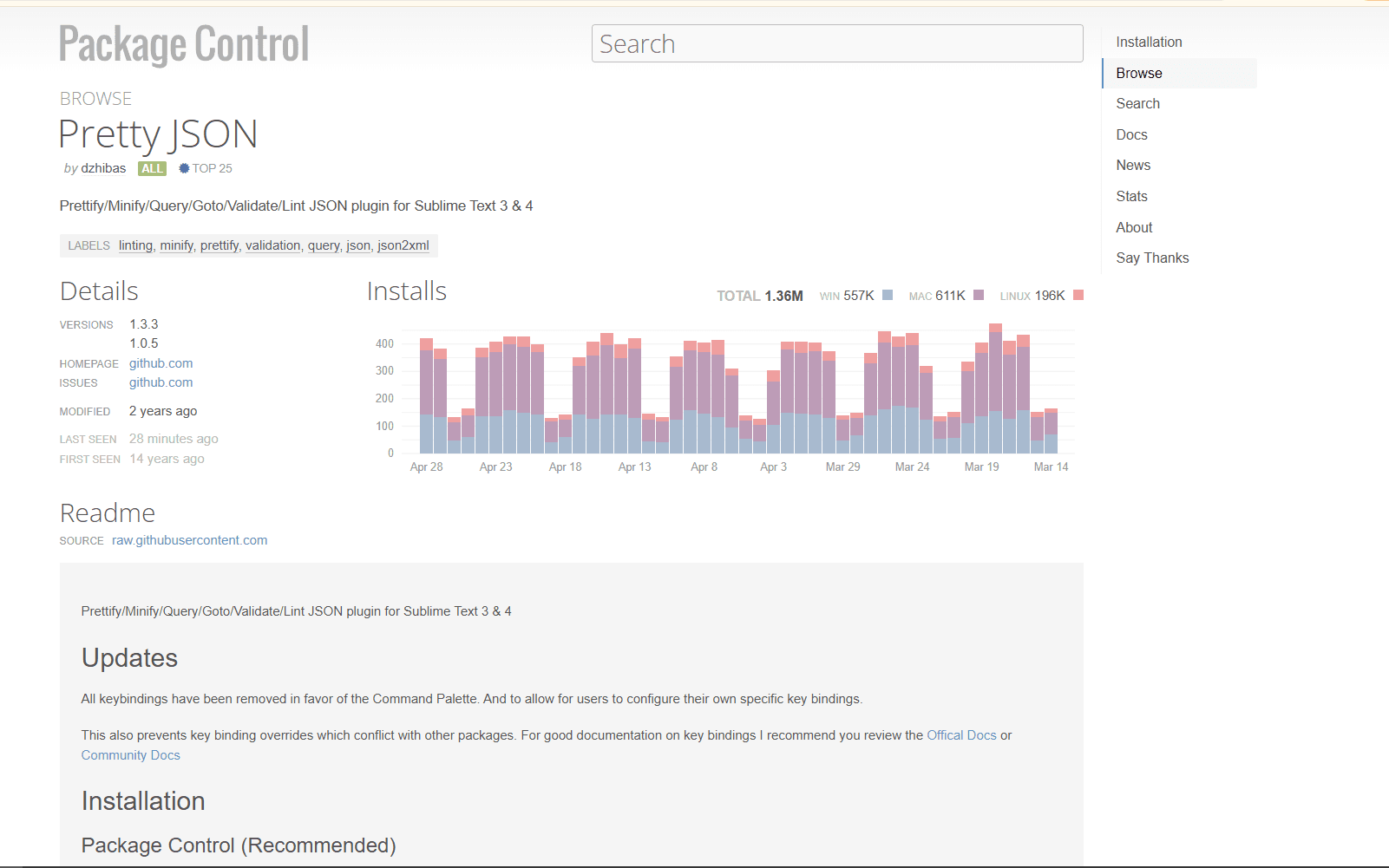
Pretty JSON is the first plugin to consider. It formats compact JSON into readable indented text through the Command Palette.
What you get:
- Format JSON
- Minify JSON back to one line
- Sort object keys when enabled in settings
- Convert JSON to XML
- Validate a selection or full document
What you don't get:
- JSON Schema validation
- Tree view or visual navigation
- Real-time validation unless validation on save is enabled
- Default keyboard shortcuts in current releases
The current Pretty JSON documentation says its default key bindings were removed to avoid conflicts. Open the Command Palette and run Pretty JSON: Format JSON, or assign your own shortcut in a user keymap. Formatting, validation, indentation, key sorting, and save behavior can all be adjusted in the package settings.
Download: Install Pretty JSON via Package Control
2. SublimeLinter + SublimeLinter-json
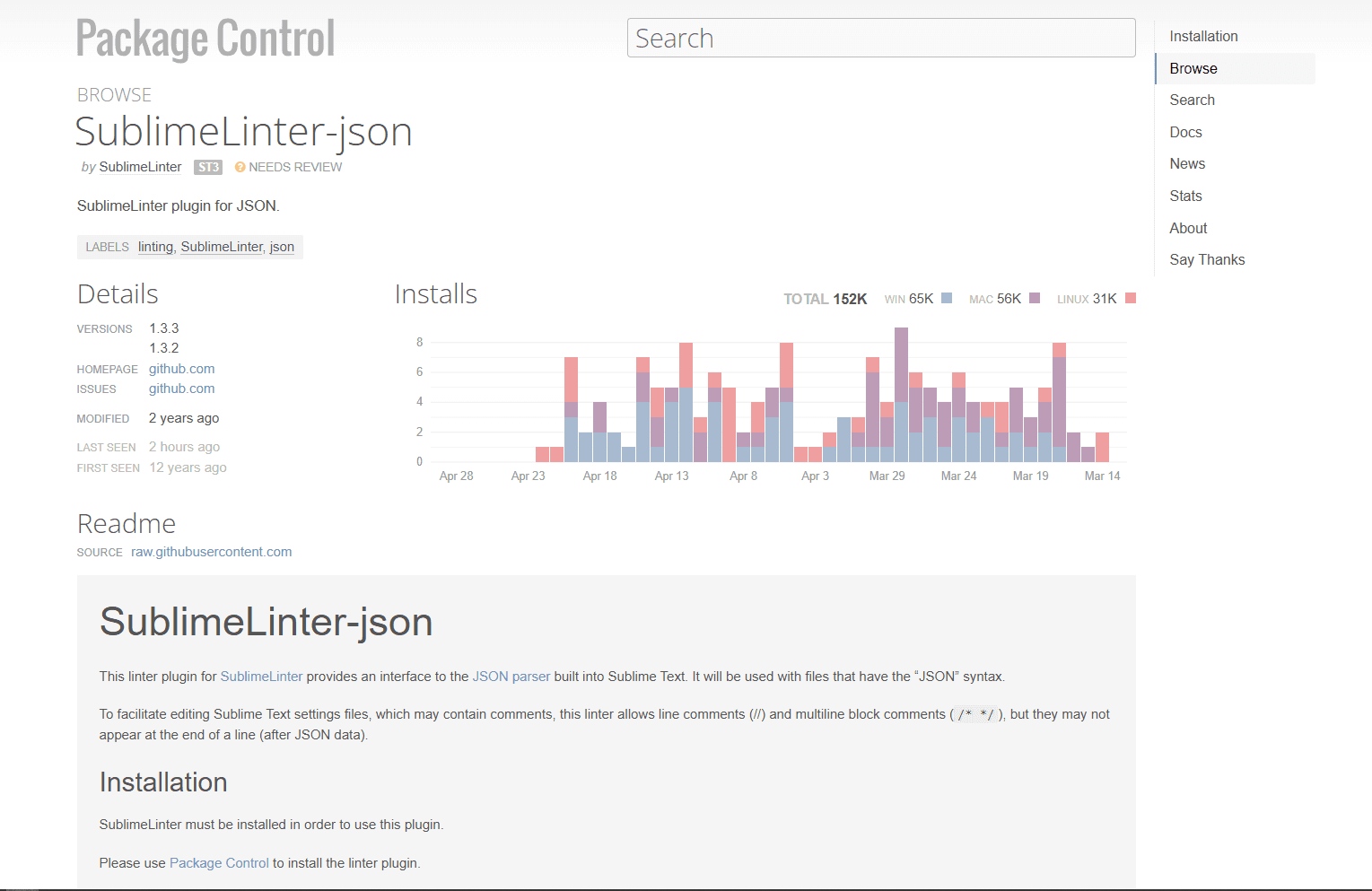
SublimeLinter-json catches JSON syntax errors as you type. SublimeLinter displays the reported problems in the editor so you can move to malformed strings, missing delimiters, or broken object and array syntax.
What you get:
- Continuous syntax checking for files using the JSON syntax
- Error regions and messages through SublimeLinter
- No separate JSON linter executable
- Configurable strict handling of comments and trailing commas
What you don't get:
- JSON Schema validation
- Formatting capabilities
- Tree view
- Duplicate-key or business-rule validation
This plugin requires two installs: SublimeLinter first, then SublimeLinter-json. Its package documentation says it uses the JSON parser built into Sublime Text and includes a strict setting. That distinction matters for Sublime settings files, which may contain comments.
Download: Install SublimeLinter and SublimeLinter-json
3. LSP-json

LSP-json uses the VS Code JSON Language Server through Sublime's LSP package. It adds schema-aware validation and completion, which is a different job from the syntax-only checks provided by SublimeLinter-json.
What you get:
- Live syntax and JSON Schema diagnostics
- Property and value completion from matching schemas
- Formatting and hover information
- Custom schema mappings through userSchemas
What you don't get:
- Tree view or minification
- Key sorting
- A one-package installation
Install LSP and LSP-json from Package Control, then restart Sublime Text. Use Preferences: LSP-json Settings to associate custom schemas with file patterns. PackageDev users should review the documented completion and tooltip overlap before enabling both packages.
Download: Install LSP-json via Package Control
Plugin Comparison
4. Jq
The Jq package connects Sublime Text to the jq command-line JSON processor. It can format or compact a document, apply saved queries, and update a transformation preview while you write a jq expression.
What you get:
- Interactive jq queries with updated output
- Pretty-print and compact formatting
- Query history and reusable transformations
- Filtering, sorting, mapping, and restructuring
What you don't get:
- A bundled jq executable
- Live schema validation
- A visual tree
Install the package, then install jq separately and ensure jq is available on the PATH inherited by Sublime Text. Run jq: Transform JSON for an interactive query or jq: Format JSON for formatting.
Install: Jq on Package Control
5. TreeSitter

TreeSitter provides syntax-aware selection and navigation. JSON is installed as one of its default languages, so the package can move through ancestor, descendant, sibling, and symbol nodes in nested data.
What you get:
- Structural selection for nested JSON
- Navigation between related syntax nodes
- Symbol selection and goto commands
- Commands for inspecting the underlying parse tree
What you don't get:
- A polished sidebar tree for ordinary browsing
- Formatting or schema validation
- JSONPath or jq transformations
Search for TreeSitter in the Command Palette to see its selection and navigation commands. The printed parse tree is aimed at developers and plugin authors; it is not a graphical JSON viewer.
Download: Install TreeSitter via Package Control
Which Sublime Text JSON Plugin Should You Install?
If you edit JSON occasionally, start with Pretty JSON. It handles formatting, minification, configurable key sorting, and on-demand validation without adding a background language server.
If you want continuous syntax checks, add SublimeLinter-json. Choose LSP-json instead when schemas and completion matter. Running both may produce overlapping syntax diagnostics, so disable one source if messages appear twice.
Use Jq for queries and repeatable transformations. TreeSitter is more specialized and fits work that benefits from syntax-node selection and navigation through deeply nested documents.
JSONLint, JSON Reindent, and JSONComma still have Package Control pages, but their listed releases have not been updated for many years. JSONLint is also marked missing, so they are no longer part of this current recommendation list.
Frequently Asked Questions
How do I format JSON in Sublime Text?
Install Pretty JSON via Package Control. Open a JSON file, open the Command Palette, and run Pretty JSON: Format JSON. Current releases do not provide a default shortcut, but you can assign one. The Jq package can also format JSON after jq is installed.
What is the best JSON plugin for Sublime Text?
Pretty JSON is the best general-purpose plugin for formatting, minification, configurable key sorting, and quick syntax validation. Add SublimeLinter-json for continuous syntax feedback, LSP-json for schemas, or Jq for transformations.
Does Sublime Text have JSON validation?
Syntax highlighting alone does not validate a document. Pretty JSON validates on demand, SublimeLinter-json reports syntax errors while editing, and LSP-json can validate JSON against a matching schema.
How do I install Pretty JSON in Sublime Text?
Open the Command Palette with Cmd + Shift + P on macOS or Ctrl + Shift + P on Windows and Linux. Select Package Control: Install Package, search for Pretty JSON, and select it. Run its commands from the Command Palette after installation.
Related Reading
If you're working across multiple editors or need to compare JSON tools on different platforms, these guides help:
Need to combine multiple JSON files first? Use the JSON merger tool.
Read More
All Articles
7 Best JSON Editor Apps for Android in 2026 (Compared & Ranked)
Compare seven current JSON editor apps for Android, including visual tree editors, fast text editors, Git tools, and a browser option.
4 Best JSON Plugins for Notepad++ in 2026
Compare the best JSON editor plugins for Notepad++ for formatting, tree navigation, linting, schema validation, and file comparison.

6 Best JSON Editors for Mac in 2026 (Free & Paid Options)
Find the best JSON editor for macOS with native performance. Compare VS Code, OK JSON, Sublime Text, and more for speed, validation, and Apple Silicon optimization.