6 Best XML Extensions for VS Code in 2026

On this page
An XML document can be well formed and still be wrong for the system that reads it. Closing every tag only proves that the syntax is complete. An XSD or DTD may still reject the element order, attributes, namespaces, or values.
That distinction shapes the VS Code choices. A formatter makes the source readable, a language server adds schema-aware validation and completion, and a tree or grid view helps you inspect the hierarchy. Installing several extensions that all register as XML formatters can make the setup less predictable.
XML Language Support by Red Hat is the best starting point for most projects because it covers syntax errors, XSD and DTD validation, completion, hover information, formatting, and document symbols. The other extensions below earn a place by handling a different job, such as XPath evaluation, XSLT development, visual editing, or XSD browsing.
Best XML Extensions for VS Code
1. XML by Red Hat: Best Overall
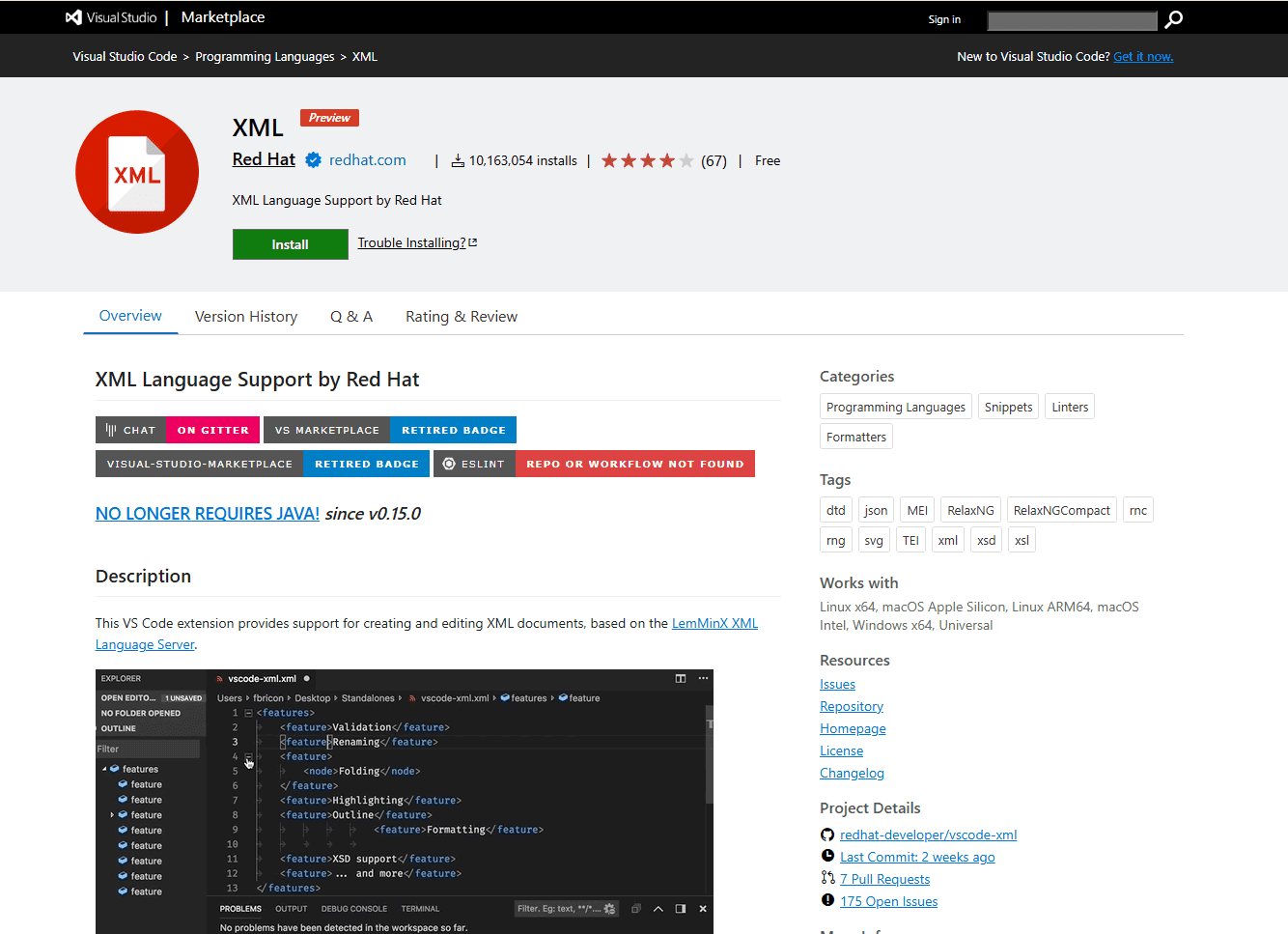
XML Language Support by Red Hat turns VS Code into a schema-aware XML editor through the Eclipse LemMinX language server. Install it from the Extensions view or run code --install-extension redhat.vscode-xml.
The extension checks XML syntax as you type. When the document is associated with an XSD or DTD, it can validate the structure, suggest schema-defined elements and attributes, and show schema documentation on hover. It also provides formatting, auto-closing tags, linked tag renaming, folding, an Outline view, catalogs, XInclude support, and file associations.
Useful parts:
- XSD and DTD validation.
- Schema-based completion and hover documentation.
- Syntax diagnostics and code actions.
- Formatting, minification, folding, and document symbols.
- XML catalogs and filename-to-schema associations.
Watch for: schema-aware help requires a real grammar association. A random XML file without an XSD or DTD can receive syntax checking and general editing support, but the extension cannot infer the business rules of an undocumented format.
The current binary server does not require Java on its documented platforms. Java is still required when a project uses extensions to the base LemMinX server. The extension can also download referenced schemas and DTDs, controlled by xml.downloadExternalResources.enabled, so use local schemas or catalogs when a project should not depend on remote resources.
Choose this extension first when correctness matters. Add another entry only when you need a feature outside its main scope.
2. XML Tools: Best for XPath, XQuery, and a Tree View
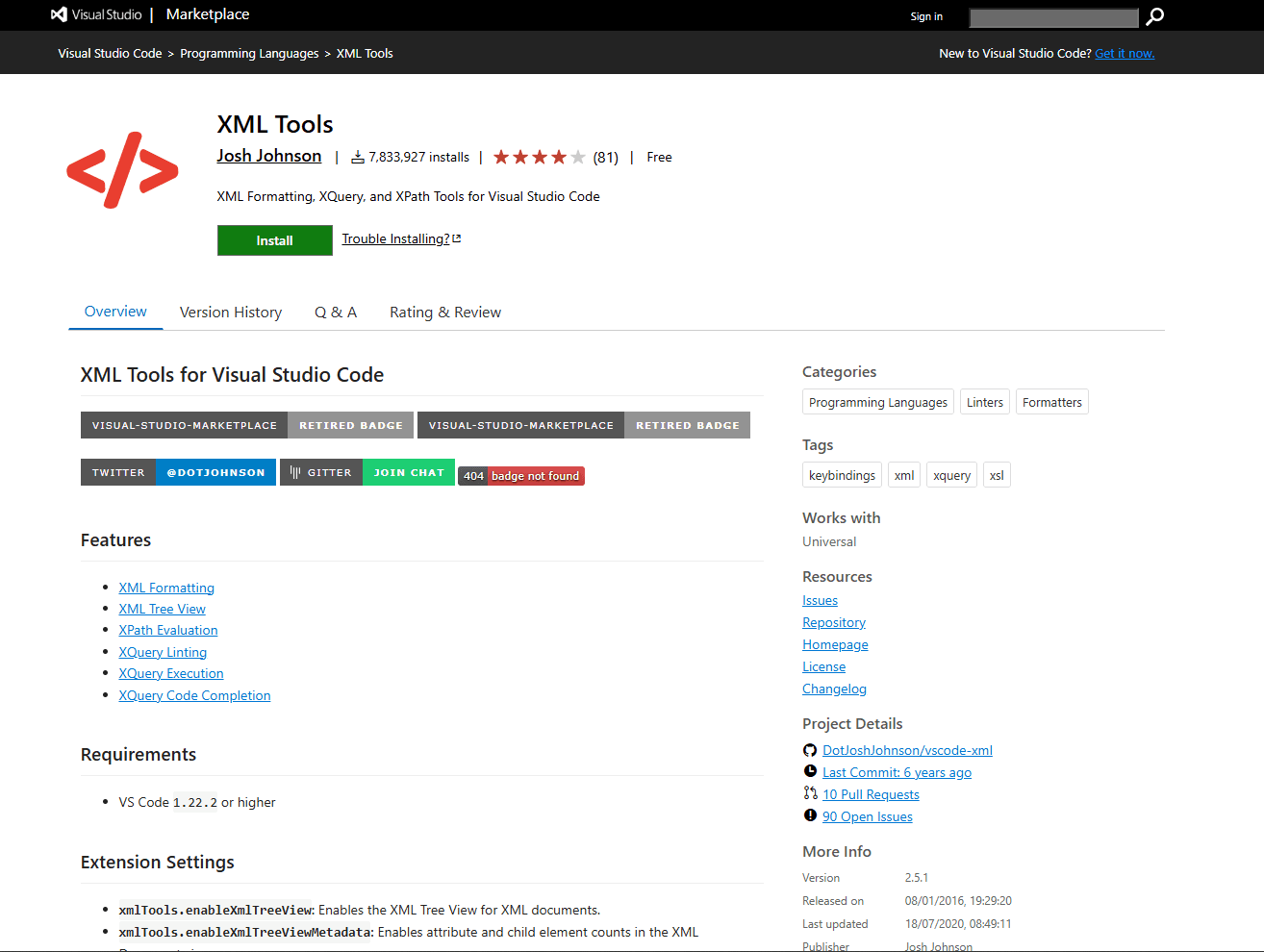
XML Tools combines XML formatting with an XML Document tree, XPath evaluation, and XQuery tools. It is a practical companion when you need to query or browse the current document rather than only validate it.
The tree can show attribute and child counts, follow the cursor, and reveal the selected element. Its formatter can split attributes, control self-closing tag spacing, and minify XML. XPath evaluation is built in, while XQuery execution delegates to an engine configured through xmlTools.xqueryExecutionEngine.
Useful parts:
- XML tree view with optional cursor synchronization.
- XPath evaluation against the active document.
- Formatting and minification commands.
- XQuery linting and completion.
- XQuery execution through an external engine.
Watch for: the current Marketplace documentation does not list XSD or DTD validation. Keep Red Hat XML for schema-aware checks. Both extensions can format XML, so select one default formatter instead of letting VS Code prompt on every format command.
Pick XML Tools when XPath or visual navigation is the missing feature. It is not a faster replacement for Red Hat XML, and there is no useful universal performance comparison between them.
3. XSLT/XPath: Best for XSLT Development
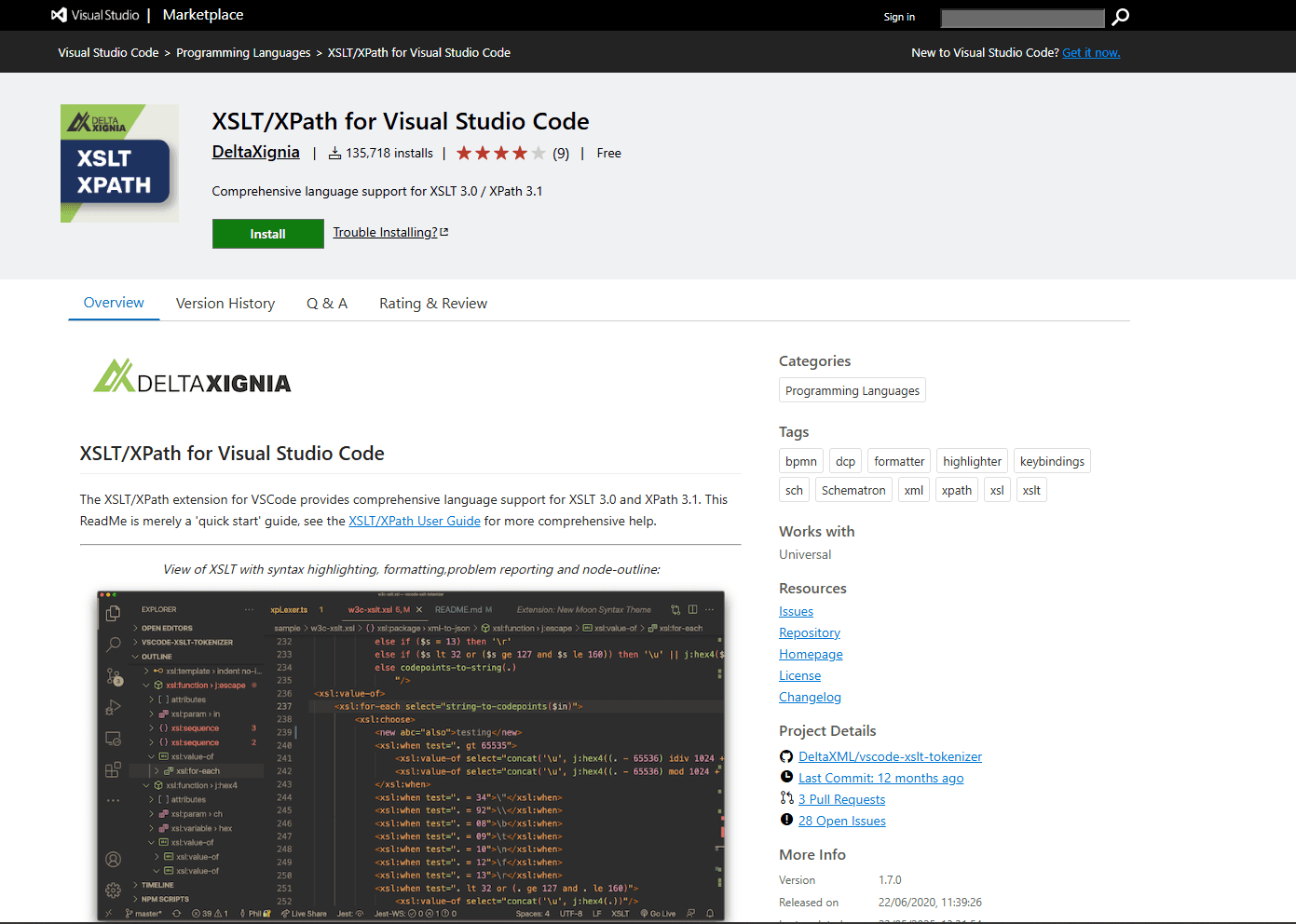
XSLT/XPath for Visual Studio Code is designed for XSLT 3.0 and XPath 3.1 authoring. It adds semantic highlighting, completion, linting, symbol navigation, formatting, refactoring, and support for running configured transformation tasks.
The extension understands XSLT instructions and XPath functions, variables, axes, and symbols. It can follow imports and includes, find references across modules, and show XSLT instructions in the Outline. General XML features include well-formedness checks, breadcrumbs, tag renaming, tag closing, and element selection commands.
Useful parts:
- XSLT 3.0 and XPath 3.1 language support.
- Diagnostics for XPath syntax and XSLT symbol references.
- Go to Definition, references, rename, and extraction refactors.
- XSLT formatting and document navigation.
- VS Code task integration for Saxon and Saxon-JS.
Watch for: installing the extension does not install an XSLT processor. Saxon Java tasks require a configured Saxon JAR, while Saxon-JS tasks require the relevant Node.js setup. Interactive XPath testing also uses the companion XPath Notebook extension.
Choose this for stylesheet development, not as a general-purpose replacement for XSD validation. Red Hat XML remains the clearer option for ordinary schema-bound XML documents.
4. XML/JSON Data Grid Viewer: Best Visual Editor
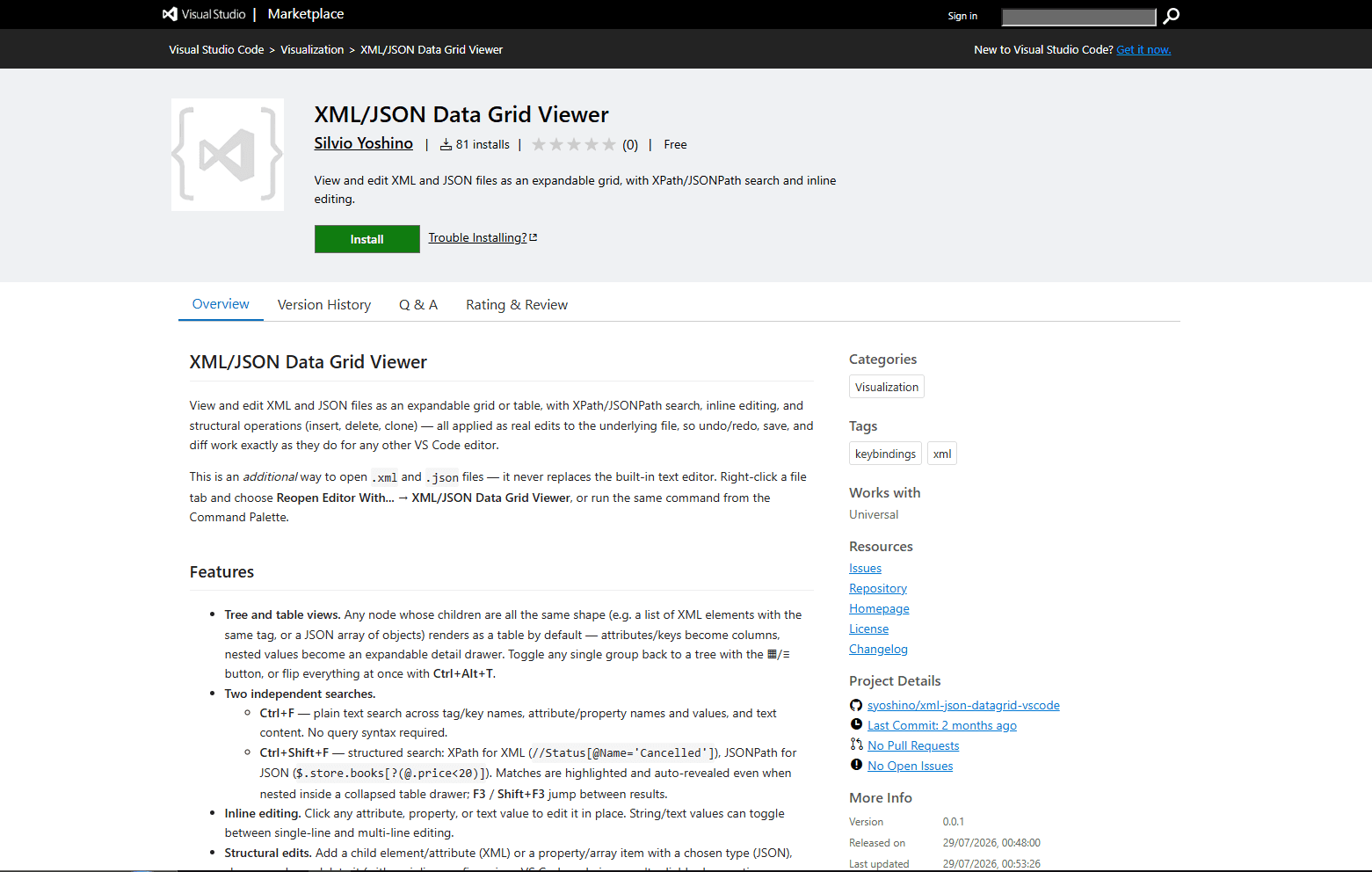
XML/JSON Data Grid Viewer opens XML in an expandable tree or table while keeping the underlying file connected to VS Code's normal undo, save, and diff behavior. It is the strongest pick here for readers who do not want to edit every value between raw tags.
You can edit attributes and text inline, add or delete nodes, clone structures, and copy an XPath for a selected row. Repeated child elements can appear as a table, while irregular structures remain a tree. It also provides plain-text search and XPath search inside the visual editor.
Useful parts:
- Editable tree and table representations.
- Inline value and attribute changes.
- Insert, delete, and clone operations.
- XPath search and copied node paths.
- Changes participate in VS Code undo, save, and diff workflows.
Watch for: this is a structural editor, not an XSD or DTD validator. Pair it with Red Hat XML when the edited document must follow a schema. Review the text diff after structural changes, especially when comments, namespace declarations, or whitespace carry meaning for another system.
Choose the grid viewer for repetitive records, configuration trees, and unfamiliar exports that are difficult to scan as raw source.
5. XSD Treeview: Best for Reading Schemas
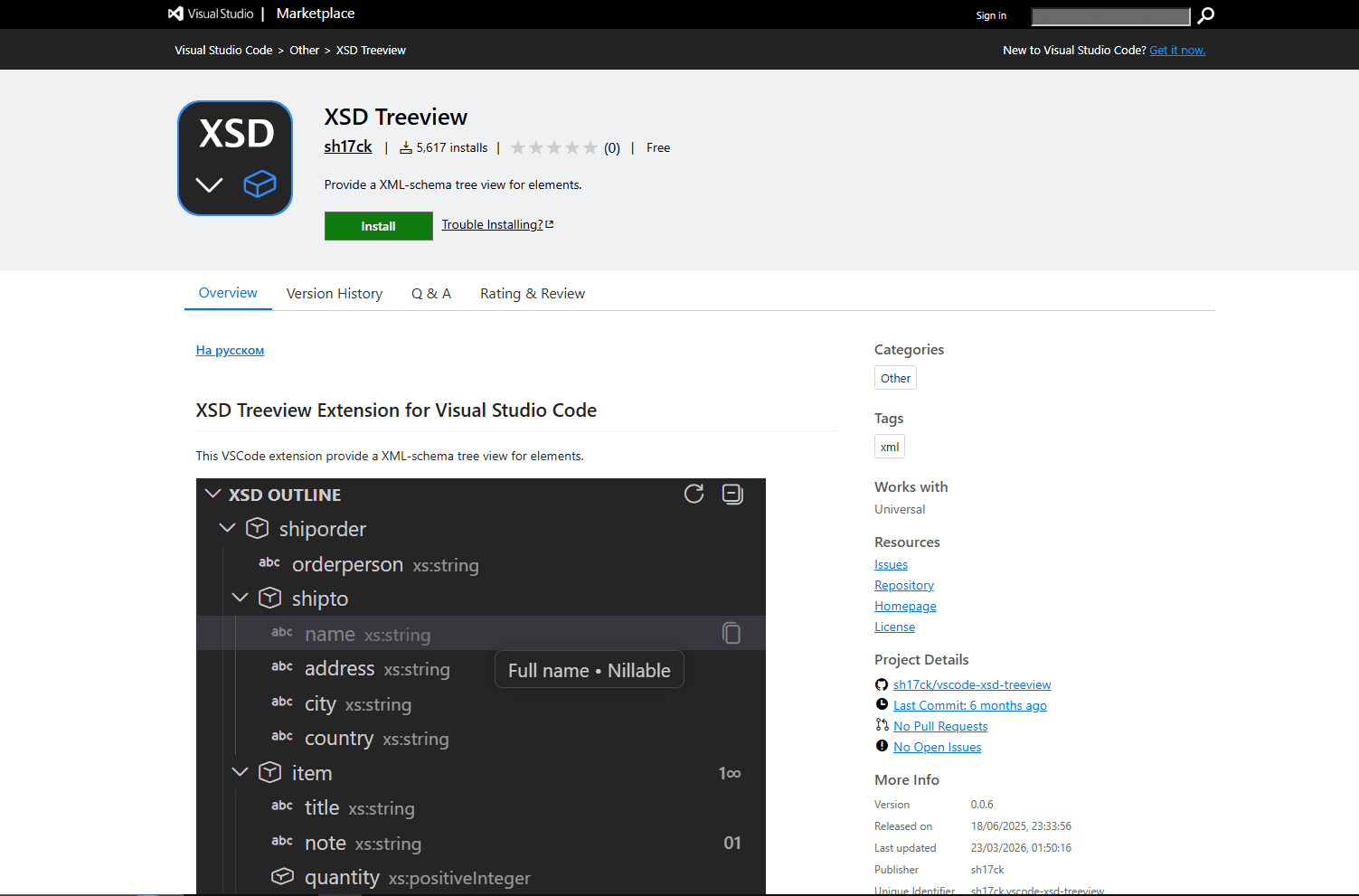
XSD Treeview adds an Explorer tree for XML Schema documents. It is aimed at the schema itself, not the XML instance being validated against that schema.
The tree shows elements, types, choices, groups, enumerations, and occurrence rules. It supports local imports, updates when the document changes, and displays documentation and type details in tooltips. Copying an element name from the tree can also save time when tracing a large schema.
Useful parts:
- Explorer tree for XSD elements and types.
- Indicators for minOccurs, maxOccurs, and nillable declarations.
- Tooltips with schema documentation.
- Support for choices, groups, extensions, and enumerations.
- Local import support.
Watch for: XSD Treeview does not replace validation, schema-aware completion, or a graphical schema designer. It helps you read an XSD. Use Red Hat XML to validate instance documents and report schema errors.
Install this only when schema navigation is a regular task. Most developers editing XML instances will not need it.
6. XML Format: Best Minimal Formatter
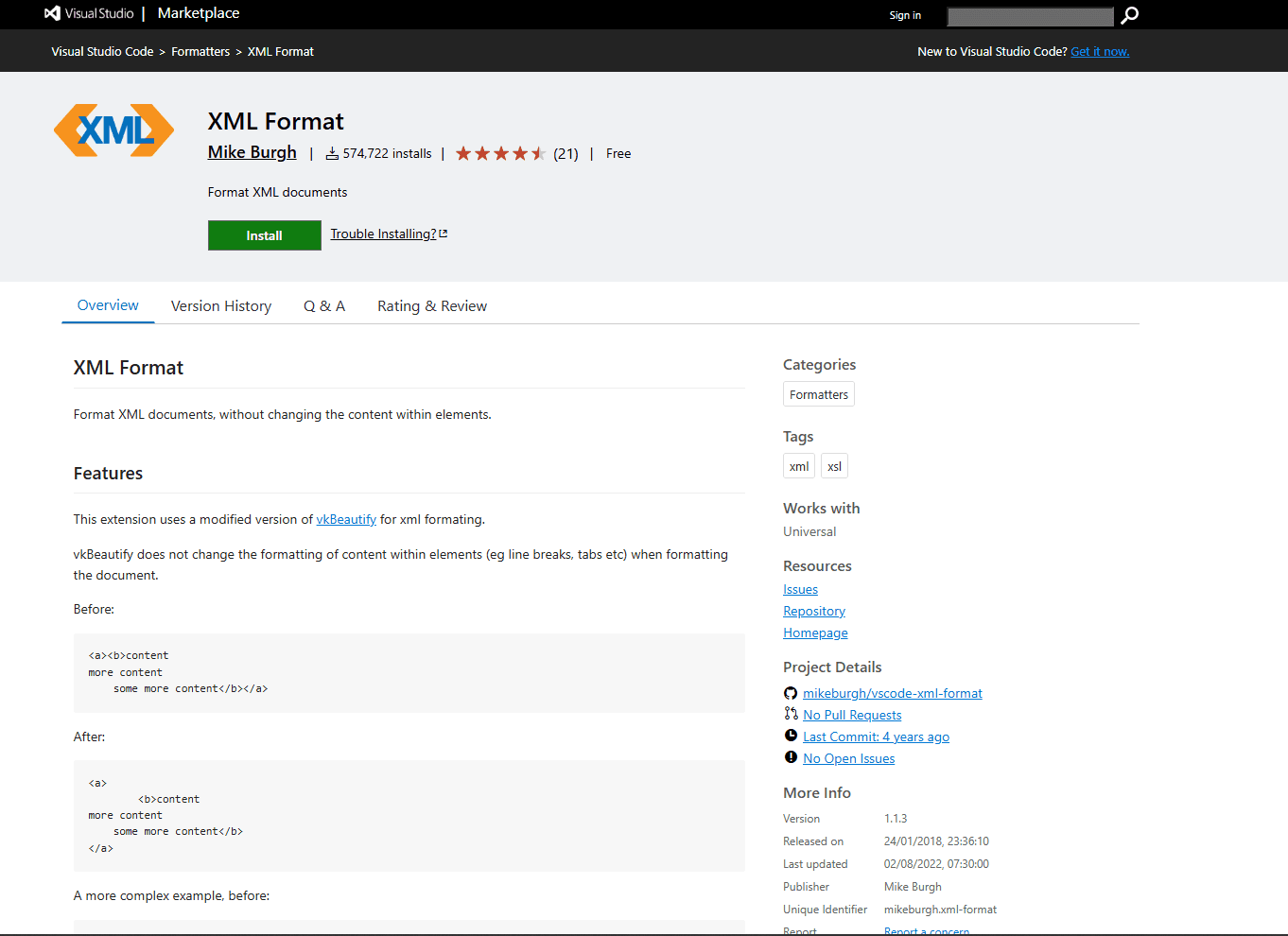
XML Format has one narrow purpose: indent XML without rewriting the existing line breaks and tabs inside element content. It follows the document's indentation settings and also supports XSL files.
This limited scope can be useful when you want a formatter without schema services, XPath, a tree panel, or an external language server. Install it from the Extensions view or run code --install-extension mikeburgh.xml-format.
Useful parts:
- Document formatting through VS Code.
- Existing whitespace inside element content is retained.
- Document indentation settings are respected.
- Comments, CDATA, and non-Latin tag names are supported.
Watch for: the formatter can process documents containing unbalanced end tags instead of treating every malformed structure as a blocking error. Run a syntax or schema check before trusting the result. It also has no extension-specific settings, validation, completion, or XPath support.
Choose XML Format only when formatting is the complete requirement. Red Hat XML or XML Tools provides more value once the workflow expands beyond indentation.
XML Extension Comparison
The table separates syntax checking from schema validation. A parser can confirm that tags and attributes form legal XML while an XSD still rejects the document's structure or values.
Build a VS Code XML Setup Without Overlap
Start with the smallest combination that completes the job:
- Ordinary schema-aware XML: install XML by Red Hat.
- XPath and tree navigation: add XML Tools, then choose one default formatter.
- XSLT development: use XSLT/XPath and configure the required Saxon task. Add Red Hat XML when separate input documents also need XSD or DTD validation.
- Visual editing: open the file with XML/JSON Data Grid Viewer and keep Red Hat XML available for schema checks.
- Frequent XSD reading: add XSD Treeview beside Red Hat XML.
- Formatting only: use XML Format without installing a second formatter.
When several extensions advertise formatting, set the provider explicitly in settings.json:
{
  "[xml]": {
    "editor.defaultFormatter": "redhat.vscode-xml",
    "editor.formatOnSave": false
  },
  "xml.validation.enabled": true,
  "xml.validation.schema.enabled": "always"
}
Leaving format-on-save disabled at first gives you a chance to inspect how the chosen formatter handles mixed content, comments, CDATA, and attribute layout. Enable it only after the resulting diff is acceptable for the project.
Associate XML Files with the Correct Schema
Red Hat XML can discover a schema through an XML declaration, catalog, or workspace file association. A workspace association is useful when generated files cannot be edited to include a schema hint.
Add a mapping like this to .vscode/settings.json:
{
  "xml.fileAssociations": [
    {
      "pattern": "**/*.config.xml",
      "systemId": "${workspaceFolder}/schemas/config.xsd"
    }
  ]
}
The pattern decides which XML files receive the grammar. The systemId points to the XSD or DTD. Keep the mapping in workspace settings when every contributor should validate the same files against the same local schema.
Validation catches only the rules represented by that grammar. An XML file can pass XSD validation and still violate application-specific constraints, so the consuming application or its build remains the final check.
Why Auto Close Tag and Prettier Are Not Core Picks
Auto Close Tag remains available, but Red Hat XML already documents automatic closing tags for XML. Installing both for the same language adds overlap without providing schema validation, XPath, or another major XML capability. It is more useful when you need its behavior across other language modes.
The Prettier VS Code extension does not add XML formatting by itself. XML requires the separate official @prettier/plugin-xml package. A repository that already standardizes formatting through Prettier can install that package locally and commit the configuration, but that is a project toolchain rather than a one-click XML extension.
A Safer XML Editing Workflow
- Keep an untouched copy of the source.
- Check well-formedness before formatting.
- Associate the correct XSD or DTD and run schema validation.
- Use one formatter, then inspect the diff for whitespace and namespace changes.
- Run XPath or XSLT with the tool designed for that task.
- Validate the saved file in the application that will consume it.
Formatting can change whitespace that matters in mixed-content documents. It can also invalidate digital signatures even when the parsed data appears equivalent. Treat formatting as a file modification, not merely a visual preference.
Large XML files require separate judgment. There is no dependable megabyte limit because line length, element count, nesting, enabled diagnostics, and visual panels all affect responsiveness. If VS Code becomes unresponsive, close tree or grid views and use a streaming parser or command-line tool instead of repeatedly loading the full document into another extension.
Frequently Asked Questions
What is the best XML extension for VS Code?
XML Language Support by Red Hat is the best default for schema-aware editing. It combines syntax diagnostics, XSD and DTD validation, completion, hover information, formatting, document symbols, catalogs, and file associations. Add a second extension only for a distinct task such as XPath evaluation, visual grid editing, or XSLT development.
How do I validate XML against an XSD in VS Code?
Install XML by Red Hat and associate the document with its XSD through xsi:schemaLocation, xsi:noNamespaceSchemaLocation, an XML catalog, or xml.fileAssociations. Syntax highlighting alone does not validate the document against a schema.
Which VS Code extension can run XPath queries?
XML Tools evaluates XPath against the active document. XML/JSON Data Grid Viewer also provides XPath search inside its visual editor. For XPath 3.1 development and repeatable tests, XSLT/XPath works with the companion XPath Notebook extension.
Can VS Code run XSLT transformations?
Yes, after the processor is configured. XSLT/XPath integrates Saxon and Saxon-JS transformations through VS Code tasks, but the extension does not bundle every processor configuration. Follow its task documentation and point the settings to the required runtime or Saxon JAR.
Does Prettier format XML in VS Code?
Not from the Prettier extension alone. Install @prettier/plugin-xml in the project and configure Prettier to load it. Use this route when XML formatting should share the repository's existing Prettier workflow; otherwise, choose one of the dedicated XML formatters above.
How should I edit very large XML files?
Avoid relying on an unsourced file-size threshold. Start with the text editor and disable visual views or continuous validation if they make the file impractical to open. For generated exports that still overwhelm VS Code, use a streaming or command-line XML tool and work on smaller extracted sections.
Related Reading
- Best XML editors for Mac
- Best XML editors for Windows
- Best XML editors for Linux
- Best JSON extensions for VS Code
- Best JSON plugins for Sublime Text
Need to combine multiple XML files before opening them in VS Code? The XML merger tool can merge compatible documents in your browser.
Read More
All Articles
5 Best XML Plugins for Notepad++ in 2026
Compare five current XML plugins for Notepad++ for formatting, XSD validation, XPath, tree views, tag editing, diffs, and command-line checks.
9 Best XML Editors for Mac in 2026 (Free & Paid)
Compare nine XML editors for Mac, from free text editors to professional tools for XSD validation, XSLT, XQuery, and schema-driven work.
9 Best XML Editors for Windows in 2026 (Free & Tested)
Compare the best XML editors for Windows, including VS Code, Notepad++, XML Notepad, and Oxygen for validation, schema support, and large files.