4 Best JSON Plugins for Notepad++ in 2026

On this page
Notepad can highlight JSON syntax, match brackets, and fold nested sections without a plugin. Those built-in features make a readable file easier to inspect, but they do not turn Notepad into a complete JSON editor. Minified responses still need formatting, and syntax or schema mistakes need a JSON-aware validator.
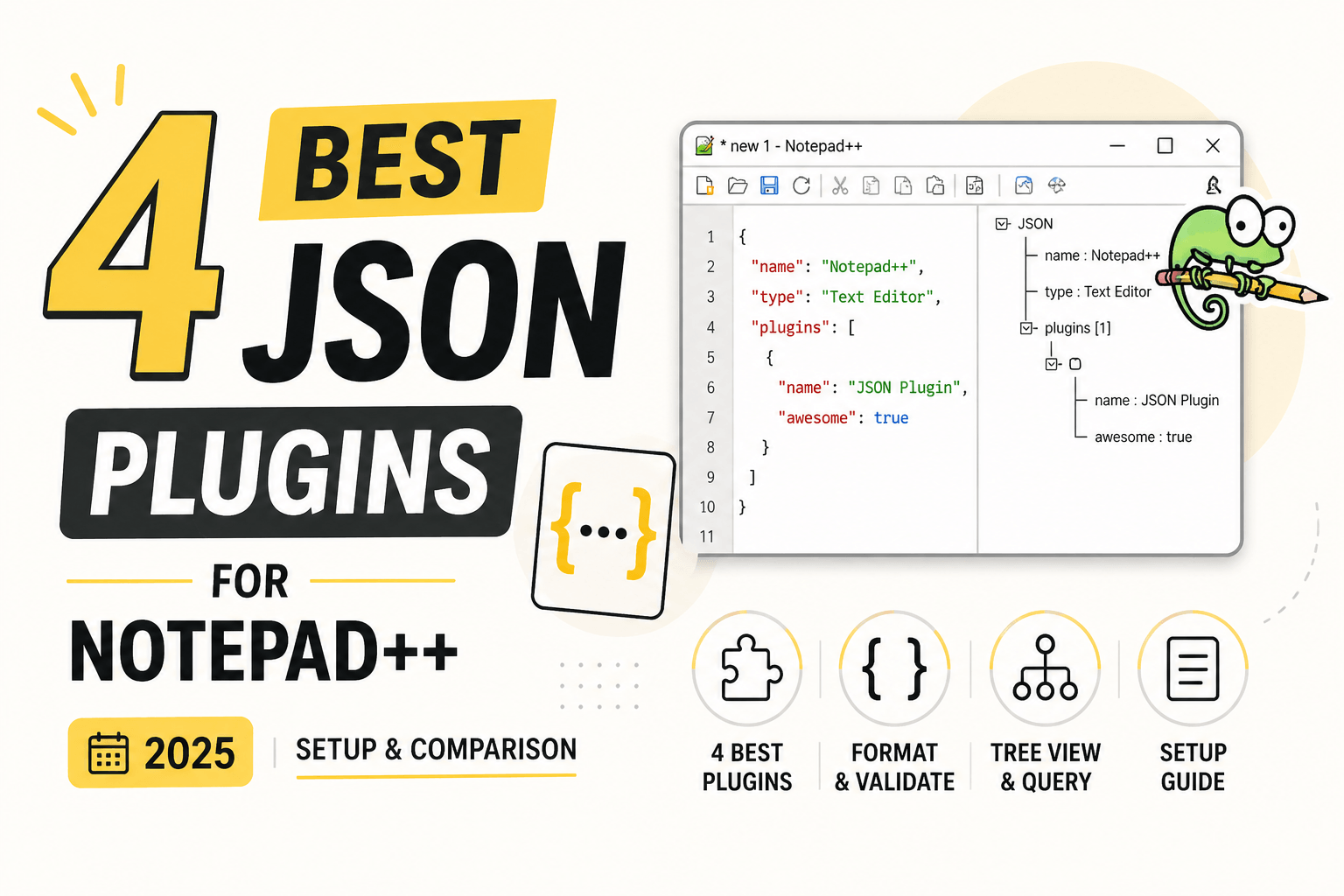
The best JSON editor plugin for Notepad is JsonTools. It combines formatting, compression, linting, a navigable tree, queries, and JSON Schema validation in one maintained package. JSON Viewer is the simpler choice for visual browsing, JSTool is useful for quick formatting, and ComparePlus helps when you need to review changes between two JSON files.
This guide ranks the four most useful current plugins for a Notepad JSON workflow. The recommendations are based on documented capabilities, current availability through the official Notepad plugin list, and how well each option handles a distinct JSON task.
Quick Comparison of Notepad JSON Plugins
JsonTools is the only option here that covers both everyday formatting and schema-aware validation. ComparePlus is not a JSON parser, so format both documents first if you want its text comparison to reflect structural changes rather than indentation differences.
Before Installing a Plugin
Open Plugins → Plugins Admin, enter the plugin name, select it, and choose Install. Notepad normally restarts to complete the installation, after which the new commands appear under the Plugins menu.
If Plugins Admin is missing, use ? → Update Notepad or download a current release from the official Notepad website. Users on managed work computers may need administrator approval because installing a plugin adds files to the Notepad plugins directory.
The official Notepad++ plugin registry is the most reliable place to confirm that a plugin is currently offered through Plugins Admin. It maintains separate lists for 32-bit, 64-bit, and ARM64 installations, so availability can differ on an older or less common setup.
1. JsonTools: Best Overall JSON Editor Plugin
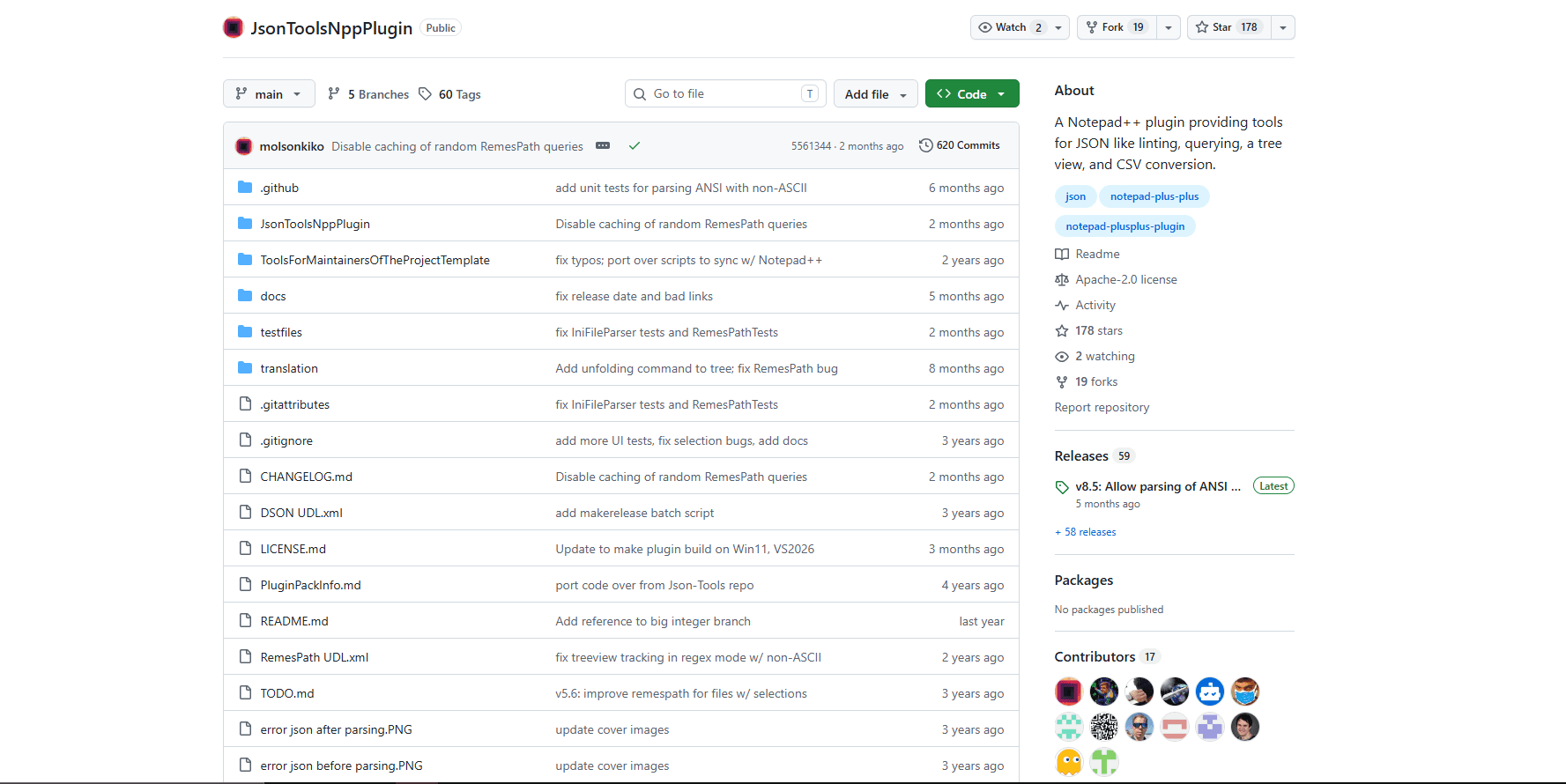
JsonTools is the strongest single-plugin upgrade for editing JSON in Notepad. It can pretty-print or compress a document, report syntax problems, open a tree linked to the source file, and validate data against a JSON Schema. Its feature set is broad enough that most users will not need a separate formatter and validator.
What you get:
- Pretty-printing and compression with configurable formatting
- A tree view that navigates to the corresponding location in the document
- Linting and automatic error checking after edits
- JSON Schema validation and schema generation
- JSON Lines support, array sorting, and path lookup
- Queries and transformations through its RemesPath query language
JsonTools is also more tolerant than a basic parser. Its documentation says it can read JSON5, comments, missing delimiters, and several other malformed or non-standard inputs, which is useful when repairing data. If a service requires strict JSON, review the linter results instead of assuming that a document is standards-compliant simply because the tree opened.
The main tradeoff is complexity. The formatting and tree commands are approachable, but schema rules and RemesPath queries require more learning. The project also notes that its schema support is less extensive than the schema tooling built into VS Code, so it is better suited to routine checks than highly specialized schema development.
After installation, open a JSON document and use Plugins → JsonTools to pretty-print it or open the JSON tree viewer. Selecting an item in the tree takes you to the corresponding text, while queries let you filter or transform data without trying to parse nested JSON with regular expressions.
Install: JsonTools for Notepad or search for “JSON Tools” in Plugins Admin.
2. JSON Viewer: Best for a Simple Tree View
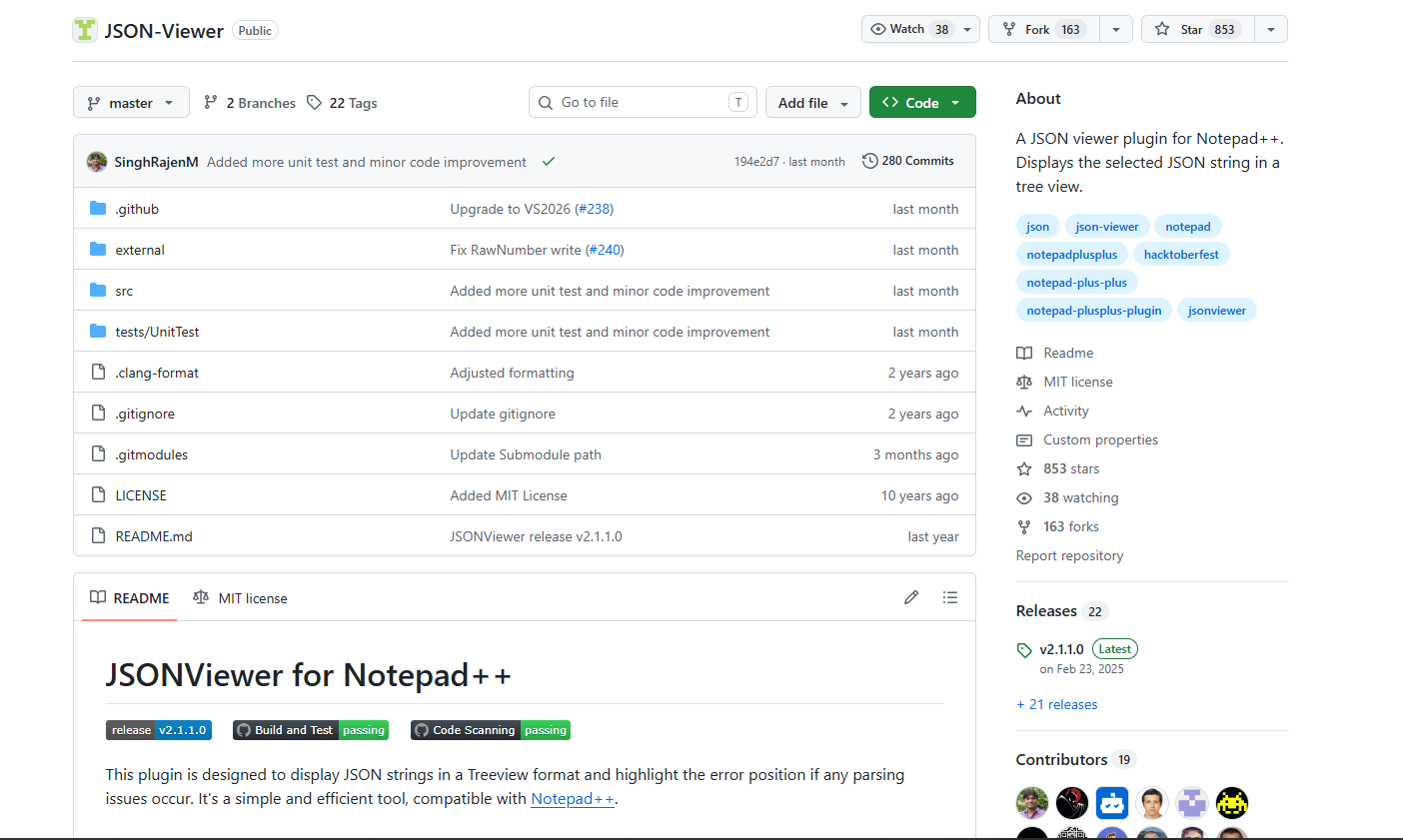
JSON Viewer focuses on one common problem: navigating nested data without repeatedly collapsing sections or searching for keys. It displays the selected JSON in a dockable tree and connects nodes to their locations in the editor. The current interface also includes controls for refreshing, validating, formatting, searching, and expanding or collapsing the tree.
What you get:
- Expandable object and array nodes in a dockable panel
- Navigation from a tree node to the matching JSON text
- Formatting and parse-error highlighting
- Tree search plus copy-node, copy-value, and copy-path actions
- Options for indentation, line endings, comments, and trailing commas
The tree is primarily a viewing and navigation surface. You still make normal edits in the Notepad++ document and refresh or follow the active file to update the representation. JSON Viewer can tell you when its parser cannot read the input, but it does not validate business rules against a JSON Schema.
To use it, select a JSON fragment or open a JSON document, then choose Plugins → JSON Viewer → Show JSON Viewer. The documented default shortcut is Ctrl + Alt + Shift + J. If another command has already claimed that combination, assign a different shortcut through Notepad's Shortcut Mapper.
Install: JSON Viewer for Notepad or search for “JSON Viewer” in Plugins Admin.
3. JSTool: Best for Quick Formatting
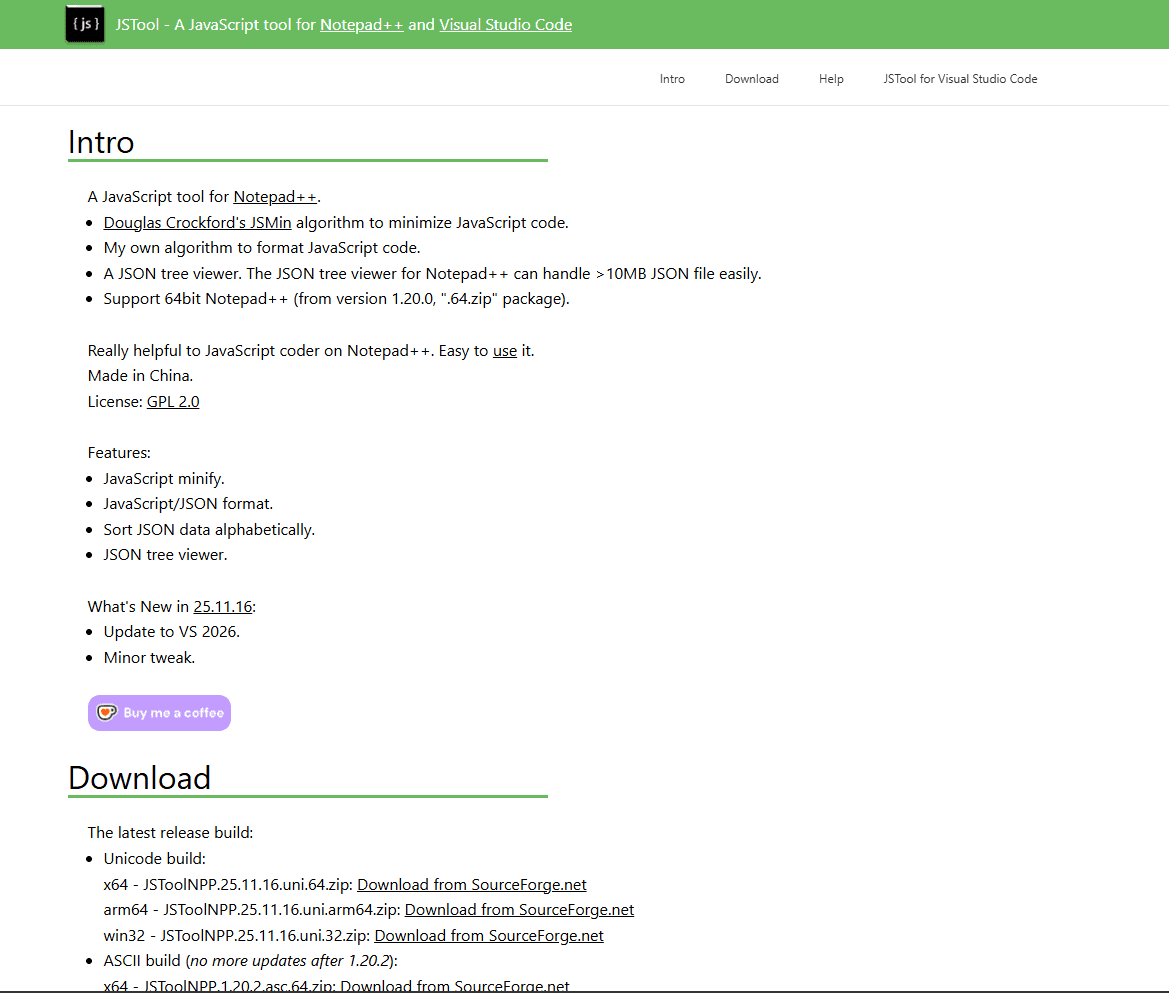
JSTool is a JavaScript and JSON utility that keeps common cleanup commands close at hand. Its JSFormat command turns compact JSON into indented text, while JSMin removes unnecessary whitespace when you need a smaller representation. The plugin also includes a JSON data viewer.
What you get:
- One-command formatting for compact JSON
- Minification through the JSMin command
- A bundled JSON data viewer
- 32-bit and 64-bit Notepad++ support in the current plugin registry
- A smaller feature set than a full JSON query and schema tool
The default shortcut documented for JSFormat is Ctrl + Alt + M. Shortcut assignments can vary if you have customized Notepad or installed plugins with overlapping bindings, so check Settings → Shortcut Mapper → Plugin commands when a combination does not respond.
JSTool is a good fit when your routine is mostly “paste an API response, format it, inspect it, and move on.” JsonTools is the better default if you also need detailed linting, schema validation, or structured queries. Installing both is usually unnecessary unless you prefer JSTool's formatter while using JsonTools only for its advanced features.
Install: JSTool for Notepad or search for “JSTool” in Plugins Admin.
4. ComparePlus: Best Companion for JSON Diffs
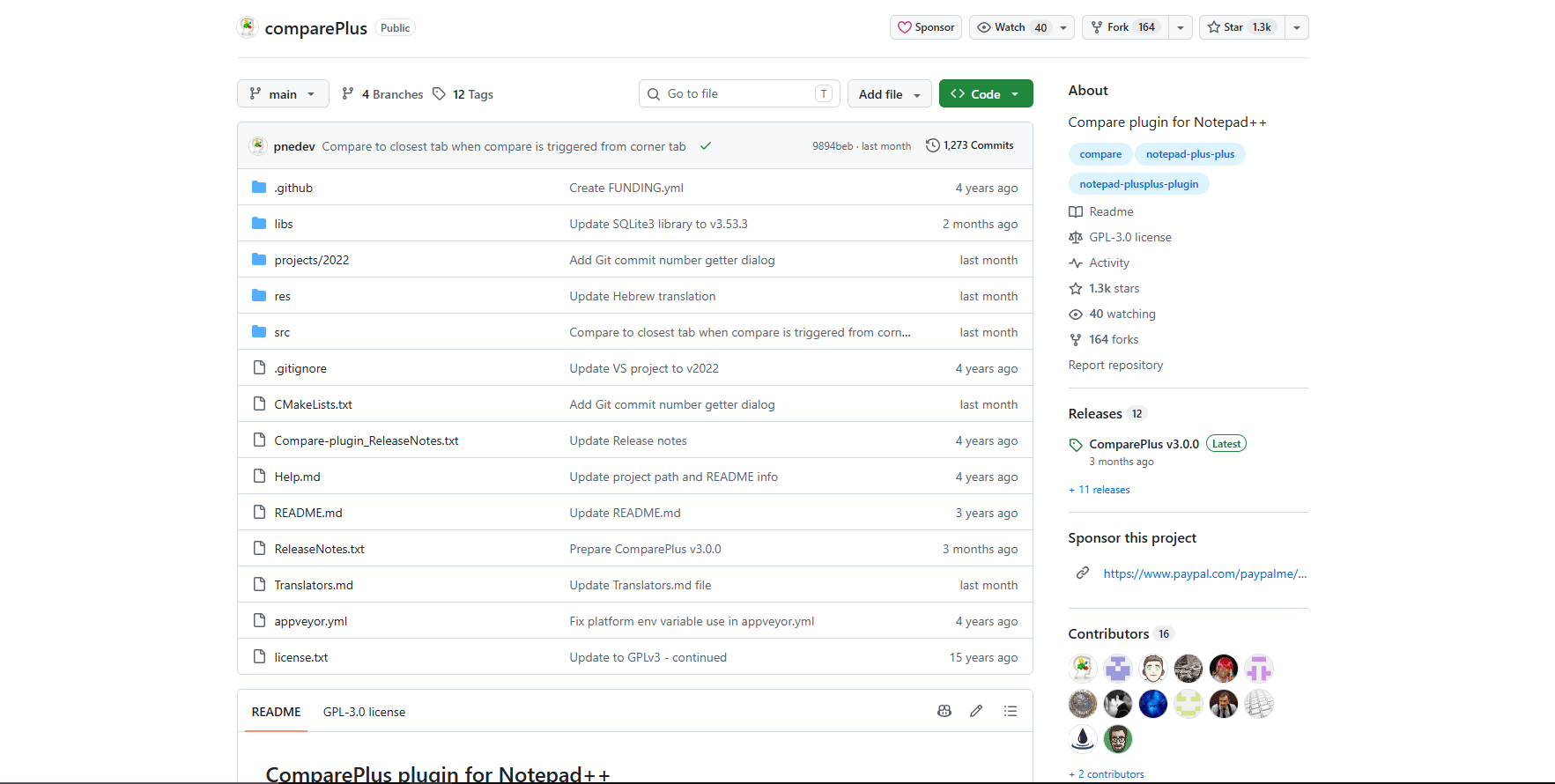
ComparePlus is not a dedicated JSON editor, but it solves a task the three JSON-specific plugins do not: showing two versions side by side and marking exactly what changed. It can compare complete files, selections, clipboard text, a file against its saved state, or a file against Git or SVN.
What you get:
- Side-by-side file and selection comparison
- Character-level differences and moved-line detection
- Comparisons against saved files, clipboard content, Git, or SVN
- Options to ignore whitespace, blank lines, case, or matching patterns
- Multiple active comparison pairs
Because ComparePlus compares text rather than parsed JSON objects, key order and formatting affect the result. Pretty-print both files with the same JsonTools or JSTool settings before comparing them. If object keys appear in a different order, a textual diff may still show changes even when the represented data is equivalent.
Use Plugins → ComparePlus after opening the two formatted documents. ComparePlus supports current x86, x64, and ARM64 builds, but its project documentation requires Notepad 8.4.2 or newer.
Install: ComparePlus for Notepad or search for “ComparePlus” in Plugins Admin.
Which Notepad JSON Plugin Should You Install?
Install JsonTools if you want one answer for formatting, linting, tree navigation, queries, and JSON Schema validation. It is the best overall choice and the clearest replacement for old workflows that combined a formatter, a tree viewer, and JSLint.
Choose JSON Viewer when you mainly want an uncomplicated visual tree and do not need schema validation or query-based editing. Choose JSTool when formatting and minifying pasted JSON are your primary tasks and you prefer its familiar JSFormat workflow.
Add ComparePlus only when comparisons are part of your work. A practical combination for reviewing configuration changes is JsonTools plus ComparePlus: normalize each file first, validate it, and then inspect the textual diff.
Why JSLint and XML Tools Are No Longer Recommended
Older Notepad guides often recommend JSLint for JSON validation and XML Tools for JSON formatting. Neither belongs in a current list of the best JSON plugins.
The standalone JSLint plugin on SourceForge was last updated in 2016 and is not present in the current official 64-bit Notepad plugin list. JsonTools now provides JSON-focused linting and schema validation without relying on that abandoned integration.
XML Tools remains a useful, maintained plugin for XML syntax checks, XSD or DTD validation, XPath, and XML pretty-printing. Its documented feature set is XML-specific, however, so it should not be presented as a JSON formatter. Developers who work with both formats can install XML Tools alongside a real JSON plugin rather than expecting one plugin to parse both.
Frequently Asked Questions
What is the best JSON plugin for Notepad?
JsonTools is the best overall JSON plugin for Notepad. It combines formatting, compression, linting, a navigable tree, JSON Schema validation, JSON Lines support, and structured queries. JSON Viewer is a simpler alternative when visual browsing is the main requirement.
How do I format JSON in Notepad?
Install JsonTools from Plugins Admin, open the JSON document, and choose its pretty-print command from Plugins → JsonTools. JSTool is another good formatter; its documented JSFormat shortcut is Ctrl + Alt + M. Save a copy first when formatting data whose original whitespace must be preserved.
Can Notepad validate JSON files?
Yes, after you install a plugin. JsonTools can lint JSON syntax and validate data against a JSON Schema, while JSON Viewer reports parsing problems when building its tree. Notepad's built-in JSON syntax highlighting changes how the document looks but does not prove that its contents are valid.
Can I edit JSON directly in the JSON Viewer tree?
JSON Viewer's tree is designed for browsing, searching, copying values, and navigating back to the document. Make edits in the Notepad text pane and then refresh the tree. JsonTools offers query-based transformations when you need more structured editing than manual text changes.
Do I need both JsonTools and JSON Viewer?
Usually not, because JsonTools already includes a navigable JSON tree. Install JSON Viewer instead if you prefer its simpler panel and do not need JsonTools' queries or schema features. Running both can make sense while you compare their interfaces, but their core tree-view functions overlap.
How do I compare two JSON files in Notepad?
Install ComparePlus and open both files, but format them consistently with JsonTools or JSTool first. Then start the comparison from Plugins → ComparePlus. Normalizing indentation reduces irrelevant whitespace changes, although reordered object keys can still appear as textual differences.
Related Reading
If you work across multiple editors or need platform-specific alternatives, continue with these guides:
- Best JSON extensions for VS Code
- Best JSON plugins for Sublime Text
- Best JSON editors for Windows
- How to format JSON in Notepad++
Need to combine several documents before editing them? Use the JSON merger tool to merge compatible JSON files in your browser.
Read More
All Articles
7 Best JSON Editor Apps for Android in 2026 (Compared & Ranked)
Compare seven current JSON editor apps for Android, including visual tree editors, fast text editors, Git tools, and a browser option.
5 Best JSON Plugins for Sublime Text in 2026
Compare 5 current Sublime Text JSON plugins for formatting, live linting, schema validation, jq transformations, and structural navigation.

6 Best JSON Editors for Mac in 2026 (Free & Paid Options)
Find the best JSON editor for macOS with native performance. Compare VS Code, OK JSON, Sublime Text, and more for speed, validation, and Apple Silicon optimization.