9 Best Markdown Editors for Mac in 2026 (Free & Paid)

On this page
VS Code may already be on your Mac if you write code. It handles Markdown with built-in preview and syntax highlighting, but its broader development interface can feel excessive when you only want to draft a document.
Dedicated writing apps take a different approach. iA Writer ($49.99 in the US Mac App Store) minimizes interface clutter, while Typora ($14.99 before tax) shows formatted content as you type instead of raw Markdown syntax. Both use one-time licenses rather than subscriptions.
The right editor depends on the work. Documentation in a Git repository needs different tools than a blog draft or a linked knowledge base. The list compares nine editors with different strengths.
1. iA Writer

iA Writer is a native Mac app built for distraction-free writing. The Mac license is a $49.99 one-time purchase in the US App Store, with regional pricing varying.
The interface removes everything except your text. No toolbars, no formatting buttons, no sidebars. Press Cmd + R to toggle preview mode. Focus Mode can emphasize the current sentence or paragraph.
What you get:
- Distraction-free interface with minimal controls
- Focus Mode (highlights the current sentence or paragraph)
- Native Mac app with Dark Mode support
- Plain Markdown files with .md export
- Export to PDF, Word, HTML with custom templates
What you don't get:
- No plugin system
- No visual table editor
- No diagram support (Mermaid, etc.)
- Preview is separate from the editor rather than inline WYSIWYG
iA Writer fits people writing blog posts, documentation, books, or articles who want the interface to stay out of the way. Its Focus Mode and plain-text workflow make it the strongest native Mac option in this list for distraction-free writing.
2. Typora
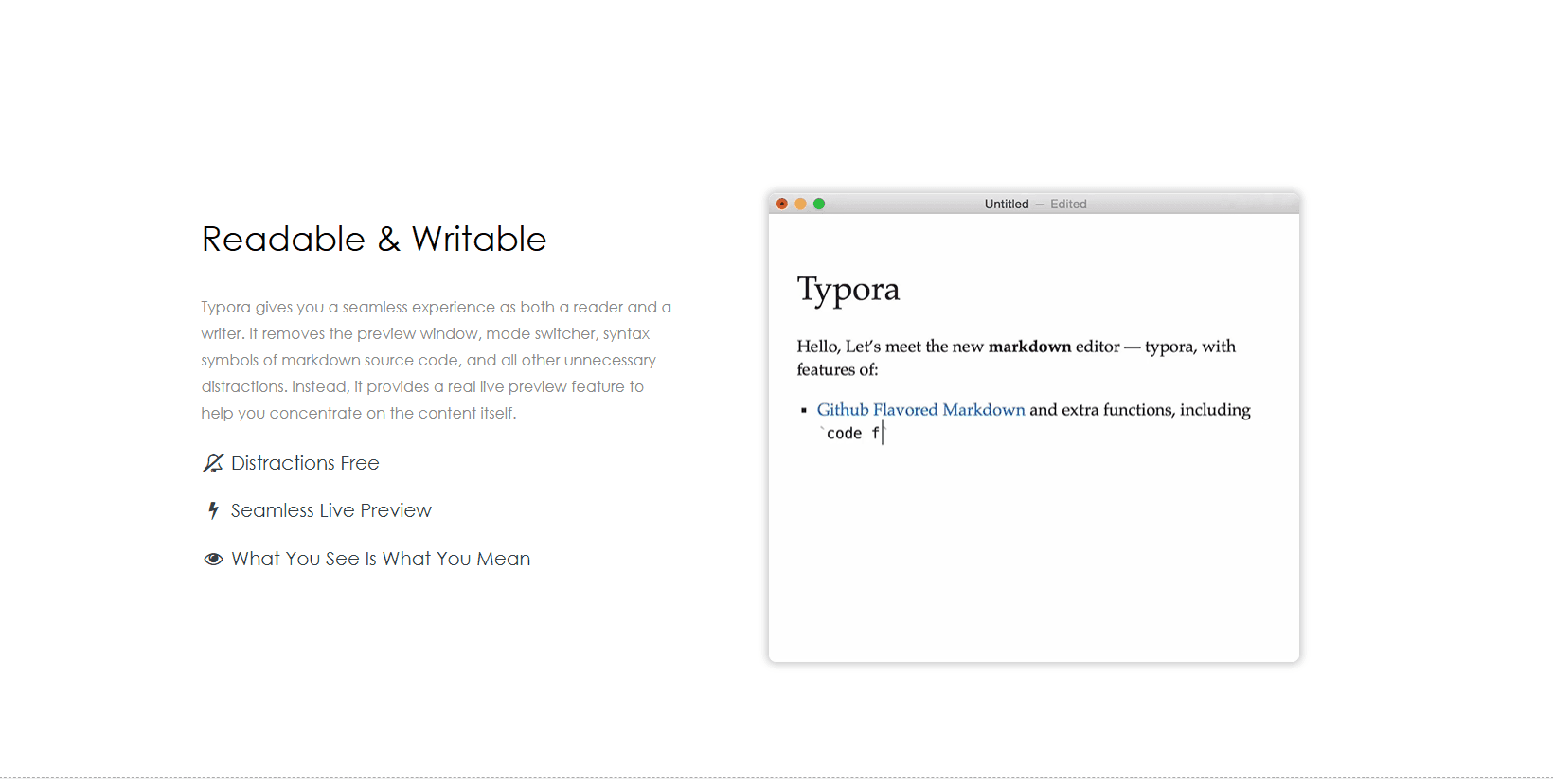
Typora shows formatted text as you type without separating the editor and preview into two panes. Type # Heading and it becomes a heading immediately. A license currently starts at $14.99 before tax and covers up to three devices.
The WYSIWYG approach means you see bold text, not bold text. You see rendered images, not !alt. Click any element to edit the raw Markdown.
What you get:
- WYSIWYG editing (see formatted text as you type)
- Visual table editor (click to add rows/columns)
- Drag-and-drop image handling
- Math support via LaTeX ($$ for equations)
- Customizable themes via CSS
- Export to PDF, HTML, Word, LaTeX, EPUB
What you don't get:
- No built-in sync (manage files yourself)
- No mobile apps
- No plugin ecosystem
- A paid license is required after the trial
Typora fits technical writers, students, researchers, and bloggers who prefer seeing formatted text instead of Markdown syntax. It is the clearest option here for a document-like editing experience.
3. VS Code with Markdown Extensions
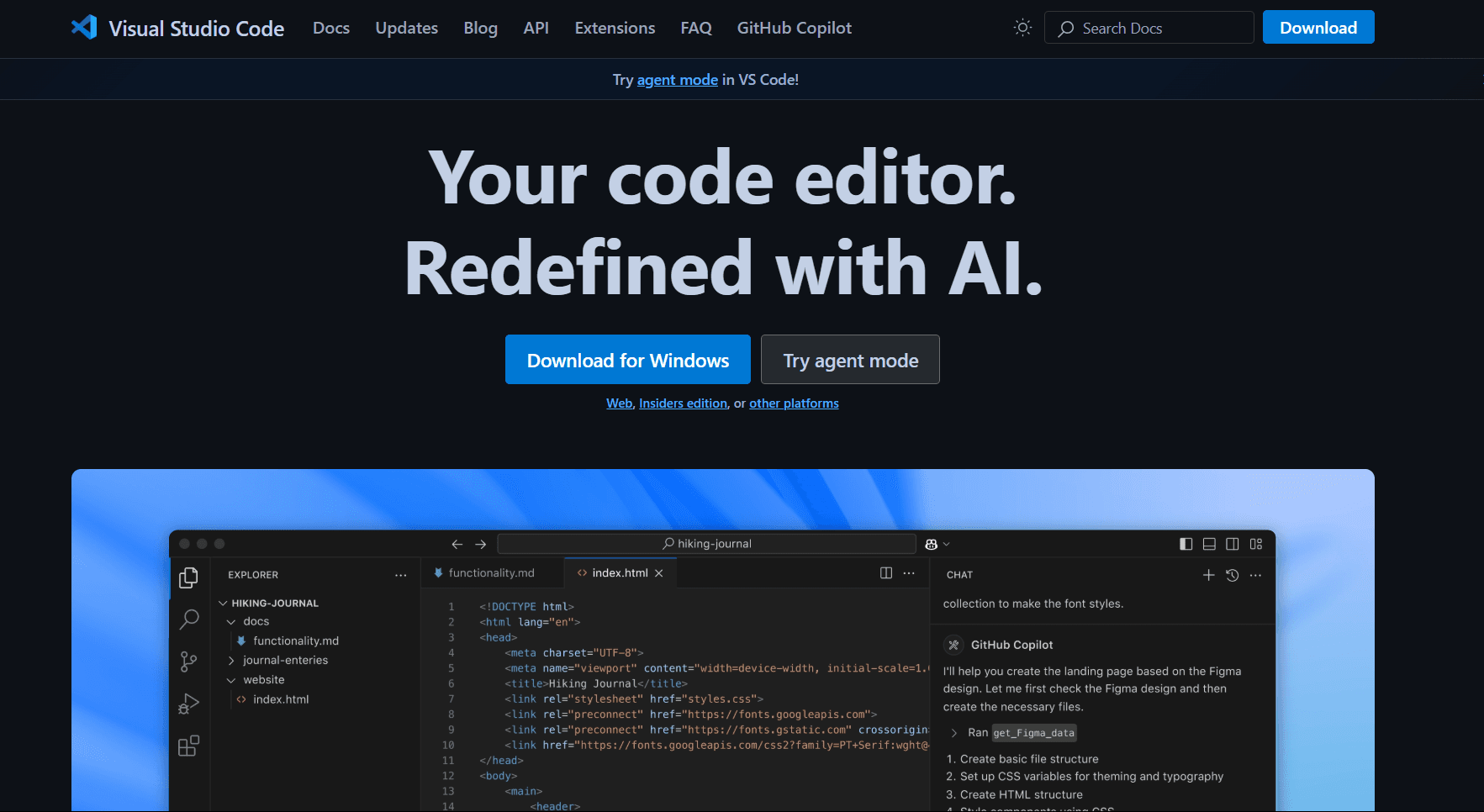
VS Code is a free, cross-platform code editor with built-in Markdown syntax highlighting, preview, and outline navigation.
Install via Homebrew: brew install --cask visual-studio-code. Or download from the VS Code website.
What you get:
- Split preview pane (Cmd + K V)
- Outline view for navigation
- Syntax highlighting for code blocks
- Link validation
- Automatic list continuation
- Git integration (track changes, commit, push)
- Extensions (Markdown All in One, Preview Enhanced, markdownlint)
- Settings Sync across signed-in devices
What you don't get:
- Higher resource use than focused native writing apps
- More interface and project tooling than a Markdown-only writer needs
- Not Mac-native (Electron-based)
VS Code fits developers who need Git integration and extensions. If you're already running VS Code, adding Markdown work costs nothing extra. For writers who only need Markdown, iA Writer or Typora are lighter.
For VS Code power users, see best Markdown extensions for VS Code to add diagrams, spell checking, and advanced export features.
4. Obsidian
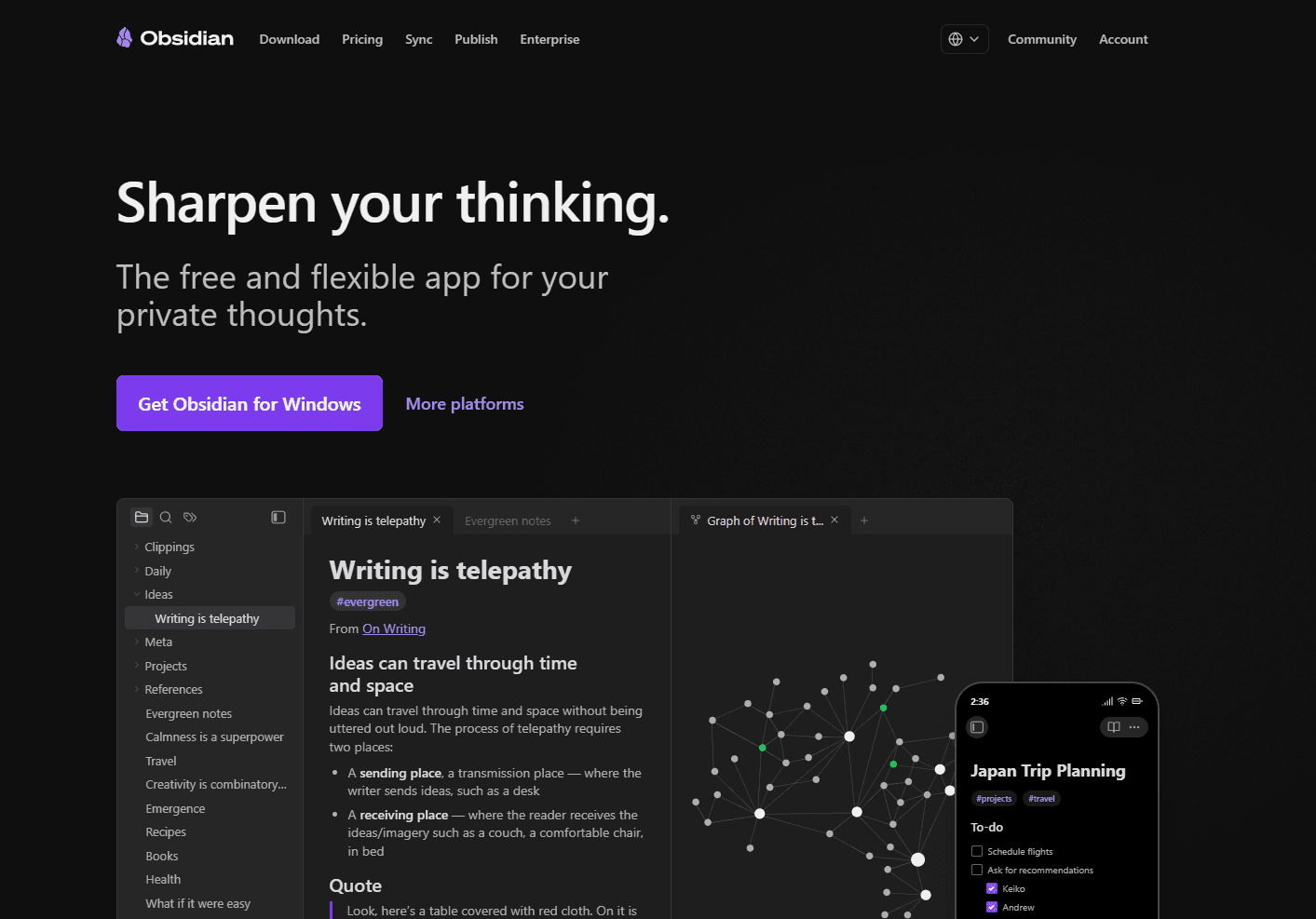
Obsidian is a knowledge base that works on local Markdown files. It is free for personal, commercial, and non-profit use; paid Sync and Publish services are optional.
Type [[note name]] to create a link to another note. The graph view shows connections between notes visually. Your notes are plain .md files in local folders.
What you get:
- Bidirectional links (see which notes link to current note)
- Graph view for visualizing note connections
- Daily notes with templates
- Tag-based organization
- Plugin ecosystem (calendars, kanban boards, diagrams)
- Live preview or source mode
What you don't get:
- Publishing requires Obsidian Publish or another workflow
- Shared vaults require Obsidian Sync, with no live co-editing in the same file
- Steeper learning curve
- Not ideal for linear documents
Obsidian fits researchers, students, and writers building interconnected knowledge bases. Its backlinks and graph view help reveal relationships between notes. For linear documents, simpler editors may be easier to manage.
5. MacDown
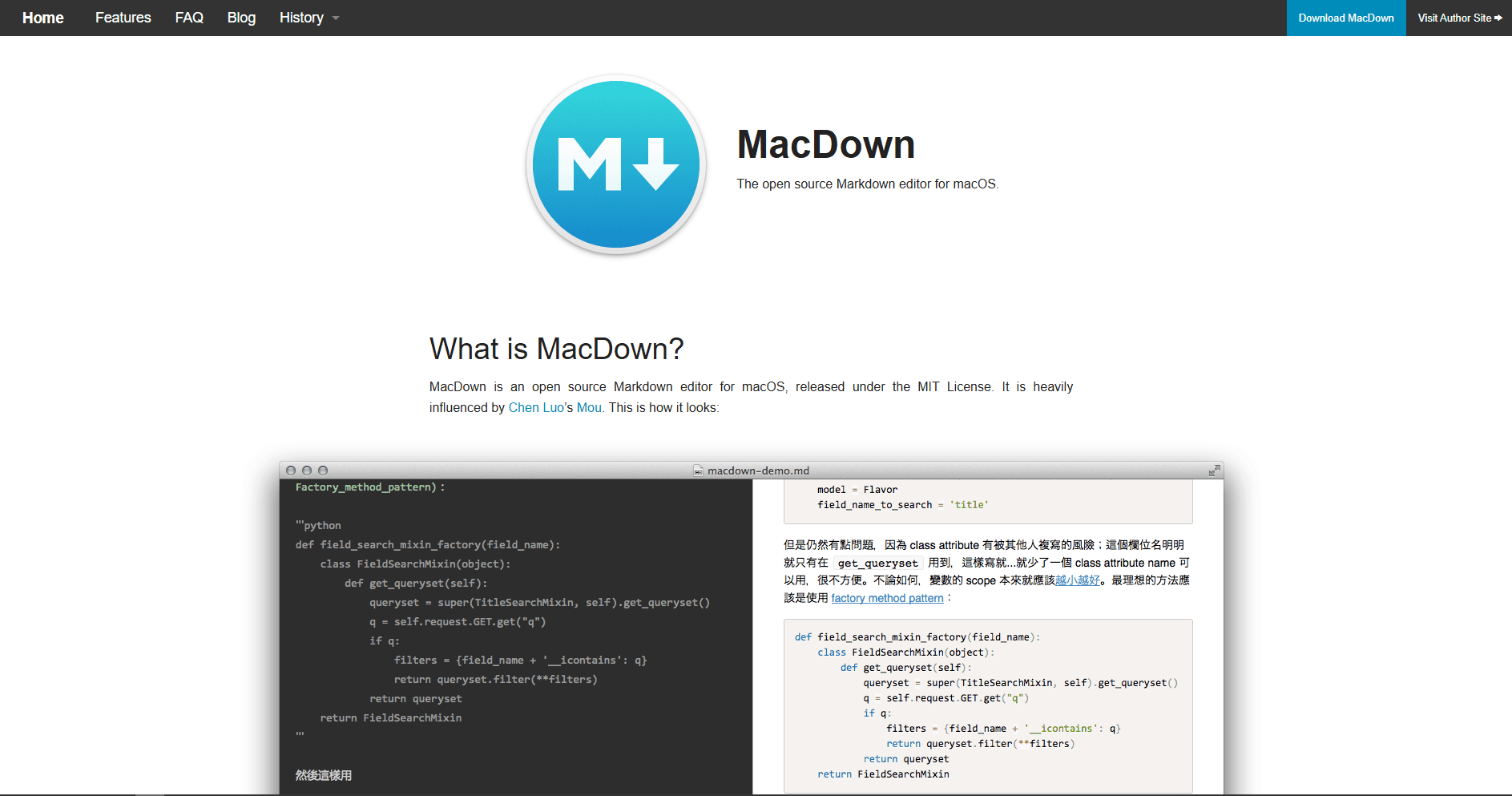
MacDown is a free, open-source Markdown editor for Mac with a split-pane editor and live preview. The original project's release history shows limited recent maintenance, so check compatibility with your macOS version before relying on it.
Type Markdown on the left and view the rendered output on the right. The preview updates as you type, with optional extensions for common GitHub Flavored Markdown features.
What you get:
- GitHub Flavored Markdown support
- Math rendering via MathJax
- Syntax highlighting for code blocks
- Custom CSS for preview styling
- Auto-save and version recovery
- Export to HTML or PDF
What you don't get:
- No sync (manage files yourself)
- No mobile apps
- No linked-note or graph-view workflow
MacDown fits readers who want a free Cocoa-based split-pane editor and are comfortable using an older project. Test saving, preview, and export on your current Mac before adopting it for important work.
6. Bear
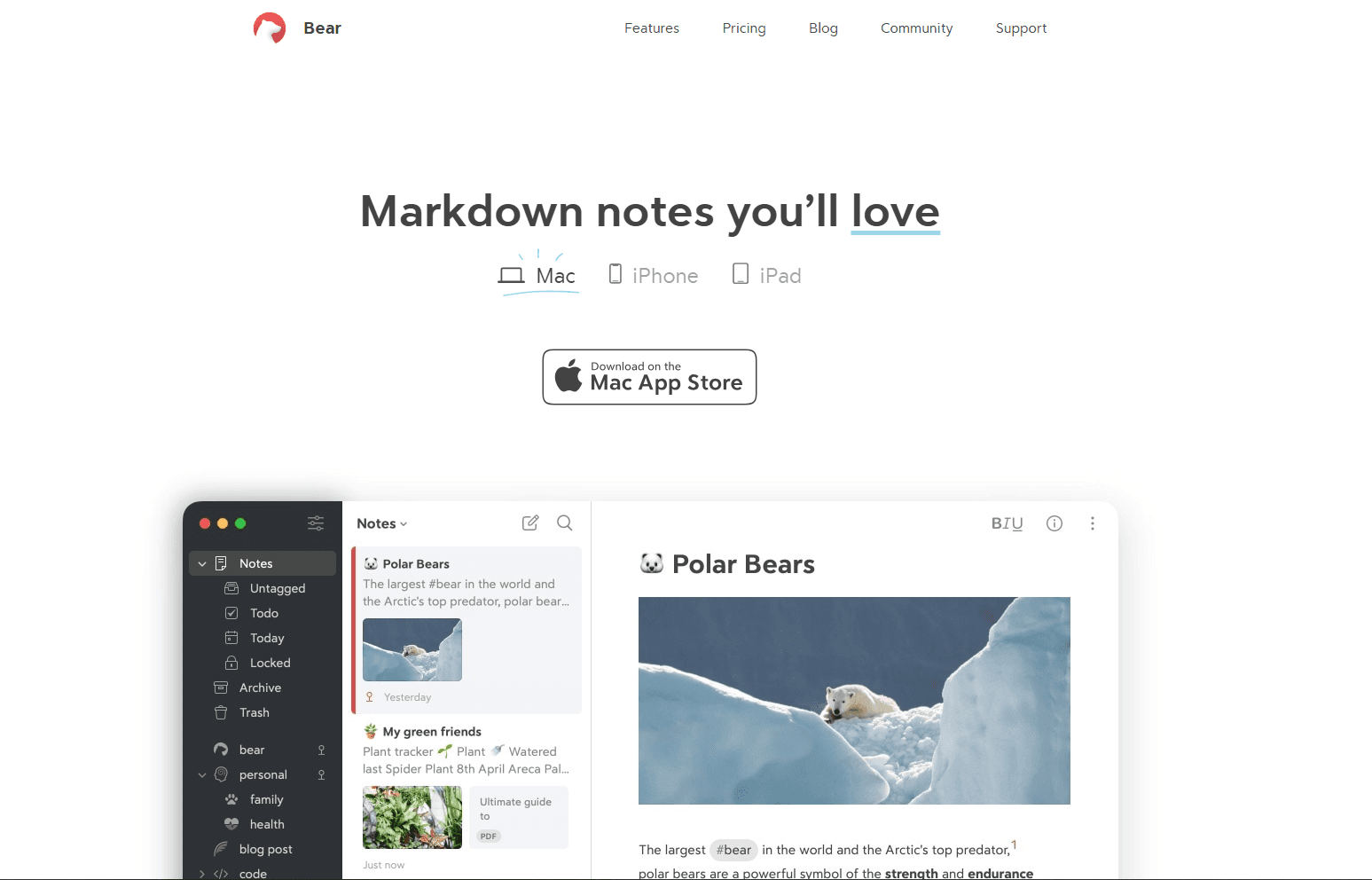
Bear is a note-taking app with Markdown support. The free tier covers local notes, while Bear Pro currently costs $2.99 per month or $29.99 per year in the US and adds iCloud sync, more themes, and additional export options.
Bear uses a sidebar for tags and navigation, a note list, and a dedicated editor pane. Type bold and it renders as bold text inline.
What you get:
- Nested tags (#project/design/mockups)
- Cross-note linking ([[note title]])
- Todo lists with checkboxes
- Image and file attachments
- iCloud sync across Mac, iPhone, iPad
- Export to PDF, HTML, DOCX, Markdown
What you don't get:
- Bear Web does not include every feature from the native apps
- No native Windows or Android apps
- No Git integration
- No plugin system
Bear fits Apple users who want note-taking with Markdown support across Mac, iPhone, and iPad. Bear Pro handles iCloud synchronization, while Bear Web provides browser access when a native app is unavailable.
7. Ulysses
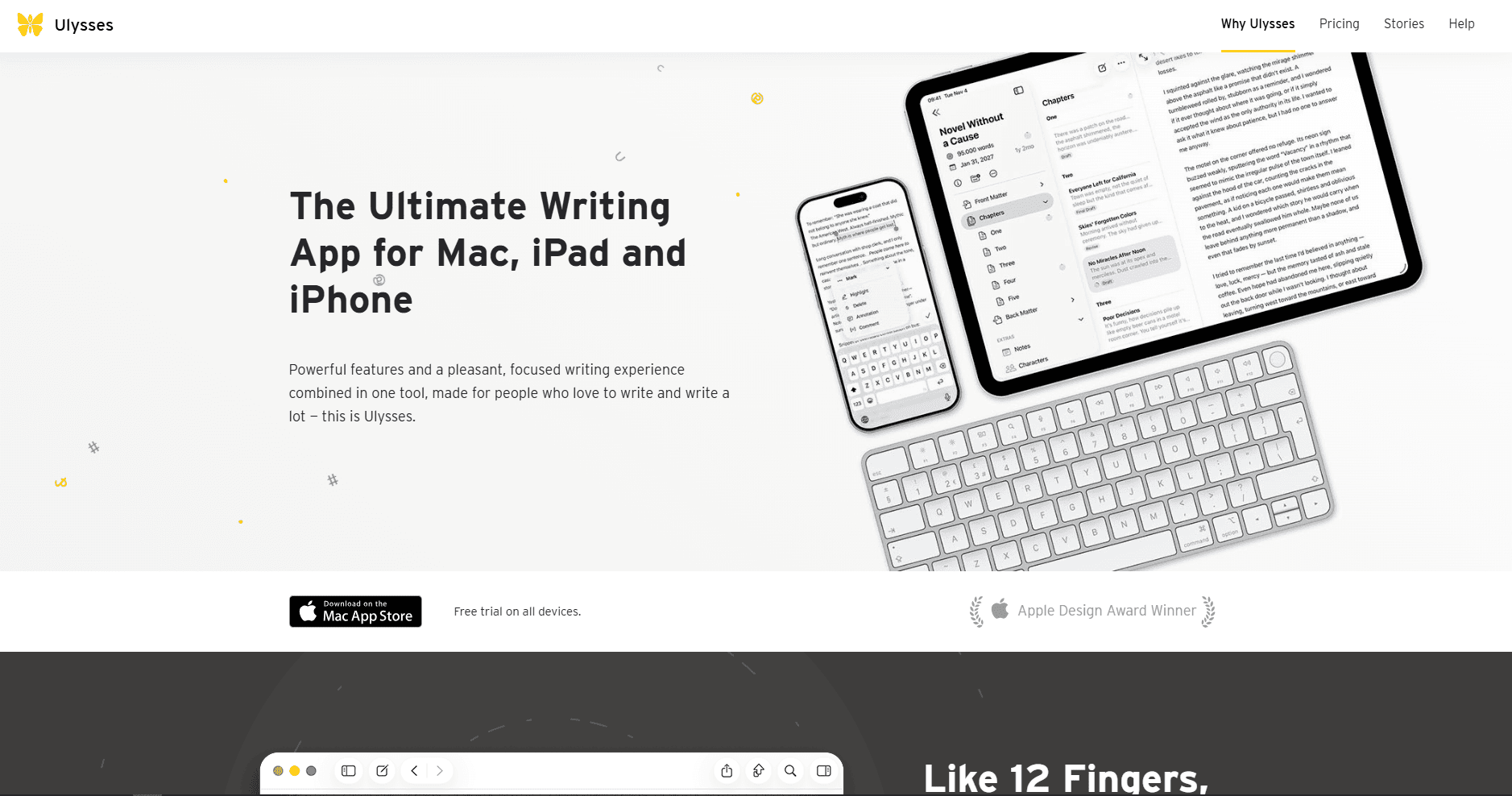
Ulysses is a professional writing app with Markdown support. Its US pricing is currently $39.99 per year or $5.99 per month, with a seven-day trial and regional variation.
Most writing lives in Ulysses' library, organized by groups and filters. External Folders can work with ordinary Markdown files stored on a local drive or supported cloud service.
What you get:
- Writing goals (word count, character count, reading time)
- Revision mode (track changes)
- Publishing integrations (WordPress, Medium, Ghost)
- Style sheets for consistent formatting
- Typewriter mode and focus mode
- iCloud sync across Mac, iPhone, iPad
- Export to formats including PDF, DOCX, HTML, EPUB, and Markdown
What you don't get:
- Subscription required after the seven-day trial
- The main library uses Ulysses sheets rather than ordinary files
- Standard Markdown in External Folders cannot use every Ulysses feature
- No plugin system
Ulysses fits professional writers, authors, and bloggers who publish regularly. Its subscription is easier to justify when you use its goals, revision tools, publishing integrations, and Apple-device sync. Free alternatives suit occasional Markdown editing better.
8. Marked 2
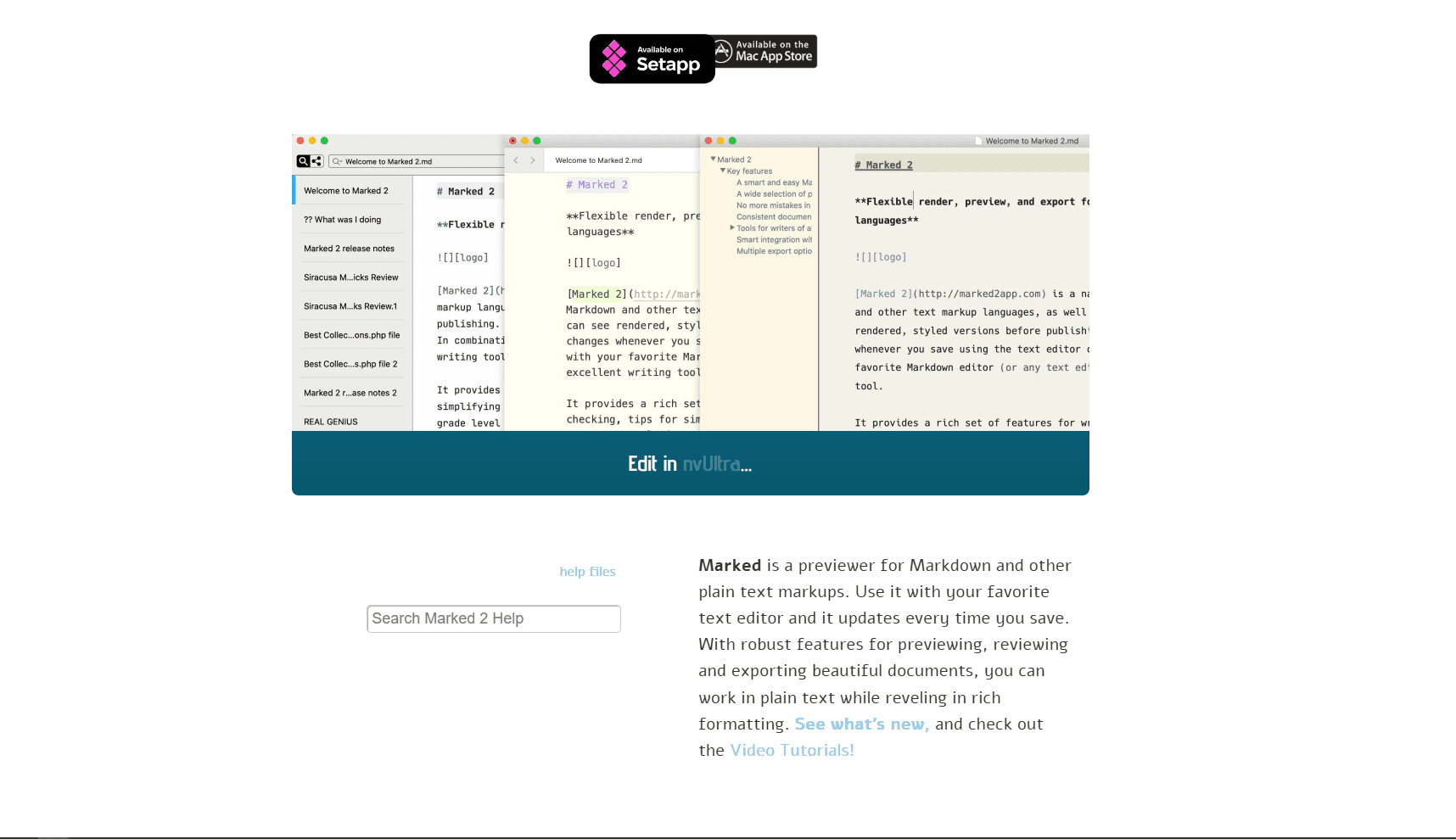
Marked 2 is not an editor. It watches Markdown files and renders them as you save. Marked 2 remains available for $13.99 in the US Mac App Store, although Marked 3 is now the current major release.
Write in your preferred text editor, save the file, and Marked 2 shows the rendered output. Every time you save, the preview updates.
What you get:
- Multiple built-in preview styles
- Custom CSS and themes
- Export to PDF with precise control
- Statistics (word count, reading time, keyword density)
- Link validation and spell checking
- Math rendering via MathJax
- Mermaid diagrams
What you don't get:
- No editing (preview only)
- No sync (you manage files)
- No mobile apps
Marked 2 fits writers who already have a preferred text editor and want a separate preview and export window. New buyers should compare it with Marked 3 before choosing a license.
9. TextEdit (Built-in Mac App)
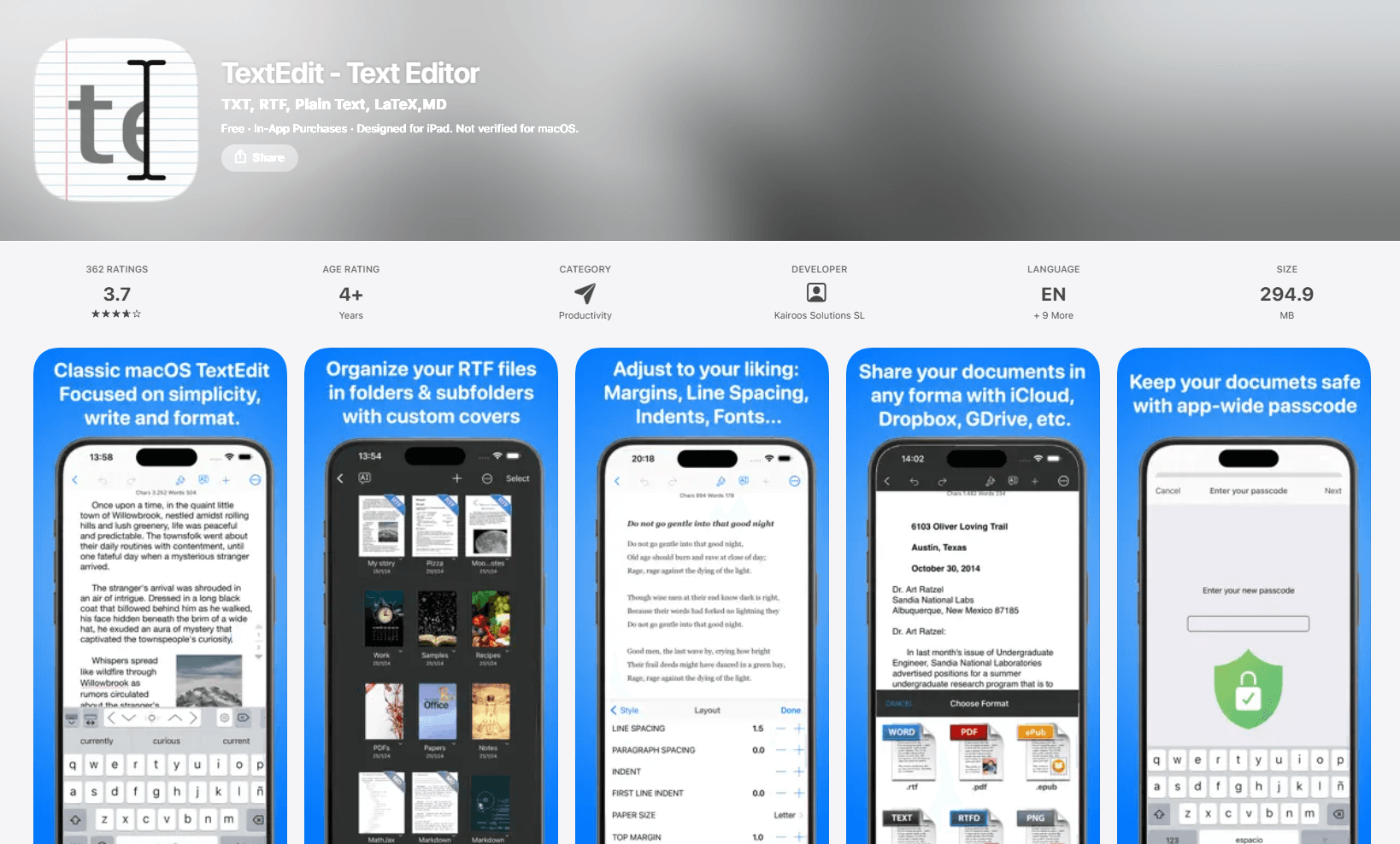
TextEdit ships with every Mac, so no installation is needed.
Switch to plain text mode with Cmd + Shift + T and type Markdown syntax. TextEdit saves plain text as .txt by default, so rename the file with an .md extension when needed.
What you get:
- Zero setup (already installed)
- iCloud sync if you save to iCloud Drive
What you don't get:
- No syntax highlighting
- No preview
- No Markdown-specific features
- No Markdown-specific export workflow
TextEdit makes sense for quick edits when you do not need syntax highlighting or preview, such as fixing a typo in a README or adding one line to documentation.
Quick Comparison
Recommendation
Choose the editor that matches your main workflow:
- VS Code: developer documentation. Use it when Markdown lives in Git repositories and you want preview, extensions, source control, and code editing in one app.
- MacDown: free split-pane editing. Consider it when you want a simple native editor and preview, but confirm that the older app works correctly on your macOS version.
- iA Writer: focused long-form writing. Its minimal interface and Focus Mode suit articles, documentation, and books without surrounding project tools.
- Typora: visual Markdown editing. Formatting appears inside the document as you type, making it easier to approach than a traditional source-and-preview layout.
- Obsidian: linked notes and research. Backlinks, graph view, daily notes, and plugins make it the strongest fit for an interconnected knowledge base.
- Bear: notes across Apple devices. Choose it for a native Mac, iPhone, and iPad workflow with optional iCloud sync through Bear Pro.
- Ulysses: structured writing and publishing. Writing goals, revision tools, export styles, publishing integrations, and Apple-device sync support ongoing professional work.
A mixed setup can also work well: VS Code for technical documentation, iA Writer for focused drafts, and Obsidian for research notes.
Frequently Asked Questions
What's the best free Markdown editor for Mac?
VS Code is the strongest free choice for developers. Install it with brew install --cask visual-studio-code, then add Markdown All in One if you need features beyond the built-in preview, outline, and link validation. MacDown is a free Cocoa-based alternative, but its original project receives limited maintenance and should be tested on your macOS version first.
Is there a native Mac Markdown app?
Yes. iA Writer, Bear, Ulysses, MacDown, and TextEdit use native macOS technologies. iA Writer focuses on distraction-free writing, Bear combines note-taking with iCloud sync, and MacDown provides a traditional split-pane editor but has limited current maintenance. Typora is cross-platform and shows formatted text as you type.
Does VS Code work well for Markdown on Mac?
Yes. VS Code has built-in Markdown support with syntax highlighting, live preview (Cmd + K V), outline navigation, and optional link validation. Extensions such as Markdown All in One add more editing commands, while Git integration helps with documentation under version control. The tradeoff is a broader development interface and higher resource use than focused native writing apps.
What's the best Markdown editor for writing blog posts on Mac?
iA Writer suits distraction-free drafting, while Typora suits visual editing. iA Writer uses Focus Mode and supports template-based HTML, PDF, and Word export. Typora displays formatted content as you type instead of keeping a separate preview. Both use one-time licenses rather than subscriptions.
How do I preview Markdown files on Mac?
Three options: use an editor with built-in preview (VS Code, MacDown, Typora), use a dedicated preview app such as Marked, or add Markdown support to Quick Look. Install QLMarkdown with brew install --cask qlmarkdown, enable its Quick Look extension in macOS settings if required, and press Space on a .md file in Finder. Marked 2 remains available, but Marked 3 is the current major release.
Is Obsidian good for Markdown on Mac?
Yes, especially for note-taking with links between notes. Obsidian stores notes as plain Markdown files in local folders. Type [[note name]] to link notes together, then use graph view to inspect connections. The app is free for personal and commercial use, and local vaults work without a cloud service. Simpler editors may be easier for linear documents such as blog posts and articles.
Related Reading
Using a different platform? See platform-specific Markdown editor guides:
- Best Markdown editors for Windows for Windows 11 and 10
- Best Markdown editors for Linux for Ubuntu, Fedora, and Arch
Using VS Code for Markdown? See best Markdown extensions for VS Code for plugins that add diagrams, spell checking, and advanced export.
For other file formats on Mac:
Read More
All Articles
10 Best Markdown Editors for Windows in 2026 (Free & Paid)
Find the best Markdown editor for Windows 11 and 10. Compare VS Code, Typora, MarkText, Obsidian, and more for writing, documentation, and note-taking with live preview.
8 Best Markdown Editors for Android in 2026 (Free & Paid)
Find the best Markdown editor for Android with sync, live preview, and offline editing. Compare Markor, JotterPad, Obsidian, and more for phones and tablets.
8 Best Markdown Editors for Linux in 2026 (GUI & Terminal)
Compare eight of the best Markdown editors for Linux, including VS Code, Kate, Vim, ghostwriter, and terminal tools for Ubuntu, Fedora, and Arch Linux.