10 Best Markdown Editors for Windows in 2026 (Free & Paid)


On this page
The best Markdown editor for Windows depends on what you are writing and where the file will go next. Developers may need Git, extensions, and a source-first interface. Writers may prefer a calm visual editor, while researchers often need links, citations, or reliable cross-device notes.
VS Code is the practical starting point for technical documentation. Typora and MarkText keep the Markdown syntax out of the way, Obsidian organizes connected notes, and Notepad++ remains useful for small edits when you do not need a full writing workspace.
The ten editors below cover those different workflows. Each entry explains the app's strengths, limitations, and ideal use case. A comparison table and quick recommendation guide follow the reviews.
1. Visual Studio Code (Best for Developers)
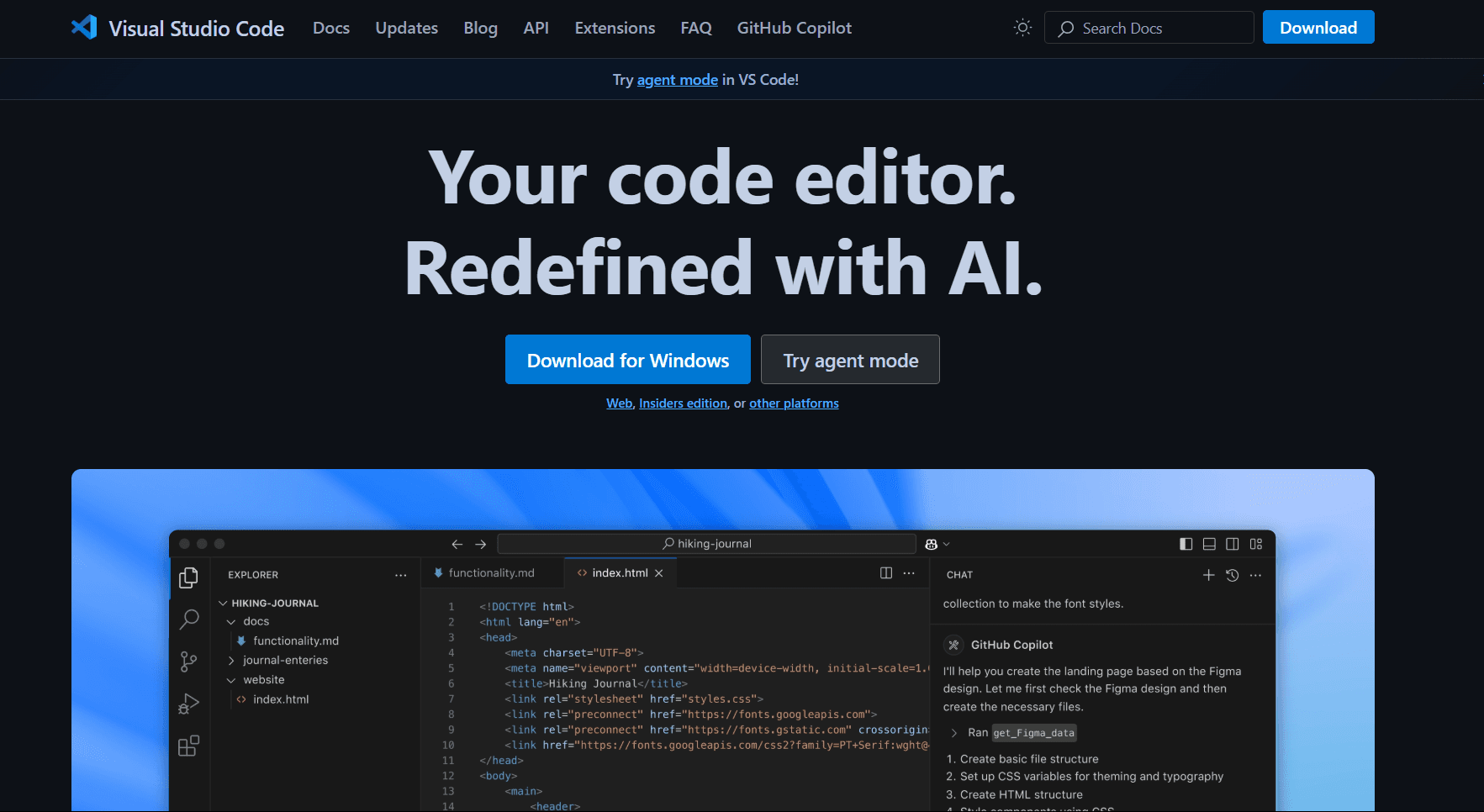
Visual Studio Code is a free code editor with capable Markdown support built in. It is especially useful when Markdown files live beside source code, configuration files, and a Git repository.
Install: Download it from code.visualstudio.com or run winget install Microsoft.VisualStudioCode.
What you get:
- Syntax highlighting with color-coded headers, links, emphasis
- Live preview pane with Ctrl + K V that updates as you type
- Outline view for document navigation
- Optional link validation for local file references
- Automatic list continuation
- Git integration (stage, commit, push without leaving editor)
- Extensions (Markdown All in One, Preview Enhanced, markdownlint, Paste Image)
- Settings Sync across your signed-in devices
What you don't get:
- A focused writing interface by default
- WYSIWYG editing in the built-in editor
- A complete publishing workflow without extensions or external tools
VS Code fits developers and documentation teams that already work in repositories. Its built-in preview, outline, and source control cover the basics, while extensions can add linting, diagrams, export, and other specialized features. Writers who only need Markdown may find the surrounding development interface excessive.
For VS Code power users, see best Markdown extensions for VS Code to add diagrams, spell checking, and advanced export features.
2. Typora (Best WYSIWYG Experience)
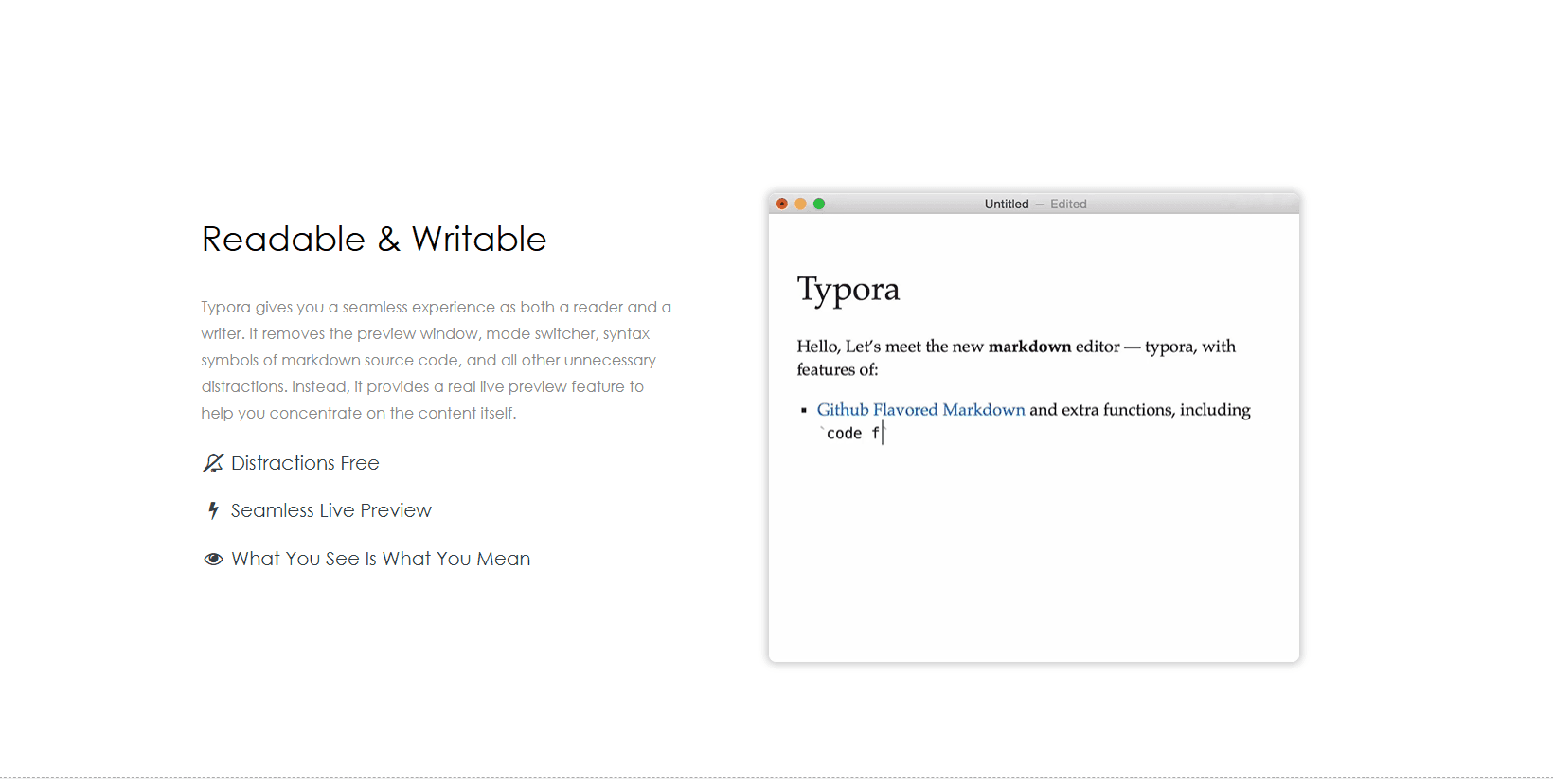
Typora shows formatted text as you type instead of keeping a source pane beside a preview. Type # Heading and it becomes a heading in the document. A personal license costs $14.99 before tax and covers up to three devices.
Bold text appears as bold text rather than bold text, and images appear instead of !alt. Click an element whenever you need to edit its Markdown syntax.
What you get:
- WYSIWYG editing (see formatted text as you type)
- Visual table editor (click to add rows/columns, drag to resize)
- Drag-and-drop image handling
- Math support via LaTeX ($$ for equations)
- Customizable themes via CSS
- Diagram support (Mermaid, flowcharts)
- Export to PDF and HTML, plus additional formats when their dependencies are available
What you don't get:
- No built-in sync (manage files yourself)
- No mobile apps
- No plugin ecosystem
- No Git integration
Typora fits people who want to concentrate on the rendered document rather than its punctuation. It is a good match for articles, reports, class notes, and other linear documents where visual tables and images matter more than plugins or linked-note features.
3. MarkText (Best Free WYSIWYG Alternative)

MarkText is a free, open-source visual Markdown editor for Windows 10 and 11. It combines live rendering with a separate source mode, so you can switch between a clean writing view and the underlying Markdown.
Markdown is rendered as you type, but the underlying syntax remains available when you click an element or switch to source mode. This provides a workflow similar to Typora without a paid license.
What you get:
- WYSIWYG editing with live preview
- GitHub Flavored Markdown support (tables, task lists, strikethrough)
- Math rendering via KaTeX
- Diagram support (flowcharts, sequence diagrams, Gantt charts)
- Multiple themes (Light, Dark, Material Dark, Ulysses)
- Focus mode and typewriter mode
- Source code mode for complex edits
- Export to PDF and HTML
What you don't get:
- No mobile apps
- No sync service
- Fewer extensions and integrations than VS Code or Obsidian
- Current release-candidate builds may include unfinished changes
MarkText fits writers who want visual editing without buying a license. The project resumed active development in 2026, but its newest builds are still marked as prereleases, so use a stable release for important work unless you are comfortable testing newer code.
4. Obsidian (Best for Linked Note-Taking)

Obsidian is a knowledge-base app that stores notes as local Markdown files. The app is free for personal, commercial, and nonprofit use; Obsidian Sync and Publish are optional paid services.
Type [[note name]] to create a link to another note. The graph view shows connections between notes visually. Your notes are plain .md files in local folders.
What you get:
- Bidirectional links (see which notes link to current note)
- Graph view for visualizing note connections
- Daily notes with customizable templates
- Tag-based organization with nested tags
- Plugin ecosystem (calendars, kanban boards, diagrams, spaced repetition)
- Canvas feature (arrange notes visually on infinite board)
- Live preview or source mode
- Optional Obsidian Sync, plus file-based sync methods you configure yourself
- Optional Obsidian Publish for turning notes into a website
What you don't get:
- No live co-editing inside the same note
- No native Git workflow without a community plugin
- Steeper learning curve
- Not ideal for linear documents
Obsidian fits researchers, students, and teams building interconnected collections of notes. Shared vaults are available through Obsidian Sync, but collaborators should avoid editing the same file at the same time because the app does not provide character-by-character live co-editing.
5. Notepad with Markdown Plugin

Notepad is a Windows text editor suited to quick, source-level changes. Its built-in language support makes Markdown readable, and the MarkdownViewer plugin adds a docked rendered preview.
Install: Download it from notepad-plus-plus.org or run winget install Notepad.Notepad.
Add a preview: Open Plugins > Plugins Admin, search for MarkdownViewer, select it, and choose Install. The plugin is part of the official Notepad plugin list.
What you get:
- A compact, familiar Windows interface
- Markdown syntax highlighting
- A docked preview panel through MarkdownViewer
- Multi-tab editing
- Portable version (runs from USB without install)
What you don't get:
- No WYSIWYG editing
- Preview and export features depend on a plugin
- No linking system
- No sync
Notepad fits README updates, configuration notes, and other short edits where a full workspace would get in the way. Choose another editor if you need document organization, citations, or a polished visual writing experience.
6. Zettlr (Best for Academic Writing)
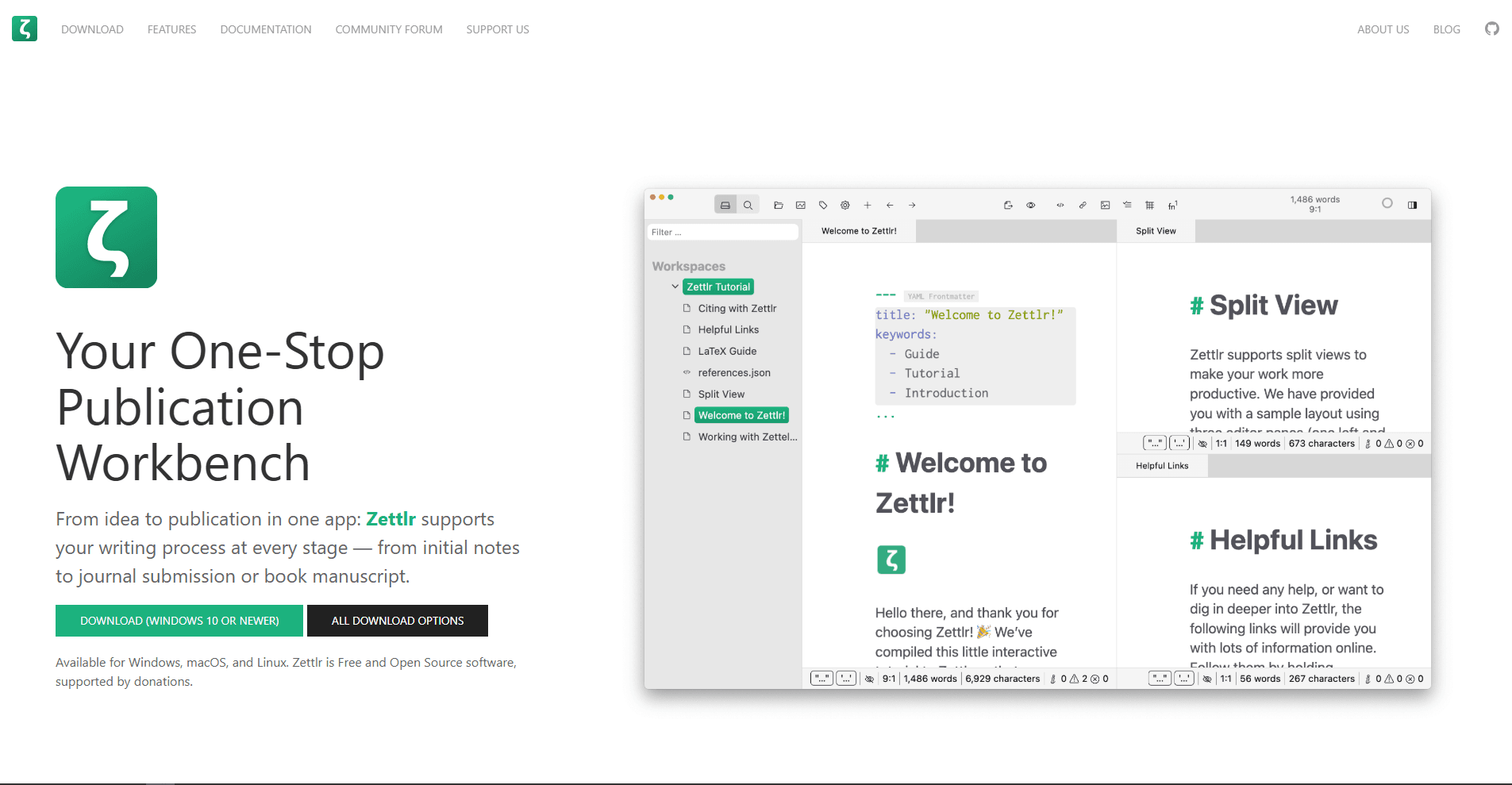
Zettlr is a free, open-source Markdown editor built around research and long-form academic writing. It keeps files, references, and export tools inside one desktop workspace.
Its three-pane layout places the file manager on the left, the editor in the center, and the preview on the right. This makes it easier to move between multiple documents while keeping references nearby.
What you get:
- Citation management with BibTeX integration
- Footnotes and endnotes support
- Zettelkasten note-linking system
- Export to PDF via Pandoc with academic templates
- Word count and reading time statistics
- Project management for multi-document works
- Type @citationkey for autocomplete from references
- Citations format automatically (APA, MLA, Chicago, etc.)
What you don't get:
- No mobile apps
- No built-in sync (manage files yourself)
- Steeper learning curve
Zettlr fits graduate students, researchers, and academics writing papers or dissertations. Its main advantage is not ordinary Markdown preview but the way it connects citations, projects, and Pandoc-based export in one workflow.
7. ghostwriter (Best Distraction-Free Writing)
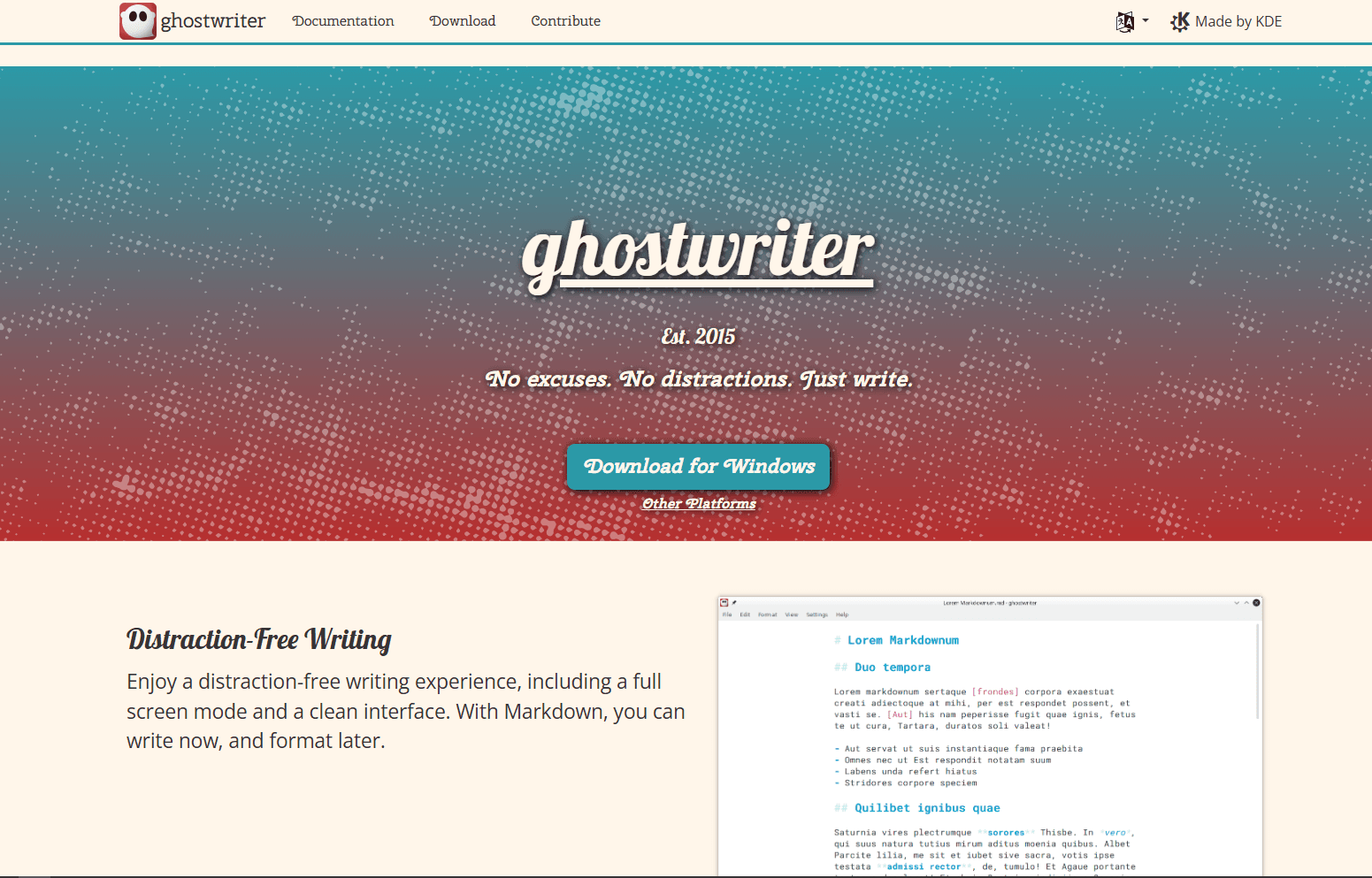
ghostwriter is a free, open-source Markdown editor from KDE with Windows builds available. Its focused interface is designed for drafting rather than managing a large library of notes.
The interface keeps toolbars, sidebars, and formatting controls out of the writing area. Its preview pane is optional, so you can hide it completely while drafting and restore it when checking the rendered document.
What you get:
- Hemingway mode (disables backspace and delete while drafting)
- Focus mode (dims everything except current line, sentence, or paragraph)
- Fullscreen mode with no distractions
- Customizable themes for long-form writing
- Writing statistics (word count, character count, page count, reading time, WPM)
- Live preview with GitHub Flavored Markdown
- Math support via MathJax
- HTML preview through the bundled processor and additional export formats through supported Markdown processors
What you don't get:
- No Git integration
- No plugin system
- No linking between documents
- No sync service
ghostwriter fits blog posts, articles, books, and other work where a quiet drafting environment matters. Some export options depend on an installed processor such as Pandoc, so check that setup before choosing it for a publishing workflow.
8. Joplin (Best for Note-Taking with Sync)

Joplin is a free, open-source note-taking app with Markdown editing and cross-platform clients. It can synchronize through services such as Dropbox, OneDrive, Nextcloud, WebDAV, or the paid Joplin Cloud service.
Joplin uses a three-column layout with notebooks on the left, a note list in the middle, and the editor on the right. Notebooks and tags provide the main organization system.
What you get:
- Optional end-to-end encryption for synchronized notes
- Web clipper browser extension (saves articles from browser)
- Todo lists with due dates and alarms
- Attachment support (images, PDFs, files)
- Plugin system for extended functionality
- Sync across Windows, Mac, Linux, Android, iOS
- Split view or WYSIWYG mode
What you don't get:
- No graph view for linked notes (like Obsidian)
- No advanced publishing features
- Encryption must be enabled and synchronized carefully across devices
Joplin fits students, researchers, and professionals who need the same notes on Windows and mobile devices. It is stronger as a notebook and task manager than as a general-purpose editor for standalone Markdown files.
9. Sublime Text with Markdown Plugins
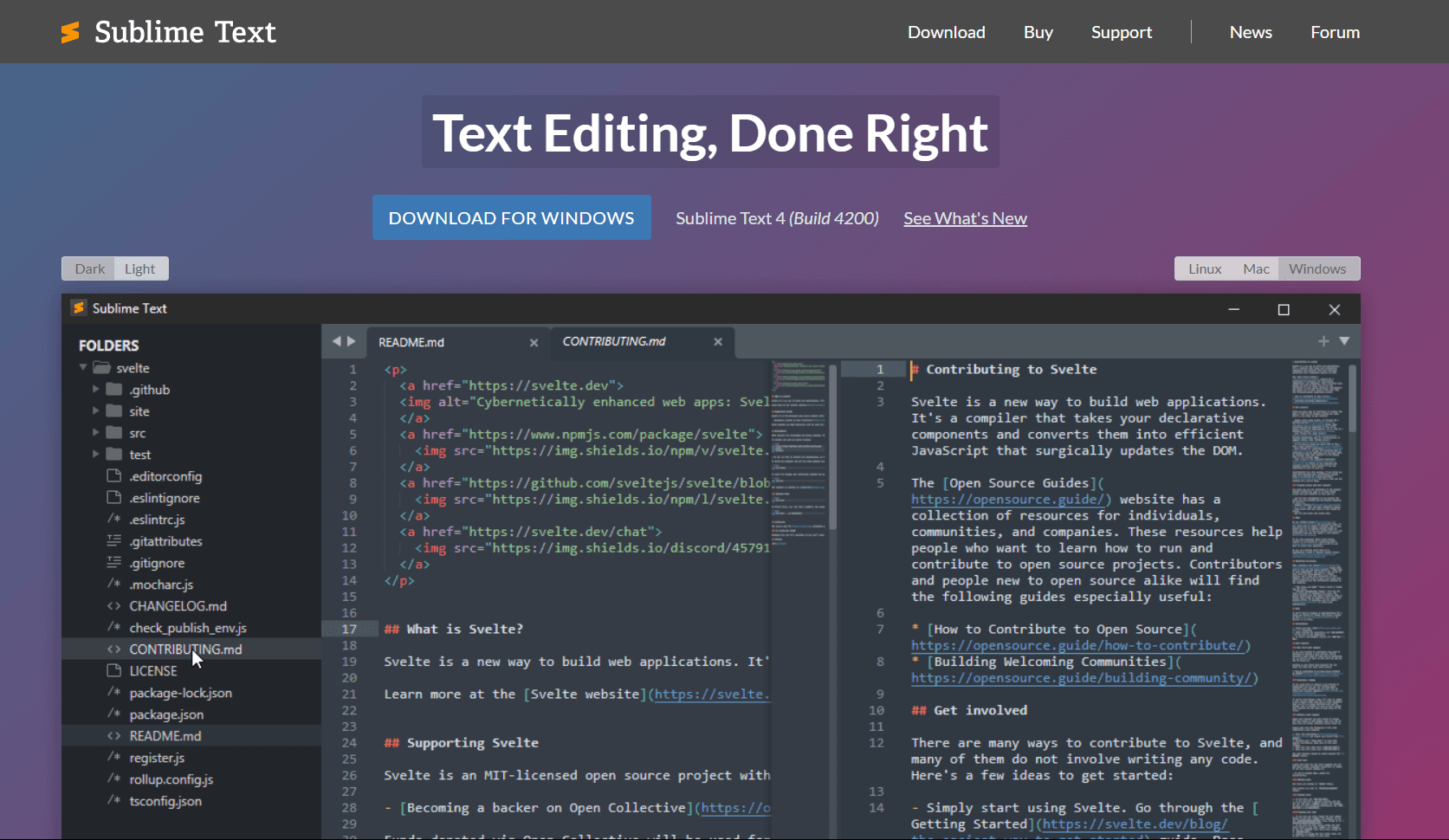
Sublime Text is a keyboard-driven code editor that works well for Markdown source files. Its project navigation, multiple selections, and command palette suit people who move through many files without wanting a heavy visual interface.
Install: Download it from sublimetext.com or run winget install SublimeHQ.SublimeText.
Add Markdown tools: Open the command palette with Ctrl + Shift + P, install Package Control if needed, and then add packages such as MarkdownEditing and MarkdownPreview.
What you get:
- Multiple selections for repeated edits
- Goto Anything with Ctrl + P for files, symbols, and lines
- Project and folder navigation
- A large package ecosystem
- Free evaluation before purchase
- A $99 personal license with three years of updates
What you don't get:
- No built-in preview (requires plugin)
- No WYSIWYG mode
- No linking system
- No sync service
Sublime Text fits developers and power users who prefer keyboard-driven source editing. The personal license is a one-time purchase and remains usable, but receiving new releases after the included three-year update period requires an upgrade.
10. Markdown Monster (Best Windows-Native Option)

Markdown Monster is a dedicated Windows Markdown editor built on .NET. Its free evaluation includes the full feature set with occasional notices; continued use requires a license, currently $99 for a single user.
Its toolbar, context menus, and keyboard shortcuts follow familiar Windows conventions. Explorer integration and file associations also make it easy to open Markdown files directly from the desktop.
What you get:
- Split-pane editor with live preview
- Git status and commit tools
- Image embedding with drag-and-drop
- Table editor with visual interface
- Spell checking with multiple dictionaries
- Weblog publishing (WordPress, Medium, MetaWeblog API)
- Extensibility via .NET plugins
What you don't get:
- No mobile apps
- No cross-platform support (Windows only)
- A paid license is expected for continued use
Markdown Monster fits technical writers and bloggers who want Windows integration, Git-aware file tools, and publishing features in the same app. Its perpetual license covers the major version purchased, with minor updates included and paid upgrades for later major versions.
Markdown Editor Comparison Table
Which Markdown Editor Should You Actually Use?
Choose according to the work you do most often:
- VS Code: For README files, developer documentation, Git repositories, and extension-based workflows.
- Typora: For polished visual writing without a separate preview pane.
- MarkText: For a free, open-source visual editor with both rendered and source modes.
- Obsidian: For a local knowledge base built around links, backlinks, and graph navigation.
- Joplin: For notebooks, tasks, mobile access, and optional encrypted synchronization.
- Zettlr: For papers, dissertations, citations, and Pandoc-based academic export.
- ghostwriter: For distraction-free drafting with focus and Hemingway modes.
- Sublime Text: For keyboard-driven source editing across many files and folders.
- Notepad: For small Windows edits, with MarkdownViewer available when you need a preview.
- Markdown Monster: For a Windows-only publishing workflow with Git tools, image handling, and PDF, HTML, or weblog output.
You do not have to use one editor for every job. A practical setup might pair VS Code for repository documentation with Typora for articles and Obsidian or Joplin for notes.
Frequently Asked Questions
What's the best free Markdown editor for Windows?
VS Code is the strongest free choice for technical documentation because it combines built-in preview, outline navigation, Git, and optional extensions. Install it from code.visualstudio.com or use winget install Microsoft.VisualStudioCode. For free visual editing, choose MarkText; for short source edits, use Notepad.
Does Typora work on Windows 11?
Yes. Typora provides a Windows installer and supports Windows 11. A $14.99 personal license, before tax, covers up to three devices and includes a 15-day trial. Download it from typora.io and test your usual themes, exports, and document sizes before purchasing.
Is there a Windows-native Markdown editor?
Yes. Markdown Monster is a Windows-only .NET application with Explorer and shell integration, Git tools, and weblog publishing. Its fully functional evaluation shows occasional notices, while a current single-user perpetual license costs $99 and covers the purchased major version. Notepad++ is a free Windows-native alternative for simpler source editing.
What's the best Markdown editor for Windows for note-taking?
Choose Obsidian for linked local Markdown notes and graph-based navigation. Choose Joplin for notebook organization and synchronization across Windows, macOS, Linux, Android, and iOS. Joplin supports end-to-end encryption, but you must enable it and complete the initial synchronization procedure on each device.
How do I preview Markdown files on Windows?
Use an editor with a built-in preview, such as VS Code, Typora, MarkText, or Markdown Monster. In VS Code, press Ctrl + K V to open a preview beside the current file. In Notepad, install MarkdownViewer from Plugins Admin to add a docked preview panel.
Can I use Markdown for documentation on Windows?
Yes. VS Code works well for documentation stored in Git because its built-in Markdown tools sit beside source control and project search. Extensions can add linting, diagrams, and export features. Markdown Monster is a better fit when direct weblog publishing and PDF or HTML output matter more than a development workspace.
Related Reading
Using a different platform? See platform-specific Markdown editor guides:
- Best Markdown editors for Mac for macOS-specific options
- Best Markdown editors for Linux for Ubuntu, Fedora, and Arch
Using VS Code for Markdown? See best Markdown extensions for VS Code for plugins that add diagrams, spell checking, and advanced export.
For other file formats on Windows:
Read More
All Articles
9 Best Markdown Editors for Mac in 2026 (Free & Paid)
Find the best Markdown editor for macOS with native performance. Compare iA Writer, Typora, VS Code, Obsidian, and more for writing, note-taking, and documentation.
8 Best Markdown Editors for Android in 2026 (Free & Paid)
Find the best Markdown editor for Android with sync, live preview, and offline editing. Compare Markor, JotterPad, Obsidian, and more for phones and tablets.
8 Best Markdown Editors for Linux in 2026 (GUI & Terminal)
Compare eight of the best Markdown editors for Linux, including VS Code, Kate, Vim, ghostwriter, and terminal tools for Ubuntu, Fedora, and Arch Linux.