9 Best Markdown Extensions for VS Code in 2026 (Tested & Ranked)


On this page
VS Code already handles Markdown syntax highlighting, side-by-side preview, document outlines, local link validation, Mermaid diagrams, math, and image pasting. Extensions are most useful when they add a distinct workflow, such as table-of-contents generation, style checking, spell checking, specialized diagrams, or export.
Markdown All in One is a practical first addition for shortcuts, table formatting, and table-of-contents management. Markdown Preview Enhanced goes beyond the built-in preview with PlantUML, executable code chunks, presentations, and more export routes. markdownlint reports structural and style inconsistencies as you type.
Choose extensions by the gap you need to fill. Technical documentation may need linting or specialized diagrams, blog posts benefit from spell checking, and academic work often requires footnotes or a separate citation workflow.
The nine extensions below are available from the Visual Studio Marketplace. Each entry explains what the extension adds, where it overlaps with current VS Code features, and when its extra setup is justified.
1. Markdown All in One (Essential for Everyone)

Markdown All in One adds editing commands, table formatting, and document-structure tools to VS Code's built-in Markdown support.
Install: Press Ctrl + Shift + X (Cmd + Shift + X on macOS), search for Markdown All in One, and select Install.
What you get:
- Keyboard shortcuts (Ctrl + B for bold, Ctrl + I for italic)
- Auto-preview (opens preview automatically when editing .md files)
- Table of contents generation (Ctrl + Shift + P > "Create Table of Contents")
- Table formatter (auto-formats tables as you type)
- List editing (auto-continues lists, reorders with Alt + Up/Down)
- Section numbering (auto-numbers headers)
- Math completions and commands alongside VS Code's built-in KaTeX preview
- Print to HTML (export with styles)
Configuration:
{
  "markdown.extension.toc.levels": "2..6",
  "markdown.extension.toc.updateOnSave": true,
  "markdown.extension.list.indentationSize": "adaptive",
  "markdown.extension.tableFormatter.enabled": true
}
What you don't get:
- No PlantUML or executable code chunks
- No advanced export (PDF, DOCX)
- No spell checking
Use it for shortcuts, generated contents lists, and table formatting. Add specialized extensions only as needed.
2. Markdown Preview Enhanced (Best for Diagrams)

Markdown Preview Enhanced adds PlantUML, other diagram types, code chunks, presentations, and extra export paths. VS Code already renders Mermaid and KaTeX itself.
Install: Search for Markdown Preview Enhanced in the Extensions panel and select Install.
What you get:
- Mermaid diagrams (flowcharts, sequence diagrams, Gantt charts)
- PlantUML diagrams (UML, architecture diagrams)
- Math equations (LaTeX via KaTeX or MathJax)
- Code execution (run code blocks and show output)
- Presentation mode (convert Markdown to slides)
- Custom themes (CSS customization)
- Export to PDF, HTML, PNG, JPEG
- Sync scroll (editor and preview scroll together)
Mermaid example:
```mermaid
graph TD
    A[Start] --> B{Decision}
    B -->|Yes| C[Action 1]
    B -->|No| D[Action 2]
```
Math example:
$$
E = mc^2
$$
Configuration:
{
  "markdown-preview-enhanced.enableScriptExecution": false,
  "markdown-preview-enhanced.previewTheme": "github-light.css",
  "markdown-preview-enhanced.codeBlockTheme": "default.css",
  "markdown-preview-enhanced.mathRenderingOption": "KaTeX"
}
What you don't get:
- A single preview configuration shared with VS Code's built-in renderer
- PlantUML needs a configured server or a local JAR with Java
- Pandoc, ebook, and some PDF workflows require locally installed tools
Use it when the built-in preview is not enough. Keep script execution disabled unless you trust the document and intentionally need code chunks.
3. markdownlint (Best for Style Checking)

markdownlint checks Markdown against configurable rules for headings, lists, links, tables, and whitespace.
Install: Search for markdownlint in the Extensions panel and select Install.
What you get:
- Real-time linting (underlines issues as you type)
- Dozens of rules for headings, lists, links, tables, and whitespace
- Auto-fix (Ctrl + . to fix issues automatically)
- Custom rules (disable or configure specific rules)
- Works with .markdownlint.json config files
- Integrates with CI/CD pipelines
Common rules:
- MD001: Heading levels should increment by one
- MD009: No trailing spaces
- MD012: No multiple consecutive blank lines
- MD013: Line length (default 80 characters)
- MD022: Headings should be surrounded by blank lines
- MD032: Lists should be surrounded by blank lines
Configuration (.markdownlint.json):
{
  "MD013": {
    "line_length": 120,
    "code_blocks": false
  },
  "MD033": false,
  "MD041": false
}
What you don't get:
- No grammar checking (only style)
- No spell checking
- Can be strict (requires configuration)
markdownlint fits documentation teams that want consistent editor and CI checks. Configure strict rules such as line length and inline HTML for each project.
4. Markdown PDF (Best for PDF Export)

Markdown PDF converts Markdown to PDF, HTML, PNG, or JPEG using an installed or managed Chromium-based browser.
Install: Search for Markdown PDF in the Extensions panel and select Install.
What you get:
- Export to PDF (Ctrl + Shift + P > "Markdown PDF: Export (pdf)")
- Export to HTML, PNG, JPEG
- Custom CSS styling
- Header and footer templates
- Page breaks ()
- Syntax highlighting in code blocks
- Table of contents support
- Local conversion after the required browser and document assets are available
Configuration:
{
  "markdown-pdf.executablePath": "",
  "markdown-pdf.styles": ["${workspaceFolder}/custom.css"],
  "markdown-pdf.headerTemplate": "<div style='font-size: 9px; margin: 0 auto;'><span class='title'></span></div>",
  "markdown-pdf.footerTemplate": "<div style='font-size: 9px; margin: 0 auto;'><span class='pageNumber'></span> / <span class='totalPages'></span></div>",
  "markdown-pdf.displayHeaderFooter": true,
  "markdown-pdf.margin.top": "1cm",
  "markdown-pdf.margin.bottom": "1cm"
}
What you don't get:
- Limited styling options compared to Pandoc
- No DOCX export
- No citation support
Markdown PDF fits browser-style documents that do not need LaTeX. The first export may download Chromium, while remote assets can still require network access.
5. Paste Image (Best for Image Handling)

Paste Image saves clipboard images and inserts their Markdown paths. VS Code now does this itself, but the extension adds naming patterns and filename confirmation.
Install: Search for Paste Image in the Extensions panel and select Install.
What you get:
- Paste from clipboard (Ctrl + Alt + V or Cmd + Alt + V)
- Auto-saves image to configured folder
- Auto-inserts Markdown image syntax
- Configurable file naming (timestamp, custom pattern)
- Configurable image path (relative or absolute)
- Works with screenshots, copied images, or files
Configuration:
{
"pasteImage.path": "${projectRoot}/images",
"pasteImage.basePath": "${projectRoot}",
"pasteImage.prefix": "/",
"pasteImage.namePrefix": "img-",
"pasteImage.nameSuffix": "",
"pasteImage.insertPattern": ""
}Workflow:
- Take screenshot (Win + Shift + S on Windows, Cmd + Shift + 4 on Mac)
- In VS Code, press Ctrl + Alt + V
- Image saves to configured folder
- Markdown syntax inserts automatically
What you don't get:
- No image optimization (saves original size)
- No image editing
- No cloud upload
Use Paste Image for custom asset naming. For folder routing alone, try VS Code's built-in markdown.copyFiles.destination setting first.
6. Code Spell Checker (Best for Spell Checking)

Code Spell Checker checks Markdown, comments, and strings against dictionaries designed to recognize common programming terms.
Install: Search for Code Spell Checker in the Extensions panel and select Install.
What you get:
- Real-time spell checking (underlines misspelled words)
- Quick fixes (Ctrl + . to see suggestions)
- Custom dictionaries (add project-specific terms)
- Built-in English dictionaries with optional add-on dictionaries for other languages
- Ignore patterns (URLs, code blocks, specific words)
- Works in Markdown, code comments, and strings
Configuration:
{
  "cSpell.language": "en",
  "cSpell.words": [
    "markdownlint",
    "PlantUML",
    "Mermaid",
    "KaTeX"
  ],
  "cSpell.ignoreWords": [
    "vscode",
    "github"
  ],
  "cSpell.enabledFileTypes": {
    "markdown": true,
    "plaintext": true
  }
}
Add to workspace dictionary: Right-click underlined word > "Add to Workspace Dictionary"
What you don't get:
- No grammar checking (only spelling)
- No style suggestions
- Can flag technical terms (requires custom dictionary)
Use a workspace dictionary when every contributor should recognize the same project terms.
7. Markdown Table (Best for Table Editing)

Markdown Table adds source-based navigation, formatting, alignment, and column commands for GitHub Flavored Markdown tables.
Install: Search for Markdown Table in the Extensions panel and select Install.
What you get:
- Format tables (Ctrl + Shift + P > "Markdown Table: Format")
- Insert and move columns
- Align selected columns left, center, or right
- Navigate with Tab/Shift+Tab
- Auto-align columns
- TSV conversion, plus optional CSV conversion from selected text
- Works with GitHub Flavored Markdown tables
Before formatting:
| Name | Age | City |
|---|---|---|
| John | 30 | NYC |
| Jane | 25 | LA |
After formatting:
| Name | Age | City |
| ---- | --- | ---- |
| John | 30  | NYC  |
| Jane | 25  | LA   |
Configuration:
{
  "markdowntable.formatOnSave": false,
  "markdowntable.showMenu.csvToTable": true
}
What you don't get:
- No visual table editor (still text-based)
- No table templates
- No cell merging
Use it when Markdown All in One's formatter is not enough and you also need column commands or CSV and TSV conversion.
8. Markdown Footnotes (Best for Academic Writing)

Markdown Footnotes adds [^1] footnote rendering to VS Code's built-in preview. It is not a citation manager.
Install: Search for Markdown Footnotes in the Extensions panel and select Install.
What you get:
- Footnote syntax support
- Preview rendering (footnotes appear at bottom)
- Click to jump between reference and footnote
- Works with standard Markdown footnote syntax
Syntax:
Here is a sentence with a footnote.[^1]

Here is another with a longer footnote.[^longnote]

[^1]: This is the first footnote.

[^longnote]: This is a longer footnote with multiple paragraphs.

    You can include code blocks or lists in footnotes.
What you don't get:
- No citation management
- No bibliography generation
- Basic footnote support only
Use it for numbered notes. Academic citations and bibliographies still need another tool such as Pandoc.
9. Markdown Checkboxes (Best for Task Lists)

Markdown Checkboxes renders GitHub-style task-list syntax as interactive checkboxes in VS Code's Markdown preview and Markdown notebook cells.
Install: Search for Markdown Checkboxes in the Extensions panel and select Install.
What you get:
- Interactive checkboxes in preview
- Click to toggle checkbox state
- Updates source file automatically
- Works with GitHub Flavored Markdown task lists
Syntax:
- [ ] Task 1
- [x] Task 2 (completed)
- [ ] Task 3
What you don't get:
- No task management features
- No due dates or priorities
- Basic checkbox support only
Use it for lightweight README checklists, not assignments, reminders, or project planning.
Extension Comparison Table
Recommended Extension Combinations
For technical documentation:
- Markdown All in One (shortcuts and TOC)
- Markdown Preview Enhanced (PlantUML, code chunks, and advanced export)
- markdownlint (style consistency)
- Code Spell Checker (catch typos)
- Paste Image only when the built-in image workflow lacks the naming controls you need
For blog writing:
- Markdown All in One (shortcuts and formatting)
- Markdown PDF (export for review)
- Code Spell Checker (catch typos)
- Paste Image (add images quickly)
For academic writing:
- Markdown All in One (TOC and formatting)
- Markdown Footnotes (numbered notes)
- Code Spell Checker (catch typos)
- Markdown PDF for simple drafts, or an external Pandoc workflow for citations
For project documentation:
- Markdown All in One (shortcuts and TOC)
- markdownlint (enforce style)
- Markdown Checkboxes (task tracking)
- Paste Image (screenshots)
VS Code Markdown Settings
Beyond extensions, configure VS Code's built-in Markdown settings:
{
  // Preview and link settings
  "markdown.preview.fontSize": 14,
  "markdown.preview.lineHeight": 1.6,
  "markdown.preview.breaks": false,
  "markdown.validate.enabled": true,
  "markdown.updateLinksOnFileMove.enabled": "prompt",

  // Put pasted images in a local images folder
  "markdown.copyFiles.destination": {
    "**/*": "images/"
  },

  // Editor settings
  "editor.wordWrap": "on",
  "editor.quickSuggestions": {
    "comments": "off",
    "strings": "off",
    "other": "off"
  },
  "editor.minimap.enabled": false,

  // File associations
  "files.associations": {
    "*.md": "markdown"
  },

  // Auto-save
  "files.autoSave": "afterDelay",
  "files.autoSaveDelay": 1000
}
Keyboard Shortcuts for Markdown
VS Code's built-in shortcuts (work without extensions):
- Ctrl + Shift + V (Cmd + Shift + V): Open preview
- Ctrl + K V (Cmd + K V): Open preview to the side
- Ctrl + Shift + O (Cmd + Shift + O): Go to symbol (headers)
- Ctrl + Space: Trigger suggestions
- Alt + Click: Insert cursor (multi-cursor editing)
With Markdown All in One:
- Ctrl + B (Cmd + B): Bold
- Ctrl + I (Cmd + I): Italic
- Alt + S: Strikethrough
- Ctrl + Shift + ]: Increase heading level
- Ctrl + Shift + [: Decrease heading level
Frequently Asked Questions
What's the best Markdown extension for VS Code?
Markdown All in One is the best general addition for editing commands, generated contents lists, and table formatting. Add markdownlint for project style rules or Code Spell Checker for prose. Install Markdown Preview Enhanced only when its PlantUML, code-chunk, presentation, or export features are useful beyond VS Code's built-in preview.
How do I add diagrams to Markdown in VS Code?
VS Code's built-in preview now renders Mermaid diagrams. Start a fenced code block with mermaid and open the preview with Ctrl + K V on Windows or Linux, or Cmd + K V on macOS. Install Markdown Preview Enhanced when you also need PlantUML or other diagram engines; PlantUML requires a configured server or a local JAR with Java.
How do I export Markdown to PDF in VS Code?
Install Markdown PDF, open the file, press Ctrl + Shift + P (Cmd + Shift + P on Mac), and run Markdown PDF: Export (pdf). The extension uses Chrome, Edge, Chromium, or a managed Chromium download for rendering. For citations and a reproducible publishing toolchain, use Pandoc from the terminal instead.
Does VS Code have built-in Markdown support?
Yes. VS Code includes syntax highlighting, live preview, document outlines, path completion, local link validation, image pasting, Mermaid diagrams, and KaTeX math. Extensions remain useful for generated contents lists, spell checking, linting, PlantUML, interactive footnotes or checkboxes, and additional export formats.
How do I check spelling in Markdown in VS Code?
Install Code Spell Checker extension. It underlines misspelled words in real-time. Press Ctrl + . (Cmd + . on Mac) on underlined words to see suggestions. Add project-specific terms to workspace dictionary (right-click > "Add to Workspace Dictionary"). Configure language and ignored words in settings.json. Works in Markdown, code comments, and strings.
What's the difference between Markdown All in One and Markdown Preview Enhanced?
Markdown All in One adds source-editing commands, table formatting, and table-of-contents management. Markdown Preview Enhanced provides a separate advanced preview with PlantUML, code chunks, presentations, and extra export routes. They can be used together, but VS Code already covers ordinary preview, Mermaid, and math without either extension.
How do I format tables in Markdown in VS Code?
Install Markdown Table extension. Select your table, press Ctrl + Shift + P, type "Markdown Table: Format", press Enter. The extension auto-aligns columns and rows. Or install Markdown All in One which formats tables as you type. Navigate table cells with Tab/Shift+Tab. Both extensions work with GitHub Flavored Markdown tables.
Related Reading
Looking for a complete Markdown editor instead of VS Code extensions? Compare the platform-specific guides:
- Best Markdown editors for Mac for macOS options
- Best Markdown editors for Windows for Windows 11 and 10
- Best Markdown editors for Linux for Ubuntu, Fedora, and Arch
For JSON editing in VS Code:
Read More
All Articles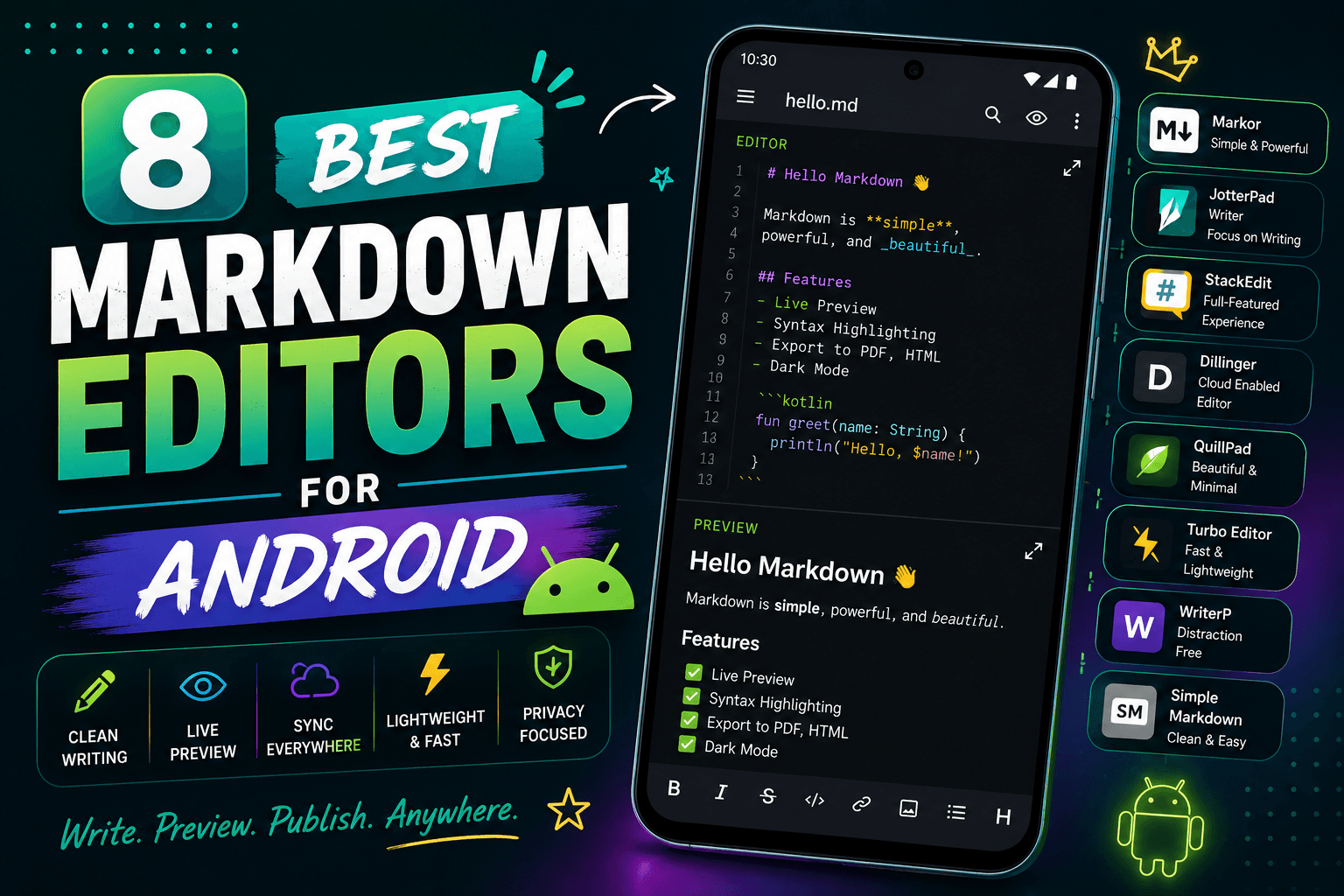
8 Best Markdown Editors for Android in 2026 (Free & Paid)
Find the best Markdown editor for Android with sync, live preview, and offline editing. Compare Markor, JotterPad, Obsidian, and more for phones and tablets.
8 Best Markdown Editors for Linux in 2026 (GUI & Terminal)
Compare eight of the best Markdown editors for Linux, including VS Code, Kate, Vim, ghostwriter, and terminal tools for Ubuntu, Fedora, and Arch Linux.
9 Best Markdown Editors for Mac in 2026 (Free & Paid)
Find the best Markdown editor for macOS with native performance. Compare iA Writer, Typora, VS Code, Obsidian, and more for writing, note-taking, and documentation.