8 Best SVG Editors & Viewers for iPad in 2026

On this page
An iPad SVG app can be a vector editor, an SVG exporter, or a viewer, and those labels are often mixed together. The difference appears as soon as you open a file from the Files app: some apps expose every path and node, some import the artwork as a less editable object, and others only render a preview.
Linearity Curve is the best starting point for most visual editing. Affinity Designer 2 and Adobe Illustrator offer deeper professional workflows, while smaller apps make more sense for a quick inspection or a direct change to the XML source.
The real choice is not simply free versus paid. It is whether you need to edit an existing .svg file, draw new vector artwork for SVG export, or check a file without changing it.
1. Linearity Curve - Best Overall SVG Editor for iPad
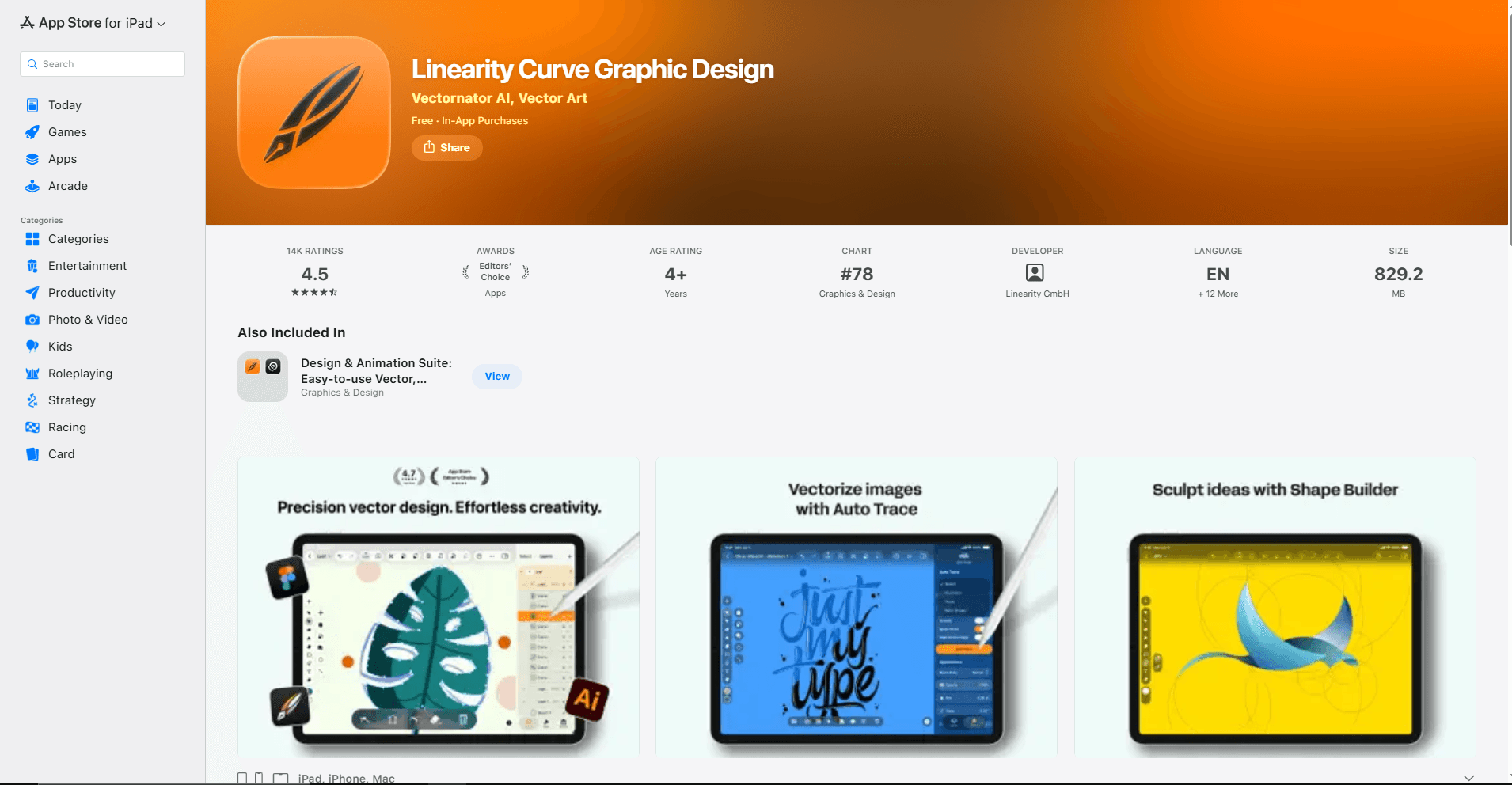
Linearity Curve puts the tools that matter for ordinary SVG work on a touch-focused canvas: a Pen tool, node editing, boolean operations, a Shape Builder, layers, masks, gradients, text on a path, artboards, and Apple Pencil input. It can export editable SVG with separate layers and offers controls for outlining text and making an export responsive.
Curve is a sensible first pick for icons, logos, interface graphics, and illustrations. You can move nodes with the Pencil, correct a curve, change fills and strokes, and export a selected artboard or object rather than the entire document.
The main limitation is file storage. Linearity's current local-file documentation says the free plan keeps up to eight files in Linearity Cloud, while local storage and unlimited files require Pro. That is a material drawback if client artwork must stay in Files or if you want a fully local workflow.
Good fit if:
- You want a balanced visual editor built around touch and Apple Pencil.
- You create or revise icons, logos, and web graphics on several artboards.
- You need SVG export settings for text outlines and responsive sizing.
Skip it if:
- Local-only storage is required and you do not want a Pro plan.
- You need raw XML editing or a simple viewer with no project system.
2. Affinity Designer 2 - Best for Detailed Vector Work
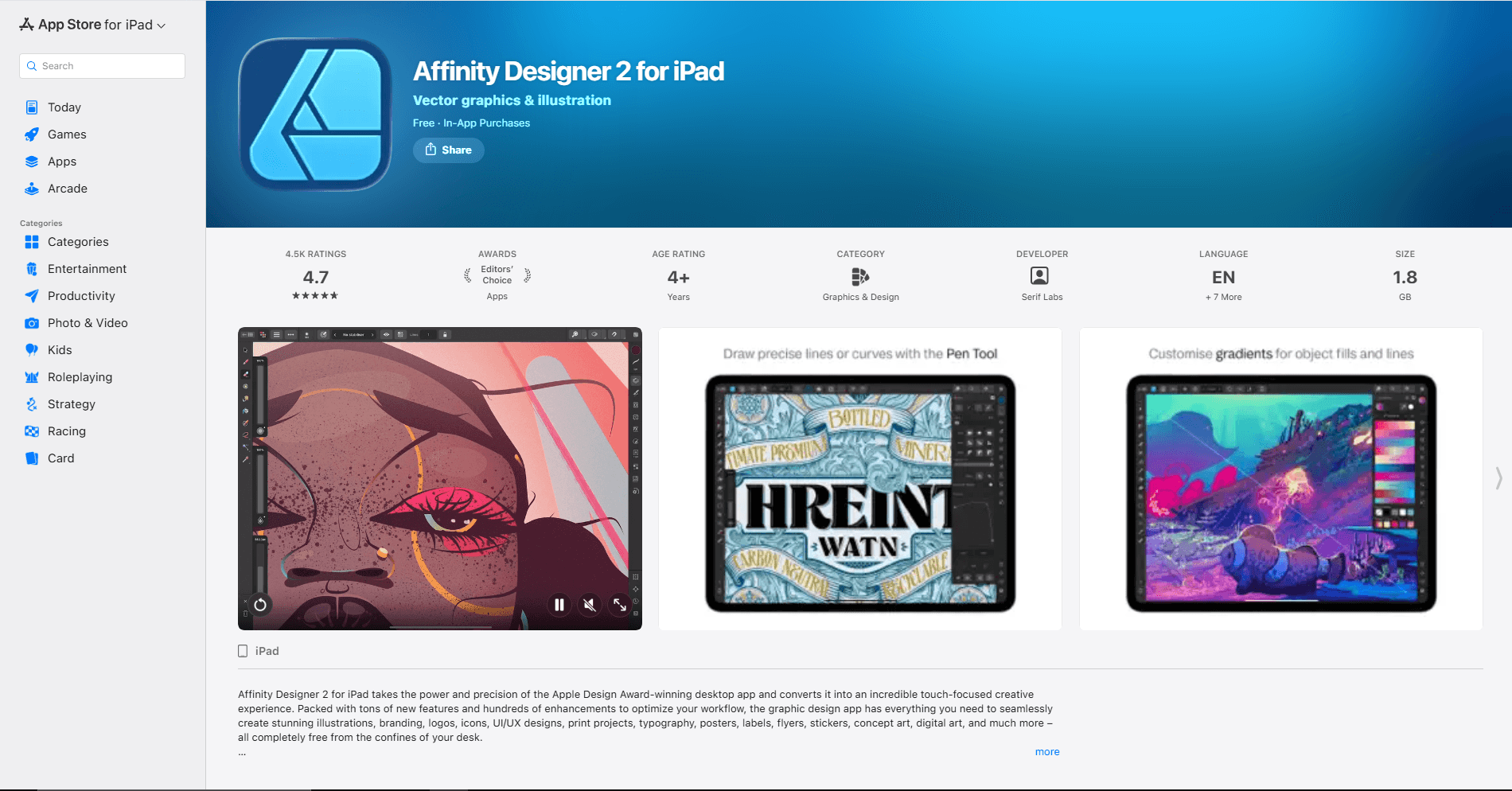
Affinity Designer 2 for iPad is closer to a desktop vector application than the other iPad choices. Its current App Store listing confirms SVG file support, Apple Pencil pressure and tilt input, Pen and Node tools, vector warp, Shape Builder, a Knife tool, compound operations, multiple artboards, and slice export.
Affinity's current product FAQ says the new unified Affinity app is not yet available for iPad and recommends continuing to use V2 independently. Designer 2 therefore remains the relevant Affinity option on iPad.
Affinity earns this position when an SVG is part of a larger design job. You can combine exact vector paths with pixel textures, manage color profiles, lay out several assets, and export individual slices for an icon set. Outline and pixel preview modes also help expose stray paths or poor alignment before export.
That depth brings more interface and more concepts to learn. It is excessive for changing one fill color or checking a downloaded icon. Affinity also uses its own document format for editable working files, so keep that master document and treat SVG as a delivery copy when the design uses effects that SVG may not preserve exactly.
Good fit if:
- You need advanced path, type, artboard, and export controls on iPad.
- The same project mixes vector artwork and raster texture.
- You prepare sets of icons or assets through slices.
Skip it if:
- You only need quick edits from the Files app.
- You want to inspect or hand-edit the SVG markup.
3. Adobe Illustrator - Best for Creative Cloud Handoff
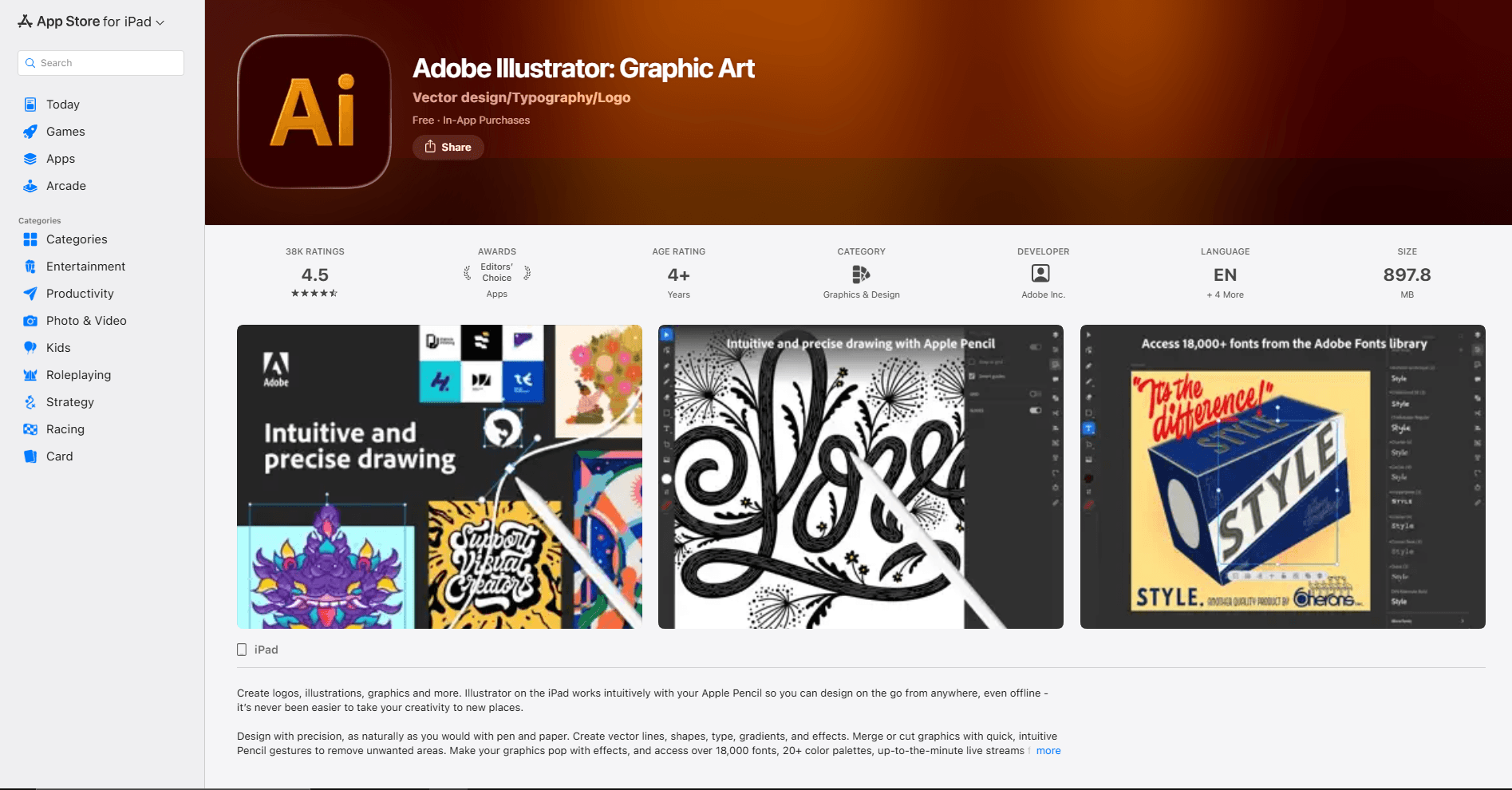
Adobe Illustrator on iPad fits designers who already move artwork between an iPad and desktop Illustrator. The iPad app provides Pen, Pencil, Brush, path simplification, point editing, repeats, vectorization, type on a path, custom fonts, and Apple Pencil support. Adobe's current iPad FAQ lists SVG among its export formats.
Cloud-document sync is the deciding feature here. An illustrator can sketch or revise on iPad, then open the same Illustrator document on a desktop for tools the tablet version does not include. Adobe explicitly notes that the iPad app does not support every desktop feature, and unsupported objects can have limited editing when opened on the tablet.
Illustrator is available as a free download, but continued use is tied to a qualifying Creative Cloud plan or an in-app Illustrator subscription. It makes little financial sense for occasional SVG cleanup. It does make sense when the existing team and source files already use Illustrator.
Good fit if:
- Your source artwork is already in Adobe Illustrator.
- You need reliable iPad-to-desktop handoff through Creative Cloud.
- Typography and vector drawing matter more than raw SVG code.
Skip it if:
- You want a one-purpose SVG utility.
- You do not use an Adobe plan or cloud documents.
4. Amadine - Best for a Smaller Visual Editor
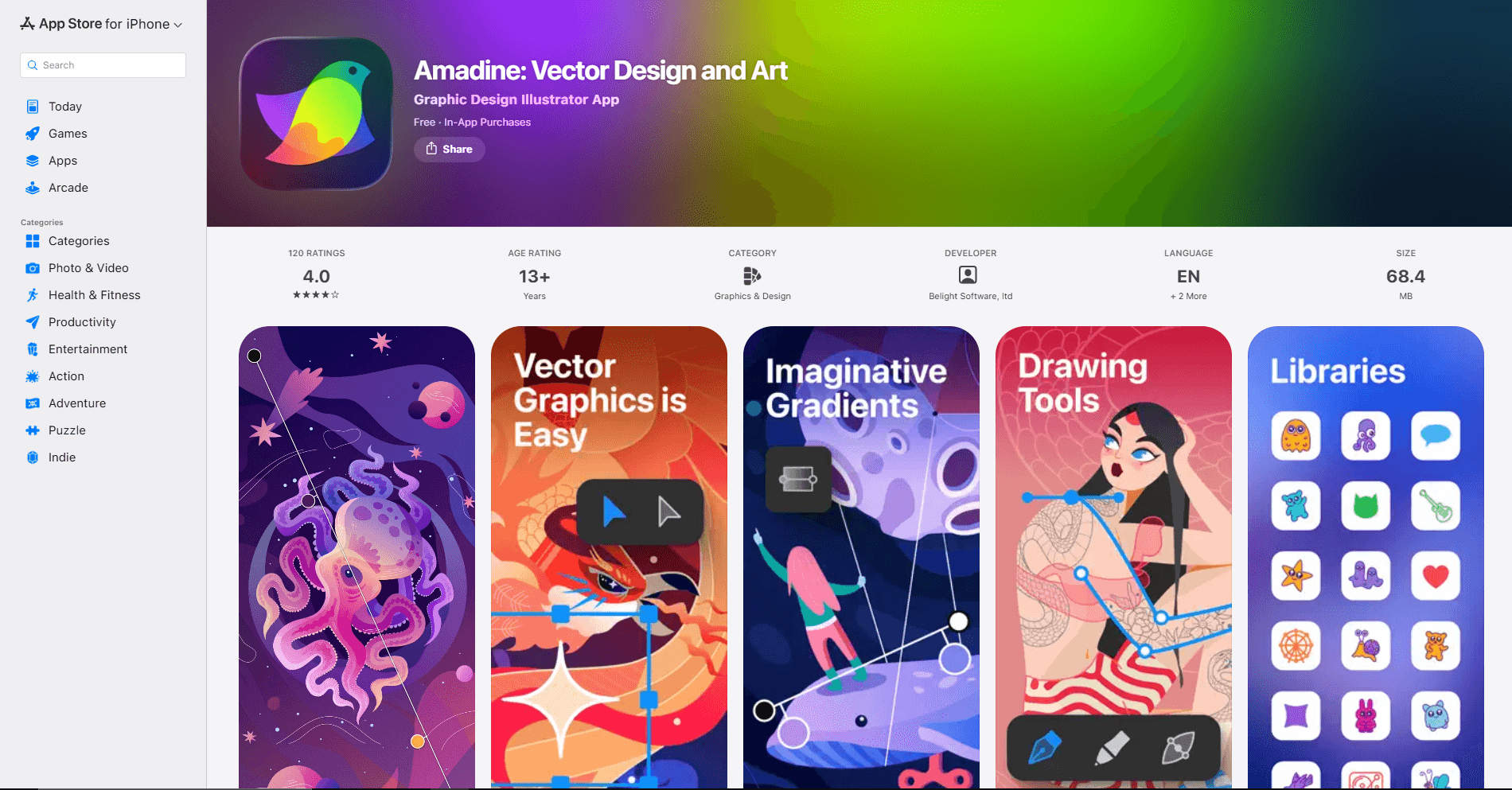
Amadine opens SVG, PDF, and AI vector files and exports SVG or PDF. Its current iPad app includes path and node tools, layers and sublayers, multiple fills and strokes, masks, gradients, outline view, image tracing, text on a path, and pressure-sensitive Apple Pencil drawing.
The app occupies a useful middle ground. It has enough direct path control for logo, icon, and illustration work, but it does not carry the same suite-level weight as Affinity or Illustrator. Exporting a whole document, one sheet, or only the selection also suits small SVG asset jobs.
The free download is a trial of the editing workflow. According to the App Store listing, a subscription or lifetime in-app license enables export and Image Trace. That means the free tier is not enough if the job must end with a saved SVG.
Good fit if:
- You want direct SVG import and export in a focused vector app.
- You prefer a choice between subscription and lifetime access.
- You draw with Apple Pencil but still need exact path tools.
Skip it if:
- Free SVG export is a requirement.
- You need team libraries or desktop agency handoff.
5. Inkpad Libre - Best Free and Open-Source Editor
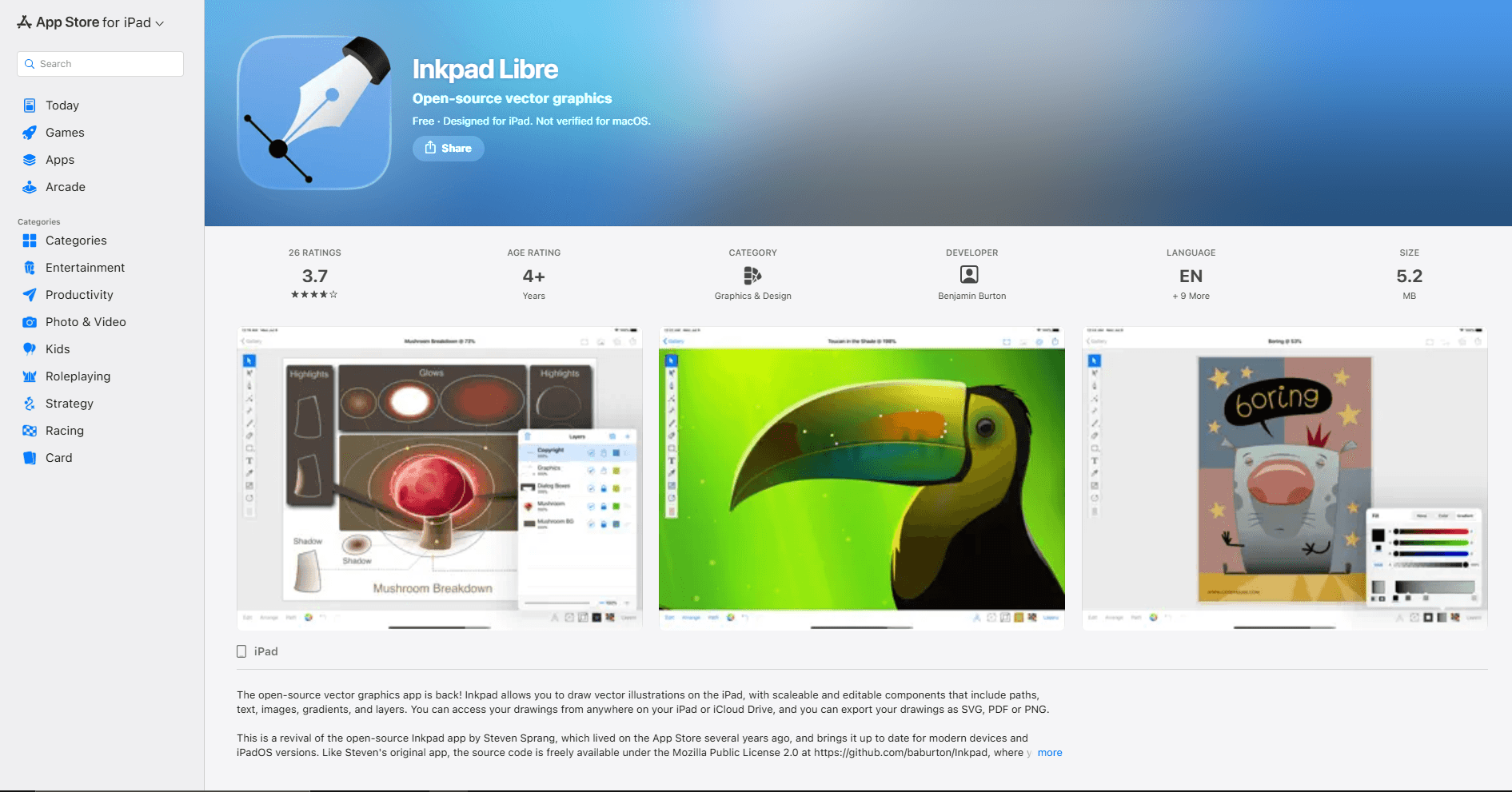
Inkpad Libre is a free, open-source iPad vector editor. It can import SVG graphics and photos, edit paths, Bézier curves, text, gradients, layers, compound paths, masks, and groups, then export SVG, PDF, or PNG. Its source is published under the Mozilla Public License 2.0.
This is the clearest answer for someone who wants a real visual SVG editor without a subscription or export paywall. The app also reads and writes through iPad and iCloud Drive, which keeps the workflow close to the Files app.
Its scope is smaller than the top four editors. There are no claims here about advanced color management, desktop-suite parity, or collaborative libraries. Choose it because the core path-and-layer model is enough, not because it replaces every professional illustration tool.
The maintenance history is the main caution. The App Store version history lists version 2.1 from July 2020, so check it on your current iPadOS release before relying on it for important files.
Good fit if:
- You need free SVG import, path editing, and SVG export.
- Open-source software and accessible source code matter to you.
- Your files use ordinary paths, text, layers, gradients, and masks.
Skip it if:
- You need advanced print color, asset slices, or team features.
- You want a code view beside the visual result.
6. Concepts - Best for Sketching New Artwork to SVG
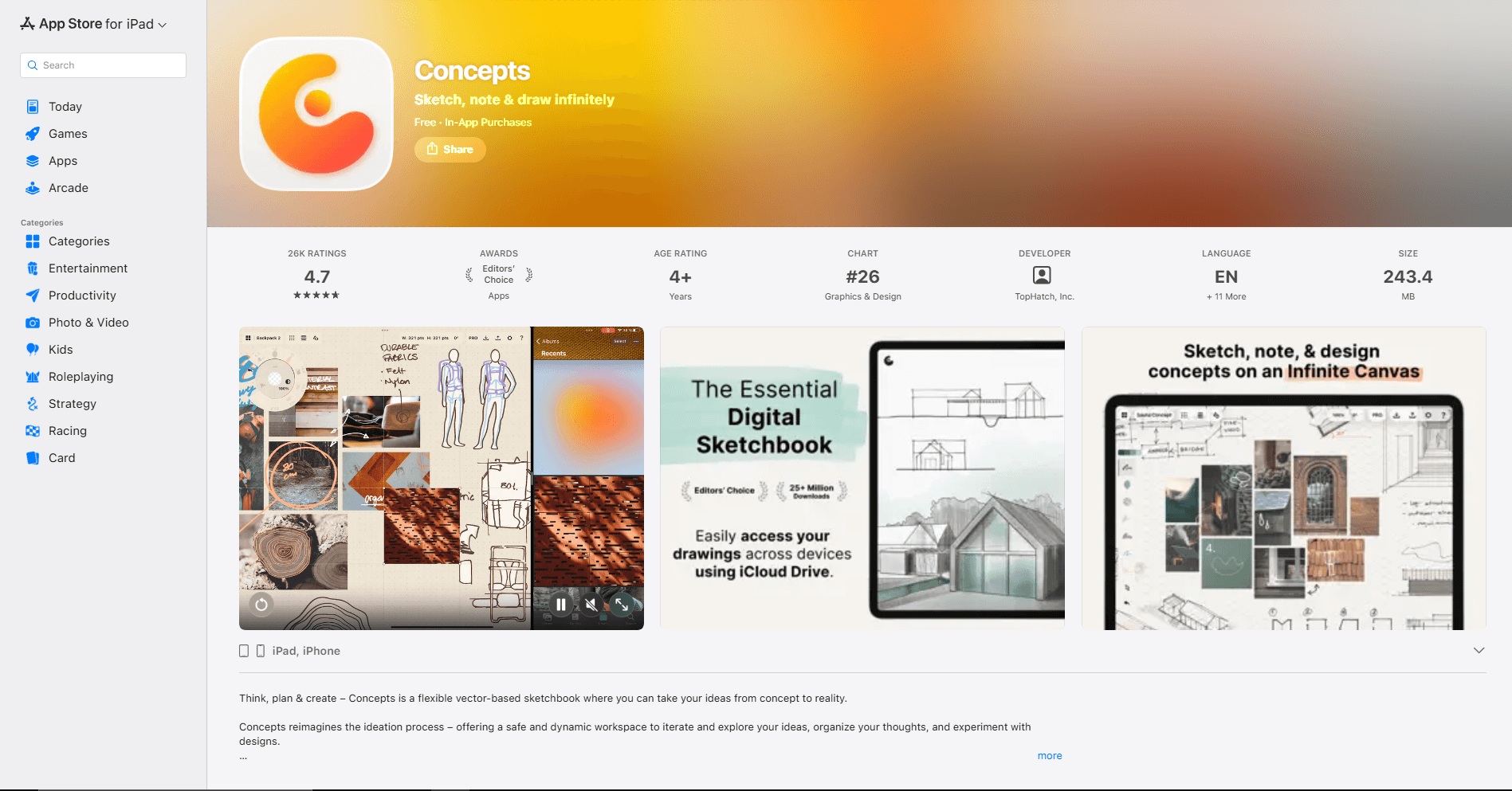
Concepts is a vector-based sketchbook rather than an editor for existing SVG files. It is strong for Apple Pencil ideation on an infinite canvas, with editable strokes, layers, scale and measurement tools, and selection-based changes. A paid Essentials purchase or subscription adds SVG export.
The distinction matters. Pick Concepts to draw a plan, diagram, lettering study, or loose illustration and then send vector paths to another app. Do not pick it to open a complex website SVG and repair its nodes or markup.
Concepts also documents specific SVG export limits. The export simplifies vector paths, supports only one line weight per stroke, and cannot reproduce its specialized textured brushes exactly. Fixed Width or Wire brushes transfer more predictably; masks can appear as white lines in another vector app.
Good fit if:
- Apple Pencil sketching is the start of the SVG workflow.
- You need an infinite canvas for plans, diagrams, or concept art.
- Simplified paths are acceptable for the exported file.
Skip it if:
- You need to import and revise an existing SVG.
- Textured brushes or masks must look identical after export.
7. SVG Converter & Viewer - Best for Viewing and XML Edits
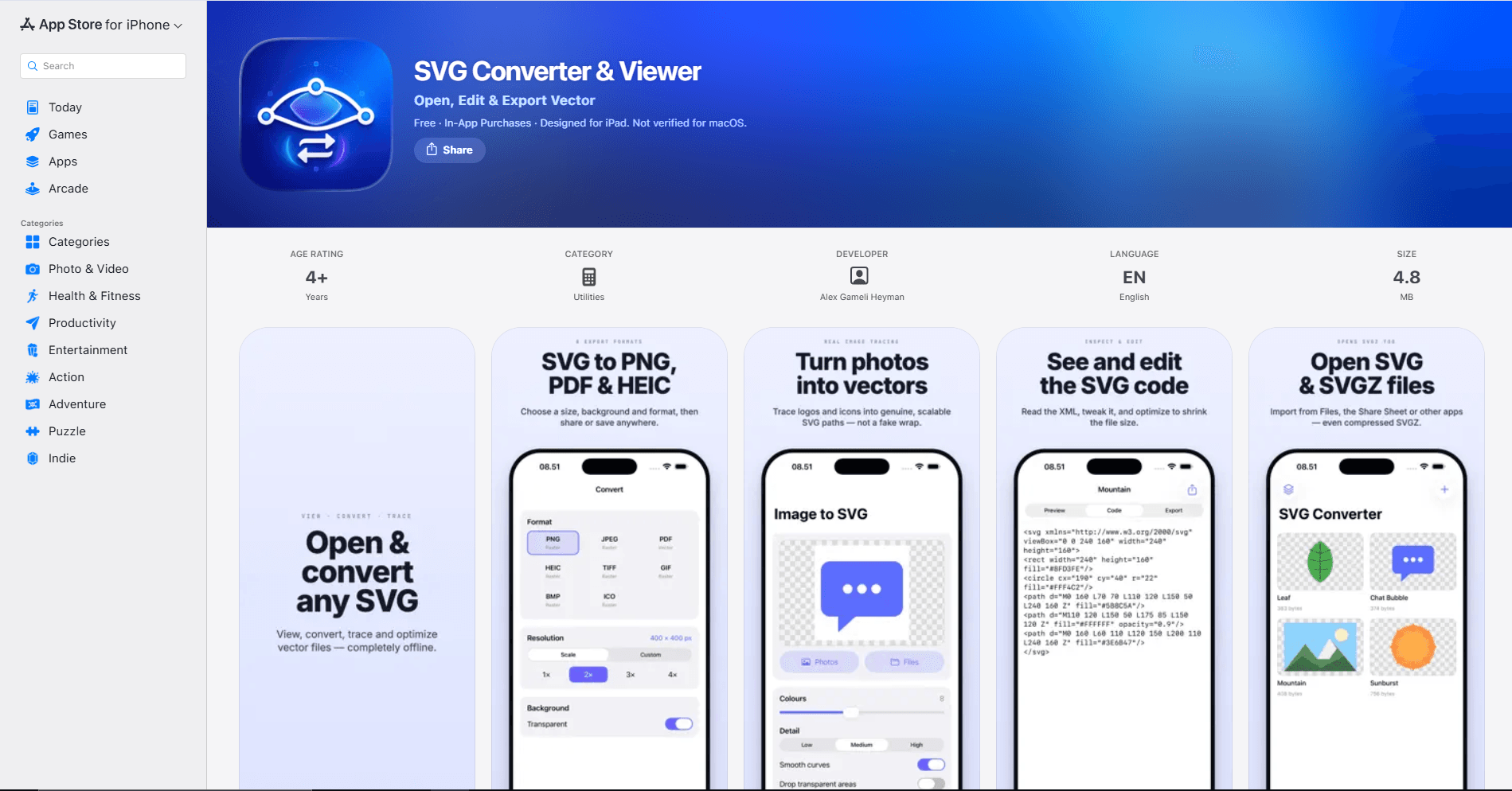
SVG Converter & Viewer is the better fit when drawing tools would get in the way. It opens SVG and SVGZ from Files or the share sheet, provides pinch-to-zoom preview, shows dimensions and file size, and lets you inspect and edit the raw SVG source.
The app can also optimize a file and convert it to PNG, JPEG, PDF, HEIC, TIFF, or GIF. Its listing states that viewing, conversion, tracing, and optimization run on the device. A one-time Pro purchase enables high-resolution exports, all conversion formats, tracing, and batch work.
This is source editing, not visual node editing. It suits a developer changing a viewBox, fill, stroke, dimension, or text value, but a designer who wants to drag control handles should use Curve, Affinity, Amadine, or Inkpad Libre. It is also a newer App Store utility without the long update history of the larger editors, so keep the original file until you have checked the saved copy.
Good fit if:
- You need to view an SVG and make a small XML-level correction.
- Files must stay on the iPad during conversion or optimization.
- SVGZ, batch conversion, or raster export is part of the job.
Skip it if:
- You need visual path and node controls.
- The file contains complex markup you cannot safely edit by hand.
8. VectorView - Best Multi-Format Vector Viewer
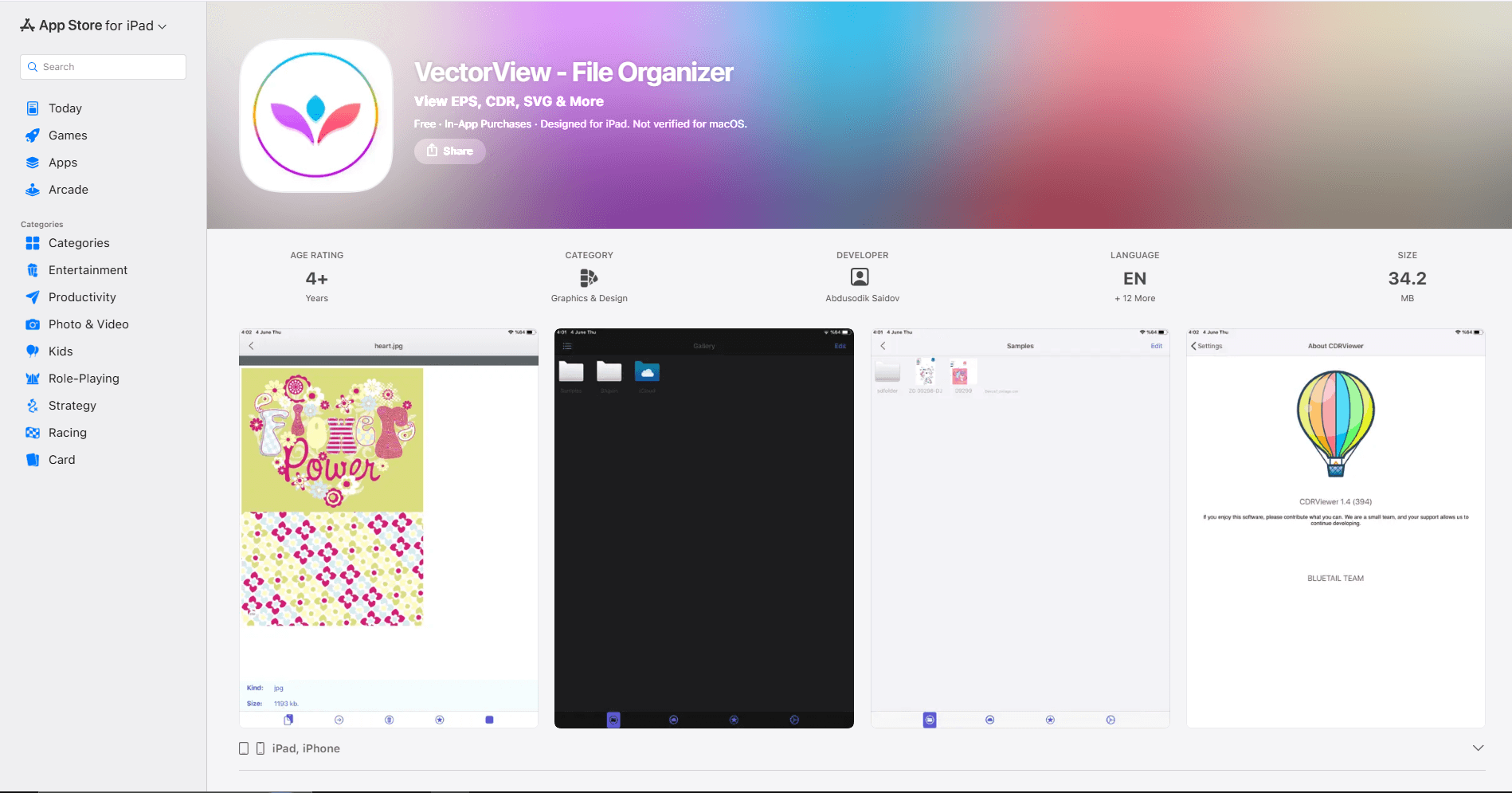
VectorView is a viewer and organizer for SVG plus EPS, PS, CDR, PDF, raster images, and preview-mode PSD and AI files. It provides grid and list views, folders, search, favorites, thumbnails, zoom, and pan. The developer says previews are processed locally and the app works offline.
Choose it when a folder contains mixed design deliverables and the task is review, not editing. A print shop or designer can inspect several vector and raster files without opening a full editor for each one.
The free tier permits three file imports per day, although viewing already imported files is unlimited. Pro removes the import cap and adds export options. VectorView cannot replace a path editor, and it should not be judged as one.
Good fit if:
- You review SVG alongside EPS, CDR, AI, PDF, and raster files.
- Offline preview and local organization matter more than editing.
- A dedicated thumbnail library is more useful than a drawing canvas.
Skip it if:
- You need to modify paths, text, or SVG source.
- Three new imports per day are not enough for the free tier.
iPad SVG App Comparison
The Import, Export, and Preview Distinction
SVG is XML, but visual editors do not all preserve the same parts of that XML. An app may render a filter correctly yet flatten it on export. It may keep text editable but substitute a missing font. It may import a mask, symbol, or linked image as a simpler object.
The safest iPad workflow keeps three files:
- Keep the original SVG unchanged in Files or iCloud Drive.
- Save the app's native working document when the editor offers one.
- Export a separate SVG delivery copy and reopen that copy for inspection.
For a quick look, you may not need another app. Apple's Files guide says Quick Look can preview image files, and Apple's SVG type documentation classifies SVG as an image type. Taken together, those documents indicate that current iPadOS can treat SVG as an image preview. Touch and hold the file, choose Quick Look, or use Open With to send it to a dedicated app. Quick Look is a viewer, not a path editor.
Which iPad SVG App Should You Choose?
Start with the task you need to complete on the iPad:
- Linearity Curve: Choose it for the broadest mix of Pencil drawing, node editing, artboards, and SVG export controls. Check the Pro requirement if files must remain local.
- Affinity Designer 2: Pick it for detailed paths, multiple assets, raster texture, and professional export slices.
- Adobe Illustrator: Use it when desktop Illustrator and Creative Cloud already define the team workflow.
- Amadine: Choose it for a smaller visual editor with direct SVG import and export.
- Inkpad Libre: Pick it when free, open-source path editing matters more than suite-level tools.
- Concepts: Use it to create new vector sketches for export, not to revise an existing SVG.
- SVG Converter & Viewer: Choose it for preview, conversion, optimization, or direct XML changes.
- VectorView: Pick it to review folders that mix SVG with other design formats.
Check an Exported SVG Before Handoff
An SVG that looks correct on the canvas can still fail in a browser, cutting machine, or another editor. Reopen the exported copy and check these points:
- Canvas bounds: Confirm that the viewBox fits the artwork without clipping or unexplained empty space.
- Text: Decide whether the recipient needs editable text or outlined paths. Missing fonts can change line breaks and spacing.
- Strokes: Zoom in on variable-width and textured strokes. Some iPad apps simplify them during SVG export.
- Masks and filters: Look for lost shadows, unexpected white shapes, or rasterized effects.
- Linked images: Make sure external images are embedded or included with the file when the recipient needs them.
- Scale: Test the SVG at a small and large size. Fixed width and height values should not defeat the intended responsive behavior.
If the final destination is a website, inspect the markup and optimize a copy after visual editing. Keep the unoptimized working file so a later edit does not start from already simplified paths.
Frequently Asked Questions
Can an iPad open SVG files without another app?
The Files app can use Quick Look for image previews, and Apple classifies SVG as an image type. This is enough to inspect many static SVG files. Use Open With from Files when you need a dedicated viewer or editor.
What is the best free SVG editor for iPad?
Inkpad Libre is the clearest free option because its App Store listing confirms SVG import, path editing, and SVG export without a subscription. Linearity Curve has a free tier, but local file storage is a Pro feature. Amadine requires a paid license for export.
Can Procreate edit SVG files?
Procreate is built around raster painting, not editable SVG paths and nodes. Export artwork from Procreate as a raster image, then trace it in a vector app if you need SVG. Linearity Curve, Affinity Designer 2, Illustrator, and Amadine include vectorization tools, but tracing can create more nodes than a shape drawn as vectors from the start.
Which app is best for Cricut SVG files on iPad?
Use Inkpad Libre for a free path editor, Amadine for a smaller paid editor, or Linearity Curve for broader drawing and node tools. Before sending the file to a cutting workflow, outline required text, remove hidden objects, expand strokes when the receiving app expects filled shapes, and reopen the exported SVG to confirm its bounds.
Can I edit the SVG code on iPad?
Yes. SVG Converter & Viewer can display and edit the raw source while showing the rendered file. Source editing is useful for targeted changes to viewBox, dimensions, colors, and simple text. Use a visual editor when the change involves path geometry.
Related SVG Editor Guides
Read More
All Articles
8 Best SVG Editors for Linux in 2026 (Free & Open Source)
Compare the best free and open-source SVG editors for Linux and Ubuntu, including Inkscape alternatives, vector tools, SVG viewers, and browser apps.
8 Best SVG Editors for Mac in 2026 (Vector & Web Design)
Compare the best SVG editors for Mac, including Boxy SVG, Inkscape, Affinity, Linearity Curve, Sketch, Figma, Illustrator, and Amadine for clean vector workflows.
8 Best SVG Editors for Windows in 2026 (Free & Pro)
Compare the best SVG editors for Windows, including Boxy SVG, Inkscape, Affinity, VectorStyler, Illustrator, CorelDRAW, Figma, and SVGEdit.