
10 Best Markdown Editors for Windows in 2026 (Free & Paid)
Find the best Markdown editor for Windows 11 and 10. Compare VS Code, Typora, MarkText, Obsidian, and more for writing, documentation, and note-taking with live preview.
Read guide
Combine multiple Word documents into one .docx file. Put them in order, keep formatting, images, tables and headers, then download the merged document. Everything happens in your browser.
or drag and drop two or more .docx files here
Working with other formats? Combine plain text with the TXT Merger, notes and docs with the Markdown Merger, or web pages with the HTML Merger.
Fonts, headings, paragraph spacing and character styles from every document.
Pictures, charts, shapes and embedded objects are copied with the document.
Table layouts, borders, shading and table styles stay intact.
Bullets and numbered lists keep their format and restart per document.
Keep the first document's, or each document's own with section breaks.
Footnotes, endnotes and comments move with their text and are renumbered.
Hyperlinks, cross-references and bookmarks keep working in the merged file.
Section breaks keep each document's paper size, orientation and margins.
Drop two or more .docx files or browse. Each file is checked as it loads.
Drag files into order, or sort them by name.
Pick page or section breaks and whose formatting to keep.
Merge and download a single .docx file.
| Option | Starts a new page | Page size and orientation | Headers and footers |
|---|---|---|---|
| Page break | Yes | First document's | First document's |
| Section break | Yes | Each document keeps its own | Each document keeps its own |
| No break | No, text continues | First document's | First document's |
Use section breaks when you combine documents with different layouts, such as a portrait report and a landscape appendix, or chapters that each have their own running header. Use page breaks when every file should look like part of one uniform document.
For repeat jobs or hundreds of files, a script can do the same work. The Python library docxcompose copies styles, numbering and images much like this tool does.
# pip install python-docx docxcompose
from docx import Document
from docxcompose.composer import Composer

files = ["chapter-1.docx", "chapter-2.docx", "appendix.docx"]

master = Document(files[0])
composer = Composer(master)

for path in files[1:]:
    master.add_page_break()          # start each document on a new page
    composer.append(Document(path))  # copies styles, numbering and images

composer.save("merged.docx")' Word macro: insert every .docx in a folder into the open document.
' Alt+F11 > Insert > Module, paste, then run MergeWordFiles.
Sub MergeWordFiles()
Dim folder As String, name As String
folder = "C:\Documents\To merge\"
name = Dir(folder & "*.docx")
Do While name <> ""
Selection.EndKey Unit:=wdStory
Selection.InsertFile FileName:=folder & name
Selection.InsertBreak Type:=wdPageBreak
name = Dir()
Loop
End SubThe macro inserts files in the order Windows lists them, which isn't always alphabetical, and leaves a page break after the last file.
The quickest way to combine Word documents is the merger at the top of this page. It reads each .docx file in your browser, joins them in the order you set, and gives you one document to download. Nothing is installed and the files are not uploaded. To test the page breaks and style options before using your own documents, try it with a few sample Word files.
Word can insert one document into another with Text from File. It works well for a few files you open regularly:
When style names clash, Word keeps the open document's definitions, so inserted headings can change size or colour. Selecting several files at once also inserts them in the order the dialog lists them, which may not be the order you want. Inserting one file at a time avoids that.
On a Mac, use Insert > Object > Text from File on the ribbon. Some versions show it in the menu bar as Insert > File. The online merger above also works in Safari, Chrome and Firefox on macOS.
Google Docs has no merge command. You can copy the contents of each document and paste them into one, but complex formatting, comments and page setup often change in the process. A cleaner route is to open each Google Doc, choose File > Download > Microsoft Word (.docx), merge the files here, and upload the result back to Google Drive.
In LibreOffice Writer, place the cursor where the next document should start and choose Insert > Text from File. Repeat for each file, then save as Word Document (.docx) if the result needs to open in Word.
Every Word document carries its own set of styles: Normal, Heading 1, List Paragraph and so on. Two documents can use the same style name with different fonts or colours, and that is where most merging problems come from.
Heading1_m2, and its default font and spacing are preserved.Numbered lists are copied as separate lists, so numbering starts again in each document instead of continuing from the previous one.
Tables of contents, page numbers and cross-references are fields that Word calculates. After merging, press Ctrl+A and then F9 in Word to update them all, or right-click a table of contents and choose Update Field. A table of contents copied from one source file will then list headings from the whole merged document.
Merging other kinds of files? See the TXT Merger, Markdown Merger and HTML Merger.
Find the best Markdown editor for Windows 11 and 10. Compare VS Code, Typora, MarkText, Obsidian, and more for writing, documentation, and note-taking with live preview.
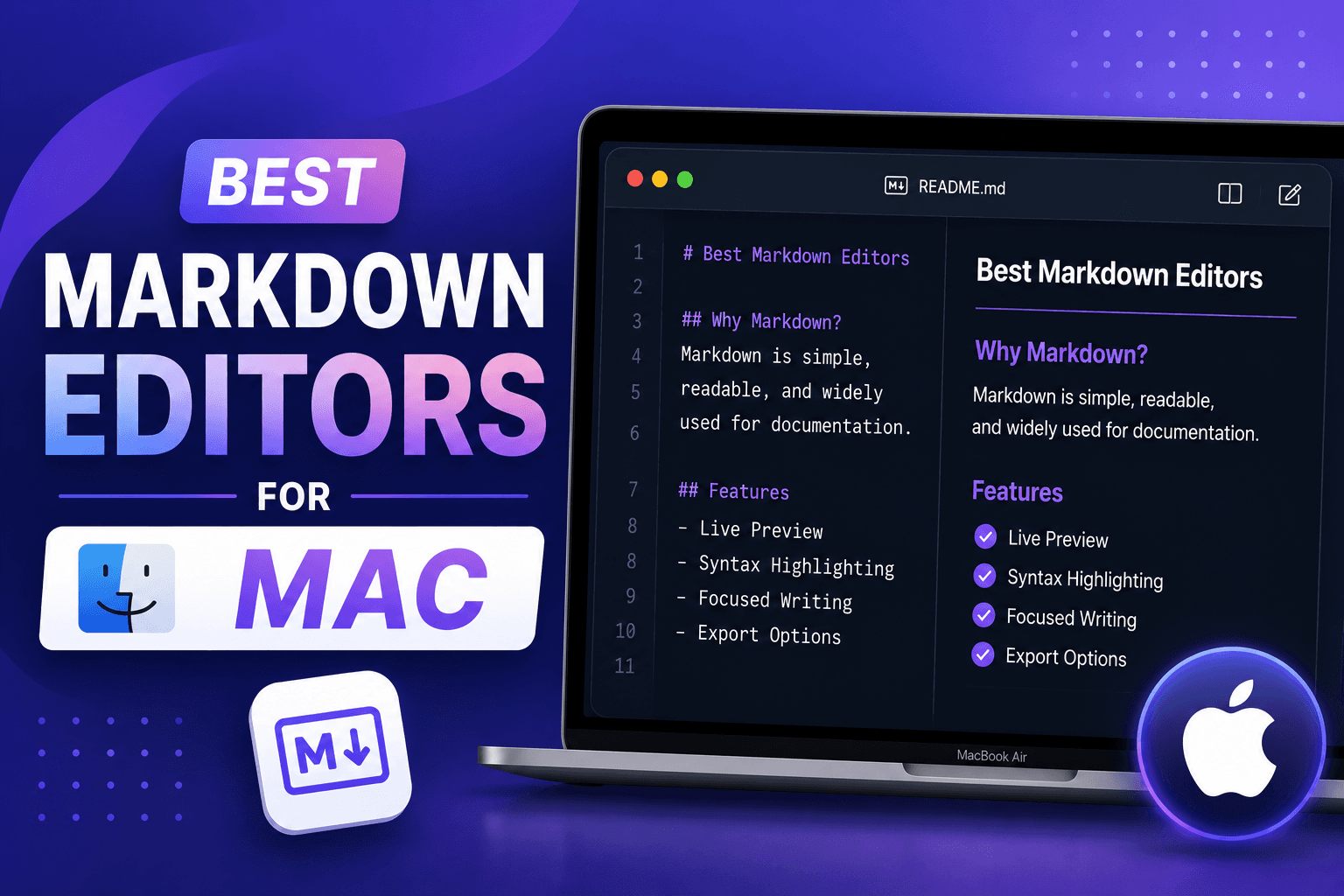
Find the best Markdown editor for macOS with native performance. Compare iA Writer, Typora, VS Code, Obsidian, and more for writing, note-taking, and documentation.

Compare 7 best text editors for Mac including VS Code, Sublime Text, Nova, and Vim. Includes Apple Silicon support, resource-use notes, and native macOS integration features.