7 Best VCF Editors and Viewers for Android in 2026

On this page
On Android, tapping a VCF can start an import before you have seen how many contacts it contains or where they will be saved. That is convenient for one trusted business card and uncomfortable for an old phone backup with hundreds of records.
The right app depends on whether you want to inspect the file, repair the file itself, or edit contacts after import. Contacts VCF is the closest all-in-one option, vCard File Reader gives you a safer preview, and QuickEdit handles a precise text repair. Google Contacts makes more sense when synchronization is the actual goal.
First, Decide What You Need to Do with the VCF
Android can use the word open for several very different actions. Before choosing an app, decide which result you actually want:
- View the file: Check the names, phone numbers, photos, and number of records without adding anything to your address book. This is the safest first step for an unfamiliar VCF.
- Edit imported contacts: Add the records to your phone, Google account, or Samsung account and edit them there. The original VCF in Downloads stays unchanged, but the imported contacts may synchronize to other devices.
- Edit the VCF itself: Change the source file to repair a broken BEGIN:VCARD boundary, incorrect version line, or malformed field. This gives you direct control, but a normal text editor can also damage folded lines, encoded names, notes, and photos.
Start with a viewer when you are unsure what the file contains. Choose a contact manager when the records are ready to join your address book. Use a source editor only when you know what needs to change inside the file.
1. Contacts VCF - Broadest Feature Set, with Important Caveats
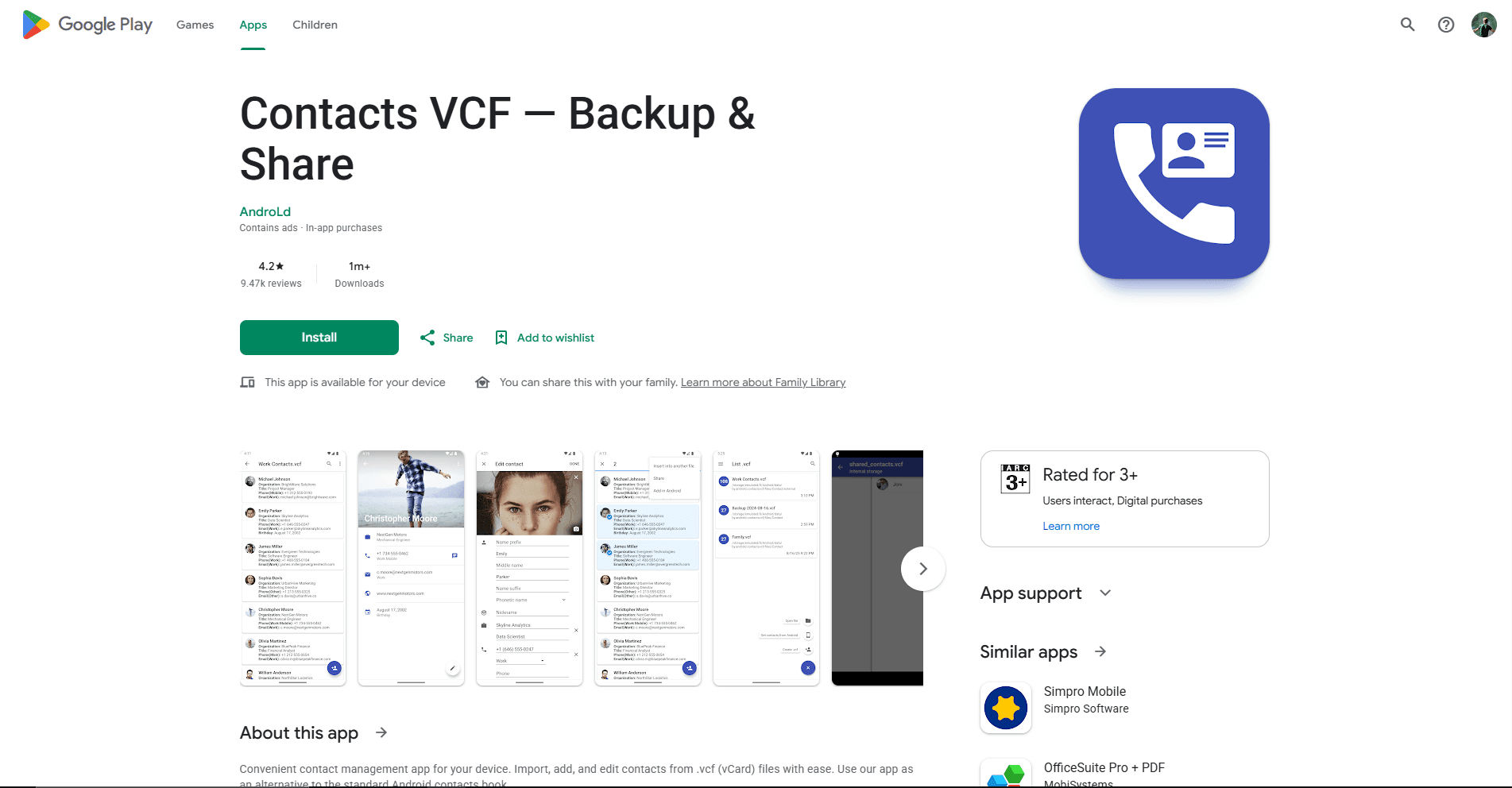
Choose Contacts VCF when one Android app needs to cover the most stages of the job: bring in a VCF, inspect its contacts, make practical changes, and save or share a new backup. Its Google Play description says it can import contacts from Android and VCF files, add or edit contacts on the device, create VCF backups, and export contacts as PDF.
This is the closest recommendation to a combined editor and viewer, but the wording matters. The public documentation supports editing contact records managed by the app and producing a backup. It does not clearly promise byte-for-byte editing of the selected source file. Keep the original VCF until you have opened the exported copy elsewhere and checked the result.
What you get
- Multi-contact viewing, practical contact changes, and fresh VCF backups in one app
- Android contact import, sharing, and PDF export
- A broader VCF workflow than a standard contact importer
What you don't get
- Confirmed in-place editing of the original selected file
- A documented field-by-field preservation guarantee
- A privacy claim that resolves the differences in its Play disclosures
The developer claims support for all vCard formats, but does not publish a 2.1, 3.0, and 4.0 test matrix. Names, phone numbers, and email addresses are the safest expectations. Photos, unusual labels, and custom X- properties need a sample export before you trust a migration.
Google Play lists more than one million downloads and currently shows a 4.4-star headline rating for Contacts VCF. It is free to install, contains ads and in-app purchases, and was last updated in August 2025. Its description says contact work stays on the phone, while the Data safety section lists collection and sharing categories. Test it with the sample VCF file before granting access to a real address book.
2. vCard File Reader - Best for Previewing a VCF Before Import
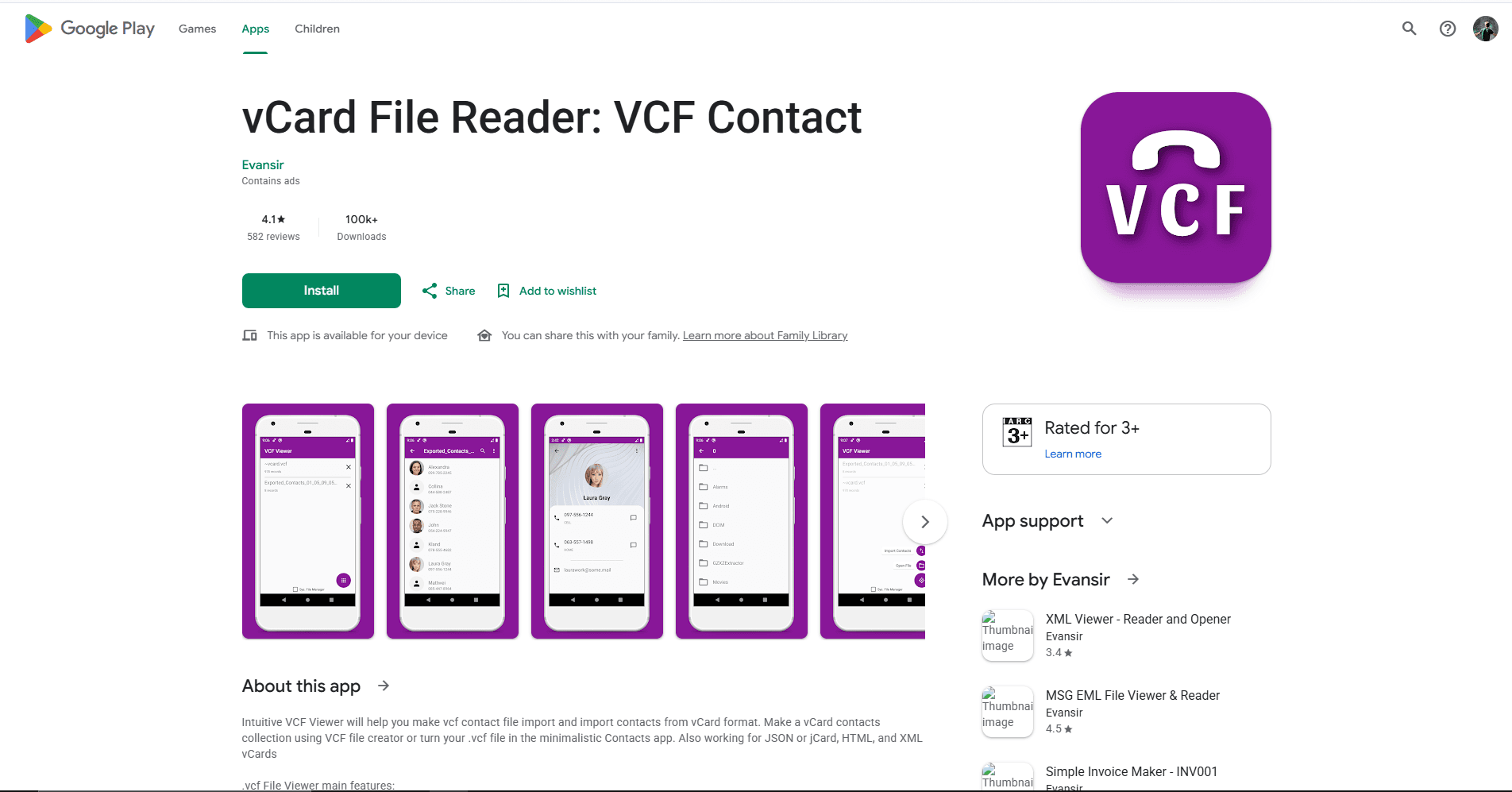
Choose vCard File Reader: VCF Contact when you received a contact file and want to see what is inside before restoring it. Its listing describes a multi-contact view that can show names, phone numbers, email addresses, websites, postal addresses, notes, and contact photos. You can then restore one selected contact or all contacts instead of accepting an immediate blind import.
That preview-first sequence is the application's clearest advantage. A 300-contact backup is not useful as one Android import prompt; you need a searchable or at least readable list that confirms the file contains the people you expect. This app is also useful for a single vCard attached to an email because it can expose the record without first placing it in Google Contacts.
What you get
- A contact-style preview before restoring anything
- Single-contact and multi-contact viewing with photos and common fields
- The choice to restore one contact or the entire file
What you don't get
- Documented field-by-field editing of existing records in the source VCF
- Clearly documented vCard 2.1 support
- Guaranteed preservation of custom fields after restore and export
The listing documents vCard 3.0 and 4.0 plus jCard, xCard, and hCard viewing. It does not clearly promise vCard 2.1 support, so old phone and Outlook exports may be hit or miss. The July 2026 release notes add the ability to add or remove contacts from vCard files, but the listing still does not document field-by-field editing of existing records or lossless handling of custom fields after restore and export.
The app is free with ads and was updated on July 27, 2026. Viewing a selected file and restoring contacts are different permission moments; only grant contact access when you decide to restore. Google Play also lists collection and sharing categories, so this is not the first choice for a highly sensitive list.
3. QuickEdit Text Editor - Best for Repairing the Original VCF
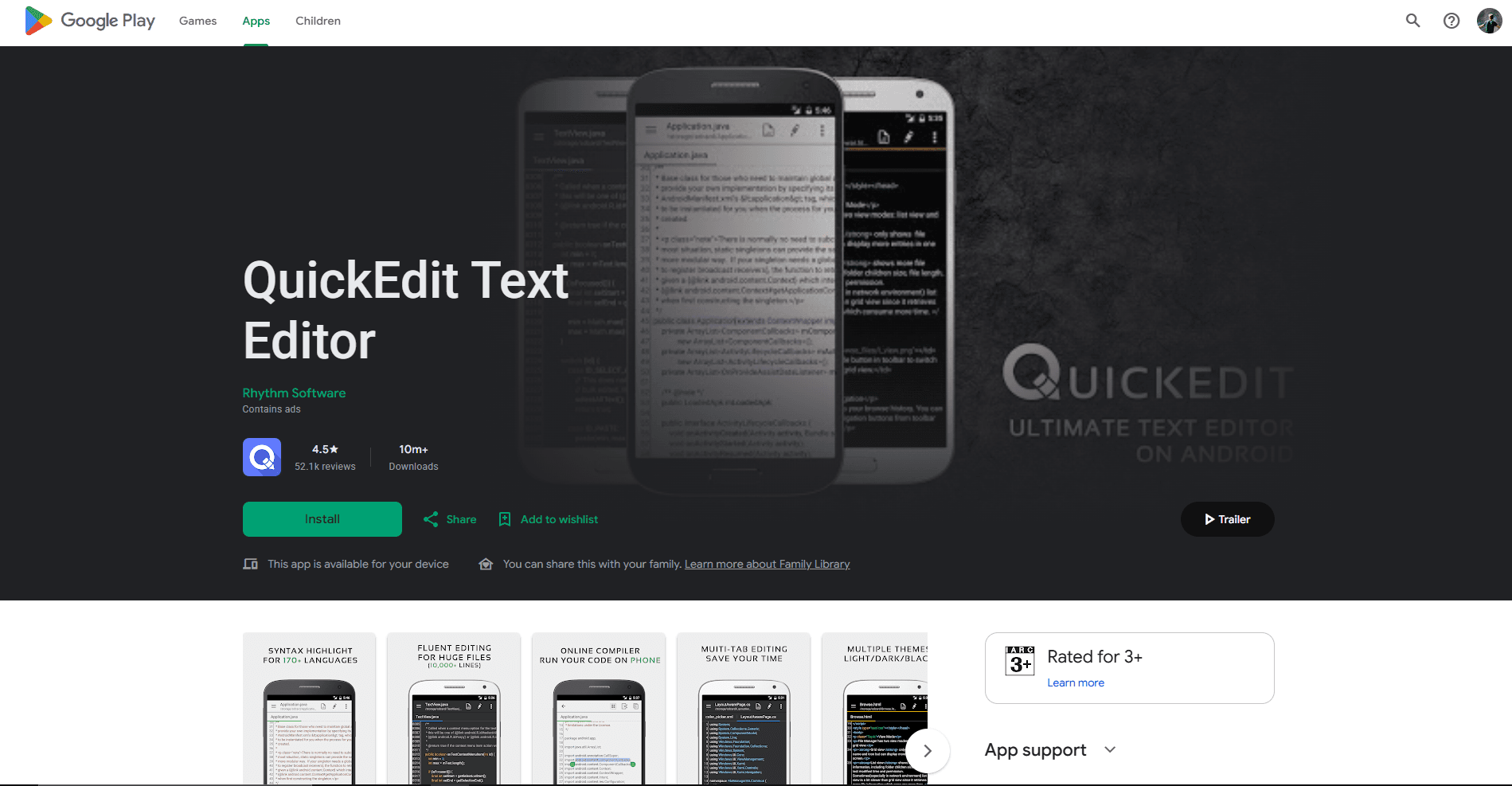
Choose QuickEdit Text Editor only when you know which line in the original VCF needs to change. Because VCF is a text format, a capable Android text editor can make a direct correction that contact managers cannot: restoring a missing END:VCARD line, correcting an invalid version value, removing one broken record, or replacing a clearly wrong telephone number.
Calling QuickEdit a contact-aware VCF editor would be inaccurate. It is a general text and code editor with line numbers, search and replace, multiple tabs, and undo and redo. Opening a VCF through Android's document picker is a reasonable use of those features, but this is an editorial inference from the text format and the editor's file support, not a VCF feature advertised by the developer.
What you get
- Direct access to the original VCF text
- Line numbers, search, replace, undo, and encoding controls
- A practical way to repair one known boundary or field error
What you don't get
- Contact cards, vCard validation, or structural protection
- Safe bulk editing of names, numbers, or labels
- Warnings before folded lines or encoded photos are damaged
Save a copy such as contacts-fixed.vcf. Folded lines can continue a photo or note, and old files may contain quoted-printable text. Deleting an innocent-looking indented line can break the record above it.
QuickEdit is a well-established general text editor with more than ten million Play downloads and an update in June 2026. The free edition contains ads; the developer's official FAQ says the Pro edition has the same features without ads. It should not need contact-database access just to edit a file selected through Android's picker. Use it for one known repair, then preview the saved copy before import.
4. Google Contacts - Best for Editing Contacts After Import
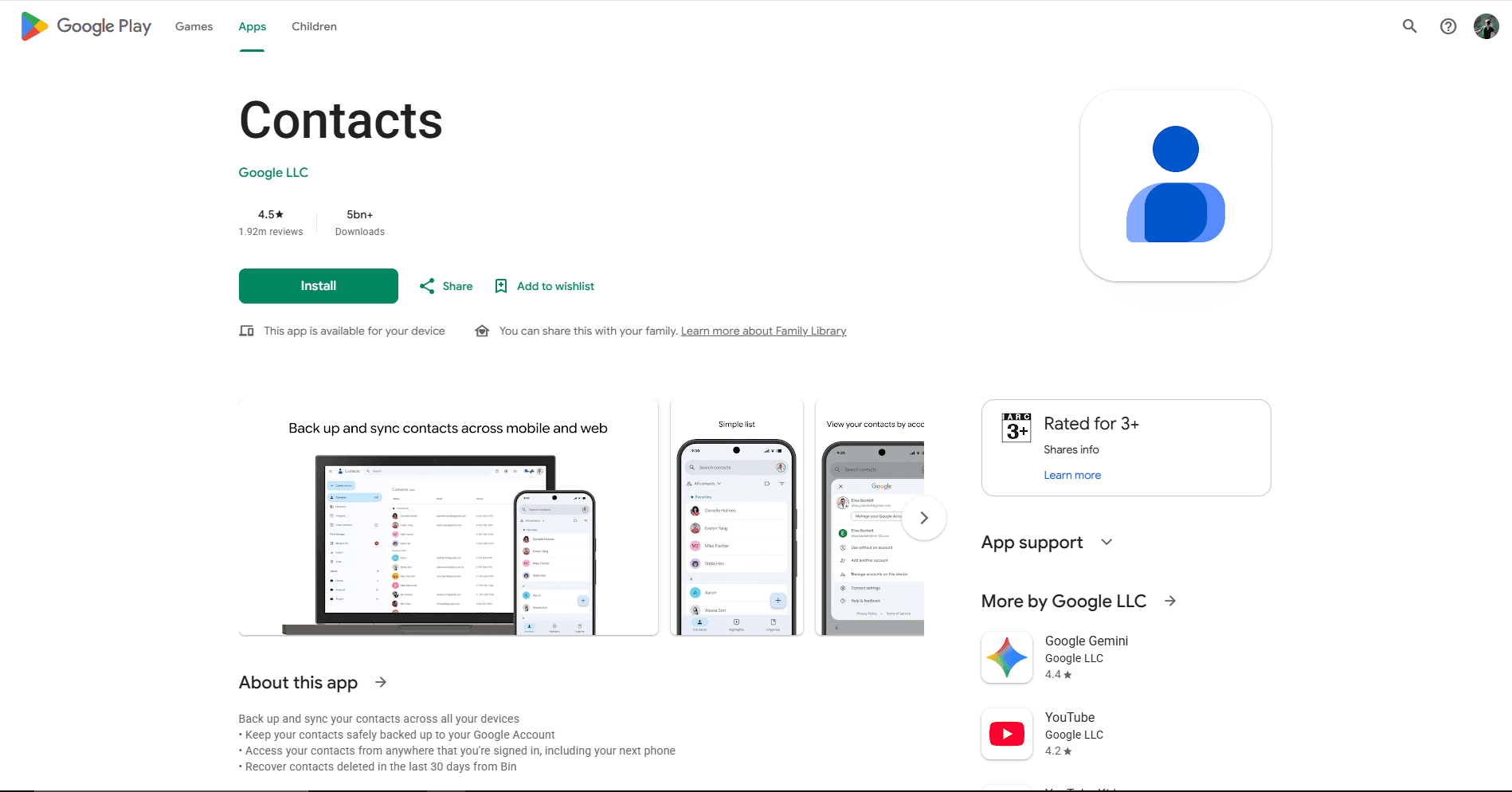
Choose Google Contacts when the VCF is trusted and you want its records to become normal contacts available across Android and the web. Google's official Android import instructions use Organize > Import from file, ask you to choose an account, and then let you select a VCF. Once imported, you can edit names, numbers, email addresses, photos, notes, and other fields exposed by the contact editor.
This is an importer and contact manager, not a VCF previewer. The account choice appears before the file selection for a reason: the records are being added to that destination. If the chosen Google account has contact synchronization enabled, changes can appear on other signed-in devices. Google's synchronization guidance says Google contacts sync automatically and that edits synchronize across devices.
What you get
- Familiar editing for contacts already stored in a Google account
- Cross-device synchronization, VCF export, and duplicate merging
- Support for multi-contact imports and common contact fields
What you don't get
- A record-by-record preview before import
- Editing of the original VCF in Downloads
- A lossless guarantee for vendor-specific fields and photo encodings
Merge & fix is useful after import, but contacts in different Google accounts cannot be merged. Choose the destination account carefully before opening a large file.
Export creates a new VCF; it does not update the attachment in Downloads. Google does not promise that every custom field, label, or photo encoding survives this round trip. If contacts should stay off Google, use Fossify with a local destination instead.
5. Fossify Contacts - Best Open-Source Contact Manager for Device-Focused Use
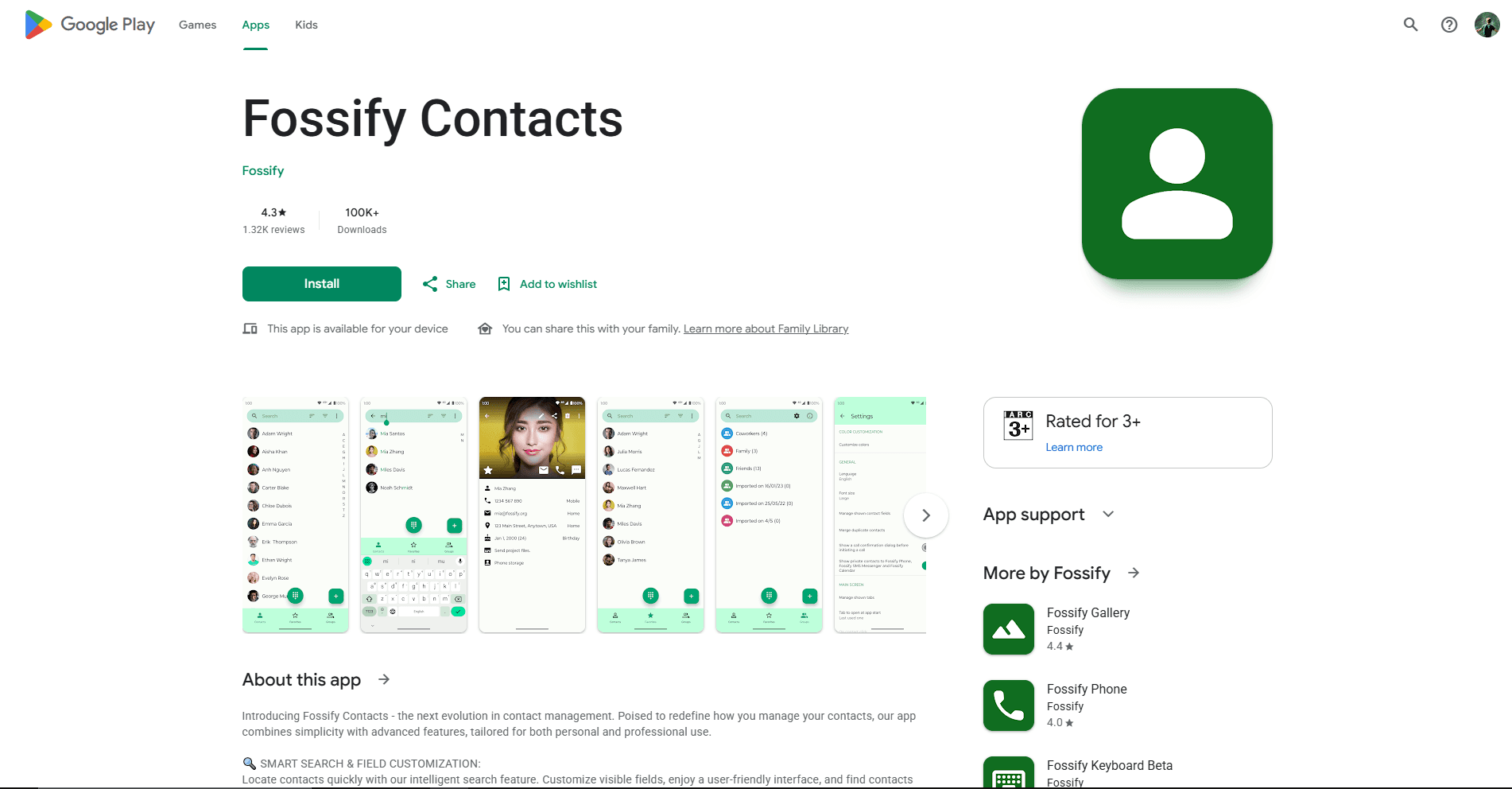
Choose Fossify Contacts when you want an open-source contact manager that can import and export vCards without making a Google account the center of the workflow. The Google Play listing describes vCard import and export, contact search, groups, and support for contacts stored locally or synchronized through Android accounts.
Fossify edits records exposed through Android's Contacts Provider. It does not document in-place editing of the VCF selected for import. That makes it an alternative to Google Contacts for managing the resulting address book, not a replacement for QuickEdit when the source syntax is broken.
What you get
- Open-source contact management with vCard import and export
- Local and Android-account contact support
- Search, groups, and a device-focused alternative to Google Contacts
What you don't get
- Direct editing of the imported source file
- A built-in CardDAV synchronization service
- Documented lossless handling of every photo and custom property
Choose a local or phone destination if the contacts should stay on the device. Fossify can also display contacts from Android accounts, so verify the account label with one fictional contact before a large import.
Fossify Contacts had more than 100,000 Play downloads and a January 2026 update during this review. The app needs contact permissions because it manages the Android address book; its Data safety section says it does not collect or share data. Neither open source code nor that disclosure guarantees that every photo and custom property survives export, so compare a small sample.
6. Samsung Contacts - Best for Galaxy Phones
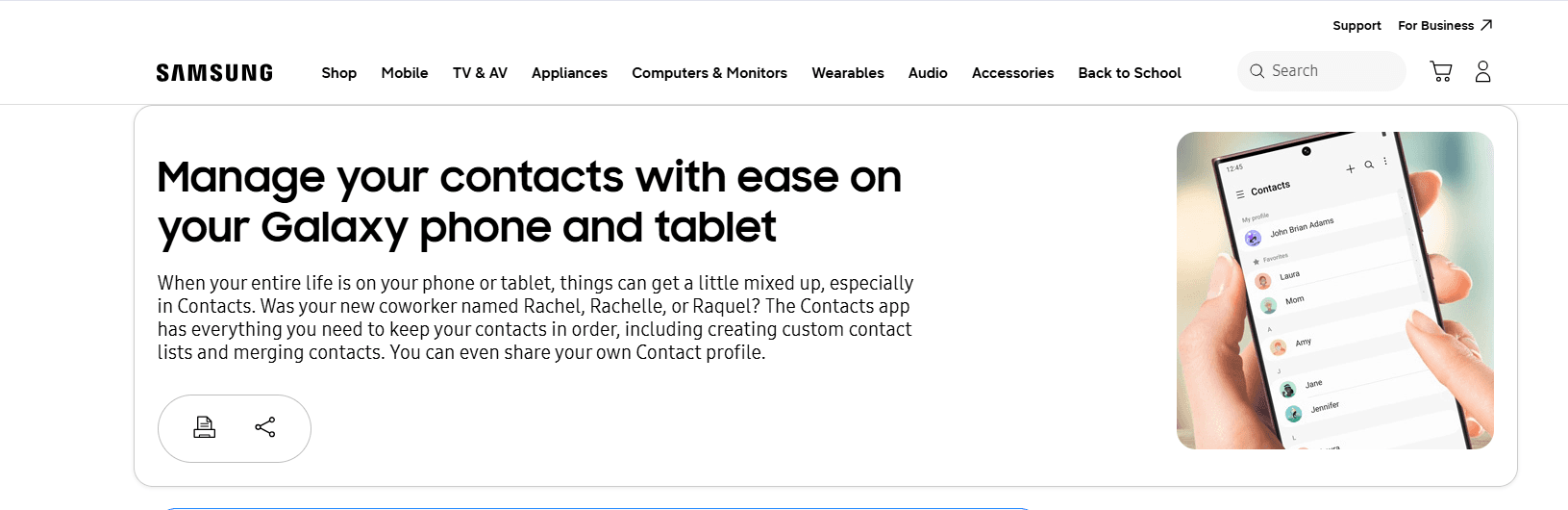
Choose Samsung Contacts when you already use a Galaxy phone and need to import a VCF into a phone, Google, or Samsung contact destination. Samsung's current support material documents VCF import and export, contact editing, account movement, sharing as vCard, and synchronization with available accounts.
The advantage is integration rather than source-file control. Samsung Contacts is built into supported Galaxy devices rather than offered as a general Google Play download. Its One UI contact screens let Galaxy owners choose where contacts are saved and move contacts between supported locations. A February 2026 Samsung guide says VCF transfers can include names, phone numbers, email addresses, postal addresses, and profile photos.
What you get
- Galaxy-native VCF import, export, sharing, and contact editing
- A choice of phone, Google, or Samsung destinations where available
- Documented transfer of common fields and profile photos
What you don't get
- A neutral multi-contact preview before import
- Source-file editing or a complete vCard compatibility matrix
- The same menus and storage choices on every Galaxy model
Samsung Contacts still imports rather than edits the source. Menu names vary by model and One UI version, but the route is usually under Manage contacts > Import or export contacts.
Choose Phone for device-only storage where offered, or a Samsung or Google account for synchronization. Samsung documents common fields and photos, but not a complete round-trip matrix, so retain the source when it is an archive rather than a simple transfer file.
7. VCF to TXT - Best Browser-Based VCF Preview Without Contact Permission
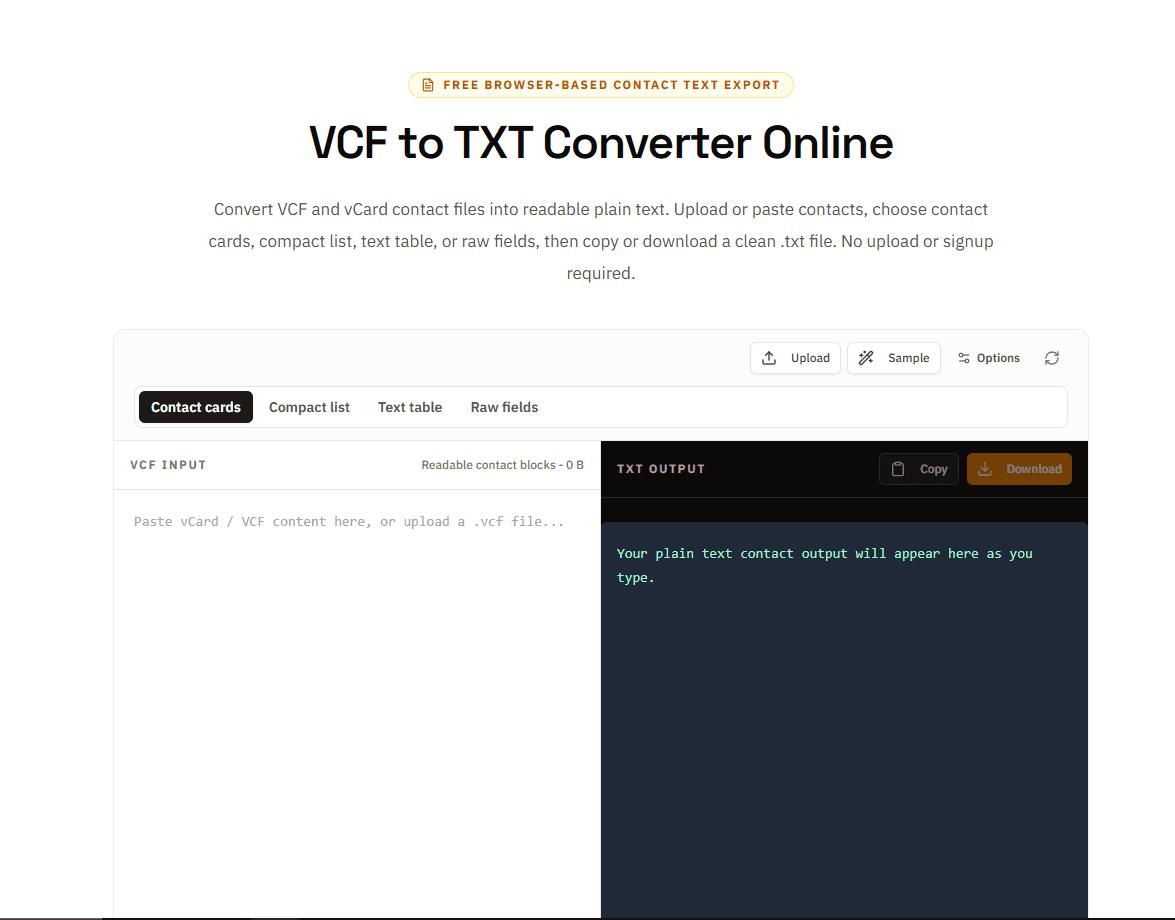
Choose the site's VCF to TXT converter when you need a readable preview in an Android browser and do not want to grant an app access to the contact database. It reads the selected file locally in the browser and turns common vCard fields into plain text. Nothing is added to Google Contacts, Samsung Contacts, or the Android Contacts Provider.
This is most useful for answering basic questions before import: how many contact records are present, whether the names look correct, and whether the file includes phone numbers, email addresses, organizations, notes, or unexpected records. It supports multi-contact files and handles folded lines, escaped delimiters, and quoted-printable content in its parsing flow.
What you get
- Local browser processing without an account or Contacts permission
- Readable output for every contact in a multi-contact VCF
- Common, compact, table, and raw-field text views
What you don't get
- Contact-field editing or export back to VCF
- A rendered contact-photo view
- Android address-book import, synchronization, or duplicate cleanup
The tool reads the selected file locally and does not need an account or Contacts permission. Its TXT output is for inspection only: it does not render photos, edit fields, or export a new VCF.
Use it as a low-commitment first check. Move to Google, Samsung, or Fossify only after the records look right; use QuickEdit for a known syntax error or the VCF merger to join complete files.
Android VCF Editor and Viewer Comparison
Which Android VCF Tool Should You Choose?
- Preview before import: vCard File Reader gives you contact cards; VCF to TXT gives you a permission-free text check.
- Edit the original file: QuickEdit is suitable for one known repair. Android has no strong contact-aware source editor in this list.
- Edit imported contacts: Use Google Contacts for Google sync, Samsung Contacts on Galaxy, or Fossify for local storage.
- Work with a large multi-contact file: Contacts VCF offers the broadest mobile workflow, but repeated bulk changes are still easier on a desktop.
- Keep contacts off Google: Select a local or Phone destination in Fossify or Samsung Contacts and verify it with one fictional record.
- Preserve photos and custom fields: Keep the original and compare a small export before migrating the full address book.
- Merge files: Use the VCF merger instead of importing and exporting each file.
Before You Import on Android
Save an attachment to Downloads before opening it. Android's Storage Access Framework can grant an app access to one selected document without broad storage permissions. Reading the Android Contacts Provider is a separate action that requires READ_CONTACTS, so a viewer should not need contact access merely to show the selected file.
Check the destination on every import screen. Google and Samsung account contacts can sync to other devices; Phone or local contacts remain on the handset where supported. SIM storage is a poor choice for records with several numbers, notes, addresses, or photos.
Keep the original VCF and export changes under a new name. Changing only VERSION:2.1 to VERSION:3.0 is not a real conversion, and manually rewrapping folded photo or note lines can break the record. Each contact also needs its own complete BEGIN:VCARD and END:VCARD pair.
A VCF can contain private addresses, birthdays, notes, and photos. Review the app's current permissions and Data safety disclosure, especially for ad-supported tools. Offline contact processing does not automatically mean that advertising or analytics components are offline.
Common Android VCF Questions
Does editing an imported contact change the original VCF?
No. Google Contacts, Samsung Contacts, and Fossify edit Android contact records. Exporting later creates a new VCF; the source file remains separate.
Why does Android reject a VCF?
Common causes are missing card boundaries, a malformed version line, broken folding, damaged quoted-printable text, incompatible encoding, or a corrupt photo block. Repair a copy and preview it before import.
Can I open a VCF without giving access to all contacts?
Yes. vCard File Reader can preview before restore, and VCF to TXT reads the one selected file in the browser. Contact permission is needed when an app reads or writes the Android address book.
Is it safe to upload a VCF to an online editor?
Only when its upload, retention, and deletion policy is clear enough for the data in the file. For a private address book, prefer local processing and never use real contacts in public screenshots.
Related VCF Resources
Read More
All Articles
8 Best VCF Editors and Viewers for Windows PC in 2026
Compare the best VCF editors and viewers for Windows 10 and 11 for previewing contacts, editing vCards, repairing files, converting data, and working with Outlook.
How to Merge VCF Files: Free Tool & Guide (2026)
Merge VCF contact files with an online tool, Python, or command line. Includes duplicate removal and migration for iPhone, Android, Google, and Outlook.
6 Best GPX Editors and Viewers for Android in 2026
Compare the best GPX editors and viewers for Android for repairing tracks, inspecting elevation and sensor data, using offline maps, and navigating routes.