5 Best XML Plugins for Notepad++ in 2026

On this page
Notepad can color XML syntax, fold nested elements, search with regular expressions, and edit the source without a plugin. It does not, by itself, pretty-print a minified document, validate it against an XSD, evaluate XPath, or show the structure in a separate tree.
XML Tools fills most of those gaps on standard x64 Notepad installations. Other plugins are useful when the task is narrower, such as browsing a tree, comparing two revisions, renaming paired tags, or running an external validator.
Your Notepad architecture matters. The official plugin registry maintains separate x86, x64, and ARM64 lists, and the XML options are not identical across them. Check that first, then install only the plugins that match your workflow.
Before Installing: Check Your Notepad Build
Open ? > About Notepad or ? > Debug Info and confirm whether the application is x86, x64, or ARM64. A plugin DLL must match that architecture.
For a normal installation, open Plugins > Plugins Admin, search for the plugin, select it, and choose Install. Approve the restart if Notepad requests one. The official Plugins Admin documentation explains both automatic and manual installation.
The official Notepad plugin registry is the safest place to confirm current availability. At the time of this update, XML Tools and Npp XML Treeview appear in the x64 list but not the ARM64 list. ComparePlus and HTML Tag have ARM64 packages. Do not copy an x64 DLL into an ARM64 plugin folder.
The 5 Best XML Plugins for Notepad
1. XML Tools: Best Overall
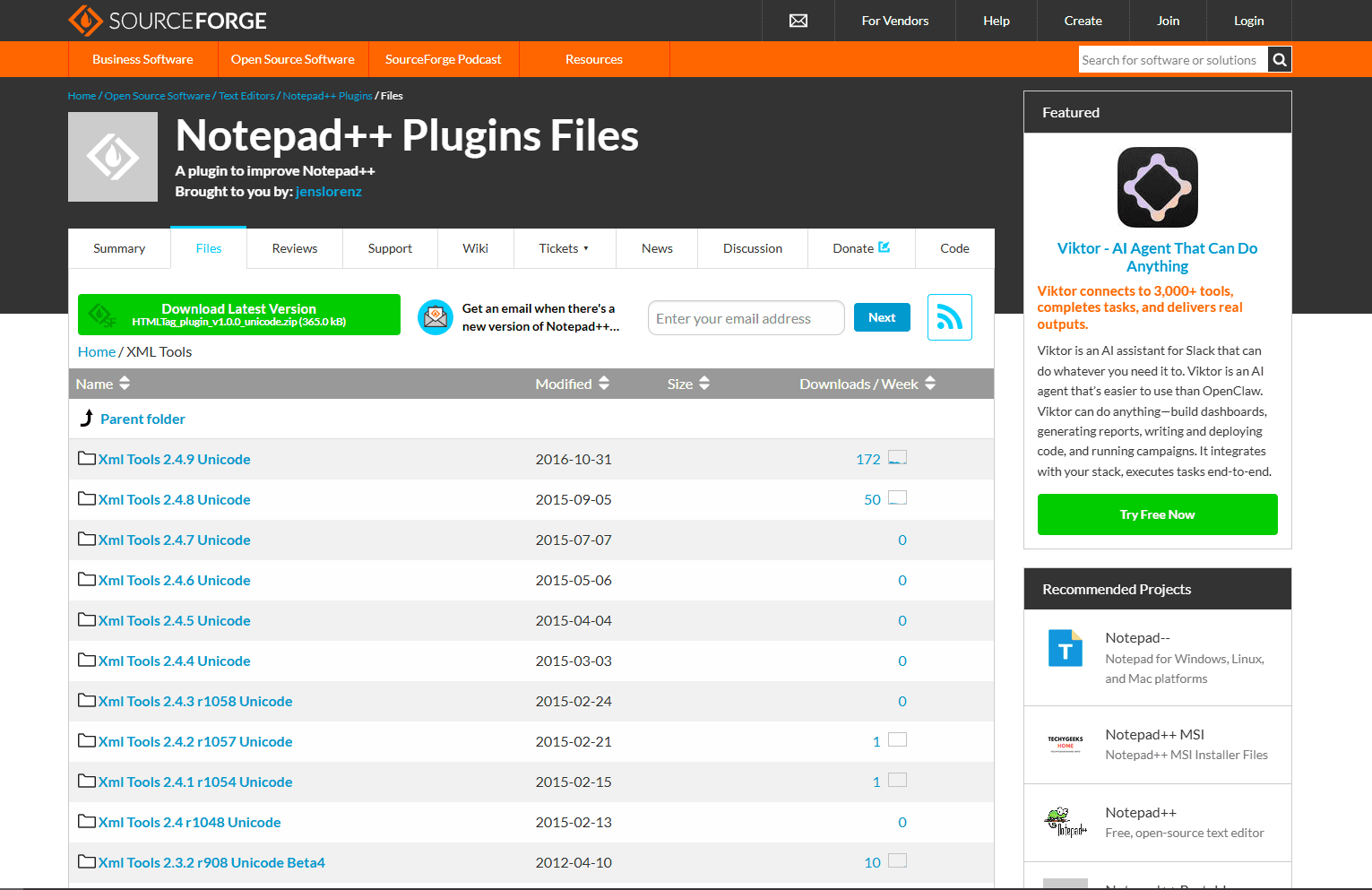
XML Tools is the main XML upgrade for Notepad. It combines formatting, syntax checking, schema validation, XPath, XSLT, and tag assistance in one plugin instead of making you assemble several overlapping utilities.
Its documented features include XML syntax checks, XSD and DTD validation, pretty printing, linearizing formatted XML, automatic tag closing, the current XML path, XPath expression evaluation, and XSL transformations. The current x64 package is also listed in Plugins Admin.
Useful parts:
- Pretty-print minified XML or remove indentation when a compact file is required.
- Check whether a document is well formed.
- Validate against an associated XSD or DTD.
- Evaluate XPath expressions against the active document.
- Run an XSL transformation from inside Notepad.
Open Plugins > XML Tools to see the commands available in your installed version. Choose a pretty-print command to make one-line XML readable. Use the syntax-check command before schema validation so basic parsing errors are easier to isolate.
Watch for: formatting changes whitespace. That can matter in mixed-content XML, signed documents, or files consumed by software that treats text spacing as data. Work on a copy until you know how the receiving application handles rewritten whitespace.
XML Tools is the first plugin to install if you use x64 Notepad. The remaining entries solve tasks that its text-focused interface does not cover as directly.
2. Npp XML Treeview: Best for Structural Browsing
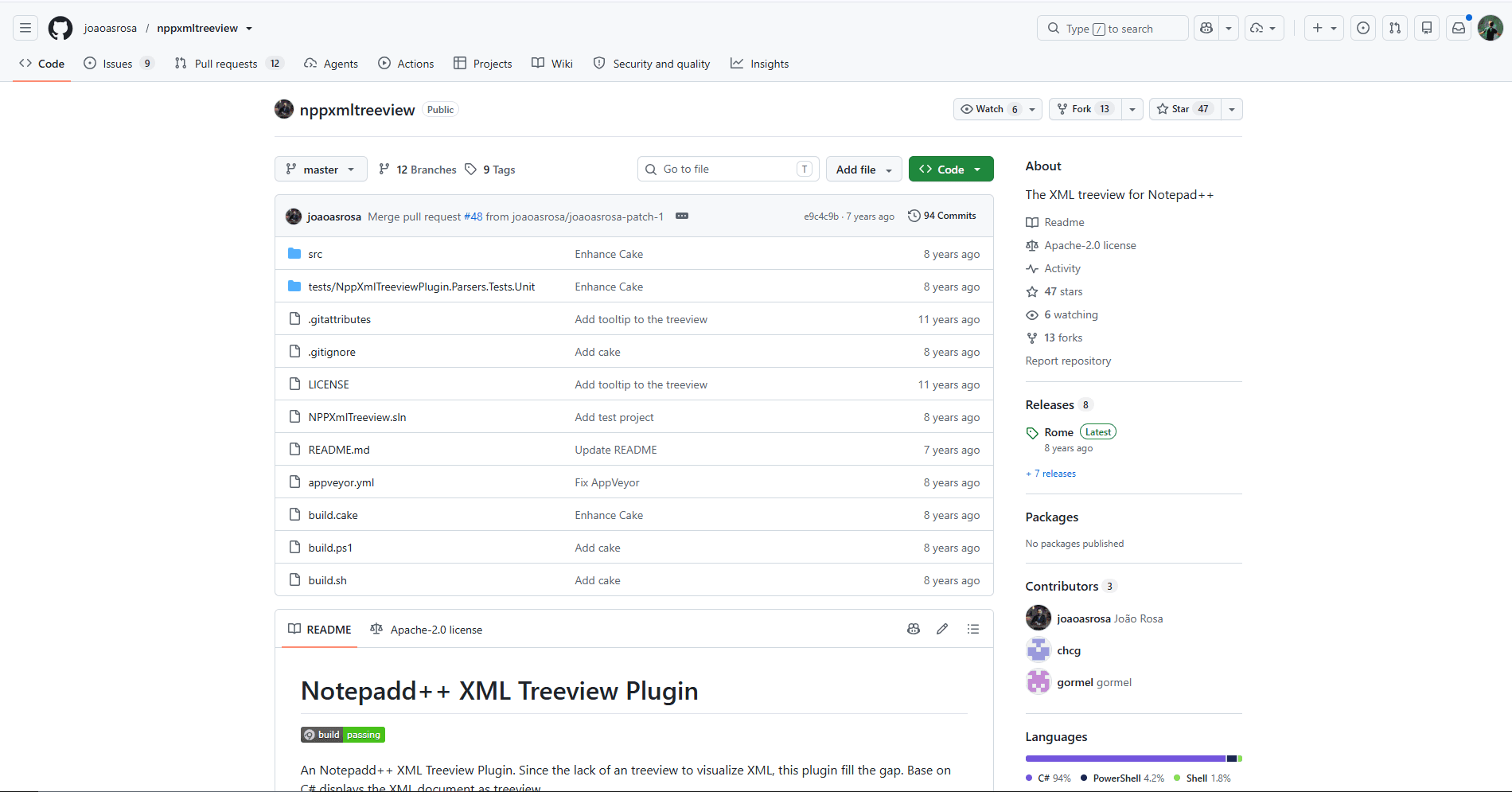
Npp XML Treeview adds a dockable tree representation of the active XML document. It is useful when the source contains many nested elements and folding the text is not enough to reveal the hierarchy.
The plugin is listed in the current x64 Plugins Admin catalog. It displays the document as a tree, making parent-child relationships easier to inspect while the original XML remains open in Notepad.
Useful parts:
- Separate tree view for nested XML.
- Faster visual inspection of unfamiliar document structure.
- A focused companion to XML Tools rather than another formatter.
Watch for: this is a visualization plugin, not an XSD validator or XSLT environment. Its repository also states that the original maintainer can no longer support the project and is seeking a new owner. Keep XML Tools or another validator in the workflow, and confirm compatibility before a future Notepad upgrade.
Choose Npp XML Treeview when structure is the problem. If you mainly need to jump between a matching start and end tag while editing, HTML Tag is a smaller addition.
3. ComparePlus: Best for XML Diffs
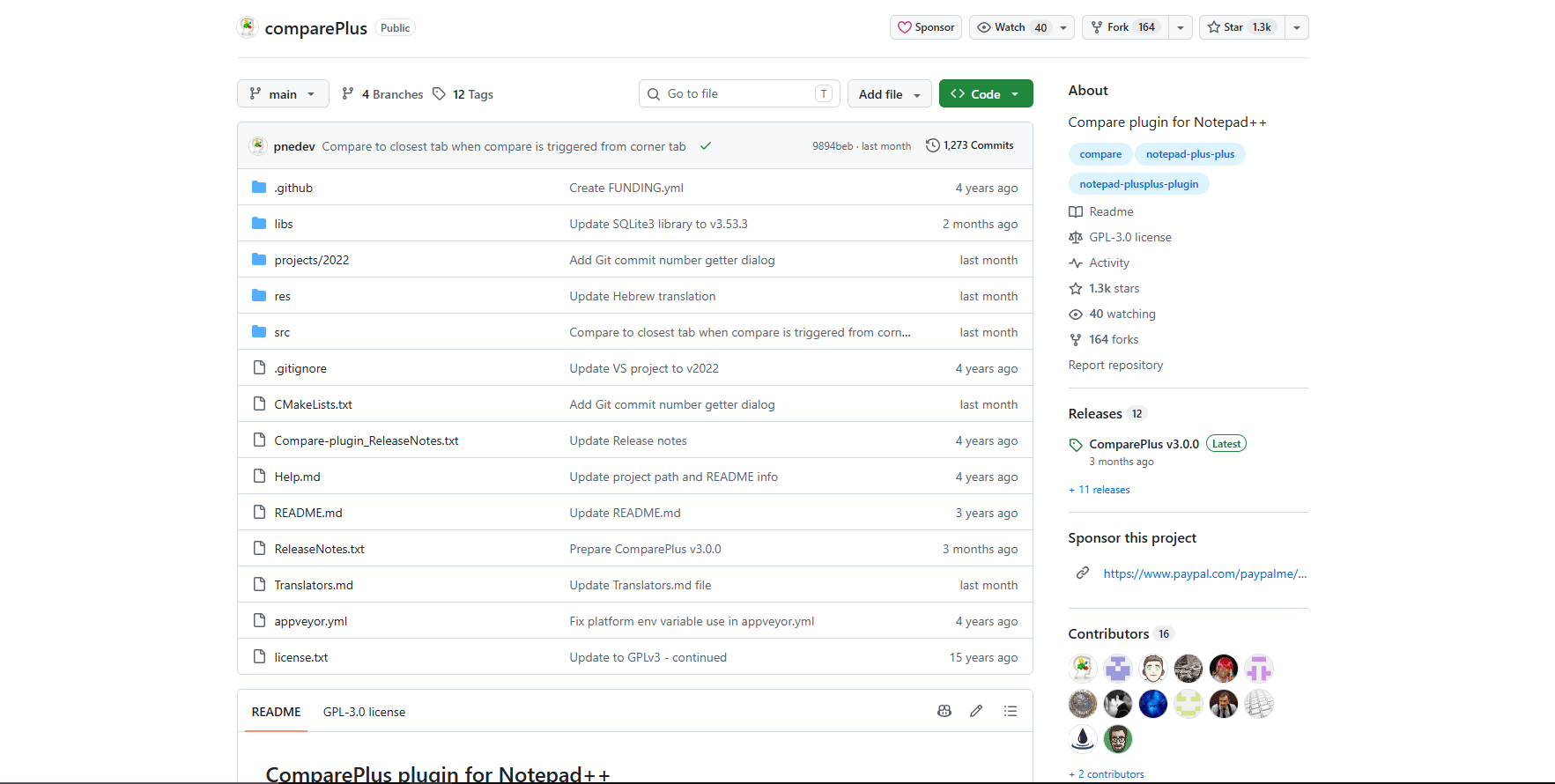
ComparePlus places two files side by side and marks their textual differences. It can compare complete documents, selections, clipboard text, an edited file against its saved state, or a file against Git or SVN.
For XML, comparison works best after both files use the same formatting rules. Pretty-print each document with the same XML Tools command first. Otherwise, indentation and line-ending differences can hide the element or attribute change you actually need to review.
Useful parts:
- Side-by-side file and selection comparison.
- Character-level changes inside modified lines.
- Options to ignore spaces, empty lines, case, or matching patterns.
- Comparisons against saved state, clipboard content, Git, or SVN.
- Packages for x86, x64, and ARM64 Notepad.
Watch for: ComparePlus performs a text diff, not a semantic XML comparison. Reordered attributes or elements may appear as changes even when an application treats them as equivalent. It also requires Notepad 8.4.2 or newer according to the project documentation.
ComparePlus replaces the older Compare plugin for new setups. The maintainer describes ComparePlus as its successor and says the older plugin will no longer receive support from him.
4. HTML Tag: Best for Matching and Renaming Tags
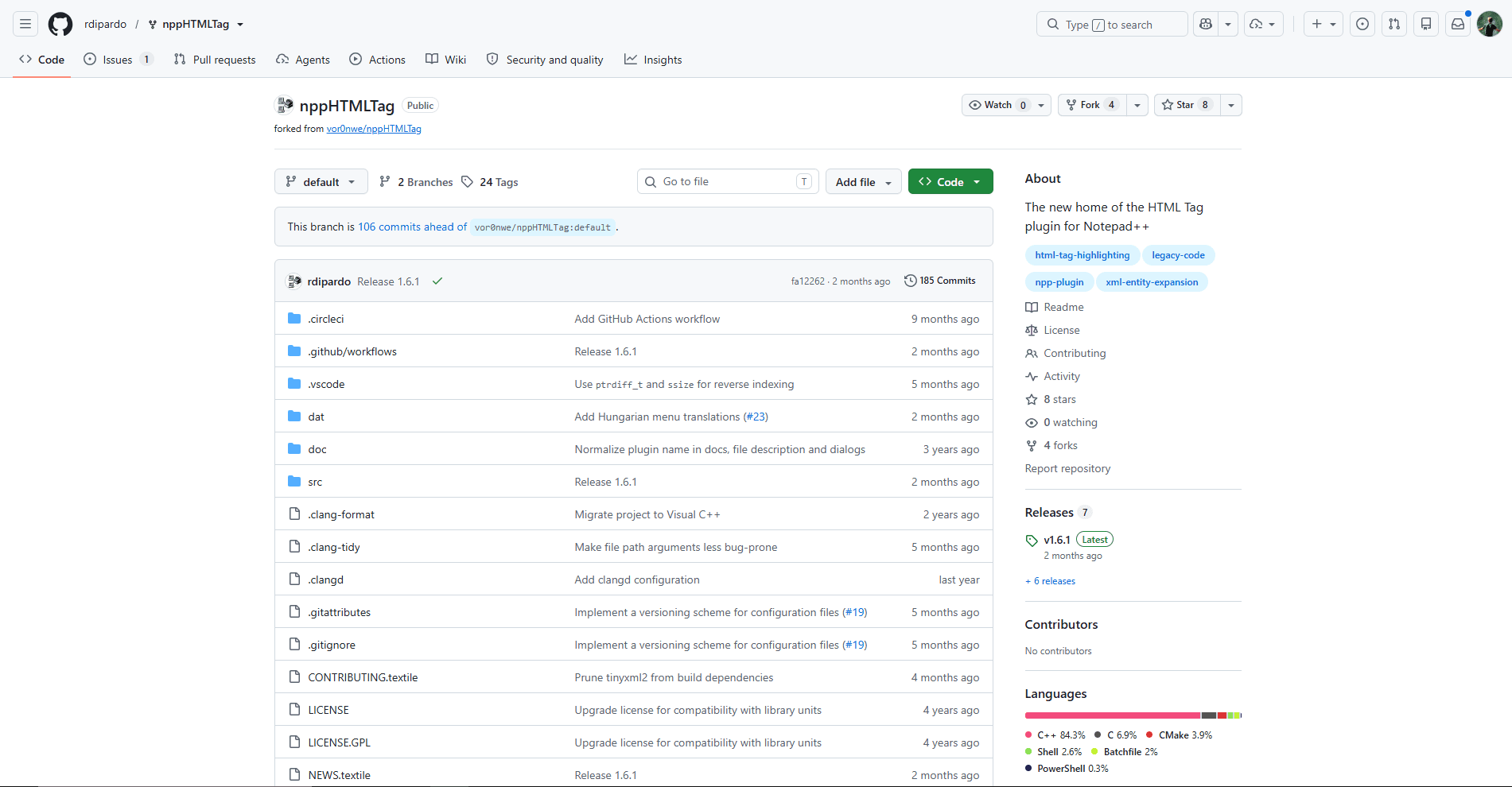
HTML Tag is not limited to HTML. Its XML commands can jump between matching tags, select a tag pair with or without its content, and rename both sides of an element together.
The default shortcuts include Alt + T for selecting the matching tag and Alt + F2 for selecting both matching tags so edits stay synchronized. Every command also appears under Plugins > HTML Tag and can be reassigned in Shortcut Mapper.
Useful parts:
- Jump between opening and closing tags.
- Select both matching tags for a synchronized rename.
- Select the complete element or only its contents.
- Current x64 and ARM64 packages in Plugins Admin.
Watch for: HTML Tag does not format XML or validate it against a schema. Its entity commands are designed for HTML as well as XML, so do not convert arbitrary characters to named HTML entities in generic XML. XML defines only a small set of predefined entity references unless the document declares others.
Install HTML Tag when paired-tag editing is frequent. XML Tools remains the better first choice for validation and formatting.
5. NppExec: Best for External XML Commands
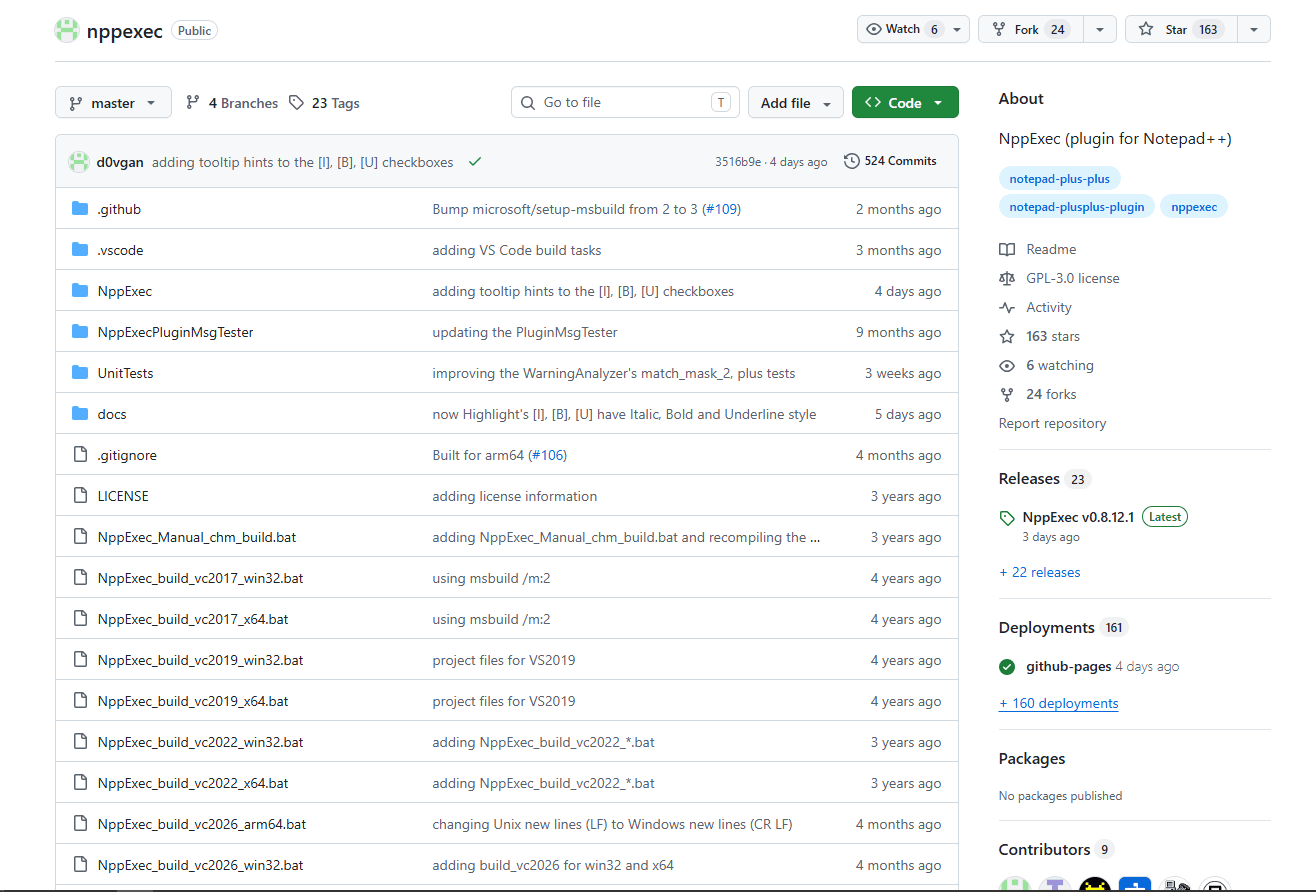
NppExec adds a console panel and saved scripts to Notepad. It can run external programs without leaving the editor, which makes it useful when your XML workflow depends on a command-line validator, formatter, transformation engine, or project-specific script.
The plugin itself does not understand XML. You supply the external tool, such as xmllint, Saxon, Jing, or a company validation script, and NppExec displays its output. Saved scripts can then be attached to menu entries or shortcuts for repeated checks.
Useful parts:
- Run console programs from Notepad.
- Save repeatable command sequences.
- Keep validator or transformation output in a docked console.
- Connect Notepad to tools already used by a build or deployment process.
Watch for: every external dependency must be installed and configured separately. Team members need the same commands and paths if the workflow is shared. NppExec appears in the current x64 registry but not the current ARM64 Plugins Admin list.
Choose NppExec when XML Tools does not support the exact validator or transformation engine your project requires.
XML Plugin Comparison
The ARM64 column reflects the official plugin list available during this update, not whether unofficial or development builds exist elsewhere. Recheck Plugins Admin after upgrading Notepad because architecture coverage can change.
A Safer XML Workflow in Notepad
Formatting, validation, and comparison answer different questions. Use them in the right order:
- Save an untouched copy of the original XML.
- Run XML Tools' syntax check to catch malformed tags, quoting errors, or invalid character placement.
- Pretty-print a working copy if readable indentation will help.
- Validate against the correct XSD or DTD when the document has a schema contract.
- Use XPath to inspect the nodes involved in the change.
- Compare the edited file with the original in ComparePlus before replacing it.
A document can be well formed and still violate its schema. It can also pass XSD validation and still break application-specific rules. Notepad plugins help with syntax and schema checks, but the target application remains the final authority on its own business rules.
When Notepad Is Enough
Notepad with XML Tools is a sensible setup for configuration files, SOAP samples, XML exports, SVG source, and occasional XSD validation on Windows. It keeps raw text visible and adds the operations most small editing jobs require.
Use a dedicated XML environment when the work centers on schema design, XSLT or XQuery debugging, XML databases, DITA, DocBook, or project-wide catalogs. The best XML editors for Windows article compares broader desktop options, while the VS Code XML extensions guide covers schema-aware editing in a project editor.
Large XML files need separate judgment. There is no dependable universal file-size limit because document structure, line length, available memory, and the selected plugin all affect behavior. For a generated export that strains the editor, use a streaming or command-line tool rather than repeatedly formatting the complete document in memory.
Which Plugins Should You Install?
- Install XML Tools on x64 Notepad for formatting, syntax checking, XSD or DTD validation, XPath, and XSLT.
- Add Npp XML Treeview when you need a visual hierarchy and accept its maintenance caveat.
- Add ComparePlus when you review revisions or configuration changes.
- Add HTML Tag when matching-tag selection and synchronized renaming save time.
- Add NppExec when an external XML command is part of your normal workflow.
Most users do not need all five. XML Tools plus ComparePlus is a practical combination for editing, validating, and reviewing ordinary XML documents.
Common Questions
How do I format XML in Notepad?
Install XML Tools from Plugins > Plugins Admin. Open the XML file, then choose one of the pretty-print commands under Plugins > XML Tools. Save a copy first if whitespace, signatures, or mixed text content may be significant.
Can Notepad validate XML against an XSD?
Yes, with XML Tools on a supported Notepad build. The plugin documents both XSD and DTD validation. Syntax highlighting alone is not validation, so run the plugin's syntax or schema command before using the file in another system.
What is the best XML tree-view plugin for Notepad?
Npp XML Treeview is the clearest current option in the official x64 plugin list. It adds a separate hierarchy view, but it does not replace XML Tools for validation. Its repository is looking for a new maintainer, so verify it after major Notepad updates.
Should I install Compare or ComparePlus?
Use ComparePlus for a new installation. It is the maintained successor documented by the same project and supports x86, x64, and ARM64 packages. Format both XML files consistently before comparing them to reduce indentation-only differences.
Why can I not find XML Tools in ARM64 Plugins Admin?
The official ARM64 plugin list does not currently include XML Tools. Plugin availability differs by architecture, so an entry visible in x64 Plugins Admin may be absent on ARM64. Do not force an x64 DLL into an ARM64 build.
Does Notepad have a dependable maximum XML file size?
No single limit applies to every XML workflow. The editor, plugin, file structure, line length, and system memory all affect the result. Avoid treating an unsourced megabyte figure as a guarantee, especially when pretty printing or building a tree representation.
Related Reading
- Best XML extensions for VS Code
- Best XML editors for Windows
- Best XML editors for Mac
- Best JSON plugins for Notepad
- Best YAML plugins for Notepad
Need to combine several documents before editing? The XML merger tool can merge compatible XML files in your browser.
Read More
All Articles
6 Best XML Extensions for VS Code in 2026
Compare six current XML extensions for VS Code for XSD validation, XPath, XSLT, tree views, grid editing, schema browsing, and formatting.
9 Best XML Editors for Mac in 2026 (Free & Paid)
Compare nine XML editors for Mac, from free text editors to professional tools for XSD validation, XSLT, XQuery, and schema-driven work.
9 Best XML Editors for Windows in 2026 (Free & Tested)
Compare the best XML editors for Windows, including VS Code, Notepad++, XML Notepad, and Oxygen for validation, schema support, and large files.