6 Best YAML Plugins for Notepad++ in 2026 (Setup Guide)

On this page
Notepad has basic YAML syntax highlighting built in. Open a .yaml file and you get color-coded keys and values. For quick config file edits, that's often enough.
For validation, formatting, and advanced editing, plugins fill the gaps. Custom YAML language definitions add better syntax highlighting with customizable colors. Compare Plugin shows differences between YAML versions side-by-side. Built-in features handle indentation fixes and whitespace cleanup.
None of these plugins provide schema validation. Notepad doesn't have a YAML validator that checks against Kubernetes schemas or OpenAPI specs. For schema-based validation, use VS Code with the Red Hat YAML extension or command-line validators through NppExec.
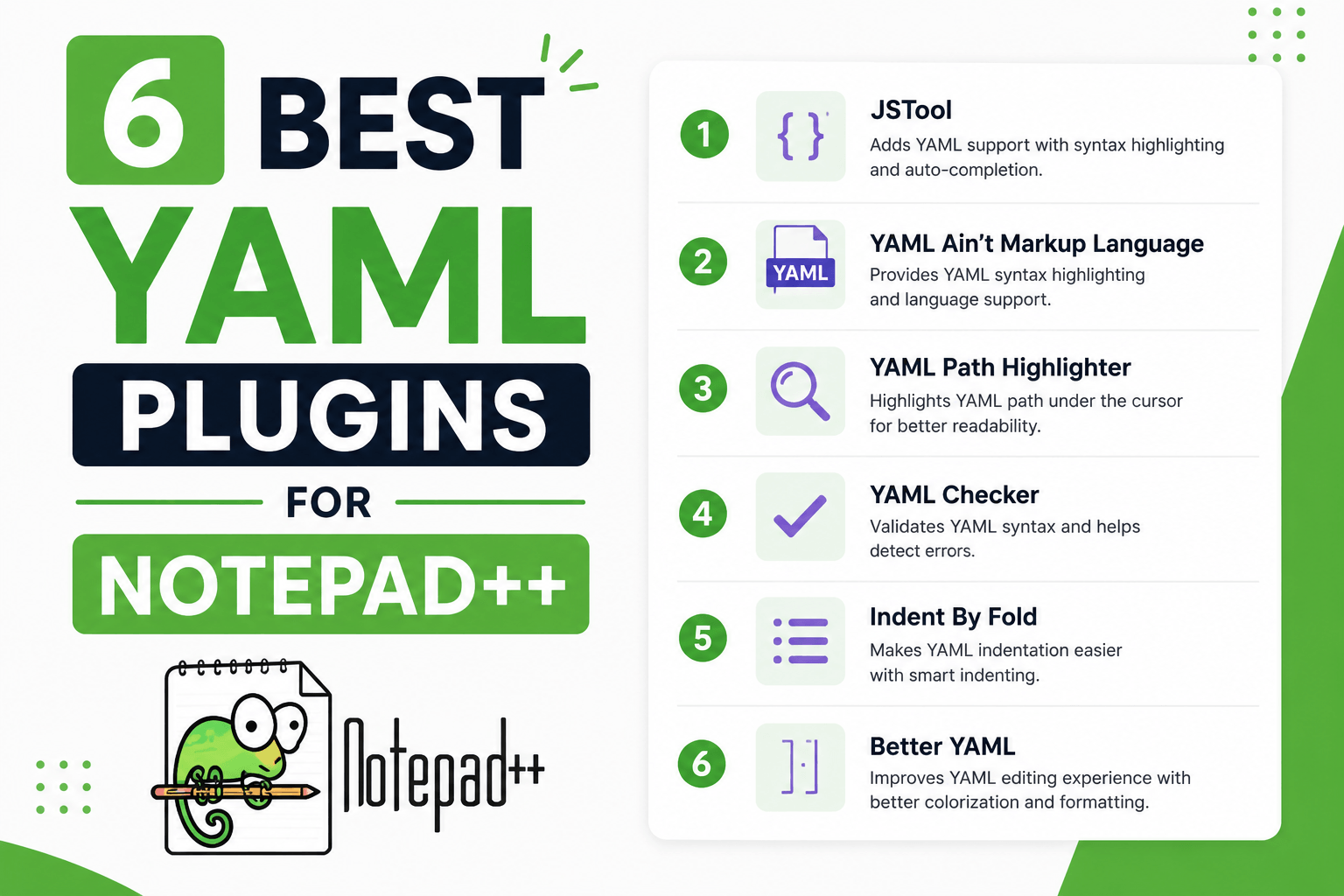
This guide covers six plugins and features that improve YAML editing in Notepad with syntax highlighting improvements, comparison tools, and formatting utilities.
Notepad Built-in YAML Support
Before installing plugins, understand what Notepad already provides.
What you get out of the box:
- Basic YAML syntax highlighting (keys, strings, numbers, booleans)
- Code folding for nested structures
- Auto-indentation when pressing Enter
- Find and replace with regex support
What's missing:
- Schema validation (no error detection for invalid field names or types)
- Auto-formatting (no automatic indentation correction)
- Schema-aware auto-completion
- Real-time error highlighting
For simple YAML config files without complex nesting, the built-in support works fine. For DevOps workflows with Kubernetes manifests or CI/CD pipelines, plugins add necessary features.
1. Custom YAML Language Definition (Best for Syntax Highlighting)
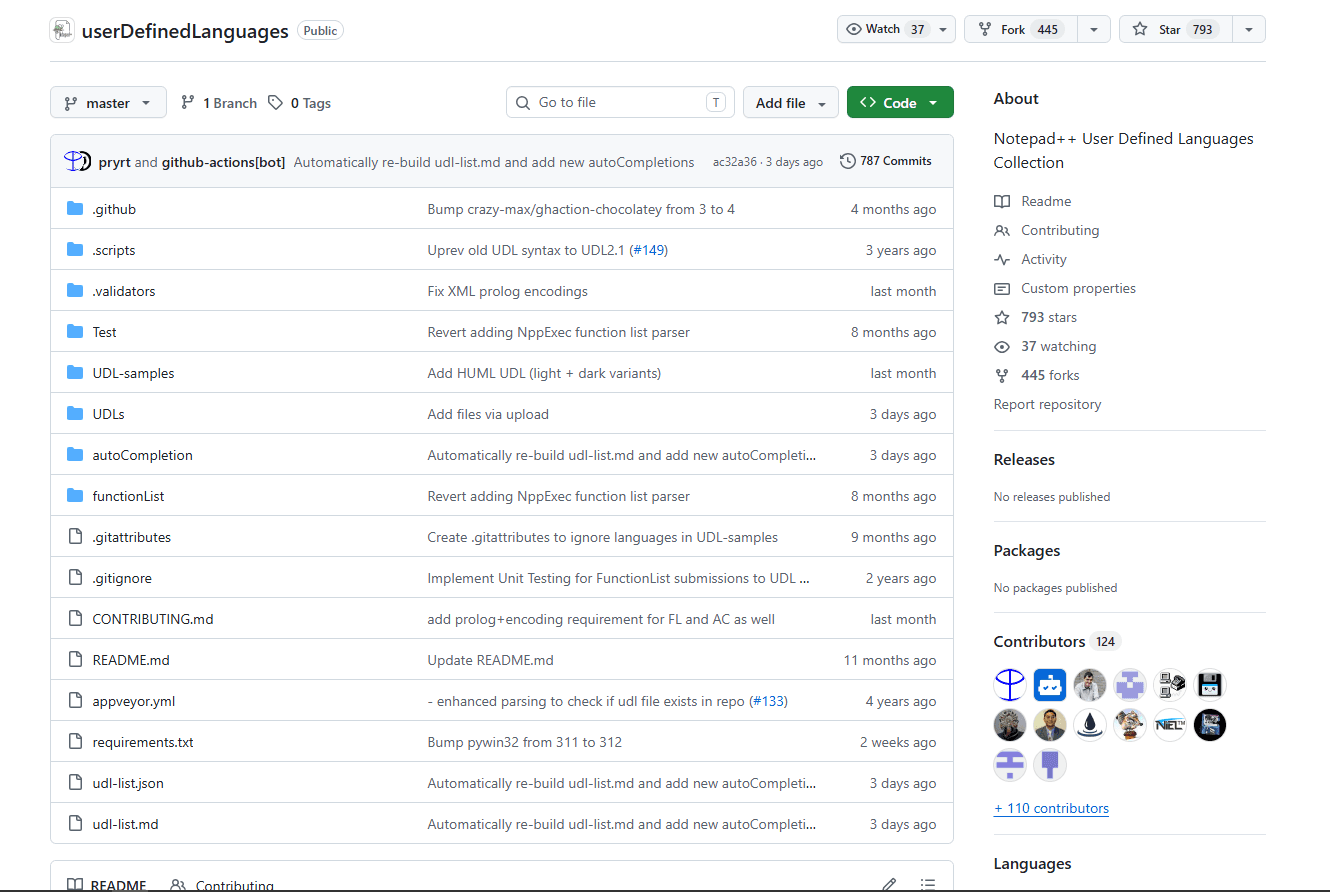
Notepad comes with YAML syntax highlighting, but custom YAML User Defined Language (UDL) files provide better visual differentiation between keys, values, comments, and data types.
Download a YAML UDL file from the Notepad UDL Collection on GitHub, then import it via Language → User Defined Language → Import.
What you get:
- More distinct colors for keys vs values vs comments
- Better visibility for nested structures and indentation levels
- Customizable color schemes to match your preferred theme
- Separate coloring for YAML anchors and aliases (&anchor, *alias)
- Support for YAML-specific syntax elements (---, ..., !tag)
- Preserved across Notepad updates
What you don't get:
- YAML validation or error detection
- Auto-formatting or indentation correction
- Schema awareness or auto-completion
Installation steps:
- Download a YAML UDL XML file from GitHub or Notepad community forums
- Open Notepad → Language → User Defined Language → Import
- Select the downloaded XML file
- Restart Notepad
- Open a YAML file → Language → Select your custom YAML language
Customization:
After importing, go to Language → User Defined Language → Define your language. Select your YAML definition. Adjust colors for Keywords, Comments, Numbers, and Operators in the Styler tab to match your theme.
When this is best:
If default YAML colors feel hard to read or insufficient. If you want YAML highlighting that matches your custom Notepad theme. If you work with complex YAML files where visual distinction helps navigation.
This only improves readability. It doesn't add validation, formatting, or error detection.
2. Compare Plugin (Best for File Comparison)
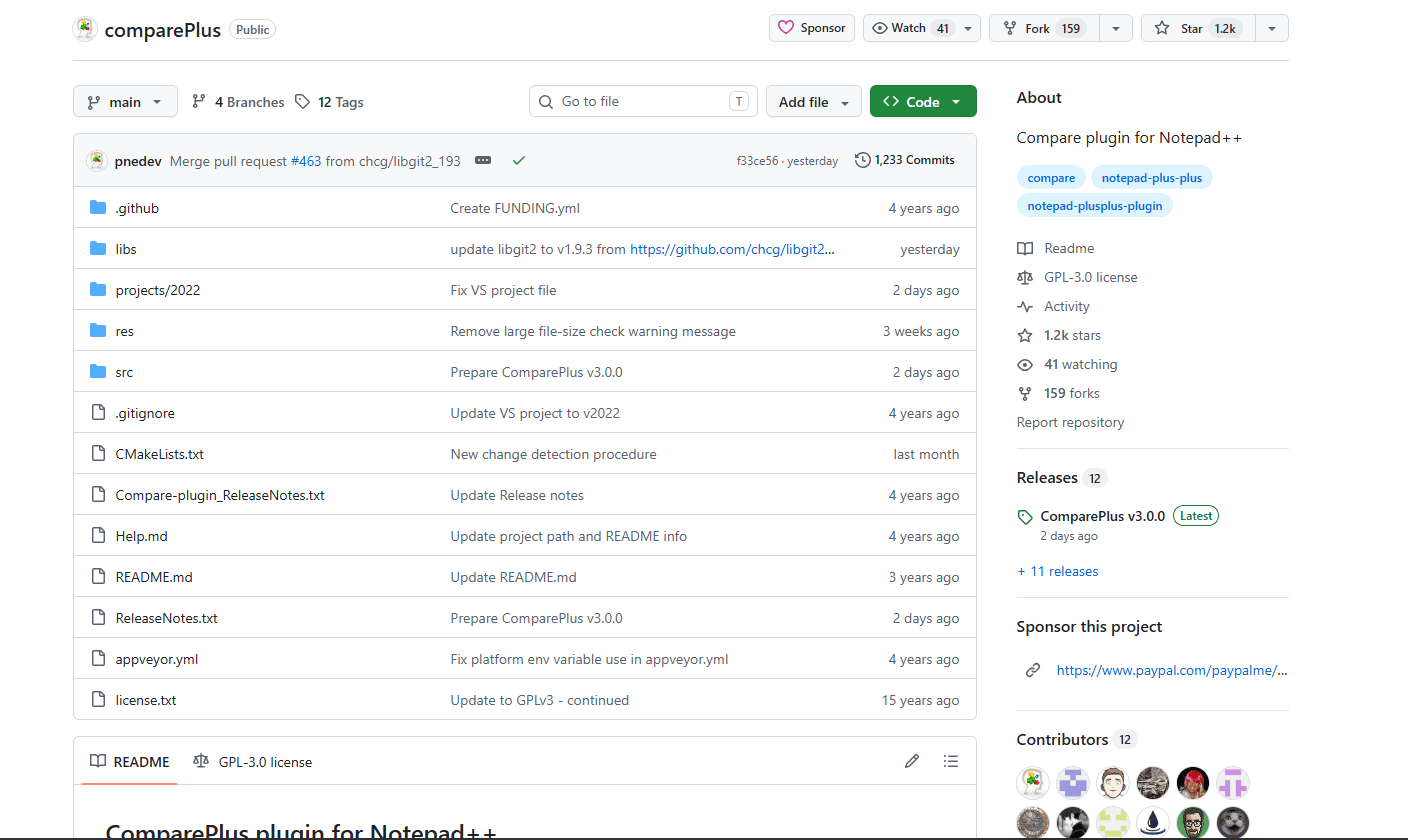
Compare Plugin shows differences between two YAML files side-by-side, essential for reviewing configuration changes before deployment or comparing versions.
Install from Plugins → Plugins Admin → Available. Search "Compare", check the box, click Install, and restart Notepad++.
What you get:
- Side-by-side diff view with synchronized scrolling
- Line-by-line comparison with added/removed/modified lines highlighted in color
- Navigation buttons to jump between differences (Alt + N for next, Alt + P for previous)
- Alignment of matching sections for easy visual comparison
- Inline diff showing exact character changes within modified lines
- Ignore whitespace option for structural comparisons
- Export comparison results to HTML
What you don't get:
- Semantic YAML comparison (reordered keys show as differences even if semantically identical)
- Three-way merge capabilities
- Directory comparison (only two files at a time)
How to use:
- Open two YAML files in separate tabs
- Plugins → Compare → Compare (or Alt + D)
- Files display side-by-side with differences color-coded
- Use Alt + N and Alt + P to navigate between changes
Practical scenarios:
When this is best:
If you frequently review YAML configuration changes before deployment. If you need visual diff for troubleshooting configuration issues. If you work with multiple versions of the same YAML file. If you want to avoid Command line git diff tools.
For semantic YAML comparison where key order doesn't matter, use command-line tools like yamldiff instead.
3. EditorConfig Plugin (Best for Consistent Formatting)
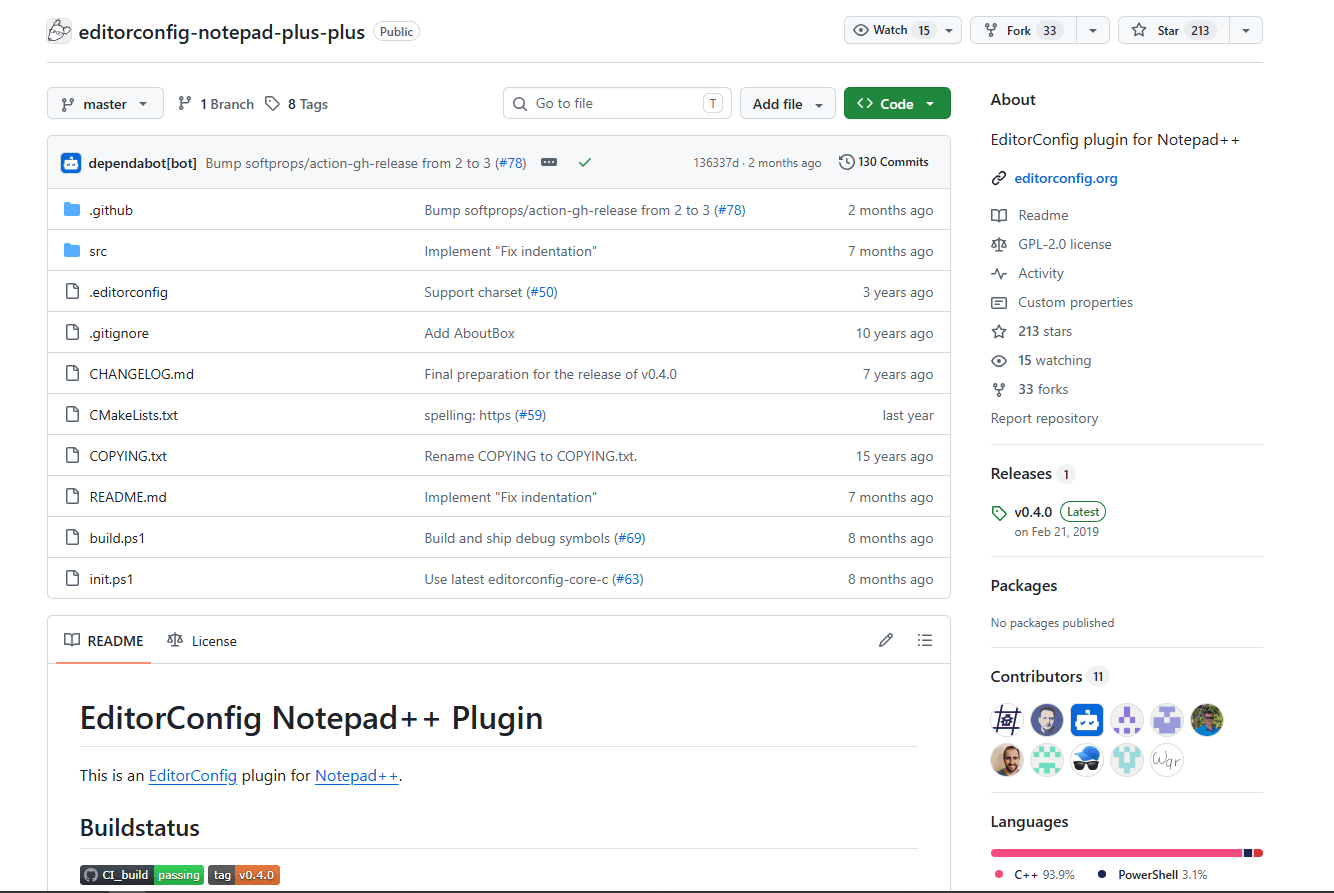
EditorConfig plugin enforces consistent indentation and formatting rules across your team using .editorconfig files.
Install from Plugins → Plugins Admin → Available. Search "EditorConfig", install, and restart Notepad.
What you get:
- Automatic application of indentation rules from .editorconfig files
- Enforces 2-space indentation for YAML files (YAML standard)
- Converts tabs to spaces automatically based on rules
- Consistent formatting across editors (VS Code, IntelliJ, Sublime all support EditorConfig)
- Project-level configuration that travels with your repository
- Line-ending enforcement (LF vs CRLF)
- Charset and final newline control
What you don't get:
- Auto-formatting or beautification of existing files
- YAML validation or error detection
- Syntax-aware formatting
Setup for YAML projects:
Create a .editorconfig file in your project root:
root = true

[*.{yaml,yml}]
indent_style = space
indent_size = 2
end_of_line = lf
charset = utf-8
trim_trailing_whitespace = true
insert_final_newline = true
Open any YAML file in that directory. EditorConfig automatically applies these rules. Press Tab and it inserts 2 spaces. Trailing whitespace removal happens on save.
Team collaboration benefits:
When this is best:
If you work in a team where consistency matters. If different developers use different editors. If you want YAML indentation rules enforced automatically. If you maintain open-source projects with external contributors.
EditorConfig is an industry standard supported by 40+ editors and IDEs.
4. NppExec (Best for External Validation)
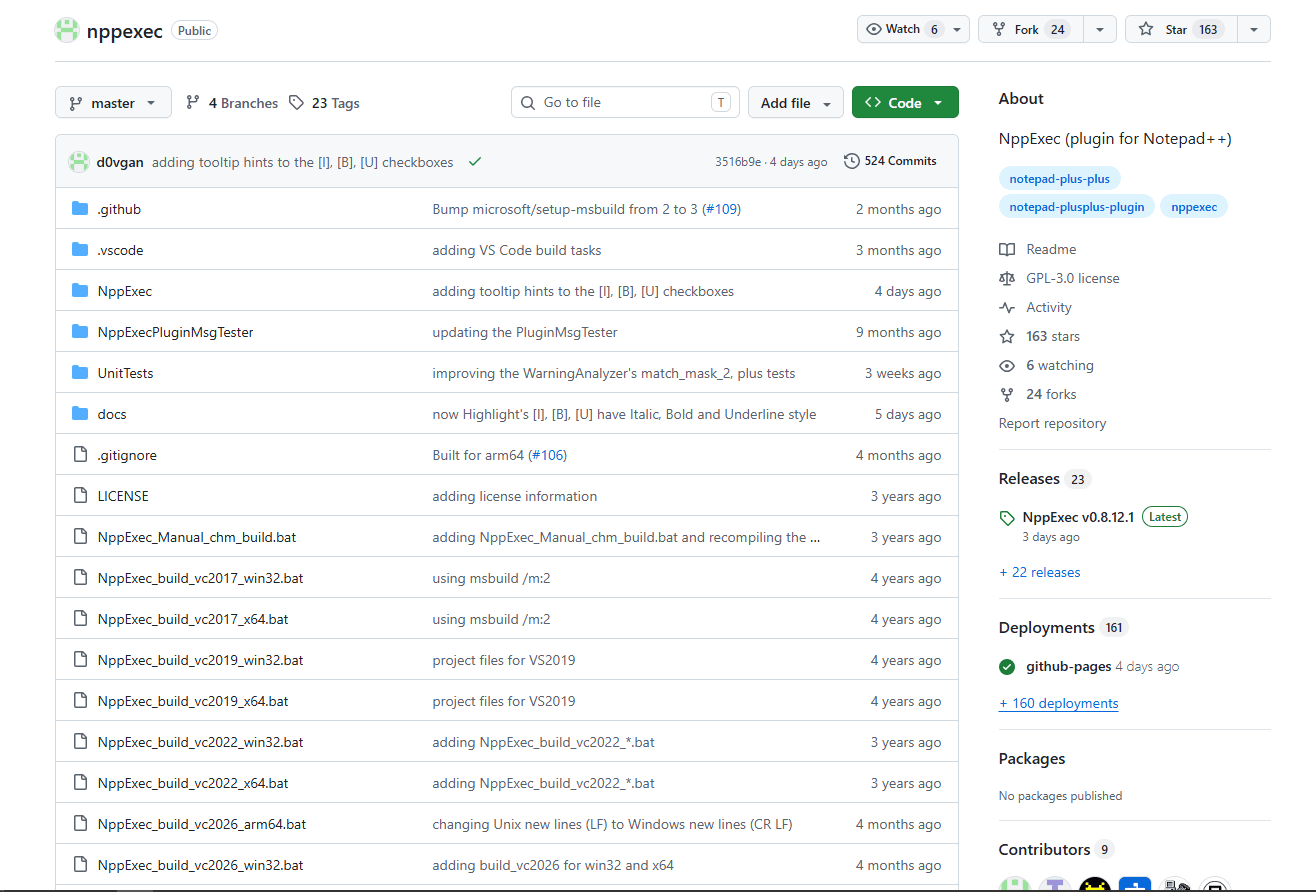
NppExec plugin runs external commands from within Notepad, letting you validate YAML files using command-line tools without leaving the editor.
Install from Plugins → Plugins Admin → Available. Search "NppExec", install, and restart Notepad.
What you get:
- Console window at bottom of Notepad for command output
- Execute any command-line tool from within the editor
- Save scripts for repeated commands (validate, format, lint)
- Keyboard shortcut assignment for saved scripts
- Environment variable support in scripts
- Integration with external validators (yamllint, pyyaml, prettier)
- Automatic file save before script execution
What you don't get:
- Built-in YAML validation (requires external tools installed)
- Inline error display in editor (errors show in console)
- Portable setup (requires tools installed on each machine)
Setup YAML validation:
Requires a YAML validation tool installed on your system. Options:
Python with PyYAML:
Install with: pip install pyyaml
yamllint (better error messages):
Install with: pip install yamllint
Create NppExec script:
-
Plugins → NppExec → Execute
-
Enter this script: Save as NPP_SAVE, then cd to current directory, then run yamllint on the current file.
-
Click Save and name it "Validate YAML"
-
Click OK to run
What this does:
- Saves the current file automatically
- Changes to the file's directory
- Runs yamllint on the current file
- Displays errors in the Console window at bottom of Notepad++
Bind to keyboard shortcut:
- Plugins → NppExec → Advanced Options
- Select your "Validate YAML" script from dropdown
- Click "Add/Modify" to assign it to a menu item
- Settings → Shortcut Mapper → Plugin commands
- Find your script and assign a shortcut (e.g., Ctrl + Shift + Y)
Now you can:
- Edit YAML in Notepad++
- Press Ctrl + Shift + Y to validate
- See errors in console without switching to Terminal
Other useful commands:
Format YAML with yq:
Install with: pip install yq
Create an NppExec script that saves the file, runs yq eval on it, replaces the file, and reloads it in Notepad.
This formats the file in place and reloads it in Notepad.
When this is best:
If you want to run YAML validators without switching to Terminal. If you use command-line tools like yamllint, yq, or prettier regularly. If you need keyboard shortcuts for validation and formatting. If you work primarily in Notepad and want validation integrated.
NppExec bridges the gap between Notepad's text editing and command-line validation tools.
5. XML Tools (Best for Quick Indentation)
XML Tools plugin is primarily for XML editing but provides formatting and indentation tools that work reasonably well with YAML for basic cleanup.
Install from Plugins → Plugins Admin → Available. Search "XML Tools", install, and restart Notepad.
What you get:
- Pretty print function for standardizing indentation
- Structure validation for basic syntax checking
- Line indentation tools
- Tag/bracket matching utilities
- Multiple formatting options and presets
What you don't get:
- YAML-specific formatting rules
- Semantic understanding of YAML syntax
- Reliable formatting for complex YAML structures (anchors, aliases)
- Schema validation
When this is best:
If you already have XML Tools installed for XML editing and need quick YAML indentation without setting up NppExec scripts. For simple, flat YAML files that need basic cleanup.
Limitation:
This is a workaround, not a dedicated YAML solution. For proper YAML formatting, NppExec with yq or prettier is more reliable. The plugin doesn't understand YAML-specific syntax elements.
6. Explorer Plugin (Best for Multi-File Navigation)
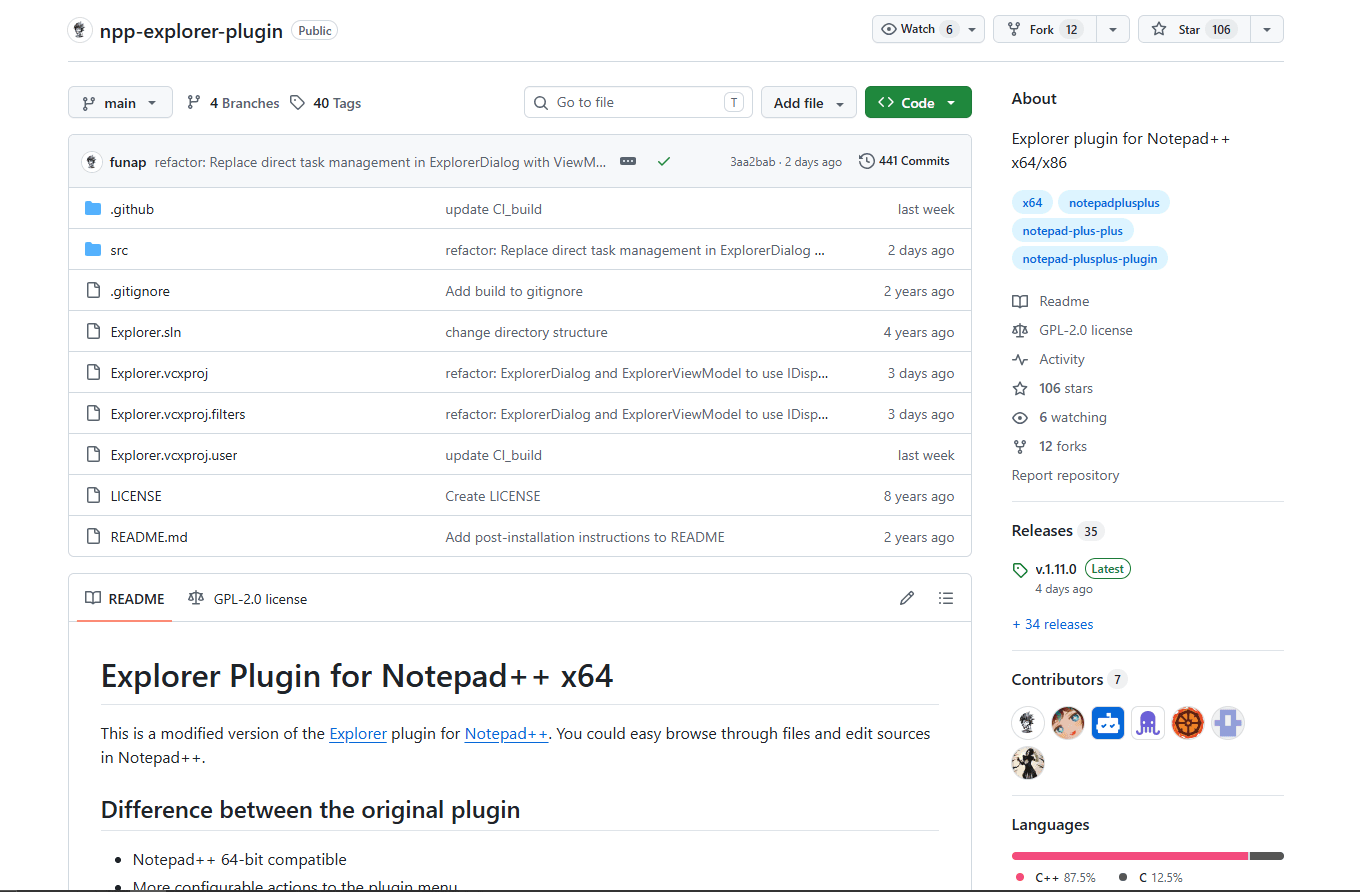
Explorer plugin adds a tree-view file browser sidebar to Notepad, essential when working with multiple YAML configuration files across a project directory structure. The plugin includes a "Full tree" feature that displays files in a hierarchical tree view.
Download from the GitHub releases page and manually install by placing the Explorer.dll in your Notepad plugins folder (~~%ProgramFiles%\Notepad\plugins\Explorer~~). For Notepad++ 7.6.3 and above, the Explorer subfolder structure must be maintained.
What you get:
- Sidebar panel showing directory tree structure (enable "Full tree" mode in settings)
- Quick file navigation without File → Open dialogs
- Fuzzy finder with Ctrl + P for fast file search by name
- File filtering by extension (show only .yaml and .yml files)
- Double-click to open files directly in editor
- Refresh button to reload directory contents
- Configurable starting directory
- Integration with Notepad++ tabs
What you don't get:
- File operations (rename, delete, move - use Windows Explorer)
- Search within files from the panel
- Git integration or file status indicators
When this is best:
If you manage multiple YAML files across directories (Kubernetes manifests, CI/CD configs, application settings). If you switch between YAML files frequently. If you work with microservices where each service has its own YAML configs.
The Explorer plugin eliminates constant File → Open navigation. Enable "Full tree" mode in the plugin settings, filter to YAML files, and jump between configurations with single clicks. The fuzzy finder (Ctrl + P) lets you quickly locate any file by typing parts of its name.
YAML Plugin Comparison Table
Recommended Setup for YAML Editing
For DevOps engineers and system administrators who prefer Notepad over VS Code:
- Install Compare Plugin — Essential for config file comparison
- Install EditorConfig — Enforces consistent indentation and formatting
- Set up NppExec with yamllint — Validation without leaving editor
- Install Explorer Plugin — Navigate multi-file YAML projects easily with tree view
- Import custom YAML UDL — Only if default colors are hard to read
Configure Settings → Preferences:
- Enable "Replace by space" under Tab Settings
- Set Tab size to 2 for YAML files
- Enable "Show indentation guide" for visual alignment
- Enable "Show whitespace and tab" to catch invisible characters
Why Notepad Has Limited YAML Support
Notepad is a text editor, not an IDE. It doesn't have a language server protocol implementation or schema validation engine built in. YAML validation requires schema loading, parsing, and semantic analysis. Plugins can't add these features without essentially embedding another program into Notepad.
For schema validation, three options:
- Use VS Code with Red Hat YAML extension — Best validation experience
- Run command-line validators via NppExec — Acceptable for quick checks
- Use online YAML validators — No install needed but not suitable for sensitive data
If your workflow requires frequent YAML schema validation (Kubernetes, OpenAPI, CI/CD), consider using VS Code for YAML editing and Notepad for other text editing tasks. Both can coexist on the same system.
Common YAML Editing Issues in Notepad
Indentation errors: Enable "Show indentation guide" in Settings → Preferences → Editing. This draws vertical lines at indent levels. Misaligned lines are immediately visible.
Tab vs space mixing: Settings → Preferences → Language → YAML → Replace by space. This converts tab key presses to spaces automatically. Or use EditorConfig plugin to enforce spacing rules automatically across your team.
Trailing whitespace: Use Edit → Blank Operations → Trim Trailing Space before saving. Some YAML parsers are strict about trailing whitespace. EditorConfig can handle this automatically on save.
No real-time validation: Run NppExec scripts periodically during editing. Or keep a Terminal window open with watch mode: watch -n 1 yamllint file.yaml.
Schema-specific validation: Not possible in Notepad without external tools. Switch to VS Code or use online validators for schema checking.
Notepad vs VS Code for YAML
When Notepad makes sense:
- Quick config file edits on Windows servers
- Lightweight tool on low-resource systems
- You're already proficient with Notepad and don't want to learn VS Code
- No schema validation needed (simple configs, not Kubernetes)
When VS Code is better:
- Kubernetes manifest editing (schema validation prevents deployment errors)
- CI/CD pipeline configs (GitHub Actions, GitLab CI, CircleCI)
- OpenAPI/Swagger YAML files (schema validation catches spec violations)
- Team environments where everyone needs consistent validation
Both editors are free. Installing both is common practice. Use Notepad for quick edits, VS Code for complex YAML work with validation requirements.
Frequently Asked Questions
How do I enable YAML syntax highlighting in Notepad?
YAML syntax highlighting is enabled by default in Notepad. Open any file with .yaml or .yml extension and syntax colors apply automatically. If highlighting doesn't activate, check Language menu → Y → YAML is selected. For better highlighting, import a custom YAML User Defined Language (UDL) file from Language → User Defined Language → Import.
Can Notepad validate YAML files?
Not natively. Notepad doesn't have built-in YAML validation or schema checking. For validation, install the NppExec plugin and run external validators like yamllint or pyyaml through NppExec scripts. Or use VS Code with the Red Hat YAML extension for real-time validation. Online YAML validators work for quick checks if you don't have sensitive data.
What's the best YAML plugin for Notepad?
Compare Plugin for comparing YAML file versions. It shows side-by-side diffs with changes highlighted, which is essential when reviewing config modifications before deployment. Install it from Plugins → Plugins Admin → Search "Compare" → Install. For validation, use NppExec to run command-line tools. For consistent formatting, use EditorConfig plugin.
How do I format YAML in Notepad?
Notepad doesn't auto-format YAML. For manual formatting, use Edit → Blank Operations → Trim Trailing Space to remove whitespace, and Settings → Preferences to configure 2-space indentation. For automatic enforcement, install EditorConfig plugin and create a .editorconfig file. For complete formatting, install NppExec plugin and set up a script that runs yq or prettier command-line formatters.
Does Notepad support YAML schema validation?
No. Notepad doesn't support schema validation for YAML files. It can't validate against Kubernetes schemas, OpenAPI specs, or custom JSON Schema definitions. For schema validation, use VS Code with the Red Hat YAML extension, or set up NppExec to run external validators. Online tools like SchemaStore.org validators work for non-sensitive files.
How do I compare two YAML files in Notepad++?
Install Compare Plugin from Plugins → Plugins Admin. Open both YAML files in separate tabs. Click Plugins → Compare → Compare. The files display side-by-side with differences highlighted. Use Alt + N to jump to next difference, Alt + P for previous difference. The plugin shows line-by-line text differences but doesn't understand YAML semantics (reordered keys show as differences even if semantically identical).
Related Reading
For full IDE YAML editing with schema validation, see the best YAML extensions for VS Code guide.
Platform-specific editors:
- Best YAML editors for Windows for Windows YAML tools
- Best YAML editors for Linux for Linux command-line and GUI options
- Best YAML editors for Mac for macOS native apps
Other Notepad plugin guides:
- Best JSON plugins for Notepad for JSON editing in Notepad
- Best XML plugins for Notepad for XML workflow optimization
Format comparisons:
Read More
All Articles
6 Best YAML Plugins for IntelliJ IDEA (2026)
Compare the best YAML plugins for IntelliJ IDEA, including built-in support, Kubernetes, Helm, Docker, Cloud Code, and schema validation.

5 Best YAML Editors for Home Assistant in 2026 (Config Editing)
Compare the best YAML editors for Home Assistant, including Studio Code Server, Config Helper, File Editor, Notepad++, and Vim for configuration.yaml.
7 Best YAML Extensions for VS Code in 2026 (Tested & Ranked)
Find the best YAML extension for VS Code with schema validation, Kubernetes support, and auto-formatting. Compare Red Hat YAML vs YAML Language Support for professional workflows.