How to Format JSON in VS Code: Shortcuts & Prettify (2026)

On this page
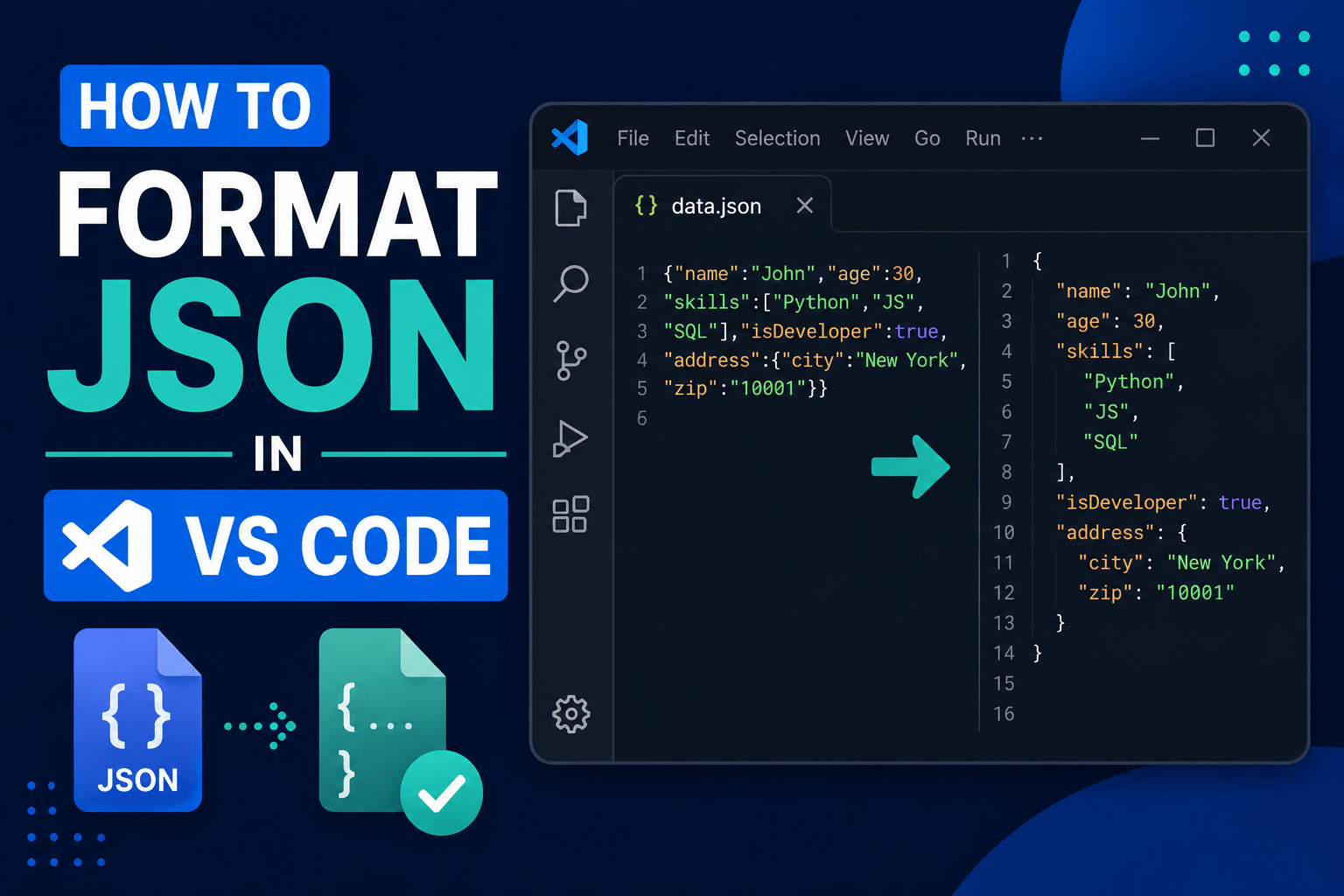
Press Shift+Alt+F on Windows, Ctrl+Shift+I on Linux, or Shift+Option+F on Mac to format JSON in VS Code. This keyboard shortcut prettifies your JSON with proper indentation. No extension is needed because VS Code has a built-in JSON formatter.
VS Code automatically recognizes .json files. It highlights syntax, catches errors as you type, folds nested objects and arrays, validates config files against schemas, and beautifies JSON with clean indentation. For most developers, the built-in formatter is all you need to make messy JSON readable.
If you want JSON to format every time you save, enable editor.formatOnSave. If your team already uses Prettier for JavaScript, TypeScript, CSS, or Markdown, you can use Prettier for JSON too. JSON Tools adds prettify and minify commands, while key sorting requires a separate extension.
How to Format JSON in VS Code
Open your JSON file in VS Code. Press Shift+Alt+F on Windows, Ctrl+Shift+I on Linux, or Shift+Option+F on Mac. That's it. Your JSON is formatted.
You can also right-click inside the editor and choose Format Document from the context menu.
Before formatting:
{"name":"Alex","age":30,"city":"Portland","skills":["Python","SQL","JavaScript"],"settings":{"theme":"dark","notifications":true}}After formatting:
{
  "name": "Alex",
  "age": 30,
  "city": "Portland",
  "skills": [
    "Python",
    "SQL",
    "JavaScript"
  ],
  "settings": {
    "theme": "dark",
    "notifications": true
  }
}
The prettified version is much easier to scan. Nested objects, arrays, and key-value pairs become visible at a glance without counting brackets.
JSON Formatting Shortcuts for VS Code
If you forget the shortcut, open the Command Palette and search Format Document. VS Code shows the current keybinding beside each command, so you can quickly remind yourself.
Format JSON in VS Code on Mac
If you're on a Mac, the keyboard shortcut to format JSON in VS Code is Shift+Option+F. It runs the same Format Document command as Shift+Alt+F on Windows and Ctrl+Shift+I on Linux, prettifying the entire JSON document in one step.
Here's a quick walkthrough for Mac users:
- Open your .json file in VS Code
- Press Shift+Option+F to beautify the JSON
- If that doesn't work, press Cmd+Shift+P to open the Command Palette and type Format Document
To enable auto-formatting on save so your JSON is always prettified when you hit Cmd+S:
- Press Cmd+, to open Settings
- Search for format on save
- Check the box for Editor: Format On Save
Or add this to your VS Code settings.json:
{
  "[json]": {
    "editor.formatOnSave": true
  }
}
The formatting methods described here are also available on macOS. The main difference is the keyboard shortcuts, which use Cmd and Option in several places instead of Ctrl and Alt.
Quick Comparison: All JSON Formatting Methods
Most people should start with the built-in formatter. Add Prettier if your project already uses it. Add JSON Tools only if you need a dedicated minify command or its prettify shortcut.
Enable Format on Save for JSON
Format on save makes VS Code beautify your JSON automatically every time you press Ctrl+S (or Cmd+S on Mac). No more reaching for the format shortcut each time.
Open Settings with Ctrl+, on Windows/Linux or Cmd+, on Mac. Search for format on save. Enable Editor: Format On Save.
Or add this to your VS Code settings:
{
  "editor.formatOnSave": true
}
If you only want auto-formatting for JSON files and don't want it affecting other languages, use language-specific settings:
{
  "[json]": {
    "editor.formatOnSave": true
  }
}
This keeps formatting automatic for JSON without changing how other file types behave. Every time you save a JSON file, VS Code will prettify it instantly.
How to Create a JSON File in VS Code
Before you can format JSON, you need a JSON file. Here's how to create one in VS Code:
- Press Ctrl+N (Cmd+N on Mac) to create a new file
- Press Ctrl+S (Cmd+S on Mac) and save it with a .json extension, for example data.json
- VS Code automatically recognizes the .json extension and enables JSON language support
Alternatively, if you want to paste JSON into an untitled file and get formatting support immediately:
- Open a new tab with Ctrl+N (Cmd+N on Mac)
- Click the language mode indicator in the bottom-right corner (it probably says Plain Text)
- Choose JSON from the list
- Paste your JSON content
- Press Shift+Alt+F on Windows, Ctrl+Shift+I on Linux, or Shift+Option+F on Mac to format it
You can also create a JSON file from the VS Code Explorer sidebar. Right-click inside the file tree, select New File, and type a filename ending in .json. VS Code will open the file with full JSON support including syntax highlighting, validation, formatting, and autocomplete for known schemas.
Use Prettier to Format JSON in VS Code
VS Code's built-in JSON formatter works well on its own. Prettier becomes useful when your whole project already uses it and you want one consistent formatter across JSON, JavaScript, TypeScript, CSS, Markdown, and HTML.
Install Prettier:
- Open Extensions with Ctrl+Shift+X or Cmd+Shift+X
- Search Prettier - Code formatter
- Install the extension by Prettier
- Set it as the default formatter
Add this to settings.json:
{
  "editor.defaultFormatter": "esbenp.prettier-vscode",
  "editor.formatOnSave": true
}
For JSON only:
{
  "[json]": {
    "editor.defaultFormatter": "esbenp.prettier-vscode",
    "editor.formatOnSave": true
  }
}
Prettier respects project config files like .prettierrc. That helps teams keep indentation and formatting consistent across everyone's editor.
Built-In Formatter vs Prettier
Use the built-in formatter for quick JSON work. Use Prettier when your repository already has formatting rules or multiple developers touching the same files.
Best JSON Formatter Extensions for VS Code
VS Code's built-in JSON support is solid for everyday formatting, but extensions add extra functionality that the built-in tools don't cover. Here are the most useful JSON formatter extensions:
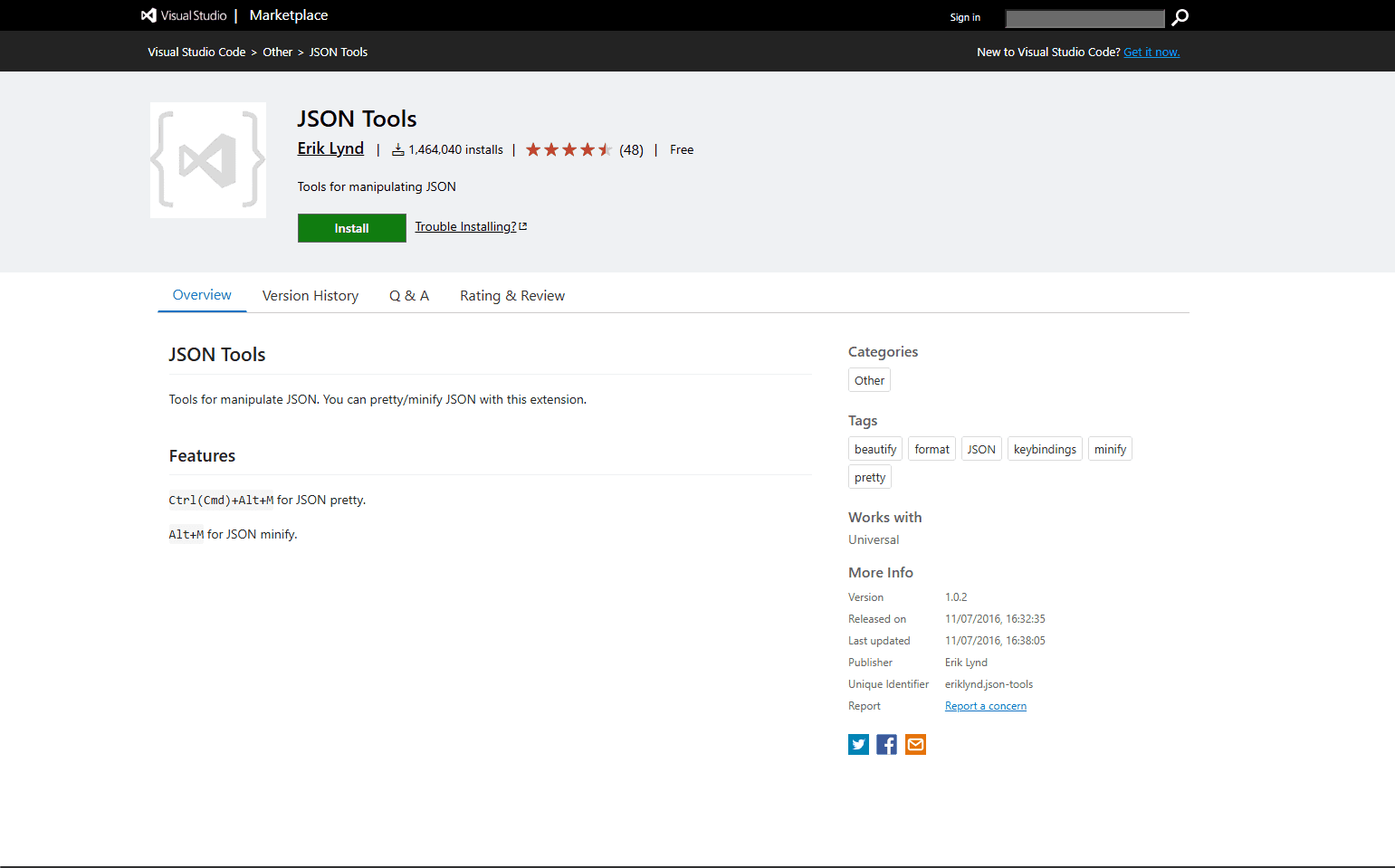
JSON Tools: JSON Tools adds commands and documented shortcuts to prettify or minify JSON. It does not currently document a key-sorting command.
Prettier - Code formatter: Prettier formats JSON along with JavaScript, TypeScript, HTML, CSS, and Markdown. It fits teams that want one configured formatter across those file types.
Pretty JSON: Pretty JSON provides Prettify and Uglify commands for readable or compact JSON. It does not define shortcuts by default.
JSON Formatter: Several Marketplace extensions use this generic name. Check the publisher and current feature list before installing one; VS Code's built-in formatter already covers basic document formatting.
To install any of these extensions:
- Open the Extensions sidebar with Ctrl+Shift+X (Cmd+Shift+X on Mac)
- Search for the extension name
- Click Install
- The extension's commands appear in the Command Palette immediately
For most people, the built-in formatter is enough. Add JSON Tools for a minify command, or Prettier if your project already uses it.
How to Prettify and Beautify JSON in VS Code
Prettifying, beautifying, and formatting JSON all mean the same thing in VS Code. They take compact or messy JSON and adding proper indentation and line breaks so it's easy to read.
Here's how to prettify JSON in VS Code:
- Open your JSON file
- Press Shift+Alt+F on Windows, Ctrl+Shift+I on Linux, or Shift+Option+F on Mac
- Your JSON is beautified with clean indentation
If you prefer using the Command Palette, press Ctrl+Shift+P (Cmd+Shift+P on Mac) and type Format Document. This runs the same prettify action.
You can also right-click anywhere in the editor and select Format Document from the context menu. All three methods produce the same beautifully formatted result.
When the shortcut doesn't prettify your JSON, it's usually because VS Code doesn't recognize the file as JSON. Check the language mode in the bottom-right corner of VS Code. If it says Plain Text, click it and switch to JSON. Then try the shortcut again.
Minify JSON in VS Code
Minifying JSON is the opposite of prettifying. It removes insignificant whitespace outside string values to produce a compact representation of your data. This is useful when you need smaller payloads for APIs, log entries, or embedded JSON strings.
VS Code does not include a built-in JSON minify command. Here are several ways to minify JSON:
Using the JSON Tools extension:
- Install JSON Tools from the Extensions marketplace
- Open your JSON file
- Press Alt+M, the extension's documented minify shortcut
Using jq from the command line:
jq -c . input.json > minified.jsonUsing Python:
python -c "import json,sys; json.dump(json.load(open(sys.argv[1])),open(sys.argv[2],'w'),separators=(',',':'))" input.json minified.jsonMinified JSON looks like this, with structural spacing removed while spaces inside string values remain unchanged:
{"name":"Alex","age":30,"city":"Portland","skills":["Python","SQL","JavaScript"]}Keep formatted JSON for editing and readability. Use minified JSON when you need compact data for transmission or storage.
Format JSON to One Line or Expand to Multiple Lines
Sometimes you need to collapse prettified JSON into a single line, or expand a one-liner into readable multi-line format.
To convert multi-line JSON to one line (minify), use the JSON Tools extension or jq as described in the minify section above. The jq -c flag specifically outputs compact single-line JSON.
To convert one-line JSON to multiple lines (prettify), press Shift+Alt+F on Windows, Ctrl+Shift+I on Linux, or Shift+Option+F on Mac. VS Code's built-in formatter takes valid single-line JSON and expands it into properly indented multi-line format.
Here's a quick example:
One-line JSON:
{"users":[{"name":"Alex","role":"admin"},{"name":"Sam","role":"editor"}]}After running Format Document (expanded to multiple lines):
{
  "users": [
    {
      "name": "Alex",
      "role": "admin"
    },
    {
      "name": "Sam",
      "role": "editor"
    }
  ]
}
This back-and-forth between compact and expanded JSON is a common workflow when copying JSON between editors, APIs, and config files.
Format JSONC Files with Comments
VS Code supports JSONC, which means JSON with comments. This matters for files like:
- settings.json
- tasks.json
- launch.json
- some tool configuration files
Regular JSON does not allow comments. JSONC does. VS Code understands this difference and can format JSONC files without deleting comments.
Example:
{
  // Editor settings
  "editor.formatOnSave": true,
  "editor.tabSize": 2
}
Not every tool accepts JSONC. A file can format correctly in VS Code and still fail in a strict JSON parser if it contains comments. Use comments only in files that explicitly support JSONC.
Change JSON Indentation in VS Code
Most JSON files use 2 spaces. Some teams prefer 4 spaces.
To change indentation:
- Open Settings
- Search tab size
- Set Editor: Tab Size to 2 or 4
- Search insert spaces
- Keep Editor: Insert Spaces enabled
- Reformat the file with the Format Document shortcut for your operating system
For JSON only:
{
  "[json]": {
    "editor.tabSize": 2,
    "editor.insertSpaces": true
  }
}
If your project uses Prettier or an EditorConfig extension, an .editorconfig file may also control indentation. Check the project settings before changing global preferences.
When Format Document Does Not Work
The most common reason: the file is not recognized as JSON.
Look at the bottom-right corner of VS Code. If it says Plain Text, click it and choose JSON. Then run Format Document again.
Other causes:
- The file has syntax errors
- Another extension is overriding the formatter
- No default formatter is selected
- The file is too large and VS Code is struggling
- You selected text and ran the wrong command
Use Command Palette -> Format Document With... to choose the formatter manually. If multiple formatters are installed, this tells VS Code exactly which one to use.
When JSON Formatting Fails
Syntax errors can prevent or limit formatting. In strict JSON mode, fix the errors before relying on the formatted result.
Common errors:
- Trailing comma: {"name": "Alex",}
- Single quotes: {'name': 'Alex'}
- Missing comma: {"a": 1 "b": 2}
- Unquoted keys: {name: "Alex"}
- Unmatched brackets: {"items": [1, 2}
- Comments in strict JSON: // comment
VS Code shows red squiggles near invalid syntax. Open the Problems panel with Ctrl+Shift+M or Cmd+Shift+M to see the exact error. Fix the syntax error first, then format again.
Format Only Selected JSON
Sometimes JSON is embedded inside another file: a JavaScript string, an HTML JSON-LD block, or a config snippet inside documentation. Format Selection uses the formatter for the current editor language, so it does not automatically treat every selected fragment as standalone JSON.
To format only part of a file:
- Select the JSON text
- Right-click
- Choose Format Selection
Shortcut:
For a fragment in a non-JSON file, use Format Selection only when that language's formatter supports the fragment. Otherwise, copy it to a temporary JSON-language tab, format it there, and paste it back. Take care with escaped JSON strings because their quote and backslash escaping must remain valid in the host language.
Format JSON from the Command Line
If you have VS Code's code command installed, you can open a JSON file from the terminal:
code data.jsonThen run Format Document in the editor.
For true command-line formatting without opening VS Code, use Python:
python -m json.tool input.json output.jsonOr use jq:
jq . input.json > output.jsonUse command-line tools for automation and batch jobs. Use VS Code for interactive editing.
Batch Formatting Multiple JSON Files
VS Code is not the best tool for formatting hundreds of files at once. Use Python or jq.
PowerShell:
Get-ChildItem -Recurse -Filter *.json | ForEach-Object {
    $formattedPath = "$($_.FullName).formatted"
    python -m json.tool $_.FullName $formattedPath
    if ($LASTEXITCODE -eq 0) {
        Move-Item $formattedPath $_.FullName -Force
    } else {
        Remove-Item $formattedPath -ErrorAction SilentlyContinue
    }
}
Bash:
for file in *.json; do
    output="$file.formatted"
    if python -m json.tool "$file" > "$output"; then
        mv "$output" "$file"
    else
        rm -f "$output"
    fi
done
The Bash script formats every .json file in the current folder. The PowerShell version uses Get-ChildItem -Recurse -Filter *.json to find JSON files recursively and replaces a file only after Python succeeds. Back up important files first or run the script in a copy of the folder.
Formatting Large JSON Files in VS Code
VS Code handles ordinary config files and API responses in the editor. Large JSON exports place more pressure on parsing, formatting, extensions, and memory.
There is no dependable file-size threshold for JSON formatting. Behavior depends on the document structure, line count, available memory, active extensions, and formatter. VS Code may disable editor features for files it treats as large, and formatting the full document can still become impractical.
Better options for large files:
- Use a JSON splitter to break the file into smaller chunks
- Use JSON to table if the file is array-based data
- Use JSON to Excel if you need spreadsheet analysis
- Use Python or jq for command-line formatting
- Use a dedicated large-file JSON viewer
If the file is a data export with thousands of objects, formatting the raw text may not be the best view. A table or spreadsheet is usually easier.
Formatting API Responses
Copy the JSON response from your browser DevTools, Postman, Insomnia, or curl output. Open VS Code, create a new file, paste the JSON, then set the language mode to JSON.
Fast workflow:
- Copy the response body
- Open a new VS Code tab
- Paste the JSON
- Click language mode in the bottom-right
- Choose JSON
- Run Format Document
If you do this often, save the scratch file as response.json. VS Code will remember JSON mode, and formatting works immediately.
Sorting JSON Keys in VS Code
VS Code can format JSON, but it does not sort keys alphabetically by default.
If you need key sorting, install Sort JSON. It supports object-key sorting and controls for direction, depth, arrays, and selected JSON.
Use key sorting when:
- You want cleaner Git diffs
- Multiple people edit the same config file
- You compare generated JSON files
- Your team wants deterministic key order
Do not sort keys if order carries meaning for humans, such as hand-organized config sections.
Flatten JSON in VS Code
If you're working with deeply nested JSON and want to simplify the structure, you can flatten it. Flattening converts nested objects and arrays into a single level with dot-notation keys.
For example, this nested JSON:
{
  "user": {
    "name": "Alex",
    "address": {
      "city": "Portland"
    }
  }
}
Becomes this when flattened:
{
  "user.name": "Alex",
  "user.address.city": "Portland"
}
VS Code doesn't have a built-in flatten command, but you have a few options:
- Use a JSON Flattener tool for quick online flattening
- Install a transformation extension that explicitly documents flattening support
- Use a script with Python or jq for more control over how nesting is handled
Flattening is especially useful before importing JSON into spreadsheets, databases, or data analysis tools where a flat structure is easier to query.
VS Code JSON Validation
VS Code validates JSON while you type. Missing commas, extra brackets, and invalid syntax show as red squiggles.
It also supports JSON Schema. Schema validation checks whether your JSON has the expected keys, value types, and allowed values. VS Code automatically applies schemas for common files like package.json and many project config files.
For a custom schema, add a json.schemas setting:
{
  "json.schemas": [
    {
      "fileMatch": ["/config/*.json"],
      "url": "./schemas/app-config.schema.json"
    }
  ]
}
Now VS Code validates matching config files against your schema and provides autocomplete based on allowed properties.
VS Code vs Notepad for JSON Formatting
Use VS Code if JSON is part of your development workflow. Use Notepad++ if you want a fast, lightweight editor for occasional formatting.
Frequently Asked Questions
What is the shortcut to format JSON in VS Code?
Shift+Alt+F on Windows, Ctrl+Shift+I on Linux, or Shift+Option+F on Mac. You can also right-click and choose Format Document, or open the Command Palette with Ctrl+Shift+P and search for it.
Does VS Code format JSON without extensions?
Yes. VS Code has built-in JSON support, including formatting, syntax highlighting, validation, folding, and schema-aware editing. You don't need any extension to prettify or beautify JSON.
How do I auto-format JSON on save in VS Code?
Enable editor.formatOnSave in Settings. For JSON only, add "[json]": { "editor.formatOnSave": true } to settings.json. From then on, every time you save a JSON file, VS Code formats it automatically.
What is the shortcut to format JSON in VS Code on Mac?
Press Shift+Option+F to format the entire JSON document. For formatting a selection, use Cmd+K Cmd+F. For the Command Palette, use Cmd+Shift+P and type Format Document.
How do I prettify or beautify JSON in VS Code?
Prettify, beautify, and format refer to the same operation here. Press Shift+Alt+F on Windows, Ctrl+Shift+I on Linux, or Shift+Option+F on Mac to add indentation and line breaks.
Why is Format Document not working?
The file may not be recognized as JSON, the JSON may contain syntax errors, or multiple formatters may be conflicting. Set the language mode to JSON, fix red error markers, then use Format Document With... if needed.
Can VS Code format JSON with comments?
Yes, when the file is treated as JSONC. VS Code settings files and launch/task config files support JSON with comments. Strict JSON files should not contain comments.
Can VS Code sort JSON keys?
Not by default. Install Sort JSON or use a script if you need key sorting.
How do I minify JSON in VS Code?
Install the JSON Tools extension and press its documented Alt+M minify shortcut. Alternatively, use jq -c . input.json from the terminal for command-line minification.
What if my JSON file is huge?
VS Code can slow down with very large JSON files. Split the file first with a JSON splitter, inspect it as a table with JSON to table, or use Python/jq from the command line.
Is Prettier better than the built-in VS Code formatter?
Prettier is better for team-wide consistency across many file types. The built-in formatter is enough for quick JSON formatting.
How do I format only selected JSON in VS Code?
Select the JSON text, right-click, and choose Format Selection. Shortcut: Ctrl+K Ctrl+F on Windows/Linux or Cmd+K Cmd+F on Mac.
How do I create a JSON file in VS Code?
Press Ctrl+N (Cmd+N on Mac) to create a new file, then save it with a .json extension. VS Code automatically enables JSON language support for any file ending in .json.
How do I format JSON to one line in VS Code?
Use JSON Tools with Alt+M, or run jq -c . input.json from the terminal. Both compress valid JSON into a single compact line.
What is the best JSON formatter extension for VS Code?
For most users, the built-in formatter is enough. Use JSON Tools for minification, Sort JSON for key sorting, or Prettier for configured formatting across many languages.
Related Tools
Need to clean up JSON before or after formatting?
- JSON Merger - Combine multiple JSON files into one
- JSON Splitter - Break huge JSON files into smaller chunks
- JSON to Excel - Convert JSON data into spreadsheet format
- JSON to Table - Inspect JSON arrays in a table view
- JSON Flattener - Flatten nested JSON before analysis
- Best JSON Extensions for VS Code - Add tree views, sorting, minification, and extra JSON tools
- How to Format JSON in Notepad++ - Format JSON in a lightweight Windows editor
Read More
All Articles
How to Format JSON in Notepad++: Quick Setup (2026)
Format JSON in Notepad++ with the JSTool plugin. Includes setup, shortcuts, validation, minification, troubleshooting, and formatting tips.
How to Create JSON File in Java: Step-by-Step Guide (2026)
Create JSON files in Java with Jackson, Gson, or org.json. Includes dependency setup, code examples, and file-writing best practices.
How to Merge JSON Files: Fastest and Easiest Way (2026)
Merge multiple JSON files into one using free online tool, Python, or jq command line. Complete guide with code examples for arrays, objects, nested JSON, and deduplication.