7 Best EPUB Readers for Chromebook in 2026 (Free & Paid)

On this page
Chromebooks run three types of apps: Android apps from Google Play Store, Chrome extensions from Chrome Web Store, and Linux apps (if enabled). Each approach has tradeoffs. Android and Linux availability varies by device, account, and administrator policy.
Google Play Books syncs across devices through the web or Android app. ReadEra (Android app) opens EPUB files with no ads or account required on supported Chromebooks. EPUBReader (Chrome extension) works in the browser and supports offline reading.
Casual readers want simple interfaces and cloud sync. Power users need library management and format conversion. The seven readers below cover web, Android, extension, and Linux workflows; not every Chromebook supports every app type.
1. Google Play Books (Best for Chrome OS Integration)
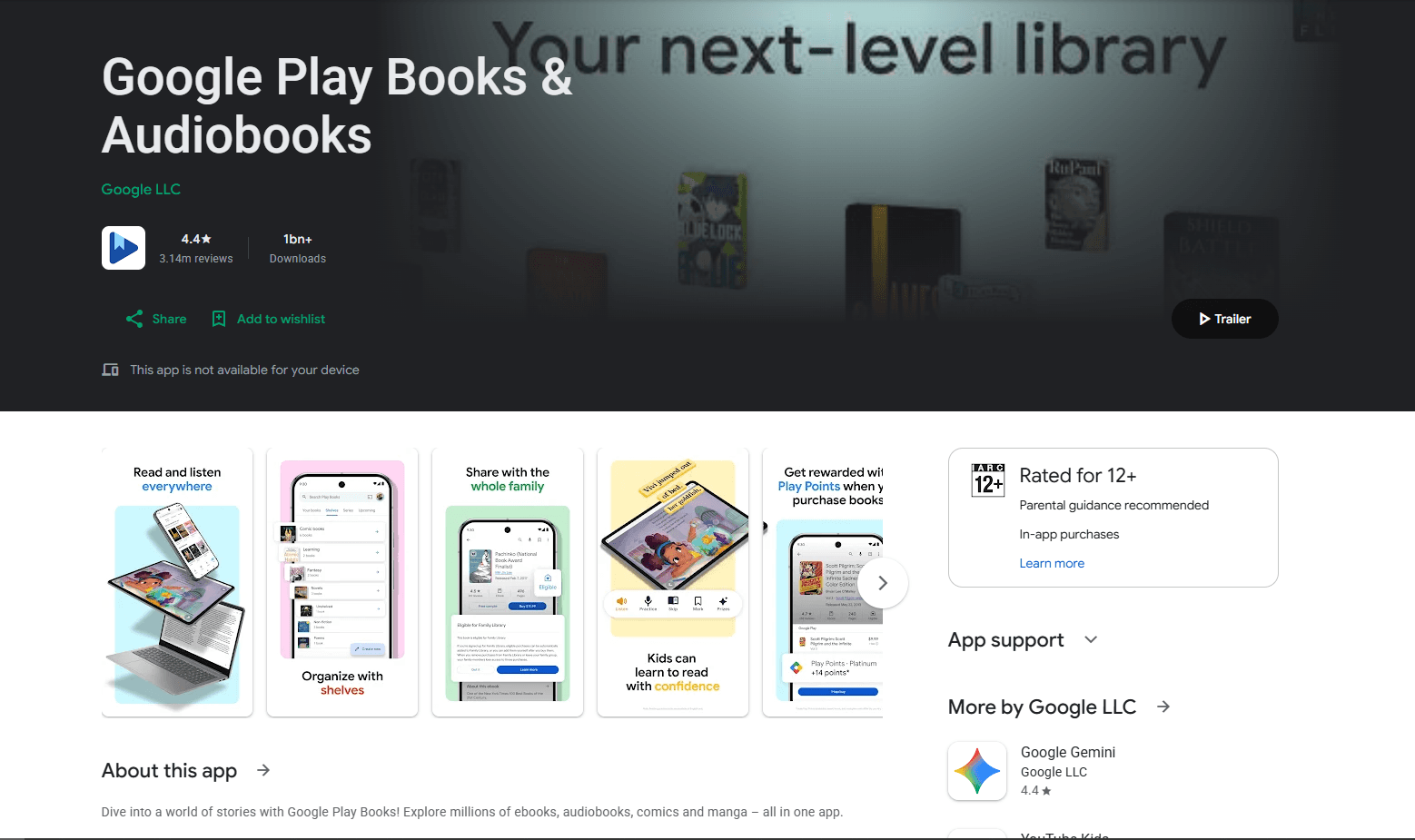
Google Play Books is Google's official ebook reader. It works on the web, and its Android app is available on compatible Chromebooks through Google Play.
The web reader works without Android support; the Android app adds downloaded offline reading on compatible Chromebooks.
What you get:
- Chrome OS integration (works in tablet and laptop mode)
- Cloud sync across devices (Chromebook, Android, iOS, web)
- Access to Google Play Books store
- Upload your own EPUB and PDF files
- Highlights and notes with sync
- Bookmarks
- Night mode and themes
- Font and text size adjustment
- Reading progress sync
- Offline reading (download books)
What you don't get:
- Personal uploads are limited to EPUB and PDF
- Library management uses shelves instead of folders
- Requires a Google account
- Uploaded books are stored in Google's cloud library
Google Play Books fits Chromebook users in the Google ecosystem. If you use Gmail, Google Drive, and Chrome, the sync works across supported devices. For local reading or format flexibility, use ReadEra or Linux apps.
2. ReadEra (Best Android App)
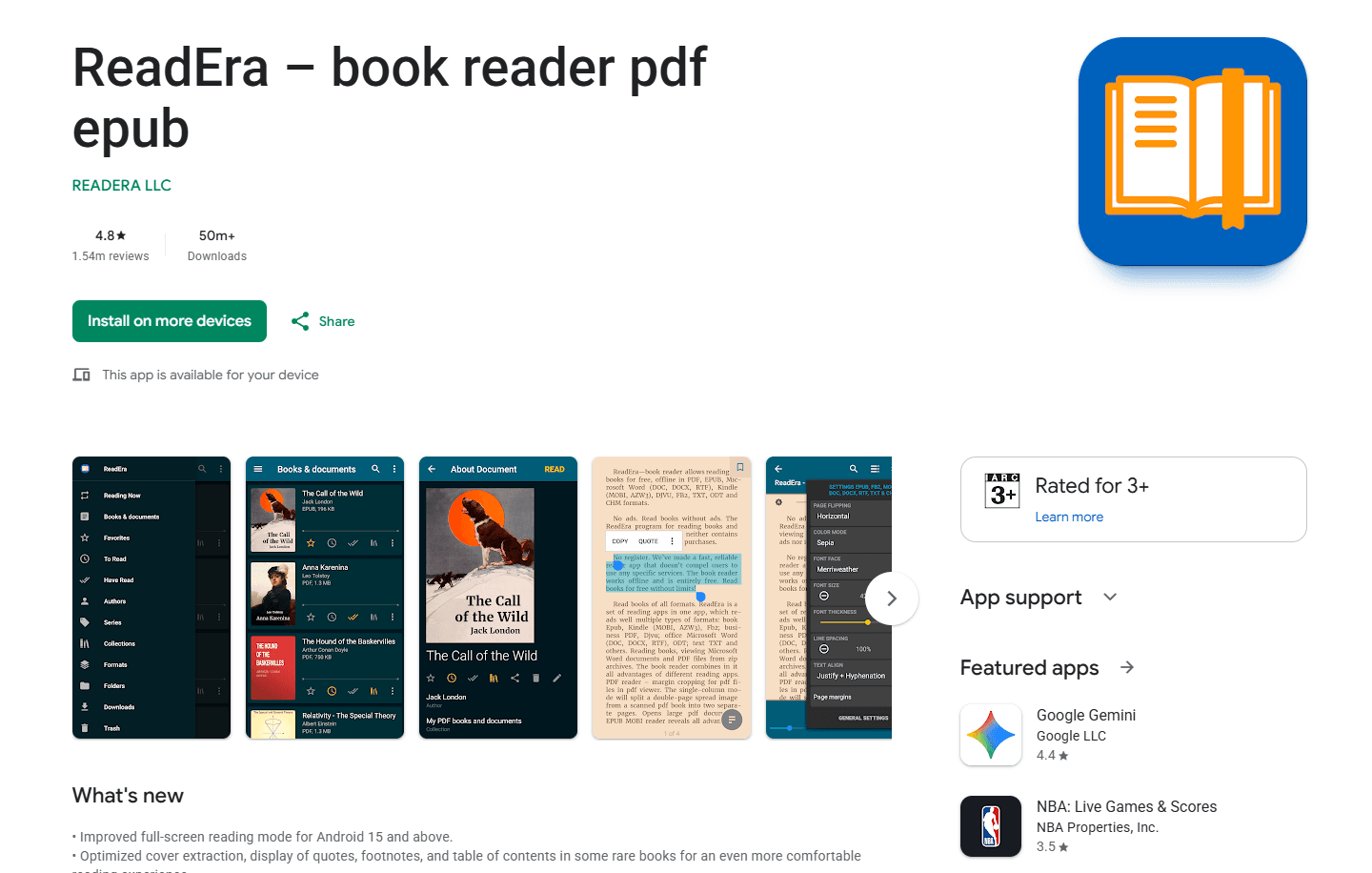
ReadEra is a free EPUB reader with no ads and no account required. Its Google Play listing includes Chromebook support.
Install from Google Play Store
What you get:
- No ads (completely free)
- No account required
- Format support (EPUB, PDF, MOBI, AZW3, FB2, DJVU, DOC, DOCX, RTF, TXT, ODT, CHM)
- Reading from ZIP archives
- Bookmarks, highlights, notes, and table of contents
- Night mode and themes
- Font and text size adjustment
- Page flip animations
- Works in tablet and laptop mode
What you don't get:
- No cloud sync in the free edition
- No cross-device annotations or highlights in the free edition
- No cross-device library management
- Basic interface
ReadEra fits users who want simple, ad-free EPUB reading. No setup, no account. Opens files from local storage through the Chromebook Files app. The free edition does not provide cross-device sync.
3. EPUBReader (Best Chrome Extension)
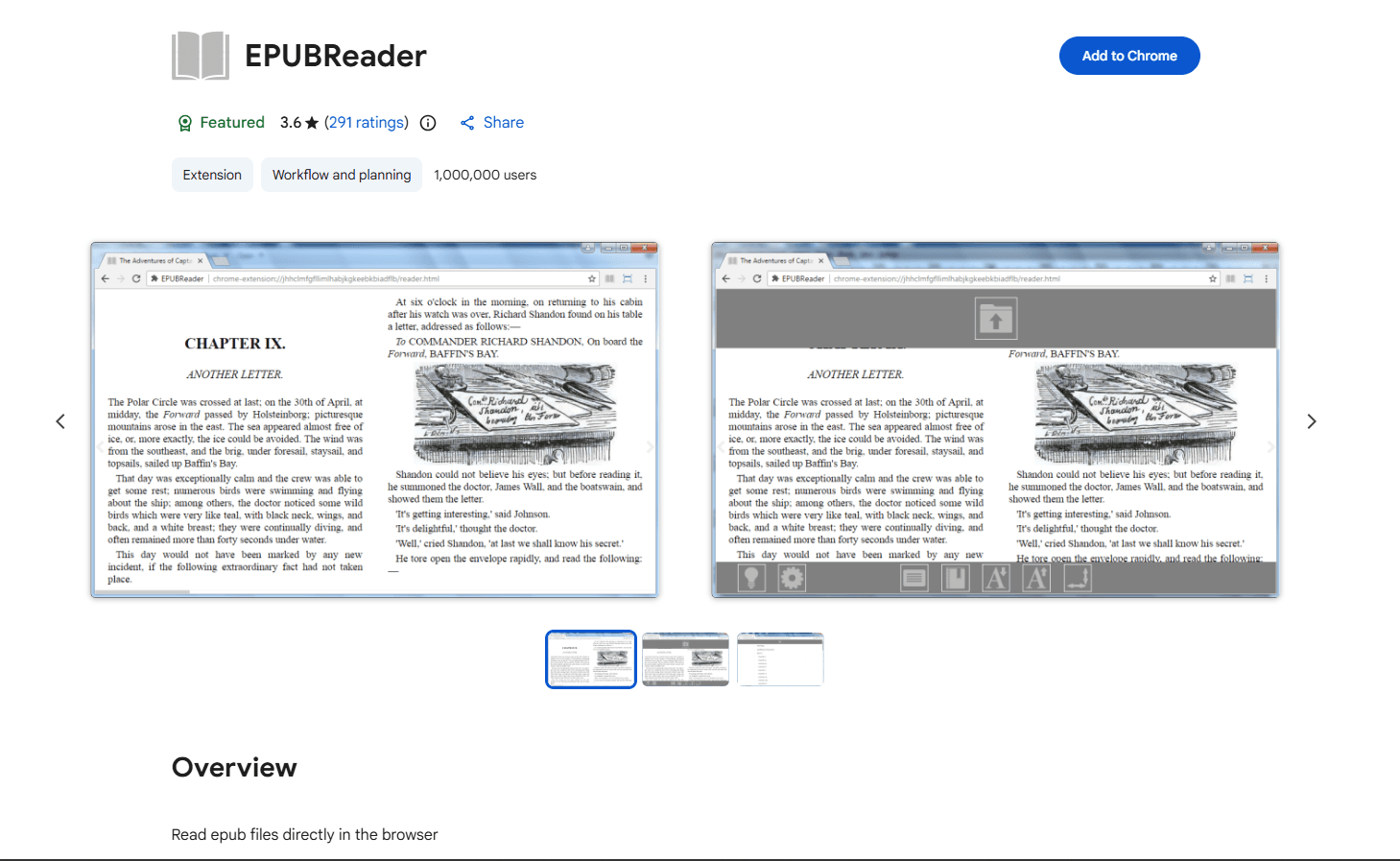
EPUBReader is a free Chrome extension. Opens EPUB files in the browser without installing Android apps.
Install from Chrome Web Store
What you get:
- Works in Chrome browser (no Android app needed)
- Opens local DRM-free EPUB files and EPUB links from websites
- Bookmarks and table of contents
- Font and theme customization
- Night mode
- Keyboard shortcuts for navigation
- Lightweight (extension, not full app)
What you don't get:
- No support for DRM-protected EPUB files
- No annotations or highlights
- No library management
- No sync across devices
- Basic feature set
EPUBReader fits users who want browser-based reading without installing Android apps. Good for quick, offline EPUB viewing. For annotations or library management, use Android apps or Linux apps.
4. Moon+ Reader (Best for Customization)
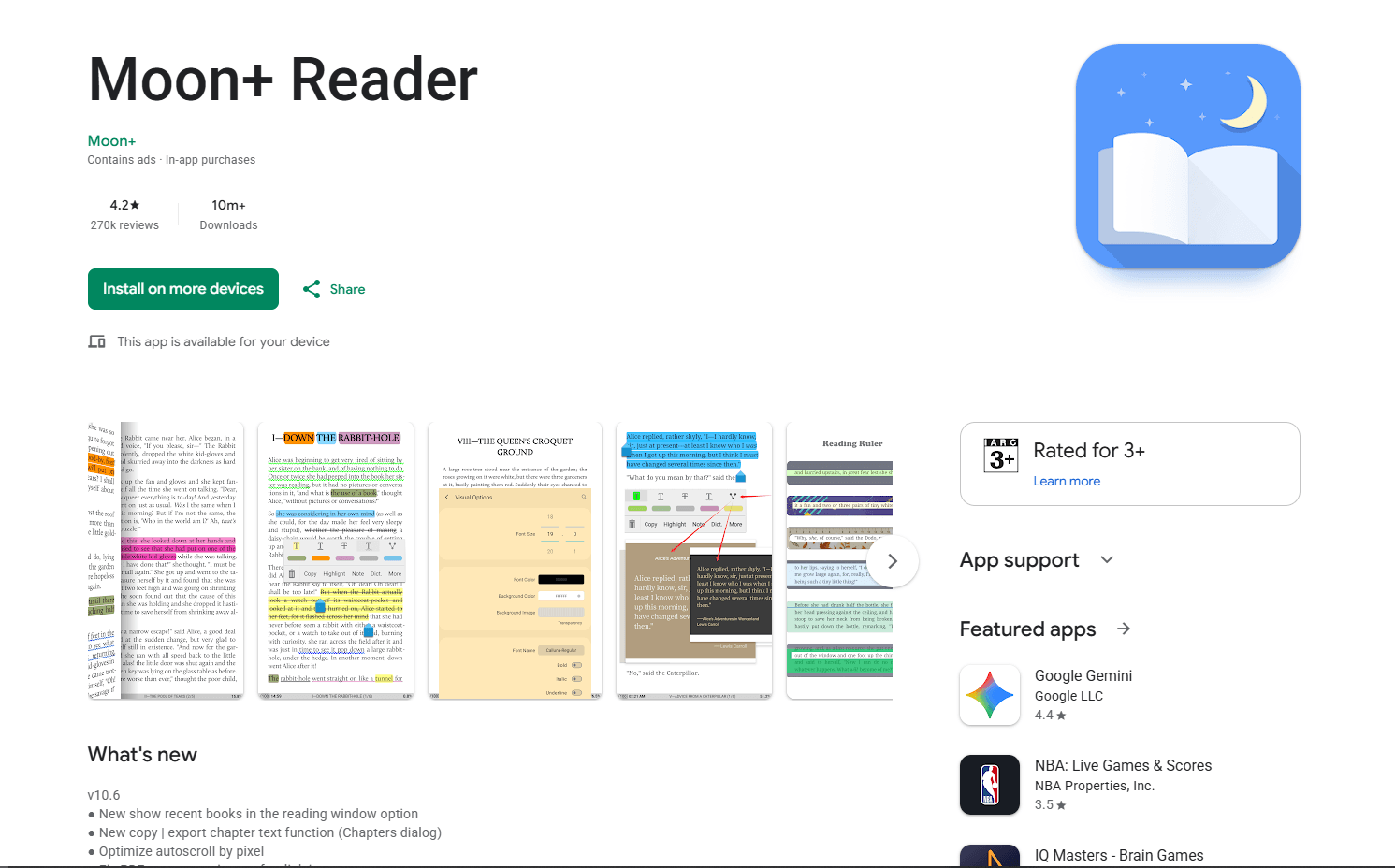
Moon+ Reader is an Android EPUB reader with extensive customization. The free edition contains ads; the separate paid Pro edition removes them.
Install from Google Play Store
What you get:
- Format support (EPUB, PDF, MOBI, CBZ, CBR, UMD, FB2, TXT, HTML, RAR, ZIP)
- Extensive customization (fonts, themes, margins, line spacing)
- Gesture controls (tap zones, swipe actions)
- Annotations and highlights with colors
- Bookmarks and notes
- Reading statistics
- Online libraries (OPDS catalogs)
- Text-to-speech
- Auto-scroll
- Night mode and themes (10+ built-in)
- Backup and reading-position sync through Dropbox or WebDAV
- Works in tablet and laptop mode
Pro features:
- Remove ads
- More themes
- Advanced statistics
What you don't get:
- Ads in free version
- Interface can feel cluttered
- Steeper learning curve
Moon+ Reader fits power users who want extensive customization. Gesture controls, themes, and reading statistics provide desktop-class features on Chromebook. The separate Pro edition provides an ad-free experience.
5. Calibre (Best Linux App for Library Management)
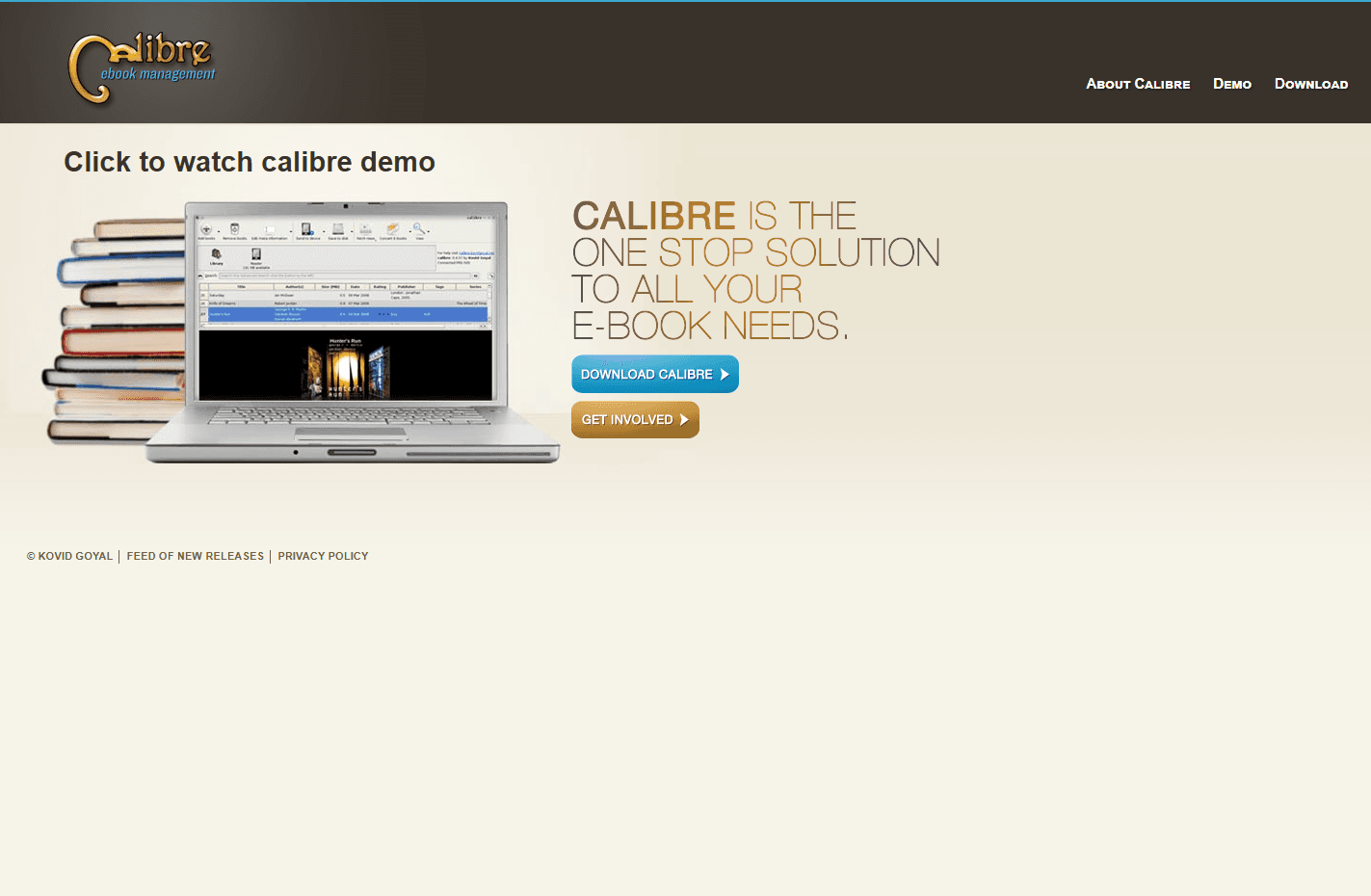
Calibre is a free, open-source ebook manager. It runs through the Linux development environment on compatible Chromebooks.
Enable Linux on Chromebook:
- Open Settings > About ChromeOS > Developers
- Next to Linux development environment, select Set up
- Follow the on-screen instructions
Install Calibre: Use the current binary installer from Calibre's official Linux download page. Calibre advises against distribution-provided packages because they may be outdated.
What you get:
- Library management for thousands of books
- Format conversion (EPUB, MOBI, AZW3, PDF, and 20+ formats)
- Metadata editing (covers, authors, tags, series)
- Built-in EPUB reader with customization
- Device and library tools available in Calibre's desktop builds
- News download (convert websites to ebooks)
- Plugin ecosystem for extended features
- Search and filter by any metadata field
What you don't get:
- Requires Linux enabled (not available on all Chromebooks)
- Direct USB access to Kindle or Kobo devices may be unavailable through ChromeOS Linux
- Heavy for casual reading
- Interface not Chrome OS native
- Steeper learning curve
Calibre fits power users who manage large ebook collections. Format conversion and metadata editing keep libraries organized, although results depend on the source book. Requires Linux support on Chromebook.
6. Foliate (Best Linux App for Reading)
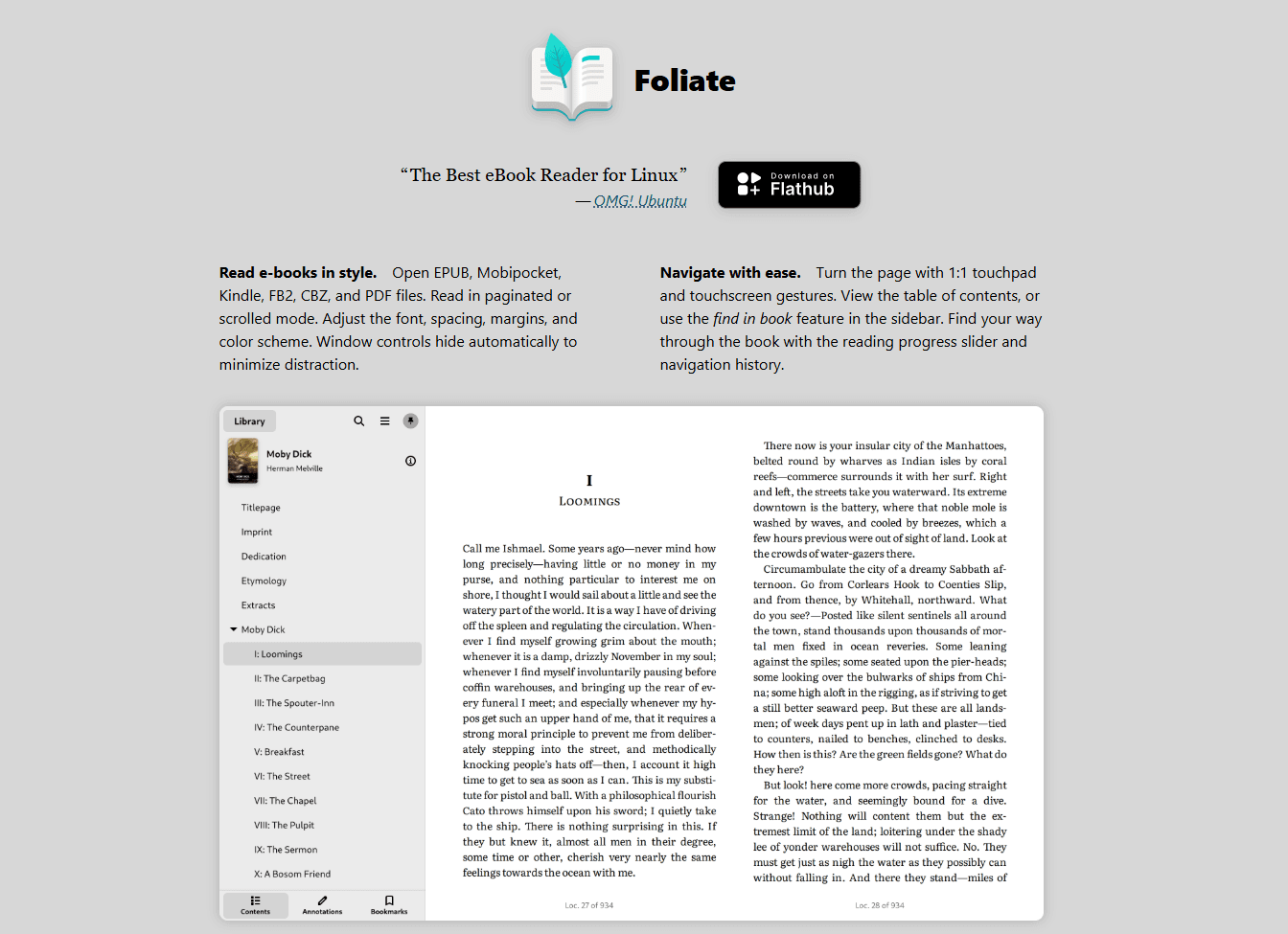
Foliate is a modern EPUB reader for Linux. Native GTK app with clean interface. Requires Linux enabled on Chromebook.
Install via Flatpak:
- Enable Linux from Settings > About ChromeOS > Developers
- Install Flatpak: sudo apt install flatpak
- Add Flathub: flatpak --user remote-add --if-not-exists flathub https://dl.flathub.org/repo/flathub.flatpakrepo
- Install Foliate: flatpak install flathub com.github.johnfactotum.Foliate
What you get:
- Native Linux app (GTK4)
- Format support (EPUB, MOBI, AZW, FB2, CBZ, PDF)
- Highlights and annotations
- Bookmarks and reading progress
- Dictionary and web lookup
- Text-to-speech
- Customizable fonts and themes
- Dark mode
- OPDS catalog support
What you don't get:
- Requires Linux enabled
- No library management
- No format conversion
- No sync across devices
Foliate fits Chromebook users who want a Linux reading experience. The interface is cleaner than Calibre because it focuses on reading. Requires Linux support.
7. Kindle for Android (Best for Amazon Users)
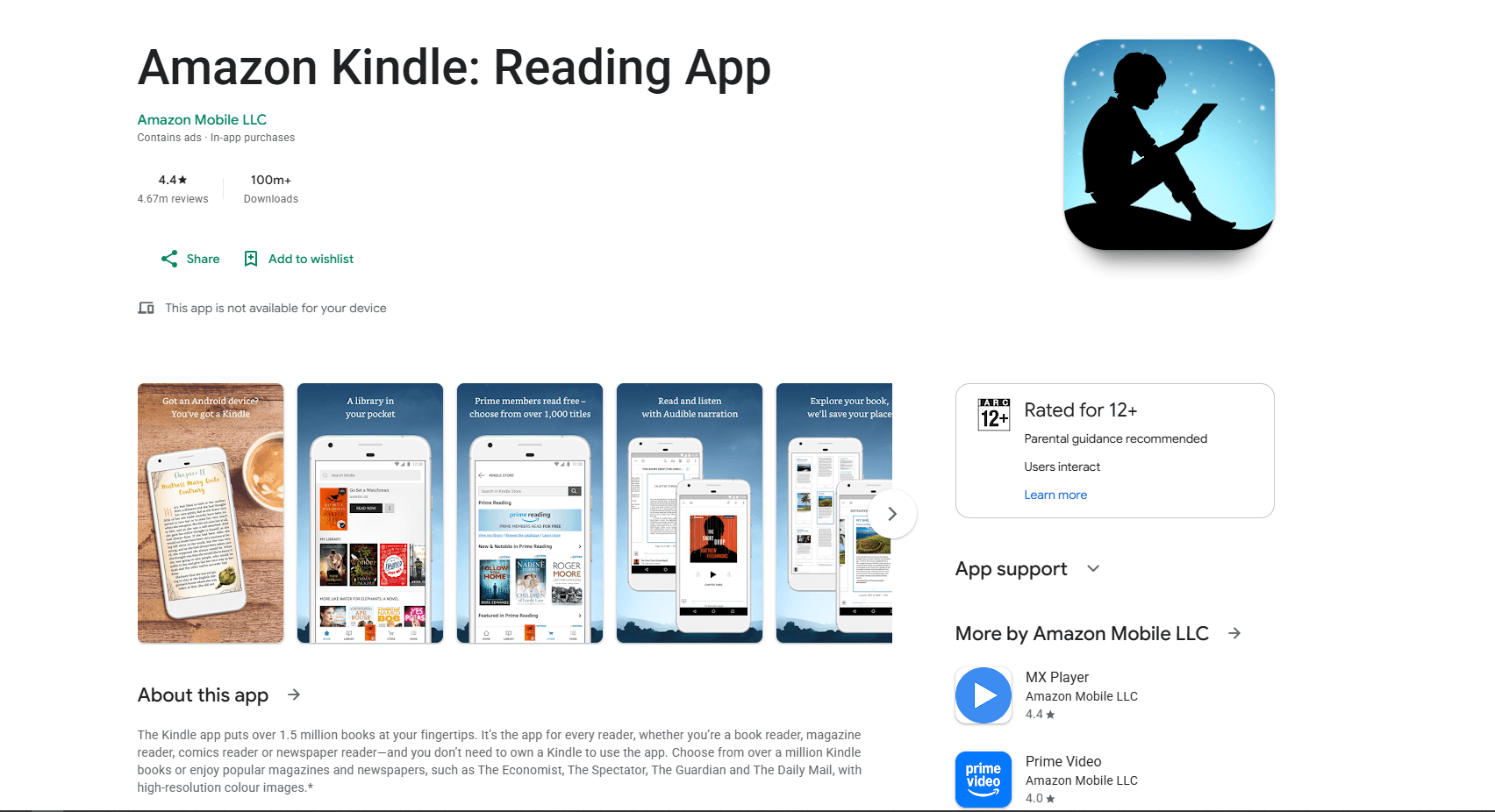
Kindle for Android is Amazon's official ebook reader. Android app that runs on Chromebook.
Install from Google Play Store
What you get:
- Sync with Kindle devices and apps
- Access to Amazon Kindle Store
- Whispersync (syncs reading position)
- Highlights and notes with sync
- X-Ray feature (character and term lookup)
- Word Wise (vocabulary help)
- Flashcards from highlights
- Works in tablet and laptop mode
What you don't get:
- Limited EPUB support (requires Send to Kindle conversion)
- No folder-based library management
- Requires an Amazon account
- DRM restrictions on purchased titles
Kindle for Android fits Amazon Kindle users. If you buy books from Amazon, the sync works across all devices. Send to Kindle accepts EPUB documents. For local DRM-free EPUBs, use ReadEra.
EPUB Reader Comparison Table
Which EPUB Reader Should You Actually Use?
For most Chromebook users, Google Play Books is the best choice for account-based sync. It works on the web, syncs across devices, and lets you upload your own EPUBs.
For ad-free reading without account setup, ReadEra (Android app) provides no ads and supports 12+ formats. Completely free. It requires a Chromebook with Google Play support.
For browser-based reading without installing apps, EPUBReader (Chrome extension) opens DRM-free EPUB files in Chrome and works offline. Good for quick viewing.
For power users who want extensive customization, Moon+ Reader (Android app) provides gesture controls, themes, and reading statistics. Its separate Pro edition removes ads.
For library management with format conversion, Calibre (Linux app) handles large collections. It requires Linux enabled on Chromebook, and direct e-reader USB access may be unavailable.
For a clean Linux reading experience, Foliate (Linux app) provides a native GTK interface. Requires Linux enabled.
For Amazon Kindle users, Kindle for Android syncs with Kindle devices and apps.
Using more than one reader is normal. Google Play Books for purchased books, ReadEra for DRM-free EPUBs, Calibre for library management.
Chromebook-Specific Tips
Enable Linux (for Calibre and Foliate):
- Open Settings > About ChromeOS > Developers
- Next to Linux development environment, select Set up
- Follow the on-screen instructions; setup can take 10 minutes or more
- The Terminal app opens with a Debian environment
Android app optimization: Supported Chromebooks can run Android apps. For a better experience:
- Use tablet mode for reading on convertible devices
- Use laptop mode for library management
- Adjust window size when the app supports resizing
File management: Store EPUBs in organized locations:
- Google Drive (cloud access)
- Downloads folder (local storage)
- Linux files folder (for Linux apps)
Keyboard shortcuts: Shortcuts vary by reader. Common examples, when supported:
- Ctrl + O: Open file
- Ctrl + F: Search within book
- Arrow keys: Navigate pages
Cloud sync setup: For Moon+ Reader or other Android apps:
- Open app settings
- Select the cloud sync option
- Choose a supported service
- Authorize access
- Select a sync folder when requested
Moon+ Reader supports Dropbox or WebDAV. ReadEra Premium offers Google Drive sync; the free edition does not.
Offline reading: Download books for offline access:
- Google Play Books: Tap download icon
- ReadEra: Files stored locally by default
- Moon+ Reader: Download books locally or restore them from a supported sync service
- Calibre: Files stored in Linux folder
Frequently Asked Questions
What's the best free EPUB reader for Chromebook?
Google Play Books for cloud sync or ReadEra for ad-free reading. Google Play Books works on the web, syncs across devices, and lets you upload your own EPUBs. ReadEra (Android app) is completely free with no ads, no account required, and supports EPUB, PDF, MOBI, and 12+ formats. Download from Google Play Store.
Does Chromebook have a built-in EPUB reader?
No. ChromeOS does not include a universal built-in EPUB reader. Google Play Books works through the web and is available as an Android app on supported Chromebooks. For local reading, install ReadEra where Google Play is available or EPUBReader from the Chrome Web Store.
Can I read EPUB files on Chromebook?
Yes. Three options: 1) Use Google Play Books (web or Android app, requires Google account). 2) Install ReadEra (Android app, free, no ads, no account). 3) Install EPUBReader (Chrome extension, browser-based). Google Play Books uploads EPUBs to its cloud library; ReadEra and EPUBReader open local files.
How do I open EPUB files on Chromebook?
Open the Chromebook Files app and double-click the EPUB after installing a compatible local reader such as ReadEra or EPUBReader. To use Google Play Books, open its web library, select Upload files, and choose the EPUB. Available local app choices depend on the Chromebook and installed apps.
Can I use Calibre on Chromebook?
Yes, but it requires Linux enabled. Enable Linux in Settings > About ChromeOS > Developers > Linux development environment, then follow Calibre's official Linux installation instructions. Calibre provides library management, format conversion, and metadata editing. Direct USB access to an e-reader may be unavailable.
What's the best EPUB reader for Chromebook without Google account?
ReadEra (Android app). It is completely free with no ads, no account required, and supports EPUB, PDF, MOBI, and 12+ formats. Install from Google Play Store. For a browser-based option, use EPUBReader. For a Linux option, use Foliate.
How do I sync EPUB books across Chromebook and phone?
Use Google Play Books for automatic sync (requires Google account). Upload EPUBs to Google Play Books on Chromebook, and they become available on signed-in devices. Moon+ Reader syncs reading positions through Dropbox or WebDAV. ReadEra Premium offers Google Drive sync; the free edition does not.
Can I annotate EPUB files on Chromebook?
Yes. Moon+ Reader and ReadEra (Android apps) support annotations and highlights. Google Play Books syncs highlights across devices. For a Linux option, Foliate supports annotations. ReadEra's free edition does not sync annotations across devices.
Related Reading
Using a different platform? See platform-specific EPUB reader guides:
- Best EPUB readers for Mac for macOS options
- Best EPUB readers for Windows for Windows 11 and 10
- Best EPUB readers for Ubuntu for Ubuntu Linux
- Best EPUB readers for Android for Android phones and tablets
For other file formats on Chromebook:
Read More
All Articles
8 Best EPUB Readers for Android in 2026 (Free & Paid)
Compare the best EPUB reader apps for Android, including ReadEra, Moon+ Reader, Google Play Books, Kobo, Kindle, FBReader, and Lithium.
8 Best EPUB Readers for iPhone & iPad in 2026 (Free & Paid)
Compare the best EPUB readers for iPhone and iPad, including Apple Books, KyBook 3, Readest, Yomu, Kindle, Kobo, PocketBook, and BookFusion.
7 Best EPUB Readers for Mac in 2026 (Free & Paid)
Find the best EPUB reader for macOS with library management, annotations, and sync. Compare Apple Books, Calibre, Thorium Reader, and more for reading ebooks on Mac.