7 Best EPUB Readers for Ubuntu in 2026 (Free & Open Source)

On this page
Ubuntu doesn't include a dedicated EPUB reader by default. GNOME Document Viewer/Evince is mainly a PDF and document viewer and should not be treated as a reliable EPUB reader. Third-party readers provide better experiences.
Foliate is a GNOME-focused reader that integrates well with the Ubuntu desktop. Calibre is the stronger choice for large libraries, format conversion, and metadata editing. Both are free and open-source.
The best reader changes with your workflow. Casual readers may prefer a clean, desktop-integrated app. Power users need library management and format conversion. Accessibility-focused readers need reliable keyboard and screen-reader support. This guide compares seven options for current Ubuntu workflows; package availability can vary by Ubuntu release and installation method.
1. Foliate (Best Native GNOME App)
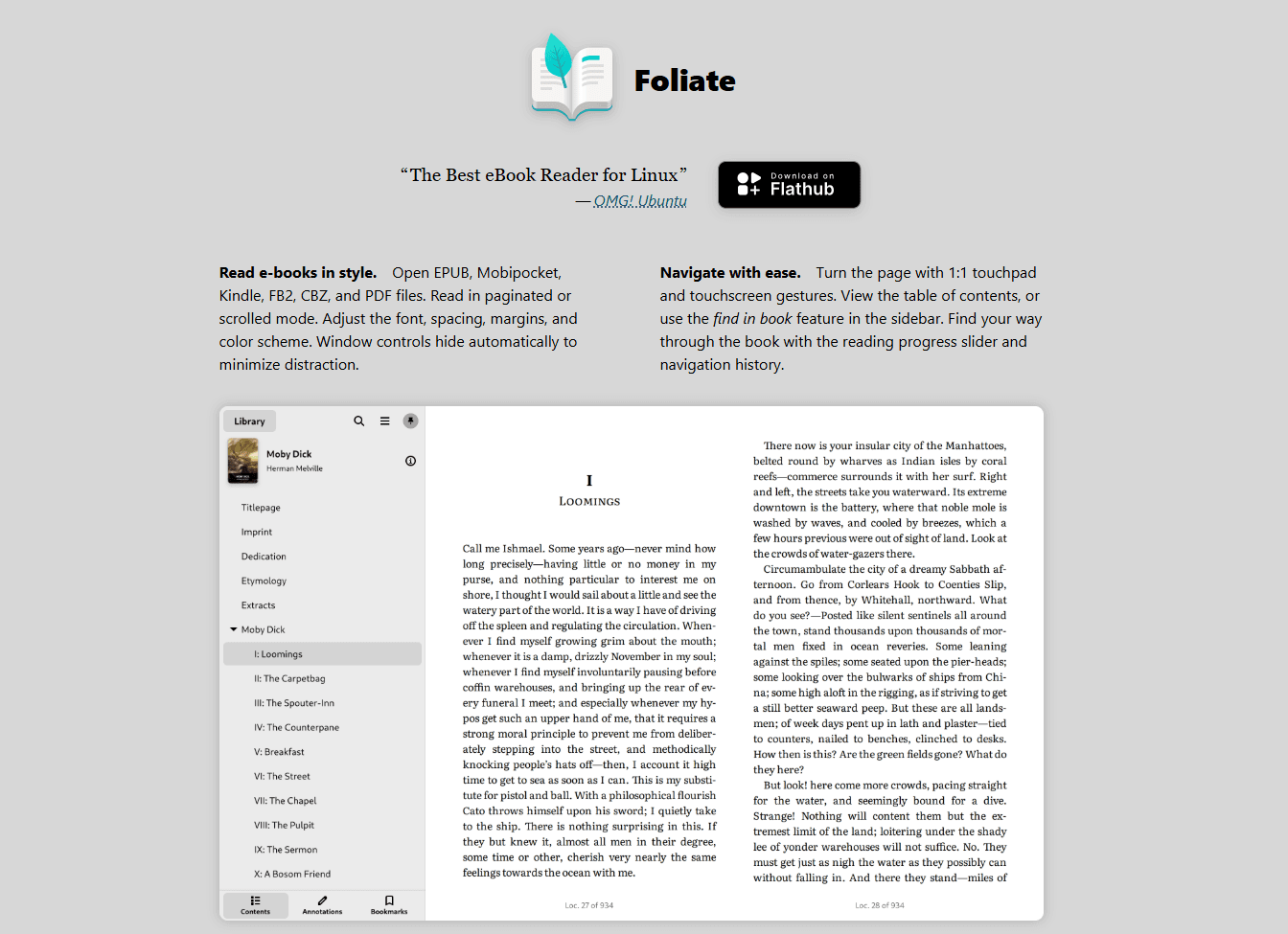
Foliate is a modern GTK4 ebook reader built for GNOME. Its focused interface follows current GNOME conventions without adding a full library-management system.
Install: sudo apt install foliate or via Flatpak: flatpak install flathub com.github.johnfactotum.Foliate
What you get:
- Native GNOME app (GTK4)
- Lightweight desktop reader
- Format support (EPUB, MOBI, AZW3, FB2, CBZ, PDF)
- Highlights and annotations
- Bookmarks and reading progress
- Dictionary lookup (offline dictionaries)
- Text-to-speech (via Speech Dispatcher)
- Customizable fonts and themes
- Dark mode (follows system theme)
- OPDS catalog support (online libraries)
- Popup footnotes
- Auto-hyphenation
What you don't get:
- No library management
- No format conversion
- No sync across devices
- No metadata editing
Foliate fits Ubuntu users who want a GNOME-friendly reading app. The interface integrates with system themes and avoids the library-management complexity of Calibre.
2. Calibre (Best for Library Management)
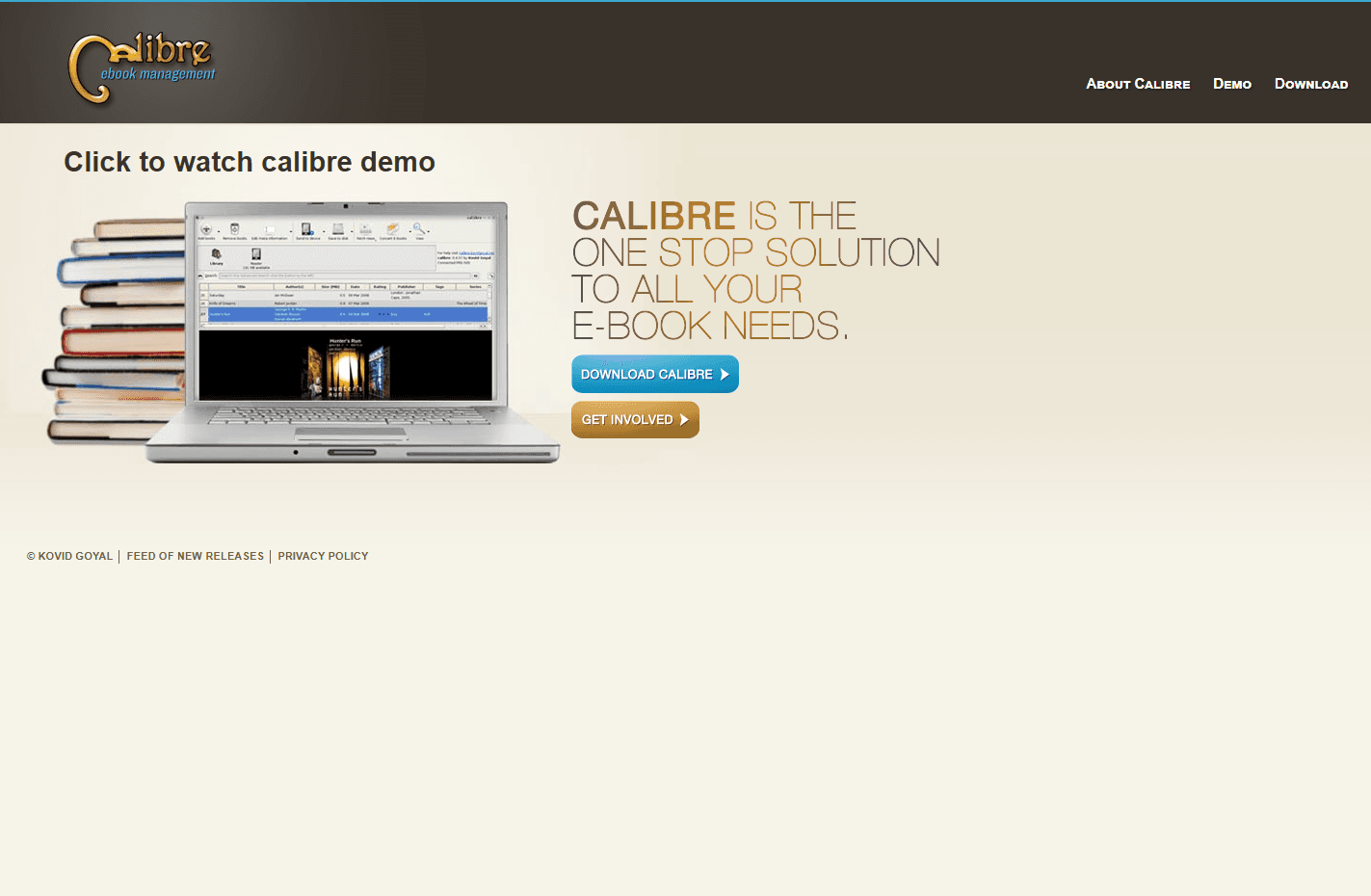
Calibre is a free, open-source ebook manager with format conversion, metadata editing, device connections, and a built-in reader.
Install: Use Calibre's official Linux binary installer. The developer advises against distribution-provided packages because they can be outdated or contain packaging-specific problems.
What you get:
- Detailed library management for sizable collections
- Conversion between EPUB, MOBI, AZW3, PDF, and many other formats
- Metadata editing (covers, authors, tags, series)
- Built-in EPUB reader with customization
- Connections to many ebook readers, with support varying by device and connection method
- News download (convert websites to ebooks)
- Plugin ecosystem for extended features
- Search and filter by any metadata field
- Duplicate detection
- Tools for maintaining large ebook libraries
What you don't get:
- Interface not native (Qt-based)
- Heavy for casual reading
- Steeper learning curve
- No built-in account-based reading-position sync
Calibre fits power users who manage large ebook collections. Its conversion and metadata tools are useful when a simple reader is not enough, though conversion quality still depends on the source book and output format.
3. Thorium Reader (Best for Accessibility)
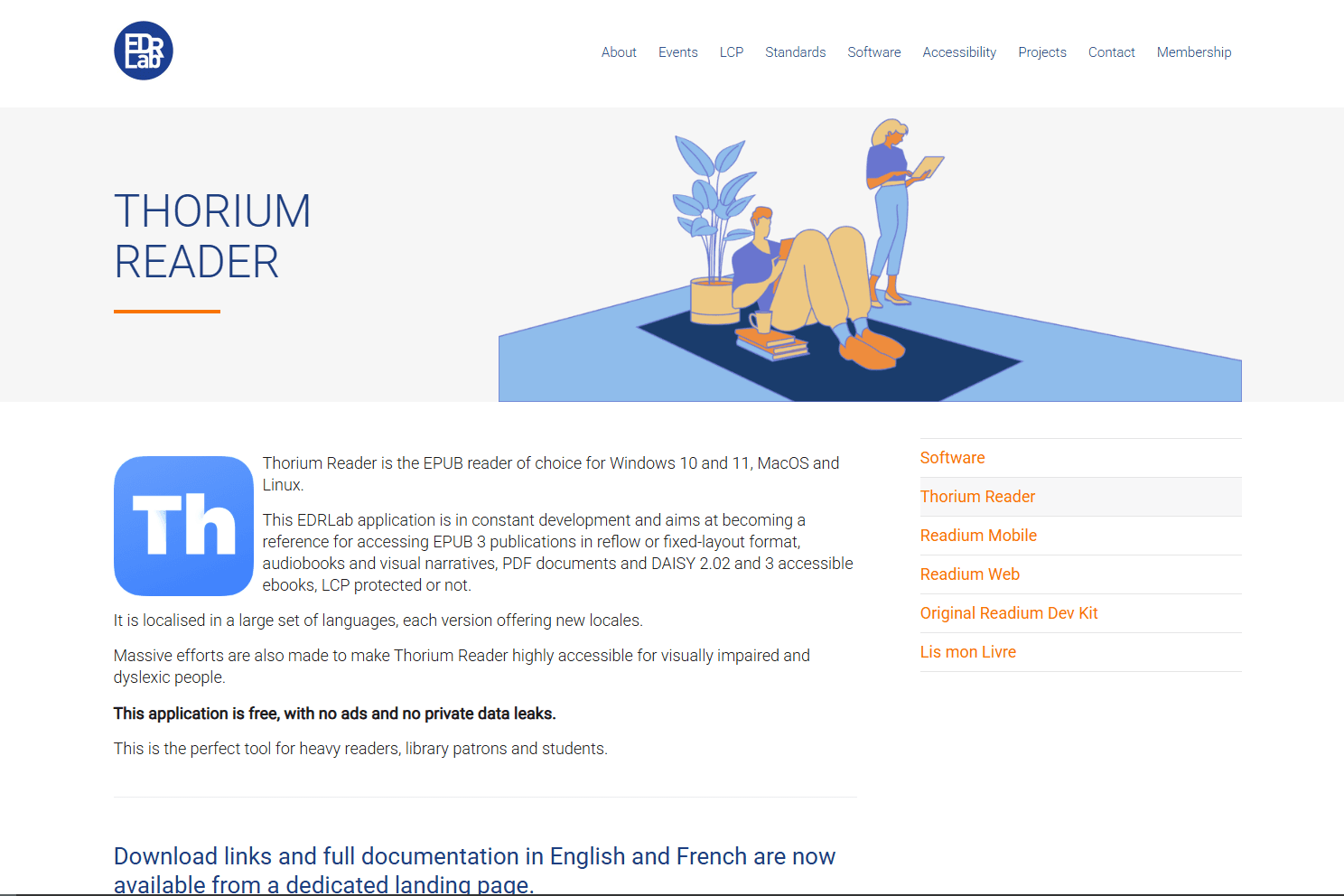
Thorium Reader is a free, open-source reader built with accessibility as a central requirement. It provides read-aloud, configurable keyboard controls, and extensive display adjustments.
Install: Download the current Linux installer from the official Thorium releases. Thorium's distribution list does not currently include a Flatpak package.
What you get:
- Screen-reader support that must be enabled in settings from Thorium 3.3 onward
- Text-to-speech with adjustable speed
- Customizable text size, spacing, and layout
- High-contrast modes and color themes
- Keyboard navigation and configurable shortcuts
- EPUB 3 support with media overlays
- Audiobook support
- LCP DRM support (library ebooks)
- OPDS catalog support
- Desktop packages for Linux
What you don't get:
- Not native (Electron-based)
- No advanced metadata or bulk-library tools
- No format conversion
- No sync across devices
Thorium Reader fits users who need screen-reader integration, keyboard navigation, read-aloud, or detailed display controls. Its LCP DRM support works with participating libraries and booksellers. Ubuntu users should verify compatibility with their own assistive-technology setup.
4. Okular (KDE Option, With an Ubuntu Caveat)
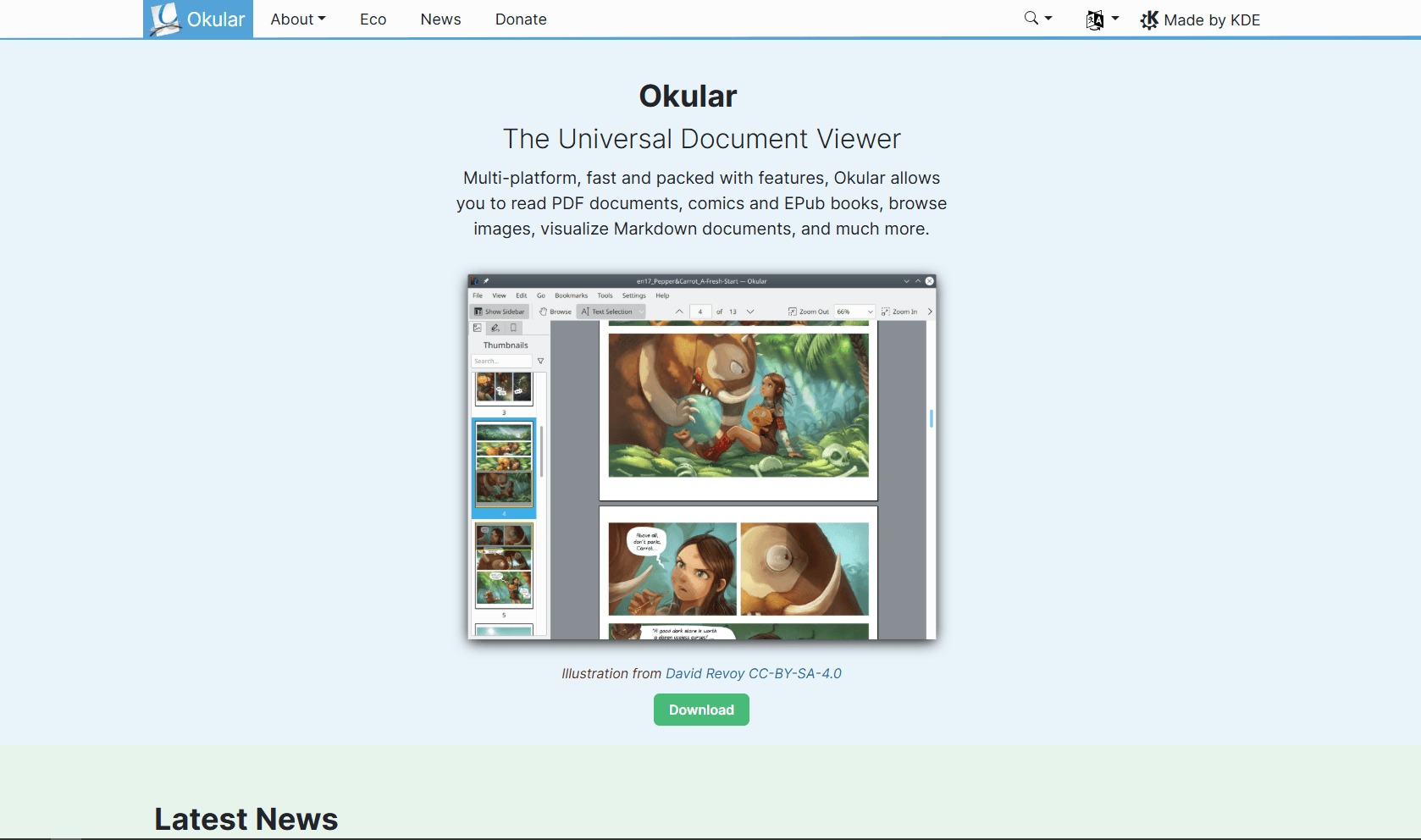
Okular is KDE's general document viewer. KDE's official FAQ says Ubuntu and Kubuntu packages are compiled without EPUB support. Check the package available for your system before relying on Okular for ebooks.
Install: sudo apt install okular
What you get:
- Native KDE app (Qt-based)
- Broad document-format support; EPUB availability depends on the package build
- Annotations and highlights
- Bookmarks
- Text selection and search
- Form filling (for PDFs)
- Digital signatures (for PDFs)
- Integrates with KDE desktop
What you don't get:
- No library management
- No format conversion
- No sync
- EPUB may be unavailable in Ubuntu/Kubuntu package builds
Okular fits KDE/Kubuntu users who already use it for documents, but it is not the safest default EPUB recommendation on Ubuntu. If your build does not open EPUB files, use Foliate, Thorium Reader, or Calibre instead.
5. Koodo Reader (Best Cross-Platform Option)
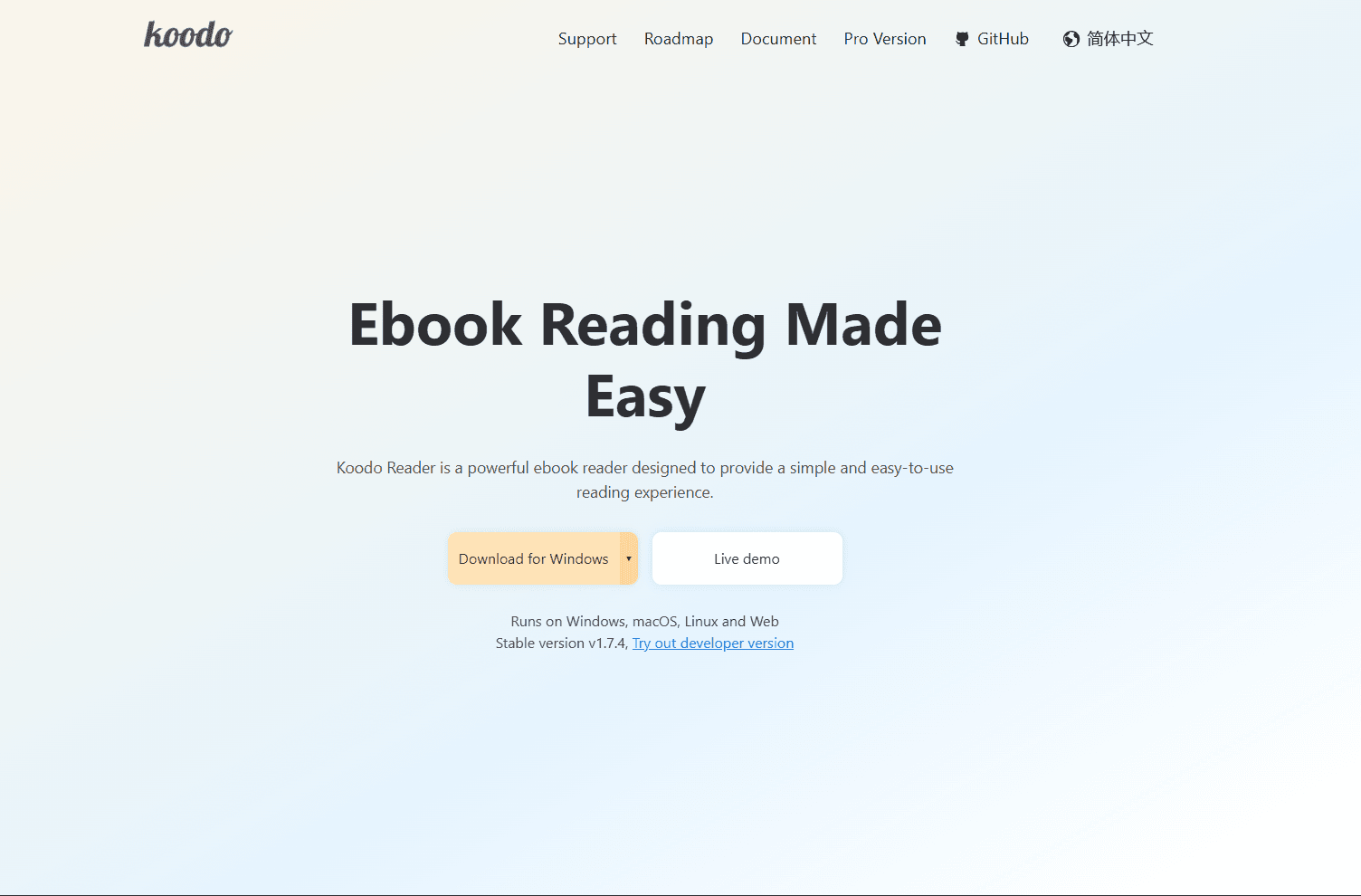
Koodo Reader is an open-source ebook reader and manager for Linux, macOS, Windows, Android, iOS, and the web. Its free desktop edition stores books and reading data locally by default, while cloud-library synchronization is part of Koodo Reader Pro.
Install: Download a DEB or AppImage from the official Koodo Reader releases, or use Flatpak: flatpak install flathub io.github.troyeguo.koodo-reader
What you get:
- EPUB, PDF, MOBI, AZW3, TXT, FB2, comic-book, and additional format support
- Library shelves, search, and reading statistics
- Highlights, notes, and bookmarks
- Customizable fonts and themes
- Optional synchronization through supported cloud storage, WebDAV, and other data sources
- KOReader-compatible reading-progress synchronization
What you don't get:
- No format conversion
- Cloud-library synchronization requires Koodo Reader Pro
- More setup than a focused reader such as Foliate
- Electron interface is not native to GNOME
Koodo Reader fits people who want the same library interface on Ubuntu and other platforms. The free desktop reader works as a local library; choose Pro only if its supported synchronization services match your devices and storage provider.
6. Bookworm (Best Lightweight Alternative)
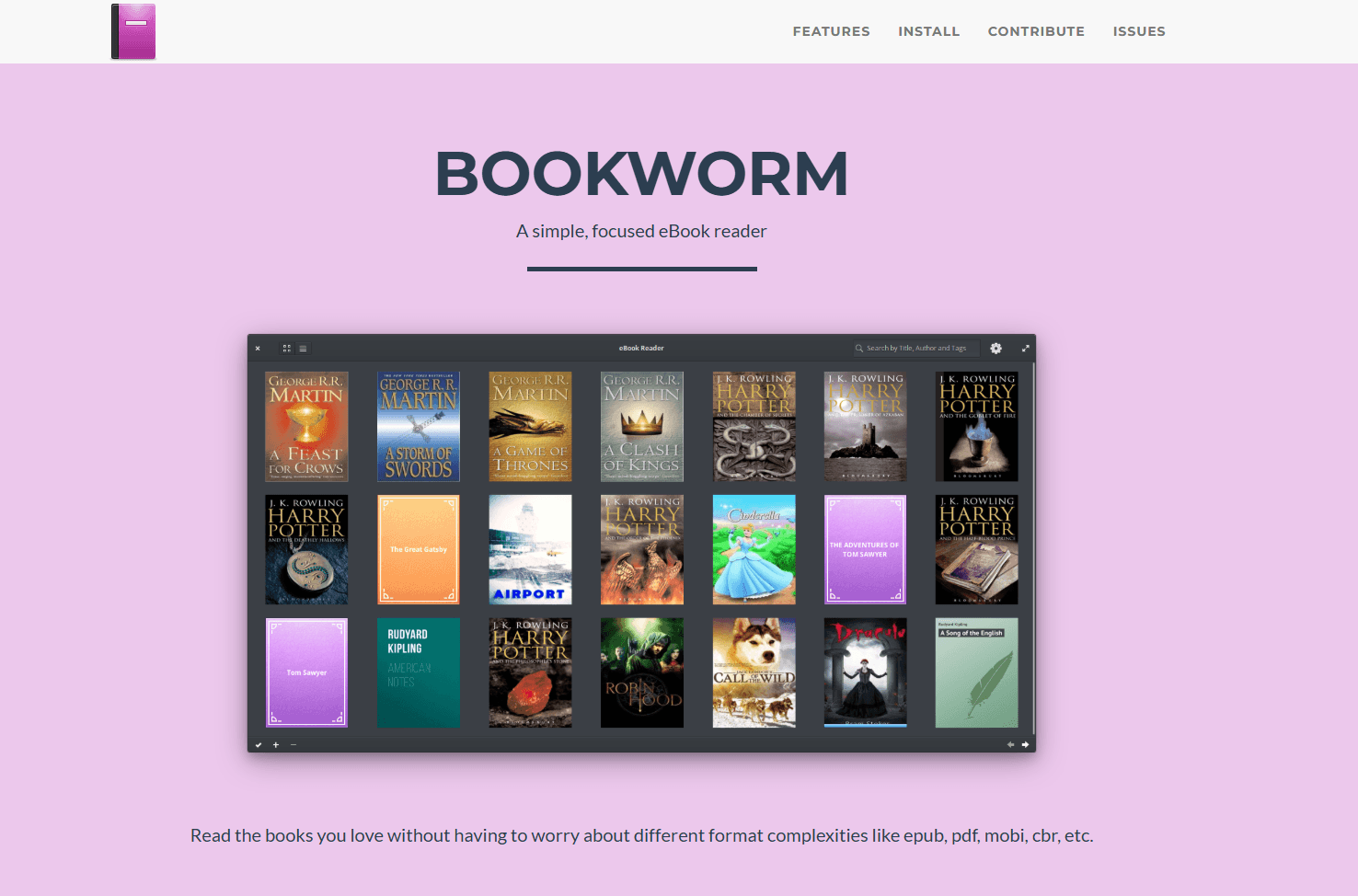
Bookworm is a simple GTK ebook reader with a minimal interface and basic library organization.
Install: sudo apt install bookworm or via Flatpak: flatpak install flathub com.github.babluboy.bookworm
What you get:
- Native GTK app
- Lightweight GTK interface
- Format support (EPUB, PDF, MOBI, CBR, CBZ)
- Library with collections
- Bookmarks and annotations
- Reading progress tracking
- Customizable fonts and themes
- Dark mode
What you don't get:
- No format conversion
- No sync
- No advanced features
- Development less active
Bookworm is an older lightweight GTK option for simple reading and basic collections. It remains available in current Ubuntu repositories, but those packages are based on an older upstream codebase. Foliate is the more current first choice for a focused GNOME reader.
7. KOReader (Best for E-Ink Displays)
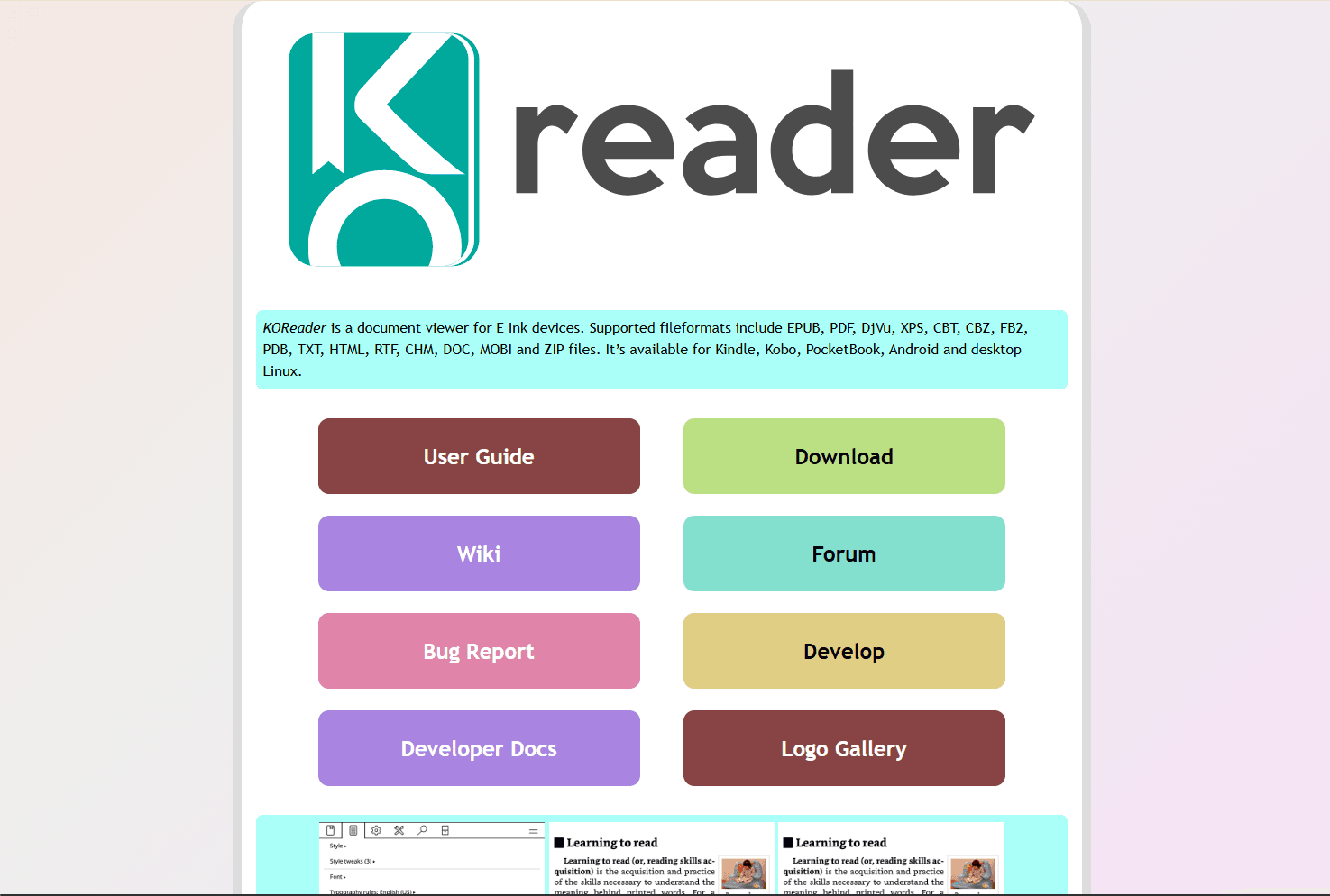
KOReader is an ebook reader optimized for e-ink displays that also provides a desktop Linux build.
Install: Download AppImage from koreader.rocks or via Flatpak: flatpak install flathub rocks.koreader.KOReader
What you get:
- Format support (EPUB, PDF, DjVu, CBZ, FB2, MOBI, and more)
- Reflow engine for PDFs
- Customizable fonts and margins
- Dictionary lookup
- Highlights and annotations
- Reading statistics
- OPDS catalog support
- Reading-progress sync across KOReader devices
- Optimized for e-ink displays
- Desktop build available alongside its e-ink-focused versions
What you don't get:
- Interface designed for e-ink (not ideal for desktop)
- No library management
- No full book-file or general cloud-library sync
- Steeper learning curve
KOReader fits users with e-ink displays or those who want detailed typography controls and reflow options for supported PDF documents. Its interface works on desktop Ubuntu but remains designed around e-ink reading workflows.
EPUB Reader Comparison Table
Which EPUB Reader Should You Actually Use?
For GNOME/Ubuntu users, Foliate is the best starting point because it focuses on reading and follows the desktop's design conventions. Calibre provides much deeper conversion, metadata, and collection-management tools, while Thorium Reader is the strongest choice here for accessibility controls.
Kubuntu users may appreciate Okular's KDE integration, but Ubuntu and Kubuntu packages normally lack EPUB support. Koodo Reader is better suited to people who want matching apps on several platforms, although its cloud-library sync requires Pro. Bookworm remains an older lightweight option, while KOReader makes the most sense for e-ink users and readers who need its PDF reflow controls.
Using more than one reader is reasonable: Foliate for everyday reading, Calibre for library maintenance, and Thorium Reader when its accessibility tools are needed.
Platform-Specific Tips for Ubuntu
Installation methods:
- APT packages: sudo apt install foliate okular bookworm
- Flatpak example: flatpak install flathub com.github.johnfactotum.Foliate
- Official downloads: Use the project download pages for Calibre, Thorium Reader, and Koodo Reader
- AppImage: Make the downloaded file executable, then run it without a traditional installation
GNOME integration: Foliate uses GTK4 and Libadwaita, so it follows current GNOME interface conventions and system appearance. Bookworm also uses GTK, but its older interface and codebase are less closely aligned with current GNOME releases.
KDE integration: Okular integrates with KDE Plasma:
- Follow KDE color schemes
- Use KDE file picker
- Integrate with KDE search (Baloo)
- Support KDE keyboard shortcuts
File associations: Set default EPUB reader:
- Right-click any EPUB file
- Select "Properties"
- Go to "Open With" tab
- Select your preferred reader
- Click "Set as default"
Cloud storage integration: Storing EPUB files in a synchronized Nextcloud, Dropbox, or Google Drive folder can make the files available on several devices. That does not automatically synchronize reading position, highlights, or annotations in Foliate or Bookworm.
Command-line tools:
- Convert EPUB to PDF: ebook-convert book.epub book.pdf (Calibre)
- Extract EPUB metadata: ebook-meta book.epub (Calibre)
- Validate EPUB: epubcheck book.epub (install via sudo apt install epubcheck)
Frequently Asked Questions
What's the best free EPUB reader for Ubuntu?
Foliate is the best free option for focused reading on GNOME, while Calibre is stronger for library management, conversion, and metadata editing. Install Foliate with sudo apt install foliate or Flatpak. For Calibre, use the project's official Linux installer rather than Ubuntu's distribution package. Both are free and open source.
Does Ubuntu have a built-in EPUB reader?
No reliable dedicated one is included by default. GNOME Document Viewer/Evince focuses on formats such as PDF, PostScript, DjVu, TIFF, XPS, and DVI rather than EPUB. Install Foliate with sudo apt install foliate for a GNOME-focused reader, or use Calibre's official Linux installer when library management matters.
How do I open EPUB files on Ubuntu?
Install Foliate with sudo apt install foliate for a focused GNOME reading experience. If you need conversion, metadata editing, and detailed collection tools, install Calibre through its official Linux download page instead.
Can I convert EPUB to PDF on Ubuntu?
Yes. Install Calibre through its official Linux download page, add the EPUB, select Convert books, and choose PDF as the output format. Review the result because a reflowable EPUB layout does not always translate cleanly to fixed PDF pages. For command-line conversion, use ebook-convert book.epub book.pdf after installing Calibre.
What's the best EPUB reader for large libraries on Ubuntu?
Calibre. It combines search, filtering, metadata editing, conversion, device connections, and plugins for sizable collections. Use the official Linux installer; actual performance depends on library size, enabled plugins, and the computer running it.
Does Calibre work well on Ubuntu?
Yes. Calibre provides its library-management, conversion, metadata, and device features on Ubuntu. The interface uses Qt rather than GTK, and performance varies with library size and hardware. It is a strong option when collection management matters more than a minimal reading interface.
How do I sync EPUB books across Ubuntu and Android?
Koodo Reader offers Ubuntu and Android apps, but its cloud-library synchronization requires Pro. KOReader can synchronize reading progress when the same book is available in KOReader on both devices. A shared Nextcloud or Dropbox folder can synchronize the EPUB files themselves, but reader-specific progress and annotations do not automatically follow unless the chosen app supports them.
What's the best EPUB reader for accessibility on Ubuntu?
Thorium Reader provides read-aloud with visual highlighting, configurable keyboard shortcuts, and controls for colors, text size, spacing, fonts, and layout. It is free and open source. Download the current Linux installer from the official Thorium releases, enable screen-reader support in its settings, and verify it with your Ubuntu assistive-technology setup.
Related Reading
Using a different platform? See platform-specific EPUB reader guides:
- Best EPUB readers for Mac for macOS options
- Best EPUB readers for Windows for Windows 11 and 10
For other file formats on Ubuntu:
Read More
All Articles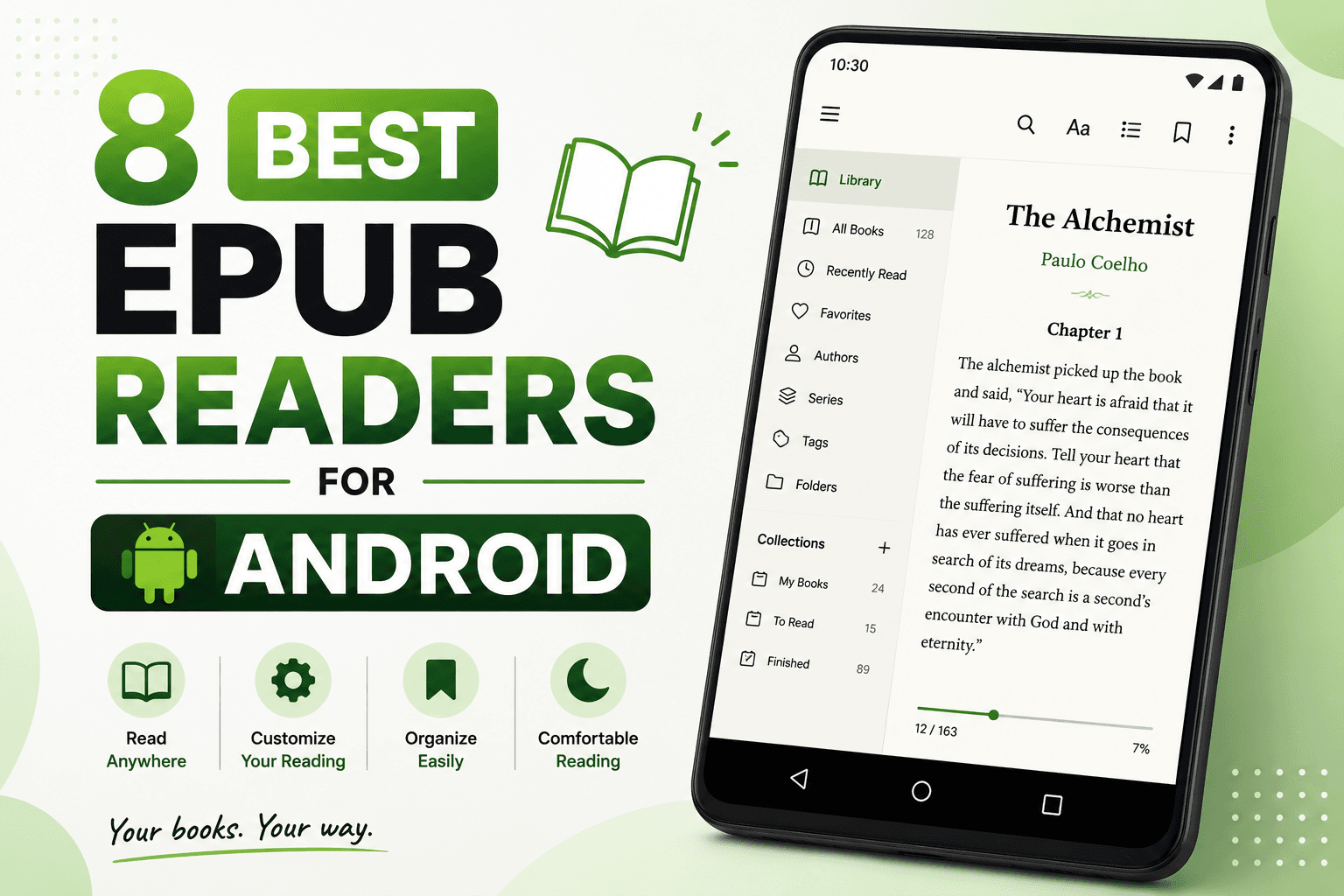
8 Best EPUB Readers for Android in 2026 (Free & Paid)
Compare the best EPUB reader apps for Android, including ReadEra, Moon+ Reader, Google Play Books, Kobo, Kindle, FBReader, and Lithium.
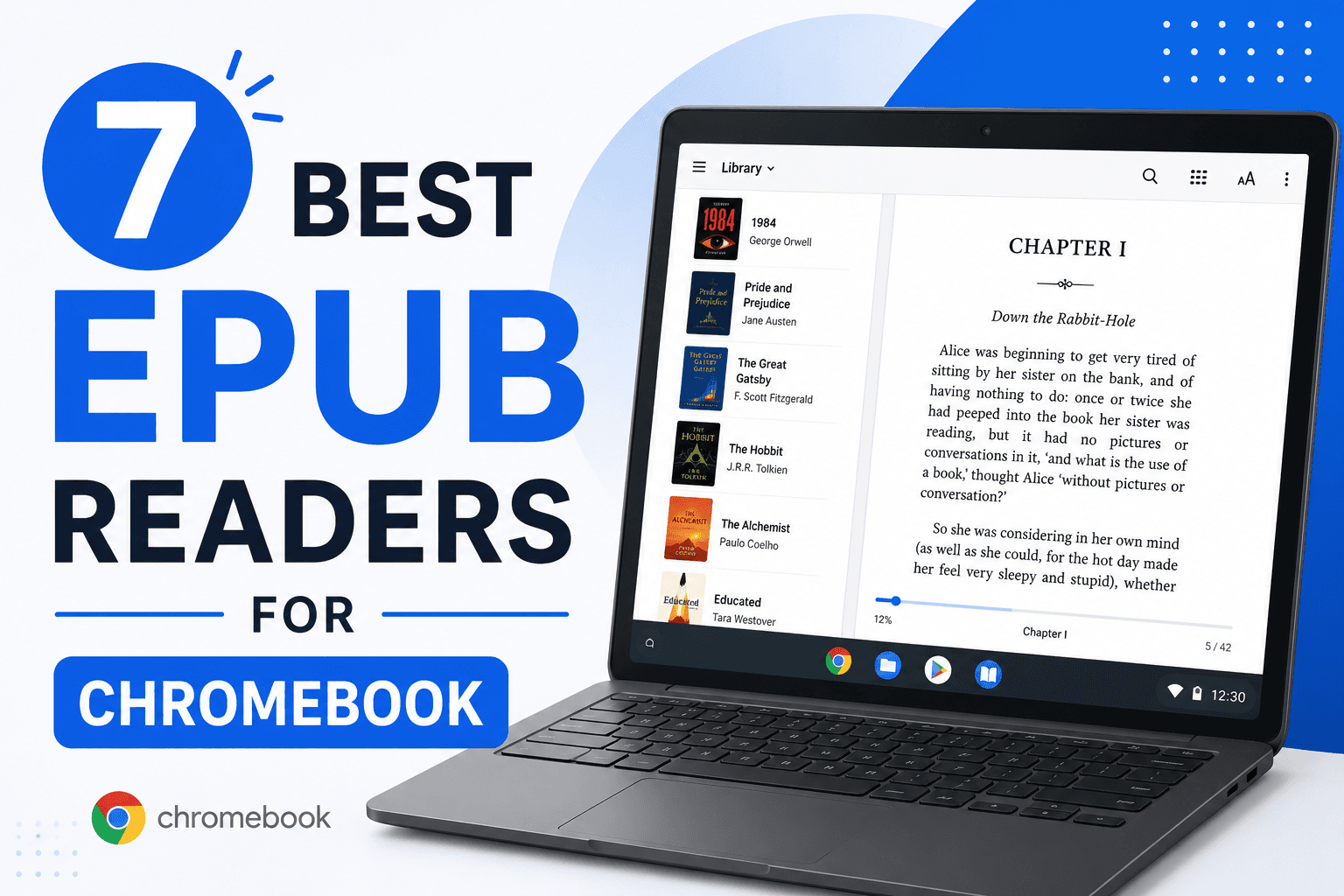
7 Best EPUB Readers for Chromebook in 2026 (Free & Paid)
Find the best EPUB reader for Chromebook with Android apps, Chrome extensions, and Linux apps. Compare Google Play Books, ReadEra, EPUBReader, and more for reading ebooks.
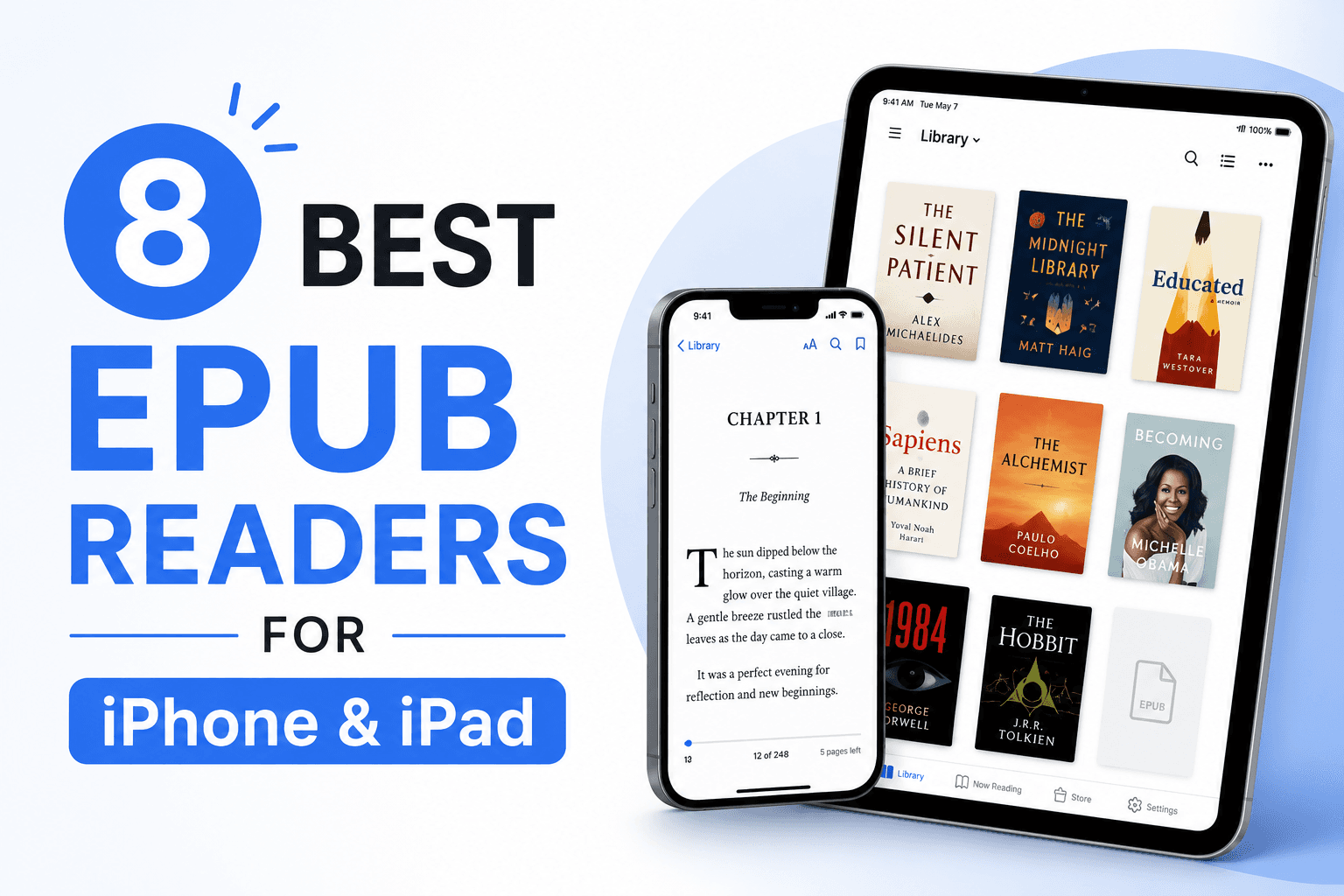
8 Best EPUB Readers for iPhone & iPad in 2026 (Free & Paid)
Compare the best EPUB readers for iPhone and iPad, including Apple Books, KyBook 3, Readest, Yomu, Kindle, Kobo, PocketBook, and BookFusion.