8 Best EPUB Readers for Windows in 2026 (Free & Paid)

On this page
Windows doesn't include a built-in EPUB reader. Older Edge Legacy builds supported EPUB, but current Microsoft Edge does not provide native EPUB reading. Third-party readers fill the gap.
Sumatra PDF is a lightweight reader for EPUB, PDF, MOBI, and comic-book formats. Calibre is better suited to large libraries, format conversion, and metadata editing. Thorium Reader focuses strongly on accessibility.
Quick reading benefits from a lightweight app, large libraries need management tools, and accessibility may require screen-reader and keyboard support. The eight options below address current Windows 11 and Windows 10 workflows; performance varies by device and library size.
1. Sumatra PDF (Best Lightweight Option)
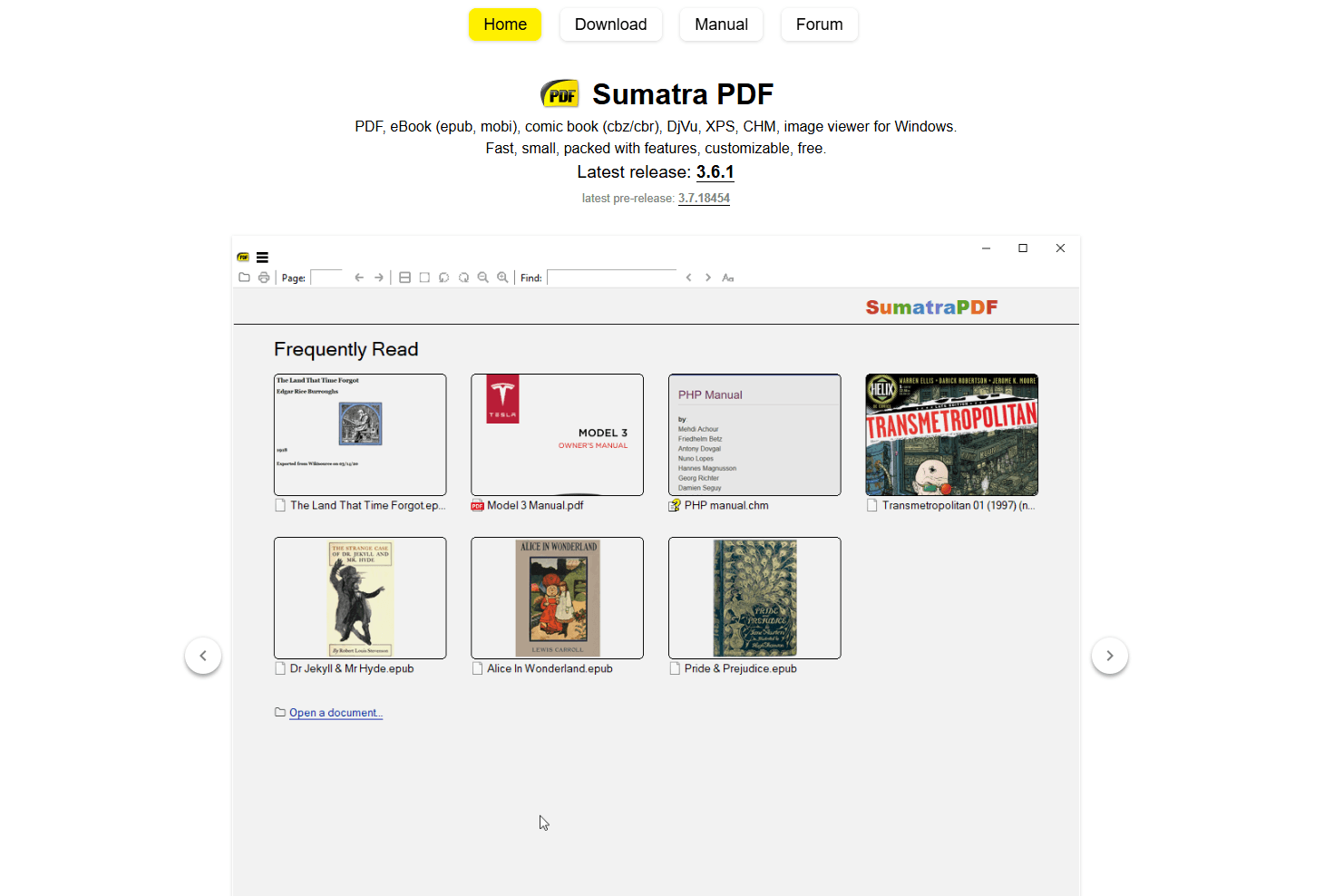
Sumatra PDF is a free, open-source Windows reader without a library database.
Install: Download from sumatrapdfreader.org or use winget: winget install SumatraPDF.SumatraPDF
What you get:
- Compact application for quick document and ebook reading
- Support for unencrypted EPUB, PDF, MOBI, CBZ, CBR, XPS, and DjVu files
- Portable version (runs from USB)
- Keyboard shortcuts for navigation
- Customizable via settings file
- Suitable for quick reading without a library database
What you don't get:
- No library management
- No EPUB annotation or highlighting tools
- No sync
- Basic interface (functional, not polished)
Sumatra PDF fits quick reading without library-management overhead. It handles several document and ebook formats and is useful for technical documentation, manuals, or occasional ebook reading.
2. Calibre (Best for Library Management)
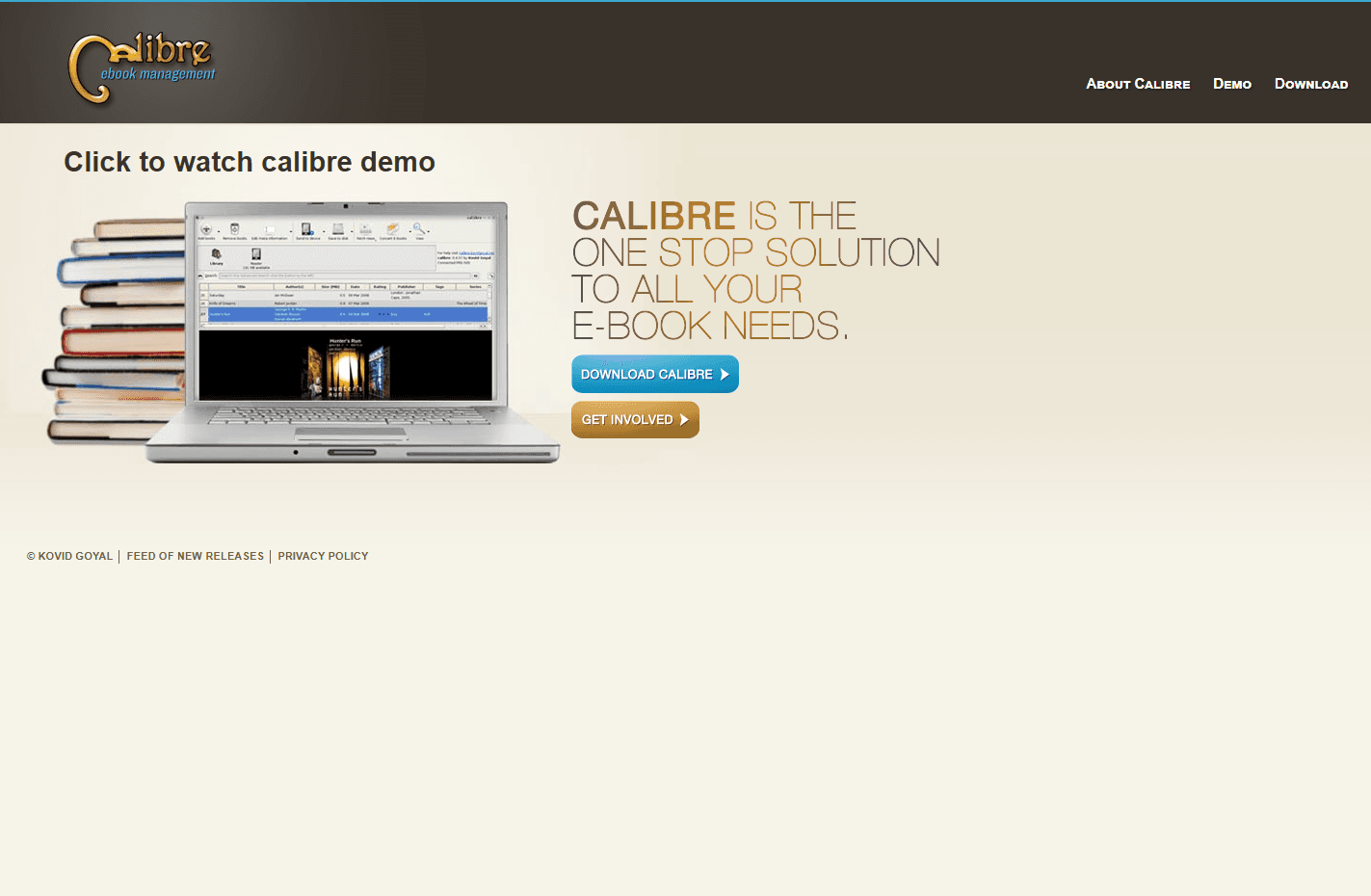
Calibre is a free, open-source ebook manager with conversion, metadata, device, and reading tools.
Install: Download from calibre-ebook.com or use winget: winget install calibre.calibre
What you get:
- Detailed library management for sizable collections
- Conversion between EPUB, MOBI, AZW3, PDF, and many other formats
- Metadata editing (covers, authors, tags, series)
- Built-in EPUB reader with customization
- Connections to many ebook readers, with support varying by device and connection method
- News download (convert websites to ebooks)
- Plugin ecosystem for extended features
- Search and filter by any metadata field
- Duplicate detection
- Built for managing large ebook libraries
What you don't get:
- Heavy for casual reading
- Interface not Windows-native
- Steeper learning curve
- No built-in account-based reading-position sync
Calibre fits power users who manage large ebook collections. Its conversion and metadata tools are useful when a simple reader is not enough, though conversion results depend on the source and output formats.
3. Thorium Reader (Best for Accessibility)
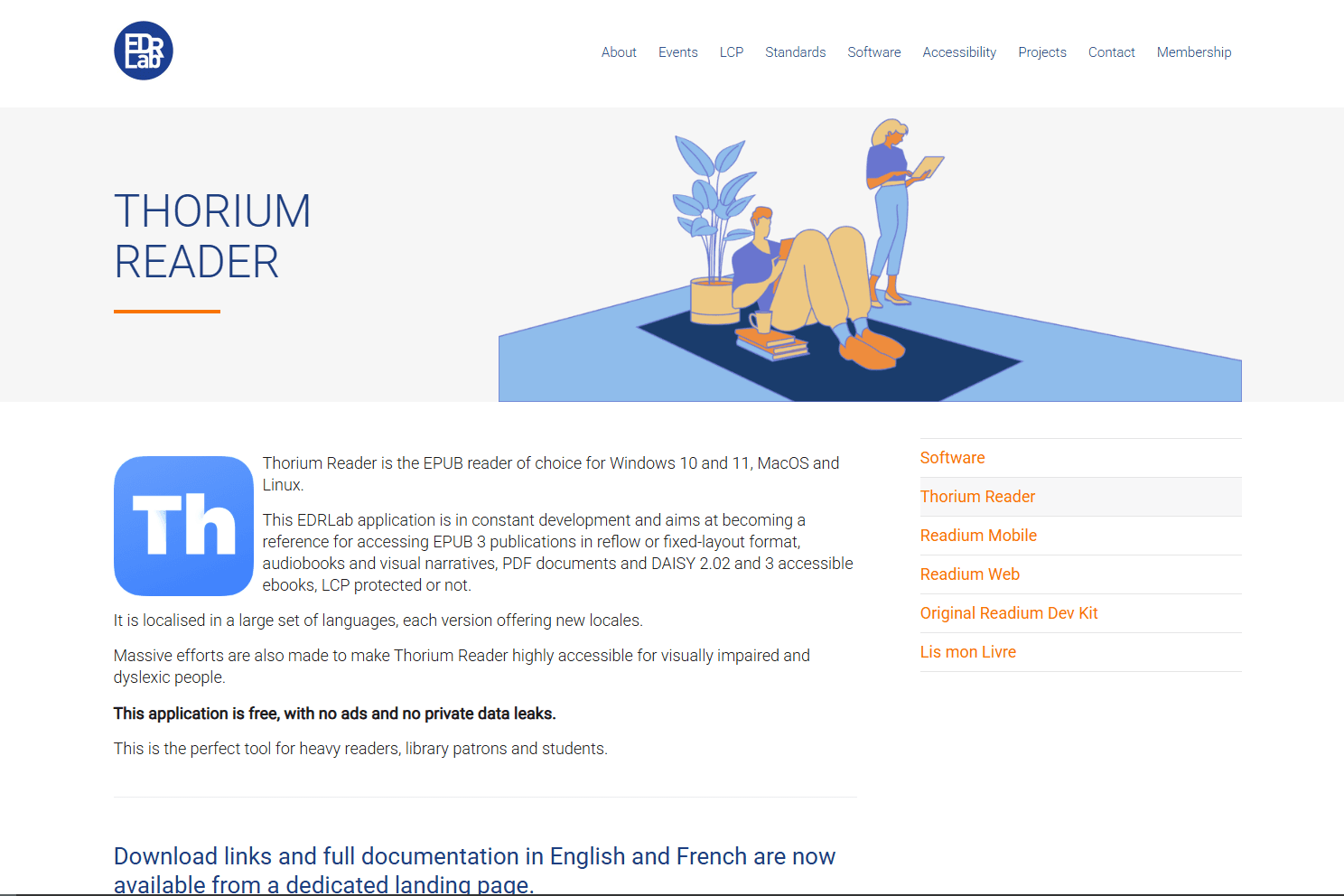
Thorium Reader is a free, open-source reader with Windows screen-reader support, keyboard controls, read-aloud, and display adjustments.
Install: Download from edrlab.org or use winget: winget install EDRLab.Thorium
What you get:
- Screen reader support for NVDA, JAWS, and Narrator; enable it in settings in Thorium 3.3 or later
- Text-to-speech with adjustable speed
- Customizable text size, spacing, and layout
- High-contrast modes and color themes
- Keyboard navigation (full keyboard control)
- EPUB 3 support with media overlays
- Audiobook support
- LCP DRM support (library ebooks)
- OPDS catalog support
- Current Windows desktop release
What you don't get:
- No advanced metadata or bulk-library tools
- No format conversion
- No sync across devices
- Basic interface
Thorium Reader fits users who need screen-reader integration, keyboard navigation, read-aloud, or detailed display controls. Its LCP DRM support works with participating libraries and booksellers.
4. Microsoft Edge Legacy Note (Not a Current EPUB Reader)
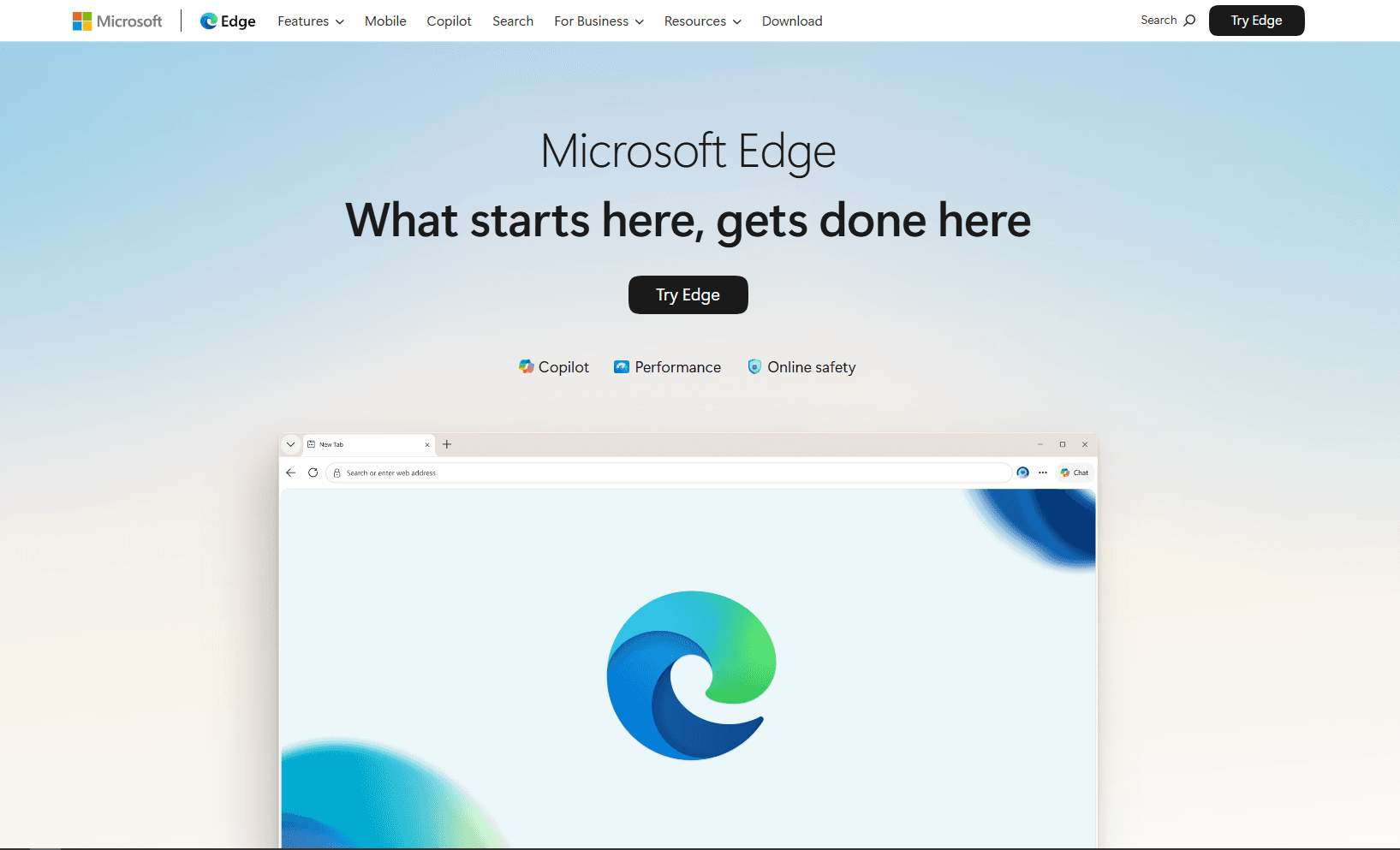
Current Microsoft Edge is pre-installed on Windows 11 and 10, but Microsoft confirms that it no longer opens EPUB files natively. If you remember using Edge for EPUBs, that was the older Edge Legacy app.
For current Windows installs, use Sumatra PDF, Thorium Reader, or Calibre instead.
What you get:
- Pre-installed browser
- Good read-aloud support for web pages and PDFs
- Useful for web-based ebook stores and documentation
What you don't get:
- No current native EPUB support
- No EPUB library management
- No EPUB format conversion
- Browser-based, not a dedicated ebook reader
Microsoft Edge is not the right choice for current EPUB files. Install a dedicated EPUB reader instead.
5. Koodo Reader (Best Free Modern Interface)
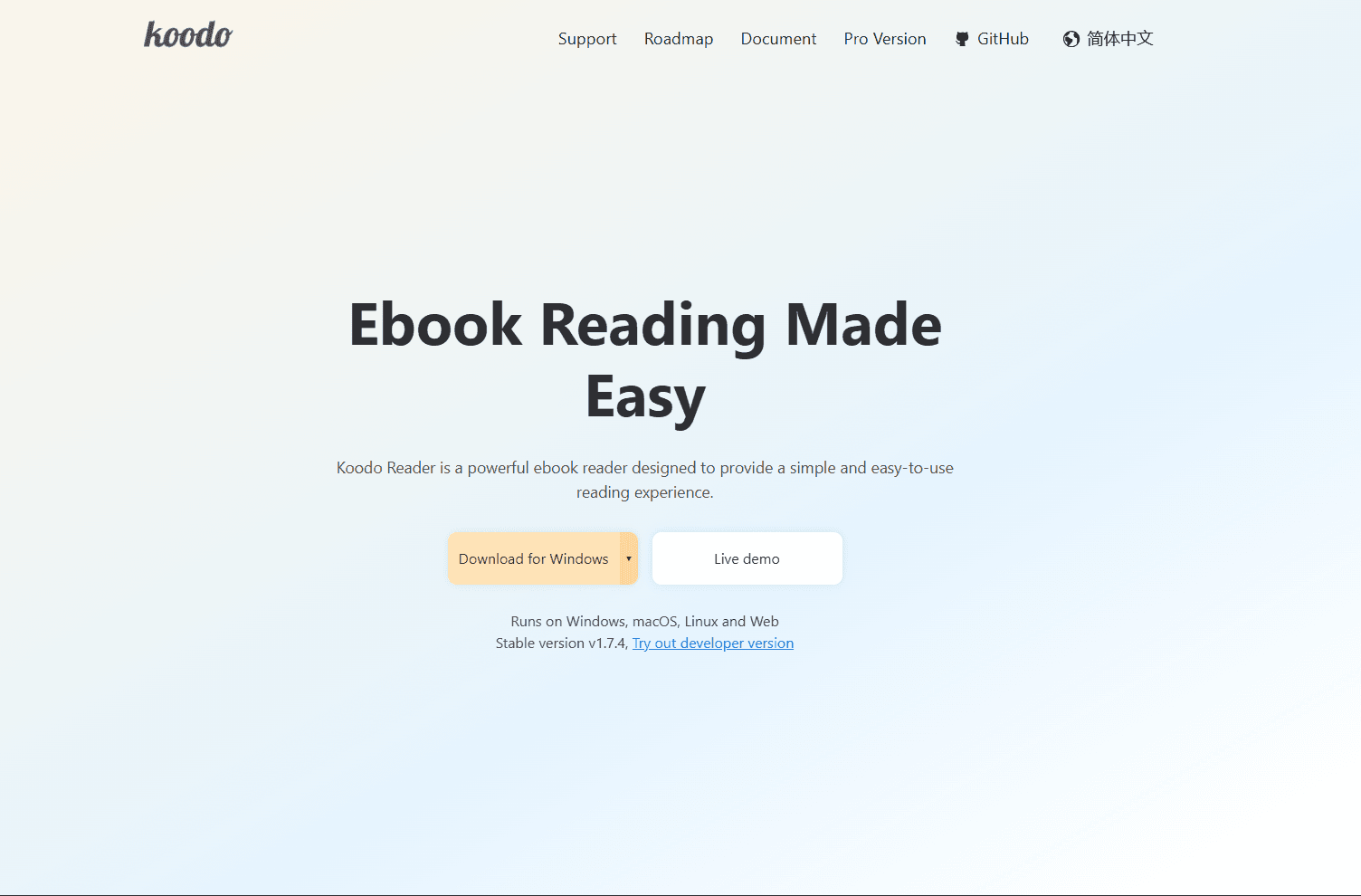
Koodo Reader is a cross-platform reader and manager. Its core desktop app is free and open source, while cloud-library synchronization requires Pro.
Install: Download from koodoreader.com or use winget: winget install AppByTroye.KoodoReader
What you get:
- Modern, clean interface
- Format support (EPUB, PDF, MOBI, AZW3, TXT, FB2, CBR, CBZ)
- Library shelves, search, and reading statistics
- Highlights and notes
- Pro synchronization through supported cloud storage and WebDAV services
- Text-to-speech
- Translation support
- Dark mode and themes
- Free desktop library that stores its data locally by default
What you don't get:
- No format conversion
- Cloud-library synchronization requires Pro and initial service setup
- Fewer advanced metadata tools than Calibre
Koodo Reader fits people who want the same library interface on Windows and other platforms. The free desktop reader works locally; choose Koodo Reader Pro for its supported synchronization services.
6. FBReader (Best for Cross-Platform Sync)
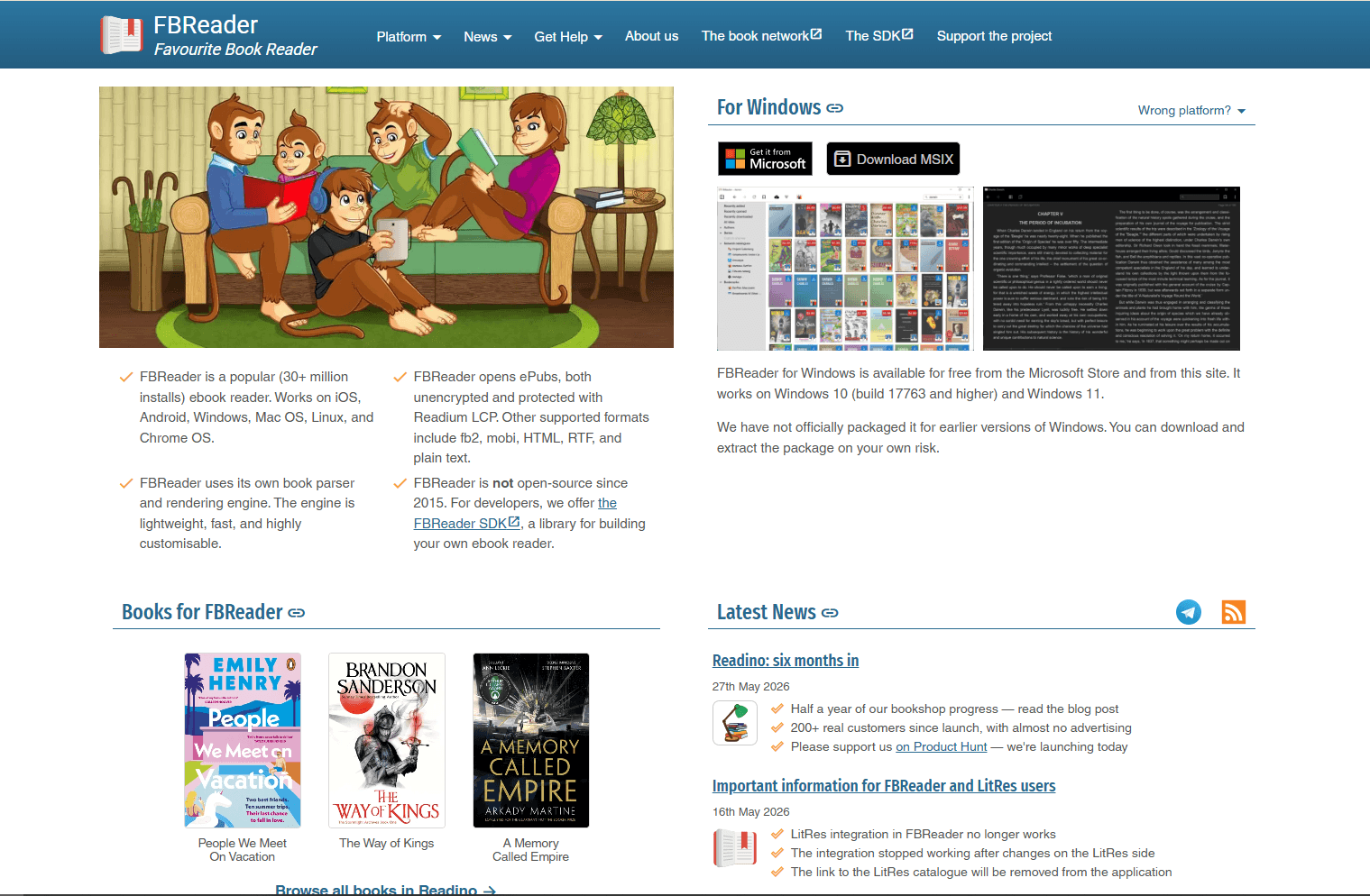
FBReader is a free Windows ebook reader with optional account-based synchronization across its supported apps.
Install: Download from fbreader.org or Microsoft Store.
What you get:
- Cloud sync across supported FBReader apps through an FBReader account
- Format support including EPUB, FB2, MOBI, RTF, DOC, TXT, and CBZ
- Network libraries (OPDS catalogs)
- Highlights and bookmarks with sync
- Customizable fonts and themes
- Reading positions sync
- Current Windows desktop release
What you don't get:
- Bookshelf tools are simpler than Calibre's library management
- No format conversion
- Sync requires FBReader account
- No PDF or DOCX support
FBReader fits users who read with FBReader on several platforms. After an account is configured, its synchronization service can carry reading positions, bookmarks, and library information between supported apps.
7. Icecream Ebook Reader (Best for Beginners)
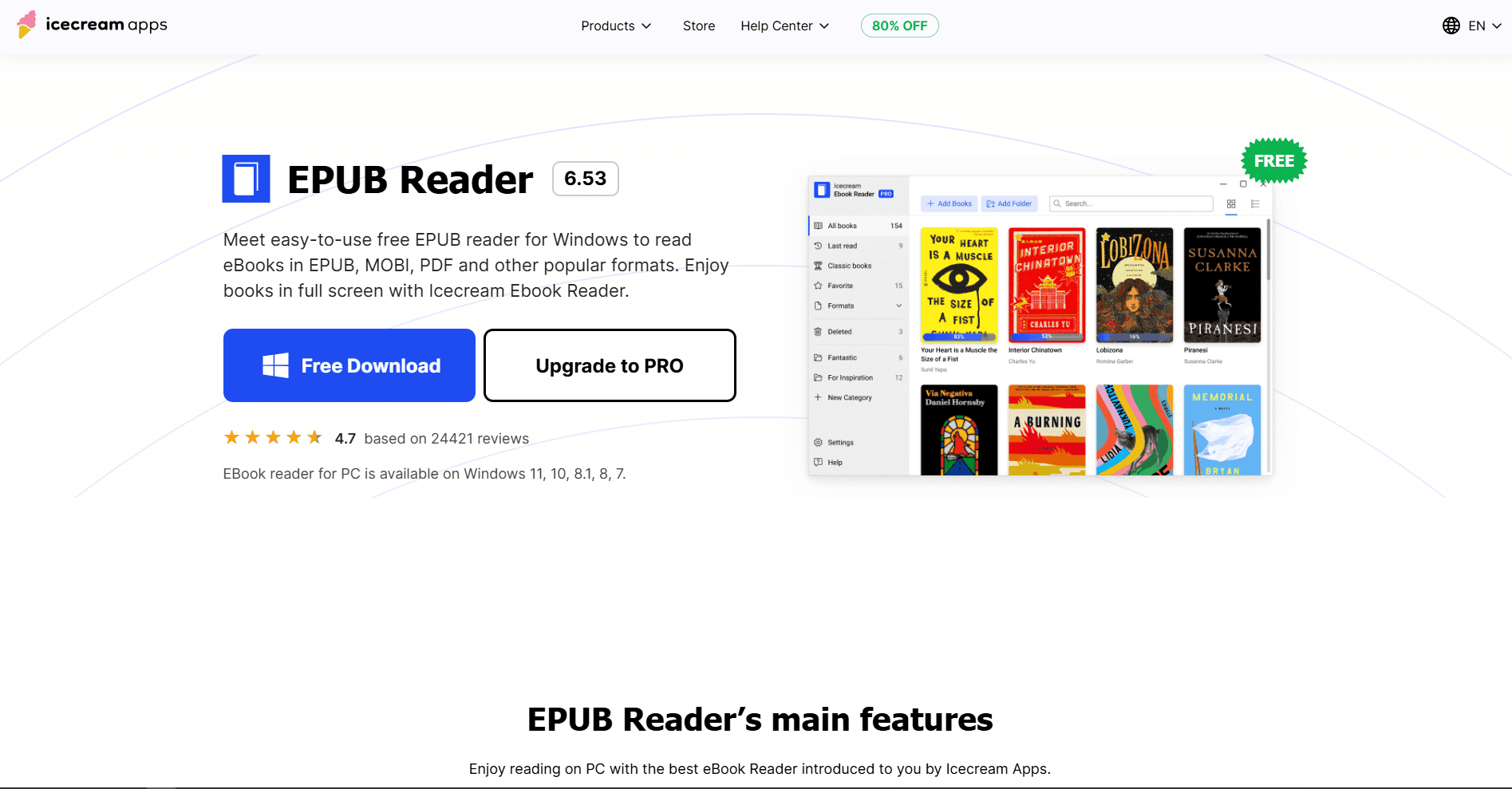
Icecream Ebook Reader is a Windows ebook reader with a simple interface. A free edition and a paid upgrade are available; check the official page for current limits and pricing.
Install: Download from icecreamapps.com
What you get:
- Simple, beginner-friendly interface
- Format support (EPUB, MOBI, FB2, PDF, CBR, CBZ)
- Unlimited local library with categories
- Bookmarks and notes
- Reading progress tracking
- Fullscreen mode
- Text-to-speech, dark mode, and layout controls
Paid-edition note:
- A paid license is available; check the official upgrade page for current license terms before buying
What you don't get:
- No sync
- No format conversion
- No support for DRM-protected ebooks
Icecream Ebook Reader fits beginners who want straightforward ebook reading and local library organization. The official product page says its essential reading features are free and that the installer contains no adware.
8. Kindle App for Windows (Best for Amazon Users)
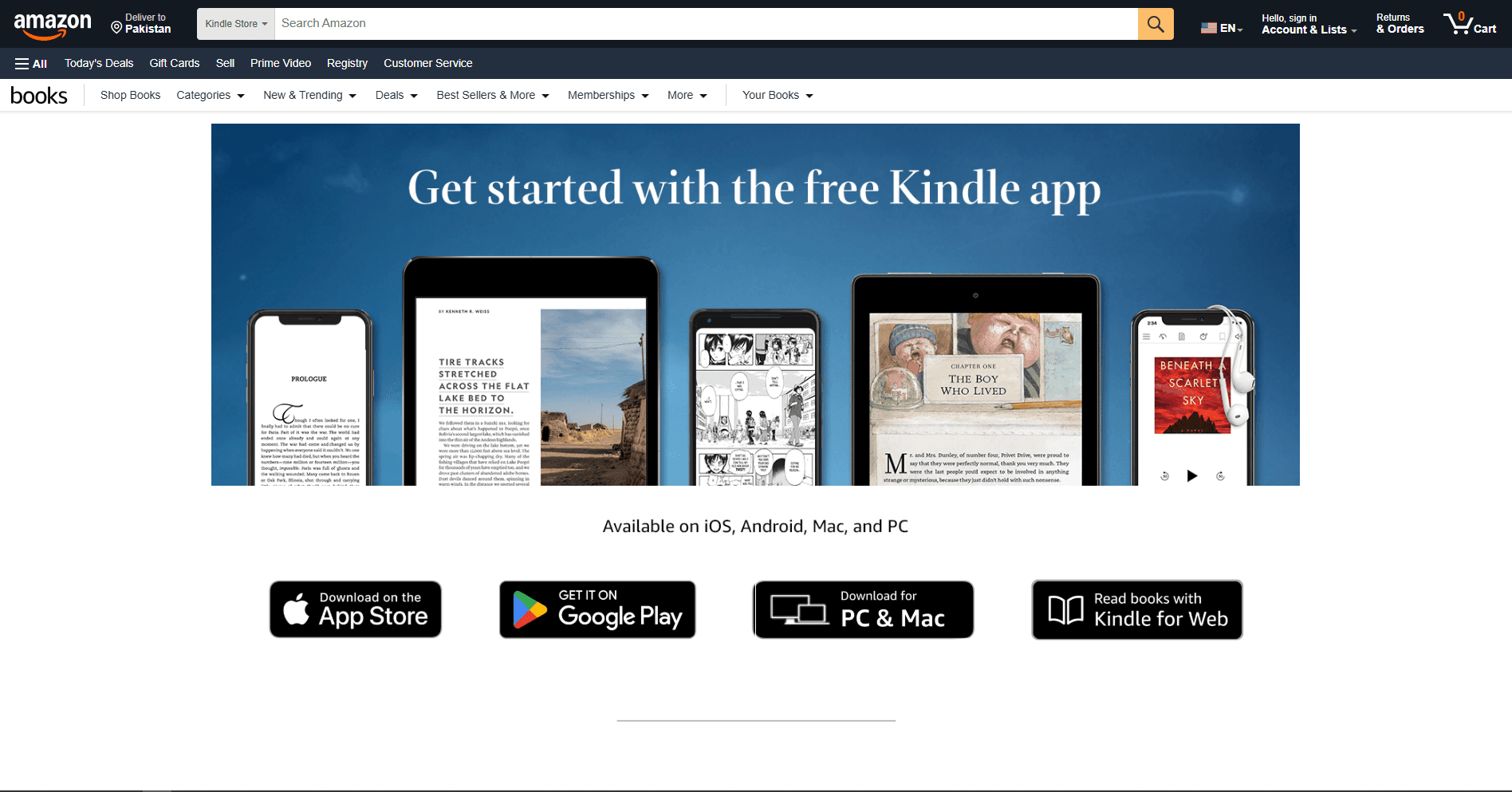
Kindle for Windows is Amazon's free desktop reader for Windows 11. It synchronizes supported books and reading data with Kindle devices and apps.
Amazon ended support for the legacy app previously called Kindle for PC on June 30, 2026. Install the current Kindle desktop app rather than an older archived build.
Install: Follow Amazon's current Kindle app instructions.
What you get:
- Sync with Kindle devices and apps
- Access to Amazon Kindle Store
- Whispersync (syncs reading position)
- Highlights and notes with sync
- Search and reading controls for supported Kindle books
- Integration with an Amazon account and Kindle library
What you don't get:
- No direct local EPUB reading; personal EPUBs use Send to Kindle and are converted for the Kindle library
- No Calibre-style metadata or conversion tools
- Requires Amazon account
- Current desktop app requires Windows 11
The Kindle app fits readers whose books already live in Amazon's ecosystem. For a folder of local DRM-free EPUBs, Sumatra PDF, Calibre, Thorium Reader, or Koodo Reader provides a more direct workflow.
EPUB Reader Comparison Table
Which EPUB Reader Should You Actually Use?
For quick reading without library overhead, Sumatra PDF is a strong choice and handles several document and ebook formats. Power users with sizable collections should choose Calibre for conversion, metadata editing, and detailed library management.
Thorium Reader provides documented support for NVDA, JAWS, Narrator, keyboard navigation, read-aloud, and detailed display controls. Windows does not currently have a reliable built-in EPUB reader, so Sumatra PDF, Thorium Reader, or Calibre is a better starting point than Microsoft Edge.
Koodo Reader provides a modern cross-platform library, although its cloud-library synchronization requires Pro. FBReader is another option when account-based reading-position sync matters, while Icecream Ebook Reader offers a simpler local library for beginners. The current Kindle app works best for Amazon customers using Windows 11, but it does not open local EPUB files directly.
Using more than one reader is normal: Sumatra PDF for quick reading, Calibre for library management, and Thorium Reader when its accessibility tools are needed.
Platform-Specific Tips for Windows
Windows 11 integration:
- Calibre supports Windows 10 version 1809 or newer and Windows 11
- The current Kindle desktop app requires Windows 11
winget installation: These four readers install via winget:
- winget install SumatraPDF.SumatraPDF
- winget install calibre.calibre
- winget install EDRLab.Thorium
- winget install AppByTroye.KoodoReader
File associations: Set default EPUB reader:
- Right-click any EPUB file
- Select Open with > Choose another app
- Select your preferred reader
- Check Always use this app
- Click OK
Portable versions: Sumatra PDF and Calibre offer portable versions for removable storage. Managed Windows computers may still block portable apps.
Cloud storage integration: A OneDrive, Google Drive, or Dropbox folder can synchronize EPUB files, but not necessarily reading positions or annotations. Koodo's cloud-library synchronization requires Pro.
Frequently Asked Questions
What's the best free EPUB reader for Windows?
Sumatra PDF for lightweight reading or Calibre for library management. Sumatra PDF handles EPUB, PDF, MOBI, and comic-book formats, while Calibre provides library management, conversion, and metadata editing. Both are free and open-source. Install Sumatra PDF with winget install SumatraPDF.SumatraPDF or Calibre with winget install calibre.calibre.
Does Windows 11 have a built-in EPUB reader?
No. Current Microsoft Edge does not open EPUB files natively. Use a dedicated reader like Sumatra PDF, Thorium Reader, or Calibre.
How do I open EPUB files on Windows?
Two good options: 1) Install Sumatra PDF (free, lightweight, winget install SumatraPDF.SumatraPDF). 2) Install Calibre (free, full-featured, winget install calibre.calibre). Sumatra PDF is best for quick reading. Calibre is best for library management.
Can I convert EPUB to PDF on Windows?
Yes. Install Calibre with winget install calibre.calibre, add the EPUB, select Convert books, choose PDF as the output format, and start the conversion. Review the result because reflowable EPUB layouts do not always translate cleanly to fixed PDF pages.
What's the best EPUB reader for large libraries on Windows?
Calibre. It is designed for sizable libraries with search, filtering, metadata editing, conversion, device connections, and plugins. Install via winget install calibre.calibre. Actual performance depends on library size, plugins, and the Windows computer running it.
Does Calibre work well on Windows 11?
Yes. Calibre supports current Windows versions and provides library management, conversion, metadata, and device features. Interface appearance and performance vary by version, settings, library size, and hardware. Install via winget install calibre.calibre or download from calibre-ebook.com.
How do I sync EPUB books across Windows and Android?
FBReader can synchronize reading data between supported apps after you sign in with an FBReader account. Koodo Reader has Windows and Android apps, but cloud-library synchronization requires Pro. For books already in an Amazon Kindle library, use the current Kindle app on Windows 11 and Kindle for Android.
What's the best EPUB reader for accessibility on Windows?
Thorium Reader documents support for NVDA, JAWS, and Narrator, along with read-aloud, configurable keyboard shortcuts, and controls for text, spacing, colors, fonts, and layout. It is free and open source. Install it with winget install EDRLab.Thorium or download it from edrlab.org, then enable screen-reader support in its settings when needed.
Related Reading
Using a different platform? See platform-specific EPUB reader guides:
- Best EPUB readers for Mac for macOS options
- Best EPUB readers for Ubuntu for Ubuntu Linux
For other file formats on Windows:
Read More
All Articles
8 Best EPUB Readers for Android in 2026 (Free & Paid)
Compare the best EPUB reader apps for Android, including ReadEra, Moon+ Reader, Google Play Books, Kobo, Kindle, FBReader, and Lithium.
7 Best EPUB Readers for Chromebook in 2026 (Free & Paid)
Find the best EPUB reader for Chromebook with Android apps, Chrome extensions, and Linux apps. Compare Google Play Books, ReadEra, EPUBReader, and more for reading ebooks.
8 Best EPUB Readers for iPhone & iPad in 2026 (Free & Paid)
Compare the best EPUB readers for iPhone and iPad, including Apple Books, KyBook 3, Readest, Yomu, Kindle, Kobo, PocketBook, and BookFusion.