7 Best JSON Editor Apps for Android in 2026 (Compared & Ranked)

On this page
The best JSON editor for Android depends on whether you want to change data through a visual tree or work directly with raw text. A tree editor reduces comma and bracket mistakes on a touchscreen, while a code editor is faster when you already understand the file and need search, remote access, or Git.
Json Genie is the strongest dedicated choice for most people because it combines tree editing, raw text, search, formatting, and local processing. JSON & XML Tool provides a simpler hierarchical editor, while QuickEdit and Acode are better when JSON is one part of a broader coding workflow.
Android storage rules also affect the experience. A current editor should work with the system file picker or Storage Access Framework rather than promising unrestricted access to every folder. The seven options below cover visual editing, large text files, remote servers, Git projects, and occasional browser-based formatting.
1. Json Genie - Best Overall JSON Editor for Android
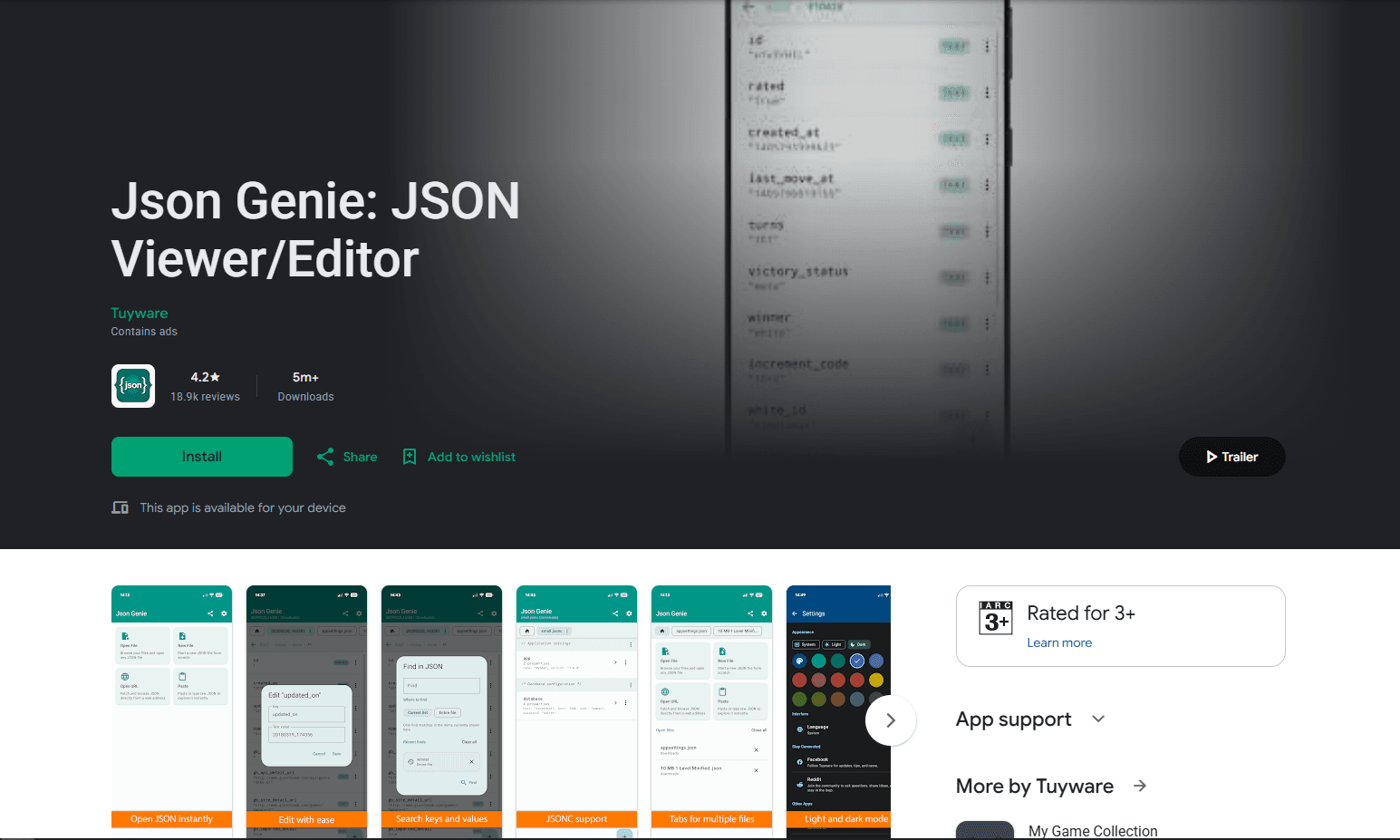
Json Genie is a dedicated JSON viewer, editor, and formatter with more than five million Google Play downloads. It opens .json and JSONC files, displays objects and arrays in a collapsible tree, and lets you edit values without manually balancing every quote, comma, and bracket.
The current app also searches keys, values, and paths, opens multiple files in tabs, and can pretty-print, minify, or sort keys. Its Google Play description says ordinary opening, editing, and formatting happen on the device without uploading the file to the developer's servers, which makes it a better fit than a website for private configuration data.
The free version contains ads and places limits on files, tabs, and history. Premium removes the ads and expands those limits, so frequent users should compare the two editions before deciding whether the free experience is sufficient.
Good fit if:
- You want to inspect and edit nested JSON through a visual tree.
- Search by key, value, or path matters more than project-level coding tools.
- Files should stay on the device during ordinary editing and formatting.
Skip it if:
- You need Git, SFTP, or a multi-language project workspace.
- You prefer an ad-free free editor with no feature limits.
2. JSON & XML Tool - Best Simple Hierarchical Editor
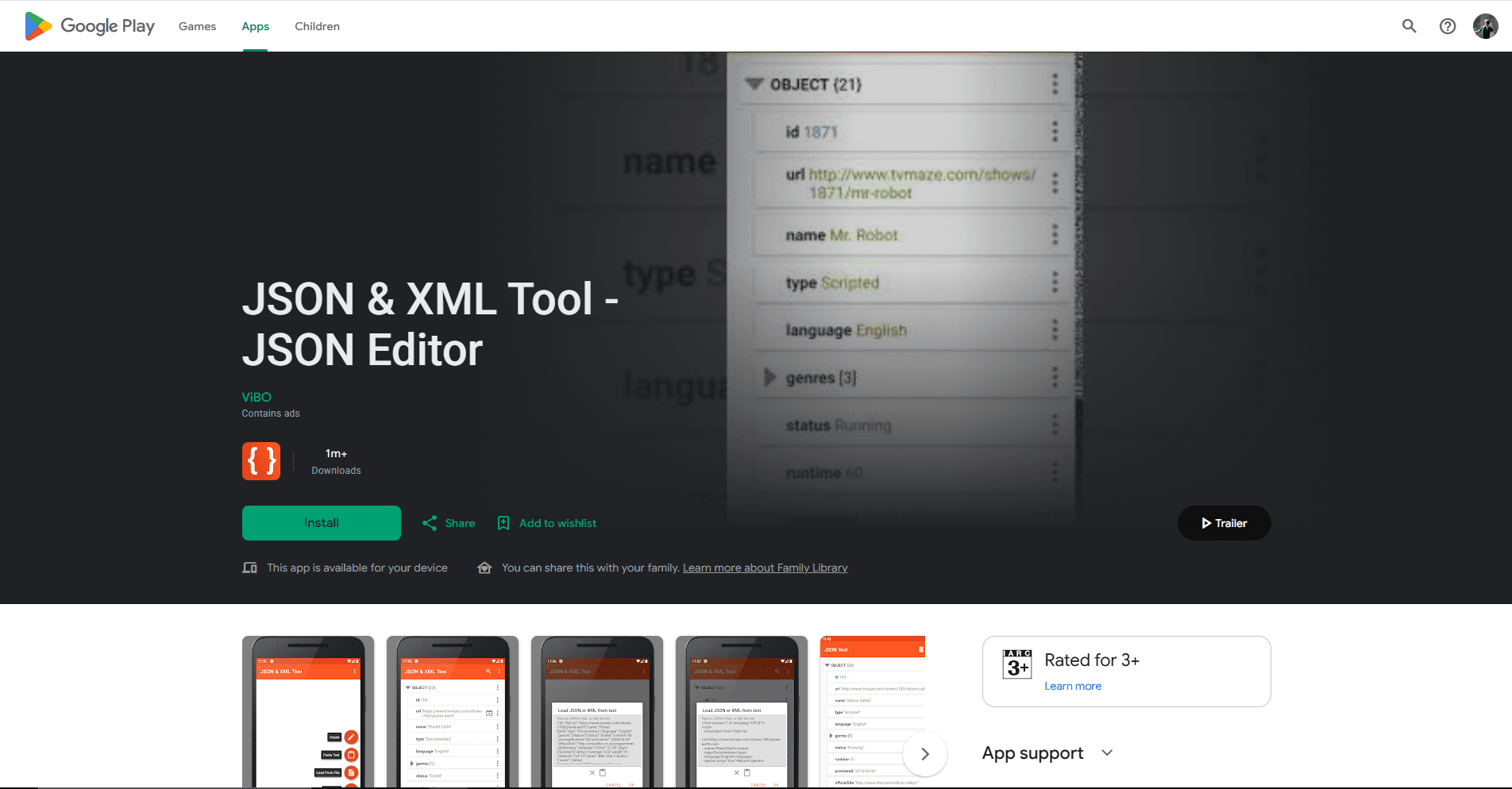
JSON & XML Tool is a focused visual editor from ViBO with more than one million Google Play downloads. It loads JSON from a file, URL, pasted text, or Android's share system, then presents the data as a hierarchy instead of a wall of raw syntax.
You can add, duplicate, remove, rename, and reorder elements, change primitive value types, and save the result as JSON or XML. The app uses Android's Storage Access Framework for its internal file picker, so it works with the permission model used by current Android versions instead of relying on unrestricted storage access.
This app is simpler than Json Genie and useful when the task is changing a few keys or array items. It does not provide a development workspace, Git workflow, schema validation, or the raw-text controls of a full code editor, and the free edition contains ads.
Good fit if:
- You want a straightforward tree editor for JSON and XML.
- Converting between JSON and XML is part of the workflow.
- You would rather edit nodes and values than raw punctuation.
Skip it if:
- You need regex search, code completion, Git, or remote files.
- You want a side-by-side raw text and visual editing environment.
3. QuickEdit Text Editor - Best for Large Raw JSON Files
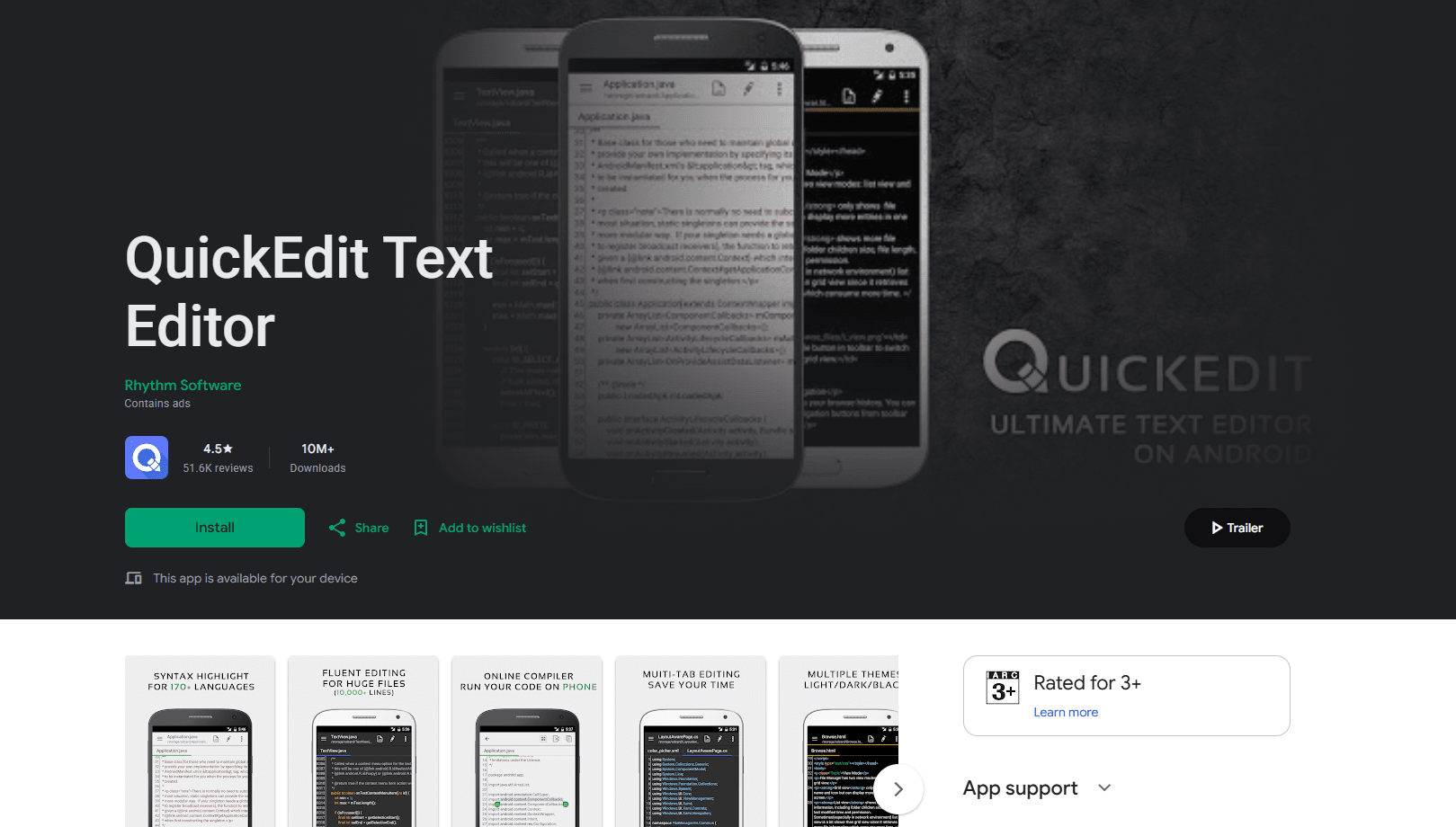
QuickEdit Text Editor is a general text and code editor with more than ten million Google Play downloads. Its strength is responsive raw-text editing, and the current listing advertises syntax highlighting across more than 170 languages and performance optimizations for large files.
Line numbers, unlimited undo and redo, search and replace, encoding controls, and a multi-tab workflow make QuickEdit practical for logs, exported data, and configuration files. Current editions can also reach services such as Google Drive, Dropbox, OneDrive, FTP, FTPS, and SFTP, although availability can differ between the free and Pro versions.
QuickEdit does not turn JSON into an editable object tree. It is the better choice when you know where the change belongs and want a fast text editor, but it provides less protection against structural mistakes than Json Genie or JSON & XML Tool.
Good fit if:
- You regularly open long JSON documents as raw text.
- Search, replace, line navigation, and encoding controls matter.
- Files come from cloud storage or a remote file service.
Skip it if:
- You want to expand objects and arrays in a tree.
- You need JSON Schema validation or visual node editing.
4. Acode - Best for Projects and Remote Servers
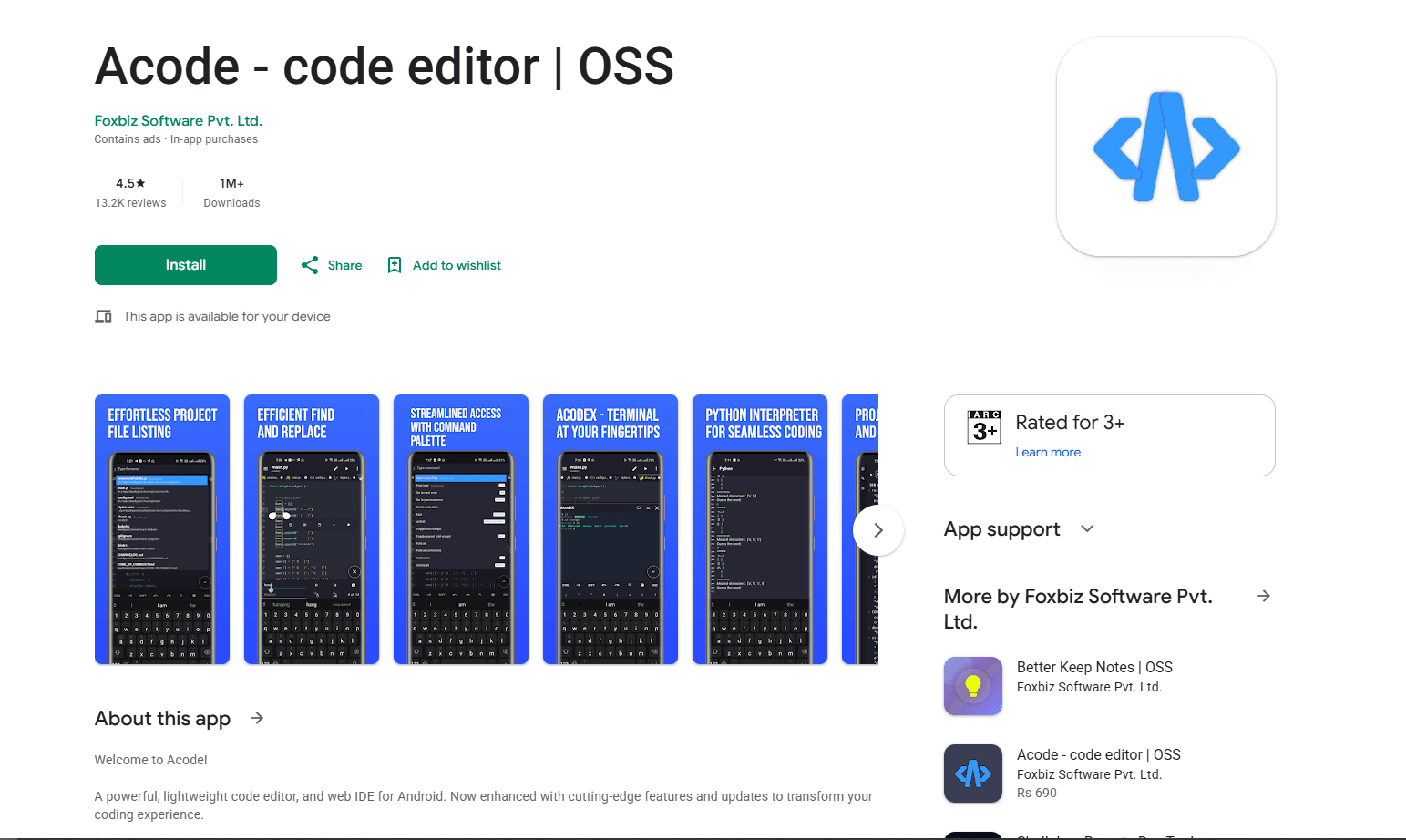
Acode is an open-source code editor and web IDE for Android. It combines multi-file tabs, project search, a command palette, syntax highlighting, a plugin system, and a Linux terminal, making it more capable than a dedicated JSON viewer when the file belongs to an application or website.
Git, SSH, FTP, and SFTP support let you work with repositories and remote servers from the same app. The plugin ecosystem can add language servers, formatters, themes, and other development tools, although JSON-specific behavior depends on the editor configuration and installed plugins.
That flexibility also makes Acode more involved than Json Genie or QuickEdit. The free version contains ads, Pro adds paid benefits, and a terminal or plugin setup is unnecessary if you only need to change one value in a downloaded JSON file.
Good fit if:
- JSON files live inside a larger coding project.
- You need Git, SSH, SFTP, or terminal tools on Android.
- An open-source editor with optional plugins appeals to you.
Skip it if:
- You want a dedicated JSON tree editor with minimal setup.
- A simple file-and-value workflow is more important than extensibility.
5. Code Editor by Rhythm Software - Best General Coding Environment
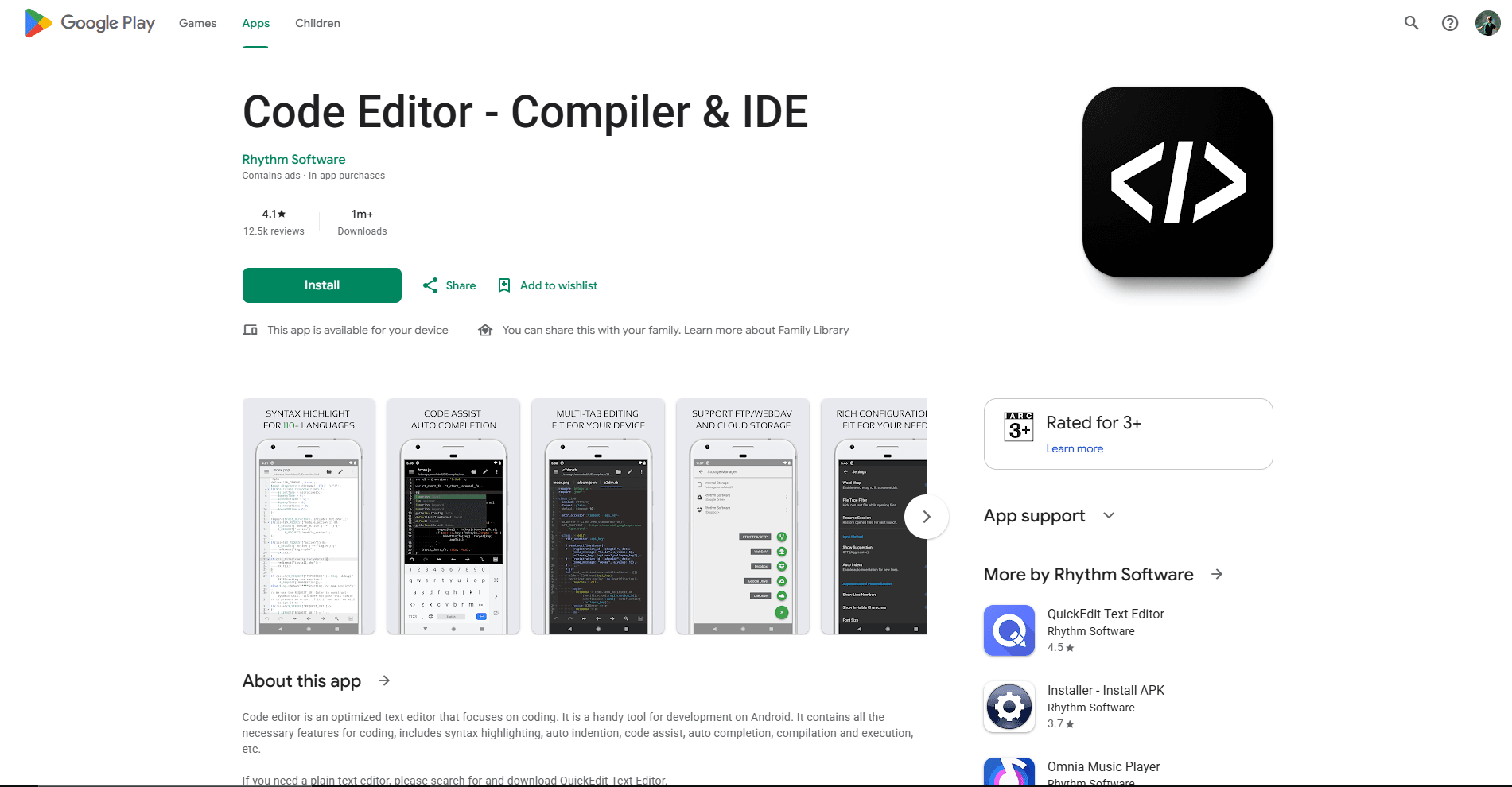
Code Editor is Rhythm Software's development-focused alternative to QuickEdit. Its current Google Play listing includes syntax highlighting for more than 110 languages, code folding, matching-bracket highlighting, automatic indentation, regex search, multiple tabs, and physical keyboard shortcuts.
The app can access FTP, FTPS, SFTP, WebDAV, Google Drive, Dropbox, and OneDrive, with GitHub and GitLab integration for project files. Those connections make it useful when a JSON configuration is stored beside source code or on a remote service rather than in the phone's Downloads folder.
Code Editor is still a general source editor, not a dedicated JSON tree tool. It contains ads and in-app purchases, and its compiler features do not add much to ordinary JSON editing, so QuickEdit remains the leaner choice for raw files and Acode offers the more expandable project environment.
Good fit if:
- You edit JSON beside several programming languages.
- Remote storage and physical keyboard controls matter.
- Code folding and matching-bracket cues are enough for your workflow.
Skip it if:
- You want visual object and array editing.
- You do not need the compiler and broader IDE features.
6. Spck Editor - Best for Git-Based Web Projects
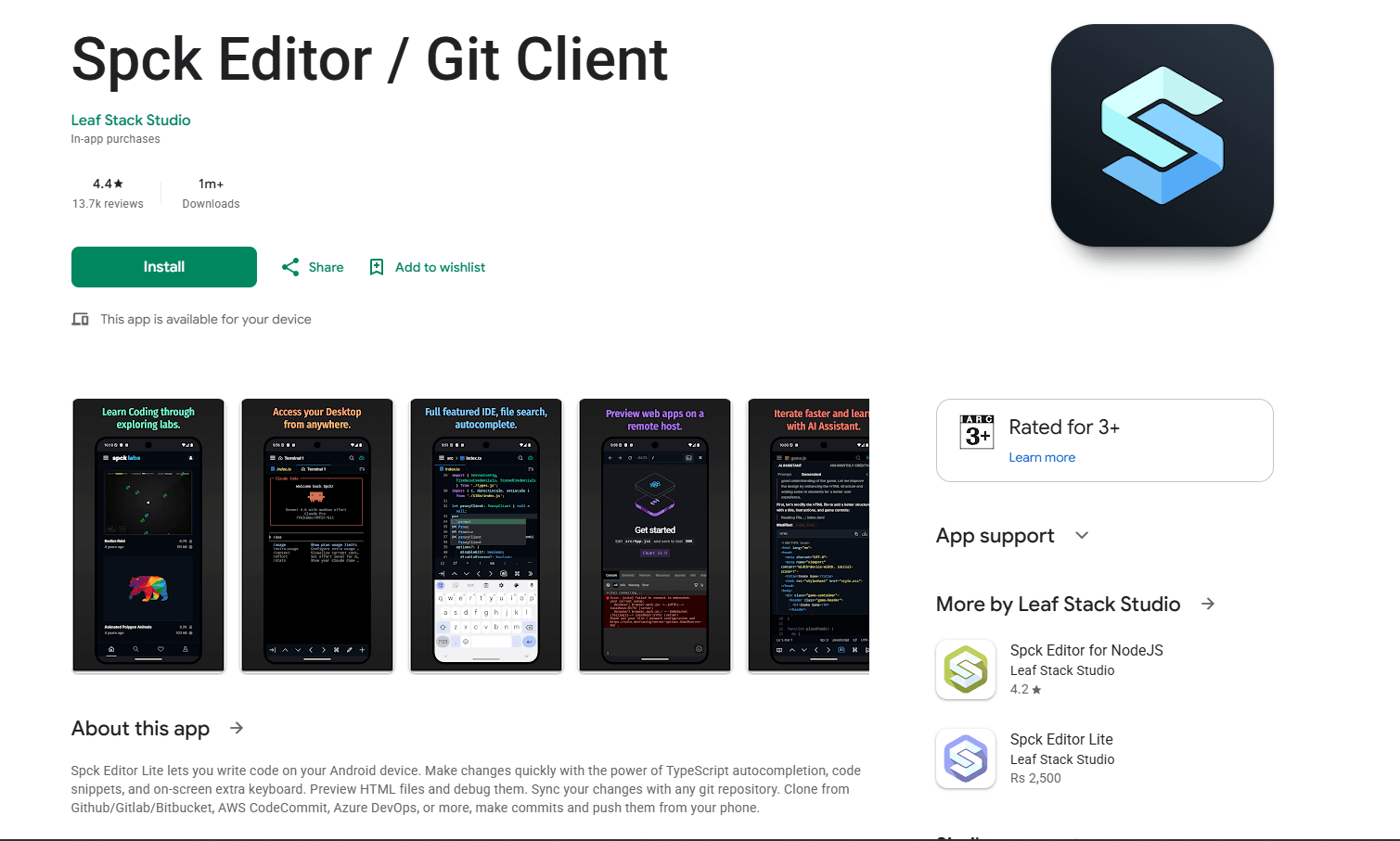
Spck Editor is a mobile-first code editor and Git client built around web projects. It can clone repositories from services such as GitHub, GitLab, Bitbucket, AWS CodeCommit, and Azure DevOps, then commit, pull, push, and inspect diffs from Android.
The project browser, file search, tabs, snippets keyboard, automatic indentation, and syntax highlighting suit files such as package.json, web app configurations, and mock API data. A separate Spck Editor for NodeJS adds a Node terminal for running npm commands and JavaScript tasks; the standard Spck listing should not be confused with that edition.
Spck is less convenient for opening an unrelated JSON file directly from local storage because its workflow is project-centered. It also lacks the visual JSON tree and type-aware node controls found in dedicated editors, so choose it for repository work rather than occasional formatting.
Good fit if:
- Your JSON files belong to a Git-based web project.
- You need clone, commit, pull, push, and diff tools on Android.
- JavaScript and TypeScript files are part of the same job.
Skip it if:
- You mainly open standalone files from the Android file picker.
- You want visual JSON navigation or type-aware node editing.
7. JSONFormatter.org - Best for Occasional Browser Use
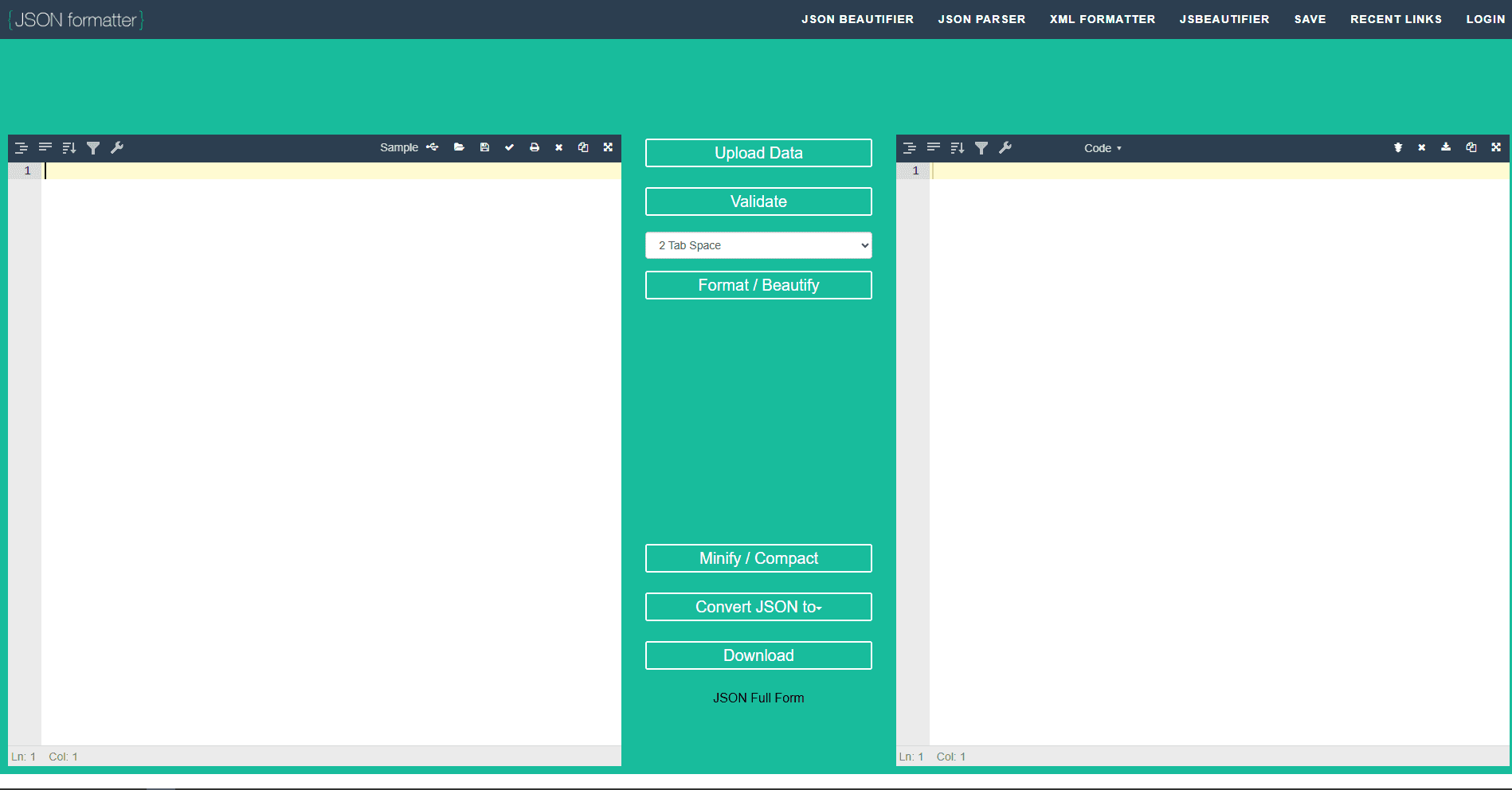
JSONFormatter.org works in an Android browser when installing an app would be excessive. Paste JSON into the editor to format, validate, inspect, or switch to a tree view, then copy the cleaned result back to the app where you need it.
This is convenient for public sample data and quick troubleshooting, but it should not be treated like a private local editor. The site's privacy policy explicitly warns users not to save sensitive data with its save functionality, and the formatter can retain the last formatted value in browser local storage.
Avoid pasting API keys, authentication tokens, customer records, private configuration, or proprietary data into an online tool. Json Genie or another offline editor is the safer workflow for sensitive material, while JSONFormatter.org remains useful for occasional non-sensitive formatting without an installation.
Good fit if:
- You need to format or inspect non-sensitive JSON once.
- Installing and configuring an Android app is unnecessary.
- Copy and paste is enough for the task.
Skip it if:
- The JSON contains credentials, customer information, or private data.
- You need offline access, direct file management, or Git.
Android JSON Editor Comparison
Which Android JSON Editor Should You Choose?
Choose Json Genie when you want one app devoted to JSON. Its tree, raw-text view, search, multiple tabs, formatting tools, and local processing cover the broadest range of everyday JSON tasks, although the free version's ads and limits may push regular users toward Premium.
Choose JSON & XML Tool for a simpler hierarchy and occasional JSON-to-XML conversion. Choose QuickEdit instead when the file is large, raw-text search matters, or you need access to common cloud and remote storage services.
Choose Acode for an expandable project workspace with Git, terminal, SSH, and plugins. Code Editor is a reasonable middle ground for multi-language editing and remote files, while Spck Editor is the more focused choice when the JSON belongs to a web project already stored in Git.
Use JSONFormatter.org only for quick, non-sensitive formatting in a browser. It saves an installation, but an offline app provides a clearer privacy boundary and better file handling for regular work.
Android Storage and Safe Editing Tips
Current Android versions use scoped storage, so an editor may not be able to browse every folder directly. Open files through Android's system file picker, grant access only to the required folder, and keep important JSON in Documents or another location exposed by your file provider.
Before changing a production configuration, save a separate backup and confirm that the editor preserved the expected encoding. After editing, reopen the saved file and run it through a validator before uploading, committing, or replacing the original.
Cloud and Git connections add another layer of risk. Test the save or push workflow with a disposable file first, and do not assume that closing an app automatically synced the latest version to the remote service.
Frequently Asked Questions
What is the best JSON editor app for Android?
Json Genie is the best dedicated JSON editor for Android for most users. It combines a collapsible tree, raw-text view, key and value search, tabs, JSONC support, formatting, minification, and local file processing. QuickEdit is better for large raw files, while Acode is better when the JSON belongs to a development project.
Can I edit JSON files on Android without an app?
Yes. JSONFormatter.org provides browser-based formatting, validation, editing, and a tree view for occasional non-sensitive data. Avoid online tools when a file contains credentials, private customer information, or proprietary configuration, and use an offline editor instead.
How do I open a JSON file on Android?
Find the file in Files or another Android file manager, tap it, and choose Open with or Share to send it to a compatible editor. If the editor cannot see the folder, use the Android system file picker and grant access to that specific location rather than looking for an unrestricted storage permission.
Can Android JSON editors validate JSON Schema?
The apps in this guide can catch or avoid basic JSON syntax problems to different degrees, but they should not be assumed to provide complete JSON Schema validation. For schema-aware project work, use a configured language server or development environment and verify the file with the required schema before deployment.
Is Json Genie free?
Json Genie has a free version with ads and limits on areas such as files, tabs, and history. Its optional Premium edition removes ads and expands those limits. Check the current Google Play listing because pricing and included benefits can change by region and release.
What is the best Android JSON editor for Git repositories?
Spck Editor is the most focused option for Git-based web projects because it provides repository cloning, commits, pull and push operations, and a diff viewer. Acode is the more flexible alternative when you also need a terminal, SSH, SFTP, plugins, or a broader development environment.
Related Reading
If you need to combine several files after editing them, the JSON merger tool works directly in your browser. The following guides cover desktop platforms and editor-specific extension workflows.
Desktop JSON Editor Guides
Editor-Specific JSON Guides
Read More
All Articles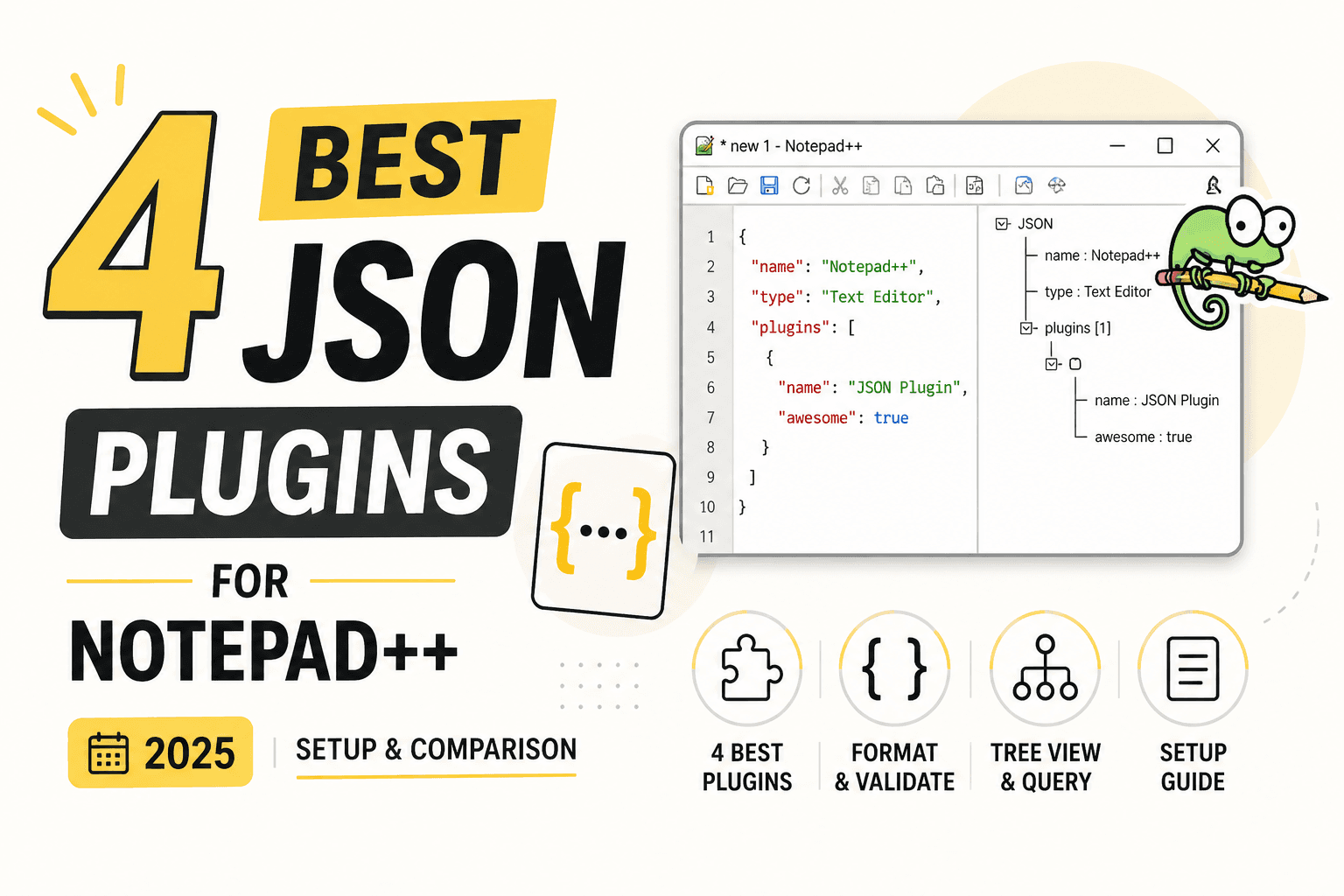
4 Best JSON Plugins for Notepad++ in 2026
Compare the best JSON editor plugins for Notepad++ for formatting, tree navigation, linting, schema validation, and file comparison.
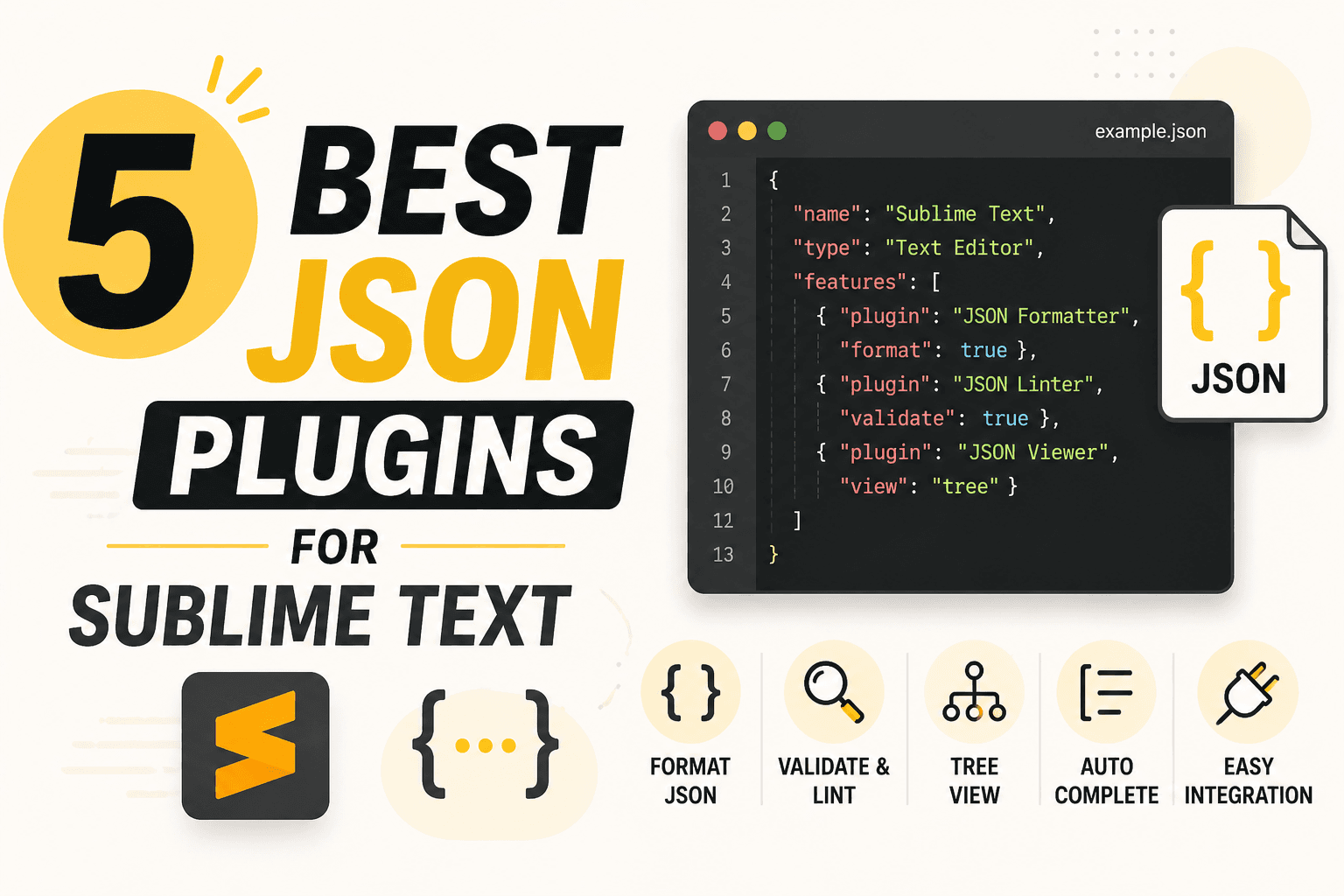
5 Best JSON Plugins for Sublime Text in 2026
Compare 5 current Sublime Text JSON plugins for formatting, live linting, schema validation, jq transformations, and structural navigation.
6 Best JSON Editors for Mac in 2026 (Free & Paid Options)
Find the best JSON editor for macOS with native performance. Compare VS Code, OK JSON, Sublime Text, and more for speed, validation, and Apple Silicon optimization.