3 Best JSON Plugins for Eclipse in 2026 (Free & Easy Setup)

On this page
JSON support in Eclipse varies by package. The current Enterprise Java and Web Developers package already includes Wild Web Developer, while a smaller Java or RCP installation may need a feature added before .json files receive JSON-aware editing.
Wild Web Developer is the best starting point for a current Eclipse installation. It uses the Visual Studio Code JSON language server through Eclipse's Generic Editor and provides syntax-aware editing, diagnostics, completion, hover information, an outline, and JSON Schema support.
Eclipse Web Tools Platform also maintains its own JSON Editor and Tools feature. The older JSON Editor Plugin from Boothen Technology remains available for older Eclipse installations, but its declared compatibility and maintenance history make it a fallback rather than the default recommendation.
The three options below retain JSON work inside Eclipse, but they serve different generations of the IDE. Check what your Eclipse package already contains before installing another editor with overlapping file associations.
1. Wild Web Developer
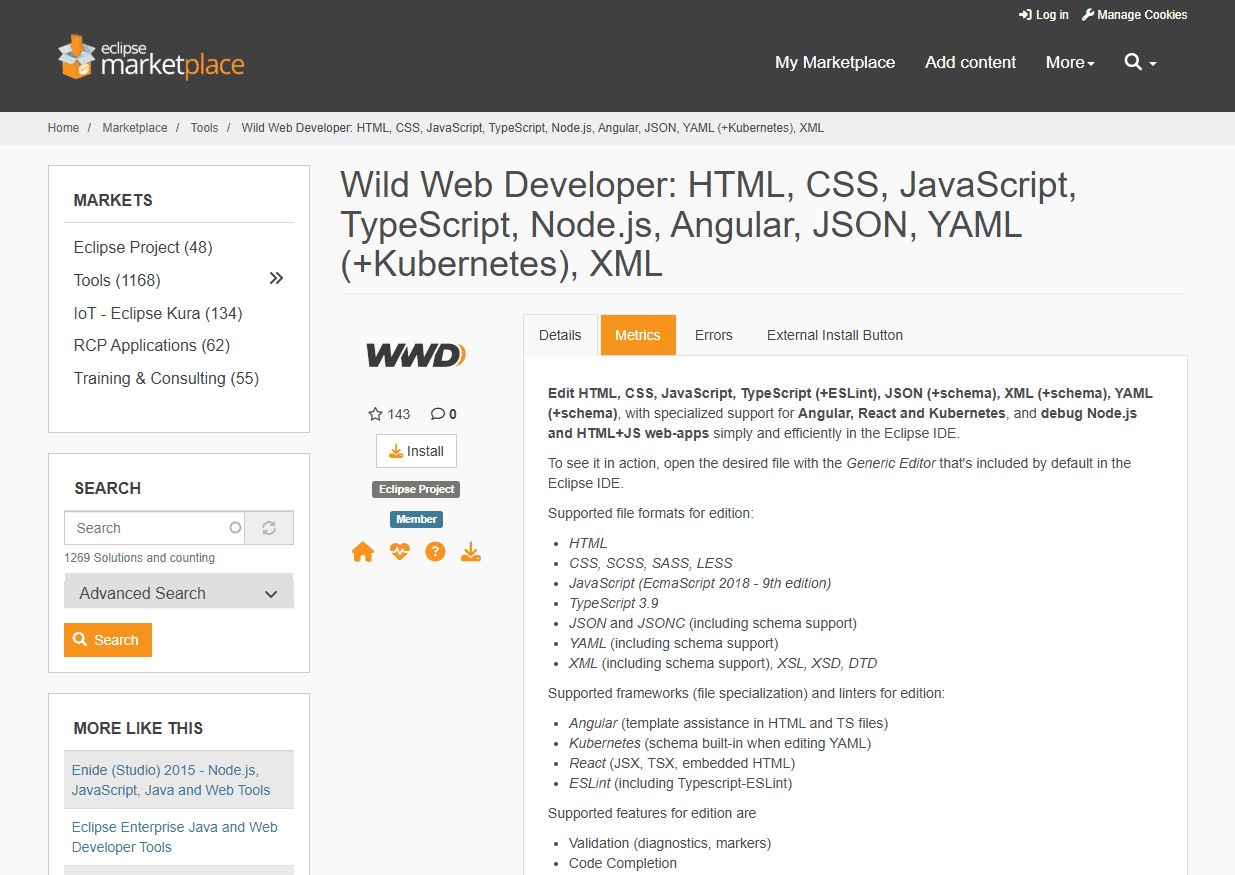
Wild Web Developer is the strongest JSON option for a current Eclipse IDE. It is an Eclipse project built on the Generic Editor, LSP4E, and TM4E, and its JSON support uses Visual Studio Code's JSON language-server technology.
What you get:
- JSON and JSONC syntax-aware editing
- Real-time diagnostics and editor markers
- JSON Schema validation and completion
- Hover information and document outline
- Code completion and language-server navigation
- Current Eclipse project maintenance
What you don't get:
- A graphical tree editor for changing nodes visually
- A standalone JSON-only installation with no supporting editor framework
- Identical behavior to VS Code for every command and preference
How to install:
First open a .json file with Open With > Generic Editor. If JSON diagnostics and completion already appear, your Eclipse package includes the feature. Otherwise, open Help > Eclipse Marketplace, search for Wild Web Developer, install it, restart Eclipse, and use the Generic Editor for JSON files.
Eclipse version: The current Marketplace update site lists Eclipse 2023-03 through 2026-06. The Marketplace page also provides separate archived update sites for several older Eclipse versions, so use its version table instead of assuming one package works across every release.
2. Eclipse Web Tools Platform (Built-in)
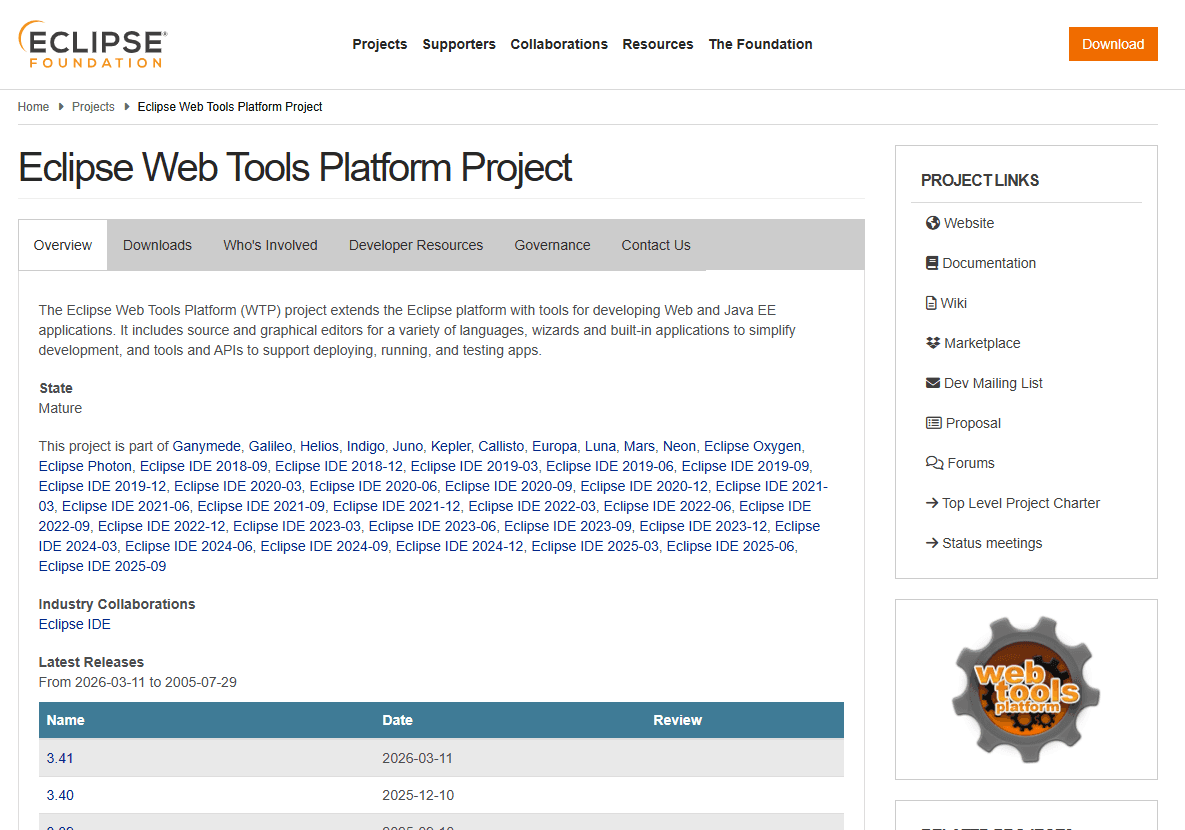
The Eclipse WTP Source Editing project maintains source editors for web formats including JSON. Its current release metadata still publishes an Eclipse JSON Editor and Tools feature supplied by Eclipse Web Tools Platform.
What you get:
- A dedicated Eclipse JSON editor and file association
- JSON source editing within the WTP framework
- Eclipse-managed installation and updates
- No separate third-party Marketplace project
What you don't get:
- Documented feature parity with Wild Web Developer's language server
- A visual form or editable tree for JSON values
- Consistent inclusion in every Eclipse download package
How to check if you have it:
Open a .json file and inspect Open With for an Eclipse JSON editor. If the feature is missing, open Help > Install New Software, select the update site for your Eclipse release, and search for Eclipse JSON Editor and Tools. Do not install it solely to duplicate a working Wild Web Developer setup.
Eclipse version: Availability depends on the selected Eclipse package and release repository. WTP remains a mature Eclipse project, but package contents can change, so confirm the feature in Help > About Eclipse IDE > Installation Details.
3. JSON Editor Plugin (Legacy)
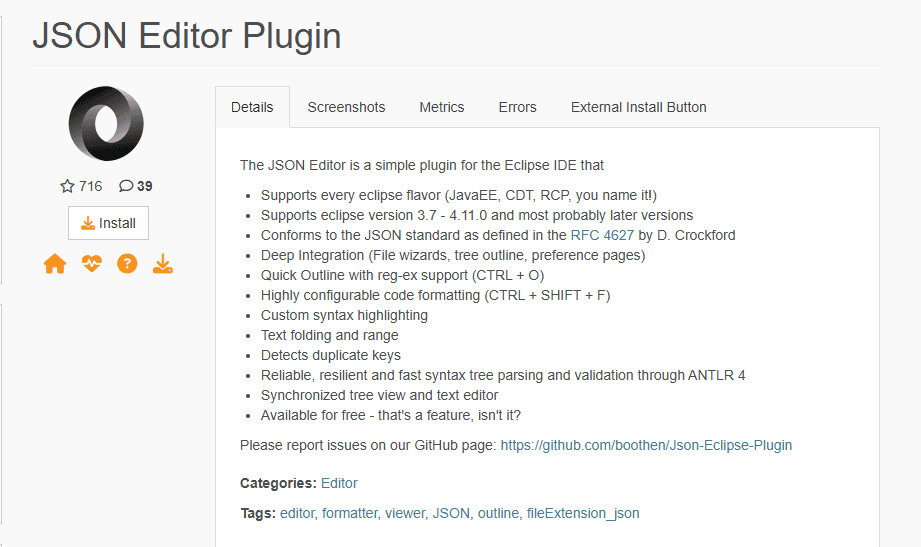
The JSON Editor Plugin from Boothen Technology is the legacy option for older Eclipse installations. Its Marketplace description documents configurable formatting, custom syntax highlighting, folding, duplicate-key detection, validation through ANTLR 4, a quick outline, and synchronized text and tree views.
What you get:
- Custom JSON syntax highlighting
- Configurable formatting with Ctrl + Shift + F
- Folding, duplicate-key detection, and syntax validation
- Quick Outline with Ctrl + O
- Tree outline beside the text editor
What you don't get:
- JSON Schema validation and schema-based completion
- Declared compatibility with current 2026 Eclipse releases
- Recent release notes or an actively updated support matrix
How to install:
Open Help > Eclipse Marketplace, search for JSON Editor Plugin, and install the Boothen Technology listing. Restart Eclipse and check Open With if another plugin has already claimed .json files.
Eclipse version: The Marketplace listing names versions through Eclipse 2021-03 and was last updated in 2022. It may install on later releases, but that is not the same as documented current compatibility, so keep a backup of the workspace and prefer Wild Web Developer on a current IDE.
Plugin Comparison
Recommendation
Use Wild Web Developer first on a current Eclipse installation. Before installing it, open the JSON file with the Generic Editor because the Enterprise Java and Web Developers package may already include the feature. It provides the clearest current path to diagnostics, completion, outlines, and JSON Schema support.
Use Eclipse WTP JSON Editor and Tools when it is already part of the package or when you want the Eclipse source-editing component without a third-party plugin. Use JSON Editor Plugin only for an older installation where its formatting and outline fit an established workflow and its declared compatibility matches the Eclipse release.
If JSON work extends beyond occasional configuration files, compare the Eclipse workflow with an editor that has first-party JSON support. A companion editor can be practical, but it is no longer accurate to say that a current Eclipse Enterprise package has no useful JSON support.
Frequently Asked Questions
How do I add JSON support to Eclipse?
Open a .json file with Open With > Generic Editor first. Current Enterprise Java and Web Developers packages include Wild Web Developer, so diagnostics and completion may already be available. If they are missing, open Help > Eclipse Marketplace, install Wild Web Developer, restart Eclipse, and associate .json files with the Generic Editor.
What's the best free JSON plugin for Eclipse?
Wild Web Developer is the best free option for current Eclipse releases because it provides JSON and JSONC editing, diagnostics, completion, hover information, outlines, and JSON Schema support. Eclipse WTP JSON Editor and Tools is a lighter Eclipse component, while JSON Editor Plugin is better treated as a legacy option.
Does Eclipse support JSON Schema validation?
Yes, through Wild Web Developer. A JSON file can identify a schema with the $schema property, and Wild Web Developer also supports schema associations for filename patterns. The legacy JSON Editor Plugin validates JSON syntax but does not document JSON Schema support.
Why doesn't Eclipse highlight JSON syntax by default?
The result depends on the Eclipse package and the editor associated with .json files. The base Java package may lack Wild Web Developer, while the Enterprise Java and Web Developers package includes web-language tooling. Use Open With to select the Generic Editor or an installed JSON editor, then set the preferred association under Window > Preferences > General > Editors > File Associations.
Can I format JSON files in Eclipse?
Wild Web Developer uses the JSON language server in the Generic Editor and exposes formatting through Eclipse's formatting command when the service is active. The legacy JSON Editor Plugin documents configurable formatting with Ctrl + Shift + F. Formatter behavior and settings differ between the two, so format a copy before applying a new editor to files whose whitespace matters.
Related Reading
For JSON work outside Eclipse, compare the best JSON extensions for VS Code, best JSON plugins for Sublime Text, and best JSON plugins for Notepad++. To combine several documents before opening them in Eclipse, use the JSON merger tool.
Read More
All Articles
7 Best JSON Editor Apps for Android in 2026 (Compared & Ranked)
Compare seven current JSON editor apps for Android, including visual tree editors, fast text editors, Git tools, and a browser option.
4 Best JSON Plugins for Notepad++ in 2026
Compare the best JSON editor plugins for Notepad++ for formatting, tree navigation, linting, schema validation, and file comparison.
5 Best JSON Plugins for Sublime Text in 2026
Compare 5 current Sublime Text JSON plugins for formatting, live linting, schema validation, jq transformations, and structural navigation.