7 Best PDF Readers and Editors for Mac in 2026 (Free & Paid)

On this page
Every Mac already has a PDF reader that fills forms, adds signatures, merges files and password-protects them. It is called Preview, and for a lot of people it is the only PDF app they need. What it will not do is change the words on the page. Apple's own guide says so in one line: "you can't edit the text of a PDF in Preview."
That one limit decides most of this list. If you read, highlight, sign and reorder pages, stay with Preview or pick a better reader. If you need to fix a typo in a contract, replace a paragraph or turn a scan into editable text, you need an editor, and that is where the free and paid options split.
PDF Expert is the best paid PDF editor for Mac, and PDFgear is the one free app here that edits existing text without adding a watermark.
PDF Reader or PDF Editor: Which One Do You Need on a Mac?
The two words get used as if they mean the same thing, and app names don't help. Sort the job first:
- Reading and marking up: highlights, notes, shapes, signatures, filling a form. A reader does this.
- Page work: merging files, deleting, rotating and reordering pages. Preview does this, and so do most readers.
- Changing content: rewriting text, swapping an image, editing a link. This needs an editor.
- Scans: a scanned page is a picture of text. Editing it needs OCR, which recognises the letters first.
If your work stops at the second line, you can skip paying for anything.
1. Preview - Best Free PDF Reader Already on Your Mac
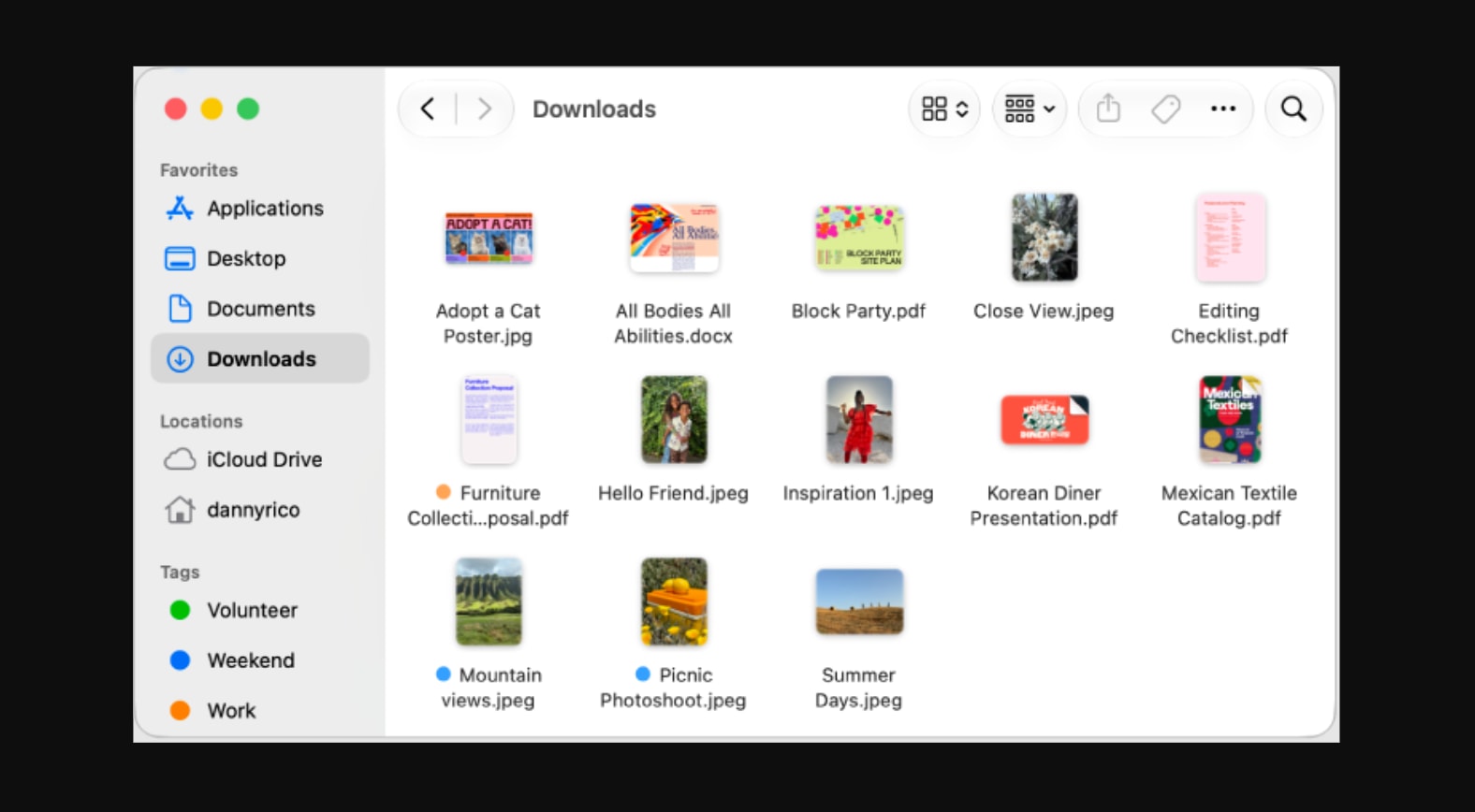
Preview comes first because it costs nothing, is already installed, and covers more than people expect. Apple's Preview User Guide lists filling out forms with AutoFill, adding a signature, highlighting and striking out text, adding notes, combining PDFs, adding, deleting and moving pages, cropping, rotating, password protection and reducing file size.
It also has real redaction. The annotation guide explains that a redaction can be changed while the document is open and becomes permanent once you close it. Apple adds a warning that matters for long documents: table of contents entries that point to redacted text are not removed.
The limit is the one in the introduction. Preview cannot edit the existing text of a PDF, and the guide lists no OCR tool for scanned documents. You can cover a word and type over it, but the original text is still in the file unless you use the redaction tool.
Useful parts:
- Form filling, signatures and the standard markup tools
- Combining files and adding, removing and reordering pages
- Password protection, file size reduction and permanent redaction
Limits:
- No editing of existing text, images or links
- No OCR listed for scanned PDFs
- Annotations stay editable unless you flatten them through File > Print and Save as PDF
Stay with Preview for reading, signing and page work. Move to PDFgear when the text itself has to change and you don't want to pay.
2. PDF Expert - Best Paid PDF Editor for Mac
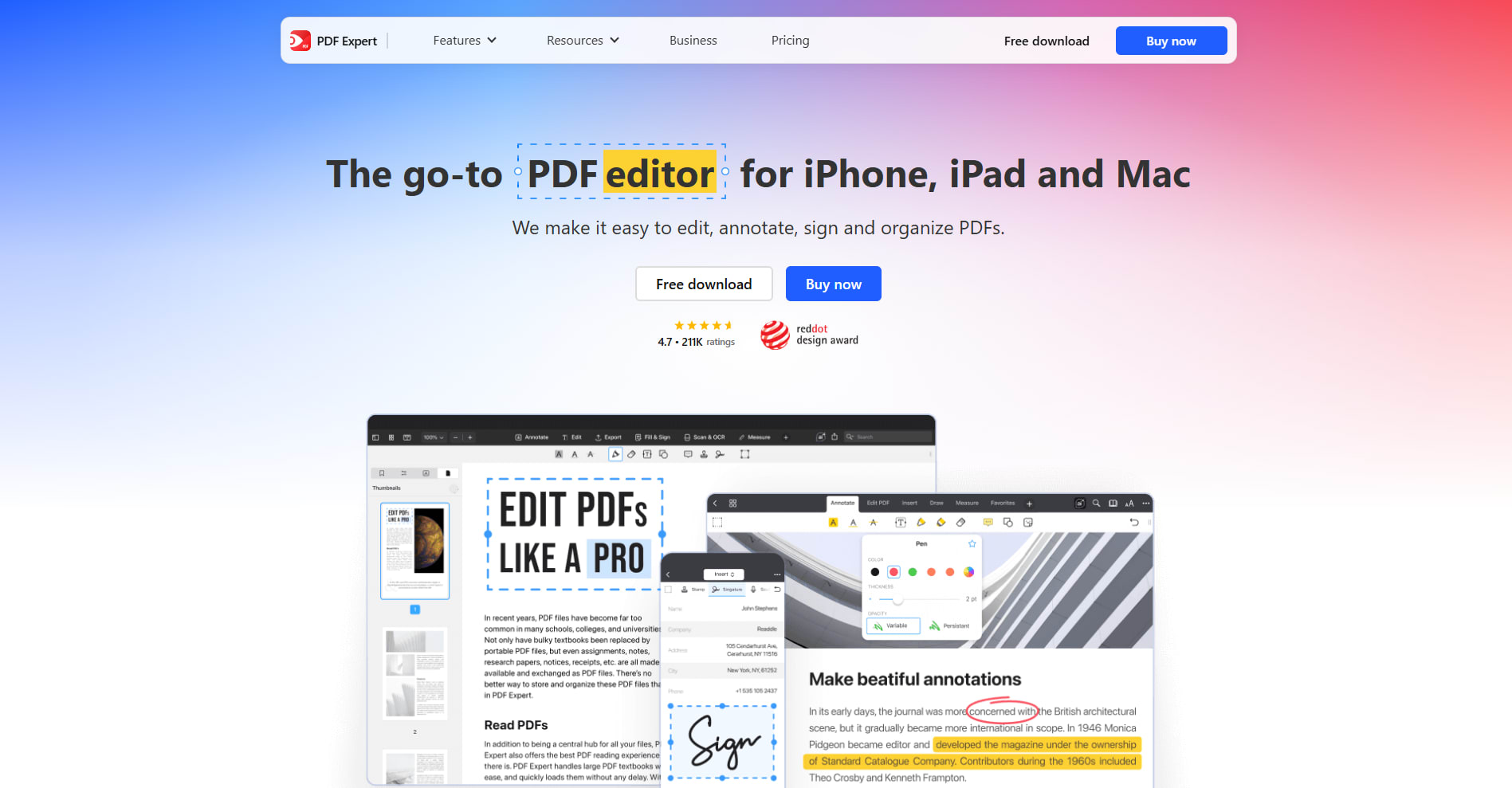
PDF Expert by Readdle is the pick when you edit PDFs every week and want an app built for the Mac. Its feature list covers the full editor set: modify text, change images, add links, recognise text in scans with OCR, fill forms that include calculations, sign, redact, merge and reorganise pages, and convert to Word, Excel, PowerPoint and JPG.
The pricing is the part to read closely. The pricing page offers a yearly plan at $79.99 that covers the Mac, iPhone and iPad versions, and a lifetime licence at $139.99 that covers the Mac version only. The page also states that new features may cost extra for lifetime owners. Both come with a 30-day money-back guarantee, and the Mac app requires macOS Monterey or later.
So the lifetime price pays for itself in under two years, but only if you work on the Mac alone and are fine with the feature set as it stands today.
Useful parts:
- Text, image and link editing with OCR for scans
- Forms with calculations, signing and redaction
- A one-time licence is still offered
Limits:
- The lifetime licence is Mac only
- New features may be charged separately on the lifetime licence
- The site doesn't spell out what stays free after the download
Choose PDF Expert over Acrobat when you work alone on a Mac and don't need Adobe's review and signature-collection tools.
3. PDFgear - Best Free PDF Editor for Mac
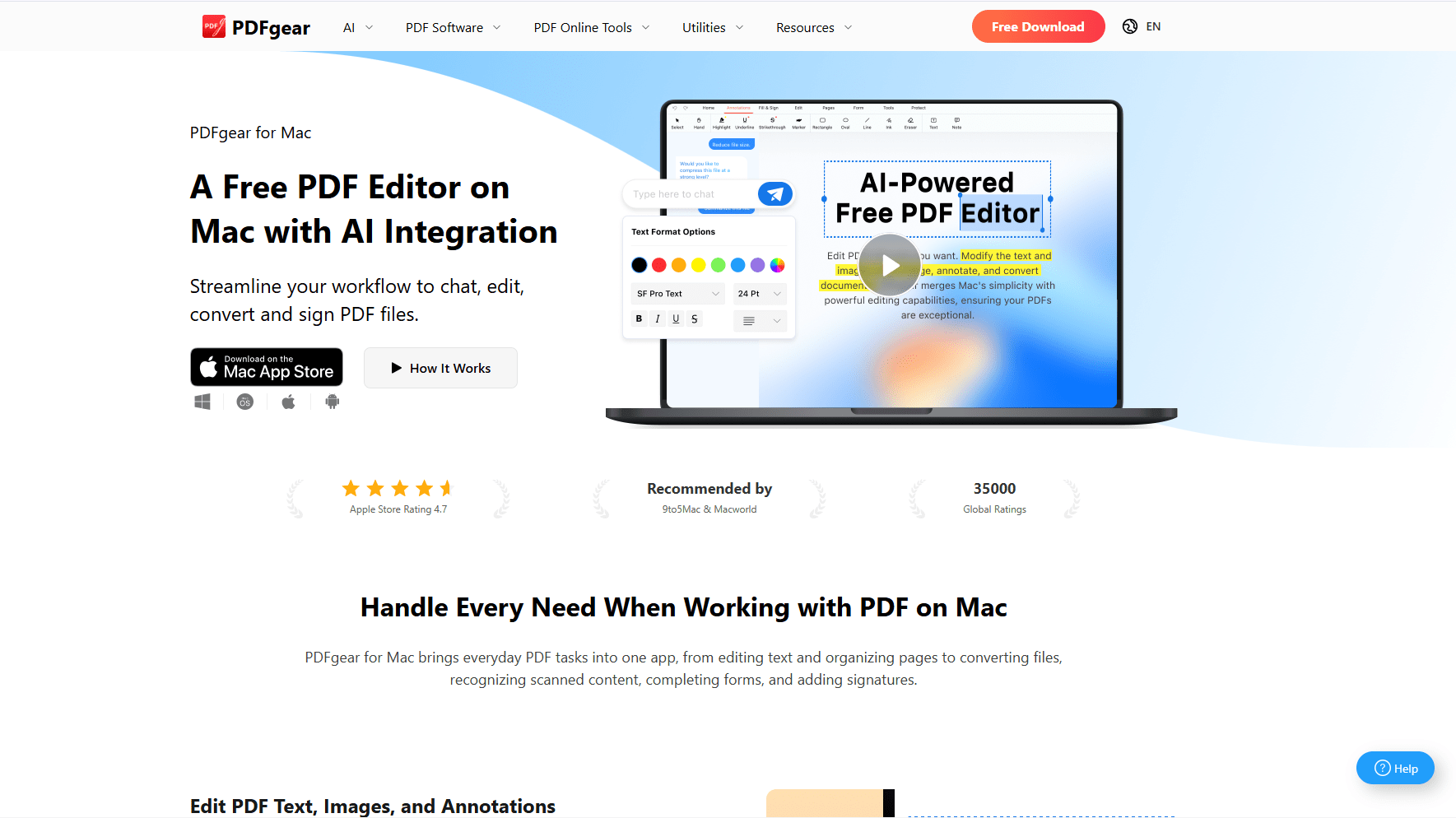
PDFgear is the answer to "can I edit PDF text on a Mac for free?" Its Mac page describes the app as completely free, with no watermark on saved files and no sign-up before you start.
The feature list is closer to a paid editor than to a reader: editing existing text, resizing or replacing images, converting to more than 30 formats, OCR for scanned PDFs, compression, signatures, form filling and form creation, and permanent redaction. It needs macOS 12 or later.
There are two things to know before you rely on it. The AI assistant is not local: the same page says PDF content and chat inputs may be sent to Microsoft Azure OpenAI Service when you use it. And the Mac page doesn't mention merging or splitting, so plan to do page work in Preview.
Useful parts:
- Edits existing text and images at no cost
- OCR, conversion and redaction included
- No watermark and no account
Limits:
- AI features send document content to a cloud service
- Merging and splitting are not listed on the Mac page
- Requires macOS 12 or later
Use PDFgear for occasional edits. If confidential documents are involved, leave the AI features alone or use an app that processes everything on the Mac.
4. Skim - Best PDF Reader for Papers and Note-Taking
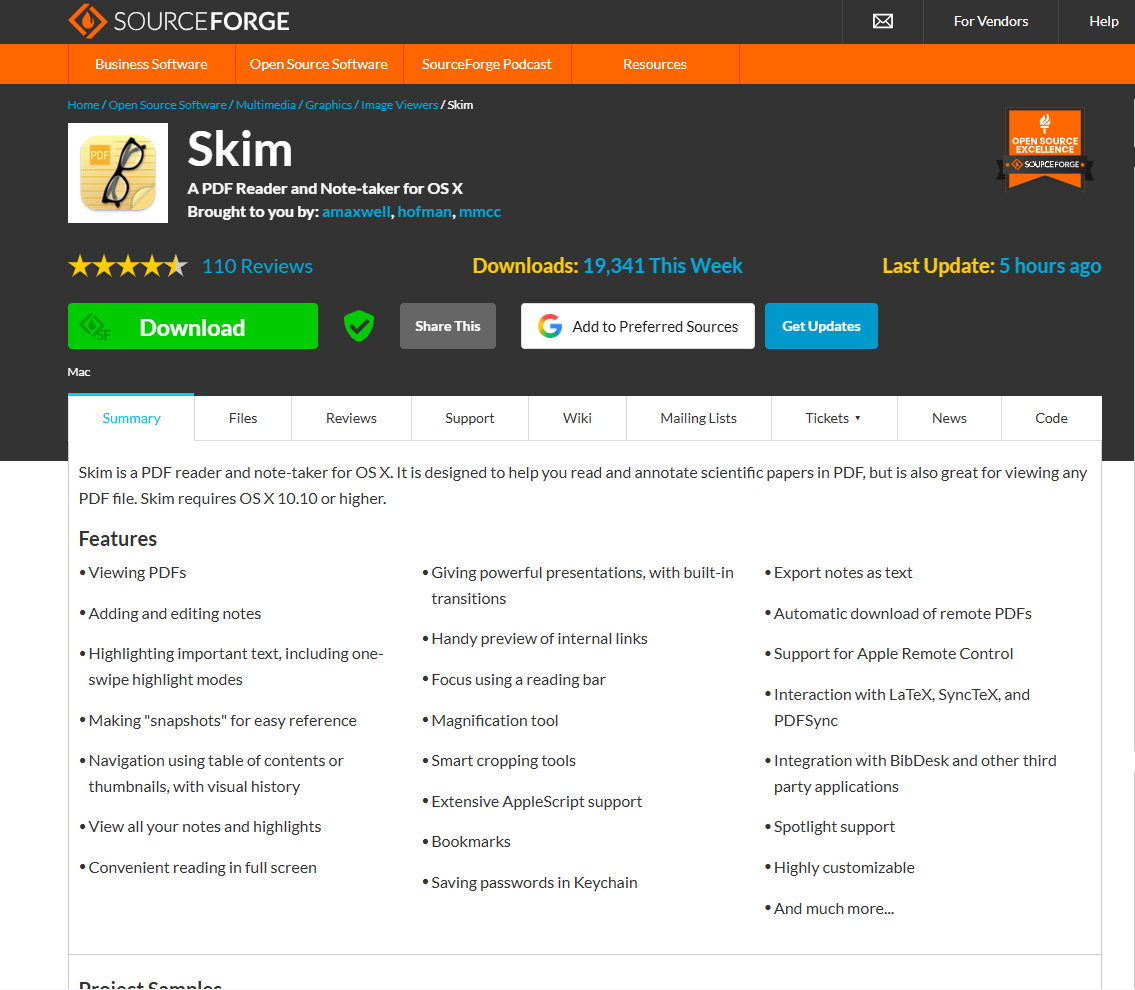
Skim is a reader, and it does not pretend to be anything else. Its site describes it as a PDF reader and note-taker designed for scientific papers. It is open source under the BSD licence, and the current version, 1.7.19, runs on macOS 10.13 or higher, which keeps it usable on Macs that newer apps have left behind.
What it adds over Preview is built around long reading sessions. You get one-swipe highlight modes, a reading bar to hold your place, snapshots that keep a figure or table visible while you read another page, a panel that lists every note and highlight, and export of notes as text.
For people who write in LaTeX, it supports SyncTeX, so you can jump between the source and the PDF. It can also run presentations with transitions and is scriptable through AppleScript.
Skim's feature list has no text editing, no form creation and no OCR. It is the wrong tool for changing a document and a very good one for studying it.
Useful parts:
- Notes, highlights and snapshots built for research reading
- Notes can be exported as text
- Free, open source, and runs on older macOS versions
Limits:
- No editing of the document's own text
- No OCR or conversion tools listed
- No form creation or signing tools listed
Pick Skim over Preview if you read papers or textbooks for hours and want your notes out of the PDF afterwards.
5. Adobe Acrobat Pro - Best for Shared Business Documents
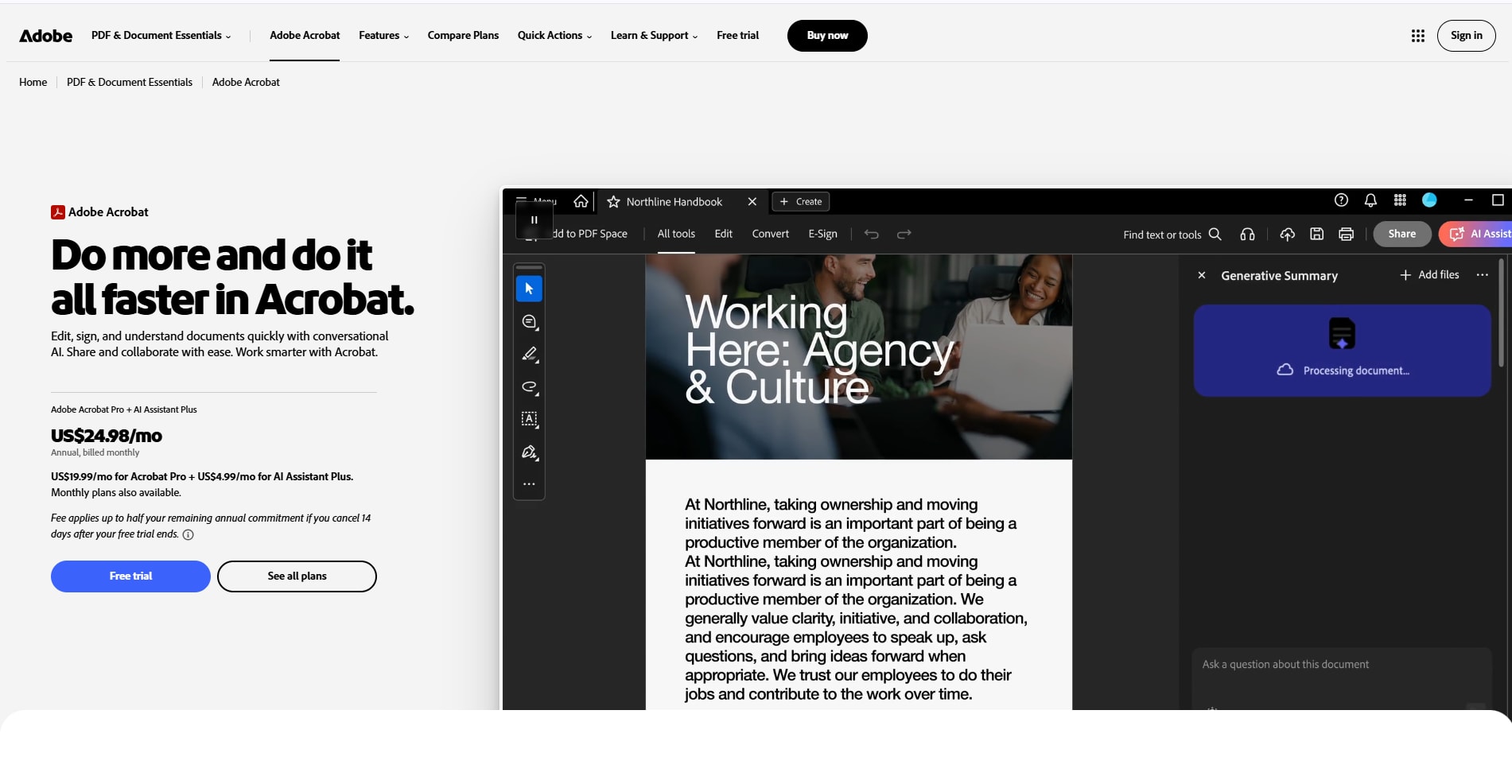
Adobe Acrobat earns its place for one reason: it is what the other side is probably using. When a client sends a form built in Acrobat, or legal asks for a compared version, the file behaves as intended in Adobe's own app.
Adobe's pricing page lists three paid plans. Acrobat Standard is $14.99 a month on an annual plan and covers text and image editing, conversion, page organisation, forms and collecting e-signatures. Acrobat Pro is $19.99 a month on the same terms, or $29.99 month to month, and adds version comparison and redaction. Acrobat Studio at $24.99 adds the AI Assistant. The free Acrobat Reader is listed with basic PDF tools only.
Read the cancellation terms before you choose the cheaper annual rate. Adobe states that cancelling an annual plan billed monthly after 14 days costs up to half of the remaining commitment. The month-to-month plan has no fee.
Useful parts:
- Full editing, comparison and redaction in Pro
- Collecting signatures from other people
- The widest compatibility with files made in Acrobat
Limits:
- Subscription only, with no one-time licence on the pricing page
- An early cancellation fee on the annual plan billed monthly
- The AI Assistant sits in the highest tier
Check Adobe's system requirements against your macOS version before subscribing. Choose Acrobat when your documents move between companies, and PDF Expert when they don't.
6. UPDF - Best for One Licence on Mac, Windows and Phone
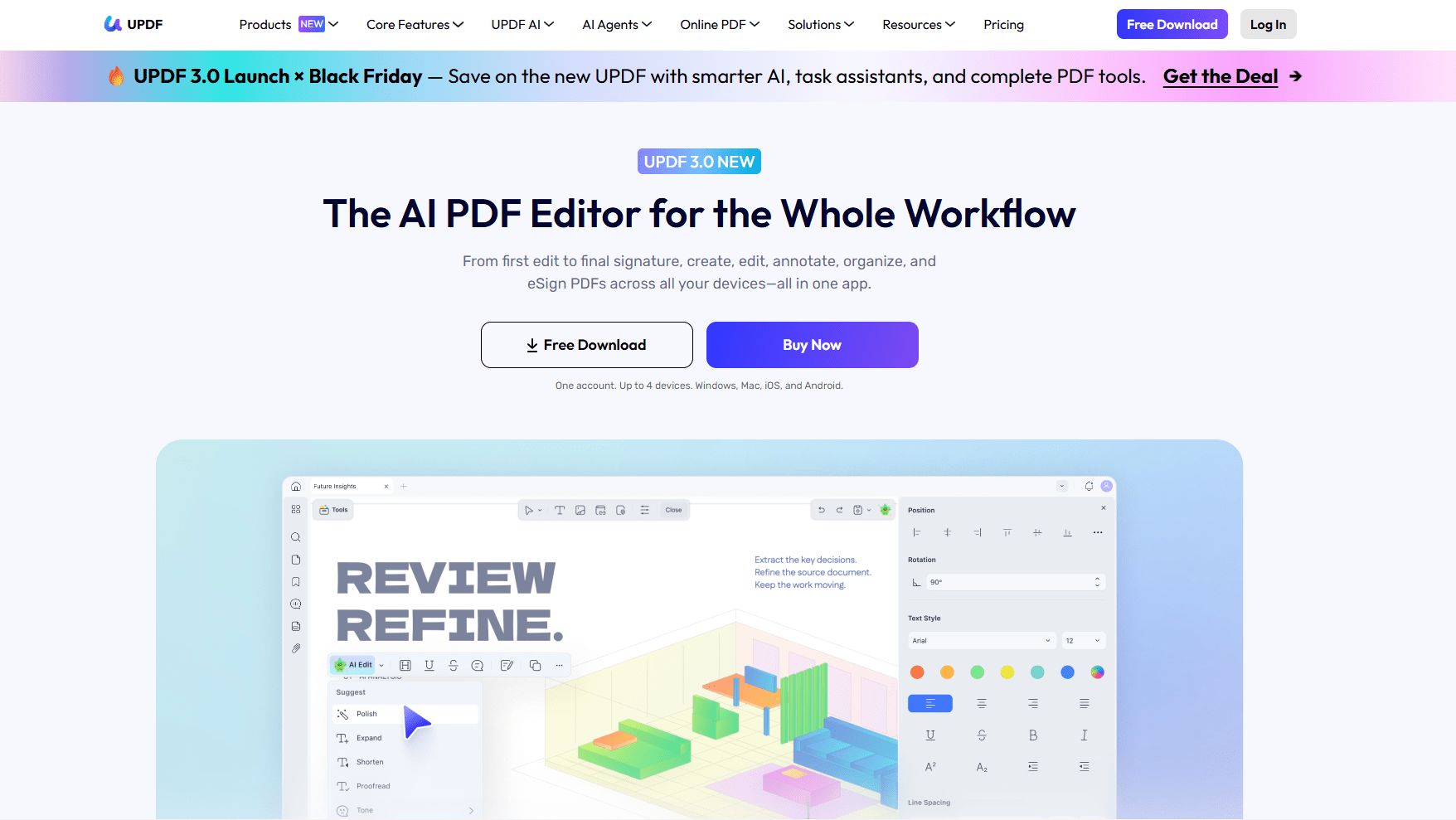
UPDF suits a household or a freelancer with mixed devices. Its pricing page says one account works on up to four devices at once, in any mix of Mac, Windows, iOS and Android. PDF Expert's lifetime licence, by comparison, stops at the Mac.
The free version is a trial in practice. UPDF's own table lists a watermark on files you edit, annotate or organise, two conversions a day, and five uses of OCR. In the Mac App Store listing, the annual subscription is $54.99 and perpetual licences appear at $84.99 and $138.99, without the listing saying which tier each one is. The app requires macOS 12 or later.
One more cost is easy to miss. The AI Assistant is a separate $69 a year subscription, and UPDF states that lifetime access applies to UPDF Pro only, not to the AI add-on.
Useful parts:
- One licence across four devices and four platforms
- Editing, OCR, conversion and forms in one app
- A perpetual licence is available
Limits:
- The free version watermarks edited and annotated files
- AI is a separate yearly subscription, even with a perpetual licence
- Perpetual prices vary by tier, so confirm what you are buying at checkout
7. Foxit PDF Editor - Best One-Time Licence with OCR
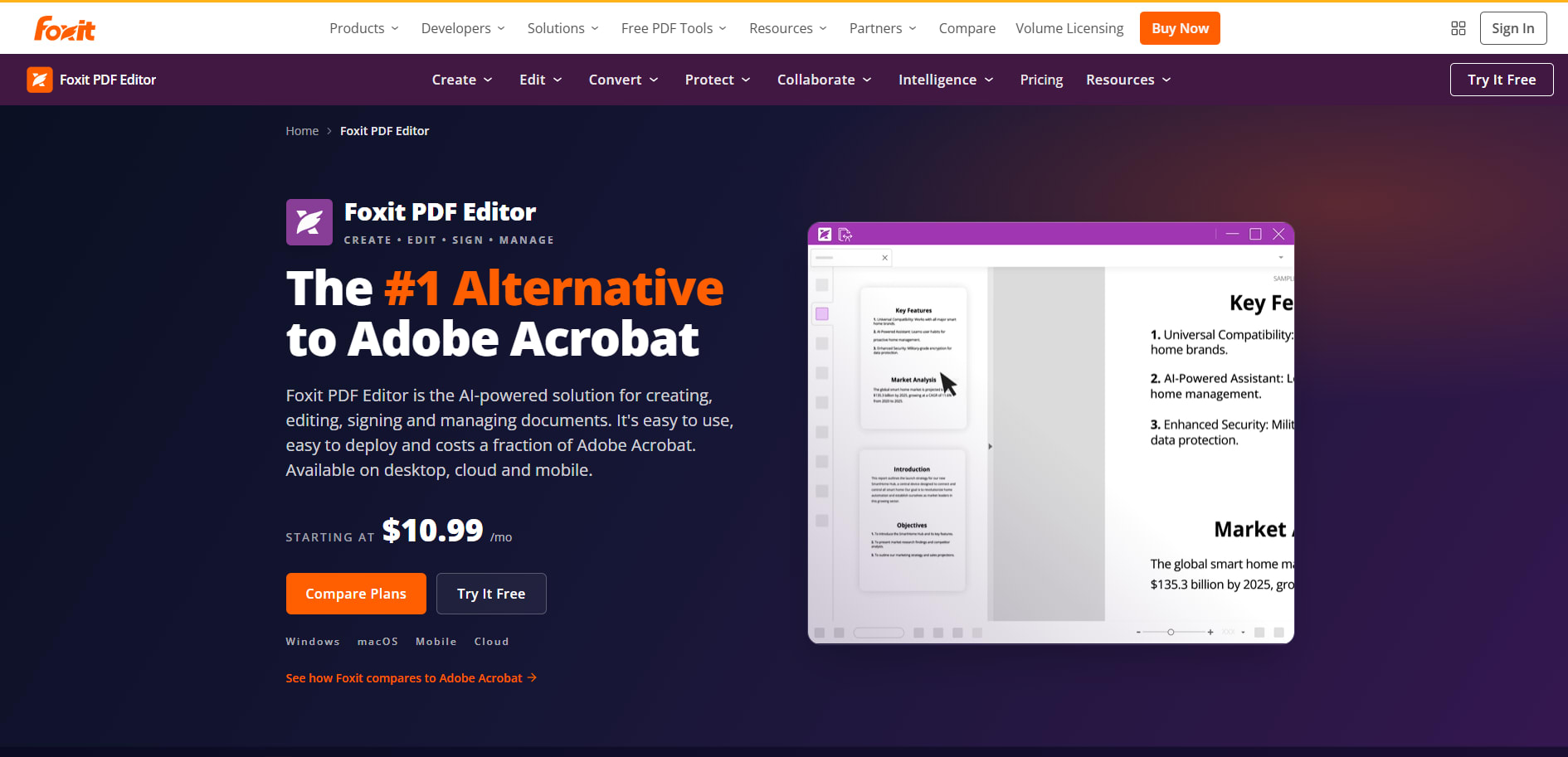
Foxit PDF Editor is for people who want a full editor and refuse to rent it. Foxit lists Foxit PDF Editor 14 at $209.99 as a one-time purchase per user, for Windows or macOS, with text editing, OCR and fill-and-sign included.
The one-time licence leaves two things out. Foxit's comparison shows the AI Assistant and Smart Redact, its automatic removal of personal data, only in the subscription plans. Those start at $10.99 per user a month, with PDF Editor+ at $159.99 a year across Mac, Windows, web, iOS and Android.
At $209.99, the perpetual licence costs more than PDF Expert's. It makes sense in an office that already uses Foxit on Windows and wants the same tool on its Macs.
Useful parts:
- A one-time licence that includes OCR
- The same product on Windows and macOS
- Subscription plans available if you want AI features later
Limits:
- The highest one-time price in this list
- No AI Assistant or Smart Redact in the perpetual licence
- The licence is for one platform, Windows or macOS
Mac PDF Reader and Editor Comparison
Prices are US list prices from each vendor's site or Mac App Store listing in November 2026.
Three PDF Jobs macOS Handles Without Another App
Before installing anything, check whether the job is one of these.
Locking in your markup. Notes and shapes added in Preview stay editable by the next person. Apple's guide gives the fix: choose File > Print, then Save as PDF, and the annotations are flattened into the page.
Hiding text for good. A black rectangle drawn over a line does not remove it. Use Preview's redaction tool on a duplicate of the file, close the document so the redaction becomes permanent, then check any table of contents links.
Joining and trimming files. Preview can combine PDFs and add, delete or move pages. If the source files are Word documents, it is often cleaner to join them first with the Word file merger and export a single PDF afterwards.
Which Mac PDF App Should You Choose?
- Preview: you read, sign, fill forms and rearrange pages.
- PDF Expert: you edit PDFs often and want a paid Mac app with a one-time option.
- PDFgear: you need to change text now and then and don't want to pay.
- Skim: you read papers and want your notes and highlights in one list.
- Adobe Acrobat Pro: your files go to clients, lawyers or teams that use Acrobat.
- UPDF: you want one licence for a Mac, a Windows PC and a phone.
- Foxit PDF Editor: you want a one-time licence and already use Foxit on Windows.
Frequently Asked Questions
Does a Mac have a built-in PDF editor?
Partly. Preview can annotate, sign, fill forms, merge files, reorder pages and redact, but Apple states that it can't edit the text of a PDF. For that you need an editor such as PDFgear or PDF Expert.
What is the best free PDF editor for Mac?
PDFgear is the best free choice for editing existing text, because its Mac page lists text editing, OCR and no watermark at no cost. For reading, signing and page work, Preview is enough and is already installed.
Is PDF Expert a one-time purchase?
It can be. Readdle sells a lifetime licence for the Mac version at $139.99, alongside a $79.99 yearly plan that also covers iPhone and iPad. The pricing page notes that new features may cost extra on the lifetime licence.
Do I need Adobe Acrobat on a Mac?
Not for everyday work. Preview opens and signs most PDFs. Acrobat is worth paying for when you receive complex forms made in Acrobat, need to compare versions, or collect signatures from other people.
Related Mac Guides
Read More
All Articles
7 Best GPX Editors and Viewers for Mac in 2026
Compare the best GPX editors and viewers for Mac for repairing track points, planning routes, viewing elevation, using offline maps, and managing Garmin devices.
8 Best SVG Editors for Mac in 2026 (Vector & Web Design)
Compare the best SVG editors for Mac, including Boxy SVG, Inkscape, Affinity, Linearity Curve, Sketch, Figma, Illustrator, and Amadine for clean vector workflows.

7 Best EPUB Readers for Mac in 2026 (Free & Paid)
Find the best EPUB reader for macOS with library management, annotations, and sync. Compare Apple Books, Calibre, Thorium Reader, and more for reading ebooks on Mac.