7 Best PDF Readers and Editors for Windows in 2026 (Free & Paid)

On this page
PDF software on Windows comes in three kinds, and most people install the wrong one first. A reader opens, searches and marks up a file. A toolbox merges, splits, compresses and converts files without touching what is written in them. An editor changes the text and images on the page.
Windows ships with the first kind only. Microsoft Edge opens PDFs and lets you highlight, draw and add comments, but nothing in Windows itself rewrites a sentence in a PDF. For that, PDFgear is the best free PDF editor for Windows, and PDF-XChange Editor is the paid one to look at before any subscription.
The ranking below starts with the app that covers both halves of the job for free, then works through the reader, the toolbox and the paid editors.
1. PDFgear - Best Free PDF Reader and Editor for Windows
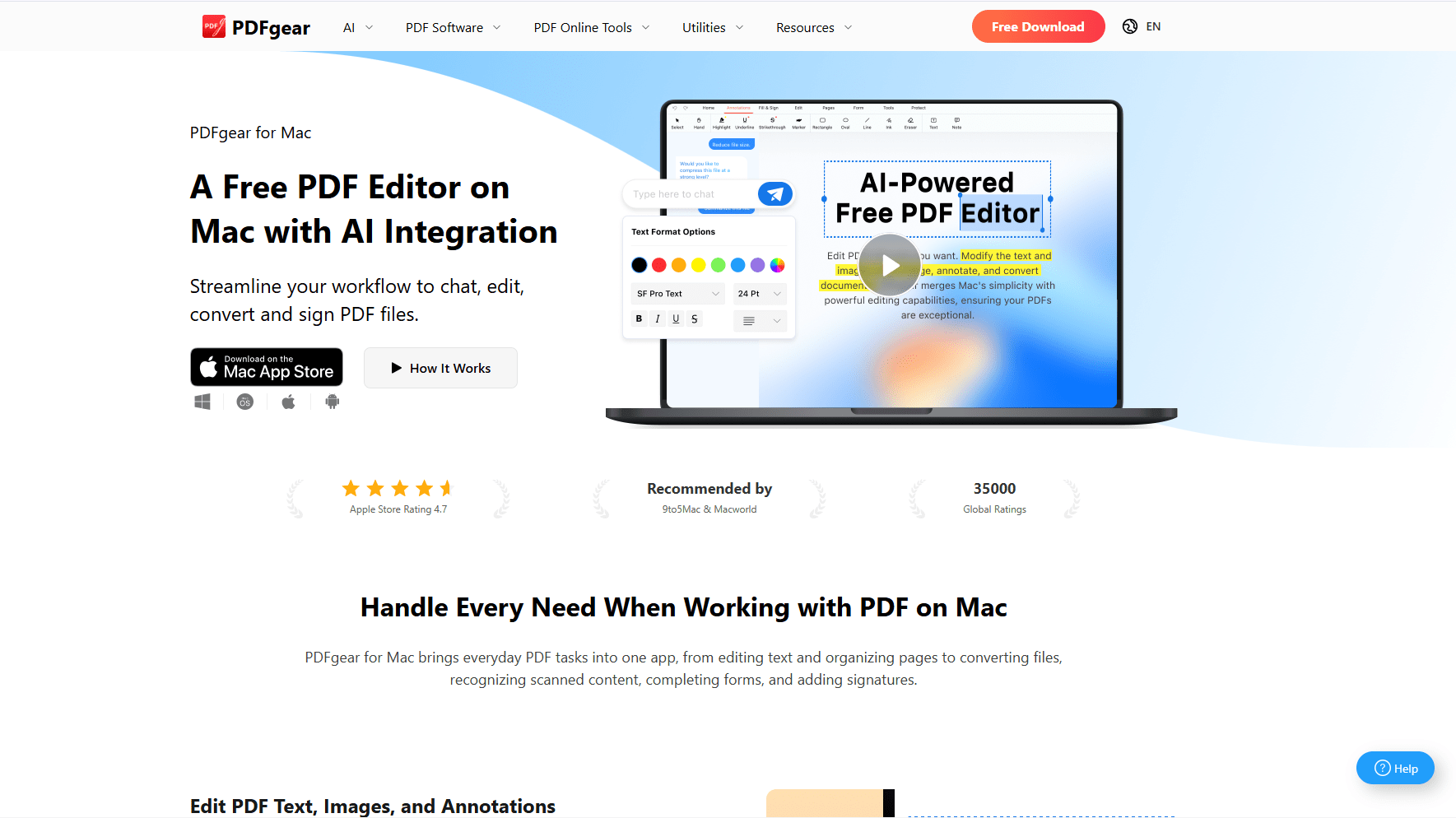
PDFgear takes first place because it is the only free app here that edits the existing text of a PDF and saves it without a watermark. Its Windows page describes it as totally free, with no sign-up.
The editing is direct: click into a paragraph, change the words, and adjust the font and size. The same page lists OCR that turns scanned PDFs into Word, Excel, PowerPoint or TXT files, signing, markup tools, inserting images, and page organisation. It runs on Windows 10 and Windows 11, and the page states that editing works without an internet connection.
Two gaps are worth knowing. The Windows page doesn't mention redaction, merging or compression, so don't assume they are there. It also includes a GPT-powered AI assistant without saying where document content is sent. PDFgear's Mac page states that AI features send content to a cloud service, so treat the Windows assistant the same way with private files.
Good fit if:
- You need to change text in a PDF and don't want to pay
- You have scans to convert into editable Word or Excel files
- You want one app for both reading and editing
Skip it if:
- You need redaction that you can point to in the documentation
- Company policy bans tools that send content to an AI service
For page work such as merging and compressing, pair it with PDF24 Creator further down.
2. Microsoft Edge - Best Built-In PDF Reader
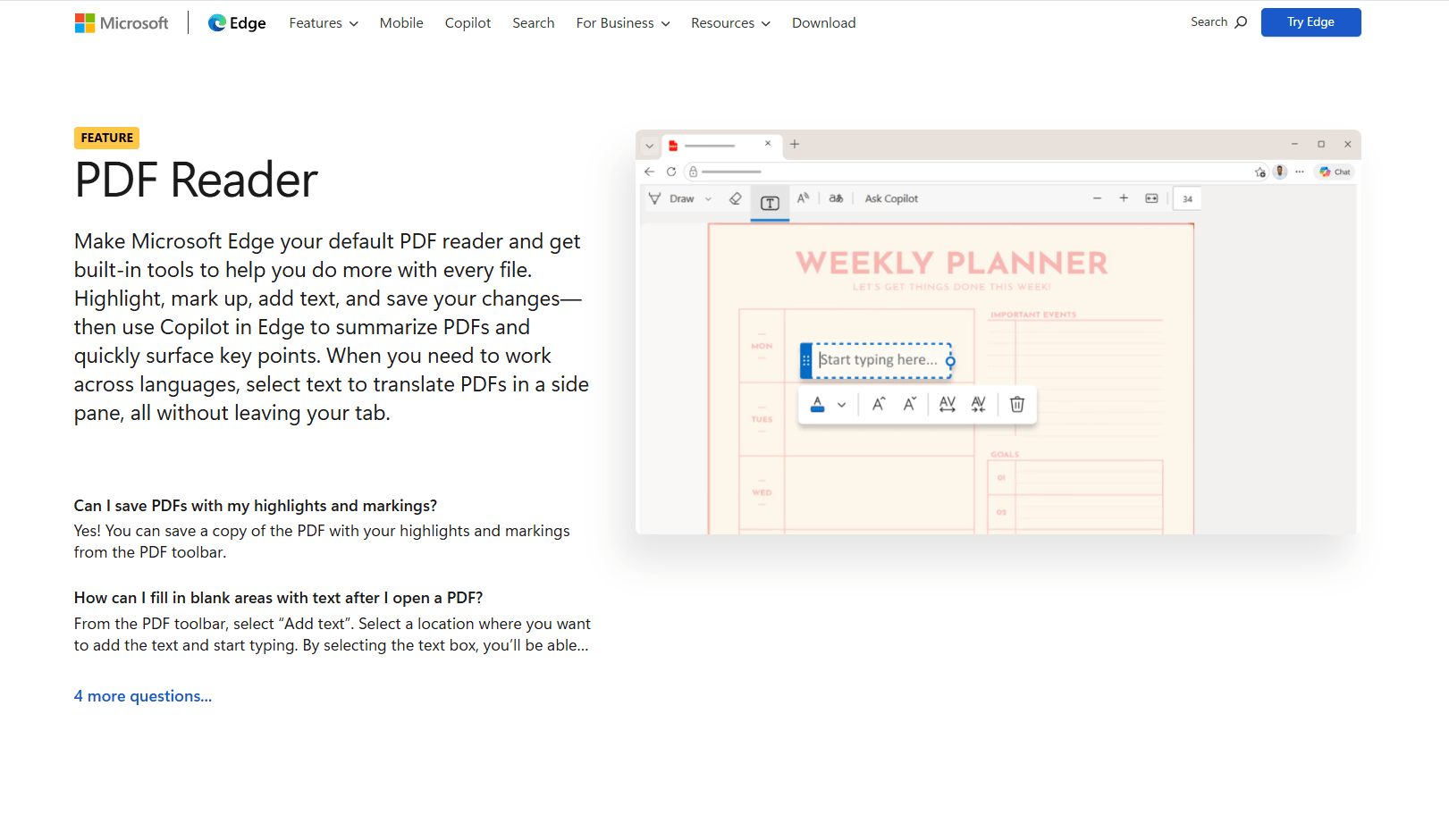
Microsoft Edge ships with Windows and has a PDF reader built in, and it deserves more credit than it gets. Microsoft's documentation lists viewing and printing, a table of contents pane, single and two-page views, ink, highlights in several colours, text notes through Add Comment in the right-click menu, and Read aloud.
Two features make it useful at work. Edge can view and validate certificate-based digital signatures, and it opens files protected with Microsoft Purview Information Protection without an add-in. Press F7 to turn on caret browsing and you can select and highlight text from the keyboard.
Its limits are stated just as plainly. Microsoft calls the form support "basic" and says JavaScript forms aren't supported. XFA forms, an older form format, are not supported either. The feature list has no text editing, merging or page reordering.
Good fit if:
- You read, highlight and comment, and nothing more
- You open signed or rights-protected PDFs at work
- You can't install software on the PC
Skip it if:
- A form won't fill in, which usually means XFA or JavaScript
- You need to change, merge or reorder pages
If a form refuses to work in Edge, Foxit PDF Reader at number 7 lists XFA form filling in its free version.
3. PDF-XChange Editor - Best Paid Editor Without a Subscription
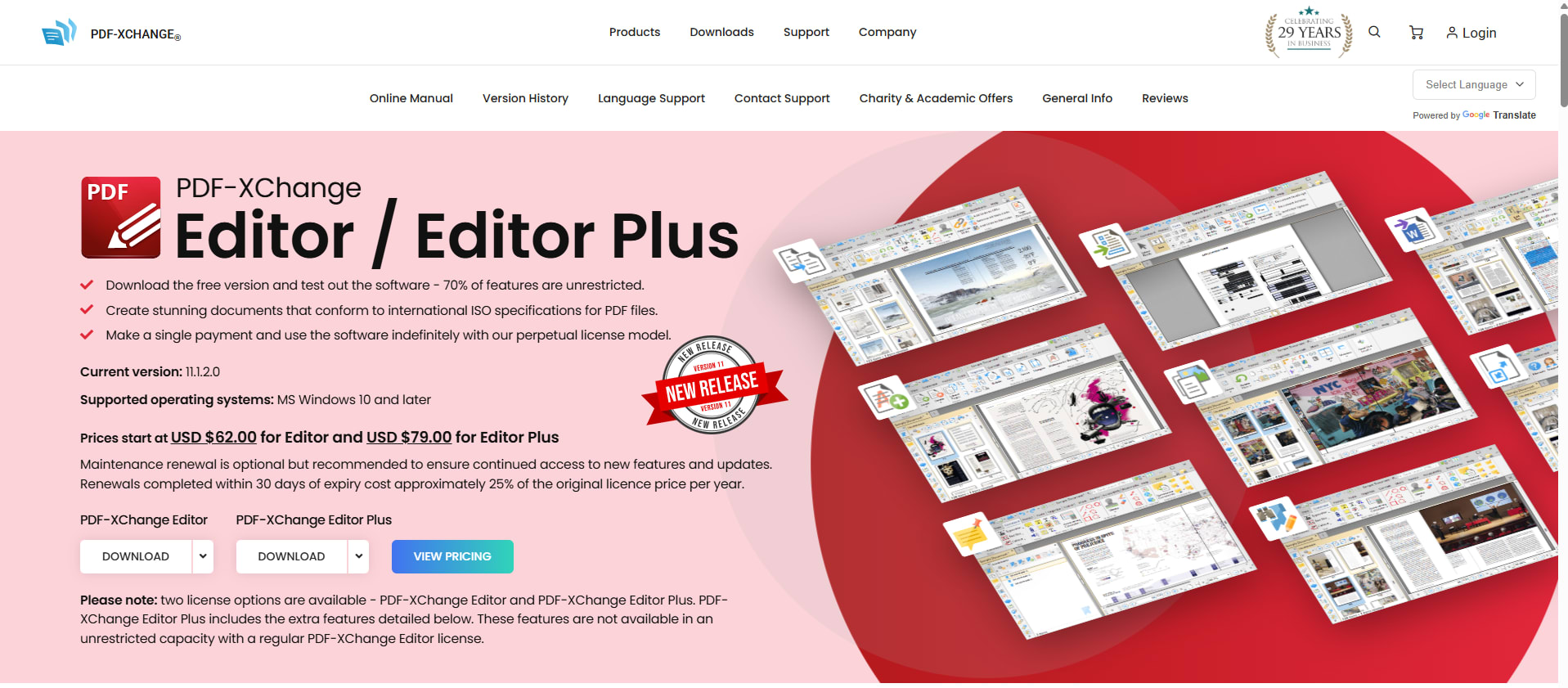
PDF-XChange Editor is the Windows editor for people who want to pay once. The product page lists a single-user licence from $62, or $79 for Editor Plus, as a one-time fee for a perpetual licence.
You can try most of it before paying. The page says 70% of features are unrestricted in the free download and counts 257 of 402 features as free. The licensed set covers adding and editing document text, find and replace, OCR, creating and editing fillable forms, and redaction, including a find-and-redact tool. Editor Plus adds an enhanced OCR engine.
It also suits locked-down and unusual hardware. There are 32-bit, 64-bit and ARM64 installers, plus portable versions that run without installation, with or without the OCR component. It requires Windows 10 or later.
Read the maintenance terms before buying. A licence includes one year of updates. After that the version you have keeps working, and renewing costs about 25% of the licence price per year if you do it within 30 days of expiry.
Good fit if:
- You want a perpetual licence at a low price
- You need a portable editor or an ARM64 build
- You'd like to use the free features first and pay later
Skip it if:
- You want updates forever without a renewal fee
- You want a simple reader: it lists 402 features, far more than reading needs
Pick it over Foxit's perpetual licence when price matters, and over PDFgear when you need documented redaction.
4. SumatraPDF - Best Lightweight and Portable Reader
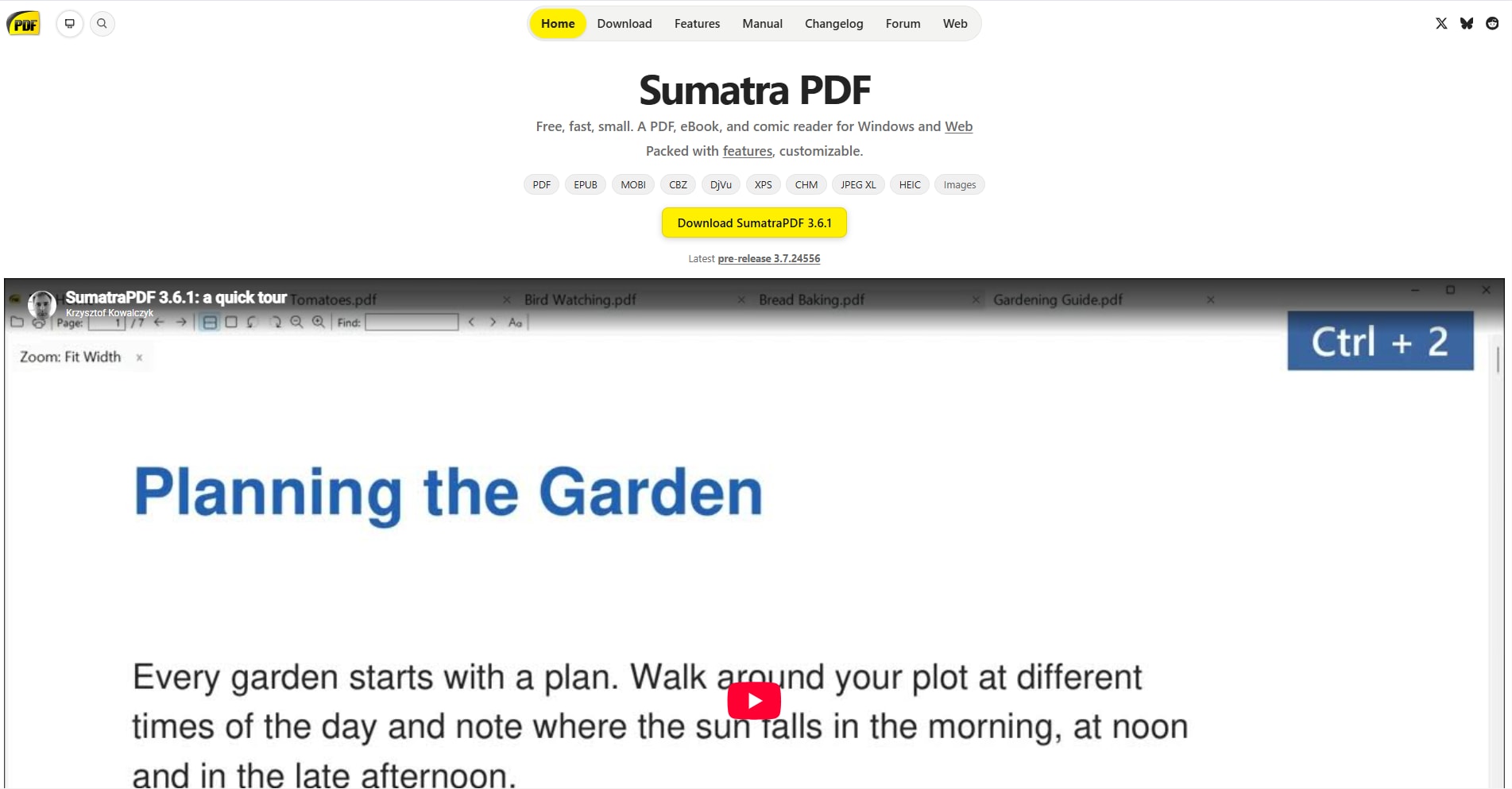
SumatraPDF does one thing: it opens documents. It is free and open source, with no ads, no bundled software and no subscription, and it is made for Windows only.
Its portable build is the reason many people keep it on a USB stick. It runs without installation, which helps on a work PC where you have no admin rights. The current version, 3.6.1, comes in 32-bit, 64-bit and ARM64 builds and supports Windows 7, 8, 10 and 11, so it is also the pick for an old machine.
It reads more than PDF. The same app opens EPUB, MOBI, CBZ and CBR comics, DjVu, XPS and CHM files. Keyboard shortcuts, themes and the toolbar can be customised, and the documentation describes a command palette on Ctrl + K.
SumatraPDF is a reader. Its documentation lists highlight, underline, strike-out and ink annotations, but there is no text editing, OCR or conversion.
Good fit if:
- You want a reader that runs from a folder with no install
- Your PC is old or runs Windows on ARM
- You also read EPUB, comics or DjVu files
Skip it if:
- You need OCR or file conversion
- You need to change the text of a PDF
It is the reader to choose over Edge when you'd rather keep documents out of the browser.
5. PDF24 Creator - Best Free Offline Toolbox
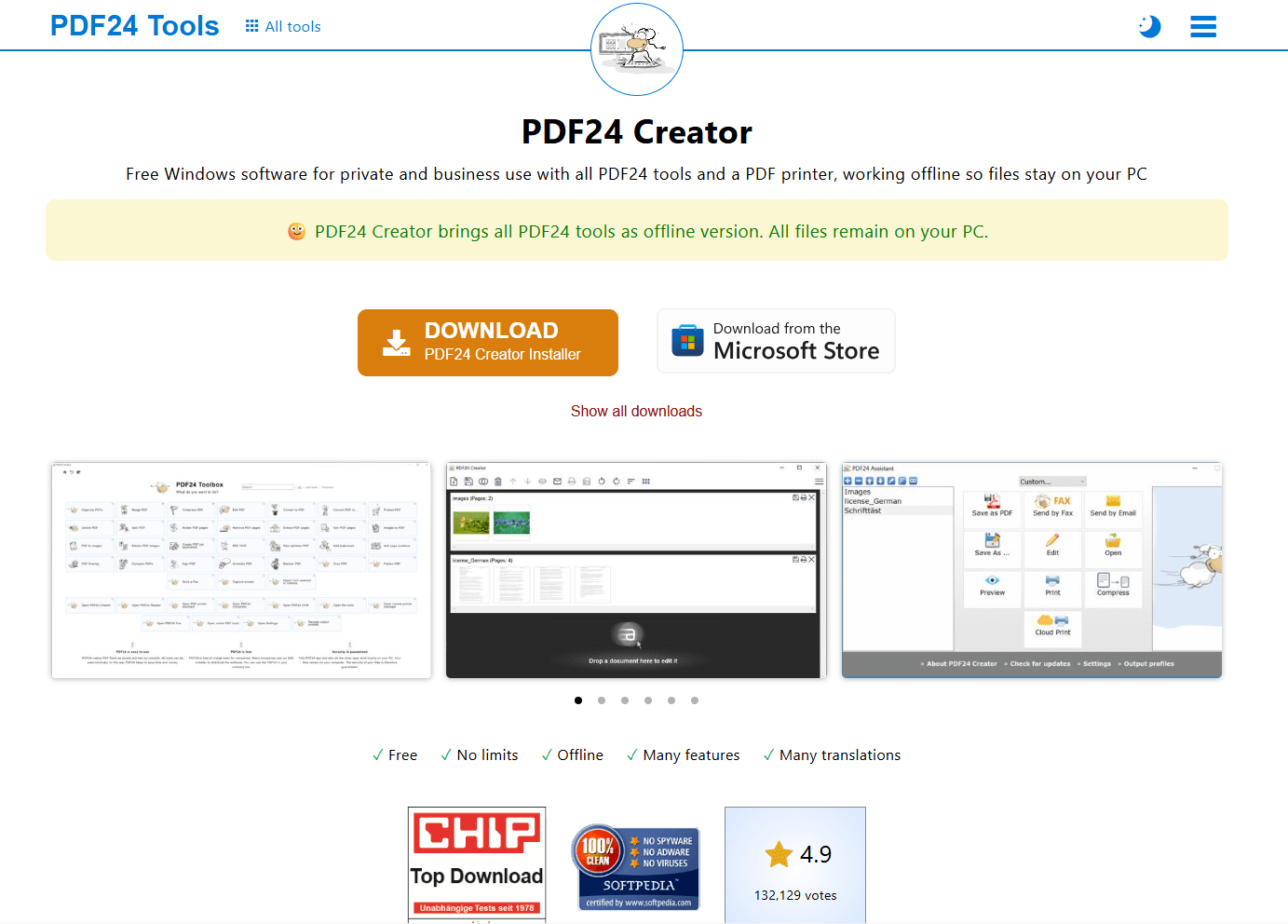
PDF24 Creator is the toolbox kind of PDF app, and it is the answer when the job is merging ten files or shrinking one for email. The developer states it can be used free of charge without restrictions, for private and commercial use, including by companies and authorities.
The tools listed for the Creator are merge and split, adding, removing, extracting, rotating and sorting pages, compression, conversion to and from PDF, OCR for PDFs and images, a virtual PDF printer, scanner import and a reader. It works offline, and the page says files stay on your PC and are not uploaded.
IT departments can deploy it. Version 11.34.0 is offered as EXE or MSI installers for x64, ARM64 and x86, and it is also in the Microsoft Store.
What it is not: an editor. The Creator's tool list doesn't include changing existing text or signing. Those appear only in PDF24's separate online tools.
Good fit if:
- You merge, split, compress or convert files regularly
- Files must stay on the PC
- You need a free tool that is licensed for commercial use
Skip it if:
- You need to rewrite text inside the PDF
- You use a Mac or Linux as well: it is Windows only
6. Adobe Acrobat - Best for Documents Shared Between Companies
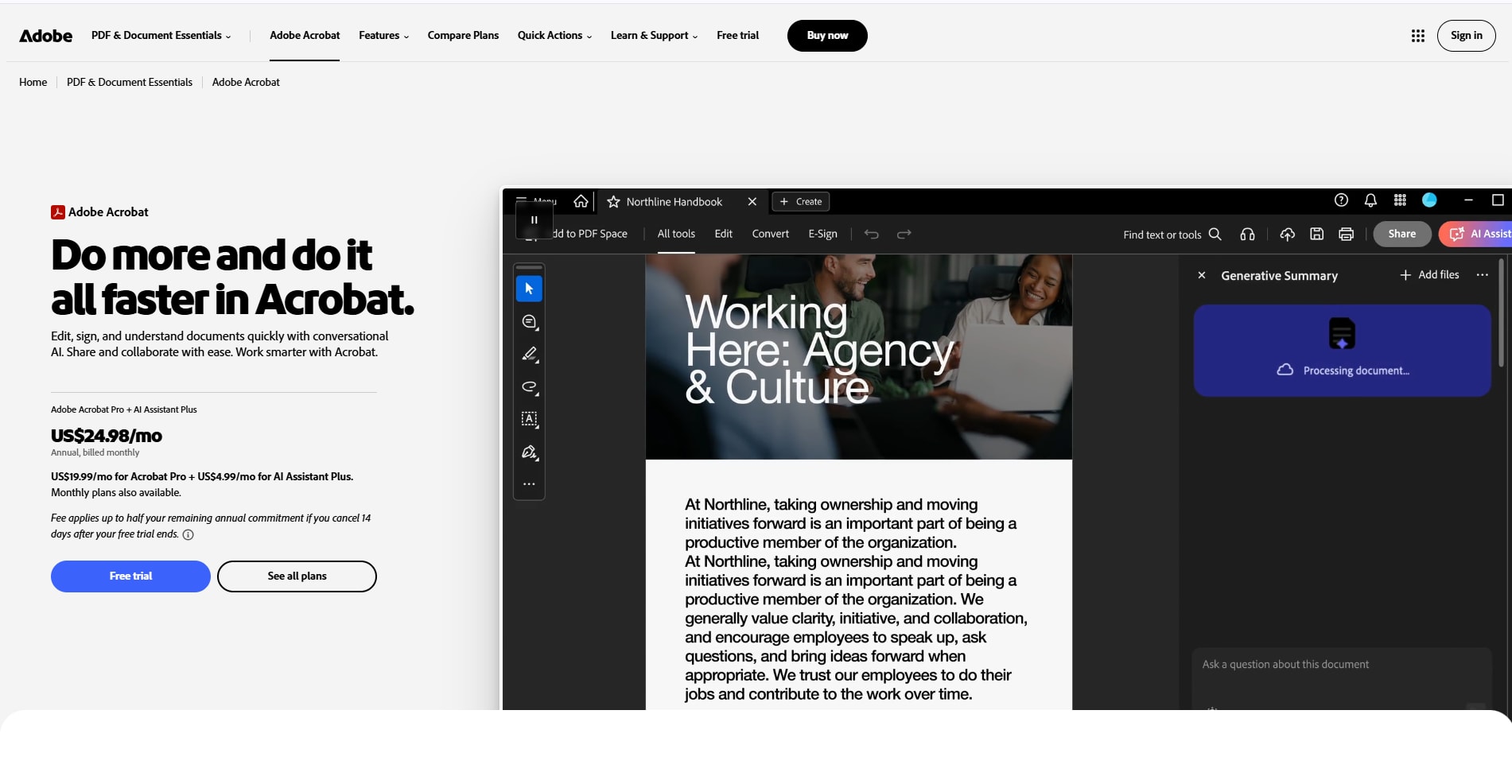
Adobe Acrobat is the editor to pay for when your PDFs travel to clients, lawyers or agencies who use Acrobat themselves. Forms and review comments made in Acrobat behave as intended in Adobe's own app.
Adobe sells three plans for individuals. On the US pricing page, Acrobat Standard is $14.99 a month on an annual plan and covers editing text and images, conversion, combining files, forms, collecting e-signatures and password protection. Acrobat Pro is $19.99 a month on the same terms, or $29.99 month to month, and adds version comparison and redaction. Acrobat Studio at $24.99 adds the AI Assistant.
The cancellation terms matter more than the price difference. On an annual plan billed monthly, cancelling after 14 days costs half of the remaining commitment. The monthly plan has no cancellation fee.
Good fit if:
- You receive Acrobat forms and review requests from other organisations
- You need to compare two versions of a contract
- You collect signatures from other people
Skip it if:
- You'd rather buy software once
- You only need to fix text now and then, which PDFgear does for free
7. Foxit PDF Editor - Best Acrobat Alternative with a Free Reader
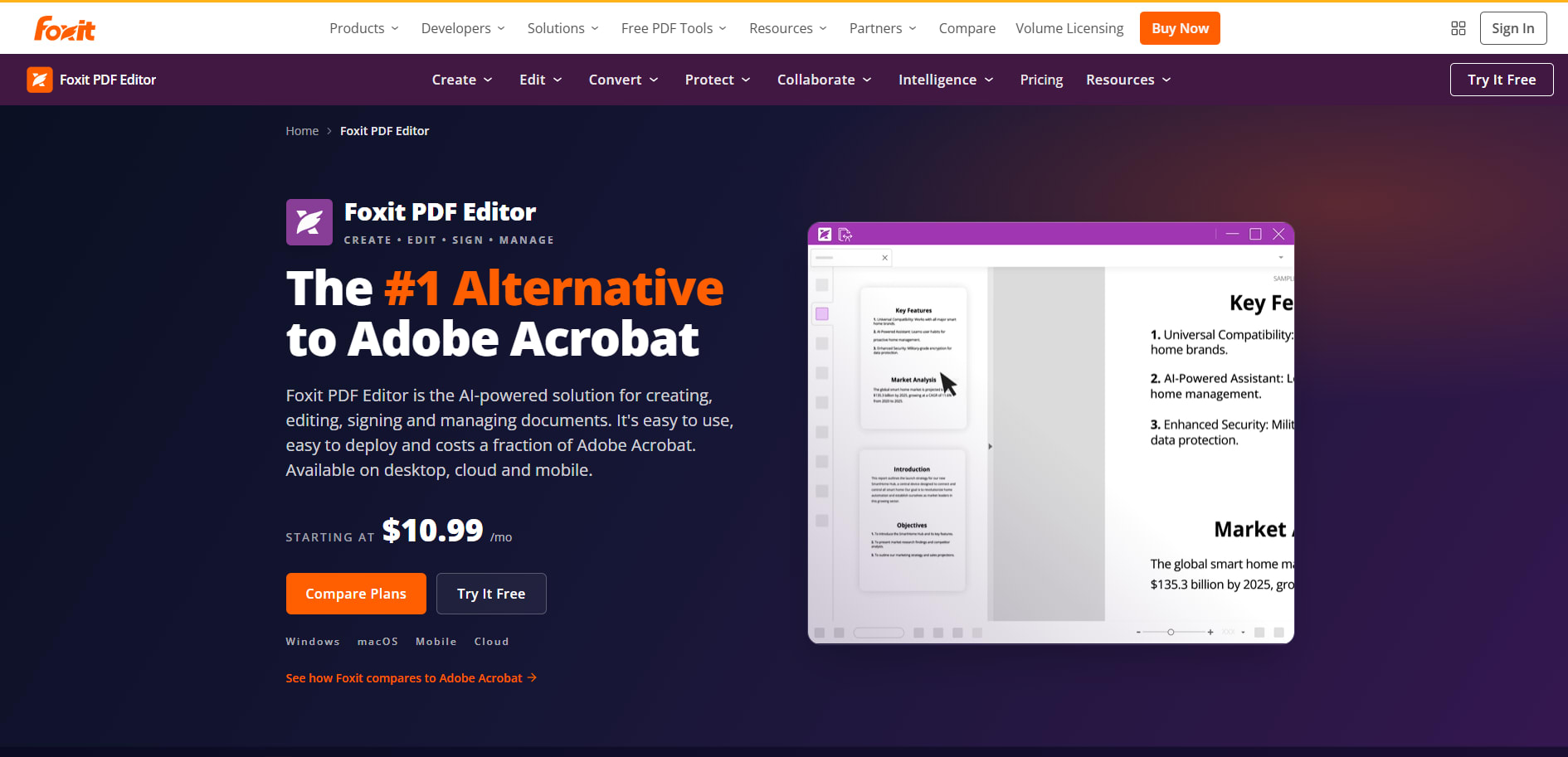
Foxit PDF Editor is the closest match to Acrobat's range, and Foxit still sells it outright. Foxit PDF Editor 14 is $209.99 as a one-time purchase per user, with full editing, OCR and fill-and-sign.
The perpetual licence leaves out the AI Assistant, Smart Redact and the cloud features. Those are in the subscriptions: Foxit advertises plans from $10.99 a month, and PDF Editor+ is $159.99 a year across Windows, macOS, web, iOS and Android.
The free Foxit PDF Reader is the part most Windows users will want. It supports Windows 10 and 11 and lists highlighting, sticky notes, handwritten and electronic signatures, and filling both standard and XFA forms. That last item is the one Edge can't do.
Good fit if:
- A form won't open in Edge and you need a free reader that handles XFA
- Your office wants an Acrobat-style editor with a one-time licence
- You use the same editor on Windows and macOS
Skip it if:
- Price is the deciding factor: PDF-XChange Editor costs less than a third as much
- You want AI features without a subscription
Windows PDF Reader and Editor Comparison
Prices are US list prices from each vendor's site. Adobe's page shows local currency outside the US.
Editing a PDF with Microsoft Word
If Word is already installed, you may not need another editor for a simple text document. Microsoft's support page describes the steps for Word 2016 and later:
- In Word, go to File > Open and choose the PDF.
- Word tells you it will convert a copy into an editable document. The original PDF is not changed.
- Edit the text, then use Export > Create PDF/XPS Document to save a new PDF.
This is a conversion, not true PDF editing. Microsoft warns that the converted document may not match the original page for page, and that it works best with PDFs that are mostly text. A brochure, a form or a scan will come out rearranged.
It is a good route for a letter or a report. If you end up with several Word files to combine before exporting, the Word file merger joins them in the browser.
Which Windows PDF App Should You Choose?
- PDFgear: you want to read and edit PDFs for free.
- Microsoft Edge: you only read, highlight and comment.
- PDF-XChange Editor: you want a paid editor with a one-time licence or a portable build.
- SumatraPDF: you want a small reader that runs without installation.
- PDF24 Creator: you merge, split, compress and convert files offline.
- Adobe Acrobat: your documents move between organisations that use Acrobat.
- Foxit: you need XFA forms in a free reader, or an Acrobat-style editor bought once.
Frequently Asked Questions
Does Windows 11 have a built-in PDF editor?
No. Windows opens PDFs in Microsoft Edge, which can highlight, draw, add comments and fill basic forms but cannot change the text. Word can convert a PDF into an editable document, which works for text-heavy files.
What is the best free PDF editor for Windows?
PDFgear, because its Windows page lists direct text editing and OCR with no watermark and no sign-up. PDF-XChange Editor is a strong second if the features you need are among the 70% that are free.
Why won't a PDF form fill in on my PC?
It is probably an XFA form or one that relies on JavaScript. Microsoft states that Edge supports neither. Open the file in Foxit PDF Reader, which lists XFA form filling, or in Adobe Acrobat.
Is there a PDF reader for Windows that needs no installation?
Yes. SumatraPDF has a portable version that runs from a folder or USB drive, and PDF-XChange Editor offers portable builds too.
Related Guides
Read More
All Articles
7 Best PDF Readers and Editors for Mac in 2026 (Free & Paid)
The best PDF reader and editor for Mac depends on one question: do you need to change the text? Seven free and paid apps compared, with current prices.
8 Best VCF Editors and Viewers for Windows PC in 2026
Compare the best VCF editors and viewers for Windows 10 and 11 for previewing contacts, editing vCards, repairing files, converting data, and working with Outlook.
7 Best GPX Editors and Viewers for Windows in 2026
Compare the best GPX editors and viewers for Windows 10 and 11 for editing track points, planning routes, viewing elevation, using offline maps, and managing Garmin devices.