6 Best MOBI Readers for Windows in 2026 (Free & Paid)

On this page
Most MOBI files people still have on Windows are old downloads, archive copies, or Kindle-era books sitting in a folder. The annoying part is that they do not all behave the same. One reader may open a plain MOBI directly, while another is better when the file needs conversion, cleanup, or library organization.
There is also the Kindle problem. Some MOBI and AZW files are simple ebook files, while others are tied to an Amazon account or protected by DRM. That difference matters more than the app logo on the download page.
So instead of treating every reader as interchangeable, this guide looks at six Windows options based on the jobs people actually need: quick reading, library management, conversion, notes, sync, and Amazon-specific books.
1. Sumatra PDF (Best Lightweight MOBI Reader)
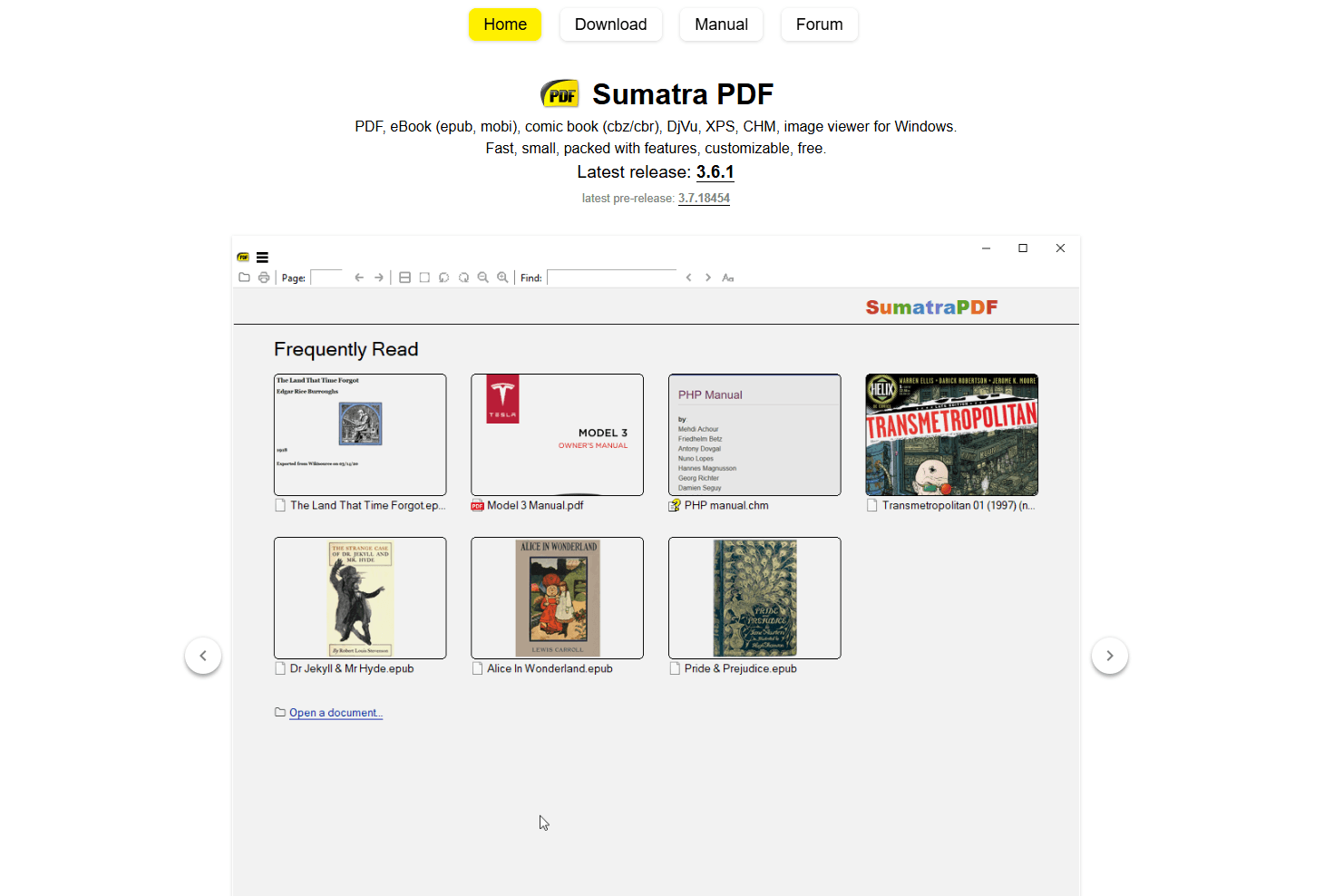
Sumatra PDF is the best free MOBI reader for quick local reading on Windows. It is a compact, open-source app built for opening files without library-management overhead.
Sumatra's supported-formats documentation lists MOBI and unencrypted AZW, AZW3, and PRC files. It also opens unencrypted EPUB, PDF, FB2, CBZ, CBR, XPS, DjVu, CHM, and several image formats.
Install: Download from sumatrapdfreader.org or use winget:
winget install SumatraPDF.SumatraPDFWhat you get:
- Compact app for direct file-based reading
- MOBI, EPUB, PDF, CBZ, CBR, FB2, XPS, DjVu, and CHM support
- Portable version
- Simple keyboard navigation
- Tabs and recent files
- No account required for local files
What you don't get:
- No real library management
- No format conversion
- No cloud sync
- No advanced annotations
- Not for DRM-protected Kindle purchases
Sumatra PDF is the app to install when someone sends you a DRM-free MOBI file and you just want to read it. There is no library import or account setup before opening a local file.
Best for: quick MOBI reading, old ebook files, technical manuals, DRM-free downloads, and users who prefer lightweight Windows apps.
2. Calibre (Best for MOBI Library Management)
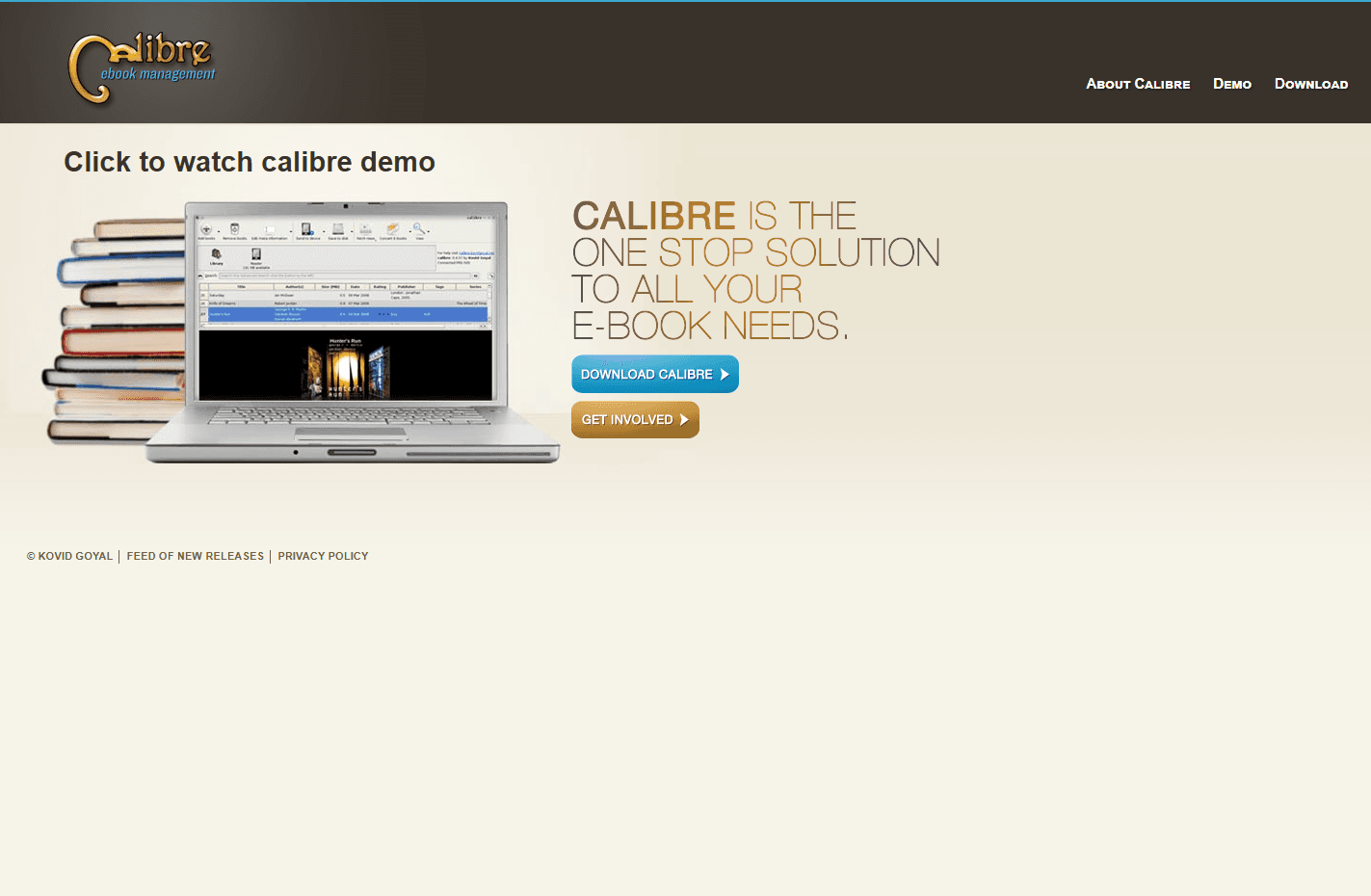
Calibre is the best MOBI tool for power users. It combines an ebook viewer with library management, metadata editing, conversion, and device-connection tools.
Calibre's conversion documentation lists MOBI as both an input and output format and documents support for Mobi6 and KF8. MOBI books may also use extensions such as .azw or .azw3, depending on how they were created.
Install: Download from calibre-ebook.com or use winget. The current release supports Windows 10 version 1809 and newer:
winget install calibre.calibreWhat you get:
- MOBI reading through Calibre's ebook viewer
- Detailed library management for sizable collections
- MOBI to EPUB conversion
- MOBI to AZW3 conversion
- Metadata editing
- Cover editing
- Tags, authors, series, ratings, and search
- Connections to many ebook readers, with support varying by device and connection method
- Duplicate detection
- Plugin ecosystem
What you don't get:
- Lightweight interface
- A minimal file-opening workflow like Sumatra
- Simple one-window reading experience
- Built-in account-based reading-position sync
Calibre is more complex than Sumatra PDF, but that complexity provides more control. If you have a folder full of old MOBI books, Calibre can organize them, edit titles and covers, convert them to EPUB, and keep everything searchable. Conversion results can vary with the source file's structure and formatting.
Best for: large MOBI collections, format conversion, Kindle device transfer, metadata cleanup, and long-term ebook management.
3. Koodo Reader (Best Modern Interface)
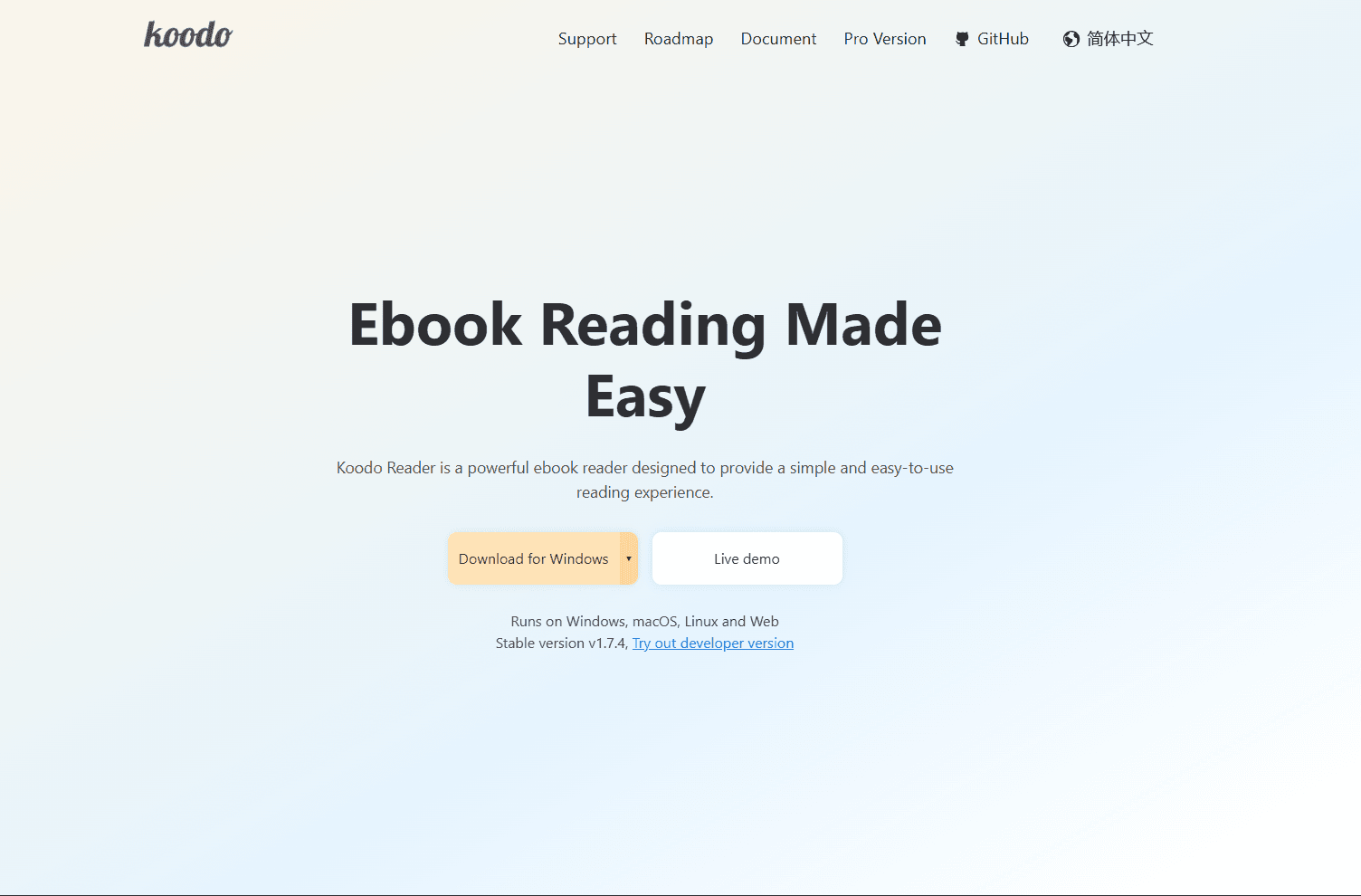
Koodo Reader is a modern ebook reader for Windows, macOS, Linux, mobile, and web. It supports MOBI along with EPUB, TXT, PDF, AZW3, and comic-book formats. The core desktop reader is free, while cloud-library synchronization requires Koodo Reader Pro.
Koodo is a better fit than Calibre if you care more about reading comfort than detailed library administration. Its reading controls are easier to approach, and its paid synchronization options work with several cloud and server services.
Install: Download from koodoreader.com or use the web version.
What you get:
- MOBI, EPUB, PDF, AZW3, TXT, and comic format support
- Modern reading interface
- Highlights, notes, and bookmarks
- Pro cloud-library synchronization and backup
- Pro support for OneDrive, Google Drive, Dropbox, WebDAV, and other sync targets
- Themes, night mode, font controls, margins, and spacing
- Text-to-speech, translation, and dictionary tools
- Cross-platform availability
What you don't get:
- Calibre-level metadata editing
- Deep format conversion
- The lightest possible Windows app
- Bulk metadata tools for large libraries
Koodo Reader is a strong choice if you want a dedicated reader with a current-looking interface. Its free desktop app handles local MOBI files, while Koodo Reader Pro adds supported library-synchronization services.
Best for: users who want a modern MOBI reader with notes, highlights, and optional synchronization.
4. Icecream Ebook Reader (Best for Beginners)
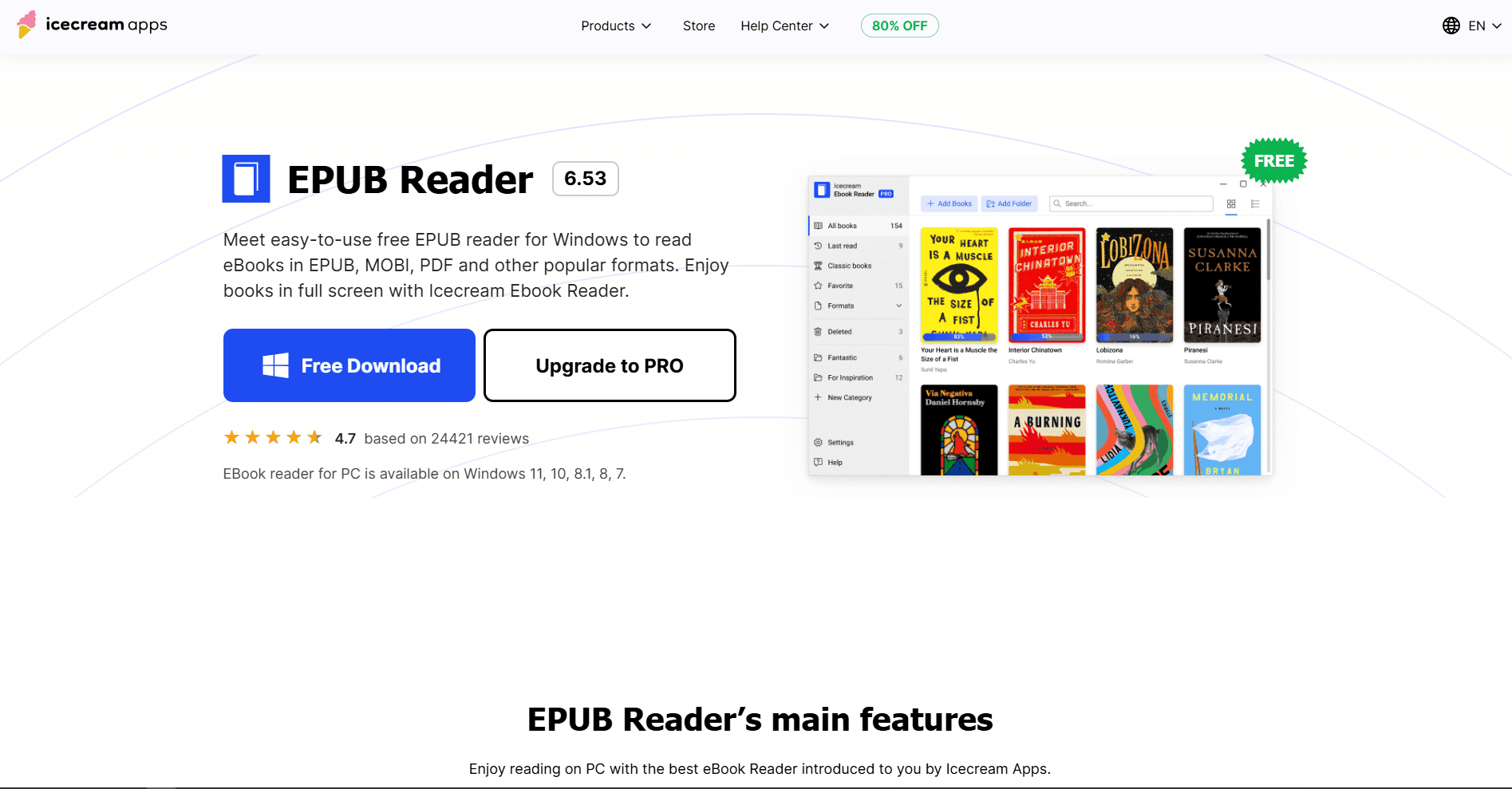
Icecream Ebook Reader is a beginner-friendly Windows ebook reader. It supports MOBI, EPUB, PDF, FB2, CBR, CBZ, TXT, and ZIP files.
The interface is simple: add books, open one, read. It also includes library organization, bookmarks, notes, highlights, full-screen reading, dark mode, and text-to-speech.
Install: Download from icecreamapps.com
What you get:
- MOBI, EPUB, PDF, FB2, CBR, CBZ, TXT, and ZIP support
- Simple Windows interface
- Library with categories and favorites
- Bookmarks, notes, and highlights
- Reading progress tracking
- Full-screen mode
- Dark reading mode
- Text-to-speech
- Works on Windows 11, 10, 8.1, 8, and 7
What you don't get:
- No Calibre-style conversion tools
- A paid upgrade for some features
- No documented account-based reading-position sync
- Not open-source
Icecream Ebook Reader is easier to approach than Calibre. Its official page says essential reading features are included in the free version; check the current upgrade page before paying because license terms and feature limits can change.
Best for: beginners, small ebook libraries, readers who want notes/highlights without learning Calibre.
5. FBReader (Best Cross-Platform Option)
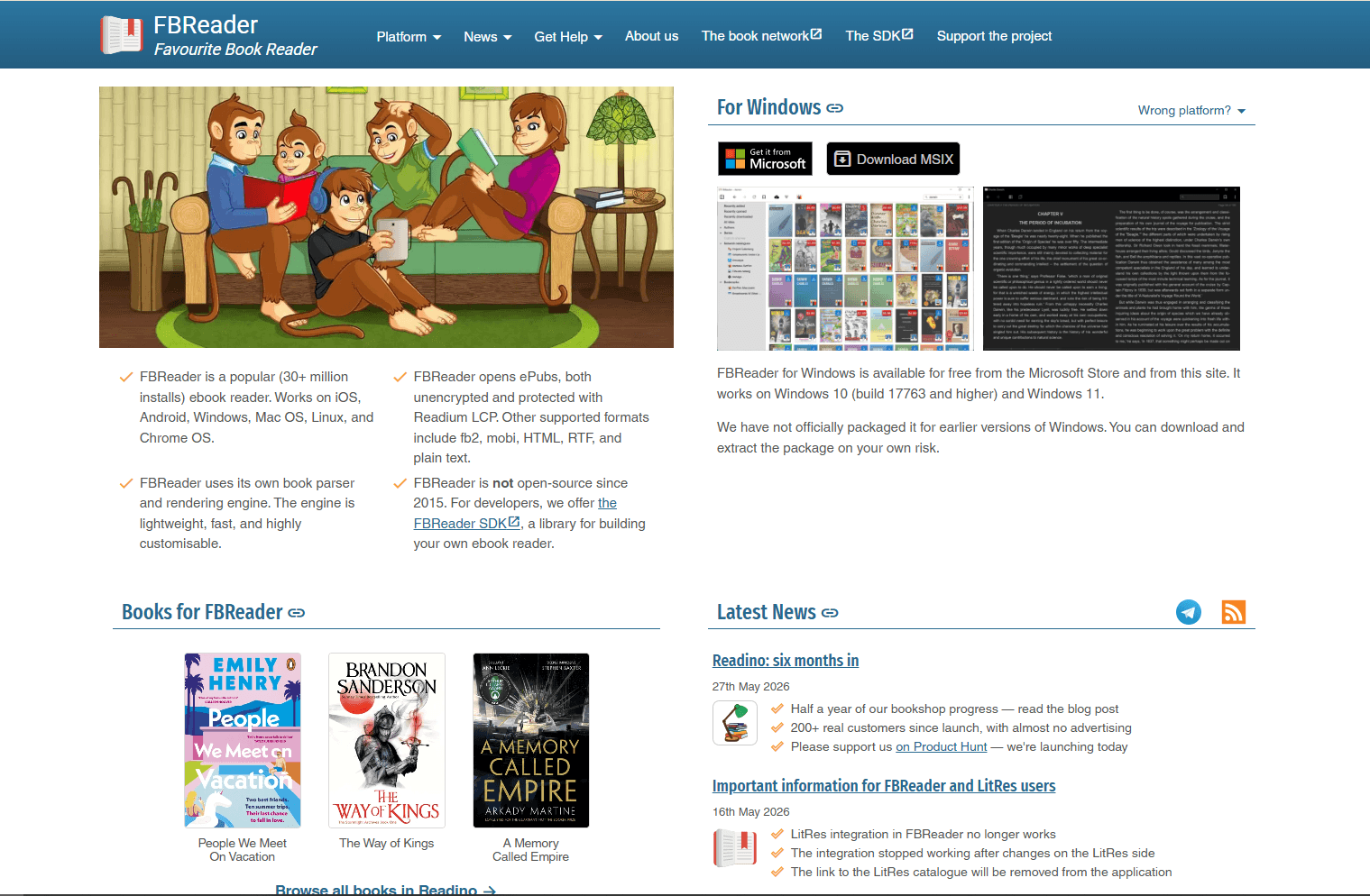
FBReader is a cross-platform ebook reader with Windows, macOS, Linux, Android, and iOS versions. Its current Windows app supports MOBI alongside EPUB, FB2, RTF, DOC, plain text, and CBZ. It requires Windows 10 build 17763 or newer and also supports Windows 11.
FBReader's strength is continuity across devices. If you read on Windows and Android, the same reader family is available on both platforms.
Install: Download from fbreader.org or use the Microsoft Store.
What you get:
- MOBI and EPUB support
- Cross-platform apps
- Bookmarks and optional reading-position synchronization
- Customizable fonts and colors
- OPDS catalog support
- Simple reading interface
- Support for older DRM-free MOBI collections
What you don't get:
- Calibre-level library management
- Calibre-level conversion
- No support for DRM-protected MOBI files
- No PDF or DOCX support in the Windows app
FBReader is worth considering if you already use it on Android, macOS, or Linux. Its optional cloud service can synchronize books, reading positions, and bookmarks after account setup, while the Windows app still handles local DRM-free MOBI reading.
Best for: readers who want the same ebook app across Windows and mobile devices.
6. Kindle App for Windows (Best for Amazon Kindle Users)
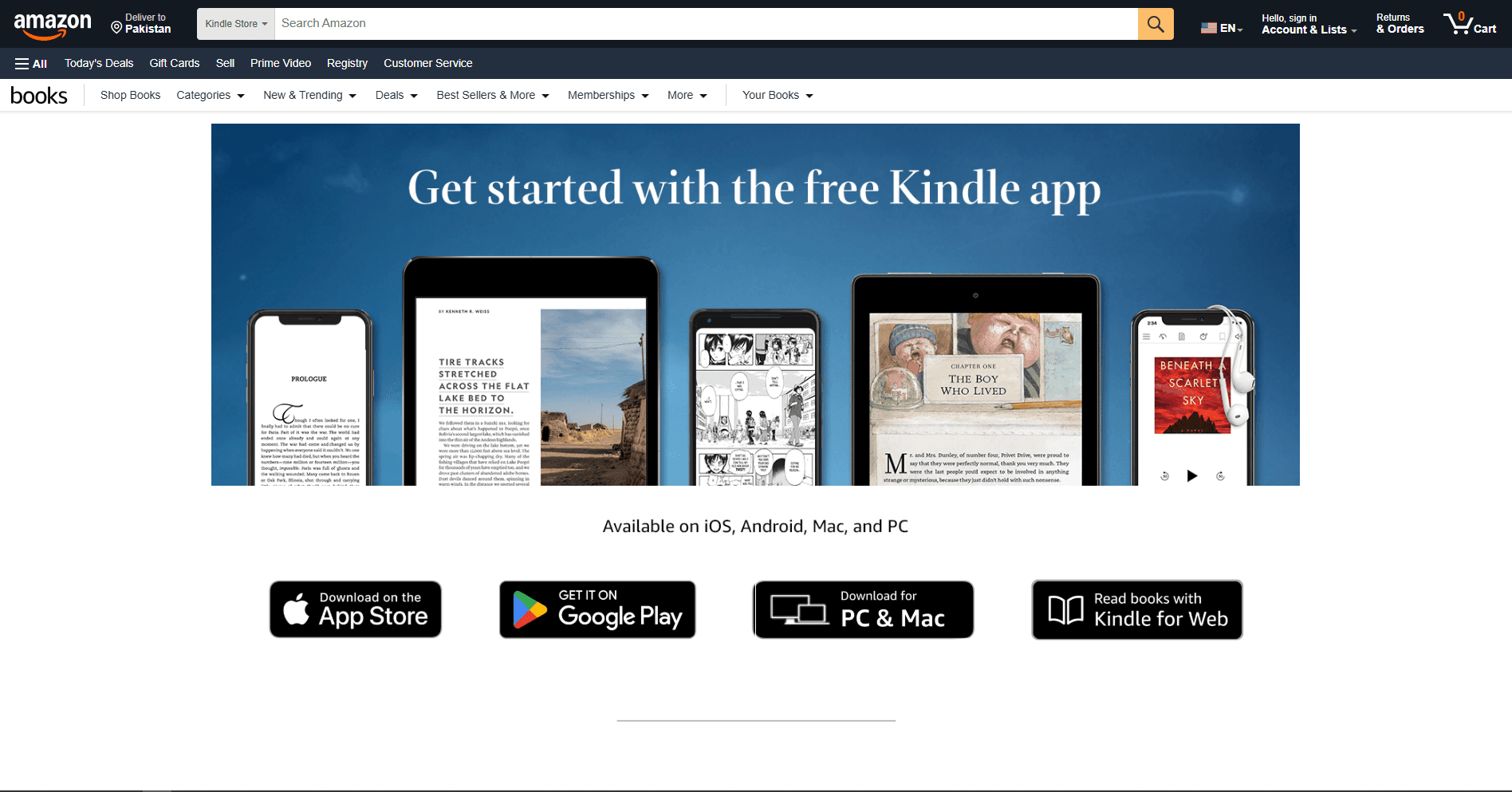
Kindle for Windows is the right choice if your books live in Amazon's Kindle ecosystem. The current desktop app supports Windows 11 and synchronizes supported books and reading data with Kindle devices and apps.
Amazon ended support for the legacy app previously called Kindle for PC on June 30, 2026. Do not treat the replacement app as a general-purpose MOBI reader. Amazon's current Send to Kindle file list includes EPUB but not MOBI personal documents, so Sumatra PDF or Calibre is usually better for a DRM-free MOBI file stored on your computer.
Install: Follow Amazon's current Kindle desktop instructions. On unsupported Windows versions, Amazon directs readers to Kindle for Web.
What you get:
- Sync with Kindle devices and apps
- Amazon Kindle Store access
- Reading position sync
- Highlights and notes sync
- Dictionary and lookup tools
- Font, theme, and margin controls
- Direct access to books in an Amazon Kindle library
What you don't get:
- A direct local MOBI-file workflow
- Library management outside Amazon
- Format conversion
- Support for Windows 10 in the current desktop app
The Kindle app belongs on this list because many MOBI and AZW files came from the Kindle ecosystem. If your goal is opening old DRM-free MOBI files from your hard drive, use Sumatra PDF or Calibre first.
Best for: Amazon Kindle users, purchased Kindle books, synced reading across Kindle devices.
MOBI Reader Comparison Table
Which MOBI Reader Should You Actually Use?
Use Sumatra PDF if you want a compact app for opening DRM-free MOBI files directly. Use Calibre if you have a folder full of ebooks and need library management, metadata cleanup, or conversion from MOBI to EPUB.
Use Koodo Reader if you want a modern interface with highlights, notes, and optional Pro synchronization. Use Icecream Ebook Reader if you prefer a straightforward Windows app for a small local library.
Use FBReader if you already read across Windows, Android, macOS, or Linux and want a familiar app on each platform. Use the current Kindle app if the books are Amazon purchases and your computer runs Windows 11.
Most Windows users only need two apps: Sumatra PDF for quick reading and Calibre for conversion and library management.
Important MOBI Limitations
MOBI is a legacy ebook format. It still opens fine in many readers, but it is no longer the best format for new books.
DRM matters: A DRM-free MOBI file opens in Sumatra PDF, Calibre, Koodo, Icecream, and FBReader. A DRM-protected Kindle file usually needs Amazon software or the original device/account.
MOBI has weaker table-of-contents behavior: Calibre's documentation explains that MOBI simulates a metadata table of contents differently from newer formats. If navigation looks odd after conversion, the format itself may be the reason.
EPUB is better for long-term use: If you control the file, convert MOBI to EPUB for modern readers. Keep MOBI only when you need compatibility with older Kindle devices or old archives.
How to Open a MOBI File on Windows
Fastest method:
- Install Sumatra PDF
- Right-click the MOBI file
- Choose Open with
- Select Sumatra PDF
- Check Always use this app if you want it as default
Power-user method:
- Install Calibre
- Click Add books
- Select the MOBI file
- Open it in Calibre's viewer or convert it to EPUB/AZW3
If the file does not open, it may be DRM-protected or corrupted.
Convert MOBI to EPUB on Windows
Calibre is the easiest option.
- Open Calibre
- Click Add books
- Select your MOBI file
- Click Convert books
- Set output format to EPUB
- Click OK
For command-line conversion:
ebook-convert input.mobi output.epubUse EPUB for modern ebook apps. Use AZW3 if you are preparing books for newer Kindle devices.
Set a Default MOBI Reader in Windows
- Right-click any .mobi file
- Select Open with
- Choose Choose another app
- Pick Sumatra PDF, Calibre, or your preferred reader
- Enable Always use this app to open .mobi files
- Click OK
For most people, Sumatra PDF is the best default. You can still import books into Calibre when you need library management or conversion.
Frequently Asked Questions
What is the best free MOBI reader for Windows?
Sumatra PDF is the best free MOBI reader for quick local reading because it opens DRM-free MOBI files directly without a library database. Calibre is the best free option if you also need library management or conversion.
Can Windows open MOBI files by default?
No. Windows does not include a built-in MOBI reader. Install Sumatra PDF, Calibre, Koodo Reader, Icecream Ebook Reader, FBReader, or the Kindle app depending on your workflow.
Can Microsoft Edge open MOBI files?
No. Edge is not a reliable MOBI reader. Use Sumatra PDF for quick local reading or Calibre for library management.
Can Calibre open MOBI files?
Yes. Calibre can open MOBI files and convert them to EPUB, AZW3, PDF, and other formats. It supports both older Mobi6 and newer KF8-style MOBI books.
Can I convert MOBI to EPUB?
Yes. Use Calibre. Add the MOBI file, click Convert books, choose EPUB as the output, and click OK. Review the converted book because text flow, images, and navigation can change.
Why won't my MOBI file open?
The file may be DRM-protected, corrupted, or mislabeled. Try opening it in Calibre. If Calibre cannot open it, the file may not be a normal DRM-free MOBI.
Is MOBI still a good ebook format?
For old Kindle archives, yes. For new books, EPUB or AZW3 is usually better. MOBI is legacy and has weaker support for modern ebook features.
Should I use the Kindle app for MOBI files?
Use the current Kindle app for Amazon Kindle purchases on Windows 11. For DRM-free MOBI files stored on your computer, Sumatra PDF or Calibre provides a more direct workflow. Send to Kindle currently accepts EPUB personal documents but not MOBI files.
Can I read MOBI files on Windows 11?
Yes. Sumatra PDF, Calibre, Koodo Reader, Icecream Ebook Reader, FBReader, and the current Kindle app run on Windows 11. Calibre's current build supports Windows 10 version 1809 and newer, while Amazon's current Kindle desktop app requires Windows 11.
Related Reading
More ebook reader guides:
- Best EPUB Readers for Windows
- Best EPUB Readers for Mac
- Best EPUB Readers for Android
- Best EPUB Readers for Ubuntu
Other Windows tool guides:
Read More
All Articles
7 Best MOBI Readers for Android in 2026 (Free & Paid)
Compare the best MOBI reader apps for Android, including ReadEra, Moon+ Reader, PocketBook Reader, Librera, FBReader, KOReader, and Kindle.
8 Best EPUB Readers for Windows in 2026 (Free & Paid)
Find the best EPUB reader for Windows 11 and 10 with library management, annotations, and sync. Compare Calibre, Sumatra PDF, Thorium Reader, and more for reading ebooks.
8 Best SVG Editors for Windows in 2026 (Free & Pro)
Compare the best SVG editors for Windows, including Boxy SVG, Inkscape, Affinity, VectorStyler, Illustrator, CorelDRAW, Figma, and SVGEdit.